


💡 Tested & Verified — June 2026
You run a scan in EaseUS or Disk Drill, your deleted files appear perfectly — then a paywall demands $69–$99 just to click “Recover.” This guide skips every freemium trap. We tested and verified 5 completely free data recovery tools for Windows with zero data caps — recover 10GB or 500GB, all for free.
| 5Tools Tested | $0Total Cost | ∞Data Recovery |
⏱️ 30-Second Summary — Best Free Data Recovery Tools (2026)
- Best for Beginners (GUI): Recuva — point-and-click wizard, zero limits, no command line needed.
- Best for Corrupted / Formatted Drives: PhotoRec — open-source, recovers 480+ file types from RAW disks.
- Best Native Microsoft Tool: Windows File Recovery — official, free, no third-party installs required.
- Best for Missing Partitions: TestDisk — repairs broken partition tables, makes unbootable drives work again.
- Best for Complex Failures: DMDE — lab-grade deep directory reconstruction, free folder-by-folder.
Picture this: you’ve spent days on a project — or years cataloging family photos — and with one accidental Shift + Delete, everything is gone. Most popular recovery apps like EaseUS, Disk Drill, and Stellar are freemium traps: they’ll scan your drive, show every recoverable file in glorious detail, then hit you with a paywall the moment you try to save a single one.
If you have hundreds of gigabytes of videos, documents, or project files to recover, a $69–$99 license is a painful surprise. Fortunately, a set of genuinely free tools exists — ones that deliver top-tier scanning performance with absolutely no data recovery limits.
⚠️ Critical Rule — Read Before You Download Anything
Never install or save your recovery software onto the same drive or partition where your deleted files are. Writing new data to that drive overwrites the exact storage clusters your lost files are sitting on — destroying them permanently. Always use a separate drive, USB stick, or external storage for both the recovery tool and the recovered output.
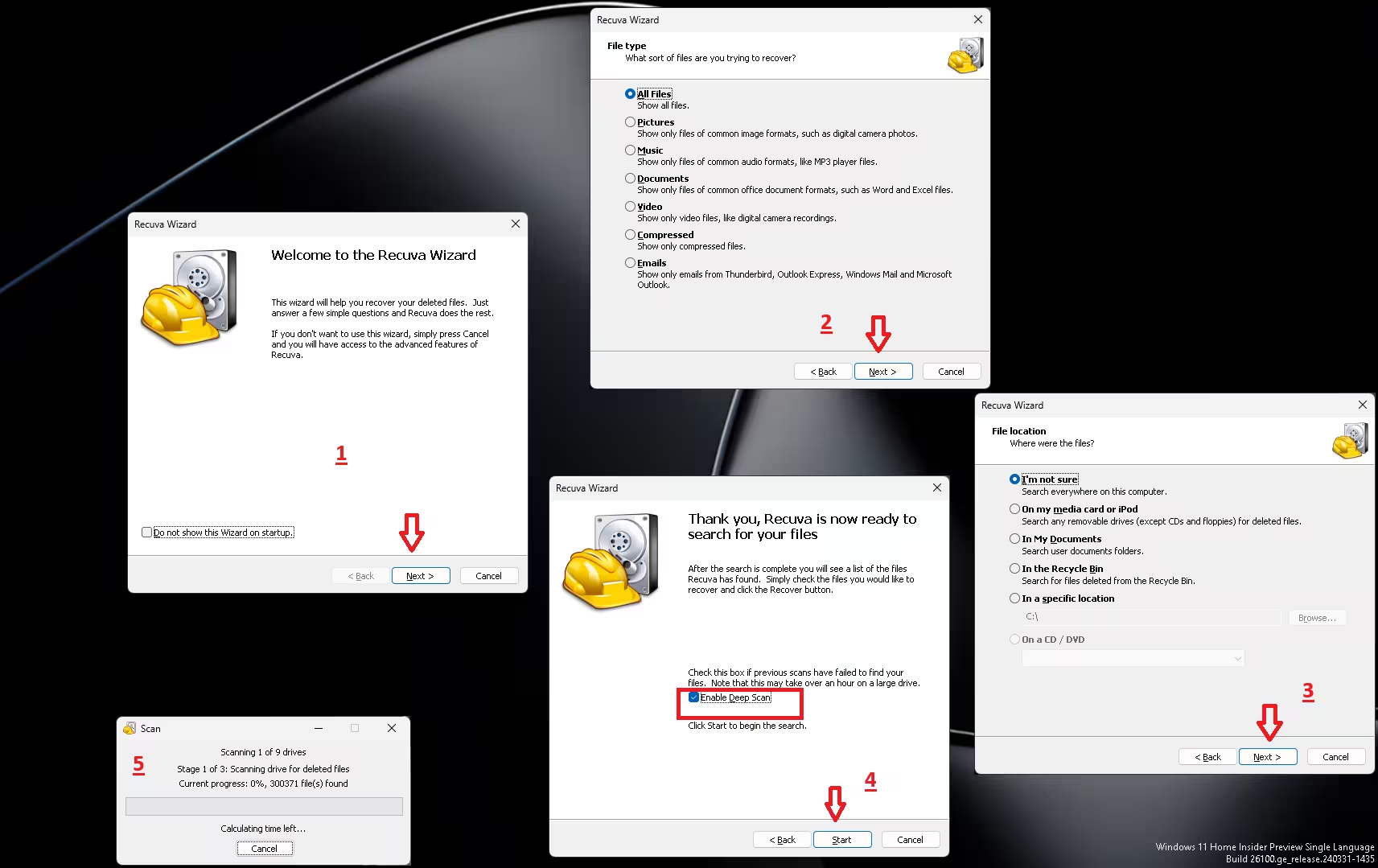
If you want a familiar Windows-style graphical interface with zero command-line involvement, Recuva by Piriform (the team behind CCleaner) is the perfect starting point. Its wizard-style setup walks you through the entire recovery process in plain English — even a first-timer can complete a full scan in under five minutes.

✅ The Good
|
❌ The Bad
|
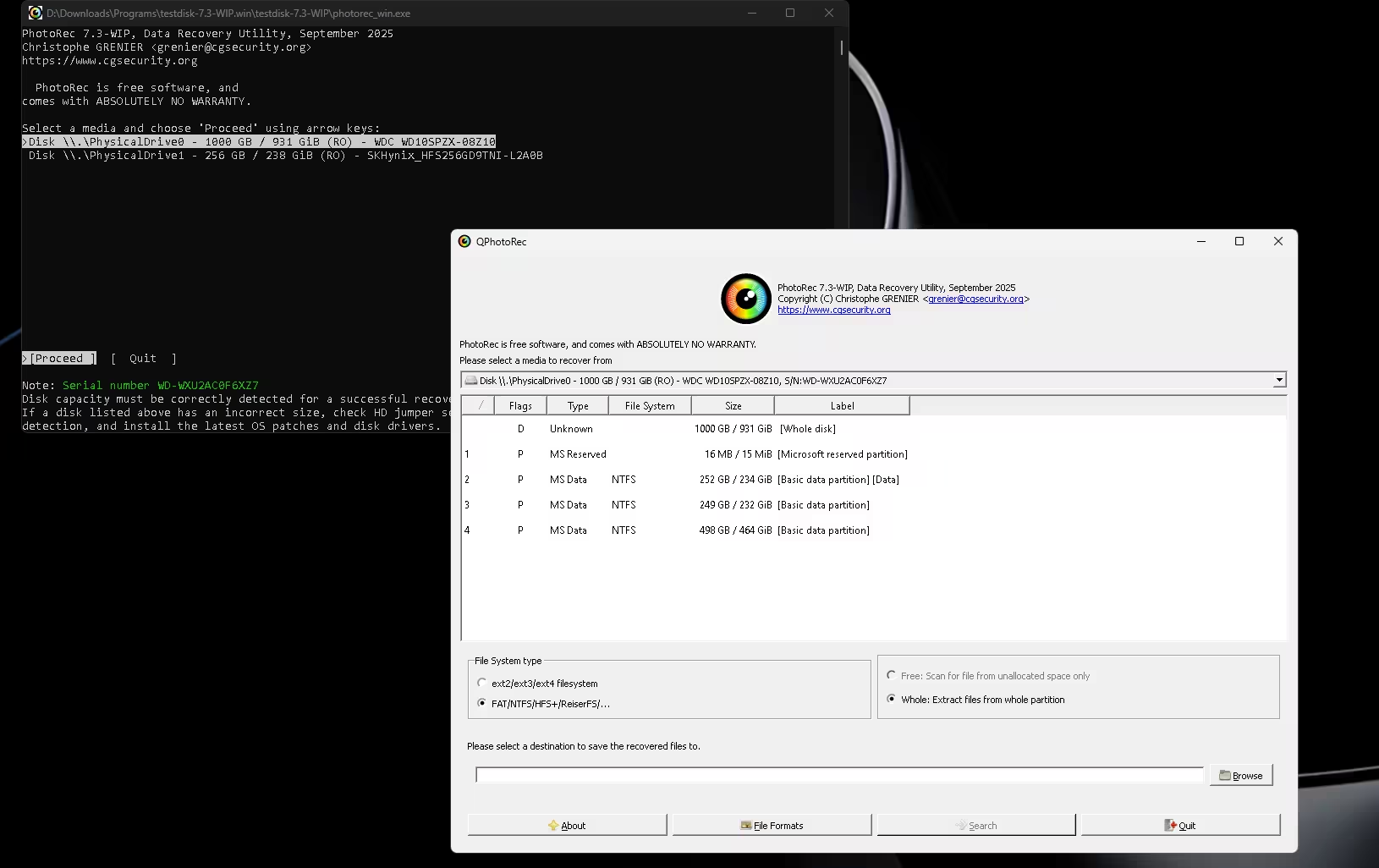
Don’t let the name fool you — PhotoRec recovers far more than photos. It carves out over 480 distinct file extensions, including ZIP archives, ISO disk images, Word/Excel documents, M4V videos, MP3s, and RAW camera files. It’s the go-to tool when a drive shows up as RAW or unformatted and every other app gives up.

✅ The Good
|
❌ The Bad
|
Many users don’t know that Microsoft built its own dedicated recovery utility, available for free directly from the Microsoft Store. If you want to avoid installing software from unfamiliar third-party websites, this is the most trustworthy and verified option available on any Windows machine.

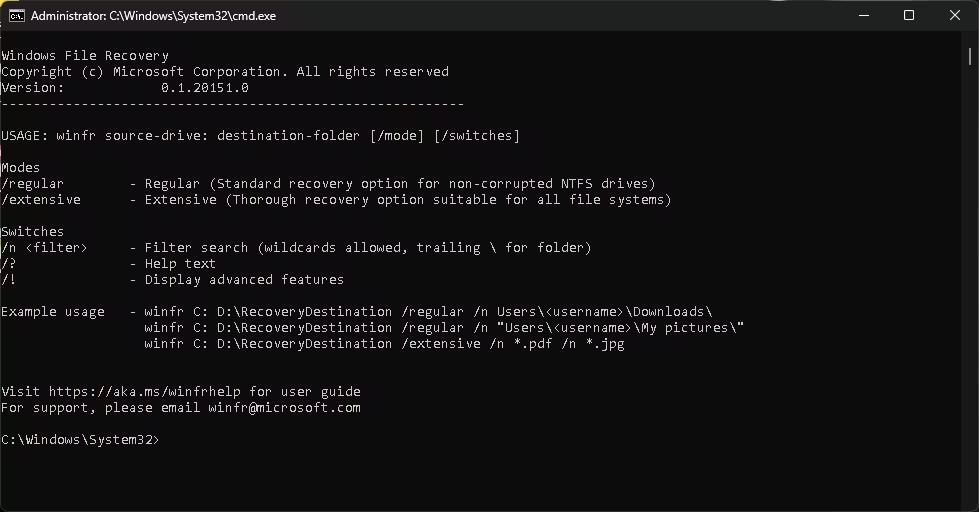
Example command for recovering all PDFs from drive C: to drive E::
winfr C: E: /extensive /n *.pdf
✅ The Good
|
❌ The Bad
|
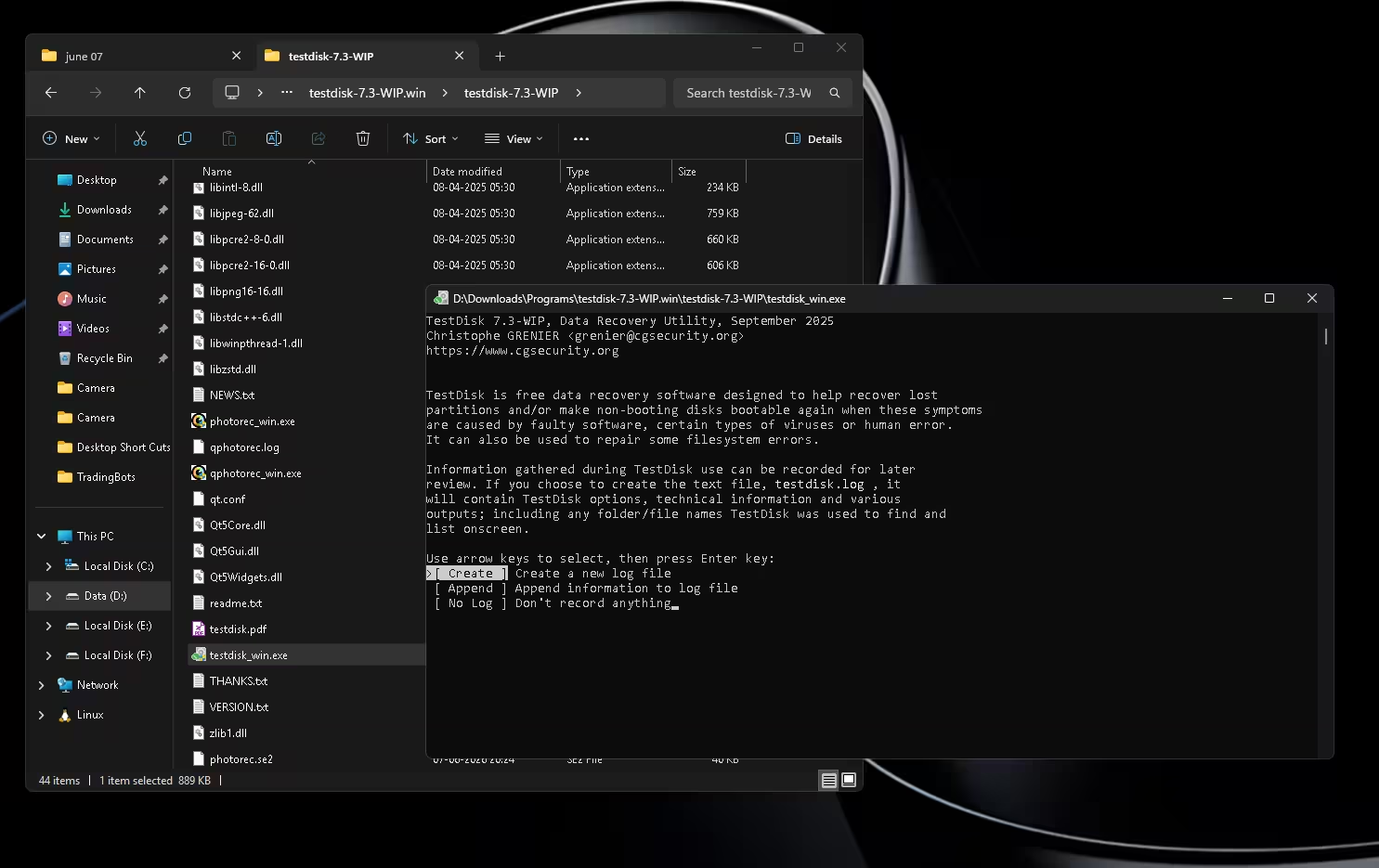
Developed by the same team behind PhotoRec, TestDisk solves a fundamentally different problem. Instead of scanning and copying deleted files elsewhere, it repairs the drive’s damaged structure in place — restoring access to files that were never actually deleted, just made inaccessible by partition corruption.
✅ The Good
|
❌ The Bad
|

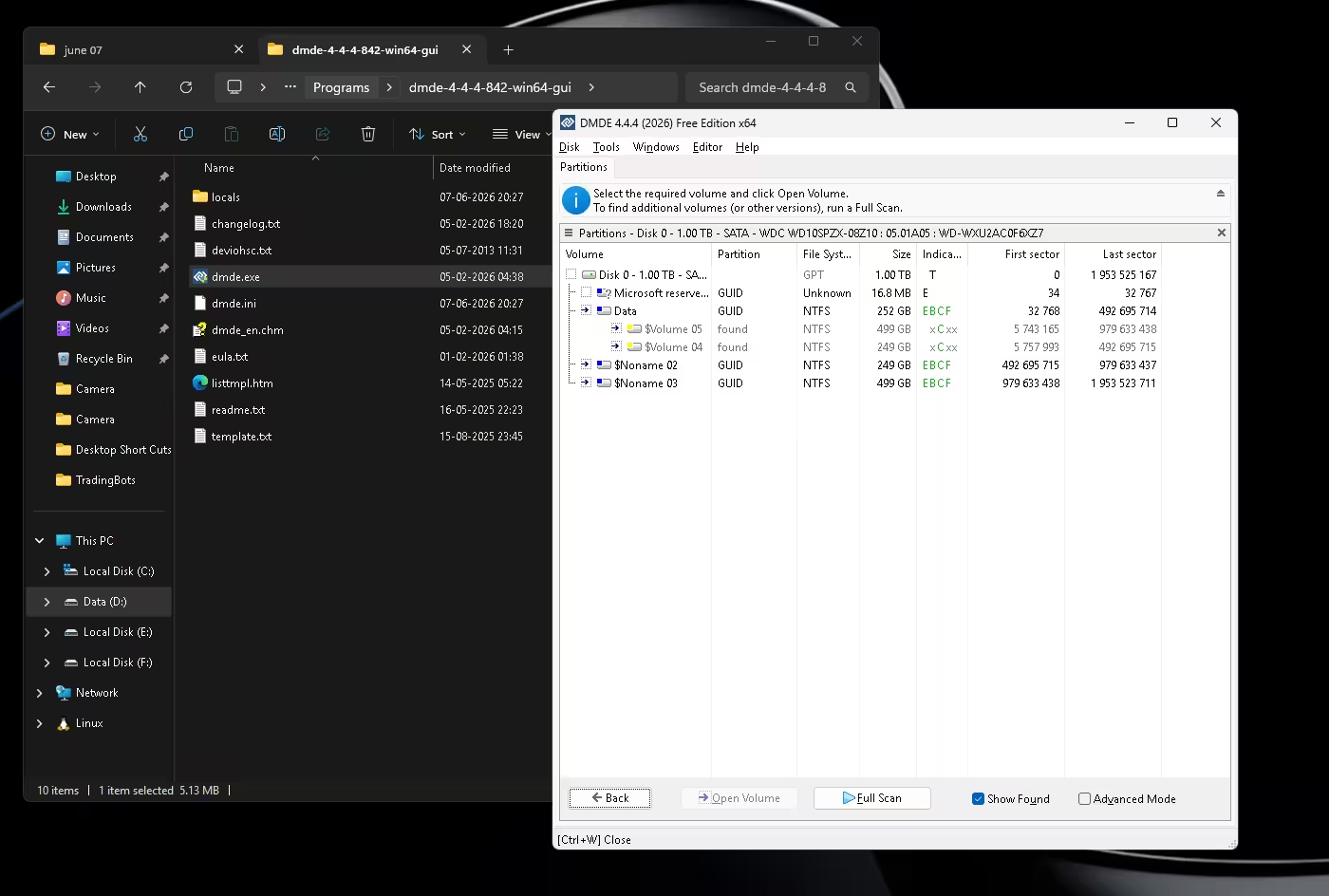
DMDE (DM Disk Editor & Data Recovery) is a professional-grade disk editor used in actual data recovery labs. Its free tier has an unusual but workable limitation that smart users can route around entirely — giving you lab-grade recovery at zero cost.
✅ The Good
|
❌ The Bad
|

Head-to-Head Comparison Table (2026)
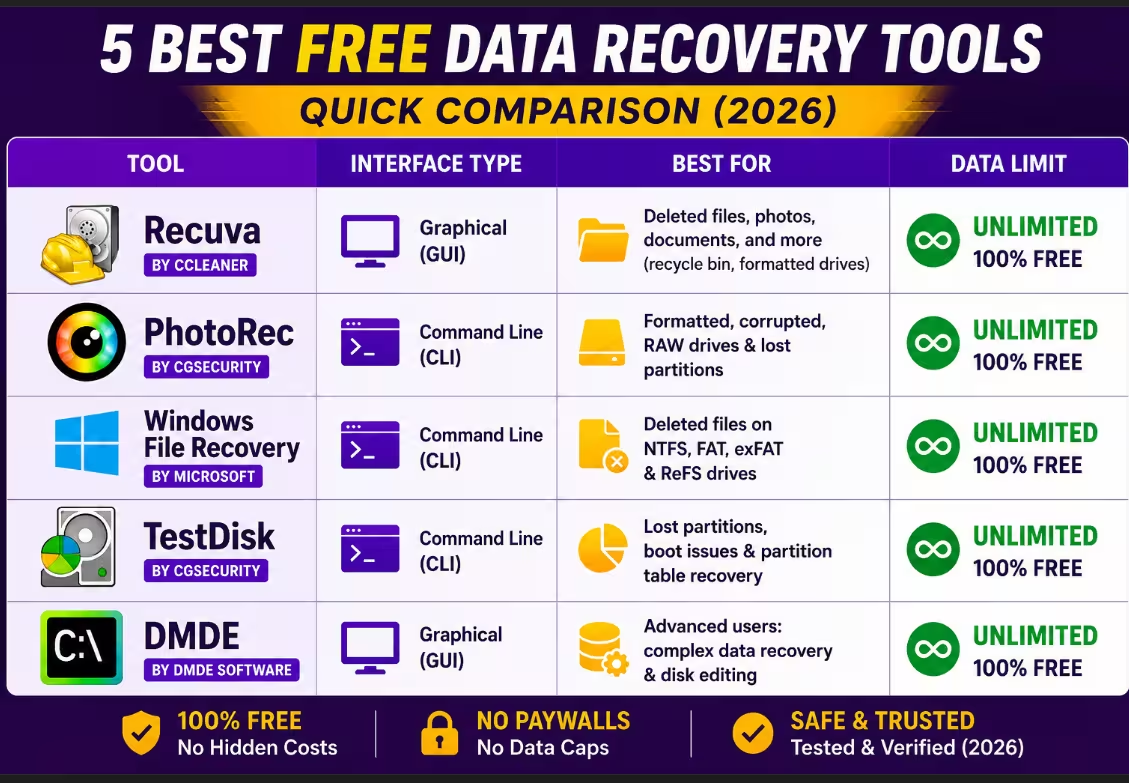
Use this quick-reference to match your exact situation to the right tool:
| Tool | Interface | Best For | Data Limit? | Download |
|---|---|---|---|---|
| Recuva | Graphical (GUI) | Beginners Accidental deletes, Recycle Bin | None — 100% free | ccleaner.com |
| PhotoRec | Text / CLI | Corrupted Drives Formatted SD / USB drives | None — open-source | cgsecurity.org |
| Windows File Recovery | Command Prompt | Trusted Microsoft-verified, no third parties | None — official free | Microsoft Store |
| TestDisk | Text / CLI | Partition Repair Missing / RAW / Unallocated | None — open-source | cgsecurity.org |
| DMDE | Advanced utility | Pro / Lab Complex structure failures | 4,000 files per folder op (volume: unlimited) | dmde.com |

🧭 Quick Decision Guide — Which Tool Is Right for You?
| Accidentally deleted files or emptied Recycle Bin? | → Recuva (run Deep Scan) |
| USB drive or SD card showing as RAW / “needs format”? | → PhotoRec |
| Entire partition missing or showing as Unallocated? | → TestDisk |
| Don’t want to install any third-party software? | → Windows File Recovery |
| Drive heavily scrambled, other tools failed to rebuild folders? | → DMDE (folder-by-folder) |
⚖️ The Techno360 Final Verdict — June 2026
You don’t need an expensive license or a risky crack to get your files back. These five tools cover every real-world data loss scenario on Windows — from an accidental Recycle Bin empty to a fully corrupted hard drive with a broken partition table.
- Most users: Start with Recuva — it’s visual, familiar, and completely unlimited.
- Corrupted or RAW drives: Invest 10 minutes learning PhotoRec’s text interface — its recovery matches paid software costing $99+.
- Missing partitions: TestDisk is built exactly for this — it can bring back an entire “lost” drive without touching your files.
- Zero trust in third parties: Microsoft’s own tool is in the Store, costs nothing, and has no strings attached.
- Complex failures: DMDE handles what nothing else can — lab-grade recovery, folder by folder, at zero cost.
If one tool doesn’t find your files, try the next — these are complementary, not competing. Got a data recovery success story? Drop it in the comments — we read every one!
Frequently Asked Questions
Are there any completely free data recovery tools with zero data limits?
Yes. Recuva, PhotoRec, TestDisk, and Windows File Recovery all offer 100% unlimited data recovery on Windows in 2026 with no premium upgrade required.
Why do EaseUS and Disk Drill cap free recovery at 500MB or 2GB?
It’s a deliberate freemium model — they show you every recoverable file to build urgency, then block the save button until you pay $69–$99 for a Pro license. The cap is a business decision, not a technical limitation.
Can I recover data from a formatted or corrupted external hard drive for free?
Absolutely. PhotoRec bypasses the corrupted file system entirely, scanning raw disk sectors by file signature. It’s extremely effective on drives that Windows can’t even read normally.
Is Recuva safe to use in 2026?
Yes — Recuva is developed by Piriform (creators of CCleaner) and has been a trusted freeware tool for over 15 years. Always download from the official CCleaner/Piriform website to avoid bundled adware from third-party mirrors.
What is the best free data recovery software for beginners in 2026?
Recuva is the top pick for beginners. Its wizard-style interface guides you step by step, requires no command-line knowledge, and places absolutely no limit on how much data you can recover for free.
Can Windows File Recovery recover permanently deleted files?
Yes. It recovers files deleted from the Recycle Bin, formatted drives, and emptied folders. Use Regular mode for NTFS drives (recent deletions) and Extensive mode for FAT/exFAT drives or older deletions. Act quickly — the sooner you run it, the higher the success rate.


