
In an era where data is among our most valuable assets, the threat of losing files to a hardware crash, accidental deletion, or a ransomware attack is very real. According to industry data, hard drives fail at an alarming rate globally every week, and a huge proportion of data loss events stem from hardware issues.
The good news is that modern backup software has evolved far beyond simple file copying—and CBackup Professional is a compelling example of just how powerful and versatile a Windows backup solution can be in 2026.
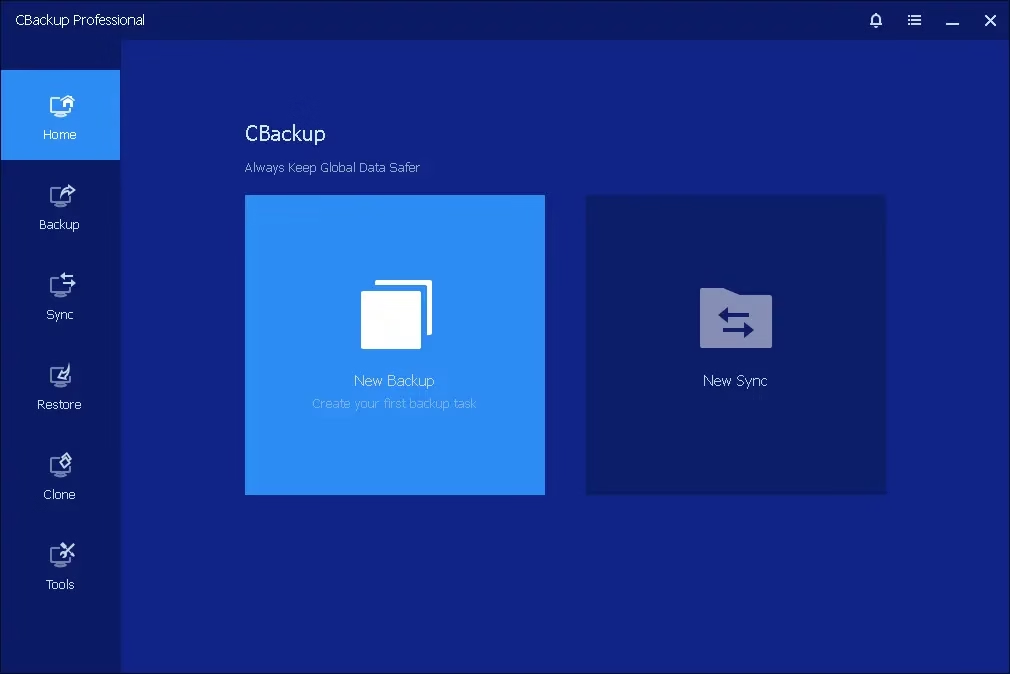
Whether you are a home user with years of irreplaceable photos, a freelancer with critical project files, or a small office managing multiple workstations, CBackup Professional offers a unified platform to protect, sync, clone, and manage your data across both local storage and the cloud.
In this review, we will walk you through everything you need to know about CBackup Professional—from its core features and standout capabilities to who it is best suited for and why it deserves a place in your digital toolkit.
Contents
- 1 What Is CBackup Professional?
- 2 Key Features of CBackup Professional
- 2.1 1. Comprehensive System and File Backup
- 2.2 2. Advanced Folder Synchronization
- 2.3 3. Disk Cloning and OS Migration
- 2.4 4. Scheduled and Automated Backup Tasks
- 2.5 5. Cloud-to-Cloud Backup and Synchronization
- 2.6 6. Combine Multiple Cloud Accounts into One Unified Space
- 2.7 7. Quick and Flexible Restore Options
- 3 Security and Data Privacy
- 4 Who Should Use CBackup Professional?
- 5 CBackup Professional vs. Competing Backup Tools
- 6 Pricing and Availability
- 7 Final Verdict: Is CBackup Professional Worth It?
What Is CBackup Professional?
CBackup Professional is a feature-rich data protection software developed by AOMEI Software, a well-known name in the Windows backup and recovery space.
The Professional edition builds on the free version by offering advanced capabilities designed for power users who need more control, flexibility, and automation in their backup workflows. It supports Windows 11, 10, 8.1, 8, 7, and even Windows Server environments—making it a versatile choice for both personal and light business use.
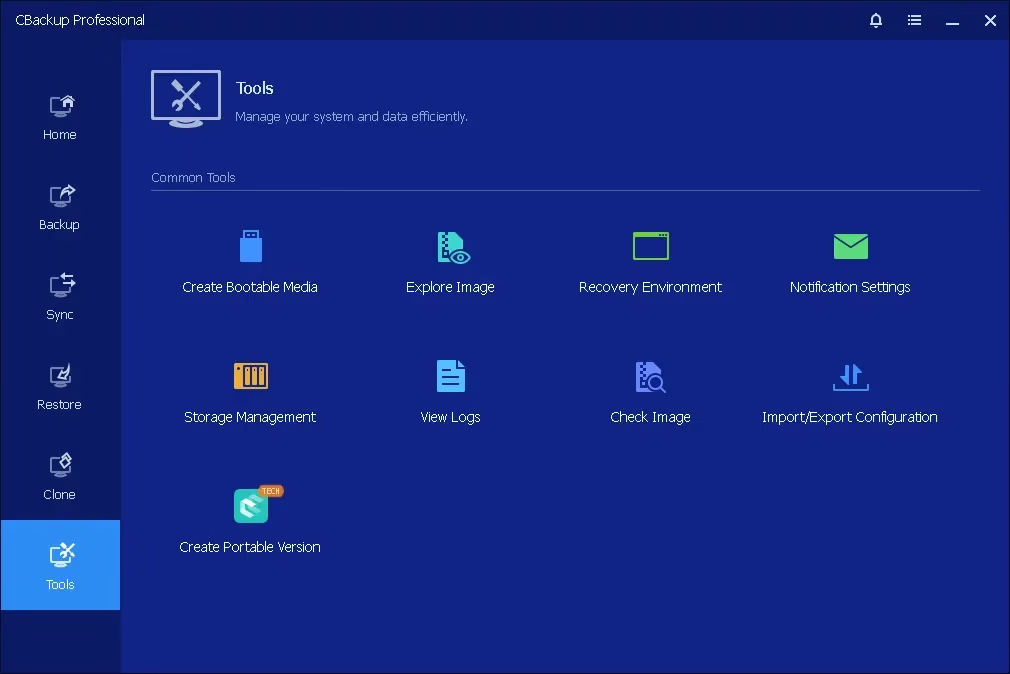
At its core, CBackup Professional brings together four major pillars of data protection: system and file backup, folder synchronization, disk cloning, and cloud-to-cloud backup management. Having all of these functions under one roof means you can craft a comprehensive data protection strategy without juggling multiple tools or subscriptions.
Key Features of CBackup Professional
1. Comprehensive System and File Backup
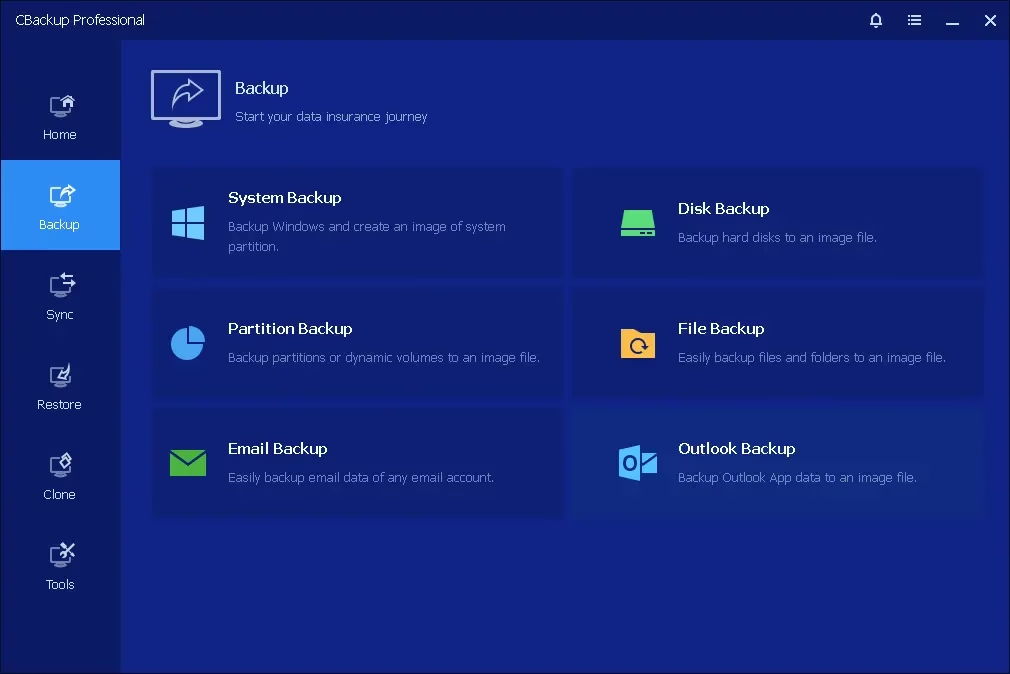
One of the most fundamental features of CBackup Professional is its ability to back up virtually anything on your Windows PC. You can create complete system image backups that capture your entire operating system, settings, installed applications, and all user data in a single snapshot. This means that if your Windows installation ever becomes corrupted or your hard drive fails, you can restore everything to exactly how it was—without spending hours reinstalling software and reconfiguring your setup.
Beyond full system backups, the software lets you selectively back up specific partitions, entire disks, or individual files and folders. This granular control is particularly useful for users who only need to protect certain directories, such as a work project folder or a documents library, without the overhead of a full system backup every time.
2. Advanced Folder Synchronization
CBackup Professional goes well beyond basic backup by offering robust folder synchronization capabilities.
You can set up automatic sync tasks that mirror your files across different drives, external storage devices, or Network Attached Storage (NAS) systems. This ensures that your important files are always up to date across multiple locations, reducing the risk of working from an outdated copy.
The software supports multiple sync modes to fit different use cases. One-way mirroring keeps a destination folder as an exact replica of the source, which is ideal for maintaining strict data consistency.
Two-way sync, on the other hand, is perfect for collaborative environments where changes made from either side need to propagate to the other. Real-time sync ensures that changes are reflected almost instantly, which is invaluable for users who work with frequently updated files.
3. Disk Cloning and OS Migration
Upgrading from a traditional spinning hard drive to a faster Solid State Drive (SSD) is one of the most impactful performance upgrades you can make to an aging Windows PC.
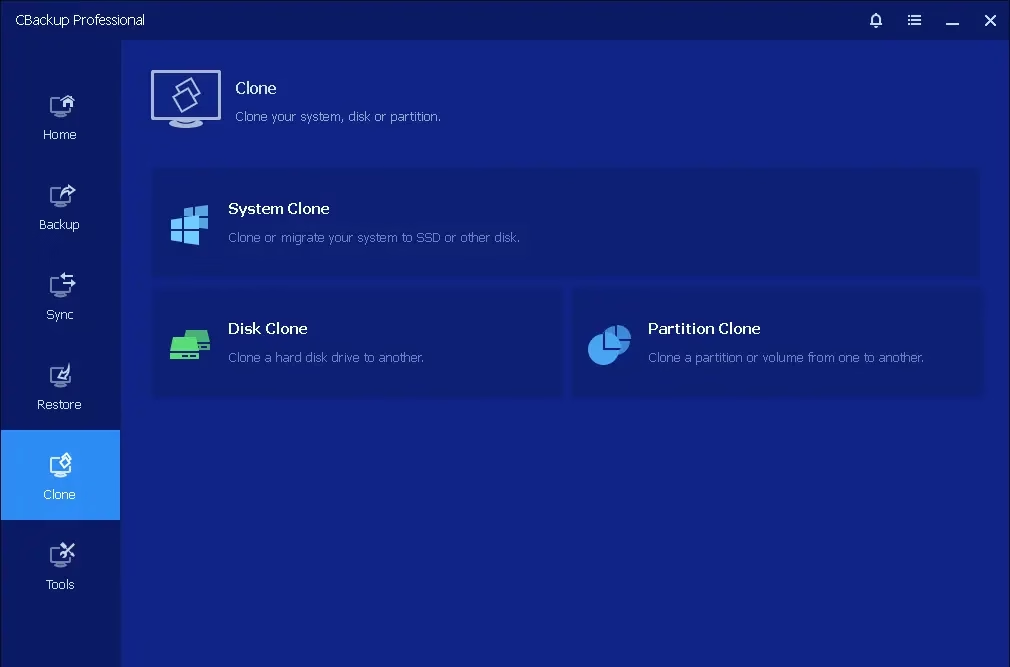
CBackup Professional makes this process straightforward with its disk cloning and OS migration feature. You can transfer your live operating system—complete with all your installed programs, settings, and personal data—from an HDD to an SSD without having to reinstall Windows from scratch.
The cloned operating system remains fully bootable, and all your data is preserved exactly as it was on the original drive. This feature is equally useful when migrating data to a larger hard drive, replacing a failing disk, or simply creating a bootable backup copy of your current system on a separate drive.
4. Scheduled and Automated Backup Tasks
One of the biggest reasons people fail to maintain good backup habits is that manual backups are easy to forget.
CBackup Professional solves this problem with powerful scheduling options that let you automate backup and sync tasks on a daily, weekly, monthly, or even event-based schedule. Once you configure a task, the software operates silently in the background, safeguarding your data without requiring any effort from you.
You can also set the software to run a backup automatically when a specific event occurs—for example, when you connect an external USB drive or when the system starts up. This kind of event-triggered automation adds a layer of flexibility that goes beyond simple time-based scheduling.
5. Cloud-to-Cloud Backup and Synchronization
Modern users typically spread their files across multiple cloud storage services—Google Drive for documents, OneDrive for work files, Dropbox for sharing, and so on.
CBackup Professional’s cloud management capabilities allow you to back up files from one cloud service to another automatically, without having to download files to your PC and re-upload them manually. This direct cloud-to-cloud transfer saves time and bandwidth while ensuring your cloud data has an extra layer of redundancy.
The sync feature extends to the cloud as well, letting you keep files aligned across different cloud accounts automatically. If you update a file on Google Drive, for example, CBackup can sync those changes across to another cloud of your choice—all without any manual intervention.
6. Combine Multiple Cloud Accounts into One Unified Space
Perhaps one of the most creative features in CBackup Professional is its ability to merge multiple cloud storage accounts into a single, unified backup destination.
Instead of being limited to the storage cap of any one cloud service, you can combine the free storage tiers from Google Drive, OneDrive, Dropbox, and other supported services into a much larger aggregate space—effectively creating an expansive, cost-free cloud backup solution.
This feature is especially useful for users who have accumulated multiple cloud accounts over the years and want to put all that unused storage to work without paying for a premium plan.
7. Quick and Flexible Restore Options
Creating backups is only half the equation—being able to restore your data quickly when disaster strikes is equally important. CBackup Professional offers a streamlined restore process that lets you recover your full system, individual partitions, or specific files from any previously created image backup.
The restore interface is intuitive enough for non-technical users to navigate, while offering enough control options for advanced users who need to customize the recovery process.
Whether you need to roll back your system after a bad Windows update, recover a file you accidentally deleted three weeks ago, or rebuild an entire workstation from a system image, CBackup Professional handles the job efficiently.
Security and Data Privacy
Data security is a non-negotiable requirement for any serious backup solution. CBackup Professional ensures the safety of your backups by implementing 256-bit AES encryption during all data transfers.
Cloud integration is handled via OAuth authentication, which means the software never stores your cloud login credentials—only a secure authorization token is used to access your storage accounts.
For users who need to comply with data privacy regulations, CBackup also adheres to GDPR principles, processing only the personal data strictly necessary for its functions. This commitment to privacy and security makes it a trustworthy choice for both individual users and small businesses handling sensitive information.
Who Should Use CBackup Professional?
CBackup Professional is well-suited to a broad range of users. Home users who want a worry-free, automated backup system for their photos, videos, and documents will find it approachable and easy to configure.
Professionals and freelancers who cannot afford to lose their project files will appreciate the scheduling flexibility and the cloud sync features that keep multiple storage locations in sync. IT enthusiasts and power users planning storage upgrades will benefit from the disk cloning and OS migration tools.
Small businesses or home offices with multiple Windows computers and data spread across cloud services will find the centralized backup and cloud management capabilities particularly valuable.
Even users who are not deeply technical will find CBackup Professional manageable, thanks to its clean interface and guided task setup. The software strikes a good balance between simplicity for everyday users and depth of features for those who want fine-grained control.
CBackup Professional vs. Competing Backup Tools
The Windows backup software market is populated by well-known names like Acronis True Image, EaseUS Todo Backup, and Macrium Reflect. What sets CBackup Professional apart is its combination of local backup, disk cloning, and cloud-to-cloud management in a single, relatively affordable package. Many competing tools charge separately for cloud integration or limit advanced features to expensive enterprise tiers. CBackup Professional’s ability to combine multiple free cloud accounts into a unified backup space is a particularly unique value proposition that few competitors offer.
For users already in the AOMEI ecosystem—perhaps using AOMEI Backupper for local backups—CBackup Professional’s additional cloud features make it a natural complement or upgrade path.
Pricing and Availability
CBackup Professional is regularly priced at around $47.88, which represents solid value given the breadth of features on offer.
The software supports Windows 7 through Windows 11 as well as Windows Server environments, covering a wide range of hardware configurations. A free base version is also available for users who want to test the core backup and sync capabilities before committing to the Professional tier.
Giveaway:
The professional license to CBackup is sometimes given away for free for a short time. This is a great chance for users who want to try out all of the features without having to pay for them all at once.
Download the installer from https://dl.cbackup.com/CBackup_Free.exe
Run the installer and complete the installation process.
Note: This software conflicts with AOMEI Backupper (you should uninstall it)
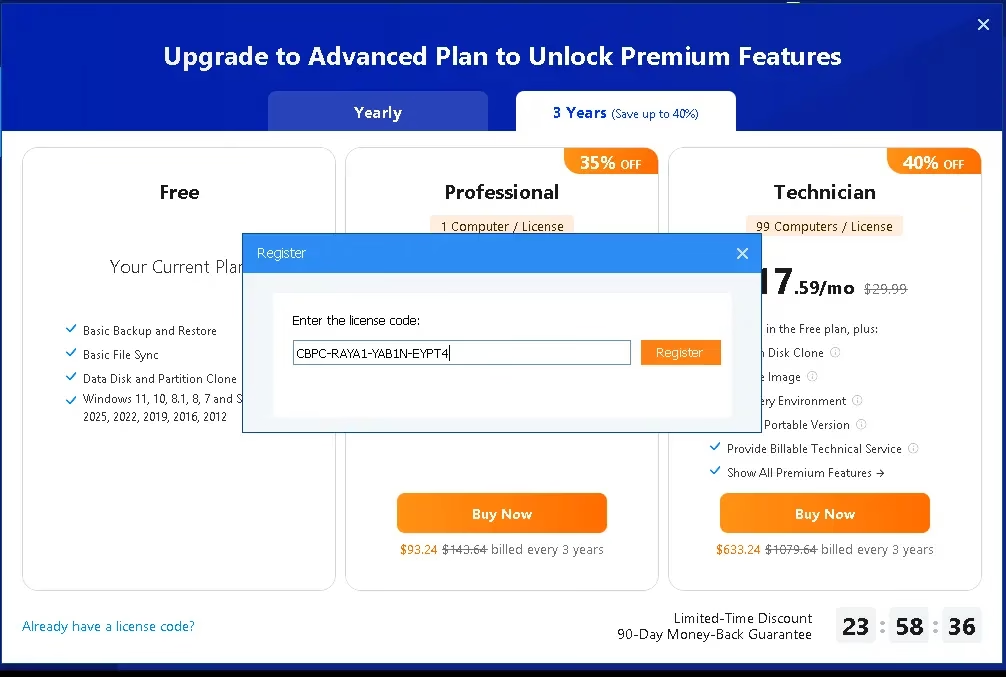
Start the CBackup app, click “Upgrade” or “24 Hrs Sale,” enter the giveaway code below, and then click “Register.”
Giveaway License: CBPC-GTUFC-DQRZP-MCDLF
Note: The above code provides a 6-month pro subscription for free.
Final Verdict: Is CBackup Professional Worth It?
In a world where data loss can happen without warning, having a reliable, automated backup solution is not a luxury—it is a necessity. CBackup Professional delivers an impressive range of features that cover virtually every data protection scenario a Windows user might face, from creating bootable system images and migrating an OS to a new SSD to syncing files across local drives and managing backups across multiple cloud services simultaneously.
Its clean interface, strong security standards, and thoughtful automation features make it accessible to casual users while still offering the depth that power users and IT-minded individuals will appreciate. If you are looking for a single tool to handle all your Windows backup, sync, clone, and cloud management needs, CBackup Professional is well worth your attention.
Have you tried CBackup Professional or another Windows backup solution? Share your experience in the comments below—we would love to hear what works best for you!


Discover more from Techno360
Subscribe to get the latest posts sent to your email.
You must be logged in to post a comment.