


Hidden behind a single URL — chrome://flags — Chrome quietly hides 300+ experimental features. We tested them all. These are the ones actually worth turning on right now.
chrome://flags is a hidden lab of experimental switches that can speed up downloads, force dark mode on every site, save serious RAM, and unlock features Google has not officially shipped yet.
The catch? Most flags have cryptic names, sit behind a scary warning banner, and a few of them can break things. So I have spent the last few weeks separating the genuinely useful from the noise. Below are the chrome flags for power users that I personally keep enabled in 2026 — every one tested on the latest stable Chrome build, with clear instructions you can follow in 30 seconds.
- Parallel Downloading + GPU Rasterization deliver the biggest real-world speed jump for any laptop.
- Auto Dark Mode for Web Contents turns every site dark — no extension required.
- Vertical Tabs + Tab Strip Declutter finally make 50+ open tabs manageable.
- Test Third-Party Cookie Phaseout previews the privacy-first web rolling out across 2026.
- One flag to DISABLE right now: the silent Gemini Nano 4 GB AI download (details below).
- Restart required after every change — Chrome shows a Relaunch button automatically.

What Are Chrome Flags (and Are They Safe)?
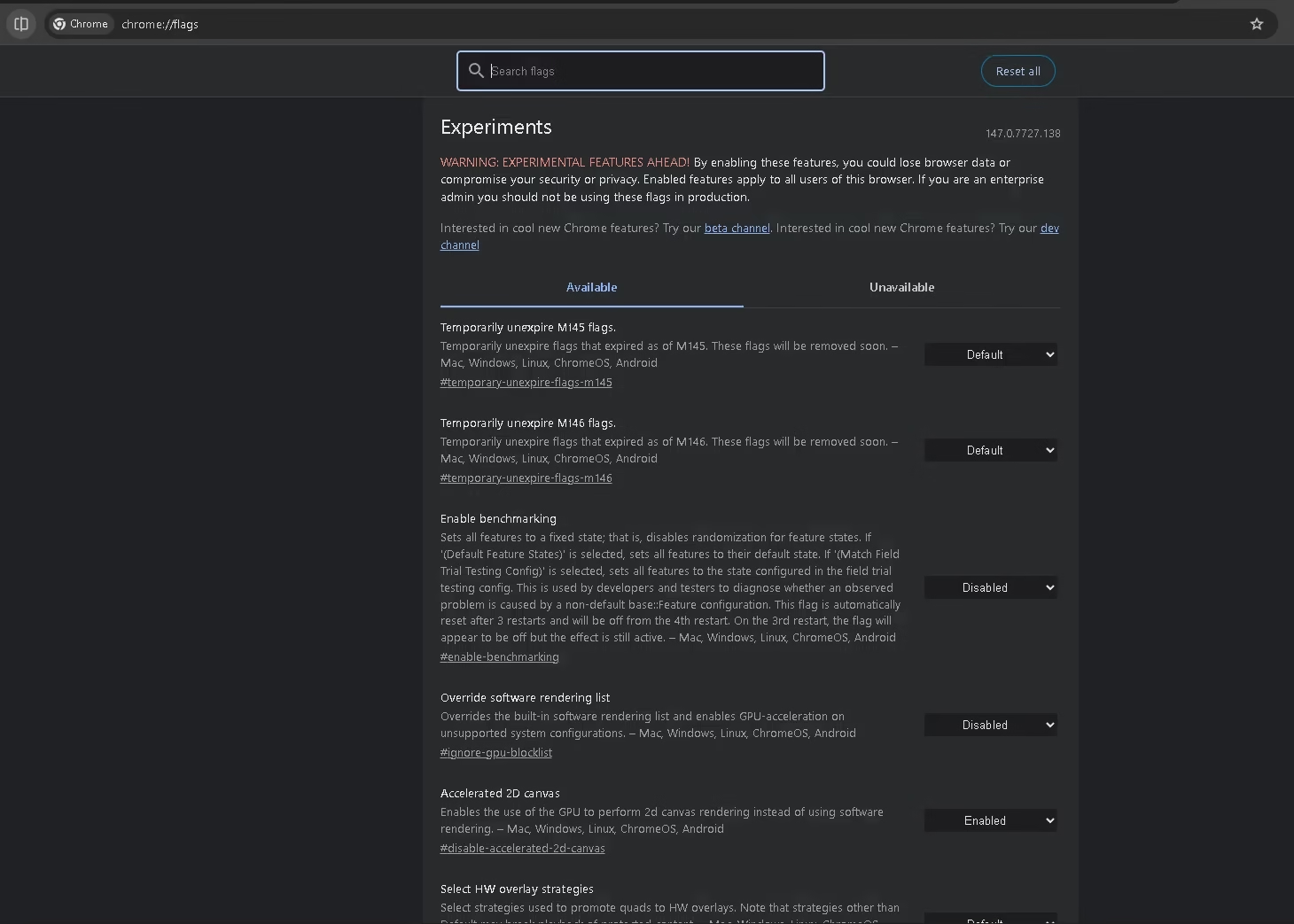
Chrome flags are experimental features Google ships in the stable browser but keeps switched off by default. Engineers use them to test changes before rolling them out to two billion users. Anyone can flip them on — you do not need Chrome Canary, beta access, or developer tools. Are they safe? Mostly, yes. Flags marked as stable rarely break anything. Bleeding-edge ones occasionally cause glitches, but every flag can be reverted in two clicks. There is even a Reset all button at the top of the flags page that restores defaults instantly.How to Enable a Chrome Flag (Universal Steps)
- Type
chrome://flagsinto the address bar and press Enter. - Use the search box at the top to find the flag by name or path.
- Click the dropdown beside it and pick Enabled (or Disabled, where noted).
- Click the blue Relaunch button that appears at the bottom of the screen.

1 Parallel Downloading
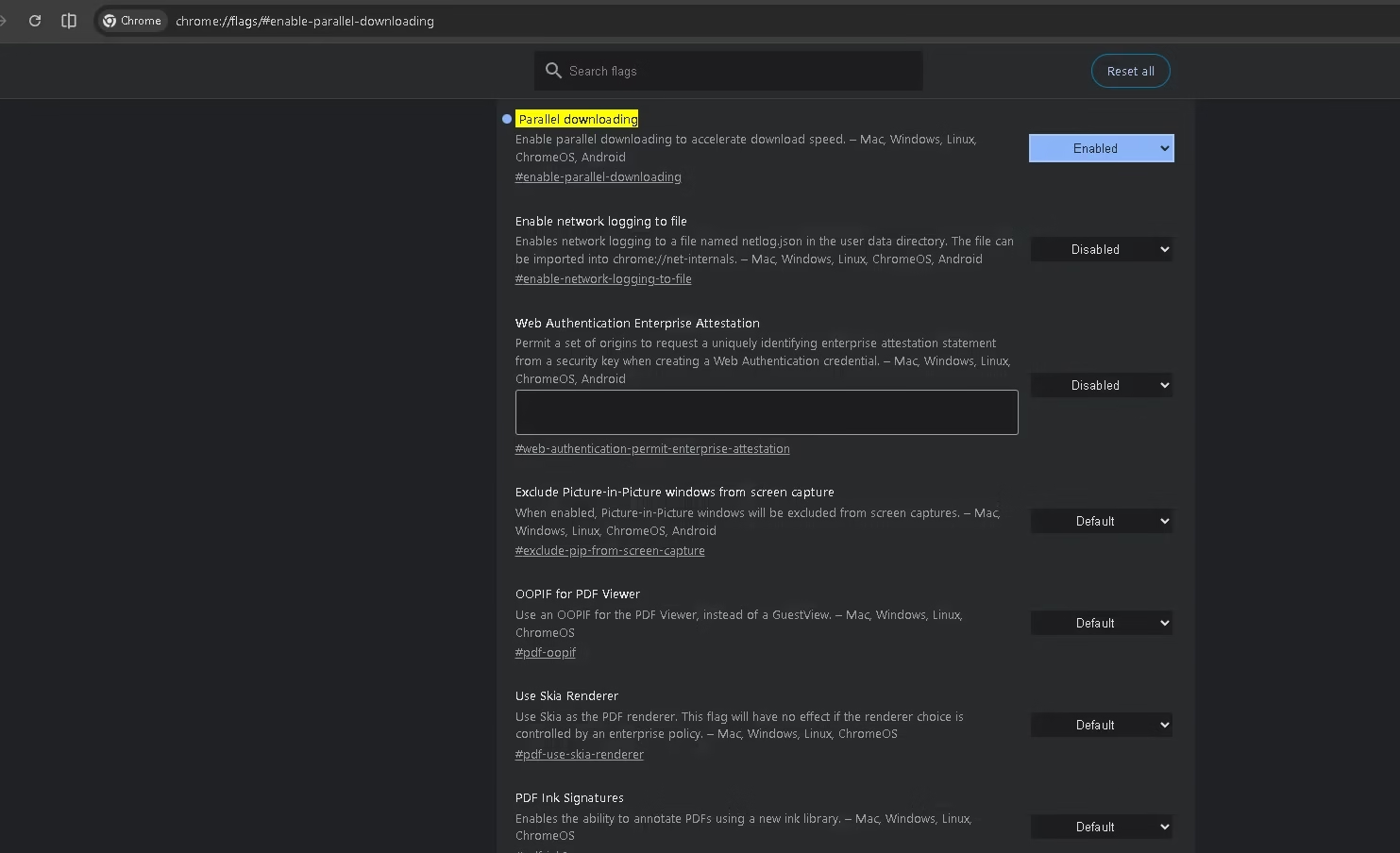
chrome://flags/#enable-parallel-downloading
The single biggest speed boost on this list. Instead of downloading a file from start to finish in one stream, Chrome splits it into chunks and grabs them simultaneously over multiple connections. Large files — game installers, video clips, ISO images — finish dramatically faster, especially on fast broadband or fibre connections.
Real-world impact: A 4 GB download that took 12 minutes on my line dropped to under 4 minutes. If you grab files regularly, this flag pays for itself in hours saved every month.

2 GPU Rasterization
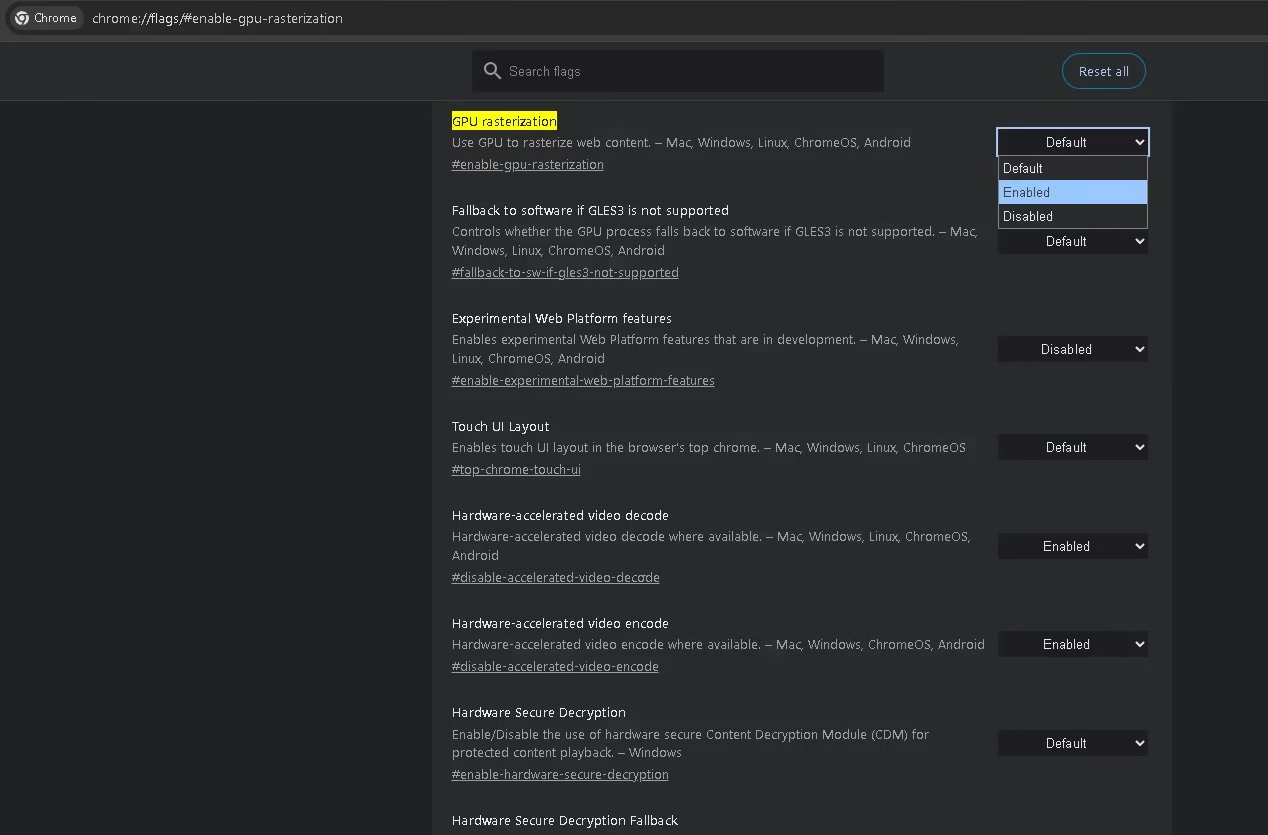
chrome://flags/#enable-gpu-rasterization
Modern websites are heavy — animated hero sections, infinite-scroll feeds, embedded video, web apps that feel like native software. By default, Chrome only uses your GPU for rendering on hardware it considers “fast enough.” Force it on and Chrome offloads page-painting work from your CPU to the GPU, freeing the CPU for everything else you have running.
Pro tip: Visit chrome://gpu first. If “GPU rasterization” already shows green there, you are getting the benefit anyway and do not need the flag. If it is grey or blacklisted, this flag forces it on.

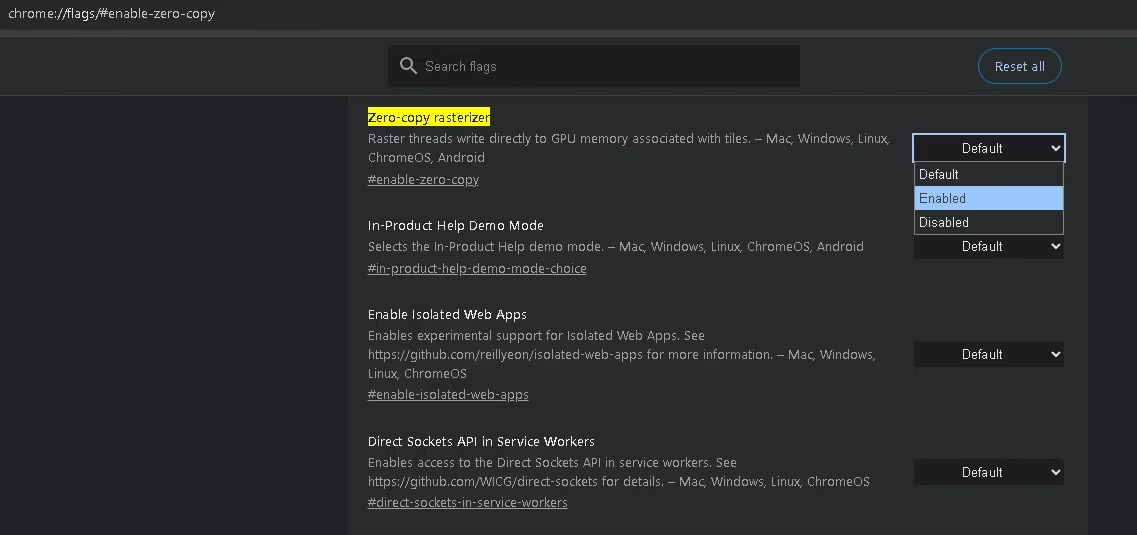
3 Zero-Copy Rasterizer
chrome://flags/#enable-zero-copy
The perfect partner to GPU rasterization. Instead of copying rendered pages between memory buffers, Zero-Copy lets the GPU work directly on the same memory the CPU just wrote to. Translation: less RAM pressure, faster page paints, and noticeably better battery life on laptops.
This flag pairs especially well with #2 above — turn them on together and the difference on a typical 8 GB laptop is genuinely felt while scrolling busy sites.
4 Smooth Scrolling
chrome://flags/#smooth-scrolling
If scrolling through long articles or social feeds feels choppy on your machine, this is the fix. Smooth Scrolling replaces Chrome’s stepped scroll with hardware-accelerated, frame-perfect motion. It is enabled by default for most users in 2026, but on older Windows builds and some Linux distros it still ships off — worth checking.
5 Prerender2
chrome://flags/#prerender2
Chrome can silently prerender the page you are most likely to click next — before you click it. When you do follow the link, the page appears instantly because it was already fully loaded in the background. Prerender2 is the modern engine behind this, and enabling this flag gives it permission to speculate and act. It works on omnibox predictions, link-hover hints, and Speculation Rules API pages.
Unlike Back-Forward Cache (which Chrome now enables automatically), this flag proactively pre-loads forward navigation, shaving 1–3 seconds off typical page loads on fast connections.
6 Test Third-Party Cookie Phaseout
chrome://flags/#test-third-party-cookie-phaseout
Third-party cookies are being killed off across 2026 as part of Chrome’s Privacy Sandbox rollout. Enabling this flag flips your browser into the cookie-less future now, so you can see exactly which sites still depend on cross-site tracking — and which have already adapted. It is also genuinely useful as a privacy upgrade: a lot of ad-tracking simply stops working.
Heads-up: A handful of older login flows (especially on legacy enterprise sites) may misbehave. If a site breaks, disable temporarily — but keep this flag in your toolkit.
7 Enable QUIC Protocol
chrome://flags/#enable-quic
QUIC is Google’s modern transport protocol — a replacement for TCP+TLS that multiplexes connections, eliminates head-of-line blocking, and reconnects faster after a network switch (e.g., switching from Wi-Fi to mobile data). In plain terms: pages load faster, streams stutter less, and your connection drops fewer packets.
Most major sites (Google, YouTube, Cloudflare-hosted properties) already serve traffic over QUIC. Enabling this flag tells Chrome to aggressively negotiate QUIC on every compatible connection instead of waiting to fall back from TCP. Real-world benefit is most obvious on video calls, YouTube streams, and any Google service.

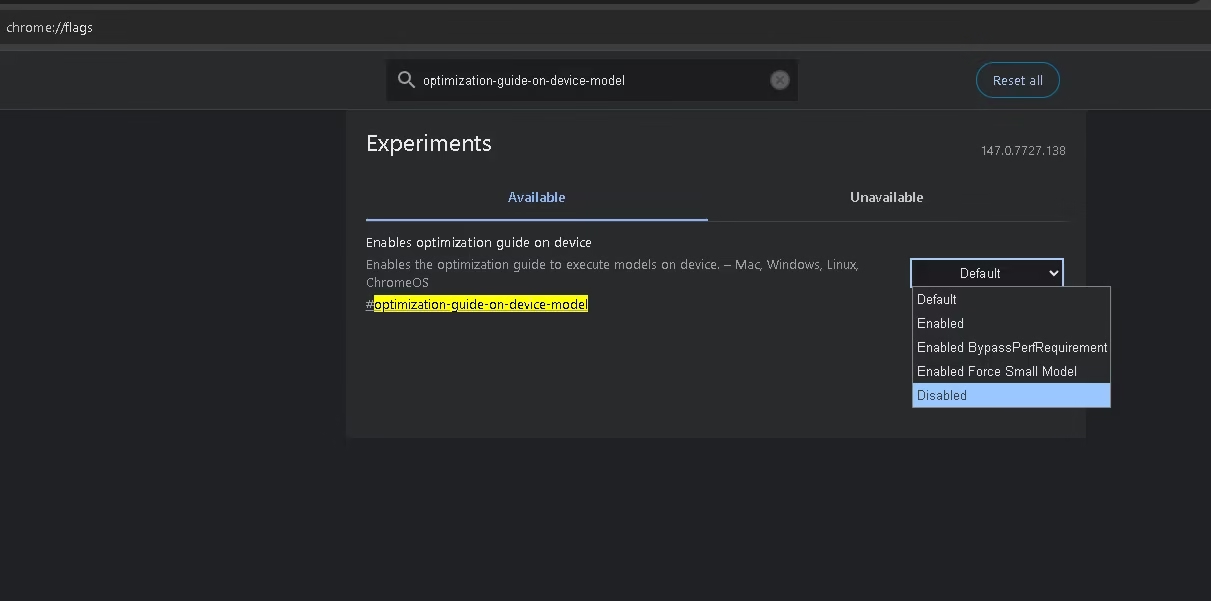
weights.bin, the Gemini Nano model) to hundreds of millions of devices — without consent or a prompt. Google confirmed the behaviour, saying the model powers on-device features like scam detection and “Help me write.”
If you do not use Chrome’s built-in AI features and would rather reclaim 4 GB of disk space — plus prevent automatic re-downloads — disable these two flags:
chrome://flags/#optimization-guide-on-device-model
chrome://flags/#prompt-api-for-gemini-nano
You can also navigate to Settings → System in Chrome and look for the on-device AI toggle, which Google added in early 2026. Once disabled there, the model will not re-download.

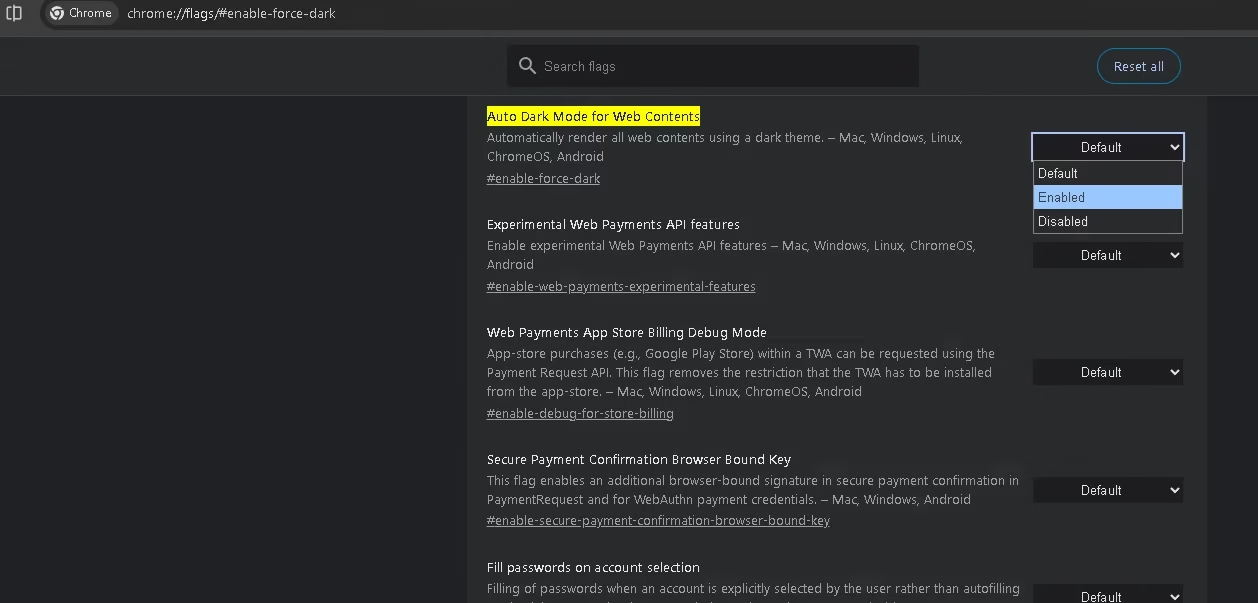
8 Auto Dark Mode for Web Contents
chrome://flags/#enable-force-dark
The single biggest reason most people install dark-mode extensions like Dark Reader. This flag does the same thing natively: every website you visit is force-rendered in dark mode, regardless of whether the site supports it. Try the “Enabled with selective inversion of non-image elements” variant — it preserves photos and videos while darkening text and backgrounds, giving the cleanest result.
Bonus: Easier on the eyes during late-night browsing and noticeably better battery life on OLED laptops and phones.
9 Vertical Tabs
chrome://flags/#vertical-tabs
Moves Chrome’s tab strip from the top of the window to a collapsible vertical sidebar on the left. Each tab shows its full title alongside its favicon, making it trivial to find the right one even when you have 40+ tabs open. The sidebar collapses to just favicon-width when you need the screen space back, and expands on hover.
Power user tip: Combine this with chrome://flags/#vertical-tabs-expand-on-hover to auto-expand the sidebar as you move your cursor toward it — giving you full tab titles exactly when you need them and a clean, minimal view the rest of the time.
10 Tab Strip Declutter
chrome://flags/#tab-strip-declutter
Chrome automatically identifies tabs you have not interacted with for a long time and visually fades them in the tab strip — a gentle nudge to close what you no longer need. It does not close anything automatically; it just draws your attention to the digital clutter. A single click closes the dim tabs, or you can ignore the hint entirely.
If you are the kind of person who accumulates 60 open tabs “just in case,” this flag is the productivity intervention you did not know you needed. It keeps the tab strip from becoming an anxiety-inducing wall of identical grey squares.
11 Tab Audio Muting
chrome://flags/#enable-tab-audio-muting
Click the speaker icon on any tab to mute it instantly — without needing to find the right tab, navigate to it, and pause the media manually. This sounds minor until you have fifteen tabs open and something starts auto-playing without warning. With this flag enabled, silencing a noisy tab takes less than a second from wherever you are.
Bonus: The muted state persists per-tab. If you always want a particular site (say, a news site that auto-plays video) silenced, mute it once and Chrome remembers until you explicitly unmute it.
12 Show Autofill Predictions
chrome://flags/#show-autofill-type-predictions
Chrome already remembers names, addresses, and payment data, but it usually only suggests them as you click into each field. With this flag on, predictions auto-fill the entire form in one go (assuming Chrome correctly identifies the fields). Filling out a checkout, a job application, or a sign-up form goes from minutes to seconds.
How to Reset Chrome Flags If Something Breaks
This is the safety net that makes experimenting risk-free. If a flag misbehaves — pages stop loading, video stutters, a site crashes — you have two recovery options:- Disable a single flag: Go back to
chrome://flags, search for the flag, and switch it back to Default. Relaunch. - Reset everything: Click the Reset all button at the top right of the flags page. Every flag returns to default, and Chrome behaves like a fresh install.
Chrome Flags vs Browser Extensions — Which One Wins?
For some features you genuinely have a choice — flag or extension — and the answer is not always obvious:- Dark mode on every site: Auto Dark Mode flag is lighter and built-in; Dark Reader extension offers more customisation. Try the flag first.
- Ad blocking: No flag exists. Use uBlock Origin Lite — extensions still win here.
- Reader view: Reading Mode flag is excellent and native; no extension needed.
- Heavy tab management: Tab Scrolling helps; for serious sessions (100+ tabs), an extension like Tab Manager v2 still adds value.
Should You Enable These in 2026? Absolutely.
Chrome out of the box is good. Chrome with the right flags enabled is genuinely great — measurably faster, far more private, and packed with features that competing browsers charge for. None of these settings need a paid plan, none require an extension, and every one of them can be reverted in two clicks if something feels off.
If you only have time for three: turn on Parallel Downloading, Auto Dark Mode for Web Contents, and Prerender2. You will feel the difference within an hour. Then come back for the other nine when you have five minutes to spare.
↑ Jump back to the flag listFrequently Asked Questions
Are Chrome flags safe to enable on my main browser?
The flags listed in this guide are stable and have been tested on the latest stable Chrome build. They will not damage your installation, and every change can be reverted from the samechrome://flags page. Avoid enabling flags marked Deprecated or anything you do not understand — those are the only ones that occasionally cause issues.
Do Chrome flags sync across my devices?
No. Flags are local to each Chrome installation. If you want the same flags enabled on your laptop, desktop, and Android phone, you need to set them individually on each device. Bookmarks, passwords, and history sync as usual — flags do not.Will enabling Chrome flags void my updates or break Chrome?
No. Chrome continues to receive automatic updates regardless of which flags you have enabled. Occasionally, Google retires a flag (typically because the feature has graduated to default). When that happens, the flag simply disappears from the list and Chrome behaves normally.What is the single best Chrome flag for performance in 2026?
Parallel Downloading delivers the most noticeable, measurable speed improvement. Large file downloads can be 3–5 times faster on a fast connection. GPU Rasterization paired with Zero-Copy Rasterizer is the next biggest win, especially on lower-spec laptops where the CPU is the bottleneck.Should I disable the Gemini Nano AI model that Chrome installed?
That depends on whether you use Chrome’s on-device AI features (page summaries, Help me write, scam detection). If you do, leave it on — your data stays local. If you do not, disabling#optimization-guide-on-device-model reclaims roughly 4 GB of disk space and stops Chrome from re-downloading the model. Google added a Settings → System toggle in early 2026 that achieves the same result, and it is the cleaner approach.
How do I reset all Chrome flags at once?
Openchrome://flags and click the Reset all button at the top right of the page. Every flag returns to its default state. Click Relaunch when prompted. Your bookmarks, passwords, history, extensions, and signed-in accounts are completely unaffected.
Do Chrome flags work in Edge, Brave, Opera, and other Chromium browsers?
Most of them, yes. Microsoft Edge usesedge://flags, Brave uses brave://flags, Opera uses opera://flags, and Vivaldi uses vivaldi://flags. The flag names and paths are usually identical because all these browsers are built on Chromium. A small number of Chrome-specific flags (those tied to Google services) are absent in privacy-focused forks like Brave.
Tried these flags? Got a favourite we missed? Drop it in the comments — we update this guide every quarter as Chrome rolls out new experiments.


