
🔍 Hands-on first look
AI agents with names, jobs and access to your own files — managed from your desktop, not a browser tab
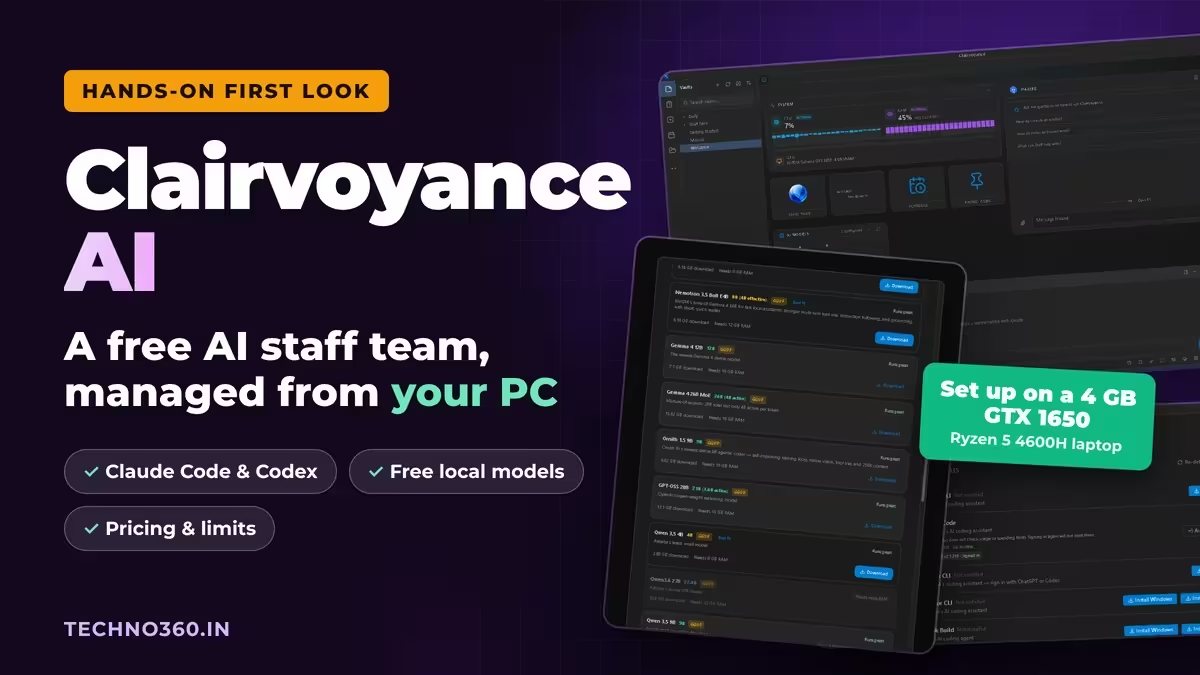
I installed Clairvoyance 0.89.22 on a Windows laptop with a 4 GB GeForce GTX 1650 to see what the free setup gives you before you pay for anything.
⚡ Quick Read
- What it is: a free desktop app where AI agents, called Staff, work inside folders and projects on your own computer.
- What powers it: coding agents you already use (Claude Code, Codex, Copilot, Cursor, Grok Build), custom endpoints, or free local models through the bundled Locama runtime.
- Setup: a four-step wizard that checks your hardware and downloads local models in one click.
- The catch: the Free and Plus plans are for non-commercial use only. Commercial use starts at $20/month, and the app is still pre-1.0.
- What I covered: installation, setup and settings on Windows. I haven’t run a full Staff job yet.
What Is Clairvoyance AI?
Clairvoyance AI takes a different approach from browser chatbots. Instead of only giving advice in a chat window, it lets AI agents reach your projects, folders and connected tools. You install it on your computer and assign AI “Staff” to folders, projects or recurring jobs. The developer says each one remembers context between sessions and hands back finished work.
It’s a desktop workspace, not necessarily an offline AI. Local models run on your own hardware, while any cloud agents you connect run through their own providers and accounts.
The app began as an internal tool at Stardock, the company behind Fences and Start11. Its legal entity is Clairvoyance AI Systems, which the company’s investor page describes as owned by Stardock today and on a path to operating independently. Stardock also provides distribution, payment processing and customer support. The alpha was announced in February 2026 for Object Desktop subscribers (announcement). The Beta 3 release in July 2026 added dashboard mini-apps and support for five third-party coding agents. The developer says it runs on Windows, macOS and Linux. I tested only the Windows build.
Installing Clairvoyance on Windows
| 🧪 My test setup | |
|---|---|
| App version | Clairvoyance 0.89.22 (dated 29 October 2026 in the changelog) |
| OS | Windows (x64) |
| CPU / GPU | AMD Ryzen 5 4600H / NVIDIA GeForce GTX 1650, 4 GB VRAM |
| System memory | 23 GB, as reported by the app |
| Scope | Installation, configuration and starting a local model download |
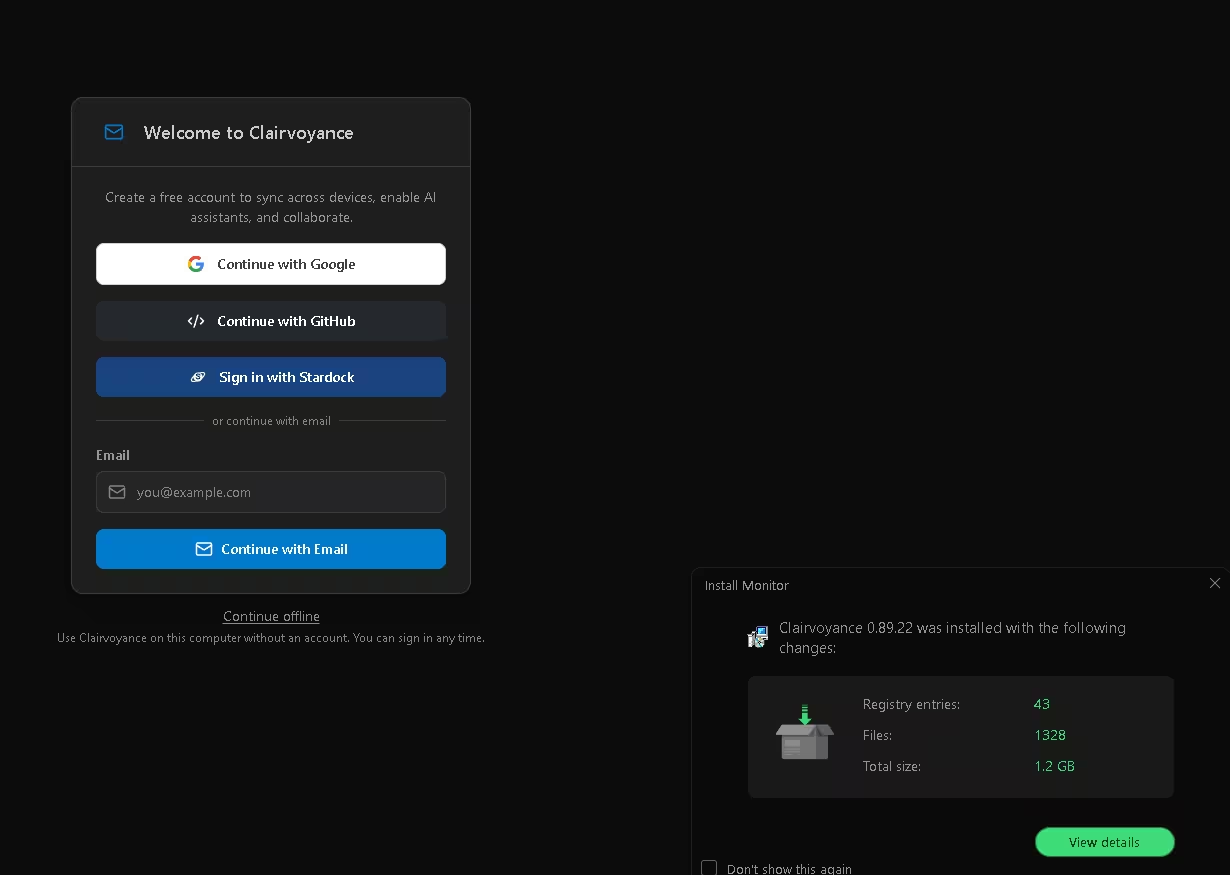
My install monitor logged 1,328 files, 43 registry entries and 1.2 GB on disk after installation. That’s the installed footprint, not the download size, and it’s large for a desktop app, so plan for it if your SSD is tight.
On first launch you can sign in with Google, GitHub, a Stardock account or email. You can also choose Continue offline and skip the account completely, which is handy if you only want to try local models.
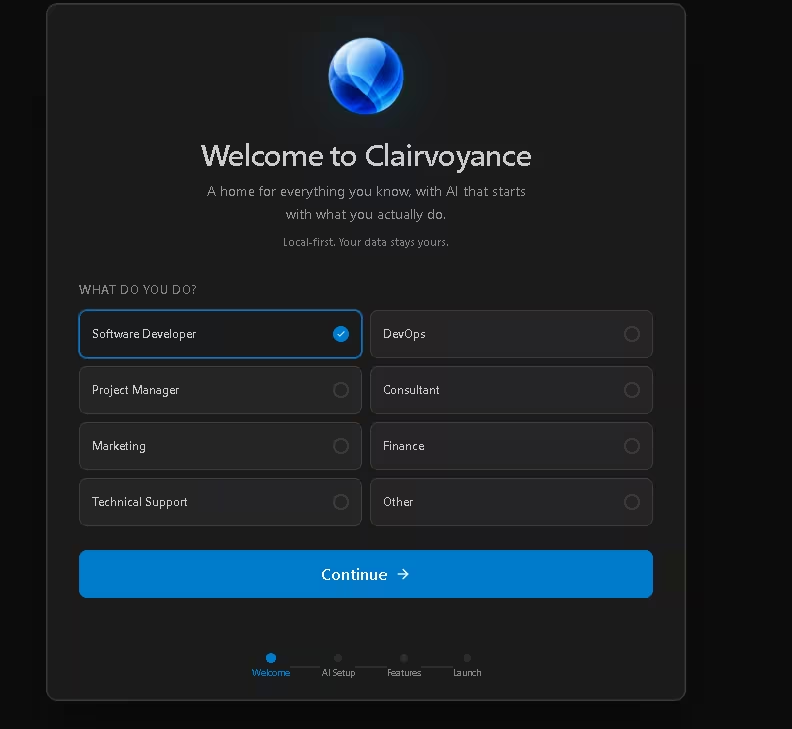
The four-step wizard (Welcome, AI Setup, Features, Launch) starts by asking for your role, with eight options from Software Developer to Finance.
Connecting Your AI: Cloud Agents or Local Models
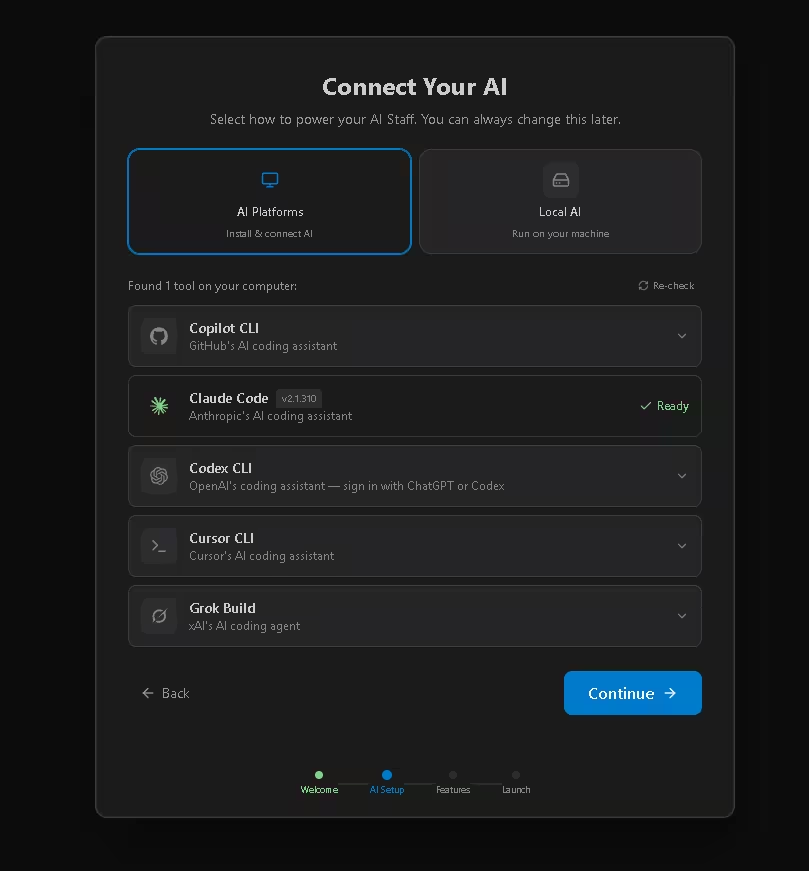
The AI Setup step decides what actually does the thinking for your Staff. You can use cloud agents, local models or both.
Cloud coding agents
The wizard found Claude Code already on my PC and marked it Ready. Copilot, Codex, Cursor and Grok Build each have an install button, with Cursor and Grok Build also offered under WSL (Windows Subsystem for Linux). You can add any OpenAI-compatible endpoint too.
These agents use your own accounts, so your Claude or ChatGPT plan limits still apply. Clairvoyance notes that its sign-in check doesn’t track usage or spending. If you’re new to these tools, see our guides to OpenAI Codex in ChatGPT and using Claude Code to debloat a Mi TV.
Local AI on a 4 GB GPU
The Local AI tab read my hardware correctly: Ryzen 5 4600H, GeForce GTX 1650 with 4 GB of VRAM, and 23 GB of memory. It rated the machine “Capable Hardware”. CUDA acceleration (Nvidia’s system for running AI maths on the graphics card) is optional and was off by default; you can skip it with “Not now”. Turning it on required a 578.7 MB download of extra components. I accepted, and the toggle then showed CUDA as enabled.
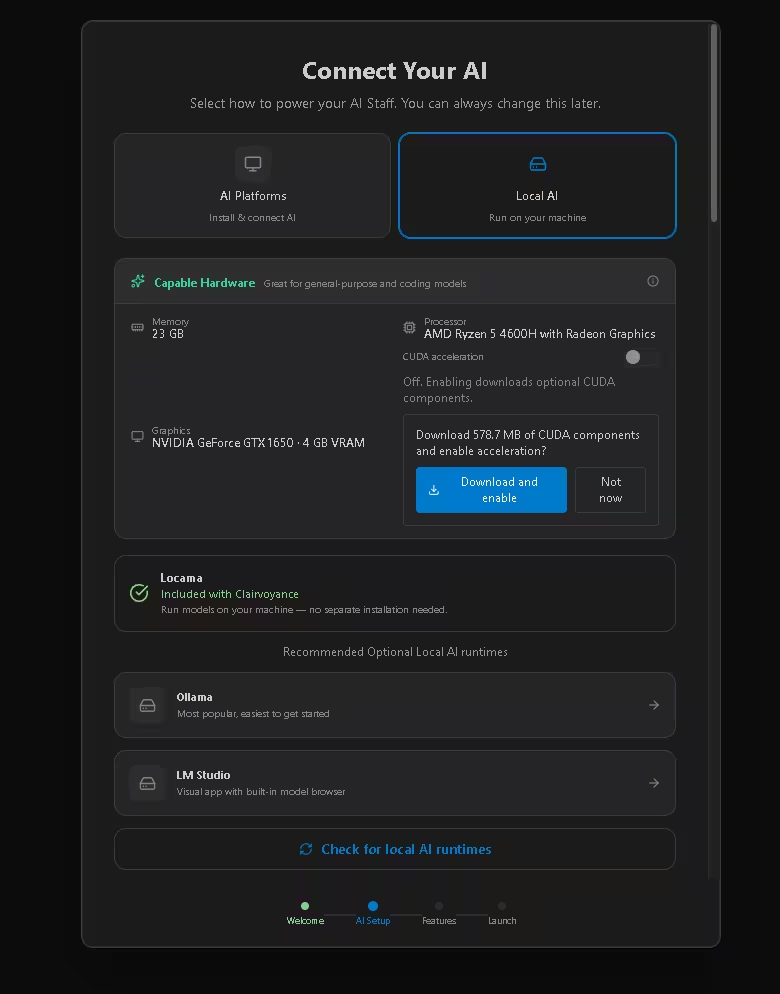
Models run through Locama, the local inference engine bundled with Clairvoyance. It’s the component that loads a model and generates its answers on your PC, so you don’t need to install a separate runtime. Ollama and LM Studio appear as optional extras, and the app says it can find models you’ve already downloaded with them. I didn’t test that part.
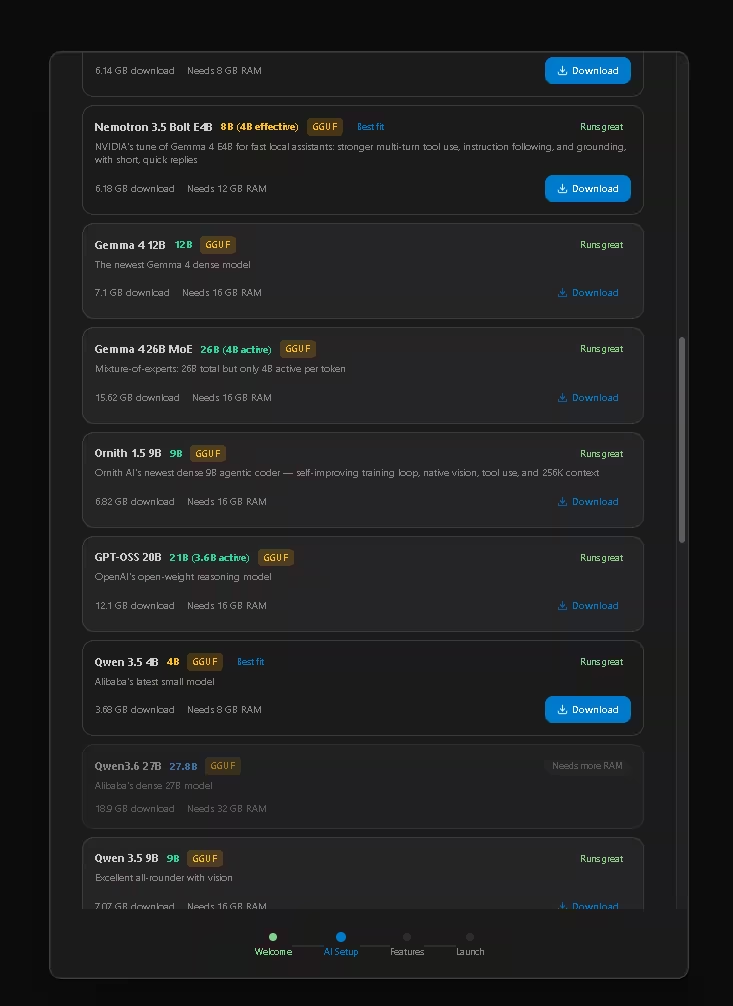
The model catalog is the most useful part of setup. Each card shows the download size, the RAM it needs and a fit label for your machine. On my laptop:
- Qwen3 0.6B: 0.63 GB, the smallest in the catalog
- Gemma 4 E2B: 4.32 GB, needs 4 GB RAM, marked “Recommended starter”
- Qwen 3.5 4B: 3.68 GB, needs 8 GB RAM
- Nemotron 3.5 Bolt E4B: 6.18 GB, needs 12 GB RAM, Nvidia’s tune of Gemma 4 E4B for assistant tasks
- GPT-OSS 20B: 12.1 GB, needs 16 GB RAM
- Qwen3.6 27B: 18.9 GB, needs 32 GB RAM, greyed out as “Needs more RAM”
The RAM figures refer to system memory, not graphics memory (VRAM). The “Runs great” labels are the app’s estimate from that system memory, not a speed test or a promise that a model fits on the GPU. When a model is larger than the 4 GB of VRAM on a card like mine, part of the work can fall back to the CPU and system RAM, which is usually much slower. To check what your PC can handle before you download several gigabytes, CanIRun.ai gives a second opinion.
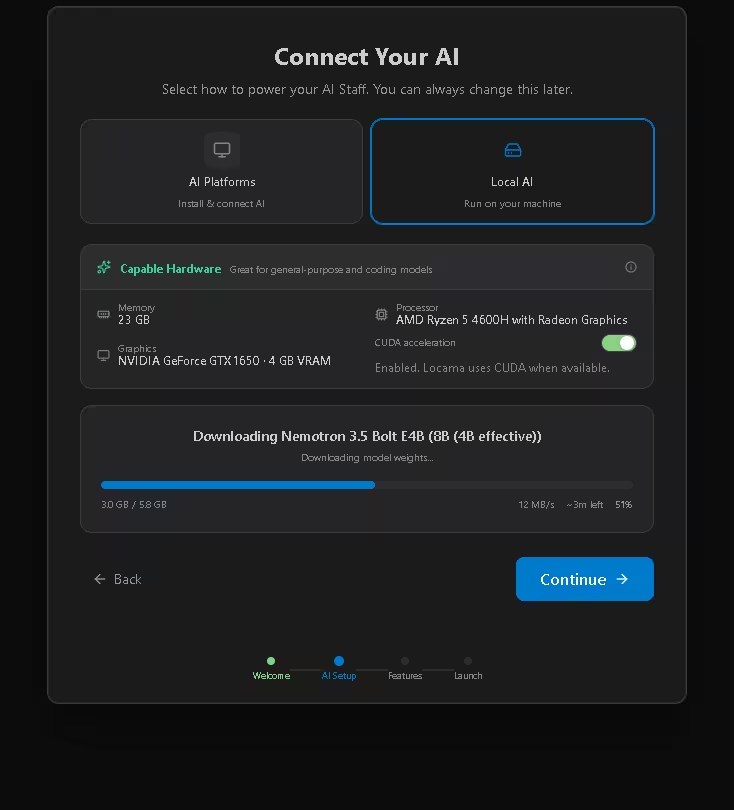
I chose Nemotron 3.5 Bolt E4B and started the download from inside the wizard. It ran at about 12 MB/s with no command line or Python setup. I haven’t run prompts on it yet, so I can’t comment on how it performs.
Inside the Workspace
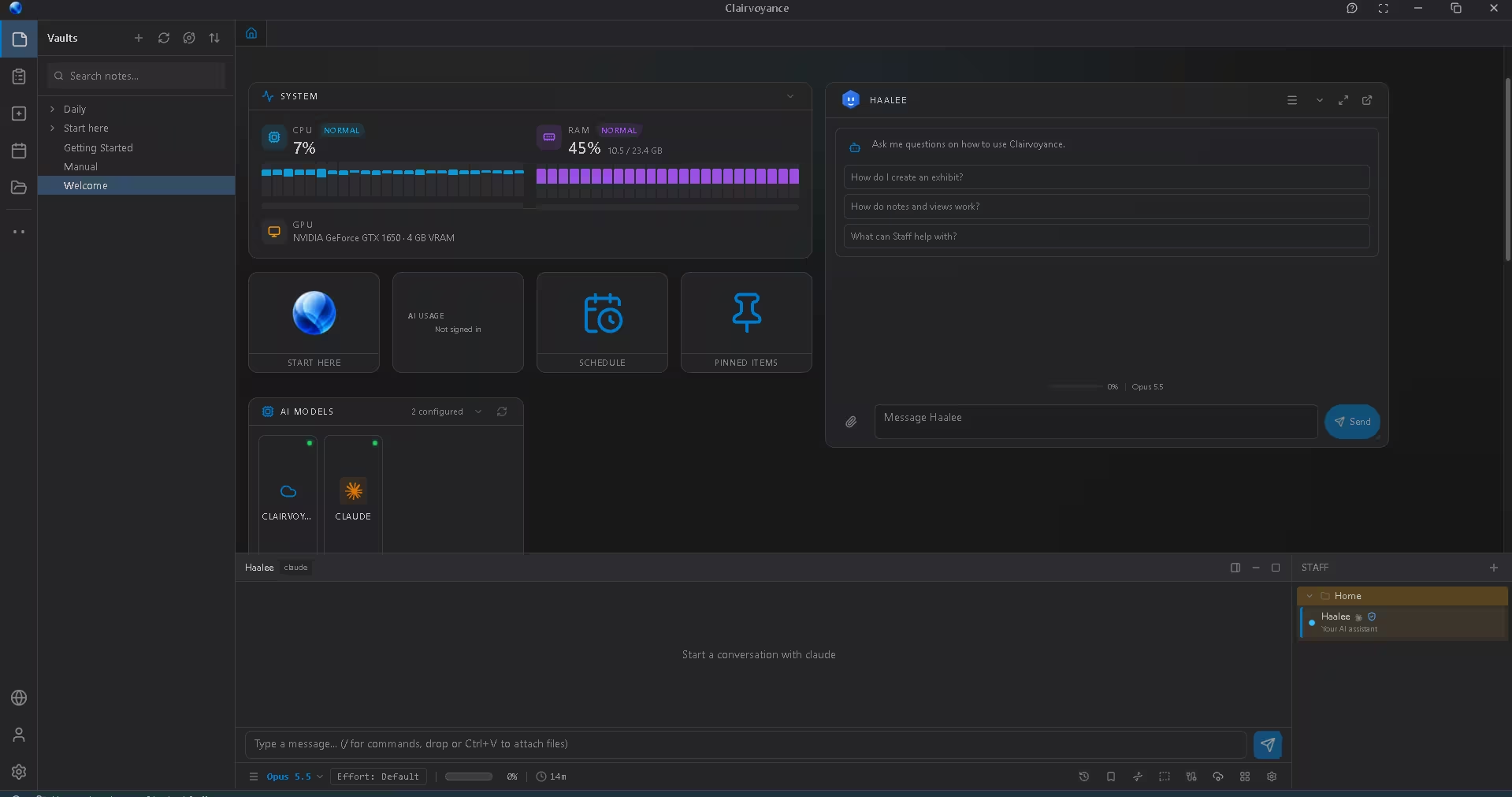
The main window has notes (Vaults) on the left and a dashboard with live CPU, RAM and GPU readings, plus tiles for scheduling and pinned items. A built-in assistant, Haalee, answers how-to questions, and the Staff list and chat box sit along the bottom.
The wizard’s feature tour lists what the developer advertises, which I haven’t tested yet. It includes coding workspaces, presentations (“Exhibits”), scheduled tasks, connected tools like GitHub and Jira, and summaries of documents or URLs.
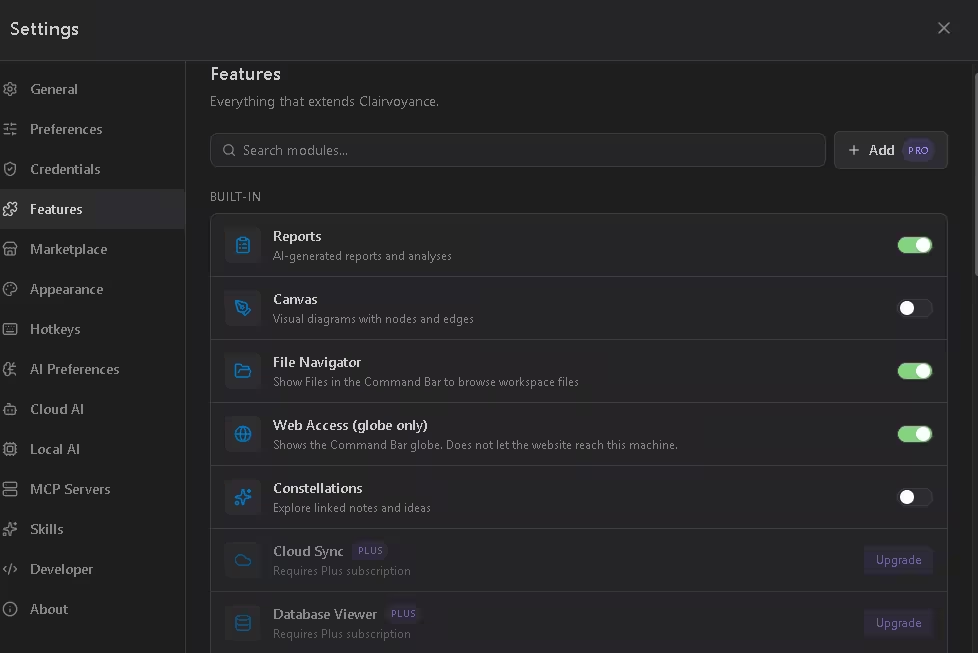
In Settings, Locama showed as Stopped and loads models only when Staff need them, so it isn’t using memory in the background. The built-in benchmark is locked to Pro, and Canvas was switched off by default on my install. A Marketplace offers community skills and MCP servers. MCP is a standard way to give AI agents access to extra tools.
Is Clairvoyance AI Private? Local Models vs Cloud Agents
Clairvoyance calls itself local-first and says you decide which providers your Staff use and what leaves your machine (About page). That’s the developer’s claim. In practice, where your data goes depends on what you connect:
- Local models through Locama: processing happens on your own hardware.
- Cloud agents such as Claude Code or Codex: prompts and the files they read are handled by those providers, under their terms.
- Connected tools and MCP servers: each one gets whatever access you grant it.
Installing the app locally doesn’t mean every task stays offline. Before giving a staff member personal or client files, check which folders, providers and tools it can reach.
Clairvoyance Pricing and Licence
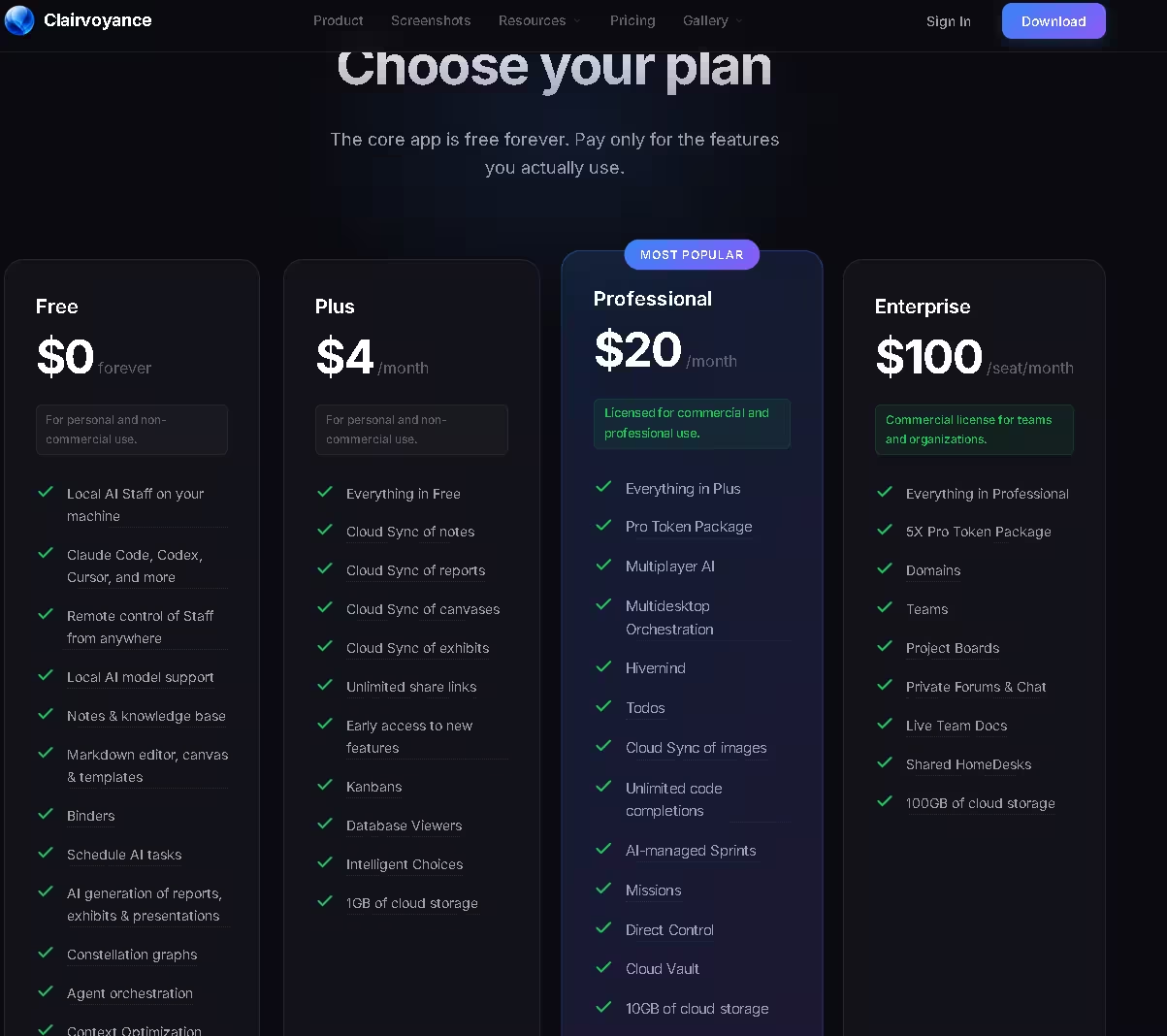
The core app is free, but check the licence before using it for work (official pricing, checked 2 November 2026):
- Free, $0: local Staff, support for the third-party agents above, local models, notes, scheduled tasks, reports and exhibits. Personal, non-commercial use only.
- Plus, $4/month: adds cloud sync, Kanbans, Database Viewer and 1 GB of storage. Still non-commercial.
- Professional, $20/month: licensed for commercial use. Adds a Pro token package, Multiplayer AI, Missions and 10 GB of storage.
- Enterprise, $100/seat/month: adds teams, domains and 100 GB of storage.
If you plan to use it for client work or a business, check whether that counts as commercial use under the Free and Plus terms.
Limitations and What I Haven’t Tested Yet
- No completed Staff job or speed figures yet. Bug fixes, dashboards and overnight scheduled work are the developer’s examples, not my results.
- Windows only. I didn’t try the macOS or Linux builds.
- Large downloads. The app, the CUDA components and 4–16 GB per model add up quickly.
- Early software. Version 0.89 is still pre-1.0, so expect changes.
Prefer a simpler, fully offline chat app? Our Jan AI review covers a lighter option.
Frequently Asked Questions
Is Clairvoyance AI free?
Yes, the core app is free with no time limit, but only for personal, non-commercial use. Commercial use needs the Professional plan at $20/month.
Do I need a Claude or ChatGPT subscription?
Not if you use local models through the built-in Locama runtime. Cloud agents such as Claude Code and Codex need their own provider accounts, and those providers set their availability and usage limits.
Is Clairvoyance AI completely offline?
Only if you stick to local models. The app installs on your PC, but cloud agents and connected tools send work to their own providers. You can also skip creating an account with the Continue offline option.
What GPU and RAM do you need for local models?
I couldn’t find a published minimum. The catalog lists each model’s system RAM needs, from 4 GB for the smallest up to 32 GB, and CUDA acceleration is optional. On my GTX 1650 with 4 GB of VRAM and 23 GB of reported memory, several models were labelled “Runs great”. Those labels are estimates, not measured results, and larger models may lean on the CPU and system RAM. I haven’t benchmarked inference on this machine.
Does it replace Ollama or LM Studio?
It doesn’t need either one, because Locama is bundled. Both are offered as optional runtimes, and the app says it can use models you’ve already installed with them.
✅ First-Look Verdict
Setup is the strongest part so far. Clairvoyance detected my hardware correctly, filtered the models that wouldn’t fit, and downloaded a local model without a terminal. It also picked up Claude Code automatically. That makes it a promising free starting point for exploring AI agents and local models on an ordinary laptop, though I haven’t yet proven what the agents can produce.
The main things to weigh are the non-commercial free licence, the large downloads and its pre-1.0 status. Whether the Staff deliver finished work, not just a polished setup, is what I’ll test next.
More free AI apps and guides: Techno360 AI Tools & News.