
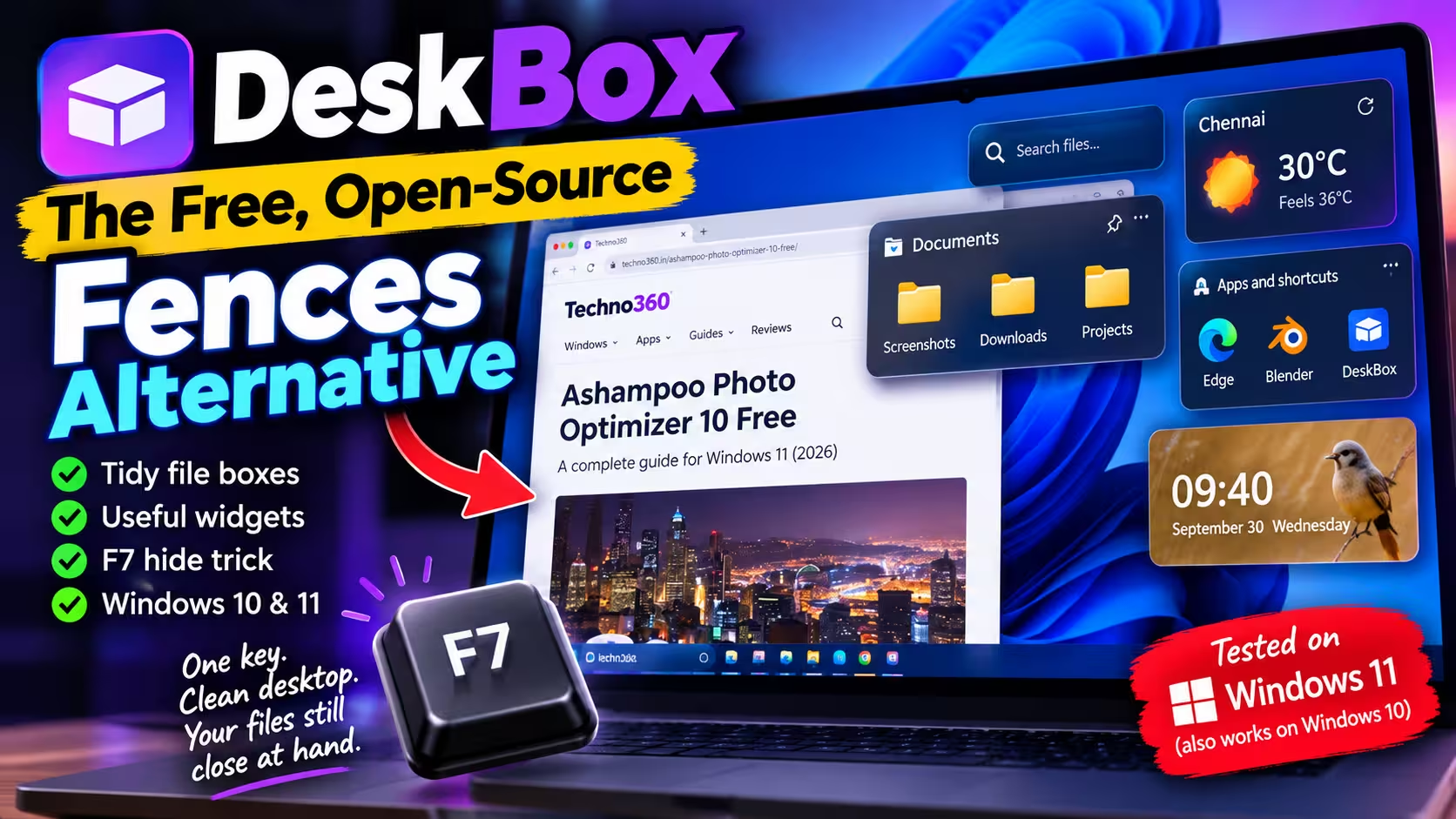
Free & Open Source · Tested on Windows 11
One key. Clean desktop. Your files still close at hand.
DeskBox drops tidy, resizable boxes onto your Windows desktop for files, apps, notes, to-dos, weather and music — then makes all of them vanish when you press F7. I’ve had it running on my own PC for the last few days. Here’s what it does well, where it trips you up, and exactly how to install it.
⚡ Quick Read
- What it is: a free, GPL-3.0 desktop organizer — think Stardock Fences, but with extra widgets and no price tag.
- Best trick: F7 hides every widget, and pressing it again brings them back on top of whatever window you have open.
- Works on: Windows 10 (21H2 or newer) and Windows 11, with x64 and ARM64 installers.
- Heads-up: dropping a file into a box moves it into that box’s folder by default, and the installer isn’t code-signed yet, so SmartScreen will warn you.
- Version tested: DeskBox 1.5.5 (September 2026).
My desktop has a habit of turning into a junk drawer. Installers I meant to delete, screenshots for articles, a PDF from the bank, three folders all called “New folder.” I clean it up every couple of weeks, and every couple of weeks it fills right back up.
I’ve tried the usual fixes on Techno360 before, from the portable Desktop Fences+ to a full desktop makeover with Seelen UI. DeskBox sits somewhere in between. It doesn’t reskin Windows. It just gives your stuff proper homes on the desktop, adds a handful of genuinely useful mini-apps, and gets completely out of the way when you don’t want to see any of it.
What Is DeskBox?
DeskBox is a free desktop organizer for Windows built with WinUI 3, the same UI framework behind the modern Windows 11 Settings app. That’s why its boxes pick up Mica and Acrylic effects and feel like they shipped with Windows rather than being bolted on top.
It’s developed by a solo programmer, Tianyu Zhu, and the full source code is on GitHub under the GPL-3.0 licence. When I checked the repository, it had passed 5,000 stars and its GitHub release downloads had crossed 130,000 — not bad for a one-person project.
The important bit: DeskBox doesn’t replace File Explorer or hide your files in some private database. Every file box is backed by a regular Windows folder. According to the project’s README, uninstalling DeskBox doesn’t remove the files stored in its storage folder.
My Setup: How I Actually Use It
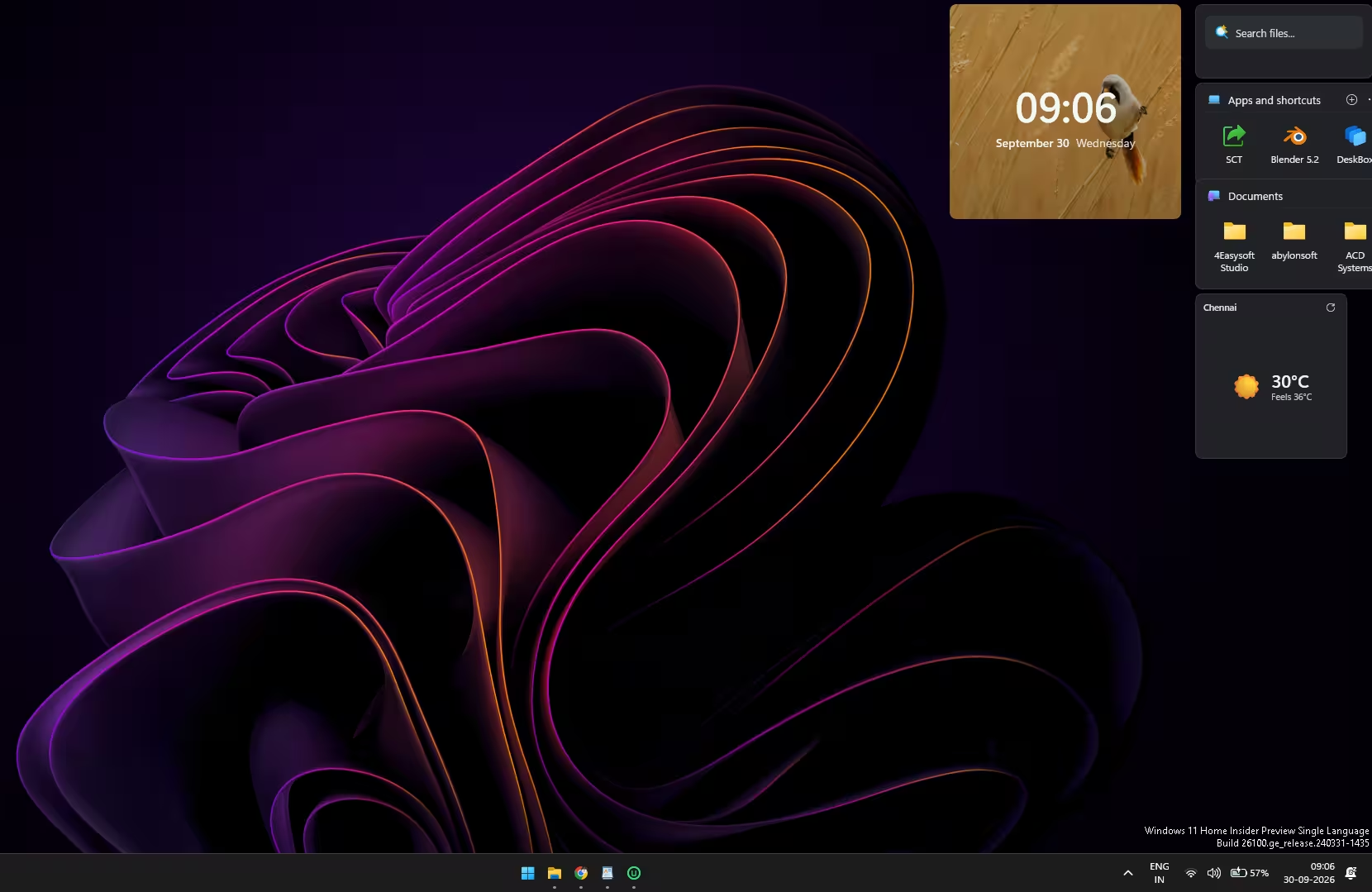
I tested DeskBox 1.5.5 on my Windows 11 laptop. After a bit of fiddling, I parked everything in a narrow column down the right edge of the screen, leaving my wallpaper free on the left:
- A Glance widget with the time, date and a photo of my choosing
- A search bar hooked up to Everything for instant file lookup
- An “Apps and shortcuts” box for the tools I open daily
- A Documents box mapped to my existing Documents folder
- A weather card for Chennai (30°C, “feels like 36°C” — accurate, sadly)
Lining these up took less time than I expected. Widgets snap to each other and to the screen edges while you drag or resize them, so you’re not nudging boxes a pixel at a time. And if you hold Ctrl while dragging a widget’s title bar, every widget on that monitor moves together as one group.
The F7 Trick That Won Me Over
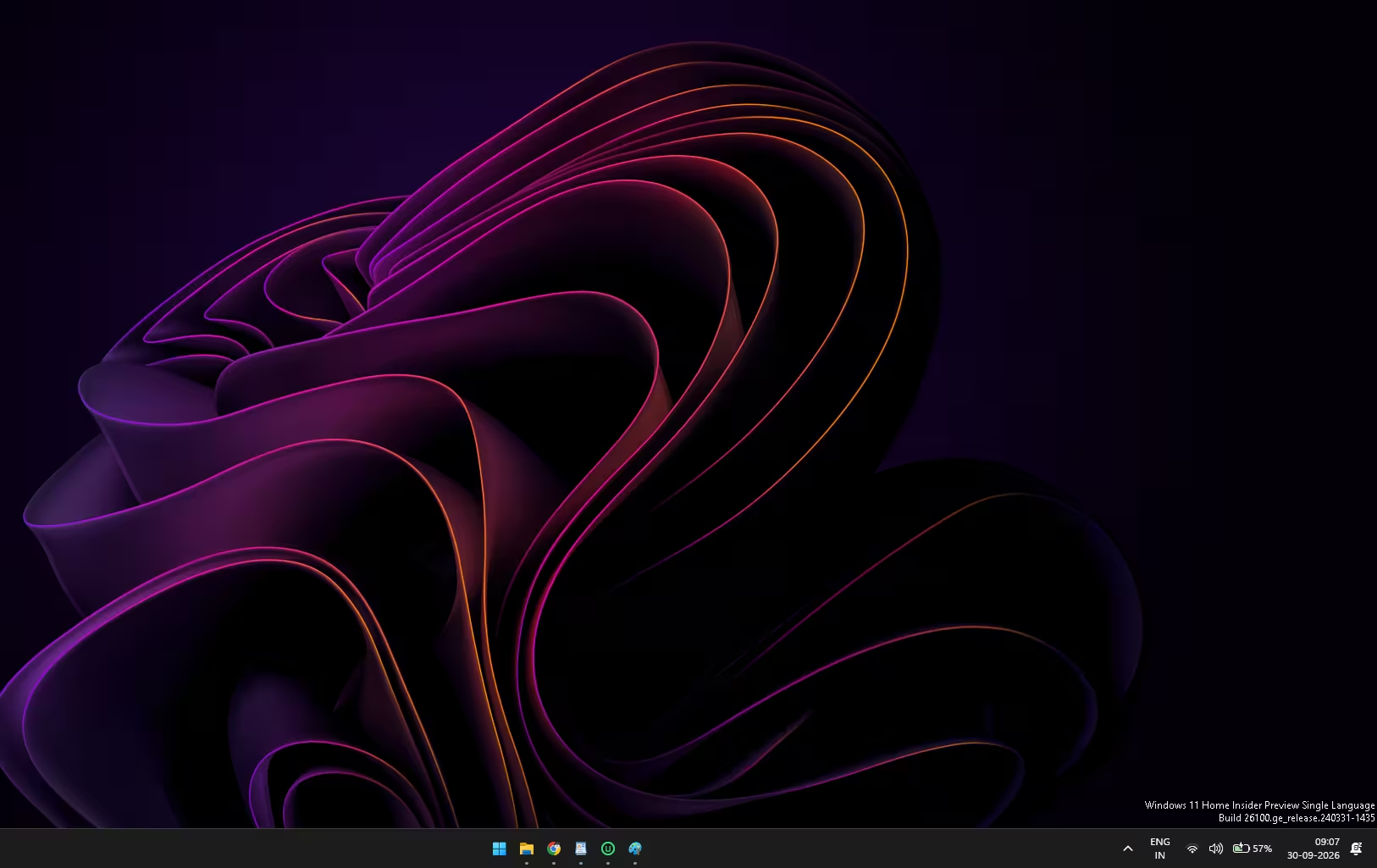
Here’s the feature that makes DeskBox more than “Fences, but free.” Press F7 and every box and widget disappears. You’re left with an empty wallpaper and nothing else. Press it again and they’re back.
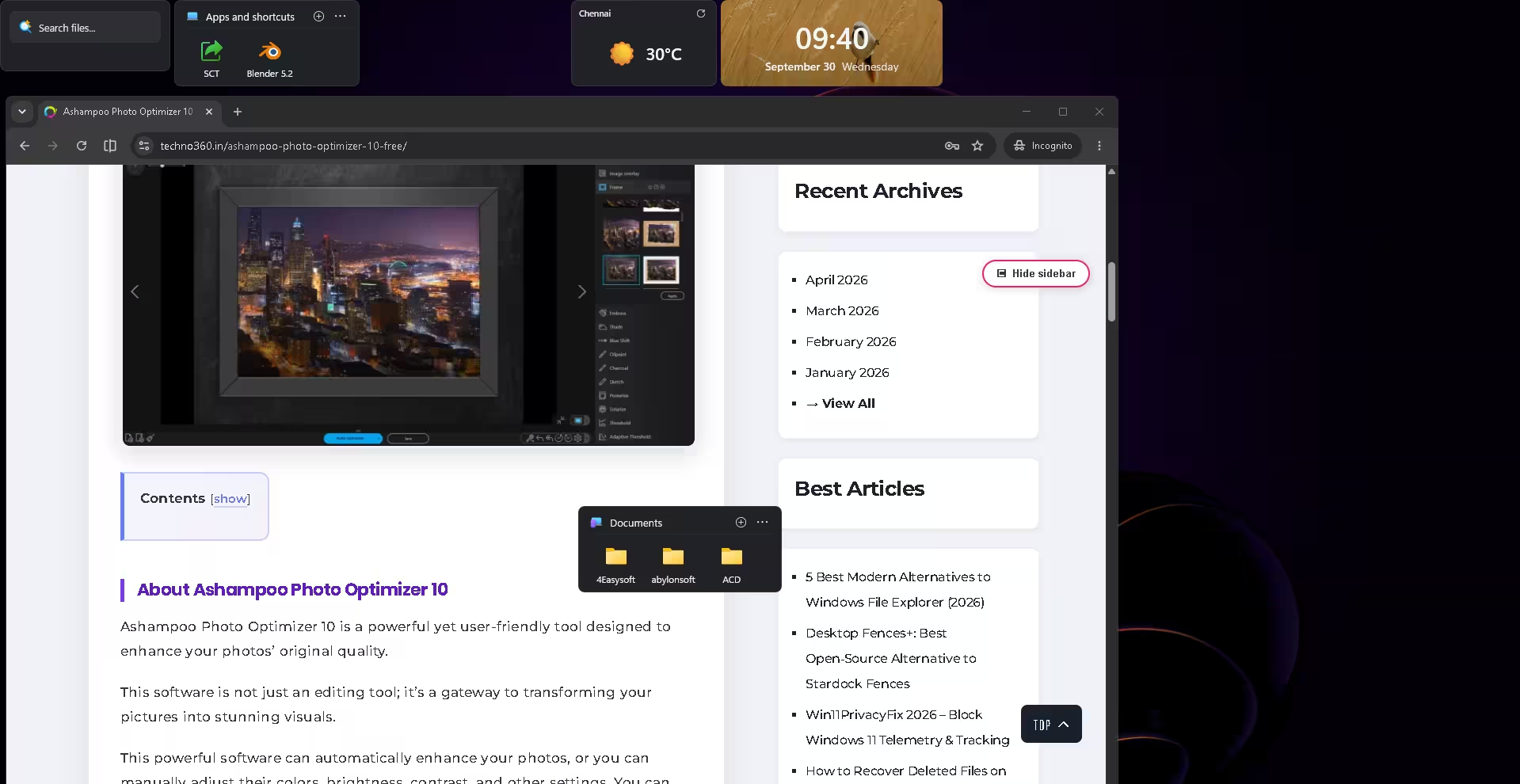
What surprised me is that when you bring them back, they appear above the window you’re working in. So if I’m halfway through writing in Chrome and need a file from my Documents box, I tap F7, drag the file straight into the editor, tap F7 again, and carry on. No minimizing, no Win+D, no digging through Explorer.
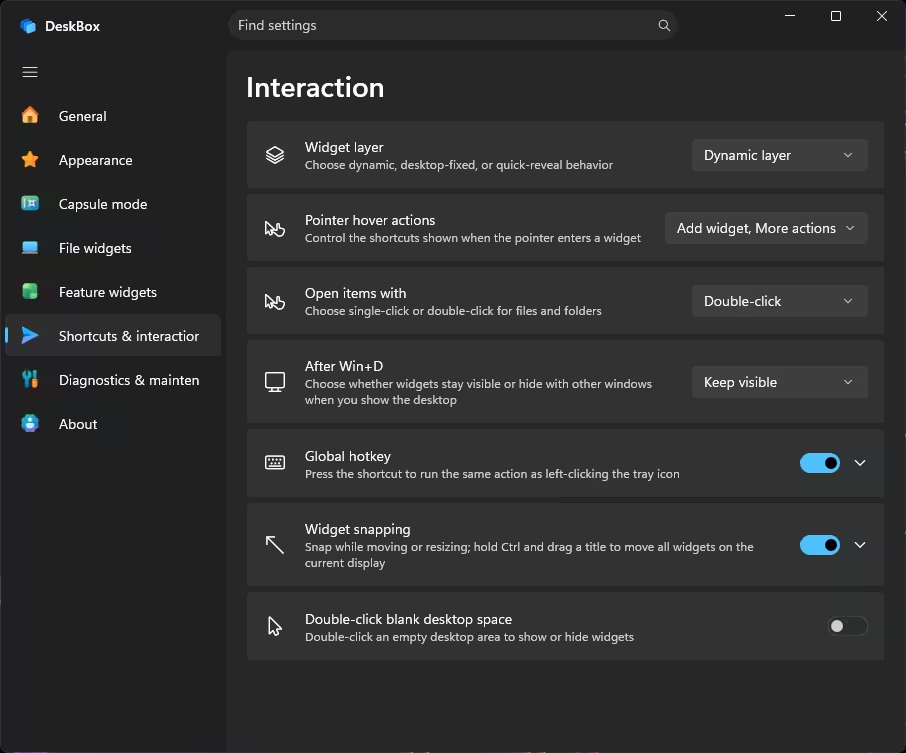
If F7 clashes with another app, you can switch it under Shortcuts & interaction → Global hotkey. DeskBox also offers double-tap Ctrl, Alt+Space, a custom combo, or an optional double-click on an empty patch of desktop.
File Boxes: New Folders vs. Folder Mapping
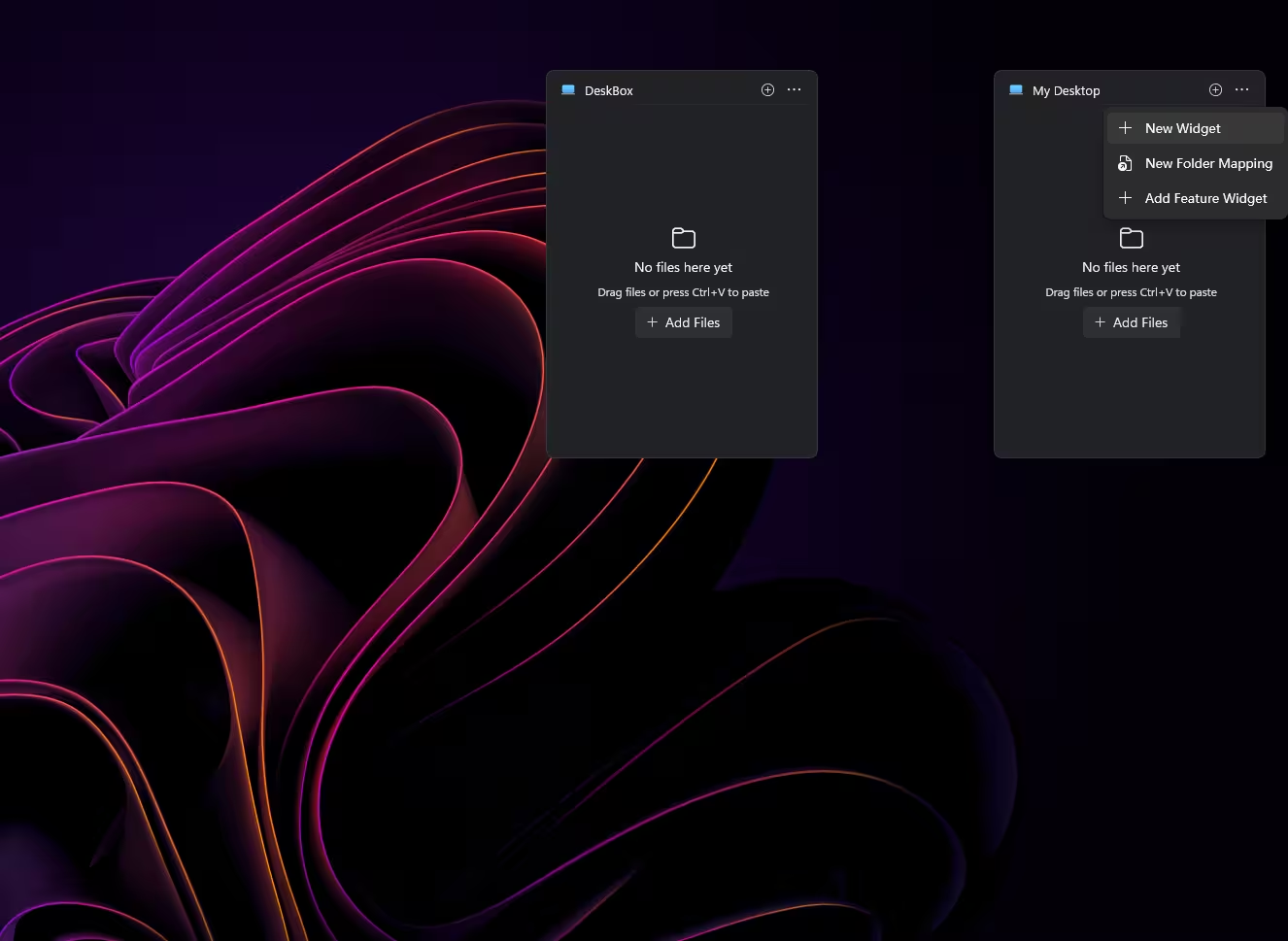
Click the ⋯ menu on any box and you’ll see two ways to add file storage. They behave differently, and it’s worth knowing which is which before you start dragging things around:
| Option | What happens | Use it for |
|---|---|---|
| New Widget | Creates a fresh folder inside DeskBox’s storage location. Files you drop in are moved there. | Sweeping desktop clutter into neat groups |
| New Folder Mapping | Shows an existing folder (Documents, Downloads, a project folder) without moving anything. | Quick access to folders you already use |
| Add Feature Widget | Adds a non-file widget such as Todo, Weather or Music. | Everything that isn’t a file |
Inside a box you get the basics you’d expect from Explorer — copy, cut, paste, rename, delete, drag files in and out — plus a few extras. You can stack related files into a single tile, switch between icon and list views, and press Space to preview a file if you have the free QuickLook app running.
⚠️ Know where your files are going
Out of the box, dragging a file into a DeskBox widget moves it off your desktop and into that widget’s folder. The setup wizard shows you the path (on my PC it was C:\Users\<name>\DeskBox). According to the project’s README, new installs pick a non-system drive such as D:\DeskBox when one has enough free space, so check which one you got.
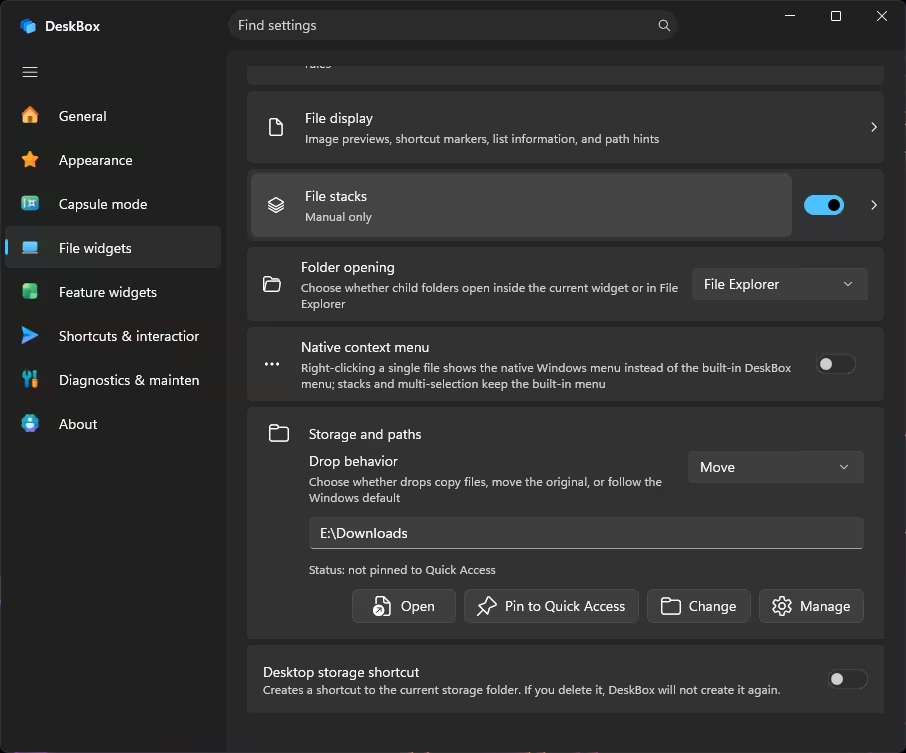
If you’d rather keep originals in place, open File widgets → Storage and paths and change Drop behavior from Move to Copy (or to follow the Windows default). You can also switch the storage folder to another drive there — I pointed mine at a folder on my E: drive.
The Extra Widgets
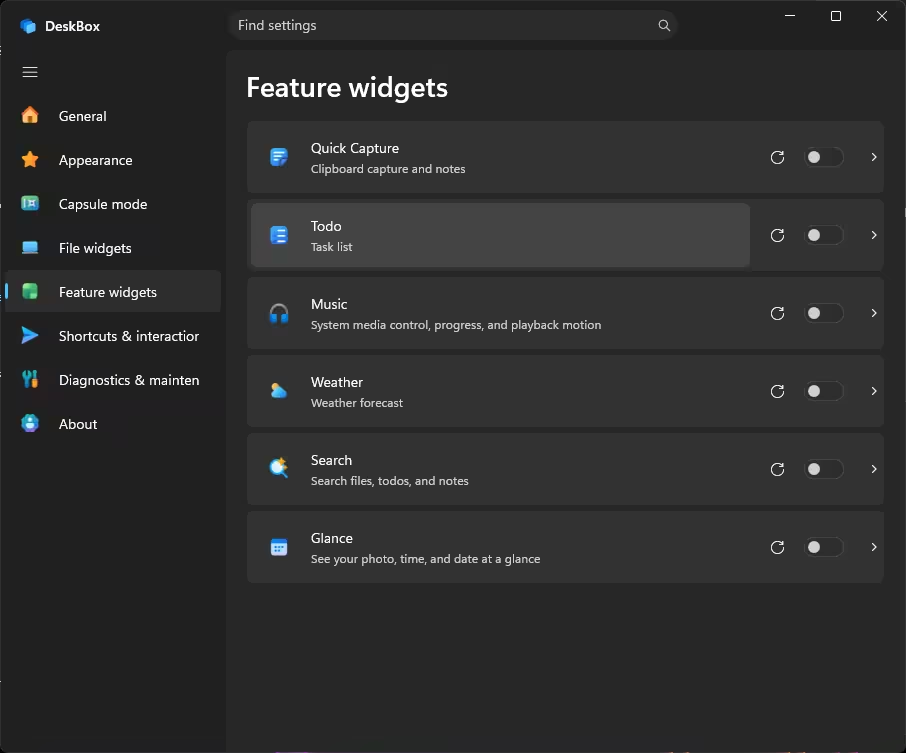
Every non-file widget is switched off until you turn it on under Feature widgets, which I like — you only load what you’ll use. Here’s what’s on offer:
- Quick Capture — a scratchpad for text, links, images and files, with Markdown and pinning.
- Todo — tasks with due dates, reminders, repeats and colour tags.
- Music — play/pause, skip and volume for whatever’s playing through Windows media controls.
- Weather — current conditions plus hourly and multi-day forecasts.
- Search — finds files, apps, settings, notes and to-dos from one box.
- Glance — a clock-and-date card with your own background photo.
The Search widget deserves a special mention. DeskBox doesn’t build its own file index. Instead, it plugs into Everything by voidtools, the lightning-fast file search tool many of us already run. On my machine it found my existing Everything 1.4.1 install on its own and showed a green “Connected” status.
⚠️ Note: PC-wide file and folder search depends on the separate Everything app, which DeskBox doesn’t bundle or install for you. Without it, the Search widget still covers your DeskBox notes, to-dos and widget files.
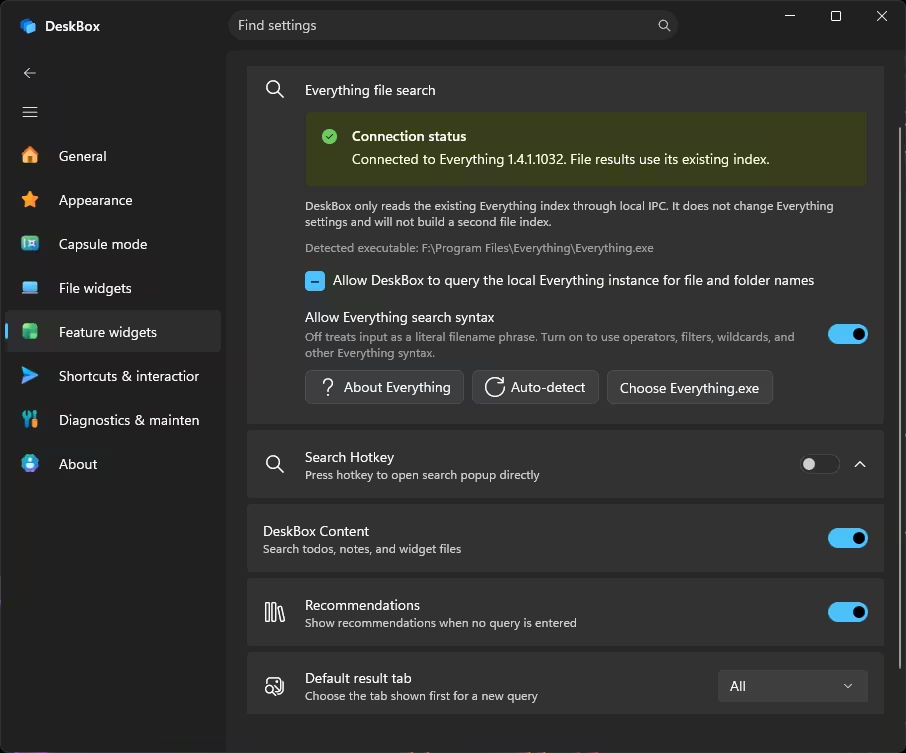
A few other things I found useful while poking around the settings:
- Capsule mode shrinks widgets into slim pills that expand on click or hover, and can hide to-do and note text while collapsed — handy on a shared screen.
- Per-monitor layouts — plug in an external display and DeskBox restores the arrangement you saved for that setup.
- Backup — export your settings, notes and tasks locally, or (new in 1.5.5) back them up to your own WebDAV server on a schedule. Note that files inside your file boxes aren’t part of these backups.
- 12 interface languages, including Hindi.
DeskBox vs. Stardock Fences
| DeskBox | Stardock Fences | |
|---|---|---|
| Price | Free | Paid (free trial) |
| Source code | Open (GPL-3.0) | Closed |
| Focus | File organization plus built-in widgets (todo, notes, weather, music, search, clock) | Primarily desktop organization |
| Code-signed installer | Not yet | Yes |
Fences has years of polish and commercial support behind it. DeskBox is a younger project maintained by a single developer, but it’s moving fast — the GitHub page lists more than 50 releases already.
How to Download and Install DeskBox
Step 1: Grab the right installer
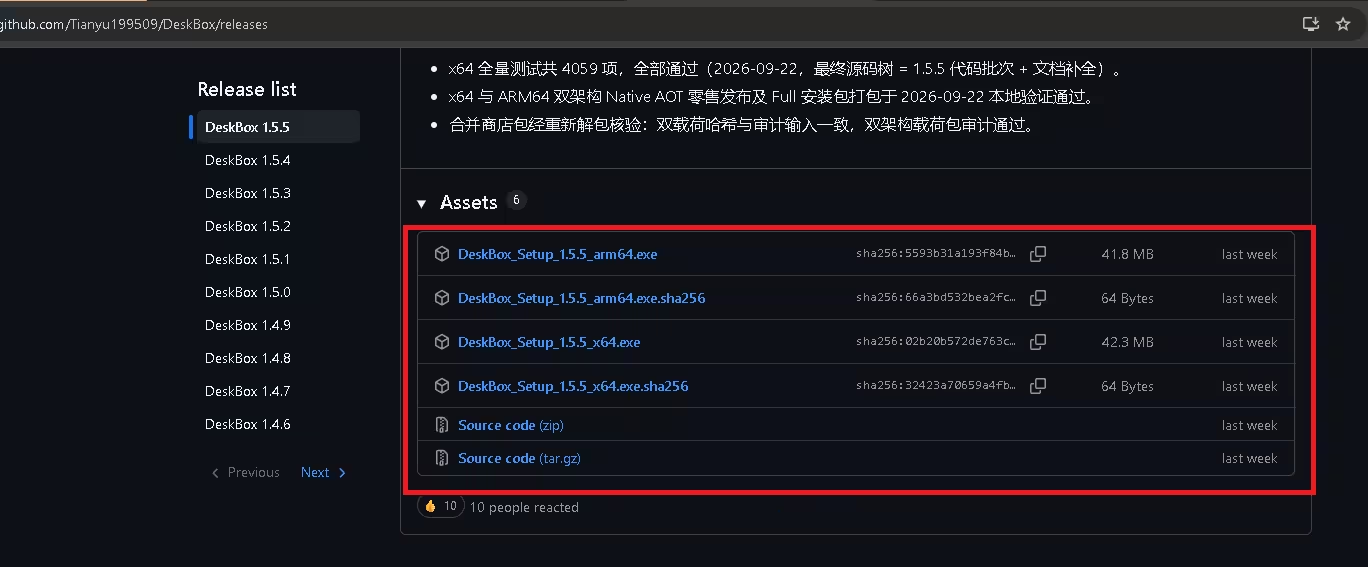
Open the DeskBox releases page on GitHub, scroll to the Assets section under the newest release, and pick your file:
- DeskBox_Setup_x.x.x_x64.exe — for almost every Intel or AMD PC (about 42 MB).
- DeskBox_Setup_x.x.x_arm64.exe — for Snapdragon laptops and other Windows on ARM devices.
Not sure which you have? Go to Settings → System → About and check System type. Skip the .sha256 files unless you want to verify the download (more on that below).
Step 2: Get past the SmartScreen warning
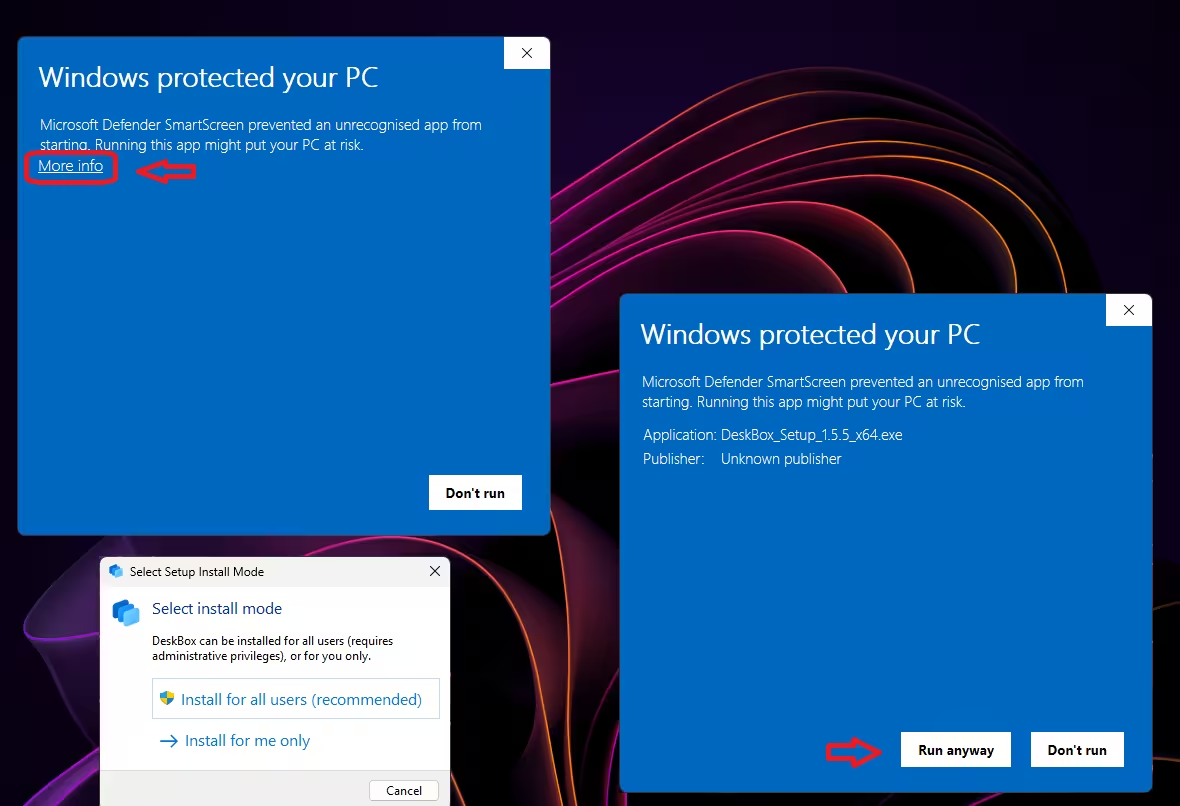
Because the installer isn’t code-signed yet, Windows will show a blue “Windows protected your PC” box. If you downloaded it from the official GitHub releases page, click More info, then Run anyway.
🔒 Extra-careful? Download the matching .sha256 file too, then run Get-FileHash .\DeskBox_Setup_1.5.5_x64.exe -Algorithm SHA256 in PowerShell and compare the long Hash value it prints with the one inside the .sha256 file. If they match, your download is exactly the file the developer published.
Step 3: Choose an install mode and finish setup
The installer asks whether to install for all users (needs admin rights) or just for you. Either works; “Install for me only” is the simplest option if you’re not an administrator. The whole offline package includes everything DeskBox needs, so there’s no separate .NET download.
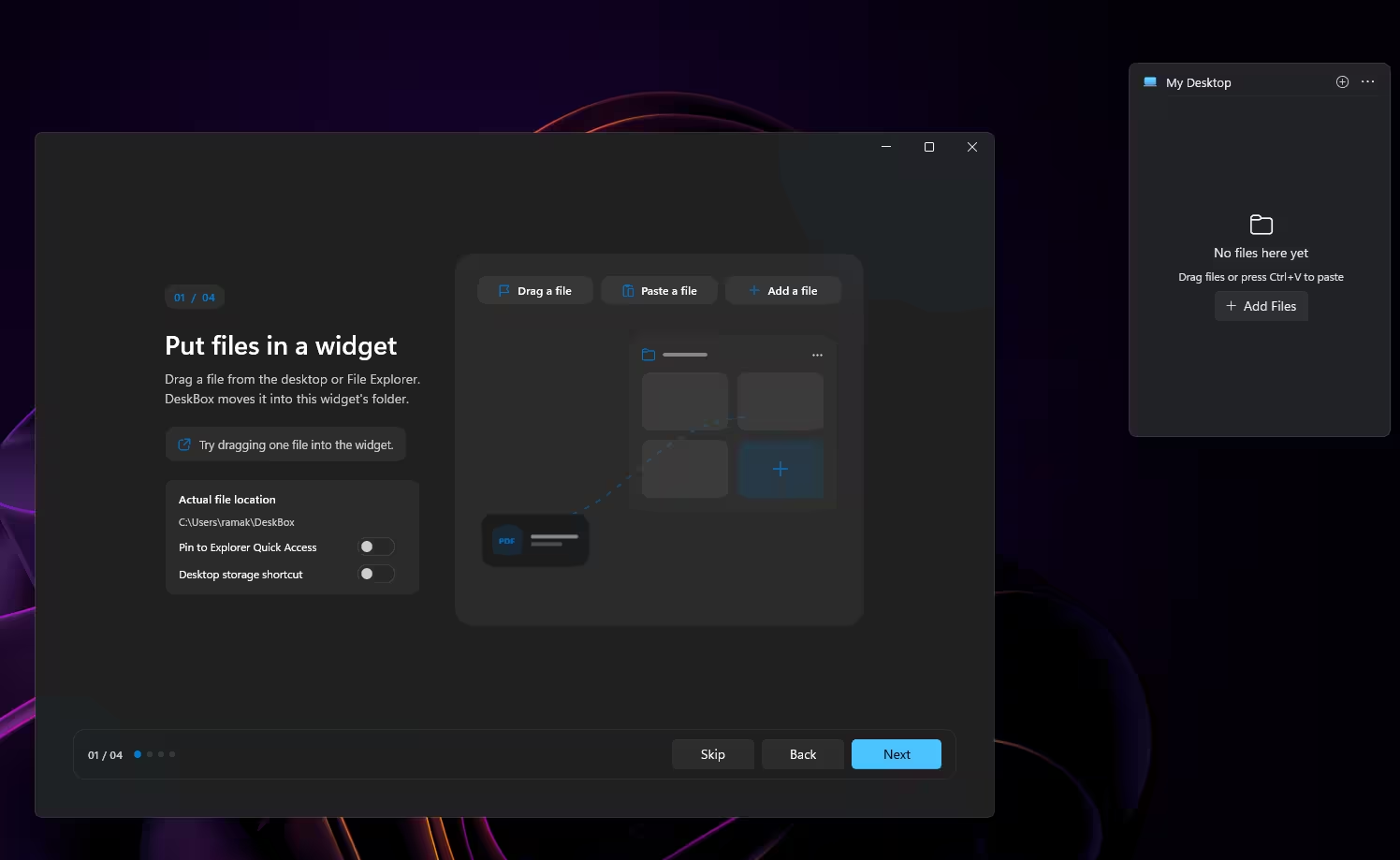
On first launch, a short four-step tour walks you through dragging your first file into a widget and shows where those files will actually live. Read that screen — it’s where you can also pin the storage folder to Quick Access.
What I Liked and What Could Be Better
👍 The good
- Free, open source, no account needed
- F7 show/hide is fast and genuinely useful
- Looks native on Windows 11
- Files stay in normal Windows folders
- Snapping makes layouts painless
- Built-in integration with Everything
👎 Could be better
- Unsigned installer triggers SmartScreen
- Default “Move” drop can surprise new users
- So many settings it takes a while to explore
- File search needs Everything installed separately
- Maintained by a single developer
📊 Techno360 Verdict: 4.5 / 5
DeskBox is one of the most capable free Fences alternatives I’ve tried, especially if you want handy widgets alongside your file boxes. The file boxes do the core job well, the optional widgets are actually useful instead of decoration, and the F7 toggle means you can have a spotless desktop and a well-stocked one at the same time. It misses a perfect score for now because of the unsigned installer and a default Move behavior that can catch new users off guard.
Get it if: your desktop is a mess, you like quick access to files without keeping Explorer open, or you want Fences-style organization without paying. Skip it if: you’re uncomfortable running unsigned installers or you only ever need one or two folder shortcuts.
If you want widgets on your taskbar rather than your desktop, have a look at my WidBar review — the two pair nicely. And for more free tools like this, browse our free Windows software, tips and giveaways section.
Frequently Asked Questions
Is DeskBox really free?
Yes. DeskBox is free and open source under the GPL-3.0 licence. There are no ads, paid tiers or accounts to sign up for.
Is DeskBox safe to install?
DeskBox is open source, and its code is publicly available on GitHub. The installer isn’t code-signed yet, so Windows SmartScreen shows a warning. Each release also includes a SHA-256 file so you can confirm your download matches the published installer. Download it only from the official GitHub releases page.
Does DeskBox move my files?
By default, files you drop into a regular DeskBox widget are moved into that widget’s folder. You can change the drop behavior to Copy in the File widgets settings. Folder mapping widgets display an existing folder without moving anything.
How do I hide DeskBox widgets?
Press F7 to hide or show all widgets. You can change the hotkey, or turn on double-clicking an empty desktop area, under Shortcuts & interaction in DeskBox settings.
Does DeskBox work on Windows 10?
Yes, on Windows 10 version 21H2 or later. Windows 11 22H2 or later gets the full visual effects; on Windows 10 some materials and animations fall back to simpler versions.
Do I need Everything to use DeskBox search?
Only for searching files and folders across your PC. DeskBox reads Everything’s existing index instead of building its own, so Everything must be installed separately. Notes, to-dos and widget files can be searched without it.
What happens to my files if I uninstall DeskBox?
They stay on your drive as normal files, not locked inside a proprietary database. The uninstaller lets you keep or delete DeskBox’s own settings and data, and the developer states that files in its storage folder are preserved either way.