

In this DNS Hop review, we cover how this free, open-source Windows utility benchmarks dozens of DNS providers and lets you switch to the fastest resolver for your specific connection with a single click. DNS Hop is a powerful performance-tuning and privacy tool for anyone who wants quicker, more reliable browsing without digging through complex network settings.
Contents
What Is DNS Hop?
DNS Hop is a modern DNS benchmarking and switching tool created by GitHub developer center2055, focused on speed, reliability, and transparency rather than paywalled “optimizer” gimmicks. It runs a series of automated tests against a large list of public DNS resolvers and ranks them so that users can immediately see which ones work best from their location.
DNS Hop is currently available for Windows as a portable desktop app and is distributed via its GitHub releases page, where users can always grab the latest version without adware or bundled installers. Being open source, its code and DNS lists are auditable, which is a key advantage over closed-source “network booster” tools.
Why DNS Speed Matters
Every time a browser opens a site, it must convert the domain name into an IP address using DNS, and slow resolvers can add noticeable delay to every page load. A well-tuned DNS setup can make sites feel more responsive, especially when many lookups happen in parallel, such as when loading media-heavy pages, using cloud apps, or gaming.
DNS caching and resolver choice also affect reliability and security because some providers add layers like DNSSEC validation, filtering for malicious domains, or more resilient global anycast networks. DNS Hop helps users see not just raw latency but also these advanced capabilities so they can pick a resolver that balances performance and safety.
Key Features of DNS Hop
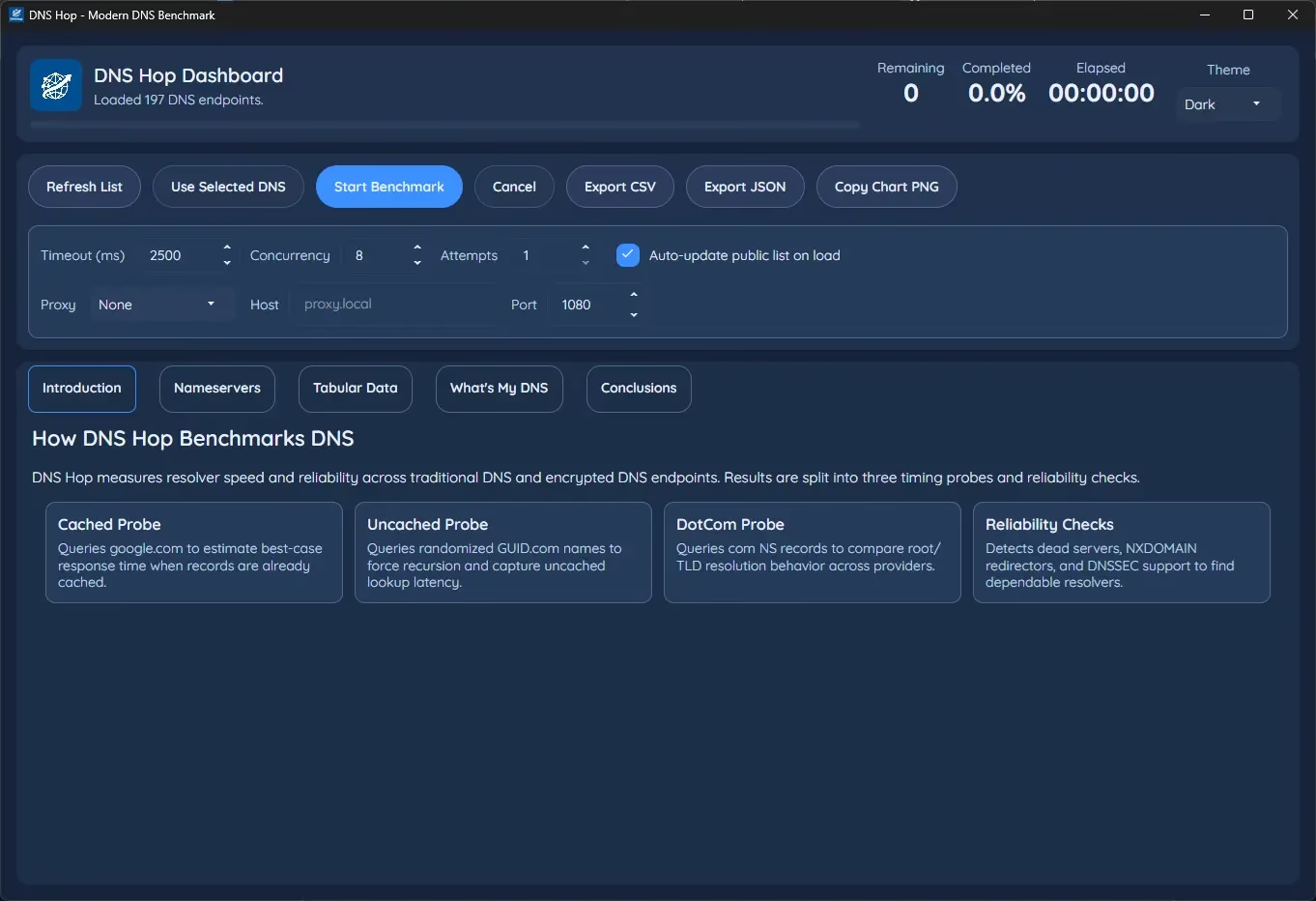
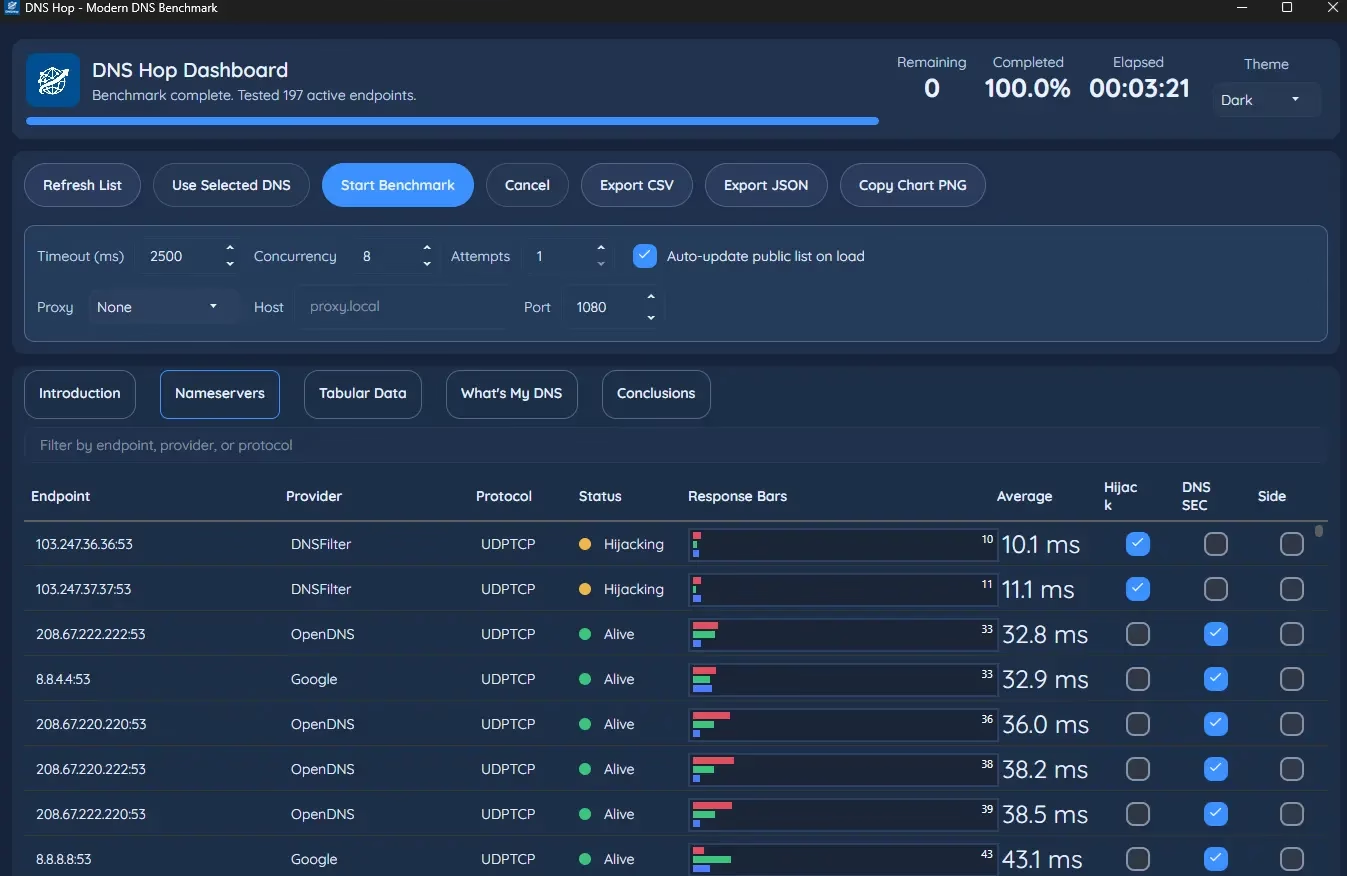
- Modern dashboard interface showing progress, remaining tests, elapsed time, and a sortable list of DNS endpoints, including providers like Google, OpenDNS, Cloudflare, Quad9, and more.
- Multiple timing probes: cached, uncached, and “DotCom” style lookups to simulate both repeat and first-time domain resolutions for a more realistic benchmark.
- Reliability checks that can detect dead servers, hijacking behaviour (NXDOMAIN redirection), and DNSSEC support, exposing problematic resolvers at a glance.
- Detailed per-endpoint stats such as average latency in milliseconds, protocol (UDP/TCP or encrypted variants), and quick visual response bars that highlight consistency versus spikes.
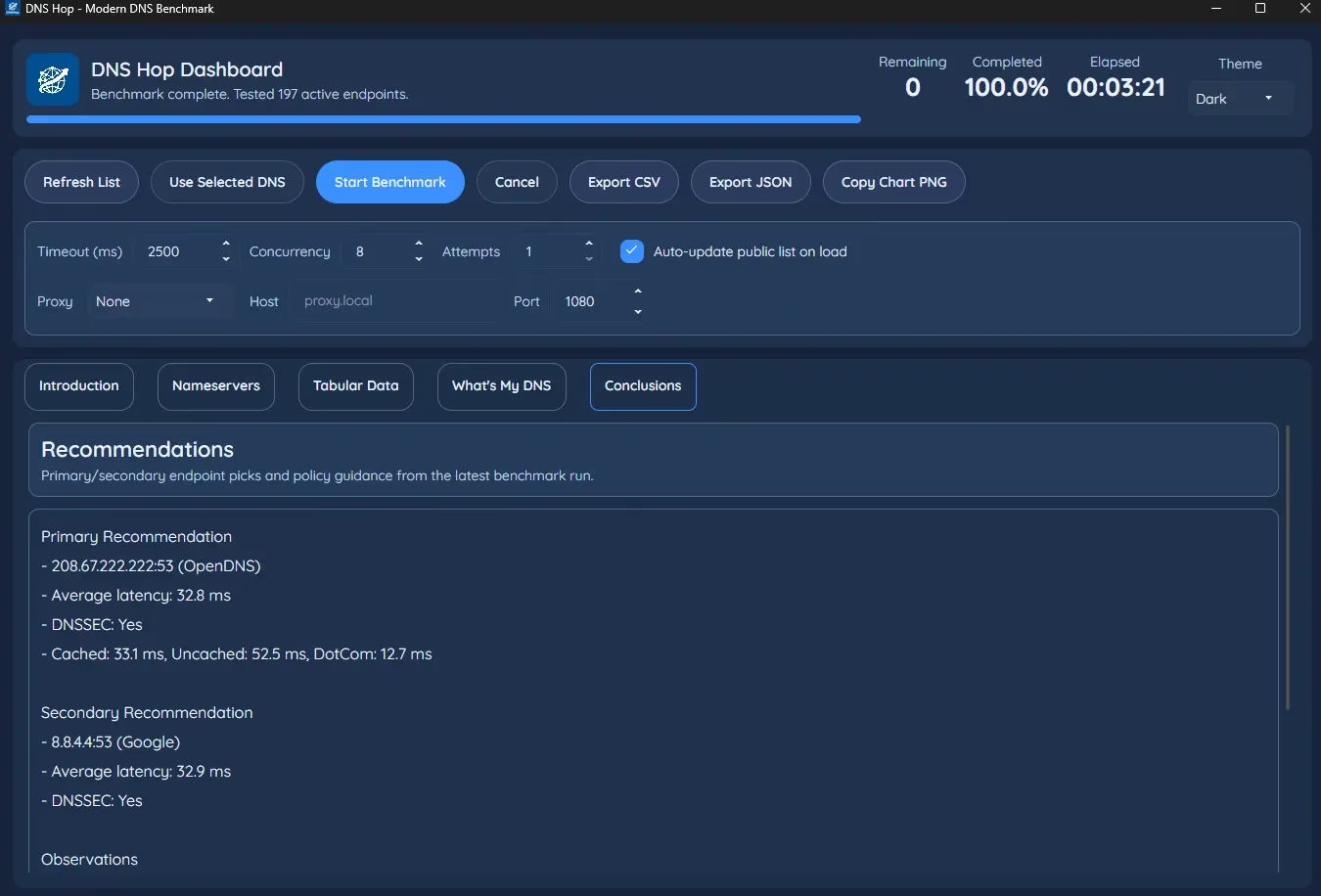
- Built-in Conclusions tab that automatically recommends primary and secondary DNS endpoints based on your latest benchmark, including cached vs uncached times and DNSSEC status.
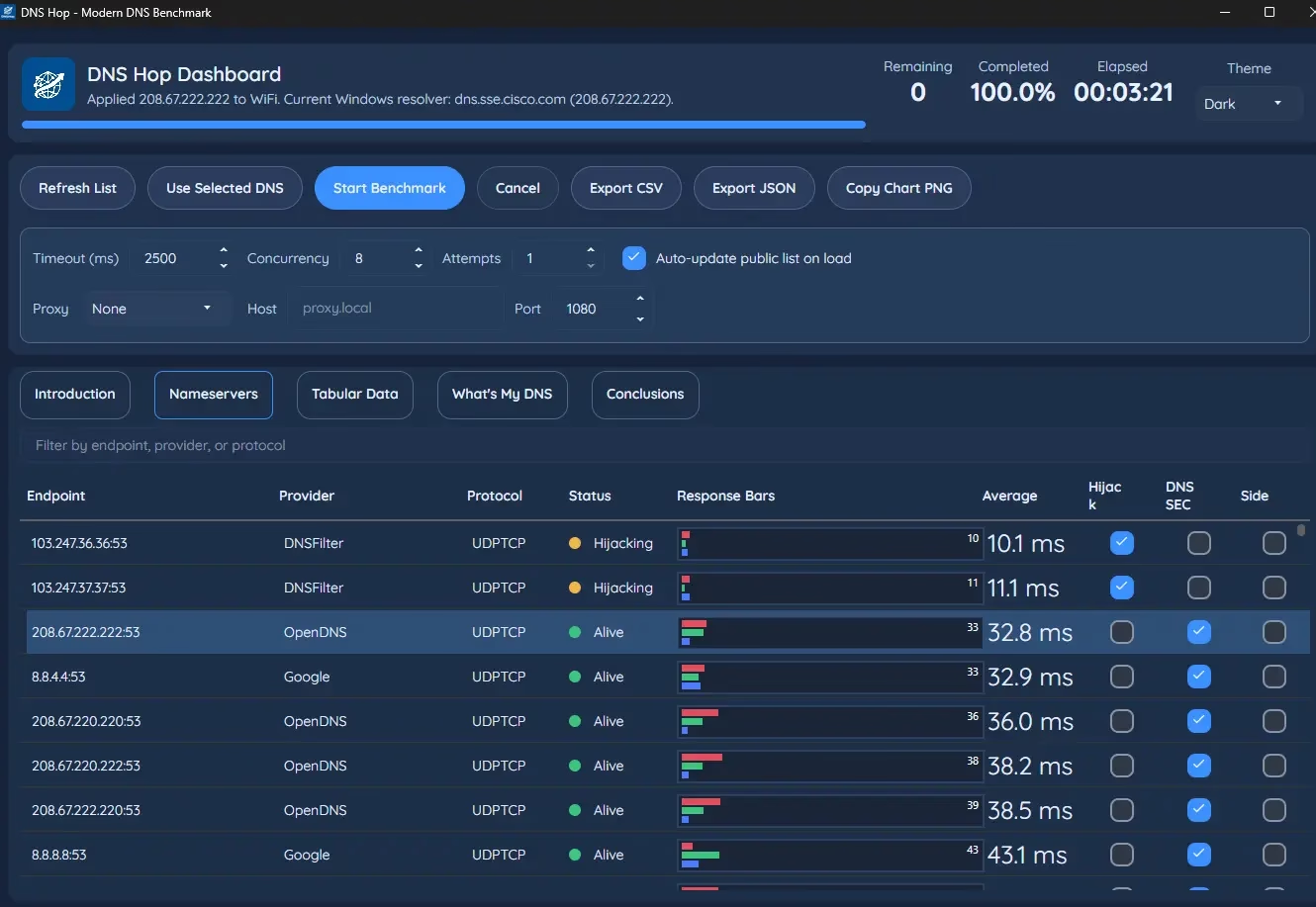
- One-click “Use Selected DNS” button to apply the chosen endpoints directly to the Windows network configuration, removing the need to dig into adapter settings manually.
- Export support for CSV and JSON plus a “Copy Chart PNG” option, saving benchmark data into the
Documents\DNSHop\Exportsfolder for later comparison or sharing.
How DNS Hop Tests DNS Performance
This DNS Hop review found that DNS Hop separates its tests into different probe types to model real-world usage more accurately. The Cached probe queries frequently visited domains (such as google.com) to measure best-case responses when records are already stored by a resolver, which is typical during daily browsing.
The Uncached probe uses randomized domain names to force a full recursive lookup, revealing how quickly a resolver can reach authoritative servers when nothing is in cache. The DotCom probe targets root and top-level domain nameserver behaviour, highlighting how well a resolver performs deeper in the DNS hierarchy.
In addition, DNS Hop performs reliability checks to detect issues such as NXDOMAIN redirection, which can break applications or compromise privacy when ISPs or third parties hijack failed lookups for ads or tracking. It also flags endpoints that support DNSSEC, a security extension that validates DNS responses to prevent forged or tampered records.
Step-by-Step: Using DNS Hop to Find the Fastest DNS
- Download and launch the app — Grab the latest DNS Hop release from the official GitHub page and run the portable executable on your Windows PC. No installation is required, making it easy to carry on a USB stick or use on multiple systems.
- Load the public endpoint list — On launch, DNS Hop automatically loads a curated list of public DNS servers, including popular providers and region-specific resolvers.
- Configure benchmark settings — Set timeout, concurrency, and number of attempts per endpoint if you want more rigorous testing; higher concurrency and multiple attempts can reveal jitter and transient issues more clearly.
- Run the benchmark — Click “Start Benchmark” to begin testing; DNS Hop will cycle through all active endpoints, while the dashboard shows percentage completed, elapsed time, and a dynamic results table.
- Analyse results in the Nameservers tab — Once complete, sort by Average latency or filter by provider or protocol to compare performance of specific DNS services such as Google Public DNS, OpenDNS, or Quad9.
- Review recommendations — Open the Conclusions tab to see DNS Hop’s recommended primary and secondary endpoints, with details on average latency, cached versus uncached times, and DNSSEC support.
- Apply the fastest DNS with one click — Select the recommended endpoints in the Nameservers list and hit “Use Selected DNS” to immediately apply the new DNS to your Windows network adapter.
- Export and compare benchmarks — Use the Export CSV or Export JSON options to archive test runs or feed them into spreadsheets and monitoring tools, and copy the chart PNG for reports or blog posts.
Real-World Benefits for Everyday Users
Switching to an optimized DNS resolver can significantly reduce page load times for frequently visited sites because cached responses are returned much faster than full recursive lookups. For gamers and streamers, a low-latency, reliable DNS also cuts down on connection stalls, matchmaking errors, and domain-based service issues.
Privacy-focused users benefit from choosing resolvers that avoid NXDOMAIN redirection and support DNSSEC or encrypted transports; DNS Hop’s hijacking and DNSSEC indicators make these choices transparent. Power users and IT admins can export historical benchmarks to compare ISPs, test new resolvers, or document performance gains after network changes.
How DNS Hop Compares to Other DNS Tools
| Tool / Feature | Platform | GUI | DNS Switching | Cached vs Uncached | DNSSEC / Hijack Checks | Cost & License |
|---|---|---|---|---|---|---|
| DNS Hop | Windows desktop | Yes, modern dashboard | Built-in one-click switching | Yes, including DotCom probe | Yes, hijacking and DNSSEC indicators | Free and open source on GitHub |
| GRC DNS Benchmark | Windows / Wine | Classic GUI | No automatic switching | Yes, extensive nameserver stats | Limited security indicators | Freeware, closed code |
| CLI DNS benchmark tools (dns-bench, dnstrace) | Cross-platform CLI | No GUI, terminal-based | No | Focus on latency and throughput | Minimal protocol-level checks | Open source, aimed at advanced users |
Our DNS Hop review confirms that DNS Hop stands out by combining a user-friendly graphical interface with serious benchmarking depth and direct DNS switching, which many legacy tools still lack. This makes it especially suitable for Windows users who want practical speed improvements without spending hours in network control panels.
Where to Download DNS Hop
If this DNS Hop review has convinced you to try it, the official project page provides source code, documentation, and release notes for DNS Hop, including details about new features and bug fixes. Users should always download the app from the dedicated Releases section on GitHub to ensure they get authentic, up-to-date binaries.
- Developer page: https://github.com/center2055/DNS-Hop
- Latest Windows release: https://github.com/center2055/DNS-Hop/releases/latest


Discover more from Techno360
Subscribe to get the latest posts sent to your email.