
Files 4.1.1 File Manager for Windows: Customizable Toolbar, New Settings Page & More
The open-source File Explorer alternative just got a major usability upgrade — drag-and-drop toolbar customization, a brand-new settings page, single-click open, theme shortcuts, and a fast 4.1.1 patch that lands right on top of it. Here is everything new and how to grab it free.
⚡ Quick Read — 30 Seconds
- What: Files 4.1 (plus the immediate 4.1.1 patch) for Windows — the popular open-source File Explorer replacement.
- Headline feature: Right-click the toolbar to fully customize buttons, drag-and-drop to rearrange, and pin a new Edit Tags action.
- Also new: Dedicated Settings page (searchable from the Omnibar), single-click open, custom display fonts, default-terminal respect, and the Ctrl + Alt + T theme toggle.
- Cost: Free via the classic installer at files.community; paid in the Microsoft Store (supports the devs).
- Verdict: A polish-and-personalization release that makes Files a genuinely better daily driver than File Explorer.
What’s New in the Files 4.1.1 File Manager
1. A Fully Customizable Toolbar (Finally)
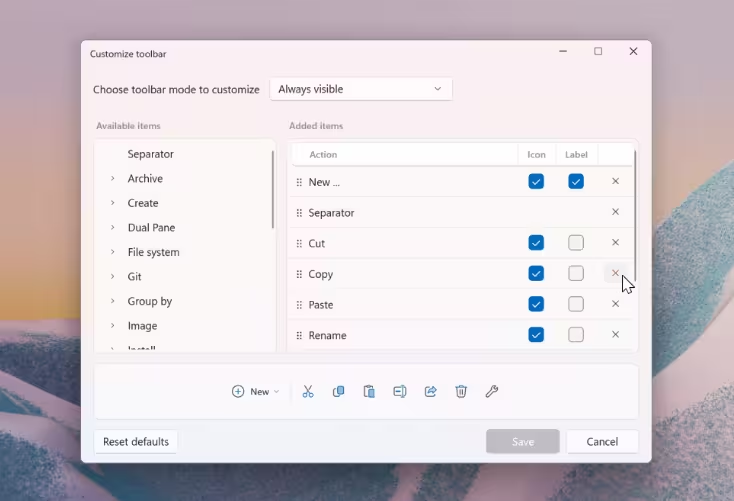
The headline change in Files 4.1 is toolbar customization. Right-click any toolbar item and a settings flyout opens — similar to what you’d see in a modern browser. From there you can:
- Choose which buttons appear in the toolbar.
- Drag and drop icons to rearrange them.
- Use the new “Unpin” right-click option to hide an item in one click.
- Customize different toolbar modes (default, search, etc.) independently.
One of the new toolbar items you can pin is an Edit Tags button — just drag the icon into the toolbar. Files has supported tagging for a while, but tag editing was buried; now it is one click away.
2. Brand-New Dedicated Settings Page
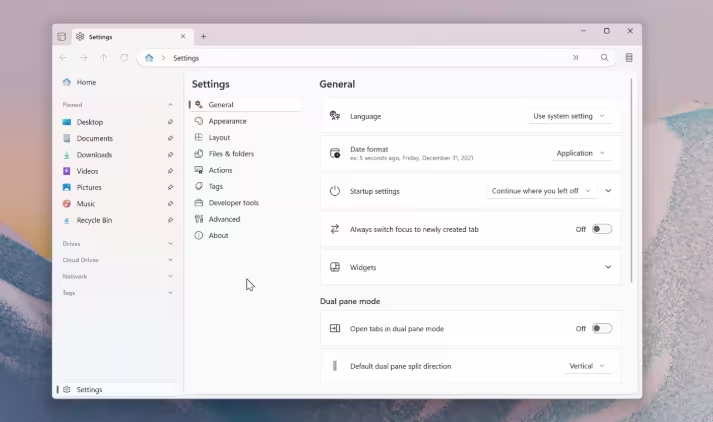
The old settings dialog has been retired. In Files 4.1 it is replaced by a full-page settings interface that leaves room for new options to grow into. The most useful side effect: settings are now searchable through the Omnibar, so you no longer have to dig through tabs to find that one toggle.
3. Single-Click Open (Like File Explorer)
If you have ever loved File Explorer’s option to open files and folders with a single click, you can now do the same thing in Files. The single-click open setting has been integrated — and it offers more flexibility than the original. Tiny change on paper, huge on a touchpad.
4. Custom Display Fonts
Files 4.1 lets you change the display font used across the entire application by picking any font installed on your system. Inter, Roboto, JetBrains Mono, Comic Sans — whatever works for you. This is a pure personalization win and the kind of detail that makes power users happy.
5. Default Terminal Respect
Files now reads and respects your system’s default terminal app. When you choose “Open in Terminal” from the right-click context menu or the toolbar, it will open in whichever terminal you have set as default in Windows — Windows Terminal, Command Prompt, PowerShell, or a third-party app.
6. Theme Keyboard Shortcut (Ctrl + Alt + T)
Switching between light and dark mode is now as fast as pressing Ctrl + Alt + T. You can also still change themes from the new settings page, but having a keyboard shortcut means you can flip themes without opening a single menu. Handy when you move between bright offices and dark rooms.
7. Bug Fixes Worth Mentioning
- Fixed the window not getting focus when launched with Win + E.
- Fixed CSS file previews that weren’t rendering correctly.
- Improved media preview performance.
- Multiple smaller refinements to search, thumbnails, and protected-folder operations.
And Then Files 4.1.1 Dropped — Immediately
Right after the 4.1 stable release, the team pushed out Files 4.1.1 as a quick patch. No detailed changelog was shared, so this looks like a fast-follow bug-fix release rather than a feature update — the safe bet is to skip 4.1 and go straight to 4.1.1.
How to Download Files 4.1.1 (Free)
You have three ways to install:
- Classic installer (free): Head to files.community/download and scroll to the bottom-right of the page for the free classic installer.
- Microsoft Store (paid): The Store version is paid — a way to financially support the developers. Same app, just bundled with auto-updates.
- GitHub Releases: Grab the
.msixdirectly from github.com/files-community/Files/releases.
Existing users will see an update icon in the top-right corner of the app — one click and you’re current. Because Files uses a side-by-side MSIX install model, the update will not wipe your settings, tags, or theme.
Techno360 Verdict
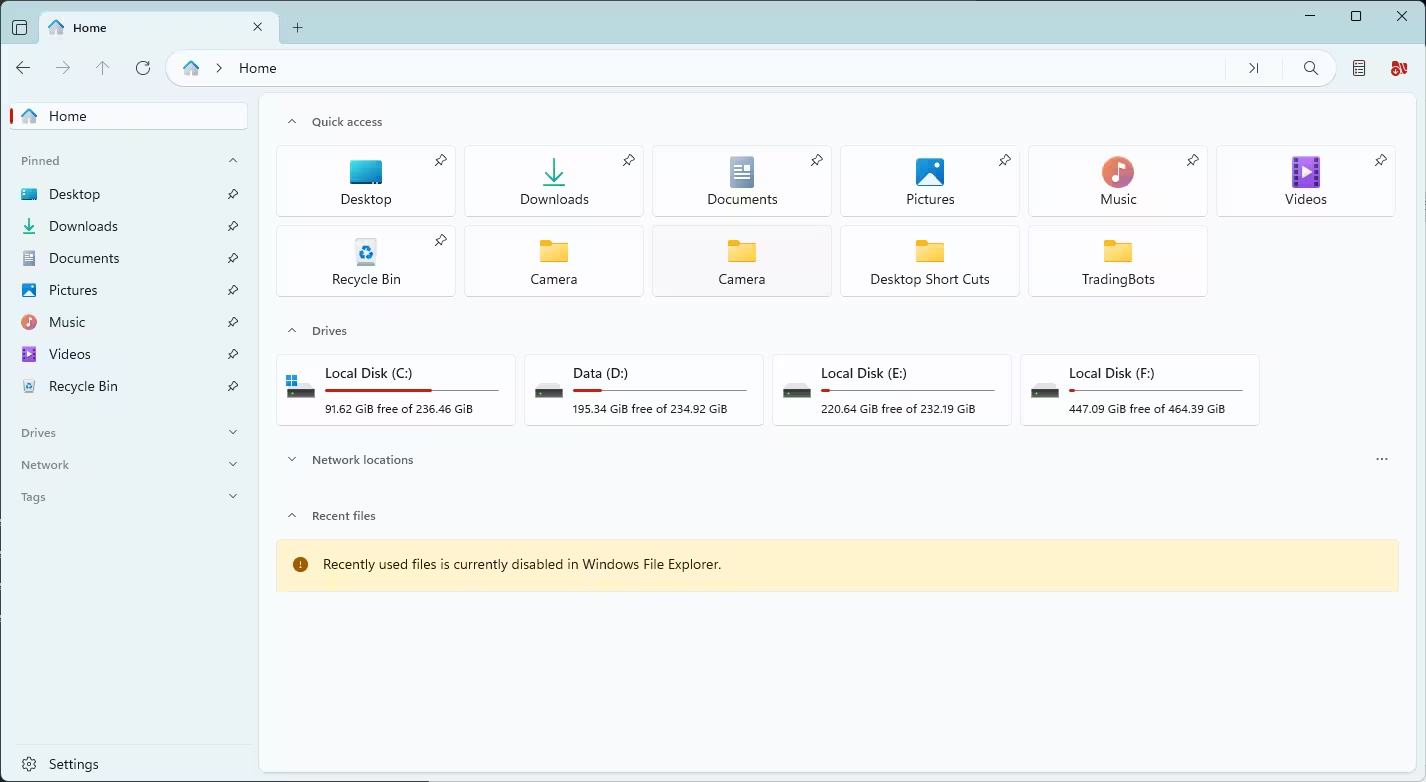
Files 4.1.1 is not trying to wow you with new headline features — it is trying to make the file manager you already use feel like it was built for you. The customizable toolbar alone justifies the update, and the searchable settings page, single-click open, terminal-aware “Open in Terminal”, and theme shortcut all add up to a release that respects your time. If File Explorer’s rigidity has ever annoyed you, install this today.
✅ Pros
- Toolbar is fully drag-and-drop customizable
- New dedicated, searchable settings page
- Single-click open option restored
- Respects your default terminal
- Theme keyboard shortcuts (Ctrl + Alt + T)
- Free via classic installer; open source
- No telemetry, no ads, no sign-in
❌ Cons
- Microsoft Store version is paid
- 4.1.1 changelog not detailed
- Requires .NET 10 Desktop Runtime
- Slightly heavier than File Explorer
Frequently Asked Questions
Is the Files 4.1.1 file manager free?
Yes — the classic installer from files.community is completely free. The Microsoft Store listing is paid as a way for users to financially support the open-source developers.
Can Files 4.1.1 replace Windows File Explorer?
Yes. Inside Files, open Settings → Advanced and enable “Open Files on system startup / Replace Explorer”. Win + E and other shell shortcuts will then open Files instead of File Explorer.
What’s the difference between Files 4.1 and Files 4.1.1?
Files 4.1.1 is a small patch released immediately after 4.1. The developers did not share a detailed changelog, so it is best treated as a quick bug-fix follow-up. New installs should download 4.1.1 directly.
Does Files 4.1 work on Windows 10?
Yes, Files supports both Windows 10 and Windows 11. You will need the .NET 10 Desktop Runtime, which the installer can set up for you (requires admin rights).
No. Files uses a side-by-side MSIX installation model, so the upgrade preserves your settings, themes, and tag configurations.
Is Files safe and private to use?
Yes. Files is open source on GitHub with over a thousand contributors, and the team has stated there is no telemetry, no advertising, and no sign-in required to use the app.


