

Modern Windows PCs accumulate junk faster than most people realize. Browser caches, app leftovers, telemetry files, installer residue — they pile up quietly until one day your SSD is suspiciously full and your Downloads folder is not to blame.
You need a free PC cleaner for Windows 11 that actually tells you what it found, lets you decide what to remove, and does not try to sell you a Pro plan every time you open it.
That tool is FluentCleaner. Built with WinUI 3, designed to feel native on Windows 11, and made by a developer with zero tolerance for fake features — it found 11.21 GB of junk on our test machine in a single scan. Here is everything you need to know.

What Is FluentCleaner?
FluentCleaner is a free, open-source PC cleaner for Windows 11 built using Microsoft’s WinUI 3 framework — the same design language that powers many first-party Windows 11 apps. Think of it as a safe junk file cleaner and a legitimate CCleaner alternative: it scans your system for files left behind by browsers, applications, Windows components, games, and utilities, then lets you selectively remove them to reclaim disk space.
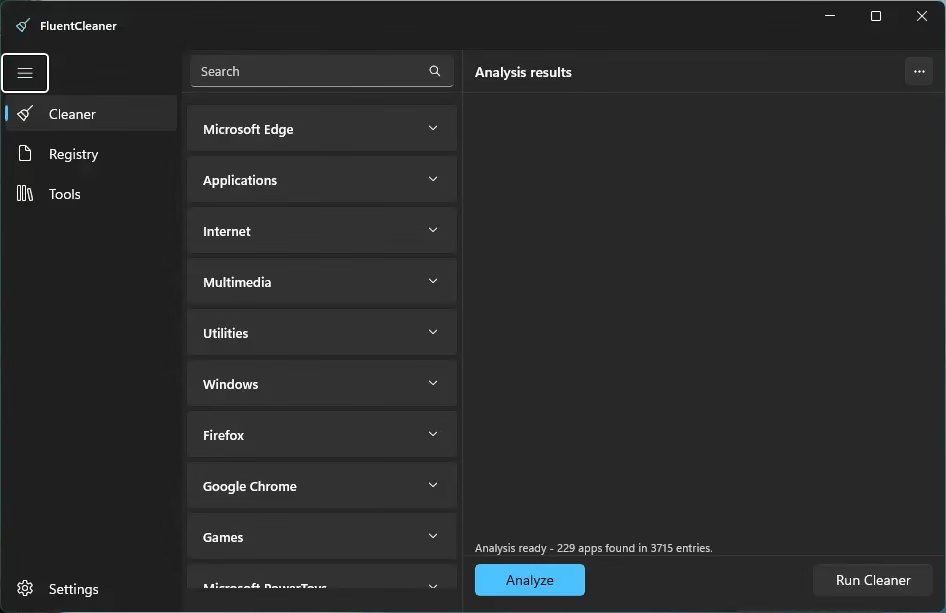
The app launches as FCleaner.exe and has a clean three-section layout: Cleaner, Registry, and Tools, accessible from the left sidebar.
About the Developer: Belim
FluentCleaner comes from the workshop of Belim, a prolific developer with a track record of well-regarded, no-nonsense Windows utilities. If the name rings a bell, it is because Belim is also behind:
- TidyOS — a lightweight Windows 11 optimization tool
- XD-AntiSpy — a Windows privacy and telemetry manager
- Flyby11 — the popular tool for bypassing Windows 11 hardware requirements
- Crapfixer (CFixer) — a one-click Windows 11 debloater
In short, Belim has a consistent philosophy: build tools that are honest about what they do and do not try to upsell you. FluentCleaner fits that pattern perfectly.
FluentCleaner Interface: Clean, Honest, Fast
The interface follows a three-panel layout that should feel immediately familiar:
- Left sidebar — Navigation between Cleaner, Registry, and Tools sections, plus a Settings shortcut at the bottom.
- Middle panel — A scrollable list of categories (Microsoft Edge, Applications, Internet, Multimedia, Utilities, Windows, Firefox, Google Chrome, Games, Microsoft PowerToys, and more), each expandable to toggle individual items.
- Right panel — The Analysis results pane, which populates after you click Analyze.
At the bottom of the screen, a status bar shows a running summary — for example, “Analysis ready – 229 apps found in 3715 entries” — and two action buttons: Analyze and Run Cleaner.

How to Use FluentCleaner: Step by Step
Step 1 — Download and Install the App
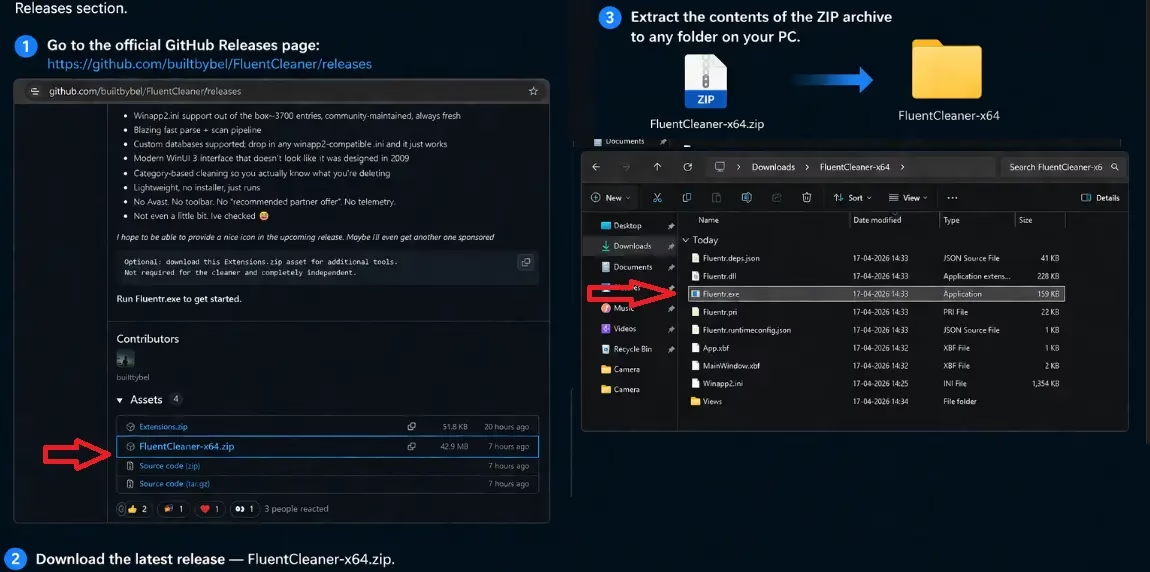
FluentCleaner is distributed as a portable application — no installation required. To get started, visit the developer’s official GitHub page and navigate to the Releases section.
Download the latest release — FluentCleaner-win-x64.zip — then extract the contents of the ZIP archive to any folder on your PC. Once extracted, simply double-click FCleaner.exe to launch the application. No setup wizard, no admin privileges required.

Step 2 — Launch and Review Categories
After opening FluentCleaner, the middle panel displays all the categories it can scan. You can expand each category to see individual sub-items and selectively check or uncheck what you want to include in the scan. The built-in search bar at the top of the category panel makes it easy to find a specific app or entry.
Step 3 — Click Analyze
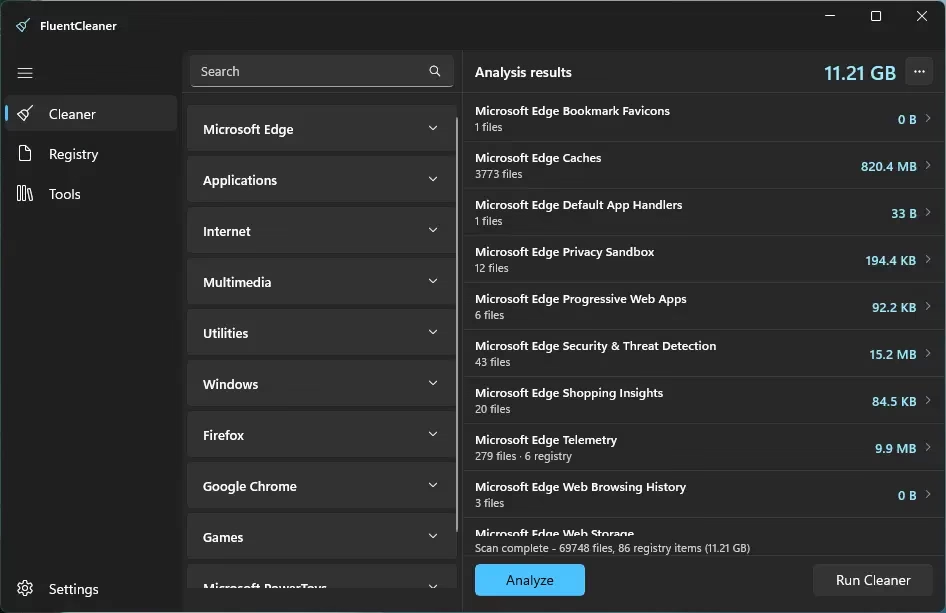
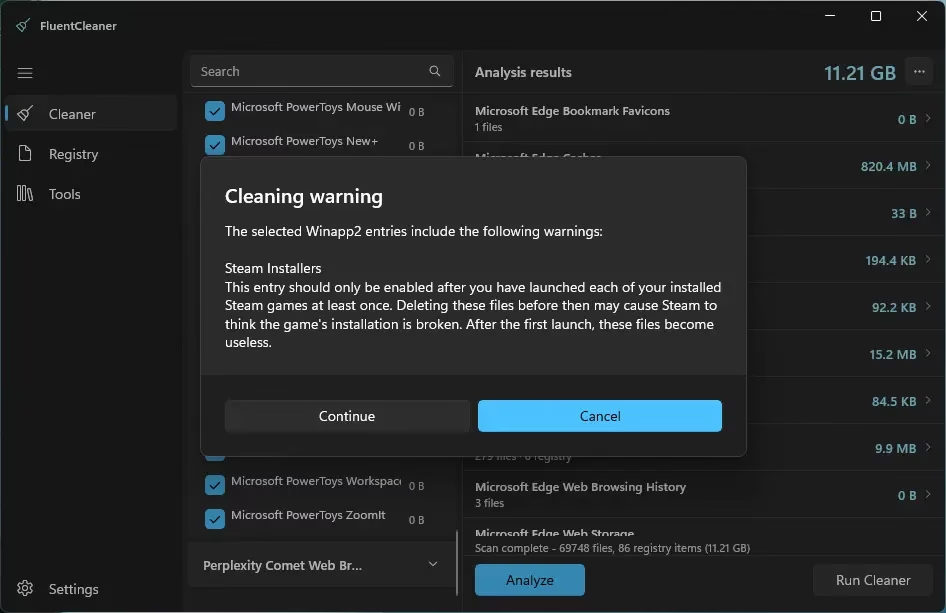
Hit the Analyze button. FluentCleaner will scan all selected categories and populate the right-hand panel with itemized results. On our test system, the scan completed with 69,748 files and 86 registry items totalling a substantial 11.21 GB.
Step 4 — Review the Results
The results panel lists each detected entry with its file count and size. Here is a snapshot of what was found just under the Microsoft Edge category on the test machine:
| Entry | Files | Size |
|---|---|---|
| Microsoft Edge Caches | 3,773 | 820.4 MB |
| Microsoft Edge Security & Threat Detection | 43 | 15.2 MB |
| Microsoft Edge Telemetry | 279 files + 6 registry | 9.9 MB |
| Microsoft Edge Privacy Sandbox | 12 | 194.4 KB |
| Microsoft Edge Progressive Web Apps | 6 | 92.2 KB |
| Microsoft Edge Shopping Insights | 20 | 84.5 KB |
| Microsoft Edge Default App Handlers | 1 | 33 B |
| Microsoft Edge Bookmark Favicons | 1 | 0 B |
| Microsoft Edge Web Browsing History | 3 | 0 B |
Every entry is clickable (the arrow icon on the right) to drill into individual files before you decide to delete anything. This level of transparency is exactly what you want from a cleaning tool.
Step 5 — Watch Out for Cleaning Warnings
Before the cleaner runs, FluentCleaner surfaces a Cleaning Warning dialog for any entries that carry a risk. On our test machine, the warning appeared for Steam Installers:
“This entry should only be enabled after you have launched each of your installed Steam games at least once. Deleting these files before then may cause Steam to think the game’s installation is broken. After the first launch, these files become useless.”
You can choose to Continue or Cancel. This kind of per-entry warning is a thoughtful safety net that prevents accidental breakage — something older cleaners often lack.
Step 6 — Run Cleaner
Once you have reviewed everything and dismissed any warnings, click Run Cleaner to delete the selected junk files. The process is irreversible, so the review step matters.
Registry Cleaner Section: Refreshingly Honest
Click over to the Registry section and you will find something rare in the PC cleaner world: honesty.
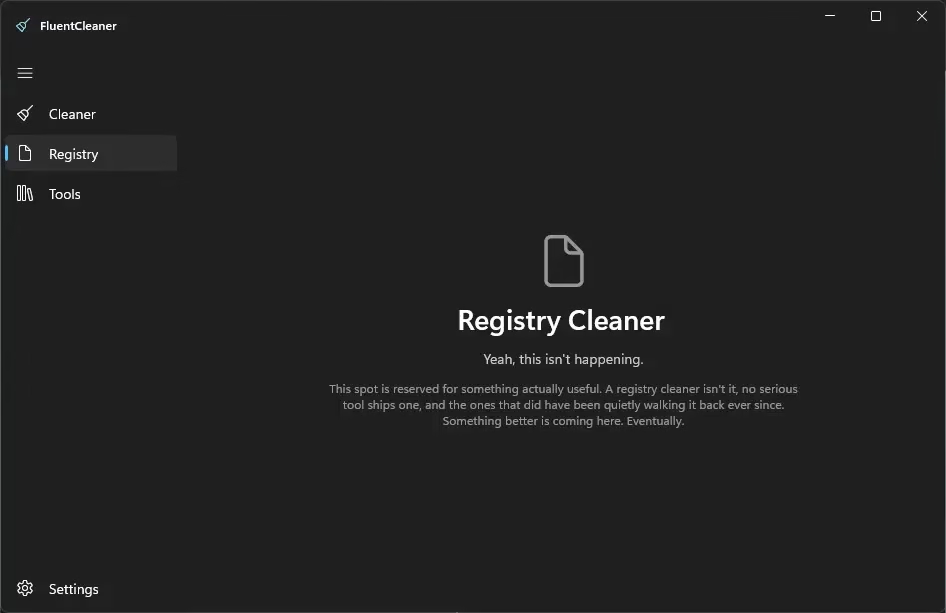
Instead of a registry scanner filled with meaningless “errors,” FluentCleaner displays this message:
“Registry Cleaner — Yeah, this isn’t happening. This spot is reserved for something actually useful. A registry cleaner isn’t it, no serious tool ships one, and the ones that did have been quietly walking it back ever since. Something better is coming here. Eventually.”
This is the correct take. Registry cleaners have long been considered ineffective and potentially harmful by security experts. Belim’s decision to call this out directly — rather than shipping a fake registry scanner for the appearance of features — reflects the integrity that runs through all their tools.
Will FluentCleaner Make Your PC Faster?
Probably not — and the app’s own FAQ says as much. According to FluentCleaner’s documentation, the performance improvements from PC cleaning were most relevant in the Windows XP era, when spinning hard drives and limited RAM meant that accumulated junk had a measurable impact.
On a modern Windows 11 machine with an SSD, the primary benefit of running FluentCleaner is disk space recovery — not speed. That said, recovering 11 GB (as seen in the test scan) is still genuinely useful, especially on smaller SSDs or budget laptops.
What Does FluentCleaner Scan?
The Cleaner section covers a broad range of categories, including:
- Microsoft Edge — cache, telemetry, privacy sandbox, shopping insights, security files, progressive web apps, and more
- Firefox — browser-related junk
- Google Chrome — browser-related junk
- Applications — leftovers from installed software
- Internet — general internet-related temporary files
- Multimedia — media player caches and temporary files
- Utilities — utility app residue
- Windows — system-level junk and temporary files
- Games — including Steam Installer files (with appropriate warning)
- Microsoft PowerToys — leftovers from PowerToys modules
A built-in search bar lets you quickly find and toggle any specific app or entry across all categories.
FluentCleaner vs CCleaner: Why Switch?
| Feature | FluentCleaner | CCleaner (Free) |
|---|---|---|
| Price | Free | Free (with paid tiers) |
| UI Design | WinUI 3 (Windows 11 native) | Custom / dated |
| Nagware / upsells | None | Frequent |
| Registry Cleaner | Honestly absent (future placeholder) | Present (debatable value) |
| Per-entry warnings | Yes (e.g. Steam Installers) | Limited |
| Open source | Yes (GitHub) | No |
| Developer transparency | High | Moderate |
Is FluentCleaner Safe to Use?
Yes — and the evidence is in the app itself, not just our word for it. Here is why:
- Open source on GitHub. The code is publicly auditable. There are no hidden processes, bundled adware, or telemetry payloads baked in.
- Per-entry cleaning warnings. As seen with the Steam Installers dialog, FluentCleaner actively flags entries that could cause problems if deleted prematurely. It does not silently delete files that might matter.
- Selective, opt-in cleaning. Nothing is deleted automatically. You review the analysis results, uncheck anything you are unsure about, and only then click Run Cleaner.
- No registry scanner. Registry cleaners are a known source of system damage when they go wrong. FluentCleaner refuses to ship one — which itself reduces risk compared to tools that do.
- Established developer. Belim’s other tools (TidyOS, Flyby11, XD-AntiSpy) have been widely used and reviewed without safety incidents.
The standard advice applies regardless of which cleaner you use: read what each entry does before deleting it, and do not blindly check everything just because the scanner found it.
Who Should Use FluentCleaner (And Who Should Skip It)
Use FluentCleaner if you:
- Have a smaller SSD (256 GB or 512 GB) that is running low on space
- Use Microsoft Edge, Chrome, or Firefox heavily and have not cleared cache in months
- Want a clean, transparent alternative to CCleaner with no nags or upsells
- Have Steam games installed and want to safely clean up post-launch installer files
- Prefer open-source tools you can verify yourself
Skip FluentCleaner if you:
- Expect it to make your PC noticeably faster — it will not on modern hardware
- Already have 500 GB+ of free space and no storage pressure
- Are not comfortable reviewing what each entry does before deleting it
Verdict: Should You Use FluentCleaner?
Yes — if you are looking for a modern, honest, free PC cleaner for Windows 11, FluentCleaner is an excellent choice. It will not make your PC feel like a rocket ship, but it will help you claw back gigabytes of disk space from browser caches, app residue, and Windows junk that quietly accumulates over time.
What sets it apart is developer integrity: it does not oversell what it can do, warns you before potentially risky deletions, and refuses to ship a useless registry cleaner just for the sake of having a feature list. From the maker of TidyOS, XD-AntiSpy, Flyby11, and Crapfixer — this is exactly the kind of tool you would expect.
Head over to Belim’s GitHub page to download FluentCleaner and give it a run. Your recycle bin will thank you.
What’s New in FluentCleaner (Updated September 2026)
FluentCleaner has continued shipping regular updates since our original review. As of September 2026, the current stable release is version 26.07.03 (released July 19, 2026), with a growing list of refinements:
- Rule Lab (v26.07.03) — a new preview/dry-run tool that shows exactly which files and registry keys a cleaning rule would match, without deleting or writing anything, accessible via right-click “Show source” or “Test.”
- Protected paths safety net (v26.07.03) — browser extension data for password managers and ad blockers (1Password, Bitwarden, uBlock Origin, etc.) is now always skipped during cleaning, fixing an earlier issue where extensions could break after a Web Storage clean.
- Faster scans (v26.07.02) — duplicate-file detection was rewritten for near-instant lookups, noticeably speeding up large scans such as multi-thousand-file browser cache lists.
- Safer defaults (v26.07.02) — the Office cleaner is now off by default after reports it could wipe pinned or favorite files, and both the Firefox “Browsing History” and Opera cleaners now carry clearer warnings about what they remove.
- More languages — recent releases added Norwegian, Ukrainian, Traditional Chinese, Italian, Russian, and Indonesian translations, among others.
Belim also spun off a second, lighter build called FluentCleaner Classic — a 3.5 MB WinForms companion app built on .NET Framework 4.8, aimed at users whose PCs struggled to run the full ~140 MB WinUI 3 version. Classic shares the same cleaning database as the main app but currently skips a few extras like the theme picker, Rule Lab, and AI-assisted custom cleaner generation. Both versions are being developed in parallel.
You can grab either build — and browse the full changelog — from the official GitHub Releases page linked below.
Free Download
FluentCleaner
Version 26.07.03 | Windows 10 & 11 | x64 | Open Source | No cost
by Belim — GitHub Official Release
ZIP file • Direct from GitHub • No installer needed

Frequently Asked Questions
Is FluentCleaner safe to use?
Yes. FluentCleaner is open-source, shows per-entry warnings before any deletion, and requires you to confirm before running the cleaner. It does not include a registry cleaner, which eliminates one of the most common sources of cleaner-related system damage. The developer Belim has a strong track record with tools like TidyOS and Flyby11.
Is FluentCleaner free?
Yes, FluentCleaner is a free, open-source PC cleaner developed by Belim and available on GitHub.
Will FluentCleaner make my Windows PC faster?
Not noticeably on modern hardware. According to the app’s own FAQ, the speed benefit from cleaning was more relevant in the Windows XP era. FluentCleaner is primarily useful for recovering disk space by removing junk files and leftovers that accumulate over time.
Does FluentCleaner have a registry cleaner?
Not yet. The Registry section currently shows a placeholder message stating that a traditional registry cleaner is not planned, and something more useful will replace it in a future release.
Who made FluentCleaner?
FluentCleaner was developed by Belim, a well-known Windows app developer also behind TidyOS, XD-AntiSpy, Flyby11, and Crapfixer (CFixer).
What does FluentCleaner scan?
FluentCleaner scans across multiple categories including Microsoft Edge, Firefox, Google Chrome, Applications, Internet, Multimedia, Utilities, Windows system files, Games, and Microsoft PowerToys, among others.