


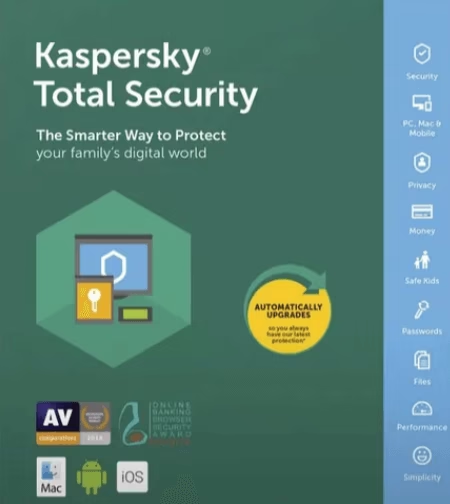
Kaspersky Total Security delivers the ultimate protection for your PCs, Mac & Android devices.
The security product provides everything to protect your data and devices or PCs against digital threats.
The software blocks inappropriate content, adds extra security when completing your online banking. It offers a secure password manager that stores your passwords.
The Password manager encrypts data and makes backup copies of your files and media to decrease the chances of losing your content.


Features:
- Easy to use, automatically detects and removes viruses, Trojans, malware.
- Keeps your device safe, secure, protects against malicious virus attacks.
- Secures Windows PCs, Mac computers & Android devices.
- Safeguards your privacy and your identity.
- Help keep kids safe from Internet dangers.
- Protects your digital life from Internet risks.
- Protects against ransomware, malware, and malicious cyber-attacks.
Kaspersky Total Security 2020 Free for 92 Days:
Just download the preactivated KTS 2020 installer from this link [2.67 MB]or from this alternate link1 /link2.
Run the online installer, it will download the required files and install KTS 2020.
It’s pre-activated, so you don’t need any code. Enjoy 92 days subscription for free.

ComputerBild is offering 92 days free subscription of KTS 2019 for PC, Mac and Android devices.

Visit this in the German language.
Depending on your device, click on ‘Try it for free here!’ (Hier Kostenlos testen!) button.
Next, go ahead to hit the ‘Download –> Start Download’ button.
Download the setup file, run the installer and finish the installation process.
Simply, follow below screenshots to complete installation.


Converting German interface to English:
On finishing the installation, launch the app and the program interface will be in the German Language.
To convert to English, follow below steps.
- Launch KTS 2019, press Shift + F12 on your keyboard and the program interface changes to English.
- Disable self-defense ( click ‘Wheel icon’ Settings–> Additional settings) and exit the application.


3. Click Start → Run → Regedit
4. Launch windows registry editor ( in Windows 10, type regedit on the taskbar search box).
5. In registry editor Navigate to the following registry key :
HKEY_LOCAL_MACHINE\SOFTWARE\Wow6432Node\KasperskyLab\AVP19.0.0\environment
6. Locate below subkeys, double click them and change the values from de-DE to en-US.
"Localization"="en-US"
"LocalizationList"="en-US"
"Ins_Localization"="en-US"

7. That’s it, launch KTS and enable self-defense.


