


Free • No Sign-Up Needed
Learn Touch Typing Free: 2 Tools That Get You Typing Without Looking
Still hunting for keys with two fingers? These two free tools — one lives in your browser, one runs on your Windows PC — can turn you into a proper touch typist with just a few minutes of practice a day.


Typing while staring at the keyboard is one of those habits that quietly eats hours out of your week. Every glance down breaks your train of thought, slows you to a crawl, and leaves your neck aching by evening. The good news? You can learn touch typing free — no paid course, no monthly fee — using tools that have already helped millions of people speed up their fingers.
Below I’ve lined up two of the best free options for 2026. One is a browser-based tutor you can open in seconds, and the other is a colourful Windows program you install once and keep forever. I’ll walk you through what each one does well, where it falls short, and which one fits you best.
⚡ Quick Read
- Sense-Lang — runs online in any browser, nothing to install, 16 progressive lessons, plus typing games and speed tests. Best if you want to start right now.
- RapidTyping — a free Windows program (v5.5) with a colour-coded on-screen keyboard and guiding hands. Best if you want a proper offline tutor that tracks your progress over time.
- Both are 100% free, beginner-friendly, and work for kids and adults.
- Practice 10–15 minutes a day and you’ll feel the difference within a couple of weeks.
Why Bother Learning Touch Typing At All?
Touch typing simply means typing without looking at the keys — your fingers already know where everything is. It sounds like a small thing, but the payoff is huge. You type faster, make fewer mistakes, and your eyes stay on the screen where they belong. For anyone who writes emails, codes, studies, or blogs for a living, that adds up to real hours saved.
The trick is always the same: park your fingers on the home row (feel for the little bumps on the F and J keys), let each finger own its own patch of the keyboard, and resist the urge to peek. Both tools below drill exactly that muscle memory — they just go about it in different ways.
1. Sense-Lang — The No-Install Online Typing Tutor


Sense-Lang has been teaching people to type online since 2001, and it still runs entirely in your browser — nothing to download, nothing to set up. Open the page, pick a lesson, and you’re typing within seconds. That zero-friction start is its biggest selling point.
The tutor shows an animated keyboard with a pair of on-screen hands that point to the correct finger for every key. Miss a key? It gently shows you which finger you should have used, so bad habits never get a chance to stick. Lessons start with just two letters and slowly stack on more, so the difficulty ramps up at a comfortable pace until you’ve covered the whole board.
What you actually get
Sense-Lang splits the learning into four handy areas:
- Lessons — 16 step-by-step tutorials that plant each letter’s position into your memory.
- Tests — timed runs that measure your speed and accuracy so you know where you stand.
- Games — arcade-style challenges (letters, words, and full sentences) that make practice feel like play.
- Numeric keypad — a dedicated drill for the number pad, which most people never practice properly.
It also supports more than one keyboard layout — QWERTY, Dvorak, Colemak, and UK QWERTY — so it’s not locked to a single style. At the end of every session you get a clean breakdown of words per minute, accuracy, and where your mistakes cluster.


👍 What’s great
- Zero install — works on any computer with a browser
- Games keep practice fun for kids and adults
- Multiple keyboard layouts supported
- Free virtual classroom for teachers
👎 Worth noting
- Needs an internet connection to run
- Interface looks a little dated in places
- Ads appear on some pages
2. RapidTyping — The Free Windows Typing Program


If you’d rather have a dedicated app that lives on your PC, RapidTyping is the one to grab. It’s a completely free Windows program, currently at version 5.5, and it’s built to teach both children and adults the touch method in a playful, low-pressure way.
The first time you open it, a quick setup wizard asks about your keyboard — layout, number pad, enter-key shape — then paints a colour-coded keyboard on screen with a pair of guiding hands. Each colour maps a finger to its keys, so you always know which finger should be doing the work. It’s a smart bit of visual training that makes the home-row idea click almost instantly.

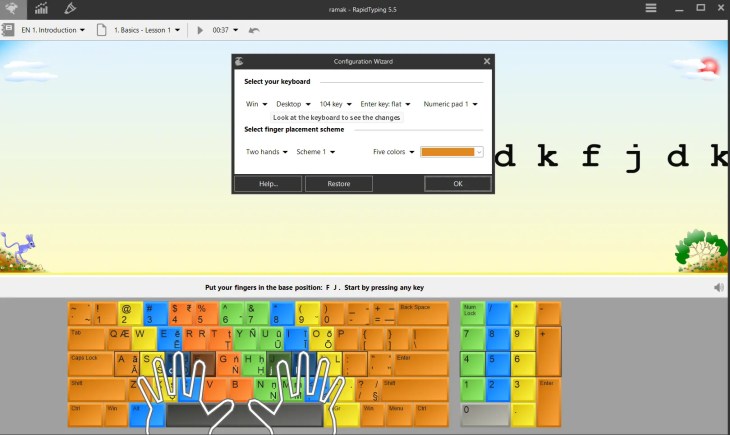
What makes it worth the download
- Organised courses — you start with Introduction lessons and move up to Beginner, covering the main keys, shift keys, the number row, and the numeric keypad.
- Live stats — every drill reports your speed and accuracy, so progress is easy to see.
- Custom lessons — you can build your own exercises or paste in your own text, which is handy for students and teachers.
- Multiple users — each family member or student gets their own profile and saved history.
- Broad language support — it handles many layouts and languages, including finger schemes for Indian languages like Hindi and Tamil.
One more nice touch: RapidTyping comes in both an installable (.exe) version and a portable one. The portable build runs straight from a USB stick with no installation, which is perfect for school computer labs or when you’re hopping between machines. The download is small — around 15 MB — so it’s quick even on a slow connection.
👍 What’s great
- Works fully offline once installed
- Colour-coded keyboard + guiding hands
- Portable version needs no install
- Custom lessons and multi-user profiles
👎 Worth noting
- Windows only (no native mobile app)
- Drills are letter-focused rather than long paragraphs
- The cartoon interface won’t suit everyone
Sense-Lang vs RapidTyping: Quick Comparison
| Feature | Sense-Lang | RapidTyping |
|---|---|---|
| Type | Online (browser) | Desktop program |
| Install needed? | No | Yes (or portable, no install) |
| Cost | Free | Free |
| Platform | Any device with a browser | Windows |
| Works offline? | No | Yes |
| Lessons | 16 progressive lessons | Introduction & Beginner courses |
| Games | Yes (letters, words, sentences) | Practice drills |
| Keyboard layouts | QWERTY, Dvorak, Colemak, UK | Many layouts + languages |
| Progress tracking | WPM, accuracy, error stats | WPM, accuracy, saved history |
| Best for | Starting instantly, any device | A serious offline Windows tutor |
So, Which One Should You Pick?
It really comes down to how you like to learn. If you want to jump in this very minute without downloading anything — or you’re on a Chromebook, Mac, or a locked-down office PC — go with Sense-Lang. It’s the fastest way from “I should learn this” to actually typing.
If you’re on Windows and you want a proper tutor that saves your progress, works without internet, and can even run off a pen drive, RapidTyping is the better long-term home. Many people happily use both: Sense-Lang’s games for a fun warm-up, RapidTyping for structured daily practice.
5 Quick Tips to Learn Faster
- Never peek. Keep your eyes on the screen even when it hurts — that’s where the muscle memory forms.
- Slow down for accuracy first. Speed follows accuracy, not the other way around. Aim for clean, not fast.
- Practice daily, in short bursts. Ten focused minutes beats an hour once a week.
- Anchor on F and J. Reset your fingers to the home row after every word until it’s automatic.
- Use the games. When drills get boring, a quick typing game keeps you coming back.
✅ The Verdict
Both tools are genuinely free, beginner-friendly, and good enough to build real touch-typing skills — so you can’t go wrong either way.
Pick Sense-Lang if you want to start typing in the next 30 seconds with nothing to install. Pick RapidTyping if you’re on Windows and want a dedicated offline tutor that remembers your progress and even runs from a USB stick.
My honest suggestion? Open Sense-Lang today to get moving, and download RapidTyping for your regular practice. Give it 10–15 minutes a day, keep your eyes off the keys, and within a couple of weeks you’ll be typing faster than you thought possible — for free.
Frequently Asked Questions
Is touch typing hard to learn?
Not really — it just takes consistency. The awkward first week is the hardest part. Once your fingers memorise the home row and each key’s finger, it becomes second nature. Short daily practice is far more effective than long, occasional sessions.
Which is better, Sense-Lang or RapidTyping?
Neither is strictly “better” — they suit different needs. Sense-Lang wins for instant, install-free access on any device. RapidTyping wins as a dedicated offline Windows tutor that tracks your progress over time. Using both together works beautifully.
Are these typing tools really free?
Yes. Sense-Lang is free to use in your browser, and RapidTyping is a free download with no paid tier required. You may see occasional ads on Sense-Lang, but the lessons themselves cost nothing.
Do I need to install anything to use Sense-Lang?
No. Sense-Lang runs entirely in your web browser. Just open the lessons page and start typing — there’s nothing to download or set up.
Does RapidTyping work on Windows 11?
Yes. RapidTyping 5.5 runs on modern Windows including Windows 11 and 10, and it’s light enough to run smoothly on older machines too. A portable version is also available if you’d rather not install it.
How long does it take to learn touch typing?
Most people notice a real improvement within two to four weeks of daily 10–15 minute practice. Reaching a comfortable, fast speed usually takes a few months of steady use — but even the early gains save you plenty of time.
Looking for more free downloads and license giveaways? Explore all our free software deals on Techno360.