

MobiKin Assistant for Android is a cool and easy-to-use piece of software that helps you manage documents and apps on your Android phone or tablet.
With a lot of data stored on your Android phone, you may find it difficult to manage all the files and apps you’ve loaded. Fortunately, there’s MobiKin Assistant, a piece of software for your Windows PC that’ll take care of this problem for you.
Contents
About MobiKin Assistant:
You can back up all your Android device’s data to your desktop with one click and use the files whenever you want.
Using the app, you can remove all the data from the destination phone before you restore it, if necessary. You have complete control over where you save your Android backup data, whether it’s on your computer or an external hard drive.
Features:
You can do whatever you want with your Android data with the aid of this app. Messages can be sent by computer (bulk text messaging is also supported), resent, deleted, copied, and forwarded.
You may add new phone numbers, erase duplicates, modify/edit contact information, establish new contact groups, etc. from your computer.
On Android, you may also erase undesirable call records, images, albums, movies, ebooks, music, etc.
Photos, videos, and music can be added as well as copied and moved between albums. Install and remove Android apps from your PC as well.
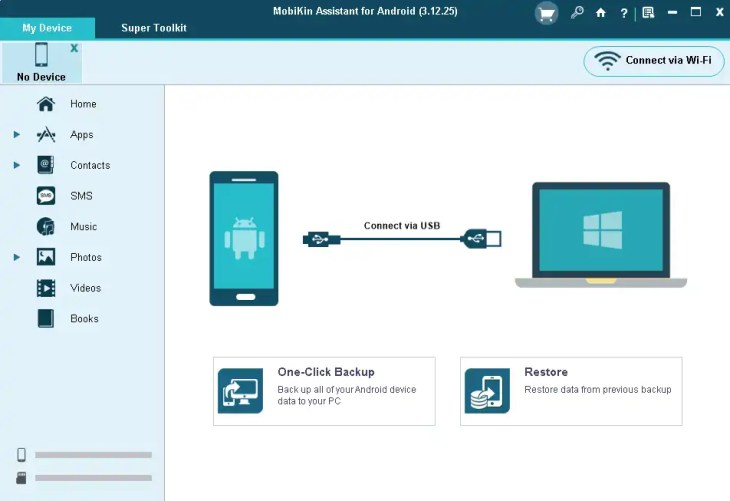
Sometimes, you only need to transfer a few files to your Android phone. Before exporting or importing Android files, MobiKin allows you to transfer one or more files. You can export all of your Android data, including contacts, messages, call logs, photos, videos, music, books, and apps, to your PC.
Transfer items from the computer to Android devices, including contacts, messages and call records as well as media files like music and videos. With a single click, you may store your contacts in VCF, HTML, CSV, BAK, Outlook, or XML format on your computer.
One-click snapshot capturing and copying to the clipboard are just a few of its many features as a professional Android data organizer.
Set up and control many Android devices from a single desktop or laptop computer.
2 ways to connect:
USB connection and Wi-Fi connection. (Install the MobiKin Assistant app on your Android phone before you connect to Wi-Fi.)
Get MobiKin Assistant for Android for Free:
Just download the software for your PC from the developer page.
Install the software and run it. On the main window of the app, click the “Key” icon.
A registration window will appear; click “Register.”
Enter the activation information below and click “Register.”
Email: tickgiveaway@mobikin.com
License code: 86007099458356C0F010a22220289A408D10CB5936B8717F26779EE2
[OR]
Email:
mobikin@giveawayoftheday.comLicense code:
38004CD48982E54031C1626220E83A508D10CB5939B57772467A90BB
Also, download the MobiKin Android Assistant app for your Android device from this link.


Discover more from Techno360
Subscribe to get the latest posts sent to your email.