

Block Malware, Trackers & Ads on Android — Without Installing Any App
⚡ Quick Read — TL;DR
⏱ 4 min read
- ✅ Android 9 and later has a built-in Private DNS field that secures every app system-wide.
- ✅ Free providers like Control D, NextDNS, Quad9 and DNSForge block malware, trackers and ads at the network level.
- ✅ Indian users get the lowest latency from NextDNS (Mumbai/Bengaluru) and Control D (Pune) — typically 20 to 45 ms.
- ✅ Setup is one screen: Settings → Connection & sharing → Private DNS → Specified DNS.
- ✅ Verify it works at dnscheck.tools — look for DoT or DoH protocol next to your provider name.
If you have ever felt that your Android phone shows you too many ads, loads suspicious pop-ups in unrelated apps or feels weirdly “tracked,” your DNS resolver is the silent culprit. By default, every web address your phone looks up is processed by your mobile carrier or Wi-Fi provider — in plain text. That means every app, every banner ad and every shady redirect gets a free pass through your network.
The good news is that private DNS on Android fixes most of this in a single setting change. You do not need root access, you do not need to sideload anything and you do not need a paid app. Just an encrypted DNS hostname from a trustworthy provider like Control D, NextDNS, Quad9 or DNSForge.
In this guide we will compare the four best free encrypted DNS services for 2026, share the exact hostnames to paste in, and walk through the Android (and iPhone) setup step-by-step — including the latency numbers we measured from Chennai.

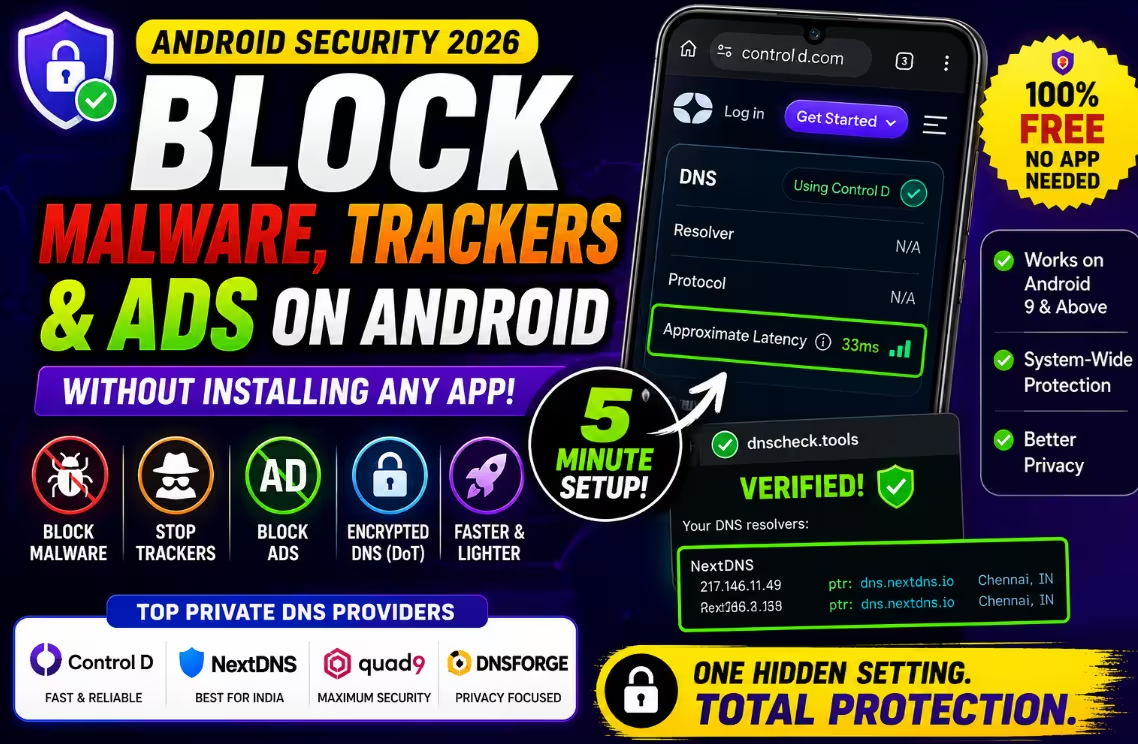
Why Your Default DNS Is a Security Risk
Whenever you open Instagram, tap a link in WhatsApp or refresh your Gmail, your phone first asks a DNS server: “Where do I find this site?” By default, that question goes to your ISP — Jio, Airtel, BSNL or whichever Wi-Fi you are connected to. Three problems with that:
- It is unencrypted. Anyone on the same network can see which sites your apps are visiting.
- It is unfiltered. Your ISP happily resolves known malware domains, phishing pages and shady ad servers.
- It is logged. Most ISPs retain DNS query logs for months and use them for analytics or hand them over on request.
Encrypted DNS — using DNS-over-TLS (DoT) or DNS-over-HTTPS (DoH) — wraps every lookup in a TLS tunnel. Combine that with a resolver that maintains threat-intelligence blocklists, and you get an instant security upgrade for every app on the phone, not just your browser.
What a Good Private DNS Actually Blocks
Depending on which provider and which profile you pick, an encrypted DNS resolver can:
- 🚫 Block advertising domains so apps and webpages load with fewer banners.
- 🚫 Block third-party trackers (Facebook Pixel, Google Analytics, ad attribution SDKs).
- 🚫 Block phishing and malware command-and-control domains.
- 🚫 Block adult content for family-friendly profiles.
- 🔓 Bypass ISP-level DNS poisoning of legitimate sites.

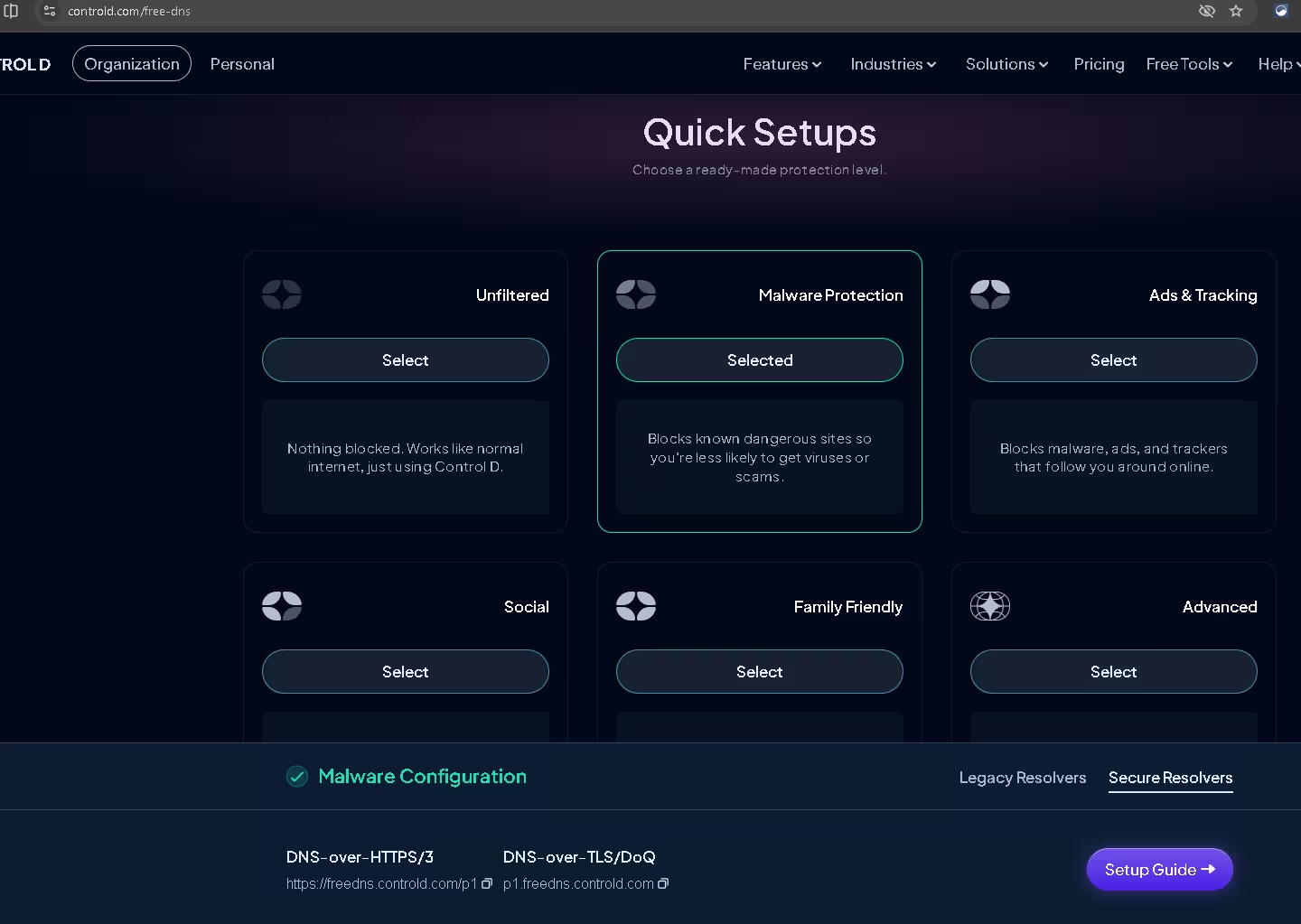
The 4 Best Free Private DNS Providers in 2026
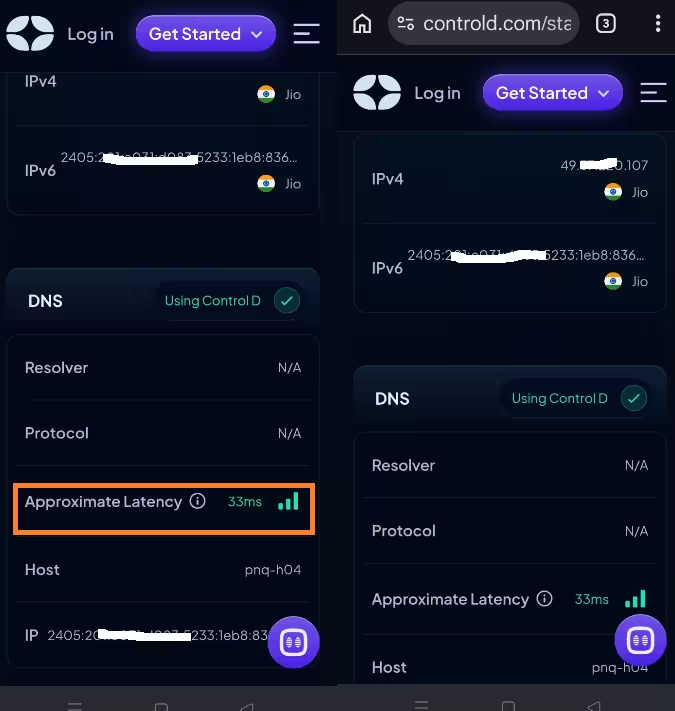
Built by the team behind Windscribe VPN, Control D offers profile-based free DNS with no signup needed. Pick your protection level and use the matching hostname — Anycast-routed with a Pune node (pnq-h04) for India.
freedns.controld.comp2.freedns.controld.comp1.freedns.controld.comfamily.freedns.controld.com
NextDNS is the gold standard if you want a dashboard. Create a free account, get a unique configuration ID, and unlock granular blocklists, app-specific filters, analytics and parental controls. Servers in Mumbai and Bengaluru deliver the best India latency of any provider here.
dns.nextdns.io
Quad9 is a non-profit operated out of Switzerland with one focused mission: block malicious and phishing domains. No ad blocking, no customization — just a rock-solid, audited, strict-no-log resolver. Zero fuss, maximum security.
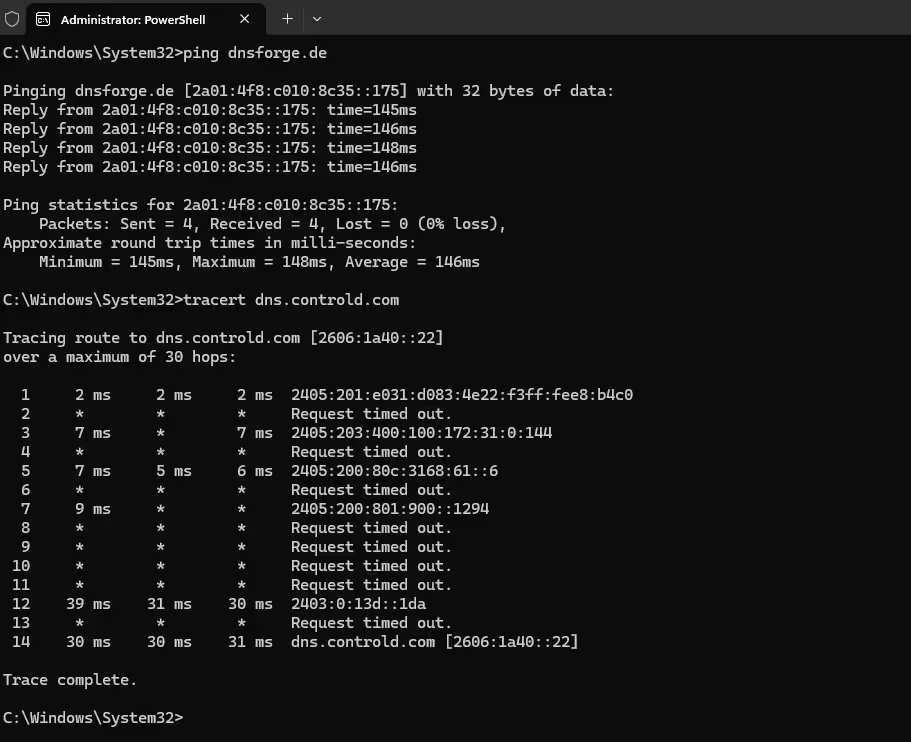
dns.quad9.netDNSForge is a community-run German resolver that filters ads, trackers and malware by default. Strict no-log privacy policy, donation-funded. The catch: it is physically hosted in Germany—from Chennai we saw 145 to 148 ms round-trip times. Fine for users in Europe, painful in Asia.
⚠️

Quick Comparison: Which One Wins for You?
| Feature | Control D | NextDNS | Quad9 | DNSForge |
|---|---|---|---|---|
| Best For | Set & forget | Customization | Pure security | EU privacy |
| Malware Block | 99.97% | High | Very High | Very High |
| Ad/Tracker Block | Yes (p2 profile) | Yes, customizable | No | Yes (default) |
| Dashboard | Profiles only | Full dashboard | None | None |
| India Latency | 30–45 ms (Pune) | 20–40 ms (Mumbai) | 40–70 ms | 140–150 ms ❌ |
| Free Logging | No logs | Configurable | Strict no-log | No logs |
Step-by-Step: Set Up Private DNS on Android (9 and above)
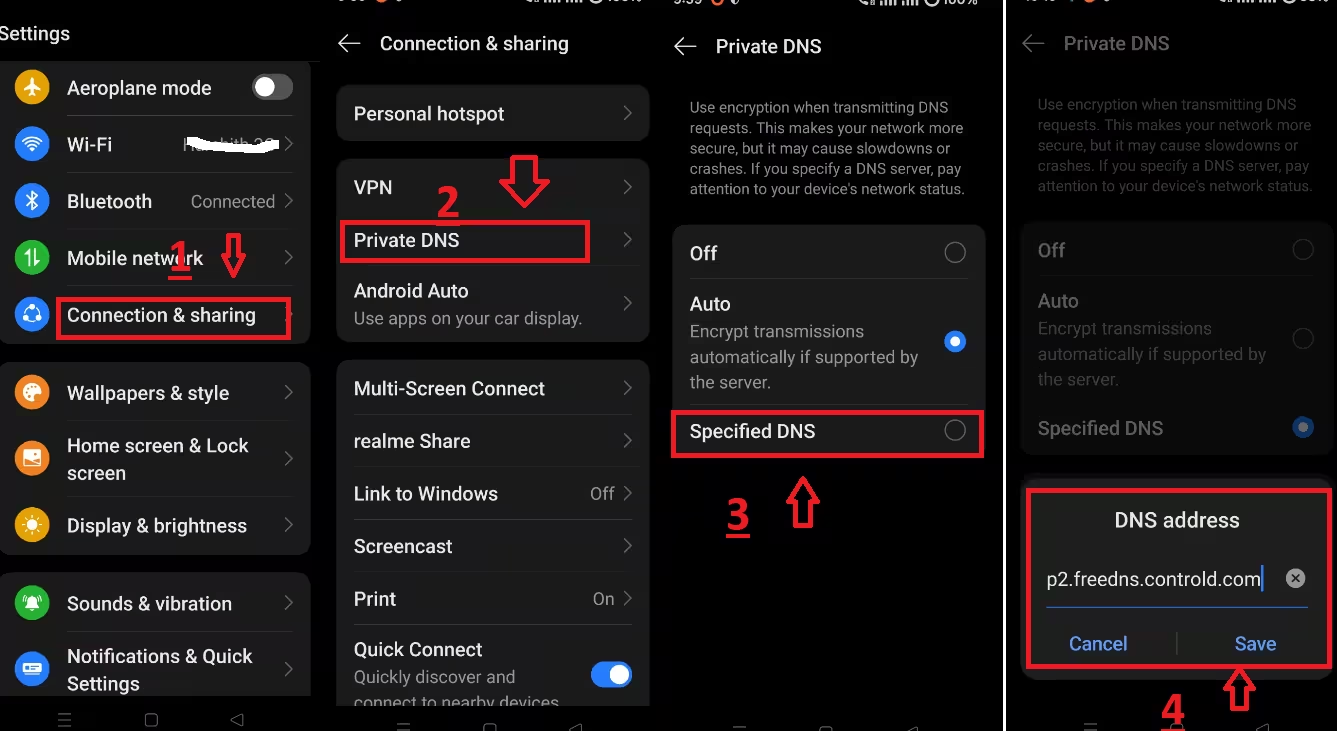
The menu names differ slightly across Samsung One UI, Realme UI, MIUI and stock Android, but the path is essentially the same:
- Open Settings on your phone.
- Tap Connection & sharing (or “Network & Internet” on stock Android, “Connections” on Samsung).
- Scroll down and tap Private DNS.
- Select Specified DNS (some phones call it “Private DNS provider hostname”).
- Paste the hostname of your chosen provider, for example:
p2.freedns.controld.comfor Control D ads + trackers blocking, ordns.nextdns.iofor NextDNS. - Tap Save.
That is it. Encrypted DNS is now active across every app on the phone, even ones you have never opened.

Quick iPhone Setup (iOS 14 and above)
iOS does not have a hostname field built into Settings, so you install a small configuration profile instead:
- Open Safari and visit your provider’s setup page — controld.com/free-dns for Control D or apple.nextdns.io for NextDNS.
- Pick your profile (Malware, Ads & Trackers, Family) and tap Download Profile.
- Go to Settings → Profile Downloaded, tap Install and enter your passcode.
How to Confirm It Is Actually Working
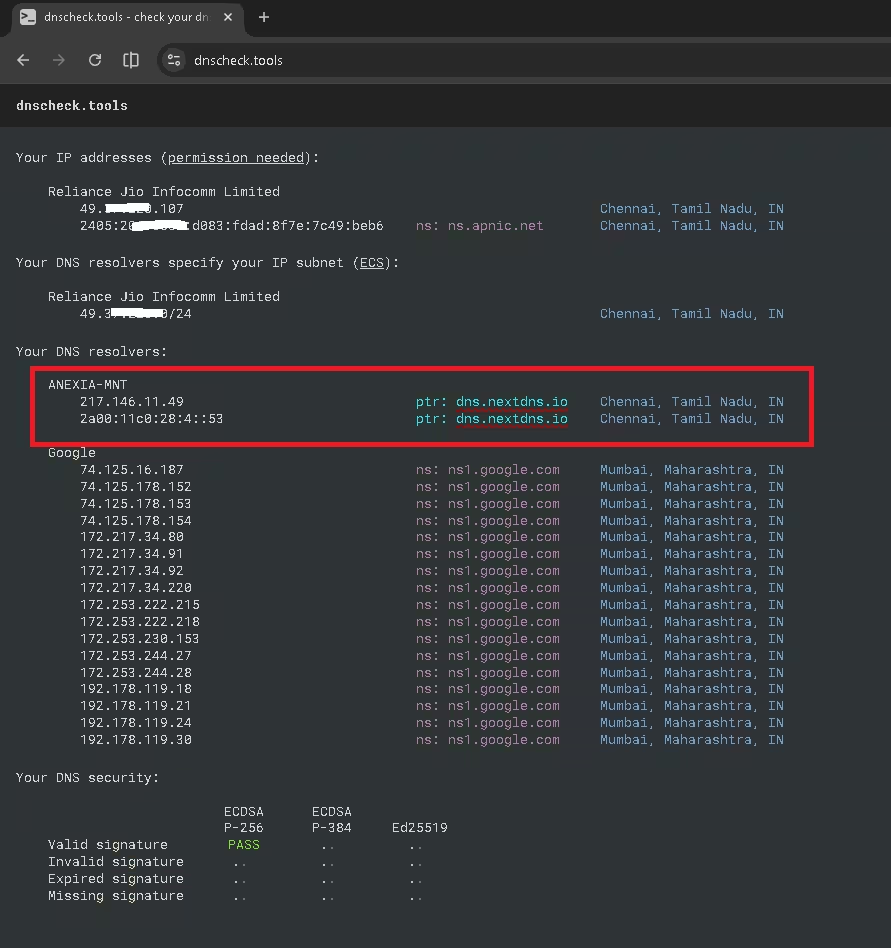
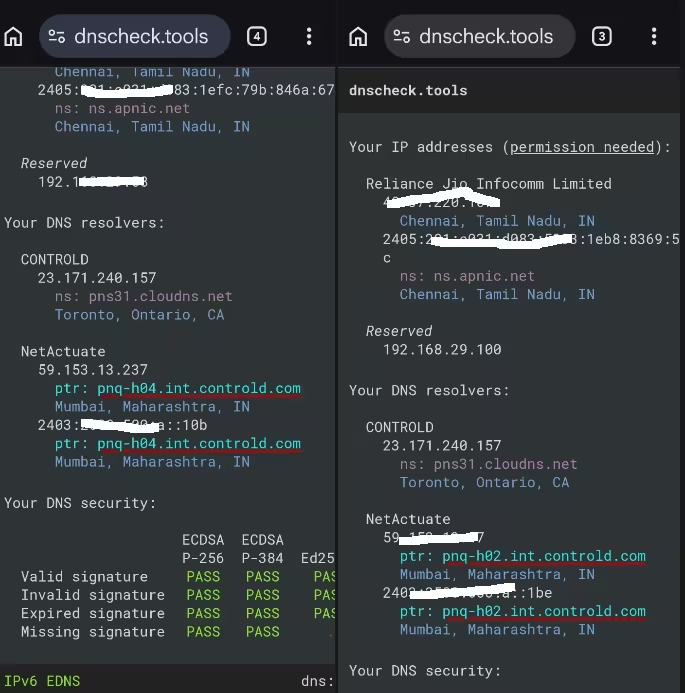
Open any browser on the phone and head to dnscheck.tools. Scroll to the “Your DNS resolvers” section. If everything is set up correctly you will see:
- Your chosen provider’s name (CONTROLD, NextDNS, Quad9, etc.) instead of your ISP.
- A Protocol column showing
TLS (DoT)orHTTPS (DoH). - For Control D users, an “int.controld.com” pointer record confirming you are on a Control D node.
If you still see “Reliance Jio Infocomm” or “Airtel” as the resolver, the Private DNS toggle did not save — go back into Settings and re-enter the hostname.

Troubleshooting: When Private DNS Acts Up
Encrypted DNS is mostly invisible, but a few things can break:
- Captive portals fail. Hotel and airport Wi-Fi login pages sometimes do not load. Temporarily switch Private DNS to “Off,” log in, then turn it back on.
- One specific app stops working. A blocklist may be too aggressive — switch from “Ads & Trackers” (Control D p2) to “Malware only” (Control D p1) and test again.
- Slow loading after switching. Pick a provider with servers physically near you. From India, that means NextDNS or Control D, never DNSForge.
Frequently Asked Questions
Q1. Is private DNS on Android really free?
Yes. Control D, NextDNS, Quad9 and DNSForge all offer free encrypted DNS service that you can use on Android 9 and above without installing any app or creating an account. NextDNS has a generous 300,000 free queries per month limit, while Control D and Quad9 are unlimited on their free tiers.
Q2. Which private DNS is best for Indian users in 2026?
For Indian users, NextDNS is the top pick because it operates servers in Mumbai and Bengaluru, delivering 20 to 40 ms latency in cities like Chennai. Control D is a close second with a Pune node averaging 30 to 45 ms. Avoid DNSForge in India as it is hosted in Germany and adds 140 to 150 ms of round-trip delay.
Q3. Will private DNS slow down my internet?
Not if you pick a provider with servers near you. A well-located encrypted DNS resolver adds only 2 to 5 ms of overhead and can actually feel faster than your ISP DNS because aggressive ad and tracker blocking means fewer requests have to load on every page.
Q4. Does private DNS replace a VPN?
No. Private DNS only encrypts your DNS lookups and blocks bad domains. It does not hide your IP address or encrypt the rest of your traffic. For full anonymity you still need a VPN, but for blocking malware, trackers and ads system-wide, private DNS is the lightest, battery-friendly option.
Q5. How do I confirm my private DNS is actually working?
Open any browser on your phone and visit dnscheck.tools. Look at the Resolvers section — you should see the name of your chosen provider (Control D, NextDNS, etc.) and a Protocol column showing TLS (DoT) or HTTPS (DoH). If your ISP name still shows, the private DNS setting was not saved correctly.
🏆 Our Verdict
Private DNS is the highest-impact, lowest-effort security upgrade you can make on an Android phone in 2026.
✅ Pros
- System-wide protection (every app)
- Encrypted DoT/DoH lookups
- Free forever on top providers
- No root, no battery drain
⚠️ Cons
- Captive portals may need a toggle
- Does not hide your IP address
- Aggressive lists can over-block
Final recommendation: Set p2.freedns.controld.com as your Android Private DNS today. If you want a dashboard with full analytics, create a free NextDNS ID and use that instead.
📲 Liked this guide? Keep your gadgets safe.
Bookmark Techno360.in and subscribe on YouTube for weekly Android, Windows and PC security tips you can actually use.