
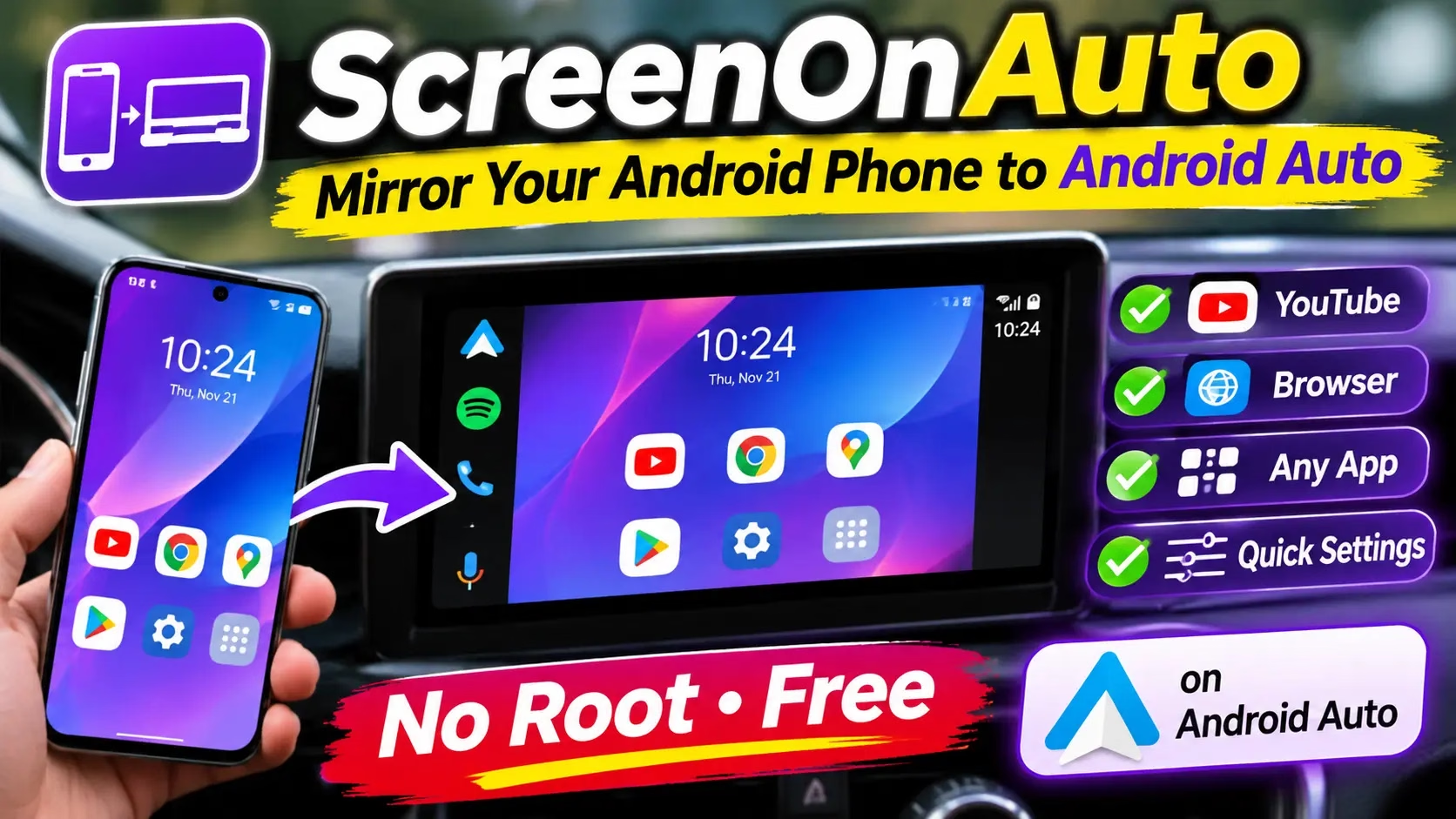
🚗 Free Android app · Tested in our car
Your whole phone screen, on the car display
ScreenOnAuto puts any app you like on Android Auto: YouTube, a browser, your launcher, even Quick Settings. No root, no payment, and it installs from Google Play.

⚡ Quick Read
- What: ScreenOnAuto, an app that mirrors your Android phone screen to Android Auto.
- Price: Free. No paid unlock. Donations are optional.
- How: Sign up for a 30-minute round on the developer’s install page, become a Google Play tester, then install from the Play Store.
- Catch: Netflix-style protected video shows a black screen, you approve screen casting every session, and it is for a parked car only.
- Install: Jump to the step-by-step guide
What is ScreenOnAuto?
Android Auto only shows apps that Google has approved for the car, and it draws them with Google’s own simple templates. That keeps distraction down, but it also means a perfectly good app on your phone never shows up on the car screen.
ScreenOnAuto works around this by mirroring. It uses Android’s screen capture feature (the MediaProjection API) to copy what is on your phone and show it inside Android Auto. The apps keep running on the phone. The car display just shows the picture, so any app can appear there, even one with no Android Auto support at all.
The developer says it needs Android 7.0 or later, Android Auto on the phone, and a car or head unit that supports Android Auto. Root and Shizuku are optional extras, not requirements.
Key features
- Full mirroring: your phone screen fills the main Android Auto area.
- Legacy mode: a second launcher entry that can sit beside Google Maps in split view.
- Auto Start Mirror: starts mirroring as soon as you open ScreenOnAuto on the car screen.
- Media controls: control what is playing from Android Auto’s media panel (needs notification access).
- Touch forwarding (experimental): tap and scroll your phone from the car’s touchscreen.
- Screen and battery options: Prevent Sleep, Auto Dim Screen, Night Dim and orientation lock.
- Privileged features: with Shizuku or root you can turn the phone panel off while mirroring and get real touch injection.

ScreenOnAuto at a glance
| Price | Free, with optional donations |
|---|---|
| Version in our test | 1.10.2 (52), installed from Google Play testing |
| Requirements | Android 7.0 or later, Android Auto, a car or head unit with Android Auto (developer’s figures) |
| Root needed? | No. Shizuku or root only unlock optional extras |
| Install source | Google Play internal testing (recommended). GitHub APK only for Android 13 and older |
| Connection | Wired or wireless Android Auto |
| Developer site | screenonauto.lzn.idv.tw |
⚠️ Limits to know before you install
- Netflix, Disney+, Prime Video and other DRM-protected video show a black screen. This is an Android restriction, not a bug.
- Android asks you to approve screen casting at the start of every mirroring session.
- The phone screen must stay on while mirroring, unless you use the Shizuku or root screen-off feature.
- The Android Auto bar at the bottom cannot be hidden.
- The developer notes that on Android 15 and later, Google Maps in Android Auto can turn black while mirroring.
- Watching video while driving is unsafe and illegal in many places. Use it only when parked.
How to install ScreenOnAuto for free
You will not find ScreenOnAuto by searching the Play Store. The developer hands it out through Google Play’s internal testing program instead. The reason: Android Auto checks where an app was installed from and may not list an app sideloaded from a browser or file manager. Installing through Google Play lets ScreenOnAuto appear in the Android Auto launcher without sideloading workarounds.
Internal testing has a cap on testers, so the developer runs sign-ups in rounds. Each round lasts 30 minutes and takes up to 95 people. Once you get a spot, you have 25 minutes to install.
- Open the install page. On your phone or PC, go to the developer’s join page and tap Sign in with Google. Use the same Google account that is on your phone, because that is how the Play Store knows to show you the app.
- Sign up for the round. Tap Sign me up for this round. The countdown shows when sign-ups close and when installing opens. If the round has closed, wait for the next one. It opens within a few minutes.
- Become a tester. When your install window opens, tap Become a tester. This opens the Google Play invitation. Tap Accept invite.
- Download the test app. Google Play now says “You’re a tester for idv.lzn.screenonauto (unreviewed)”. Tap Download test app and install it like any other app.
- Done. Once installed, the app keeps working after your window ends. Updates arrive through the Play Store.
📲 Open the ScreenOnAuto install pageDeveloper website


The “unreviewed” label just means this build comes through a testing channel. It has not gone through the review a public Play Store app gets.
🛠️ App not showing in the Play Store?
- Close the Play Store and tap the link on the install page again. The developer says it usually appears after a few tries.
- The Play Store can take 5 to 10 minutes to catch up. Wait a few minutes inside your window and try again.
- Still nothing in the last 5 minutes? Tap Extend to… to carry your window into the next round.
- Check that the Play Store on your phone uses the same Google account you signed in with.
- Got “We’re sorry, the requested URL was not found on this server”? That happened to us on both PC and phone. This is not an official requirement, and it may not work for everyone, but it fixed it in our test: we connected to Proton VPN (the free plan is enough) on both devices, then opened the tester link again. The listing appeared and the app installed. You can turn the VPN off once the app is installed.

Can I use the APK from GitHub instead?
Only on Android 13 or older. The developer publishes APKs on GitHub, but for Android Auto to accept them you need KingInstaller, which makes the install look like it came from Google Play. That trick no longer works reliably on Android 14 and later, so use the Play Store route there. Avoid modified APKs and third-party download sites.
Setting up ScreenOnAuto on your phone
Open ScreenOnAuto on the phone once before you connect to the car. Then go through the settings:
- Screen capture is the only permission mirroring truly needs. Android asks for it each time mirroring starts.
- Notification Access enables the media controller in Android Auto.
- Display Over Other Apps enables Auto Dim, Lock Orientation and Night Dim.
- Touch Forwarding uses the Accessibility service so you can tap the phone from the car screen.
You do not need to grant everything. Start with plain mirroring and turn on extras only when you want them. We switched on Auto Start Mirror so mirroring begins as soon as we open the app on the car screen.
If you use a Xiaomi, Redmi or POCO phone, or any brand with aggressive battery saving, set ScreenOnAuto’s battery option to No restrictions. Otherwise the phone may kill it in the background.
How to show ScreenOnAuto on your car display
Connect the phone to Android Auto by USB cable or wirelessly. In our car, Android Auto showed a “ScreenOnAuto available” notice straight away. If you don’t see the app in the launcher, open Android Auto settings on the phone, go to Customize launcher and make sure ScreenOnAuto is not hidden.

Tap ScreenOnAuto on the car screen. The car asks you to start mirroring on the phone. On the phone, Android shows a “Cast your screen?” prompt. Choose Entire screen to mirror everything, or A single app to share only one app, then tap Start.

This prompt appears for every new session. That is Android protecting you, not a flaw in the app. The developer documents an ADB method to pre-grant the permission if the prompt bothers you, but you don’t need it.
Our hands-on test
We tested ScreenOnAuto 1.10.2 with a factory Android Auto head unit, connected by USB, with the car parked. Installing was the hardest part: our first attempt hit the Google Play “URL not found” error, and the listing only opened after we switched on Proton VPN on both PC and phone. After that, here is what we found.
Apps that never work on Android Auto now do
The phone home screen, Quick Settings and the contacts list all came through cleanly. We also played our own Techno360 YouTube video on the car display, which Android Auto normally does not allow.

Legacy mode next to Google Maps
Android Auto lists two entries: ScreenOnAuto, which takes the full main area, and ScreenOnAuto (Legacy), which uses an older display path. In our car, Legacy mode could run in split view next to Google Maps navigation. On smaller screens the map may be pushed to the background, so try both and keep whichever suits your head unit.

Protected video stays black
When we played a film from a streaming app, it ran fine on the phone but the car screen stayed black. Apps can block capture with Android’s FLAG_SECURE setting, and DRM adds its own block. ScreenOnAuto cannot get around either, and the developer says so plainly.

Picture fit and smoothness
A phone screen is much taller and narrower than most car displays, so expect black bars in portrait. Turning the phone to landscape, or using ScreenOnAuto’s orientation lock, fills the screen far better. The Advanced menu has more options, such as Fixed mirroring size, and the Shizuku-only “Adapt phone screen to car screen” setting. Smoothness and audio sync depend on your phone, your head unit and the cable, so we can’t promise a frame rate.
Is ScreenOnAuto safe?
Installing from Google Play is the safest way in, because you get the developer’s own build and updates through the Play Store. Keep in mind:
- The build is labelled “unreviewed” because it comes through testing, not a public Play Store listing.
- Screen capture lets the app see everything on your screen while mirroring. Android’s prompt says it hides sensitive notifications during capture, but everything else on the phone screen is shown on the car display. Close private apps before you start, especially with passengers in the car.
- Accessibility, Shizuku and root are powerful permissions. Only grant them for the features you actually use.
- Skip “unlocked” APKs and any site asking you to pay. The real app is free.
Who should install it, and who can skip it
Install it if you want YouTube, a browser or another unsupported app on your car display while parked, for example while charging an EV or waiting to pick someone up. It is also handy for showing a non-Android Auto navigation app.
Skip it if you mainly want Netflix or Prime Video in the car (they will be black), or you need something that works without approving a prompt every session.
More screen mirroring tools on Techno360
- ApowerMirror: free screen mirroring licence
- AnyRec Phone Mirror giveaway
- Kingshiper Screen Mirroring free licence
- Speedometer GPS Pro for Android
✅ Our verdict
Once installed, ScreenOnAuto shows up in Android Auto like a normal app and makes phone mirroring straightforward. Getting it installed can take some troubleshooting (we needed a VPN), Android asks for screen-capture permission at the start of every session, and protected video stays black. For a free app that needs no root, it still does what it promises.
Pros
- Free, no root, installs from Google Play
- Shows up in Android Auto without sideloading tricks
- Legacy mode works beside Google Maps
- Touch forwarding, auto start and dimming options
Cons
- DRM video (Netflix, Prime Video and similar) shows black
- Casting prompt every session unless you use ADB
- Install can take a couple of tries; we needed a VPN to get past a Play Store error
- Android Auto’s bottom bar always stays visible
Frequently asked questions
Is ScreenOnAuto free?
Yes. Every feature is free. The developer accepts donations, but you don’t have to donate to use the app.
Do I need root to mirror my phone to Android Auto?
No. Basic mirroring works without root or Shizuku. Those only unlock extras like turning the phone screen off while mirroring.
Why can’t I find ScreenOnAuto in the Play Store?
It is distributed through Google Play internal testing, which is not searchable. Sign up for a round on the developer’s install page, become a tester, and the Play Store will then offer it to you.
Why does Netflix show a black screen in the car?
Netflix, Disney+, Prime Video and similar apps block screen capture with FLAG_SECURE and DRM. Android enforces this, so no mirroring app can show them.
Google Play says “the requested URL was not found on this server”. What now?
Wait a few minutes inside your install window and retry first. If the error stays, connect to a VPN such as free Proton VPN on your phone and PC and open the tester link again. That is what got the listing to open in our test.
Does it work with wireless Android Auto?
Yes. It works over USB or wireless Android Auto, wherever your car supports it.
Can I control my phone from the car touchscreen?
Yes, with the experimental Touch Forwarding feature. Basic taps and scrolls use the Accessibility service. Long-press, drag and multi-touch need Shizuku or root.
Can I watch videos while driving?
No. Only watch video when the car is parked. It is a dangerous distraction, and using a screen while driving can break traffic laws.