

SHARPEN Projects Professional 3 is Franzis’ dedicated photo sharpening application that focuses on reducing blur and boosting detail with far more control than simple “sharpen” sliders in basic editors.
You can get this software’s full version license for free for a limited time.
Contents
About SHARPEN Projects Professional 3:
With its sophisticated sharpening algorithms, selective adjustments, RAW support, and intelligent masking feature, this photo editing software from Franzis can restore and improve images that are otherwise blurry, out of focus, or faded.
This Windows software can even fix motion blur or shaky recordings, allowing users to take clear, sharp photos even when the originals were blurry.
What it does?
- Retrieves out-of-focus or blurred photos caused by motion by examining individual pixels and applying sharpening selectively, rather than all at once.
- It allows for selective sharpening, enabling you to concentrate on specific details such as eyes or textures, while intelligently concealing others such as skies or skin.
- Depending on the edition or version, it integrates into workflows and works with typical photo editors as a plug-in or as a standalone tool.
Typical use cases
- Fixing photographs that are a little shaky or blurry because they were taken with a handheld camera or a long focal length.
- The software enhances the micro-contrast and depth of landscapes, buildings, and product pictures without creating any halos.
- The software enhances the clarity and detail perception of photographs, preparing them for large-scale printing.
This video provides an overview of the software’s capabilities:

Key Features & Capabilities:
- Adaptive Sharpening: Uses methods like “Adaptive Multi-scale Deconvolution” to look at pixels and apply sharpness in a smart way, looking at nearby pixels to see how clear they are.
- Motion Blur Correction: Fixes motion blur in action images (sports, animals) by adjusting the camera’s focus and exposure.
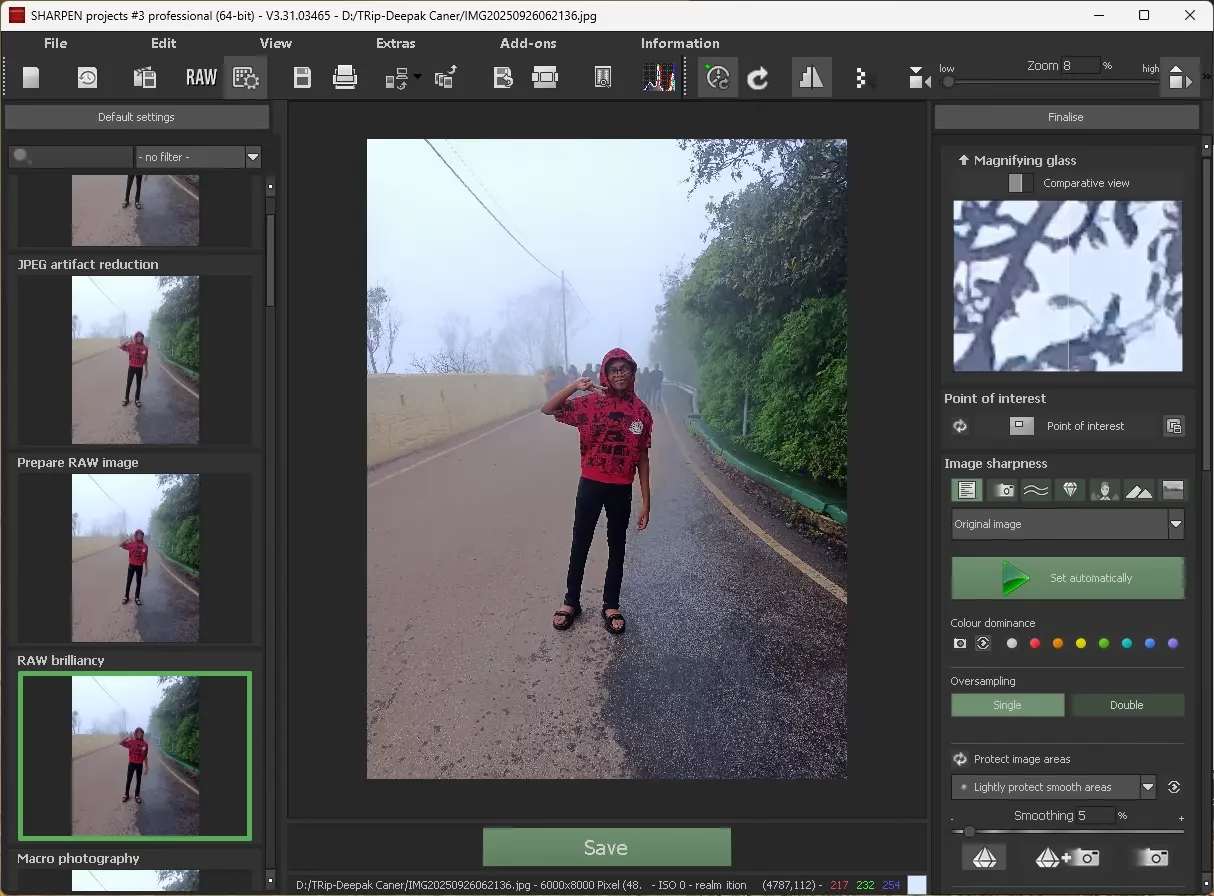
- Intelligent Masking: This is a new feature in version 3 that lets you sharpen only certain areas (like skin, the sky, or details) without changing others. It keeps tones and edges safe.
- RAW Module: Works with a wide variety of RAW file types, allowing for lossless adjustments, including exposure, noise, and color correction.
- Selective Processing: Use effects based on the type of image (portrait, landscape, or movement) and use brushes that you may change to make exact changes in certain areas.
- Oversampling Mode: Gives you a more precise sharpness computation.
- Blur Function and Comparison View: These features help you see how sharpening affects an image by blurring it and showing it next to another image.
- Batch Processing and Metadata: Change the metadata of an image and process more than one photo at a time.
Watch this tutorial to see how to use the selective sharpening feature:

Get SHARPEN Projects Professional 3 Full Version License for Free:
To obtain your license code, please visit this new giveaway page: https://reg.franzis.de/reg/SPS
[OR]
https://reg.franzis.de/reg/SPW
All you have to do is input your email address, confirm your acceptance of the terms by checking the box, solve the captcha, and hit the “Send” button.
An email from Franzis (registrierung@post.franzis.de) should arrive in your inbox shortly. Confirm your email address by clicking the link in the confirmation email.
This link will lead to Franzis’s webpage, where you can notice activation details (user ID and registration key).
Subsequently, Franzis will send another email with further activation details, such as your customer ID and registration code (product serial number).
Download the installation file from https://transfer.franzis.de/download/
After downloading the archive, unzip it, and then run the setup program by double-clicking the SHARPEN projects 3 professional DE_EN_FR Setup.exe file. Complete the installation process.
An activation box will appear the first time you launch SHARPEN projects; in it, you’ll need to input the registration code you got, and then you can hit “Activate.”
That’s it!


Discover more from Techno360
Subscribe to get the latest posts sent to your email.