
If you’re looking to clone your hard drive or SSD without reinstalling Windows, Tatasoft Disk Clone is a straightforward solution worth exploring. Right now, you can grab a free lifetime license for Tatasoft Disk Clone V3.0—a tool that makes disk migration, system transfer, and partition cloning simple for everyday Windows users.
In this post, we’ll walk you through what Tatasoft Disk Clone does, how to claim the free license, who benefits most from this software, and the key terms you should know before activating.
Contents
- 1 What Is Tatasoft Disk Clone?
- 2 Key Features of Tatasoft Disk Clone V3.0
- 3 Tatasoft Disk Clone Free License Giveaway—How to Claim
- 4 Disk Clone vs. Partition Clone—What’s the Difference?
- 5 Who Should Use Tatasoft Disk Clone?
- 6 Giveaway Details at a Glance
- 7 Important Terms & Conditions
- 8 Frequently Asked Questions
- 9 Final Verdict: Is Tatasoft Disk Clone Worth It?
What Is Tatasoft Disk Clone?
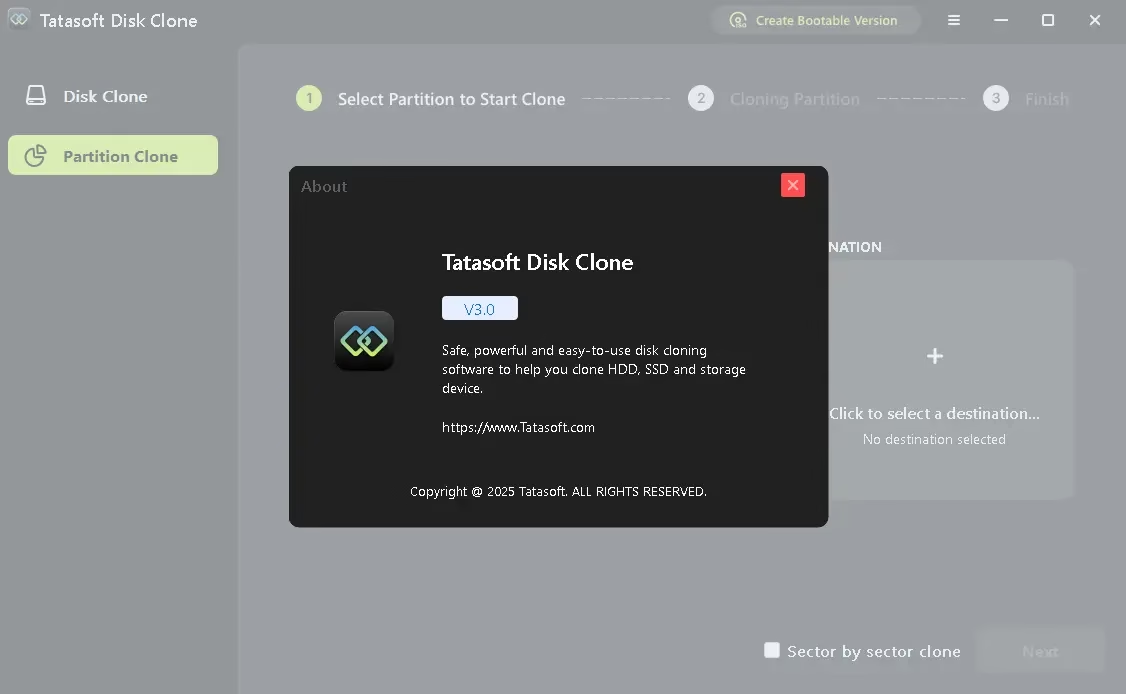
Tatasoft Disk Clone is a Windows-based disk cloning and migration tool developed by Tatasoft. Designed for both beginners and intermediate users, it eliminates the need to manually reinstall your operating system and programs when switching to a new drive. Whether you’re upgrading from an old HDD to a faster SSD, replacing a failing drive, or creating a full backup clone, this tool handles the heavy lifting.
The software supports both Disk Clone and Partition Clone modes, giving you flexibility depending on whether you want to clone an entire drive or just a specific partition.
Key Features of Tatasoft Disk Clone V3.0
- Full Disk Cloning: Copies your entire HDD or SSD—including the OS, installed apps, and personal files — to another drive.
- Partition Cloning: Lets you clone individual partitions rather than the entire disk, saving time and storage space.
- Sector-by-Sector Clone: Creates an exact 1:1 copy of your disk at the sector level—ideal for forensic backup or when standard cloning fails.
- Bootable Version Creator: Lets you create a bootable clone, making it easy to recover your system if something goes wrong.
- Destination Layout Adjustment: Automatically adjusts partition sizes to fit the destination disk during cloning.
- Broad Windows Compatibility: Supports Windows 11, 10, 8.1, 8, 7, Vista, and all major Windows Server editions from 2003 onwards.
Tatasoft Disk Clone Free License Giveaway—How to Claim
A limited-time giveaway is currently offering a free lifetime license for Tatasoft Disk Clone V3.0 (valued at $69.95). Here’s how to get yours in three easy steps:
Step 1: Download the Installer
Download the official Tatasoft Disk Clone V3.0 installer from here and install it on your Windows computer.
Step 2: Activate with the Free License Code
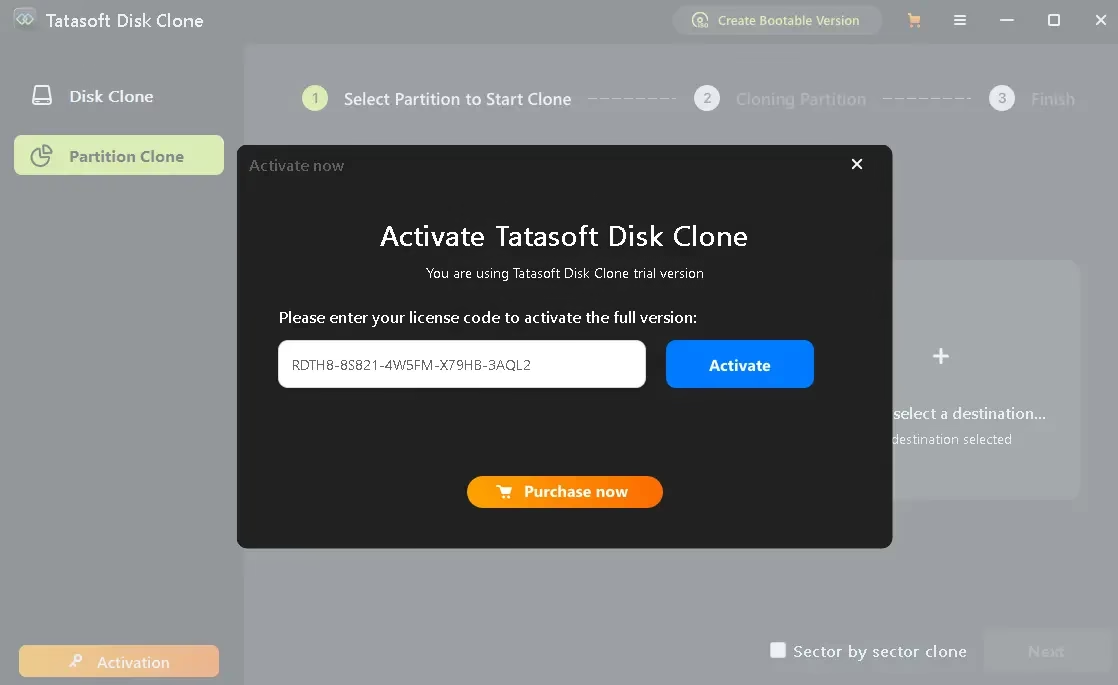
Once installed, open the software and click the Activation button. Enter the license code provided below to unlock the full version.
License Code: RDTH8-8S821-4W5FM-X79HB-3AQL2
Step 3: Start Using It for Life
After activation, you have lifetime access to all features of Tatasoft Disk Clone V3.0 at no cost—no subscription, no expiry.
Disk Clone vs. Partition Clone—What’s the Difference?
Disk Clone copies everything on your entire storage drive—the operating system, all partitions, files, and settings—to a target drive. This is best when you’re replacing your primary drive entirely.
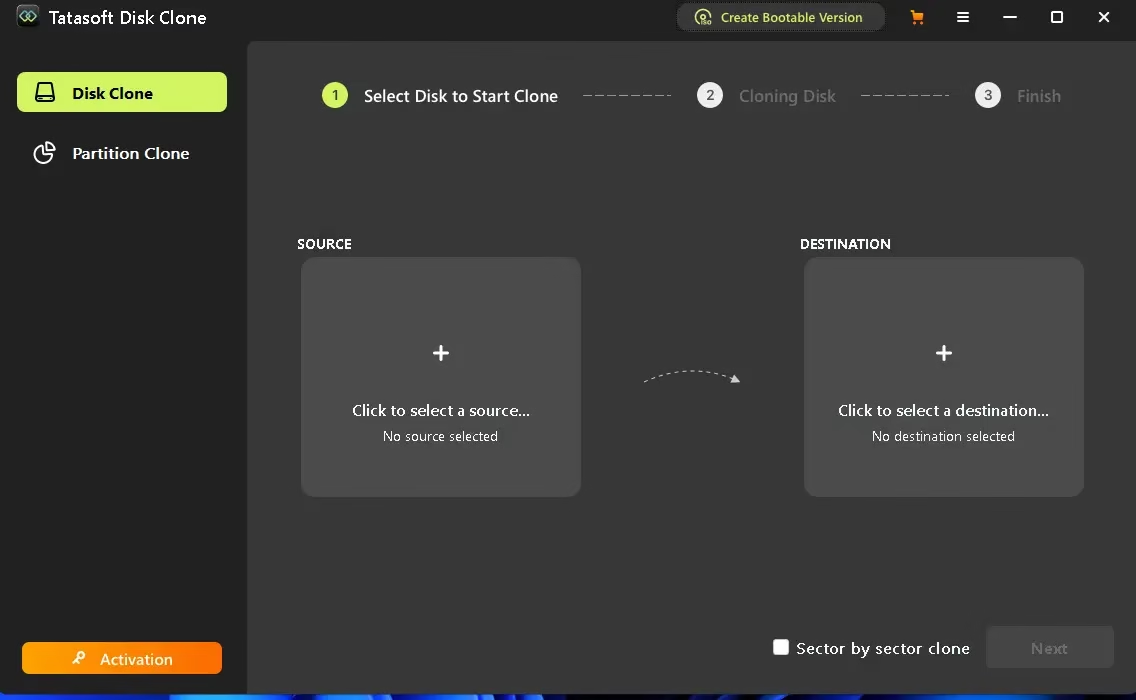
Partition Clone lets you clone a single partition from your drive to another location. This is useful when you only need to transfer specific data or system partitions without touching the rest of the drive.
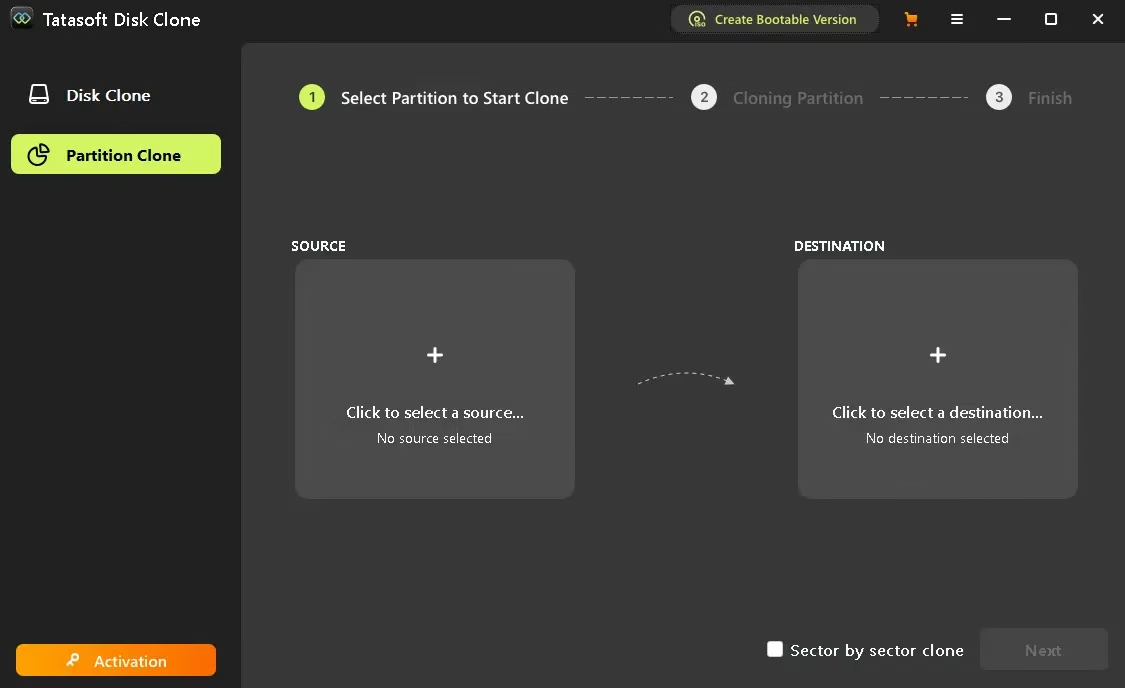
Both modes support a sector-by-sector clone option for users who need a precise, bit-for-bit copy.
Who Should Use Tatasoft Disk Clone?
This software is especially useful for:
- Users upgrading from HDD to SSD and wanting to keep their current Windows setup intact.
- Anyone replacing a failing or old drive without starting from scratch.
- People who want to create a full backup clone before performing system maintenance or hardware changes.
- Users who need to clone a specific partition for data transfer or recovery.
- IT professionals or power users who need sector-level disk copies for exact duplication.
Giveaway Details at a Glance
| Detail | Info |
|---|---|
| Version | 3.0 for Windows |
| License Type | Full Lifetime License |
| Original Price | $69.95 |
| Giveaway Price | Free |
| Supported OS | Windows 11/10/8.1/8/7/Vista + Windows Server 2003–2022 |
| Usage | Non-commercial only |
| Technical Support | Not included |
| Future Upgrades | Not included |
Important Terms & Conditions
Before activating your free license, keep these terms in mind. The license covers version 3.0 only — future upgrades are not included. The license is strictly for non-commercial personal use, and free technical support is not part of this promotion. Cloning results may vary depending on destination disk size and the cloning mode selected. Always review the official instructions before installing.
Frequently Asked Questions
Is Tatasoft Disk Clone completely free with this giveaway?
Yes—the giveaway provides a full lifetime license for version 3.0 at no cost. You’ll need the license code to activate the full version.
Does the free license include future updates?
No. The free license covers version 3.0 only. This promotion does not include updates to future versions.
Can I use this license for my business?
No. The giveaway license is for non-commercial personal use only. Business or commercial usage requires a separate commercial license.
What Windows versions are supported?
Tatasoft Disk Clone V3.0 supports Windows 11, 10, 8.1, 8, 7, Vista, and Windows Server editions from 2003 to 2022.
Is sector-by-sector cloning safe?
Yes, but it requires the destination disk to be the same size as or larger than the source disk. It creates an exact copy, including empty sectors.
Final Verdict: Is Tatasoft Disk Clone Worth It?
For anyone looking to migrate their Windows installation to a new drive or create a reliable disk backup, Tatasoft Disk Clone V3.0 offers a clean, no-fuss solution. The interface is intuitive, the cloning modes cover most real-world use cases, and grabbing a lifetime license for free makes this a no-brainer during the active giveaway period.
If you’ve been putting off that SSD upgrade because you didn’t want to reinstall everything, this is your chance to make the switch the easy way.


Discover more from Techno360
Subscribe to get the latest posts sent to your email.
You must be logged in to post a comment.