

Your antivirus just finished a scan—clean, no threats detected. But your PC is still acting strange. Browser redirects seem to appear unexpectedly. An unknown process is eating CPU. Your security tool crashes before it finishes. Sound familiar?
Here’s the uncomfortable truth: no antivirus catches everything. Certain malware families hide from real-time scanners, embed themselves in system processes, or disable your security software before it can raise the alarm. That’s exactly where Trellix Stinger steps in.
Formerly known as McAfee Stinger, this free no-install scanner has been trusted by IT pros for over a decade. It’s built for one job: finding and removing threats that have already slipped past your defenses. In this hands-on review, we cover exactly what it can do, where it falls short, and whether it deserves a spot in your Windows security toolkit in 2026.
⚡ Quick Verdict
Trellix Stinger is a solid free second-opinion scanner for Windows. It is ideal for IT technicians and users who suspect an active infection. The tool is lightweight, portable, and backed by real threat-intelligence data.
That said, it is not a full malware scanner. It has no real-time protection, and its database updates periodically — not daily. Use it alongside a proper antivirus, but never as a substitute for one.
✅ Real threat intelligence
⚠️ No real-time protection
⚠️ Periodic updates only

What Is Trellix Stinger?
Trellix Stinger is a free portable malware removal tool for Windows. Musarubra US LLC, the company that created the Trellix security brand, developed it after merging McAfee Enterprise and FireEye. Most people know it by its older name: McAfee Stinger.
The key distinction is important: Stinger is not a full malware scanner. It doesn’t try to catalogue every piece of malware in existence. Instead, it targets a curated list of specific threat families that are persistent, difficult to remove, and frequently missed by conventional antivirus software.
Think of Stinger as a specialist (on-demand malware scanner), not a security guard. Your antivirus is like a lock on the door. Stinger is the forensic investigator you call in when something feels like it got through anyway.
→ Related: [5 Free Tools You Need to Get Rid of Malware on Your PC]
Key Features at a Glance
- Completely free — no account, no subscription, no nag screens
- Portable — single executable, runs from USB, zero installation required
- Basic rootkit detection — identifies rootkits in system processes and boot sectors
- GTI File Reputation — uses Trellix Labs’ Global Threat Intelligence cloud database to check suspicious files
- On-demand scanning — run it when you need it, not continuously in the background
- Targets known high-impact malware families — including threats like GameOver Zeus and CryptoLocker, plus signatures for more recent variants
- Flexible threat response—Repair, Quarantine, Rename, or Report only
- Scan log — every action is recorded for review
- Adjustable GTI sensitivity — dial detection from Low to Very High
- Relatively lightweight — CPU spikes during scans but settles otherwise

Downloading and Getting Started
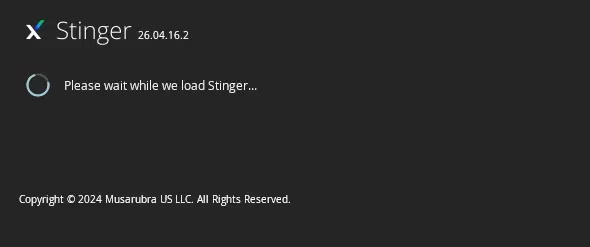
Getting Stinger running takes under a minute. There is no installer, no wizard, and no account creation required. Download the executable from the official Trellix website, drop it on your desktop or a USB stick, and double-click.
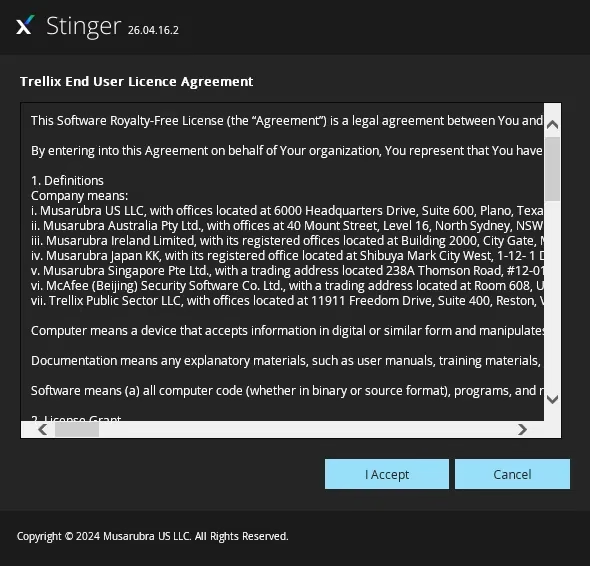
On first launch, the Trellix End User License Agreement appears. Click “I Accept,” and you’re in—the engine loads in seconds.
One important note: always download a fresh copy before each scan. Unlike full antivirus solutions that pull daily definition updates in the background, Stinger’s threat signatures are baked into the executable. An old copy from six months ago won’t know about threats discovered since then. The tool is updated periodically by Trellix—not daily— so freshness matters.

The Main Interface — Simple by Design
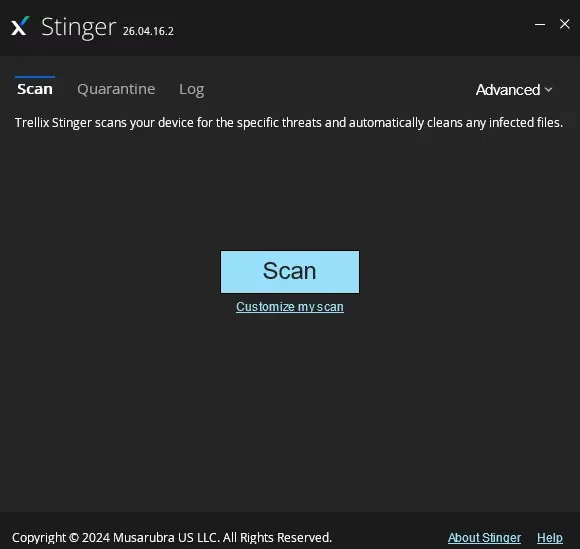
The main window has three tabs: Scan, Quarantine, and Log. There is also an advanced dropdown to access the full threat list. That’s essentially the entire UI. A big blue Scan button sits in the middle, with a “Customize my scan” link below it.
The simplicity is intentional and appropriate for this kind of tool. You are not here to configure firewall rules. You are here to run a scan and get answers fast.
By default, Stinger targets the locations most commonly used by malware: running processes, loaded modules, the Windows Registry, WMI, and known high-risk directories. You can also add specific folders or drives if you suspect a particular location is compromised.

Scan Settings — More Control Than You’d Expect
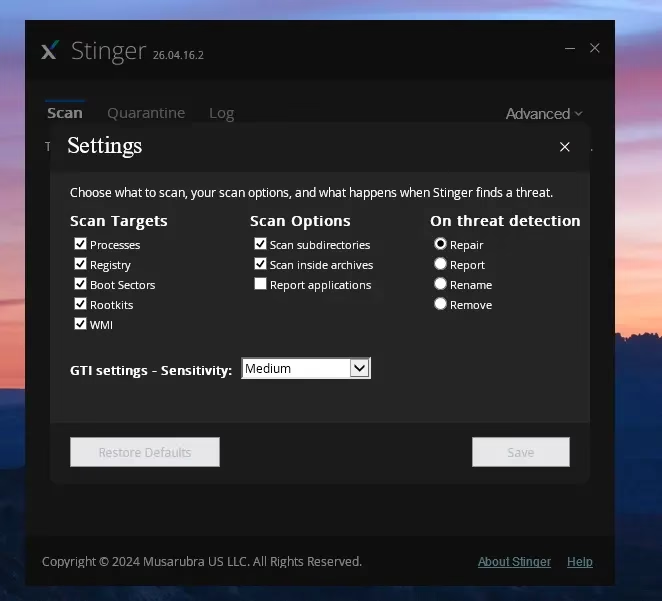
Click Advanced → Settings and a panel opens with three columns of options. These give you real control over how Stinger operates.
Scan Targets
All five targets are enabled by default: Processes, Registry, Boot Sectors, Rootkits, and WMI. Leave them all on unless you have a specific reason to skip one. If you are worried about a rootkit infection, ensure that the Rootkits checkbox stays ticked.
Scan Options
Three toggles are available here. Scan subdirectories and Scan inside archives are both on by default. The archive scan catches threats hidden inside ZIP and RAR files. Keep it enabled if you suspect you opened a malicious email attachment — though it does add time to the scan.
On Threat Detection
When Stinger finds something, you have four response options:
- Repair (default) — attempts to clean the file in place
- Report—logs the finding and does nothing else; useful on your first pass at High sensitivity
- Rename—renames the file to block execution without deleting it
- Remove—permanently deletes the detected file
The Repair default works well for most users. If you are unsure, start with “Report only” so you can review findings before committing to any changes.
GTI Sensitivity
The Global Threat Intelligence (GTI) setting controls how aggressively Stinger uses Trellix’s cloud reputation database to flag files. Medium is the default and the right starting point. High and very high settings improve detection of emerging threats but increase false positives. Trellix recommends using Report-only mode on your first scan at those levels.

Running a Scan — What to Expect
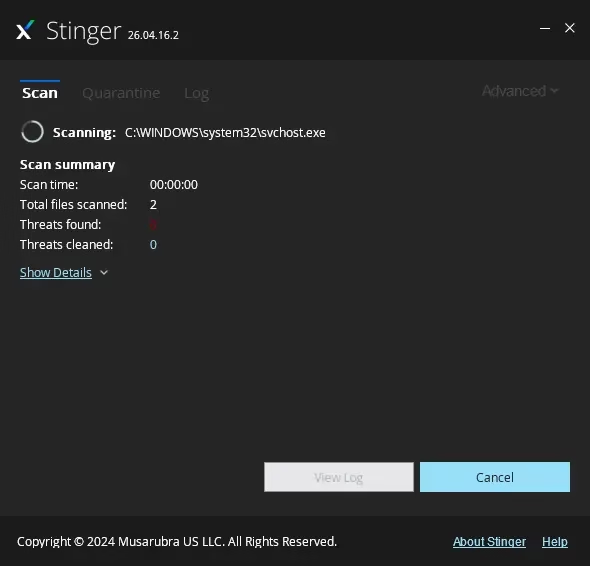
Hit the Scan button and Stinger gets to work immediately. The interface shows the file currently being scanned at the top. Below it, you’ll see a live summary: scan time elapsed, total files scanned, threats found (shown in red), and threats cleaned.
A “Show Details” link expands the view to display file-level scan activity. This is useful if you want to see exactly what’s being checked or if you are diagnosing someone else’s machine.
In our test environment (Windows 11, SSD, 16 GB RAM), Stinger scanned 8,911 files in 6 minutes and 26 seconds. CPU usage was noticeable during the scan but not disruptive. Light browsing remained manageable throughout. Results on older hardware with spinning drives will naturally take longer.
Scan Results — Reading the Summary
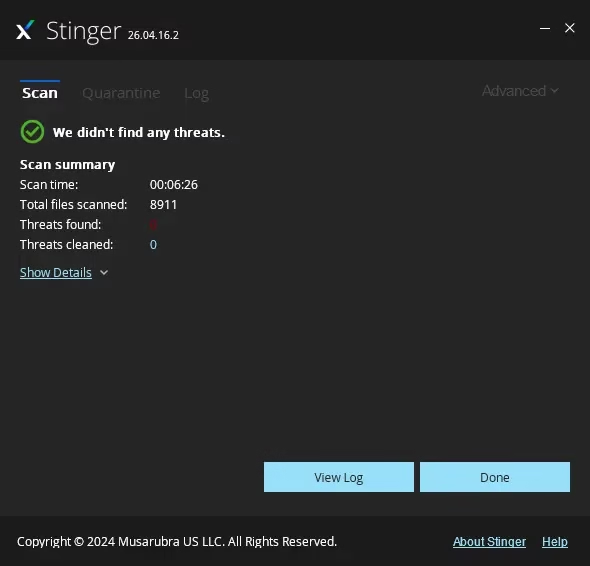
The post-scan summary is clear and easy to read. On our test machine, we got a green tick and “We didn’t identify any threats.” Zero threats found, zero cleaned. If threats are detected, the summary shows the counts and actions taken. You can click “View Log” for a file-by-file breakdown.
The log is saved automatically and is accessible any time via the Log tab. This is useful for keeping records across multiple machines or sessions.
Quarantine — Your Safety Net
When Stinger is set to Repair and a file can’t be fully cleaned, it moves the file to quarantine rather than deleting it. This gives you a window to review flagged files. If Stinger incorrectly flagged a legitimate file, you can restore it.
Stinger’s quarantine is functional but basic. It doesn’t offer the polished quarantine management you’d find in Malwarebytes or Bitdefender. For most use cases, that’s fine, but don’t expect enterprise-grade handling here.
What Threats Does Trellix Stinger Actually Detect?
This section is where honest reviews differ from promotional ones—so let’s be direct about it.
Stinger works from a curated database of specific known threat families, not a comprehensive catalogue of all known malware. The full list is visible inside the app under Advanced → Threat List. Notable threats it covers include GameOver Zeus (a banking trojan that caused widespread financial damage) and CryptoLocker (one of the earliest ransomware strains). The database also includes updated signatures for more recent malware variants.
What Stinger is not:
- It is not a broad-spectrum scanner like Malwarebytes or ESET Online Scanner
- It is not behavior-based—it cannot detect malware it has never seen a signature for
- It will not catch zero-day exploits or freshly distributed threats not yet in its database
This isn’t a flaw — it’s the design. Stinger’s value is speed and precision for a specific range of persistent, hard-to-remove threats. Going in with that expectation gives you a much more useful experience.
→ Related: [Is Windows Defender Enough in 2026?]
Real-World Scenarios Where Stinger Actually Helps
Here are the specific situations where reaching for Stinger makes practical sense:
🔴 Your main antivirus keeps crashing or won’t open
Some malware specifically targets and disables security software. If Windows Defender suddenly can’t complete a scan, that’s a red flag. Stinger is a fresh portable executable—it can often run where your existing security tool can’t.
🔴 You downloaded cracked or pirated software
Keygens, cracks, and pirated software are common delivery vectors for banking trojans and ransomware. If someone on the machine downloaded something from a sketchy source, running Stinger immediately is a smart first step.
🔴 Windows Defender said “clean,” but something still feels wrong
Real-time scanners often overlook certain threats. A second-opinion scan from a tool using a different threat database increases your chances of catching something that slipped through.
🔴 You’re troubleshooting a client’s or family member’s PC
IT support professionals love portable scanners. Stinger runs from a USB drive, requires no installation, and leaves no footprint. It’s perfect for a quick sweep on a machine you would rather not install software on.
🔴 Suspected ransomware activity
Stinger can help identify the specific variant if someone renames or encrypts files or if a ransom note appears. Knowing what you’re dealing with helps you decide your next steps, even if cleaning is limited.
Trellix Stinger vs. Alternatives — Which Should You Use?
Stinger isn’t the only free on-demand malware scanner available. Here’s how it compares to the two most popular alternatives:
| Feature | Trellix Stinger | Malwarebytes Free | HitmanPro |
|---|---|---|---|
| Price | Free | Free (basic) / Paid | Free trial / Paid |
| Installation required | ❌ No (portable) | ✅ Yes | ❌ No (portable) |
| Real-time protection | ❌ No | ❌ Free / ✅ Paid | ❌ No |
| Detection scope | Curated list | Broad — millions of signatures | Broad — behaviour + cloud |
| Rootkit detection | ✅ Basic | ✅ Good | ✅ Excellent |
| Zero-day detection | ❌ Limited | ✅ Yes | ✅ Yes |
| Definition updates | Periodic (per release) | Daily | Daily (cloud) |
| Resource footprint | Low to moderate | Moderate | Light (cloud-heavy) |
| Best for | Targeted removal, IT support | General second-opinion scan | Deep second-opinion scan |
Comparison based on free tiers and publicly available feature information as of 2026.
Bottom line: For the broadest possible second-opinion scan, Malwarebytes Free or HitmanPro cover more ground. But if you need a fast, portable, zero-install sweep using Trellix’s threat intelligence — especially on a machine where you can’t install software — Stinger is the right choice.
→ Related: [Best Free Security Software for Windows PC in 2026 — Tested & Ranked]
Honest Limitations — What Stinger Can’t Do
No review is complete without a candid look at the weaknesses. Here’s where Stinger genuinely falls short:
1. Signature-Only Detection
Stinger compares files against a known threat database. It has no behaviour analysis engine. If malware is brand new and not yet in Trellix’s database, Stinger won’t catch it. This is a fundamental architectural limitation, not a bug.
2. Limited Database Scope
Unlike Malwarebytes, which maintains millions of signatures, Stinger’s database is deliberately curated and smaller. It’s depth over breadth — very good at the threats it knows, but blind to the ones it doesn’t.
3. No Zero-Day Protection
A zero-day exploit targets a vulnerability before a patch exists. This is entirely outside Stinger’s scope. It is a tool for known, catalogued threats only.
4. No Real-Time Protection
Once you close Stinger, it’s gone from memory. The moment you download a new file or visit a malicious site, Stinger isn’t watching. There is no background protection at all.
5. Periodic — Not Daily — Updates
Stinger is updated when Trellix releases a new version—not on a daily fixed schedule. A copy downloaded a month ago may already be partially stale for rapidly evolving threat families.
6. Basic Quarantine
The quarantine system works, but it’s rudimentary. Don’t expect the polished quarantine management UI that full-featured security products provide.
Who Should Use Trellix Stinger?
✅ Ideal For
- IT support professionals who need a fast, portable sweep tool for client machines
- Users who suspect infection despite a clean antivirus result
- Anyone wanting a trusted second opinion before a major transaction or data transfer
- Running from a USB drive on machines where software installation isn’t possible
- Supplementary scanning alongside — not replacing — a primary antivirus
❌ Not Suitable For
- Casual users wanting “set it and forget it” protection—Stinger has no passive protection; you must actively run it
- Users expecting broad malware coverage—Stinger’s database is curated, not comprehensive
- Anyone replacing their main antivirus—this is a supplementary tool, full stop
- Non-technical users unfamiliar with quarantine or threat actions—the settings require some understanding to use correctly
- Catching zero-day or freshly distributed ransomware — look at HitmanPro or Malwarebytes for that coverage
Pro Tips for Getting the Most Out of Stinger
- Always download a fresh copy before scanning. An old executable has an older threat database. Fresh download = current signatures.
- Run it from a USB drive if the OS feels compromised. By running from external media, you can ensure that malware hasn’t tampered with the scanner itself.
- Set GTI to High and Response to “Report only” for your first scan. This provides you a full picture of what’s flagged before committing to any removals. Review, then act.
- Enable rootkit scanning explicitly. Check that Rootkits is ticked under Settings → Scan Targets. Rootkits are among the most persistent infections Stinger is designed to surface.
- Check the Log tab after every scan. Even a clean result is worth saving — a timestamped record is useful for future comparisons across machines.
- Pair it with a second-opinion tool for serious infections. Run Stinger first for speed, then follow up with Malwarebytes Free for broader coverage.
Final Verdict: free on-demand malware scanner Windows
Trellix Stinger remains a genuinely useful tool in 2026. But it’s only useful when you deploy it for what it’s actually designed for. As a fast, free, portable on-demand malware scanner targeting a specific set of persistent threats, it does its job well. The GTI integration gives it real intelligence behind its detections. The basic rootkit scanning adds value that most casual second-opinion tools skip entirely.
What it isn’t — and this is worth repeating — is a comprehensive malware scanner. It won’t replace Malwarebytes. It won’t catch zero-days. It won’t protect you in real time. If those are your priorities, look elsewhere.
But if your antivirus just said “all clear” and something still doesn’t feel right? Stinger is one of the first tools we’d reach for. Keep a current copy on your USB toolkit—it earns its place there.
Our Rating: 4/5
⭐ Excellent for targeted, on-demand sweeps
⭐ Free, portable, and backed by real threat intelligence
⭐ Honest about its scope — which makes it more trustworthy, not less
⚠️ Limited database vs. full scanners
⚠️ Periodic updates, not daily
Download Trellix Stinger
Free Download
🛡️ Trellix Stinger
📦 Portable EXE
💰 100% Free
🔖 v26.04.16.2
Quick Info
Developer: Musarubra US LLC (Trellix)
Platform: Windows
Version: 26.04.16.2
Price: Free
Frequently Asked Questions
Is Trellix Stinger the same as McAfee Stinger?
Yes. Trellix Stinger is the direct successor to McAfee Stinger. After McAfee Enterprise merged with FireEye to form Trellix, the Stinger tool was rebranded. The core technology, purpose, and free pricing remain unchanged.
Is Trellix Stinger completely free?
Yes, completely. There is no registration, no subscription, no trial period, and no premium tier to upgrade to. It’s a free tool, full stop.
Does Trellix Stinger need to be installed?
No. It runs as a standalone portable executable. Download it, run it, close it — nothing is installed, no registry entries are created, and it runs perfectly from a USB drive.
Can Trellix Stinger replace my antivirus?
No. Stinger has no real-time protection, no daily definition updates, and a deliberately limited detection database. Use it alongside a full antivirus like Windows Defender, Bitdefender, or Kaspersky — never as a replacement.
How often should I run Trellix Stinger?
Run it whenever you notice suspicious behaviour. Monthly scans as a routine check are also reasonable. Most importantly, always download a fresh copy right before scanning. Stinger’s signatures are embedded in the executable and updated periodically, not continuously.
What happens if Trellix Stinger finds a threat?
By default, Stinger attempts to repair the infected file. If repair isn’t possible, it quarantines the file. In Settings, you can change this to report only, rename, or remove. Starting on “Report only” is recommended if you’ve increased GTI sensitivity to high or very high.
Does Trellix Stinger detect ransomware?
It targets specific known ransomware families—including historically significant ones like CryptoLocker—as well as updated signatures in more recent versions. However, it will not catch zero-day ransomware or brand-new variants that are not yet in its database. For broader ransomware coverage, pair Stinger with Malwarebytes Free or HitmanPro.
Will Trellix Stinger catch zero-day malware?
No. Stinger is signature-based and has no behaviour analysis engine. If a threat isn’t in its database, Stinger won’t flag it. This is a known and expected limitation. Stinger is built for precision against known threats, not broad detection of unknown ones.
How often is Trellix Stinger’s threat database updated?
Stinger’s signatures are bundled with each new release of the executable. Trellix releases updated versions periodically—not on a daily or weekly fixed schedule. This is why downloading a fresh copy before each scan matters more than reusing an old saved executable.