


Does your Windows 11 or Windows 10 feel sluggish, cluttered with pre-installed apps, and invasive with tracking? You are not alone. Win11Debloat is the free, open-source PowerShell script thousands of users trust to clean up Windows fast — without reinstalling.
🧐 Why Debloat Windows 11?
New Windows 11 installations (including Windows 11 24H2 and 25H2) ship with an increasing number of pre-installed apps, Bing-powered search, intrusive data collection, and now AI features like Microsoft Copilot and Windows Recall. On mid-range and budget PCs, these background services eat into RAM, slow boot times, and compromise your privacy.
Microsoft’s Windows 11 25H2 update doubled down on AI integrations — making a reliable debloat tool more important than ever in 2025–2026.

⚡ What Is Win11Debloat?
Win11Debloat is a lightweight, open-source PowerShell script (★28k+ on GitHub) developed by RaphiRe. It lets you quickly declutter and customize your Windows experience without manually tweaking hundreds of settings.


Win11Debloat can:
- ✅ Remove bloatware apps — Xbox, Candy Crush, Solitaire, Dev Home, Power Automate, and more.
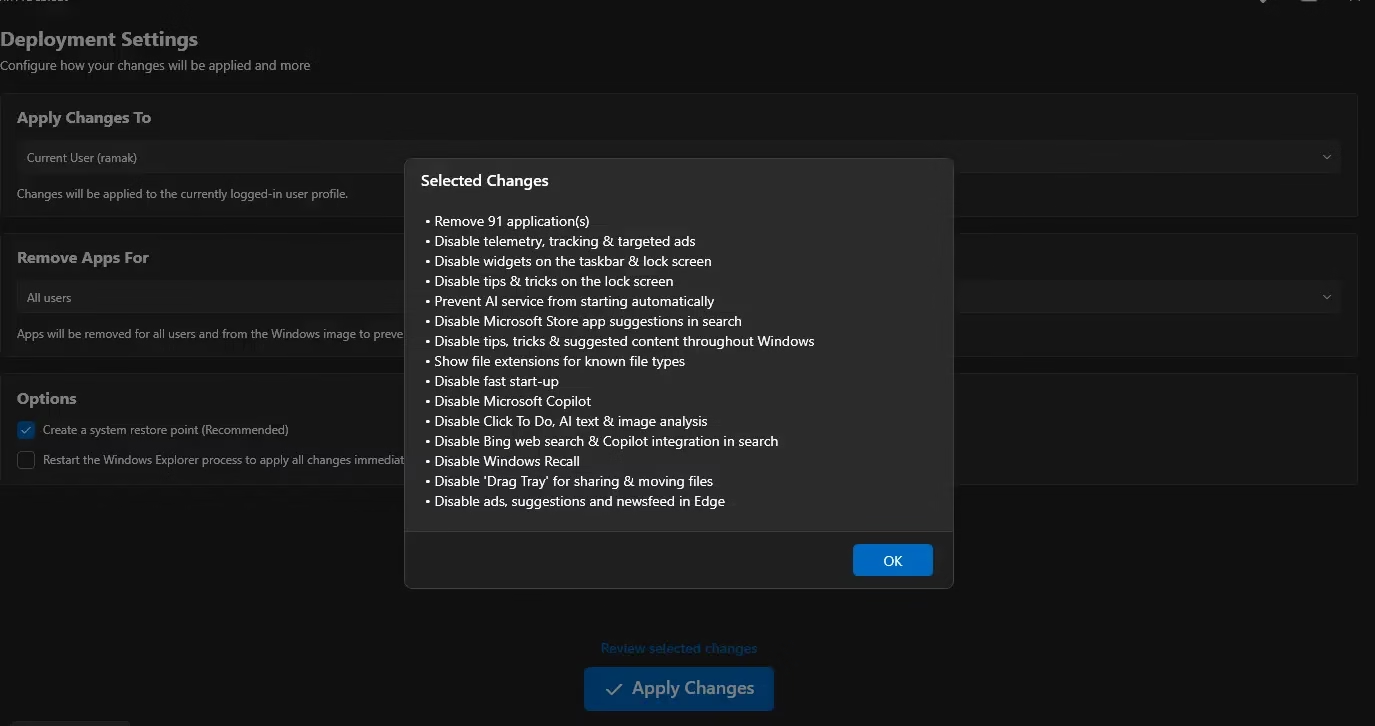
- ✅ Disable telemetry, targeted ads, activity tracking, and “suggested” content.
- ✅ Remove Bing web search, Bing AI, and Cortana from search and taskbar.
- ✅ Disable or remove Microsoft Copilot and Windows Recall (new in 2025 builds).
- ✅ Restore the classic Windows 10 right-click context menu.
- ✅ Disable AI features in Paint, Notepad, and Microsoft Edge.
- ✅ Tweak the UI — dark mode, disable animations, transparency effects.
- ✅ Multi-monitor taskbar customization (added in 2025 update).
- ✅ Works with Windows 10, Windows 11 24H2, and Windows 11 25H2.
👉 Perfect for users who want a clean, fast, privacy-respecting Windows experience!
🆕 What’s New in Win11Debloat (2025–2026 Updates)
Win11Debloat is actively maintained and has received major updates through 2025:
- 🔹 Disable Windows Recall — added to default settings (Sep 2025).
- 🔹 Disable Copilot & AI features — including Copilot in Edge, AI in Paint & Notepad.
- 🔹 Edge telemetry & ads — disabling telemetry now also covers Microsoft Edge fully.
- 🔹 Multi-monitor taskbar management — new option added (Oct 2025).
- 🔹 Dev Home & Power Automate added to default removal list (Oct 2025).
- 🔹 Dark mode, animations & transparency disable — new visual customization options.
- 🔹 Saved Config Mode — reuse your previous configuration across multiple PCs.
- 🔹 Windows 11 25H2 compatibility — fully tested and supported.
The latest release is 2025.10.06. Win11Debloat now has over 28,000 GitHub stars and is actively recommended by privacy communities in 2026.
⚙️ 4 Modes — Pick What Works for You
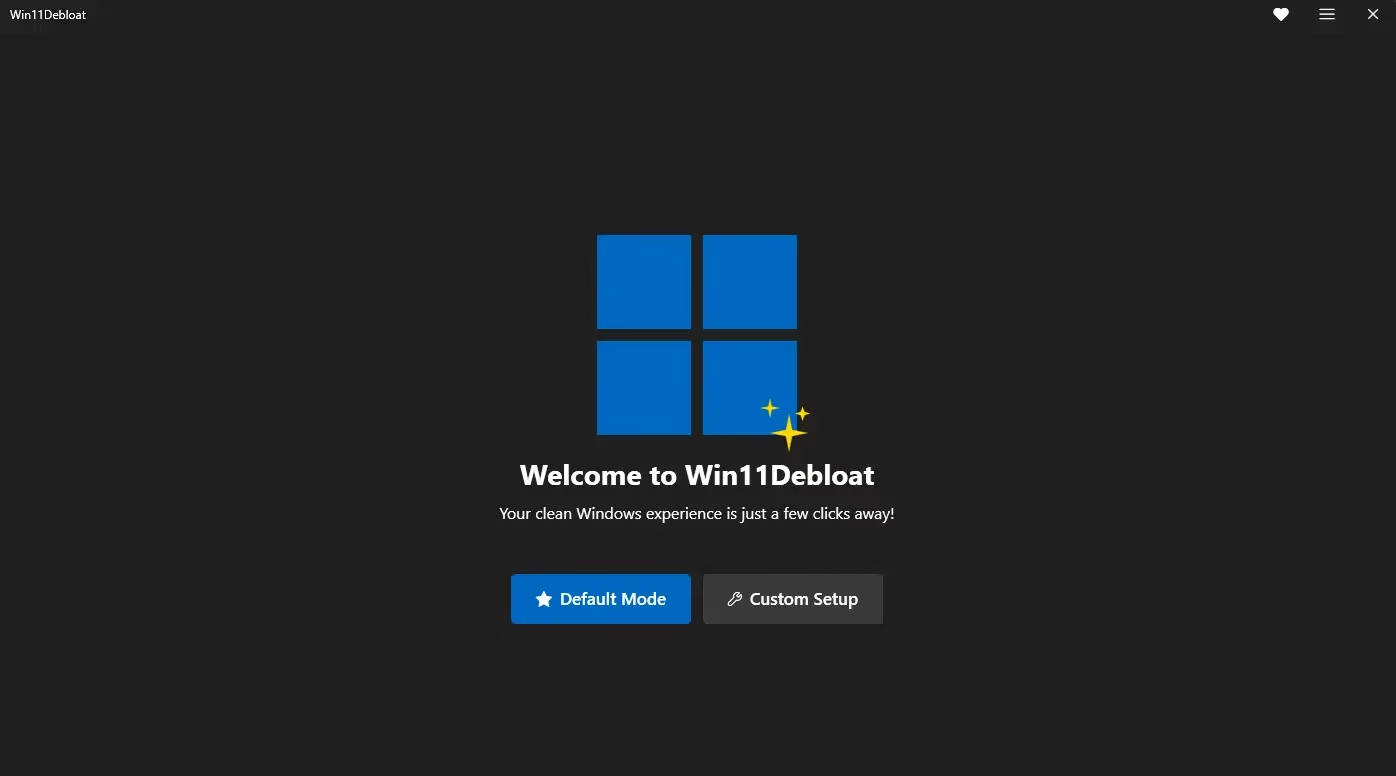
When you launch Win11Debloat, you choose from four modes:


- 🚀 Default Mode — One-click optimization: applies a curated set of recommended changes including disabling Recall, telemetry, ads, and removing common bloatware. Ideal for most users.
- 🎛️ Custom Mode — Handpick every change. Choose which apps to remove, which privacy settings to apply, and which UI tweaks to enable. Great for power users and IT admins.
- 🗑️ App Removal Mode — Only removes bloatware apps; leaves all other settings untouched.
- 💾 Saved Config Mode — Load your previously saved configuration, useful for deploying the same settings across multiple machines.
✨ Custom Mode: Full Control Over Your PC
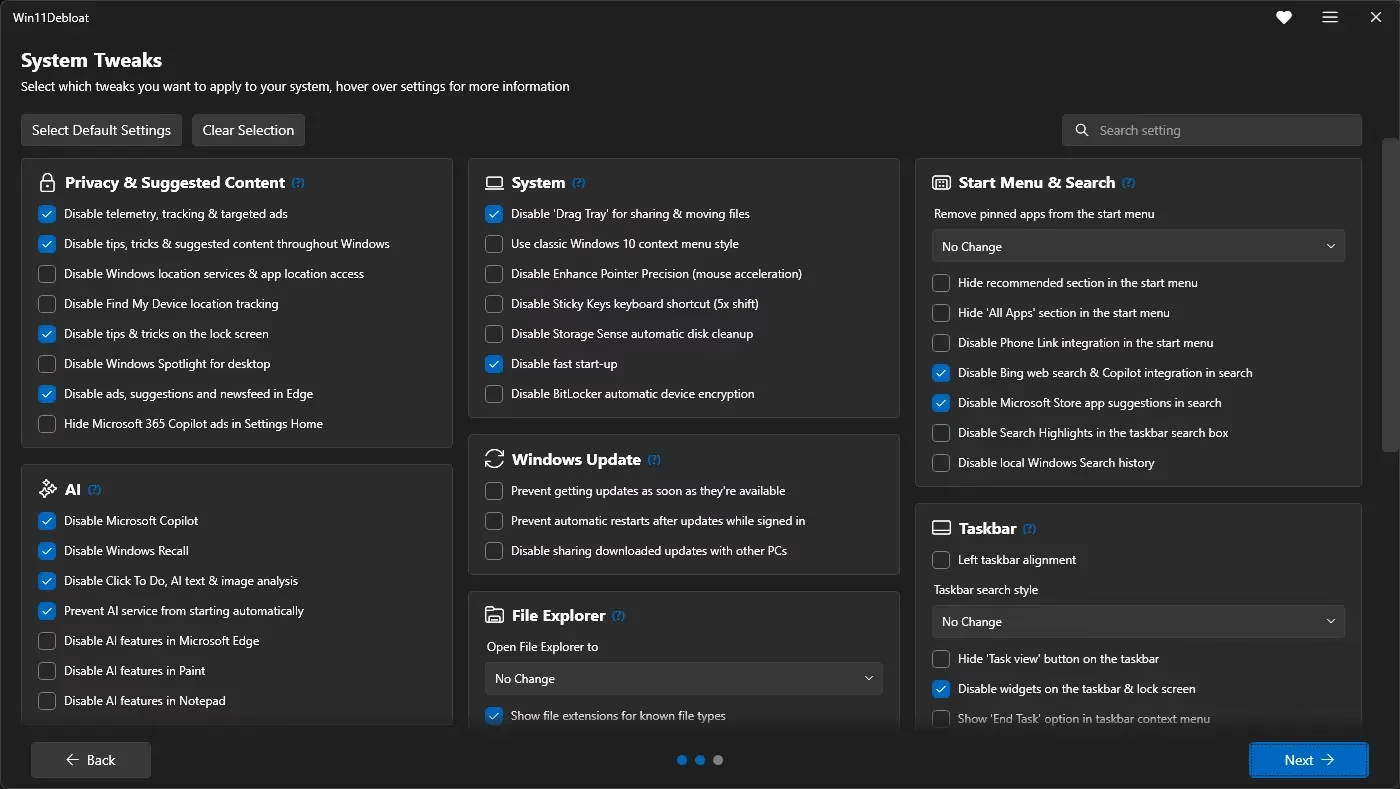
Custom Mode is the most powerful option, letting you configure:
- 📦 App Removal: Default list, expanded list, or fully custom (e.g., Mail, Xbox, HP bloatware).
- 🔒 Privacy & Telemetry: Disable telemetry, Cortana, ads, Recall snapshots, and Edge tracking.
- 🎨 UI Tweaks: Enable dark mode, restore classic context menu, clean up Start menu and Taskbar.
- 🤖 AI Feature Control: Disable Copilot, Windows Recall, AI in Notepad and Paint.
- 🔍 Search Fixes: Remove Bing from Windows Search entirely.
- 🖥️ Multi-Monitor Settings: Customize taskbar behavior across multiple displays.
💡 Pro Tip: Your custom selections are auto-saved to
CustomAppsListfor easy reuse. Use Saved Config Mode to deploy identical setups on multiple PCs.

⚡ Run Via PowerShell Commands (Advanced/Automated)
Skip the interactive menu and automate Win11Debloat with parameters — perfect for IT admins managing multiple machines:
# Quick online install (run in Admin PowerShell):
& ([scriptblock]::Create((irm "https://debloat.raphi.re/")))

# Useful parameters:
& [...] -RunDefaults          # Apply all default settings
& [...] -RemoveAppsCustom     # Remove your saved custom app list
& [...] -RemoveGamingApps     # Remove Xbox, Game Bar, gaming bloat
& [...] -RemoveHPApps         # Remove HP pre-installed software
& [...] -DisableRecall        # Disable Windows Recall (AI snapshots)
& [...] -DisableCopilot       # Remove Microsoft Copilot
📥 How to Install Win11Debloat
Method 1: One-Line PowerShell Command (Easiest)
Open Windows Terminal or PowerShell as Administrator and run:
irm "https://debloat.raphi.re/" | iex
This downloads and runs the script automatically — no ZIP extraction needed.
Method 2: Manual Download
- Download the latest ZIP from the Win11Debloat GitHub Releases page.
- Extract the ZIP file.
- Right-click
Run.bat→ Run as Administrator. - Click “Run” if a publisher warning appears, then choose your preferred mode.
🔄 Can You Undo the Changes?
Yes — Win11Debloat is fully reversible. Here’s how:
- The script uses Windows Group Policy settings rather than deleting registry entries directly, making all changes easy to undo.
- You may occasionally see a “Managed by your organization” banner — this is harmless and expected behavior.
- Removed apps can be reinstalled from the Microsoft Store or via
Add-AppxPackagein PowerShell. - The script keeps a detailed log of every change made.
⚠️ Note: After major Windows updates (like 25H2), some bloatware and pins may return. Simply re-run Win11Debloat to clean up again.

🆚 Win11Debloat vs Other Debloat Tools
There are several Windows debloat tools available, but Win11Debloat stands out:
- ✅ Lightweight — a single PowerShell script, no installer needed.
- ✅ Open-source & transparent — every line of code is visible on GitHub.
- ✅ Regularly updated — fully compatible with Windows 11 24H2 and 25H2 (2026).
- ✅ Reversible — no permanent damage to your Windows installation.
- ✅ IT-admin ready — supports scripted deployment via PowerShell parameters.
💡 Who Should Use Win11Debloat?
- 🖥️ Home users who want a faster, cleaner Windows 11 without Copilot or Recall.
- 🎮 Gamers looking to strip background services and maximize FPS.
- 🔒 Privacy-conscious users who want to stop Microsoft’s telemetry and ad tracking.
- 💼 IT admins and sysadmins who need to deploy a standard clean Windows image across multiple PCs.
- 💻 Budget & mid-range PC users where background bloat significantly impacts performance.
📌 Conclusion: Take Control of Your Windows 11 in 2026
Win11Debloat remains the best free tool to debloat Windows 11 and Windows 10 in 2026. With over 28,000 GitHub stars, regular updates for Windows 11 25H2, and new options to remove Copilot and Windows Recall, it’s more relevant than ever.
Whether you’re a home user wanting a cleaner desktop, a gamer chasing performance, or an IT admin standardizing deployments — Win11Debloat has a mode for you. Best of all, it’s free, open-source, and fully reversible.
👉 Download Win11Debloat from GitHub and reclaim your Windows experience today!


