


Your taskbar can tell you what your PC is doing — no Task Manager needed
Winstats is a tiny open-source app that bolts live CPU, RAM, GPU, disk and network readouts straight into the Windows taskbar. Click any of them and you get a full breakdown, including which app is eating your resources.


I check my laptop’s CPU and memory more often than I’d like to admit. When something makes the fans spin up or Chrome starts dragging, my first instinct used to be Ctrl + Shift + Esc. Later I switched to a Windhawk mod that shows CPU and RAM figures in the notification area, and that did the job for a long time.
Then I came across Winstats. On paper it’s the same idea, but it covers a lot more ground: graphics card load, disk reads and writes, and upload and download speeds, all on the taskbar. It’s also small enough that I didn’t think twice before trying it. I’ve been running it on my everyday laptop, and it tells me far more than the Windhawk setup ever did.
Here’s what it does well, where it falls short, and how to set it up, including the Windows SmartScreen warning you may see on first launch.
⚡ Quick Read (30 seconds)
- What it is: a free, open-source system monitor that lives inside the Windows taskbar.
- What it shows: CPU (including every core), RAM, GPU, disk, network and battery.
- Best part: click any readout for a detailed popup with charts and the top resource-hungry apps.
- Size: about 1.5 MB. Portable, so there’s nothing to install.
- Bonus: can show stats from other Windows, Linux or Mac machines on your home network.
- Missing: no temperatures or fan speeds, no second-monitor or vertical-taskbar support.
- Heads-up: the file isn’t code-signed, and Windows SmartScreen shows a warning on first launch.
What is Winstats?
Winstats is a lightweight performance monitor for Windows written by developer Oleksandr Zhabotynskyi. If you’ve ever seen Stats on macOS, the menu-bar monitor many Mac users swear by, you’ll recognise the look immediately. The developer openly credits it as the design inspiration, though no code was borrowed.
The clever bit is how it fits in. Instead of floating a window over your taskbar, Winstats attaches itself inside the taskbar and draws with transparency, so it blends in with whatever taskbar colour or translucency you’re using. On my Windows 11 machine it looks like it belongs there.
A few quick facts, checked against the project’s GitHub page:
- Current version: 0.2.1
- File size: 1.5 MB for the 64-bit
winstats.exe, 1.36 MB for the 32-bit build - Licence: MIT (free for anyone, source code public)
- Built with: Rust, with no extra runtimes to install
- Languages: 29 interface languages, picked automatically from your Windows language
⬇️ Download Winstats
Latest version tested: 0.2.1 · Free · Portable · Windows 7 SP1 – 11
Most modern Windows PCs should use winstats.exe (64-bit). Pick winstats-x86.exe for 32-bit Windows.
🖥️ My test machine: AMD Ryzen 5 4600H laptop with a GeForce GTX 1650, 24 GB of DDR4-3200 (an 8 GB + 16 GB pair), a 256 GB SK Hynix NVMe SSD plus a 1 TB WD hard drive, Intel Wi-Fi 6 AX200, running Windows 11 Home Insider Preview (build 26100). All the screenshots below come from this laptop.
📅 Tested: 29 September 2026 · Winstats 0.2.1 (64-bit)
What you see on the taskbar
Out of the box, Winstats puts a compact strip to the left of your system tray. Each module can be shown in a few different styles, and you choose which ones you want:
- CPU: one small bar per core, a history graph, or a plain percentage. My Ryzen shows 12 bars, one for each thread.
- RAM: a percentage, a history graph, or used and free memory stacked on top of each other.
- GPU: a load percentage or a graph.
- Network: live download and upload speeds, as numbers or a chart.
- Disk: live read and write speeds, as numbers or a chart.
- Battery: charge and state, and it hides itself on desktops without one.
The small vertical labels (“CPU”, “NET”, “DSK”) help you tell things apart at a glance. Once you’re used to the layout, you can switch them off for a cleaner look.
Left-click any readout for the full picture
This is where Winstats beats the simpler taskbar meters I’ve used. A left click on any widget opens a clean popup with much more detail. A double-click takes you straight into Task Manager when you need to end something.
CPU popup


You get a history graph, the split between system and user load, idle time, the current clock speed (2.6 GHz when I grabbed this) and a bar for every core. Underneath is a list of the processes using the most CPU. Look at the bottom of that list: when I captured this screenshot, winstats.exe itself was using 0.3% CPU. That’s a very small footprint on this test machine, though actual usage will vary with the update interval and what else the system is doing.
If you own a recent Intel chip with performance and efficiency cores, Winstats separates the two groups with a divider. You can also group all the P-cores first if you prefer.
Memory popup


This one impressed me the most. Beyond usage, free memory and committed memory, it reads your RAM type, speed and channel count straight from the firmware. Mine correctly reported DDR4 at 3200 MT/s, 8 GB + 16 GB, two channels, details you’d normally need CPU-Z for.
The pie chart shows where your memory is actually going: app memory, kernel and drivers, driver-locked memory and what’s still available. The top-processes list confirmed what I already suspected: Chrome was holding 2.5 GB, far more than anything else on the system.
Disk, network and GPU popups


The disk popup lists each physical drive by model and connection type. On my laptop that’s the SK Hynix NVMe and the WD SATA drive. It shows read and write speeds for each drive, the apps doing the most disk activity, and a free-space bar for every partition. If one drive is just noise, click it and Winstats stops counting it in the taskbar reading.
The network popup works the same way. It shows your current IP address, a traffic graph, totals since launch, and every physical adapter (Wi-Fi, Ethernet, even a phone’s USB tethering connection) with its own speed. The GPU popup covers load, video memory in use, driver version and every graphics adapter in the system. On my hybrid laptop it listed both the AMD Radeon integrated graphics and the GTX 1650.
💡 Laptop tip: On a laptop with switchable graphics, don’t be surprised if the dedicated GPU reads 0% most of the time. It’s idle until a game or video editor wakes it up, and Winstats is simply reporting that correctly.
Customise almost everything from one right-click


Right-click the strip and you get a surprisingly deep settings menu. The thing I appreciate most is that every change applies instantly. There’s no Save button and no restart. Since version 0.2.1, the menu also stays open while you tick options, so you can adjust several things in one go.
Here’s what you can change:
- Which widgets appear, per module (CPU, GPU, RAM, Disk, Network, Battery)
- Their order. Just drag a widget along the strip with your mouse.
- Position: next to the tray, or on the far left of the taskbar
- Colours: your Windows accent colour, a fixed colour from a palette, monochrome, or “by utilisation”, which shifts from green to yellow, orange and red as load rises. Each module can have its own colour.
- Font size, chart width and CPU bar width
- Update interval (the default is once per second)
- Top processes: show 5, 10, 15 or 20 apps in each popup
- Theme: automatic, light or dark
- Language and Start with Windows
The “by utilisation” mode is the one worth trying first. It sounds gimmicky, but the idea is sound: the numbers stay green while things are calm, and a jump to orange or red catches your eye without you having to read anything.
Power users can also edit everything by hand in %APPDATA%\winstats\config.toml (there’s an “Open config file” shortcut in the menu). That file also holds a couple of options the menu doesn’t expose, such as the floating mode I mention below.
This is the feature I didn’t expect in an app this small. Winstats can pull stats from other computers on your home network and show them in your taskbar next to your own readings, each with its own colour and a short label.
To do it, you run a companion program called winstats-agent on each machine you want to watch. Builds are available for Linux (x86-64 and ARM64), Intel Macs and Windows. A Windows PC that already runs Winstats can simply share itself instead. Then, on your main PC, right-click the strip, open Remote machines, turn on discovery, and connect to whatever shows up.
Clicking a remote widget opens the same detailed popups as your local ones, with that machine’s processes. The agent can even report CPU temperature and load average when the system provides them.
🔍 Full disclosure: I haven’t set up the remote feature myself yet, so this section is based on the developer’s documentation rather than my own testing. It looks handy for anyone running a home server, a Raspberry Pi or a second PC. The agent uses UDP port 47777 for discovery and TCP port 47778 for data, so you may need to allow it through Windows Firewall. You can add an access token to keep casual neighbours out, but the developer says clearly that this is not encryption, so keep it on a network you trust.
How to download and run Winstats (step by step)
Step 1: Grab the right file from GitHub
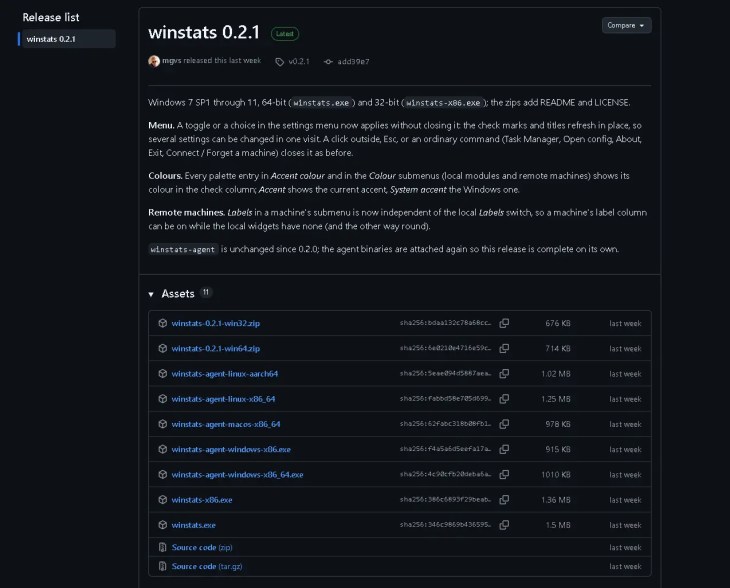
Head to the Winstats releases page on GitHub. You’ll see 11 files, which looks confusing, but you only need one of these:
- winstats.exe for 64-bit (x64) Windows. Most modern Intel and AMD Windows PCs should use this one.
- winstats-x86.exe for older 32-bit Windows
- Or the matching .zip files (
win64/win32) if you’d like the README and licence included
Don’t download the winstats-agent files unless you want to monitor another computer from your main PC. They get installed on those other machines, not on the one you’re sitting at. Note that there’s no ARM64 build of Winstats yet.

Step 2: Extract and run it
If you downloaded the zip, extract it first. I put mine in a folder on my data drive so it wouldn’t sit in Downloads forever. Then double-click winstats.exe.
Step 3: Get past the SmartScreen warning
Windows will almost certainly show a blue “Windows protected your PC” box with Unknown publisher. The Winstats executable isn’t code-signed, and Windows identifies the publisher as “Unknown” in the SmartScreen prompt. Click More info, then Run anyway.


🛡️ Want to be extra careful? The GitHub release page lists a SHA-256 fingerprint for every file. Open PowerShell in the download folder and run:
Get-FileHash .\winstats.exe
If the hash matches the one on GitHub, you’ve got the genuine, untouched file. It takes about ten seconds.
Step 4: Make it start with Windows
The widgets appear straight away. Winstats doesn’t launch at boot by default, though, so right-click the strip and tick Start with Windows. It adds a normal entry under your user’s startup programs, nothing system-wide.
Which Windows versions are supported?
| Windows | 64 / 32-bit | What to expect |
|---|---|---|
| Windows 11 | ✅ / ✅ | Sits inside the taskbar. Lots of open apps can overlap it (see below). |
| Windows 10 | ✅ / ✅ | Sits inside the taskbar and the app buttons shrink to make room. |
| Windows 8 / 8.1 | ✅ / ✅ | Same as Windows 10, but no GPU load reading. |
| Windows 7 SP1 | ✅ / ✅ | Floats on top of the taskbar. No GPU load or video memory info. |
Windows 7 support is an unusual inclusion for a small modern utility. The developer builds with Rust 1.77, the last toolchain that still runs on Windows 7. If you’ve got an old family PC or a workshop machine still on Windows 7, this is one of the few modern monitors that will run on it.
The limitations you should know about
No app is perfect, and Winstats is still young (version 0.2.x). These are the things that might put you off:
🚫 What Winstats does NOT do
- CPU temperature
- GPU temperature
- Fan speeds
- Second-monitor taskbars
- Vertical taskbars
- End or manage processes
- No temperatures or fan speeds. Reading those on Windows needs a kernel-level driver, and the developer has chosen not to ship one. For that, you’ll still want a tool like HWiNFO or FanControl.
- Primary monitor only. On a multi-monitor setup the strip shows up on your main taskbar only.
- No vertical taskbars. If yours is docked on the side, Winstats won’t work there.
- Windows 11 overlap. Windows 11 doesn’t let apps shrink its centred app list, so with lots of windows open, your app icons can run over the widgets. The fix is to move Winstats to the left side of the taskbar, or set
mode = "floating"in the config file. - Unsigned file. Expect the SmartScreen prompt, and possibly a raised eyebrow from stricter antivirus tools.
On privacy: the remote-machine discovery feature is off by default, so Winstats doesn’t listen for other machines unless you enable it. Separately, the app checks GitHub for a newer version about 20 seconds after it starts, and you can also run that check manually from the menu.
Winstats vs other taskbar monitors
I’ve tried a few of these on Techno360 now, so here’s how Winstats compares:
| Tool | Where it lives | Best for |
|---|---|---|
| Winstats | Inside the taskbar, portable | Detailed hardware stats at a glance, with drill-down popups. Also runs on older Windows. |
| WidBar | Windows 11 taskbar, Microsoft Store | Mixing system stats with weather, stocks and other widgets. |
| Windhawk mods | Notification area, via Windhawk | People who already use Windhawk and just want basic CPU/RAM numbers. |
| TaskSlinger | Full window (Task Manager replacement) | Actually managing processes, services and startup apps. |
These tools overlap, but they serve somewhat different use cases. Winstats is for hardware monitoring on the taskbar. WidBar is a broader widget bar. The Windhawk mod is lightweight taskbar customisation with basic CPU and RAM figures. TaskSlinger is for actually managing processes. Winstats can show you what’s hogging resources, but when you need to end a process, you still open a task manager.
✅ Techno360 Verdict
Winstats is a surprisingly capable taskbar monitor for its tiny footprint. In my testing, it kept CPU, RAM, GPU, disk and network activity visible on the taskbar without a separate monitoring window. The detailed popups, configurable widgets and portable design are its strongest points. The main limitations are the missing temperature and fan readings, primary-monitor-only support, and the Windows 11 taskbar overlap.
👍 What I liked
- Tiny, portable, open source
- Click-to-expand popups with top apps
- Reads RAM type, speed and channels
- Instant, no-restart settings
- Works all the way back to Windows 7
👎 What could be better
- No temperatures or fan speeds
- Primary monitor only
- Can overlap app icons on Windows 11
- Unsigned, so SmartScreen warns you
Bottom line: if you keep opening Task Manager just to see what’s slowing your PC down, Winstats is a compact, free way to keep that information on screen all the time.
Looking for more tools like this? My roundup of the 35 best free PC programs for 2026 has plenty of other bloat-free picks for tuning and monitoring your Windows PC.
Frequently Asked Questions
Is Winstats safe to use?
Winstats is free and open source under the MIT licence, and its source code is public on GitHub. However, the Windows executable isn’t code-signed, and on first launch the SmartScreen prompt lists the publisher as “Unknown”. Download it only from the official GitHub release page, and for an extra check, compare its SHA-256 hash with the value published there.
Does Winstats show CPU or GPU temperature?
No. Temperatures and fan speeds need a kernel driver on Windows, and Winstats deliberately doesn’t install one. It shows load, clock speed, memory, video memory, disk and network activity instead.
Does Winstats work on Windows 10 and Windows 7?
Yes. It runs on Windows 7 SP1, 8, 8.1, 10 and 11, in both 64-bit and 32-bit versions. Windows 8/8.1 lose the GPU load reading, and on Windows 7 the strip floats above the taskbar instead of sitting inside it.
Do I need to install Winstats?
No. It’s a single portable file of about 1.5 MB. Run it and the widgets appear. Your settings are saved in %APPDATA%\winstats\config.toml.
Does it work on a second monitor or a vertical taskbar?
Not at the moment. The widgets appear only on the primary monitor’s taskbar, and vertical taskbars aren’t supported.
How do I remove Winstats?
Right-click the strip, untick Start with Windows, then click Exit. Delete winstats.exe, and if you want your settings gone too, delete the %APPDATA%\winstats folder. There’s no uninstaller because nothing was installed.
Ramakanth
Lead writer and co-founder of Techno360. After years in IT support, I’ve been testing and writing about Windows software since 2008. Every tool in a Techno360 review runs on my own machines before I recommend it, and I call out anything I haven’t personally tested.