
HANDS-ON · ATLAS 0.6.1
We ran the new Atlas Manager on Windows 11 26H2, start to finish
One app now handles the whole job: updates, your security choices and the Atlas changes. Here is every screen, every choice, what changed afterwards, and how long it really took.
✔ Free & open source (GPL-3.0)🪟 Windows 11 Pro, Education, Enterprise🧪 Tested in a VM
Project
AtlasOS (open source)
Version
0.6.1 (22 Nov 2026)
Licence
Free, GPL-3.0
Needs
Windows 11 25H2 or 26H2, Pro/Edu/Enterprise
⚡ Quick Read
- 🧰What: Atlas is a free, open-source modification of Windows 11 that cuts telemetry, ads, preinstalled apps and background services. Version 0.6.1 is a hotfix released on 22 November 2026.
- 🔄What changed: AtlasManager.exe (23 MB) is now the installer. The official install guide calls it the only supported method, replacing the AME Wizard and playbook route used by earlier versions.
- ✅Does it work: Yes. In our test it installed cleanly on Windows 11 Pro 26H2 (build 26300.9974) in VirtualBox.
- ⚠️The catch: The installer is unsigned, you must temporarily switch off four Defender protections during setup (turn them back on straight after), and undoing Atlas means reinstalling Windows.
- ⏱️Time: Atlas says about 15 minutes. Our run took about 3.5 hours, mostly Windows updates. Jump to the install steps
What Is Atlas OS?
Atlas is not a separate operating system. It is a set of changes applied to a genuine copy of Windows 11. You keep your Windows licence, and Atlas does not activate Windows for you. The project is open source under the GPL-3.0 licence and is free, with an optional Ko-fi donation link on atlasos.net.
Atlas says it turns off Windows telemetry and advertising, sets policies that limit data collection, removes preinstalled apps including OneDrive, and disables background tasks and services. Its website also lists its own benchmarks: 0% background CPU use against 2 to 10% on stock Windows, and about 1.4 GB of RAM in use at boot against 2.9 GB. These are the developer’s figures. We did not benchmark Atlas, because a virtual machine is not a fair place to measure speed.
Unlike most debloaters, Atlas also asks you about security. During setup you choose whether to keep Microsoft Defender, processor protections and automatic updates, and you can change those later from the Atlas folder on your desktop.
What’s New in Atlas 0.6.x
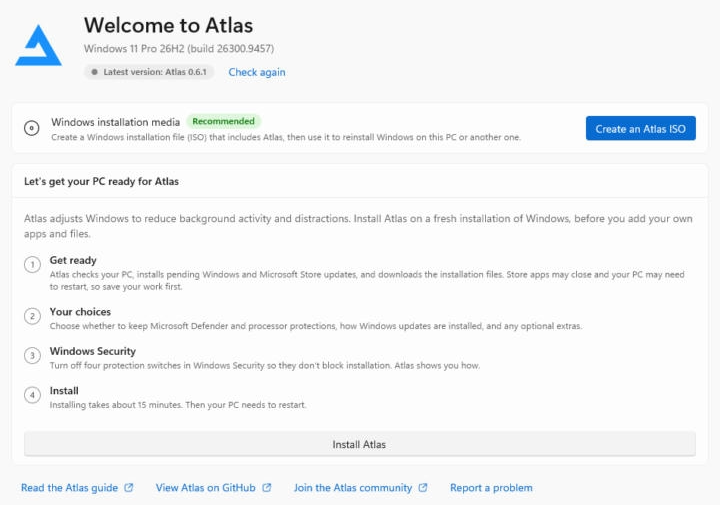
The big change is the installer. Earlier versions used a playbook file run through AME Wizard. Since 0.6.0, a single app called Atlas Manager does everything, and the official install guide calls it the only supported install method: it checks your PC, installs pending Windows and Microsoft Store updates, asks your questions and installs Atlas. It can also build an Atlas ISO from Microsoft’s Windows media for a clean install.
Version 0.6.1 is a hotfix for install and update failures reported after 0.6.0. According to the release notes, it:
- downloads the current Microsoft-signed Process Explorer, so an updated download no longer stops setup
- no longer halts when the Windows telemetry log folder can’t be read, and works with newer Visual C++ runtimes
- detects Windows 11 correctly on French-language systems
- resets and rechecks stuck Microsoft Store app updates before repairing them
- skips the network screen during local account creation on Atlas installation media
- removes the Atlas logo from the Maia lock screens
Atlas OS Requirements
These come from the official requirements page. Check your edition before you download anything.
| Item | What Atlas needs |
|---|---|
| Windows release | Windows 11 25H2 or 26H2 (public releases only, no Insider or preview builds) |
| Edition | Pro, Education or Enterprise. Home, LTSC and Server are not supported. |
| Account | Local or Microsoft account with admin rights. No work or school (Entra ID) accounts, and not the built-in Administrator account. |
| UAC | Must stay on |
| Antivirus | Microsoft Defender only. Uninstall any other antivirus first. |
| Internet | A non-metered Wi-Fi or Ethernet connection |
| Windows state | A fresh install, before you restore apps and files. Installing on a used PC is unsupported. |
| Activation | Not required. Atlas doesn’t provide or activate a Windows licence. |
🛑 Read this before you start
- Removing Atlas means reinstalling Windows. Reset this PC won’t undo it.
- OneDrive is removed. Files stop syncing, and Desktop, Documents and Pictures may look empty.
- AtlasManager.exe is unsigned. SmartScreen and UAC both show “Publisher: Unknown”.
- Some protections go off either way. Atlas turns off Smart App Control, Enhanced Phishing Protection and Find my device whatever you choose. Smart App Control can only come back with a Windows reinstall.
- Back up first. Copy your files, BitLocker recovery key and network driver to separate storage.
⬇️ How to Install Atlas OS with Atlas Manager
We followed the four-step “Install Atlas” route on an existing Windows 11 Pro 26H2 virtual machine, after taking a VirtualBox snapshot. Atlas recommends the ISO route for a first install, and you should use it on a real PC.
⬇️ Download Atlas Manager📖 Official install guide
Download and open Atlas Manager
Get AtlasManager.exe from GitHub
Download it from the Atlas GitHub releases page or atlasos.net only. Edge warned that the file “isn’t commonly downloaded”, so we chose Keep and then Keep anyway. The SHA-256 of our download matched the hash GitHub lists for the file.
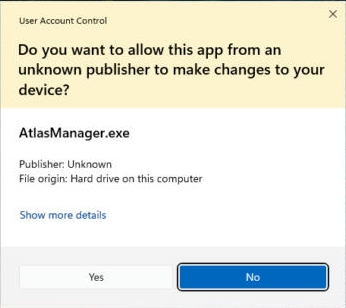
Allow it to run as administrator
Windows asks for permission each time Atlas Manager starts. Expect “unknown publisher” because the app isn’t code-signed.
Step 1: Get ready
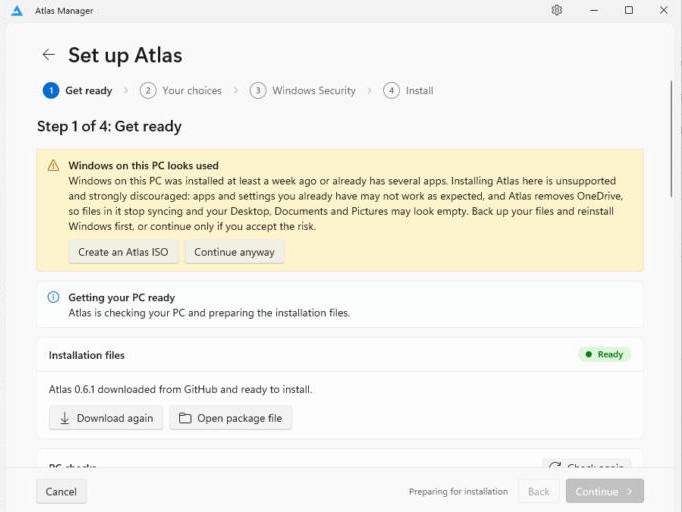
Check the warnings
On our used VM, Atlas showed “Windows on this PC looks used” and called the install unsupported. We chose Continue anyway because the VM had a snapshot. On a real PC with your files on it, choose Create an Atlas ISO instead.
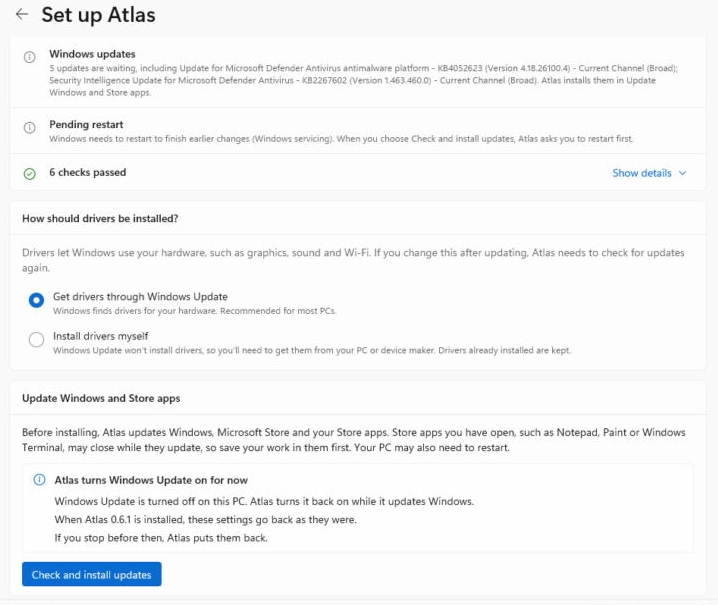
Let it install updates
Atlas lists PC checks (activation, pending updates, pending restart) and asks how drivers should be installed. Keep Get drivers through Windows Update unless you install drivers yourself, then choose Check and install updates. Atlas turns Windows Update on for this step and puts your settings back afterwards.
Step 2: Your choices
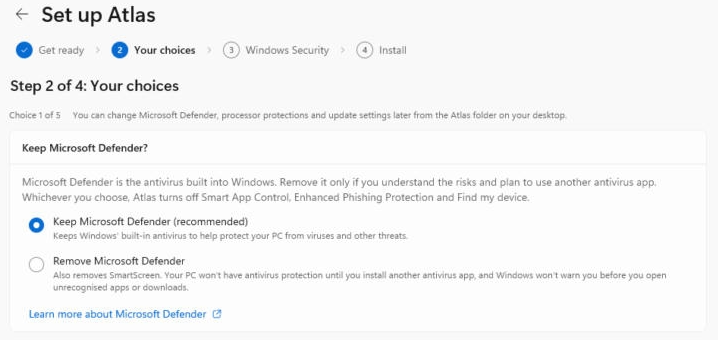
Answer five questions
Atlas asks about Microsoft Defender, processor protections (Spectre and Meltdown mitigations), Windows updates, keyboard language switching and optional extras. We kept the defaults for every question.
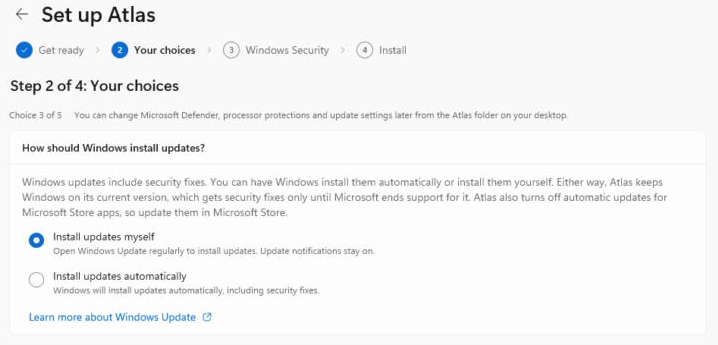
The update question has no recommended option. Either way, Atlas keeps Windows on its current version (it gets security fixes until Microsoft ends support for that version) and turns off automatic updates for Microsoft Store apps.
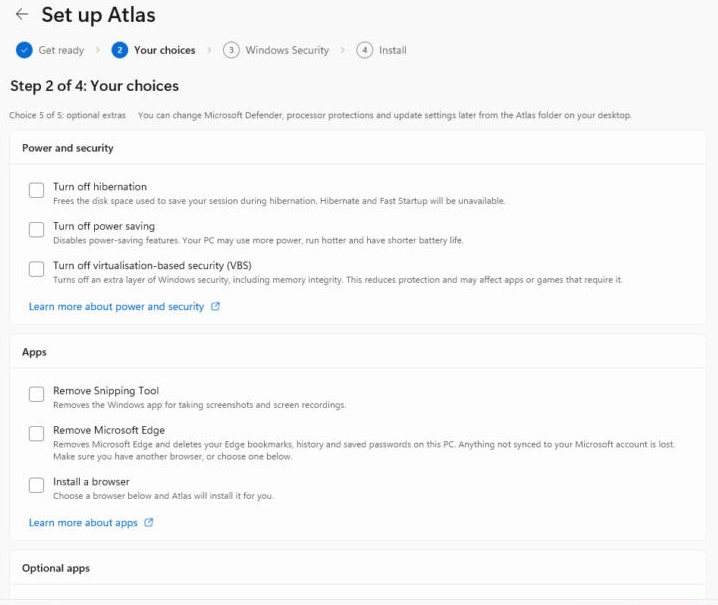
The last screen is all optional and starts unticked: turning off hibernation, power saving or virtualisation-based security (VBS), removing Snipping Tool or Edge, installing another browser, plus the beta Atlas Toolbox and eclean (which needs an account).
Step 3: Windows Security
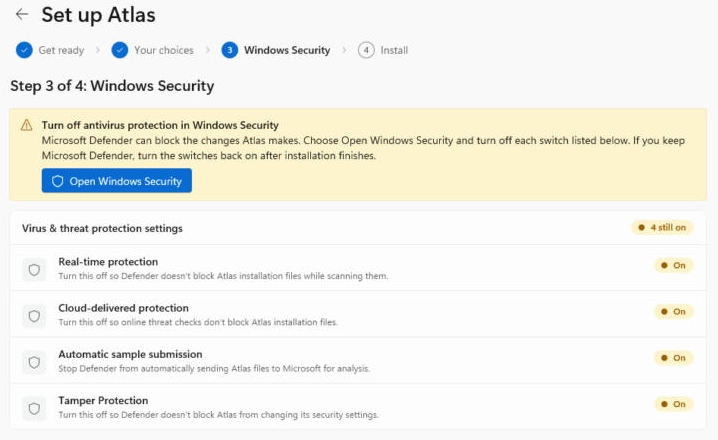
Turn off four Defender switches
Choose Open Windows Security and turn off Real-time protection, Cloud-delivered protection, Automatic sample submission and Tamper Protection. Atlas ticks each one off as you go and only lets you continue when all four are off.
Step 4: Install
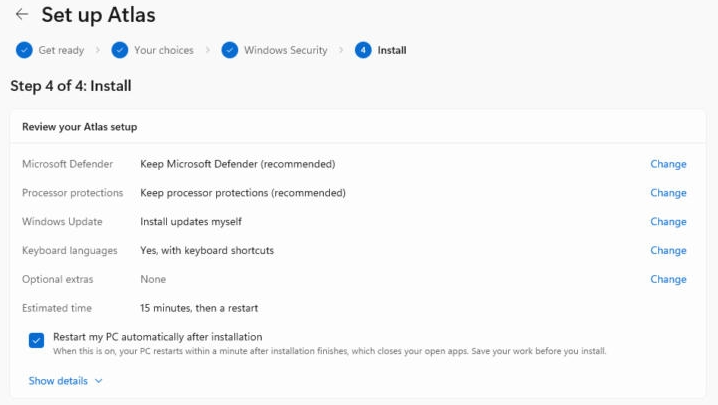
Review and install
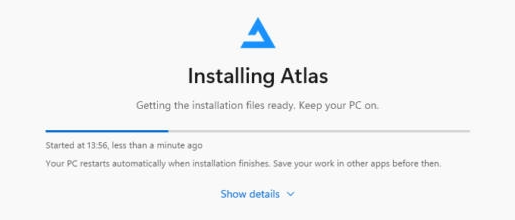
Check the summary, leave Restart my PC automatically after installation ticked, and choose Install Atlas. Atlas estimates 15 minutes, then a restart.
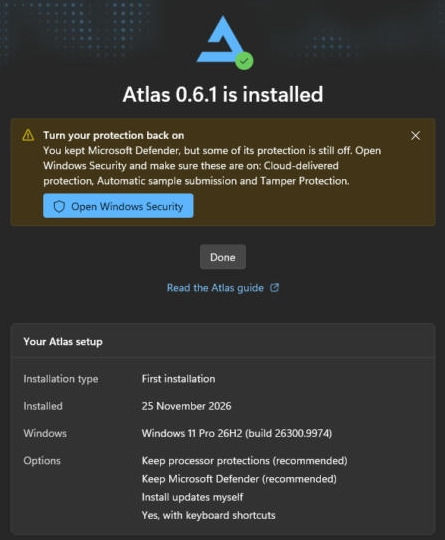
Turn your protection back on
After the restart, Atlas Manager opens and confirms “Atlas 0.6.1 is installed”. If you kept Defender, it reminds you to switch protection back on. Real-time protection was already back on in our test, so we turned the other three back on in Windows Security.
🛠️ If the update step gets stuck
- Atlas Manager keeps a log. Choose Open log folder if a step shows no progress.
- In our test, a large cumulative update made no progress for over 30 minutes because Windows had a restart pending. Restarting Windows, reopening Atlas Manager and choosing Restart and continue fixed it.
- If PC checks show Permission to install, choose Relaunch as administrator.
- After each restart, Atlas Manager reopens by itself after sign-in and keeps your progress.
- The “Cleaning the component store” step can take 20 minutes or more after a big update. Leave it running.
🧪 Hands-On: What We Saw
Our test PC was a VirtualBox VM running Windows 11 Pro 26H2, unactivated, with a local account. Atlas accepted the unactivated copy and just warned that it won’t activate Windows for you. After Atlas Manager’s update step, the VM was on build 26300.9974, the public November 2026 security update (KB5132061). A VM test shows the installer works on that build; it can’t prove compatibility with every physical PC and driver.
How long it really took
| Stage | Time in our test |
|---|---|
| Step 1: Windows and Store updates | About 2 hours 45 minutes, including three restarts |
| Steps 2 and 3: choices and Defender switches | About 7 minutes |
| Step 4: installing Atlas | About 35 minutes, then a restart (component store cleanup took about 25 minutes) |
| Total | About 3.5 hours from opening Atlas Manager to the Atlas desktop |
Most of that was Windows Update, not Atlas. Our VM was several updates behind and slow to install them. A fresh, fully updated Windows install on real hardware should get through Step 1 much faster, but don’t start this half an hour before you need your PC.
The Atlas desktop
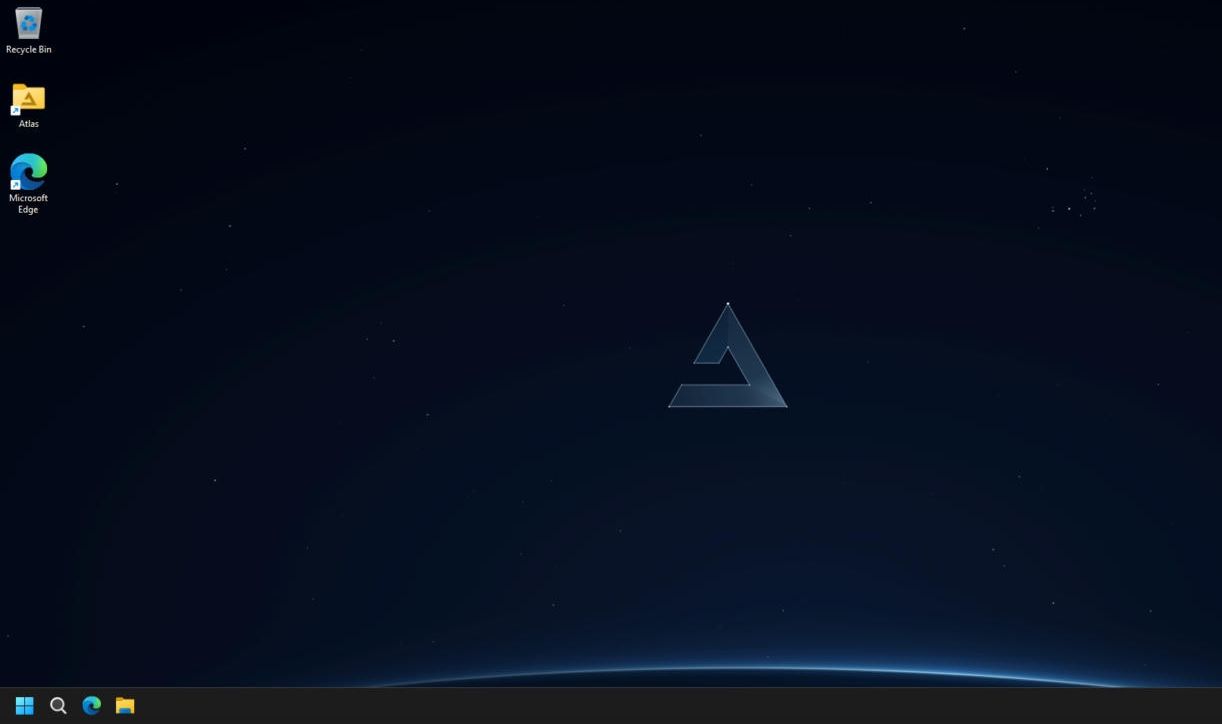
After the restart, Windows switched to a dark theme with the Atlas wallpaper. The taskbar moved to the left and the search box became a search icon. The desktop had only Recycle Bin, an Atlas folder and Edge.
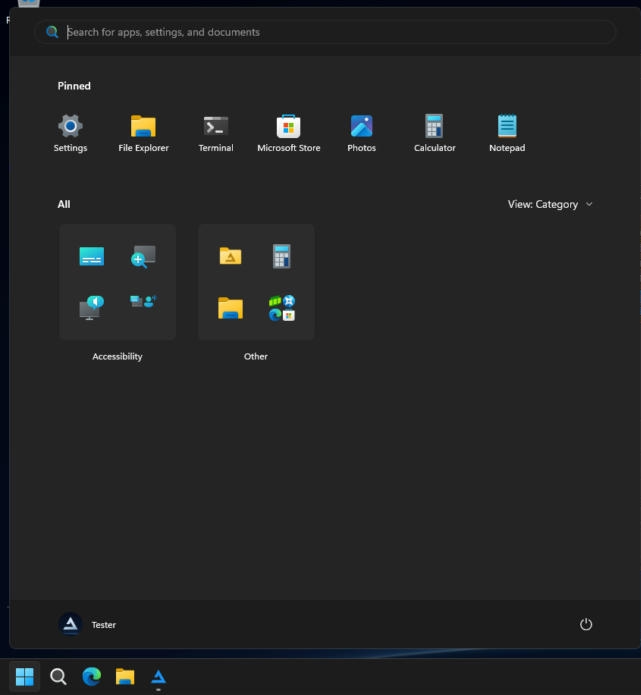
The Start menu was cut down to seven pinned apps: Settings, File Explorer, Terminal, Microsoft Store, Photos, Calculator and Notepad. There was no Recommended section and no suggested apps.
The Atlas folder
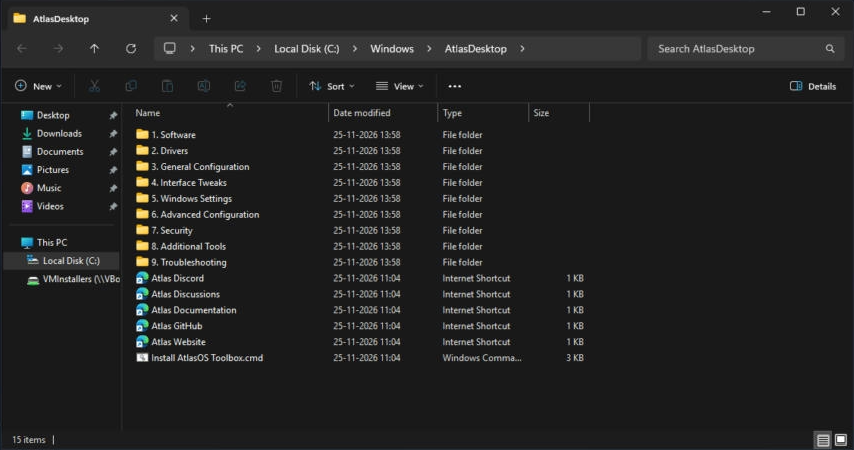
The Atlas folder is where you change things later. It has nine numbered sections: Software, Drivers, General Configuration, Interface Tweaks, Windows Settings, Advanced Configuration, Security, Additional Tools and Troubleshooting. It also has links to the Atlas documentation, GitHub and community, and a script to install the beta Atlas Toolbox.
The folder doesn’t undo everything. Atlas’s own documentation lists Smart App Control as permanently removed: getting it back needs a Windows reinstall. Other changes need manual tweaking to re-enable.
One more thing we noticed: after the install, UAC prompts appeared on the normal desktop instead of the dimmed secure desktop that Windows uses by default. That is more than a visual change. The secure desktop isolates the prompt from other running programs, so without it a malicious app running as you has a better chance of interfering with, or imitating, a permission prompt.
🛡️ Is Atlas OS Safe?
Atlas is open source, and the GitHub project is popular and actively maintained. The download we tested matched the SHA-256 hash published on its GitHub release page. Get it only from GitHub or atlasos.net, never from a mirror or a “pre-made Atlas ISO” site.
The bigger question is what you give up. Keeping Microsoft Defender preserves its antivirus engine, but it does not return Windows to its normal security state. Atlas turns off Smart App Control, Enhanced Phishing Protection and Find my device whatever you choose, and Smart App Control can only come back with a Windows reinstall. Removing Defender also removes SmartScreen, leaving you with no built-in antivirus protection until you install another security product.
Atlas also keeps Windows on its current version and stops Store apps from updating automatically, so you have to stay on top of updates yourself. In our test, UAC prompts also moved off the secure desktop after the install, which weakens one of Windows’ protections against fake or tampered permission prompts.
The safest way to try Atlas is the way we did: in a virtual machine, or on a spare PC, with a full backup.
Who Should Use Atlas OS, and Who Should Skip It
- Try it if you’re setting up a fresh Windows 11 Pro PC for gaming or focused work and want ads, telemetry and extras gone in one go.
- Try it if you’re comfortable reinstalling Windows and like being asked about each security trade-off.
- Skip it if you’re on Windows 11 Home, use a work or school account, or rely on OneDrive.
- Skip it if you just want to remove a few apps and ads from your current PC. A reversible debloater is a better fit.
More Windows 11 Debloaters on Techno360
If you want something lighter that works on your current Windows install, these are worth a look:
- Bloatynosy: a portable debloater that explains every tweak and can restore applied settings
- Winhance: a free tool to debloat and tweak Windows 11 from one window
- WinScript: builds a debloat script you can review before running
- Win11Debloat: a popular PowerShell script for removing bloatware
- TidyOS: debloat, customise and optimise in one app
✅ Verdict
Atlas Manager makes Atlas far easier to install than the old playbook method. It handles updates, explains each security choice in plain words and reminds you to turn protection back on. The result is a clean, quiet Windows 11 desktop. The trade-offs are real, though: an unsigned installer, a long first run, some Windows protections permanently off, UAC prompts off the secure desktop, and no way back short of reinstalling Windows. Use the ISO route on a fresh install, keep Defender, and it’s one of the most complete Windows clean-ups you can get for free.
👍 Pros
- ✓Free and open source (GPL-3.0)
- ✓One guided app handles updates, choices and install
- ✓Lets you keep Defender, processor protections and updates
- ✓Clean Start menu without the Recommended section
- ✓Resumes by itself after each restart
👎 Cons
- ✕Unsigned installer triggers SmartScreen and UAC warnings
- ✕In-place install is unsupported, and OneDrive is removed
- ✕Four Defender protections must be turned off during setup
- ✕Took about 3.5 hours in our VM, not 15 minutes
- ✕Smart App Control and other protections stay off; UAC loses the secure desktop
- ✕Undoing it means reinstalling Windows
FAQ
Is Atlas OS free?
Yes. Atlas is free and open source under the GPL-3.0 licence. It doesn’t include a Windows licence, so you need your own copy of Windows 11 Pro, Education or Enterprise.
Does Atlas OS work on Windows 11 Home?
No. Atlas supports only Windows 11 Pro, Education and Enterprise. Home, LTSC and Server editions are not supported.
Can I install Atlas on my current Windows installation?
Atlas Manager lets you continue on a used PC, and it worked in our test VM, but Atlas calls it unsupported. Existing apps and settings may break and OneDrive is removed. For a real PC, use Create an Atlas ISO and install fresh.
Do I have to disable Microsoft Defender?
You can keep Defender. You only need to turn off four protection switches during installation, then turn them back on afterwards. Atlas Manager reminds you when it finishes.
How do I uninstall Atlas OS?
You reinstall Windows from Microsoft’s installation media. Reset this PC won’t undo Atlas. Many individual settings can be changed back from the Atlas folder on the desktop, but some, such as Smart App Control, only return with a Windows reinstall.
Will Atlas OS improve gaming performance?
Atlas publishes its own benchmarks showing lower background CPU and RAM use and higher FPS. We didn’t benchmark it, because a virtual machine can’t give fair performance numbers. Results will depend on your hardware and games.
Is AtlasManager.exe a virus?
The file we tested came from the official GitHub release and its SHA-256 hash matched the one GitHub lists. Windows warns about it because it isn’t code-signed and is a new release, not because of a detection. Download it only from GitHub or atlasos.net.