


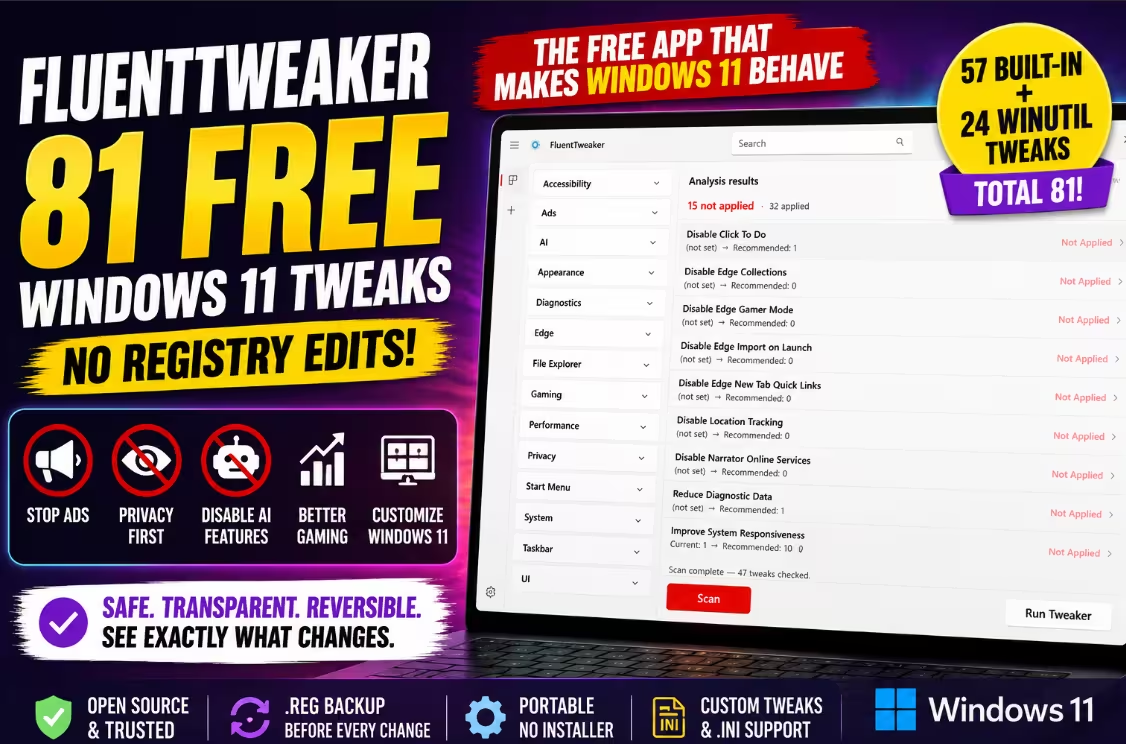
FluentTweaker: The Free App That Finally Makes Windows 11 Behave
Mute the ads, throttle the telemetry, ghost the AI and reshape your taskbar — from one tidy app that tells you exactly what it’s about to change. No registry spelunking. No snake oil.
- ✅ FluentTweaker is a free, open-source Windows 11 tweaker from developer Belim (builtbybel), built on WinUI 3.
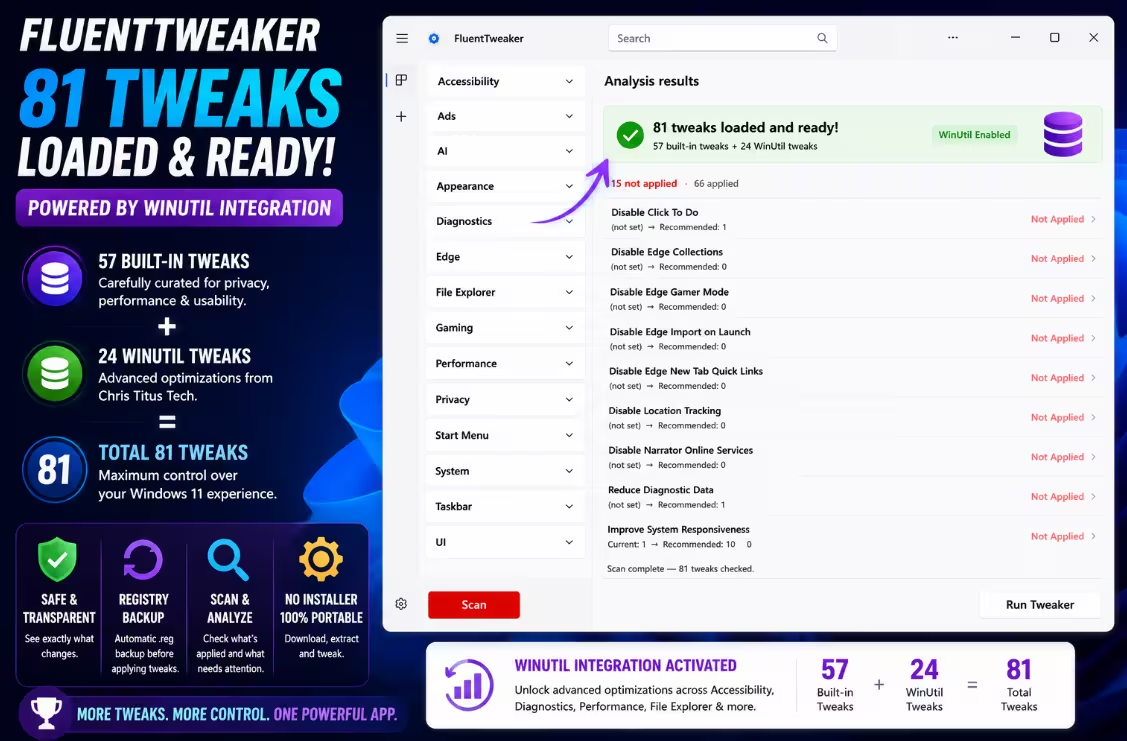
- ✅ 57 tweaks in 8 categories by default — flip on WinUtil and you get 81 tweaks.
- ✅ Silence ads, trim telemetry, switch off Recall & Copilot, and tune Edge + gaming settings.
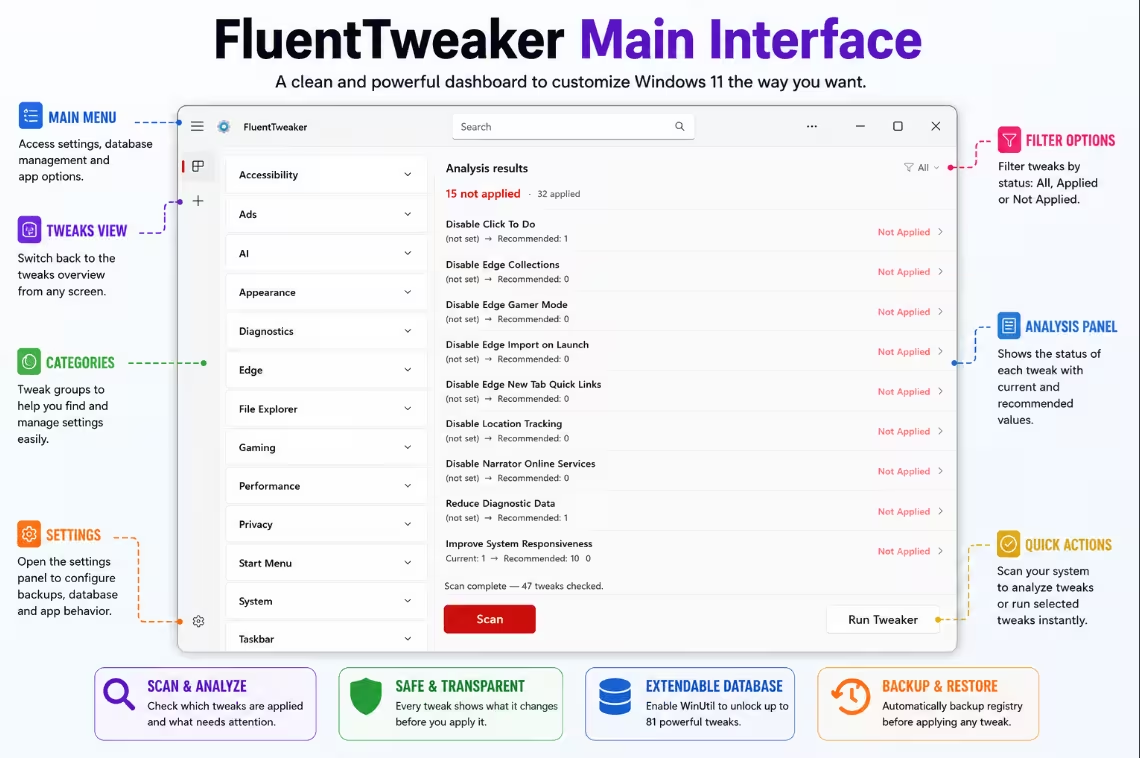
- ✅ A glass-box approach: see the registry key, current value & recommended value before applying.
- ✅ Portable & reversible — unzip, run FTweaker.exe, with automatic .reg backups.
Be honest — how many times has Windows 11 interrupted you today? A “finish setting up your device” banner here, a Copilot button you never asked for there, a Start menu quietly recommending apps you’ll never open. Modern Windows has a lot of opinions about how you should use your own PC.
FluentTweaker is the off-switch you’ve been looking for — and it costs nothing.
It’s the newest release from Belim (a.k.a. builtbybel), the German developer who just shipped FluentCleaner. The two are clearly cut from the same cloth: clean WinUI 3 design, fully open-source, zero marketing fluff. FluentCleaner clears out junk files; FluentTweaker rewires Windows’ behaviour. Let’s see how the little sibling holds up.

A Tweaker Built by Someone Who Hates Bad Tweakers
Most “Windows optimizers” are dressed-up mystery boxes — one giant button, forty silent changes, and a shrug when something breaks. FluentTweaker is the deliberate opposite. The whole pitch is transparency: you choose each tweak, you read what it does, and you can undo it.
Because it runs on Microsoft’s WinUI 3 toolkit, it actually belongs on Windows 11 — fluent styling, rounded corners, light and dark themes, the works. It feels like a first-party Settings page, not a relic from the XP era. No installer, no telemetry, no nonsense.
Eight Categories, 57 Quick Wins
Out of the box, FluentTweaker hands you 57 tweaks across eight categories. Each lives in a collapsible section so you can browse only what interests you. Here’s the tour, grouped by what they actually fix.
🔇 Make the noise stop — Ads & AI
The Ads category is pure relief: switch off File Explorer “sync” promos, lock screen ads, Start menu suggestions, Settings app ads, tips, tailored experiences and welcome-screen pitches. The AI category lets the cautious crowd disable Recall, hide Copilot from the taskbar, kill Click To Do and silence search box suggestions. Together they make Windows feel like it’s finally minding its own business.
🌐 Tame the browser — Microsoft Edge
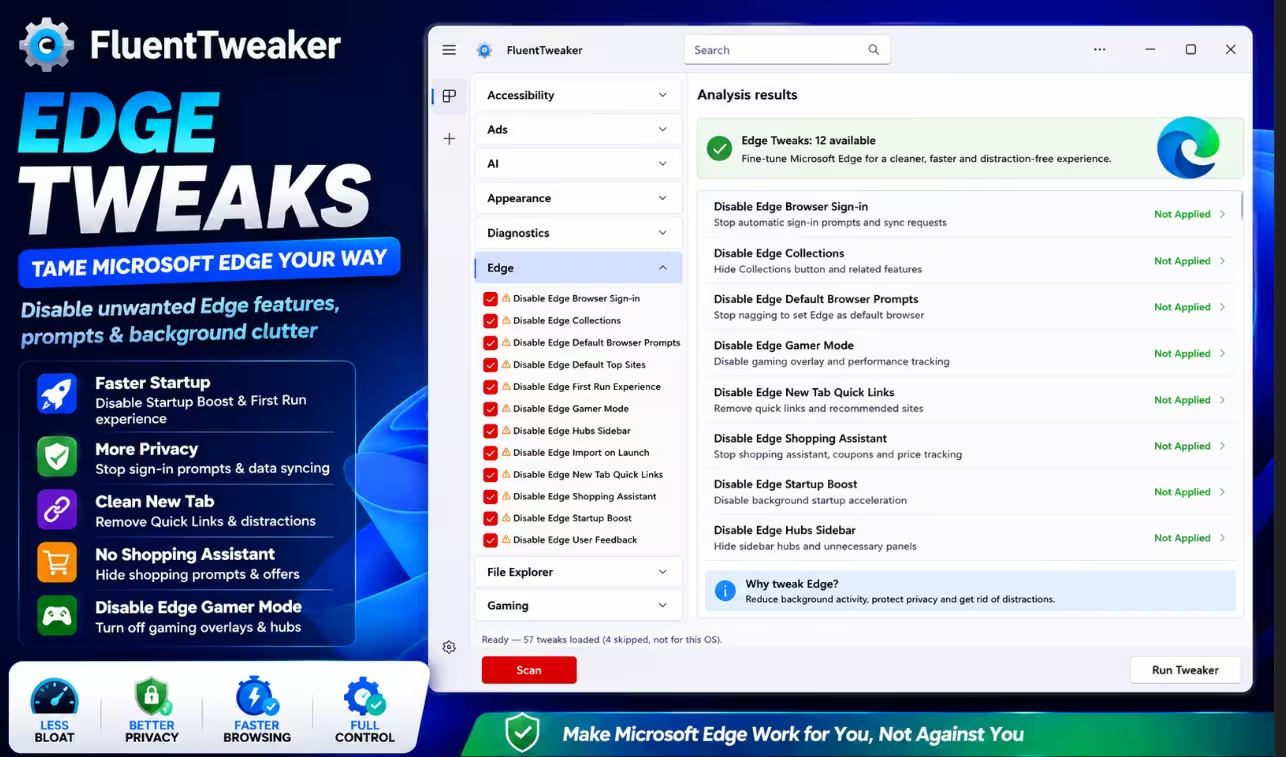
Edge gets the most attention here, with more than a dozen toggles. Stop the default-browser nag, skip the first-run experience, ditch the shopping assistant, hide the hubs sidebar, kill startup boost and dismiss the sign-in prompts. If Edge keeps reintroducing itself, this section is your peace treaty.

🔒 Reclaim your data — Privacy
This is FluentTweaker’s quiet superpower. Reduce diagnostic data, disable activity history, app launch tracking, location tracking, online speech recognition, silent app installs and lock-screen slideshows. Sensible, well-known privacy hardening — no tinfoil required.
🎮 Polish the experience — Gaming, System, Taskbar & UI
The rest covers everyday quality-of-life: disable Game DVR and power throttling, speed up shutdown, shorten the menu show delay, show BSOD details for easier troubleshooting, hide the search box, left-align the taskbar, bring back classic right-click context menus, enable dark mode and switch the Start menu to a more-pins layout. Small flips, big day-to-day comfort.
The WinUtil Power-Up: From 57 to 81
Want more? FluentTweaker can load extra tweaks from WinUtil, the wildly popular toolkit by Chris Titus Tech. Toggle it on and your library leaps from 57 to 81 tweaks, unlocking fresh categories like Accessibility, Appearance, Diagnostics, File Explorer, Performance and Start Menu.
It’s opt-in, so the core app stays lean while power users get a bigger toolbox on demand. Best of both worlds.

Glass-Box, Not Black-Box
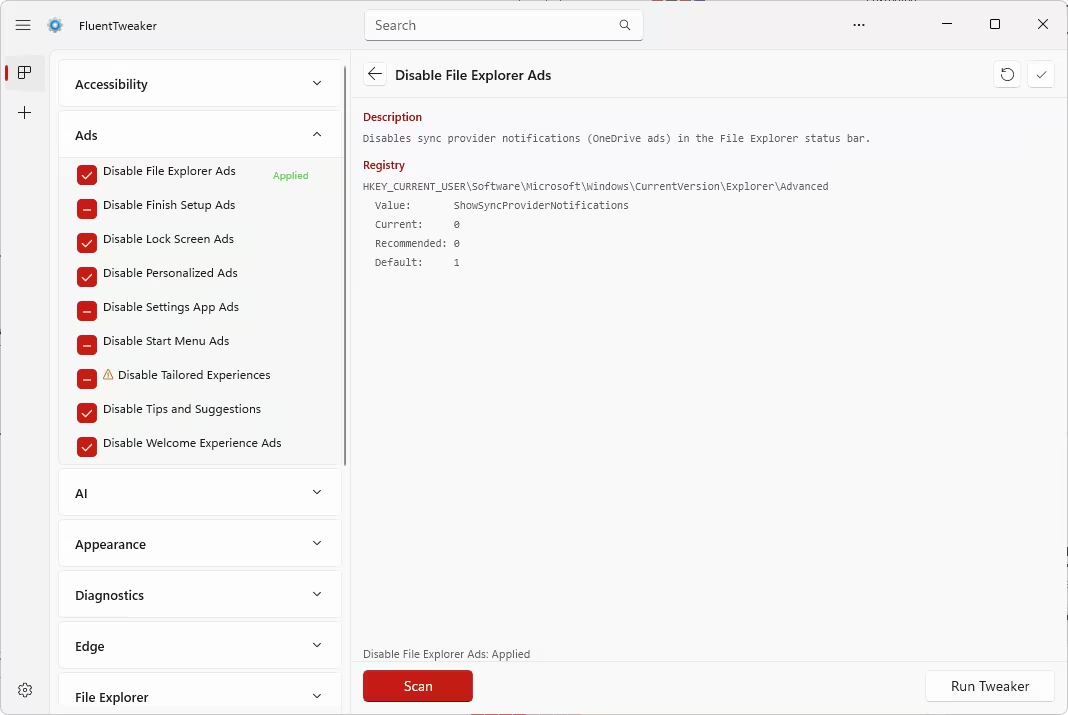
Tap any tweak and FluentTweaker lays its cards on the table. You see a plain-English description, the precise registry key it edits, your PC’s current value, and the recommended value (alongside the Windows default). Nothing happens behind your back.
Even smarter, the Scan button audits your system first and sorts everything into “applied” and “not applied,” so you’re tweaking from a checklist instead of guessing. In our run, a single scan instantly mapped which optimisations were already live — no detective work needed.
And if you ever change your mind? A Reset returns any tweak to its default, and the Backup before applying setting stashes your original registry values as a .reg file before each change. Mistakes here are completely undoable.

No “Magic Boost” Lies
You won’t find a glowing “Speed up my PC!” button anywhere — and that’s the point. The developer openly rejects tweaks applied without explanation and scripts that toggle dozens of settings for no real gain. What you get instead are standard, well-understood optimisations that don’t touch critical system parts.
That honesty is refreshing, but it isn’t a licence to click everything blindly. Read each tweak before you apply it — the app practically hands you the information, so it takes seconds.
Roll Your Own Tweaks
For tinkerers, FluentTweaker supports custom .ini databases — its built-in set lives in wintweak2.ini. You can edit the bundled tweaks, author brand-new ones, or pull in compatible community databases, echoing the old winapp2.ini model from the CCleaner era. A built-in updater grabs the freshest tweak bases from GitHub, so your collection keeps growing.
Three Steps to a Calmer PC
Download the portable ZIP from the official FluentTweaker GitHub page and extract it anywhere.
Launch FTweaker.exe — and in Settings, flip on Backup before applying first.
Hit Scan, pick your tweaks, then click Run Tweaker. Done.
FluentTweaker is updating fast, so expect more tweaks and categories to roll in with future releases.
FluentTweaker FAQ
What is FluentTweaker and who made it?
It’s a free, open-source Windows 11 tweaker by German developer Belim (builtbybel), the sibling to FluentCleaner and built on WinUI 3. Rather than cleaning files, it applies curated tweaks for privacy, ads, AI, Edge, gaming and the interface — no manual registry edits needed.
How many tweaks does FluentTweaker offer?
57 tweaks by default, across Ads, AI, Edge, Gaming, Privacy, System, Taskbar and UI. Enable the optional WinUtil database and the total rises to 81, adding categories like Accessibility, Appearance, Diagnostics, File Explorer, Performance and Start Menu.
Is it safe to use on Windows 11?
It’s built to be. It changes only documented settings, never critical system components, and shows every registry key before applying. With automatic .reg backups and a reset option, changes are reversible — just read each description first.
Do I need to install FluentTweaker?
No. It’s fully portable — download the ZIP, extract it anywhere, and run FTweaker.exe. There’s no installer and no background service.
Can I create or import my own tweaks?
Yes. FluentTweaker uses an .ini tweak database (wintweak2.ini), similar to winapp2.ini. You can edit, write, or import community databases via Settings > Database, and the app can pull the latest bases from GitHub.
🏆 Our Verdict
FluentTweaker gets the hard part right — it’s honest. Transparent, reversible, genuinely free, and refreshingly free of miracle claims. This is what a Windows 11 tweaker should feel like in 2026.
- Free, open-source, portable
- Shows every registry key up front
- Automatic .reg backups + one-click reset
- 81 tweaks via WinUtil; custom .ini support
- Zero fake “boost” gimmicks
- Still young, evolving fast
- No one-click “recommended” preset
- Newcomers must read each tweak first
Bottom line: if you want to quiet down Windows 11 safely — and actually know what you changed — FluentTweaker is a no-brainer download.
Done letting Windows 11 call the shots? Grab FluentTweaker from its official GitHub page, run a quick scan, and start switching off the noise — the transparent way. Loved this? Read our take on its sibling, FluentCleaner, then tell us in the comments which tweak you flipped first. 👇