


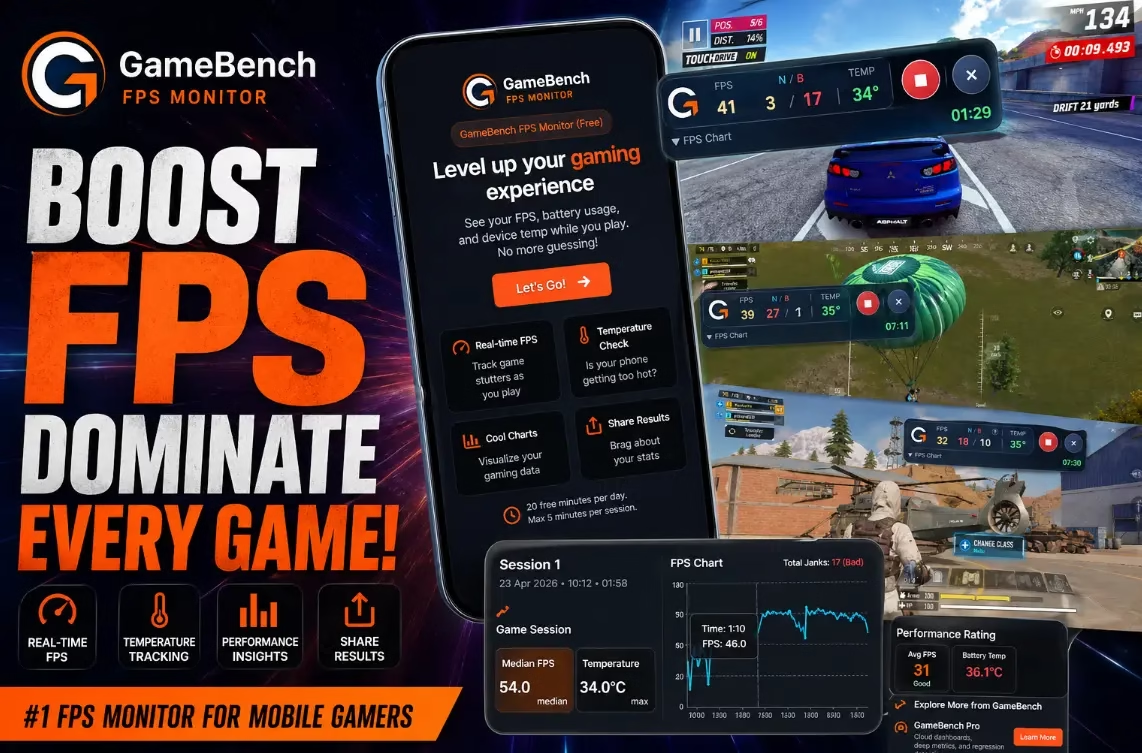
GameBench FPS Monitor Review (2026): Real FPS vs Fake Android Counters — Full Test
The first free Android FPS meter that reads system-level frame data — no root, no PC, and built by the same team that benchmarks for phone manufacturers.
Here’s a truth most Android gaming apps won’t tell you: the FPS counter built into your favourite game is probably lying. In-game counters report what the game engine targets, not what your phone actually renders. The result? You think you’re playing at a smooth 60 FPS while your display is silently dropping frames, stuttering, and thermal-throttling in the background.
Until now, getting real frame-timing data on Android required either rooting your device, tethering it to a PC running adb, or paying for enterprise-grade benchmark software. The GameBench FPS Monitor, launched in April 2026, changes this entirely. And it’s completely free.
But the more intriguing question isn’t what it does. It’s whether it actually works. Let’s find out.
📋 App at a Glance
*Free with no ads and no in-app purchases at time of writing.

What Is GameBench FPS Monitor?
GameBench as a company isn’t new — their SDK is used by device manufacturers, game studios, and professional review teams worldwide to certify mobile gaming performance. The GameBench FPS Monitor is their first consumer-facing Android app, bringing those same measurement capabilities to everyday users — without the SDK price tag.
The key differentiator, according to GameBench, is how it reads performance data. Rather than estimating FPS through indirect methods like screen recording analysis or accessibility services (which most Play Store “FPS counters” rely on), GameBench FPS Monitor hooks into Android’s wireless debugging API to read actual frame-timing data directly from the system. This is the same data channel professional testing tools use.
Key Features: What Does GameBench FPS Monitor Actually Track?
Real-Time FPS Overlay
A floating overlay sits on top of any game and updates live. Repositionable and minimisable so it never blocks gameplay.
Stutter Detection (Janks)
Tracks both minor and major frame drops — called “janks.” This is what causes that hitchy feeling even at nominally high FPS.
Temperature Monitoring
Battery temperature tracked in real time, letting you see exactly when thermal throttling starts eating into your frame rate.
Session Recording
One tap records an entire gaming session. Review FPS history, temperature curves, and avg/min/max stats in the dashboard after.
Export performance screenshots and session data directly — useful for content creators, reviewers, or just settling arguments on Reddit.
Wireless — No Root
Uses Android wireless debugging after a one-time guided wizard. After that, no USB cable or PC is ever needed again.
How to Check FPS on Android Without Root — The Method Behind It
Most apps that claim to show FPS on Android without root are guessing. They use screen recording analysis, overlay rendering timers, or accessibility APIs — all of which produce approximate readings, not actual frame timestamps.
GameBench takes a different approach. Android 11 introduced a wireless debugging interface (part of Developer Options) that exposes system-level performance data — the same ADB channel developers use to profile apps — without requiring a USB cable or root. GameBench FPS Monitor plugs into this channel to receive raw frame timing events. The result, per GameBench’s documentation, is frame-accurate data rather than estimation.
This is the same methodology used in their enterprise SDK — now packaged into a free consumer app with a proper UI.
Serious About Android Gaming Performance?
GameBench handles FPS monitoring — but a complete gaming setup needs more. Check our other top Android tools for gamers:
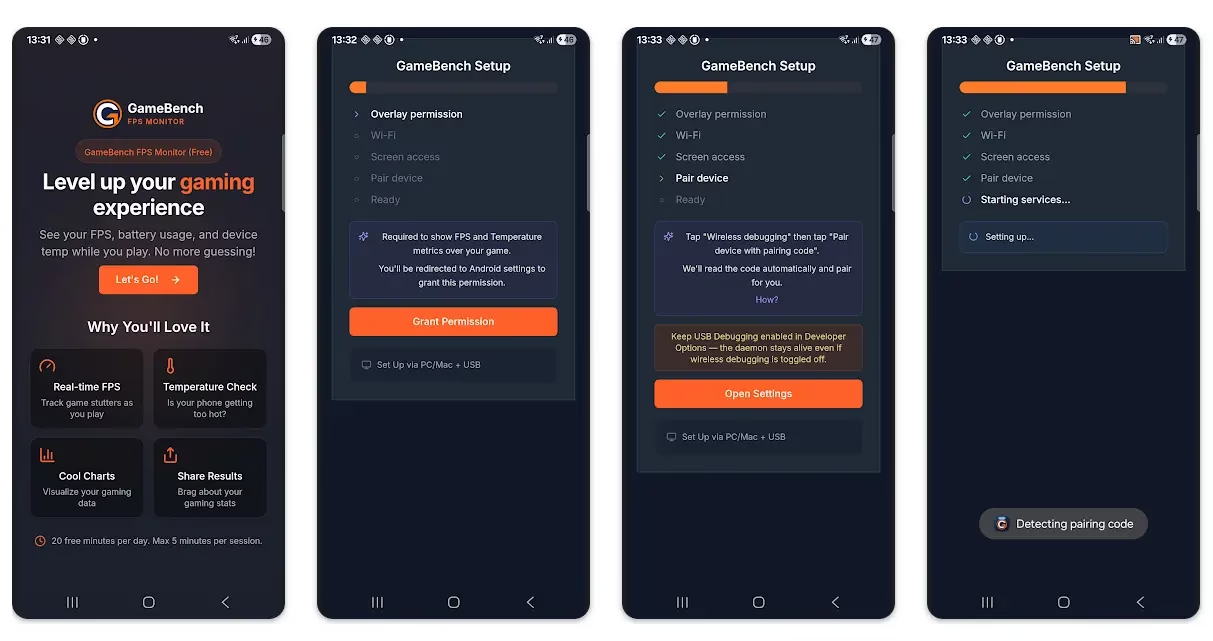
How to Set Up GameBench FPS Monitor — Step-by-Step
- Download GameBench FPS Monitor (v1.0.192+) from the Google Play Store on an Android 11+ device.
- Open the app. A built-in setup wizard will launch automatically — follow its instructions throughout.
- Go to Settings → About Phone and tap Build Number seven times to unlock Developer Options.
- Inside Developer Options, enable Wireless Debugging. The wizard will point you to the exact toggle.
- Grant GameBench FPS Monitor the permissions it requests. These are limited to ADB performance data — no microphone, contacts, or storage access needed for monitoring.
- Launch any game. The floating FPS overlay will appear automatically. Tap the record icon to start a timed session.
- When done gaming, return to the GameBench dashboard to review your full FPS history, stutter count, and temperature data.

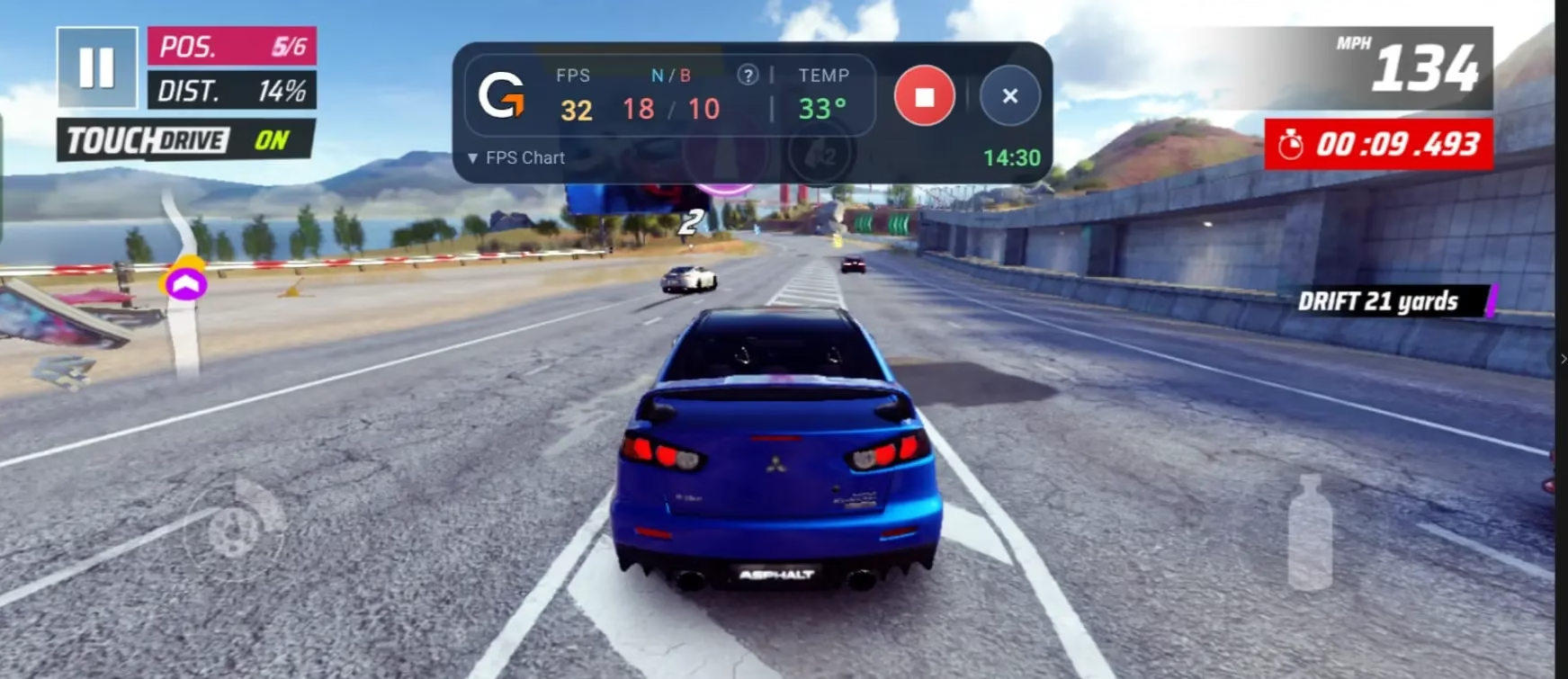
Real-World Performance Test Results
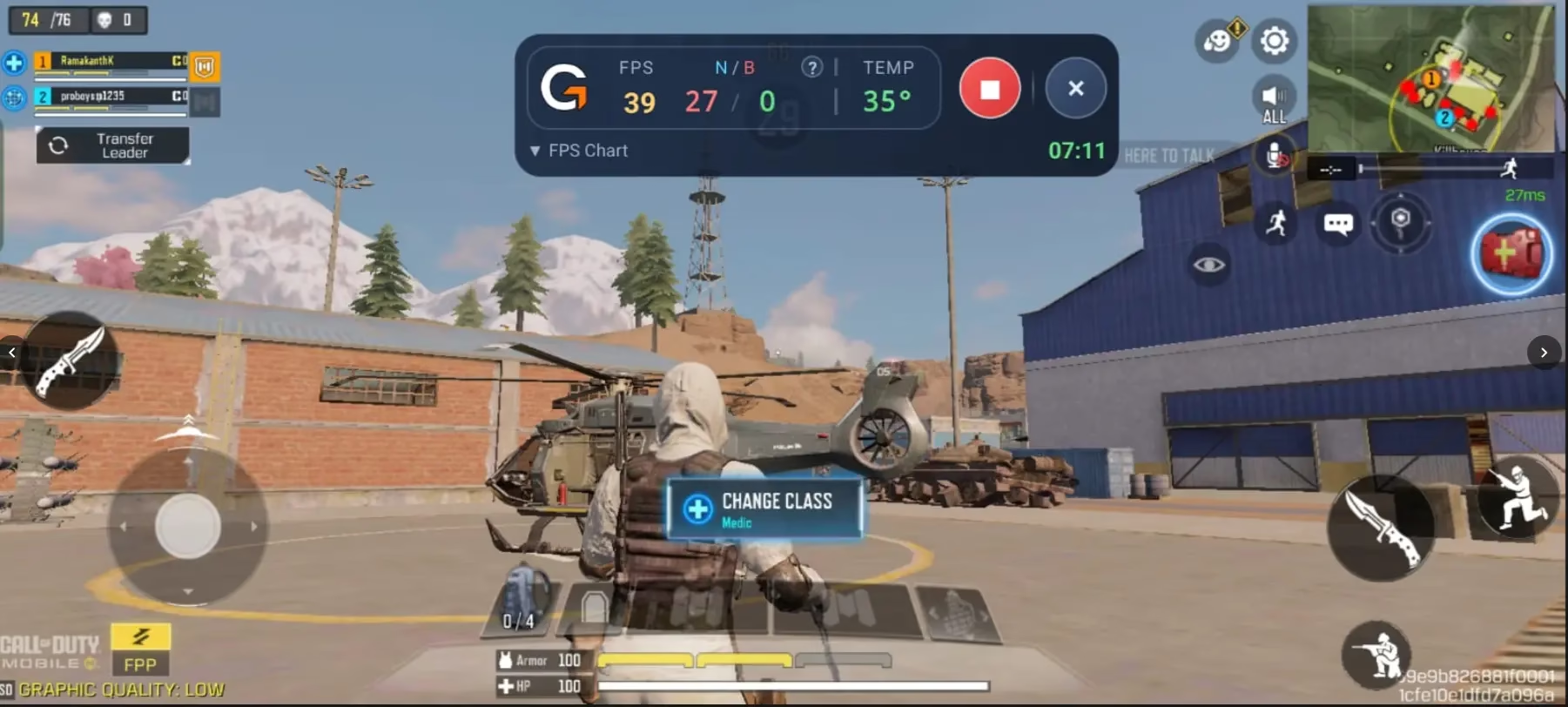
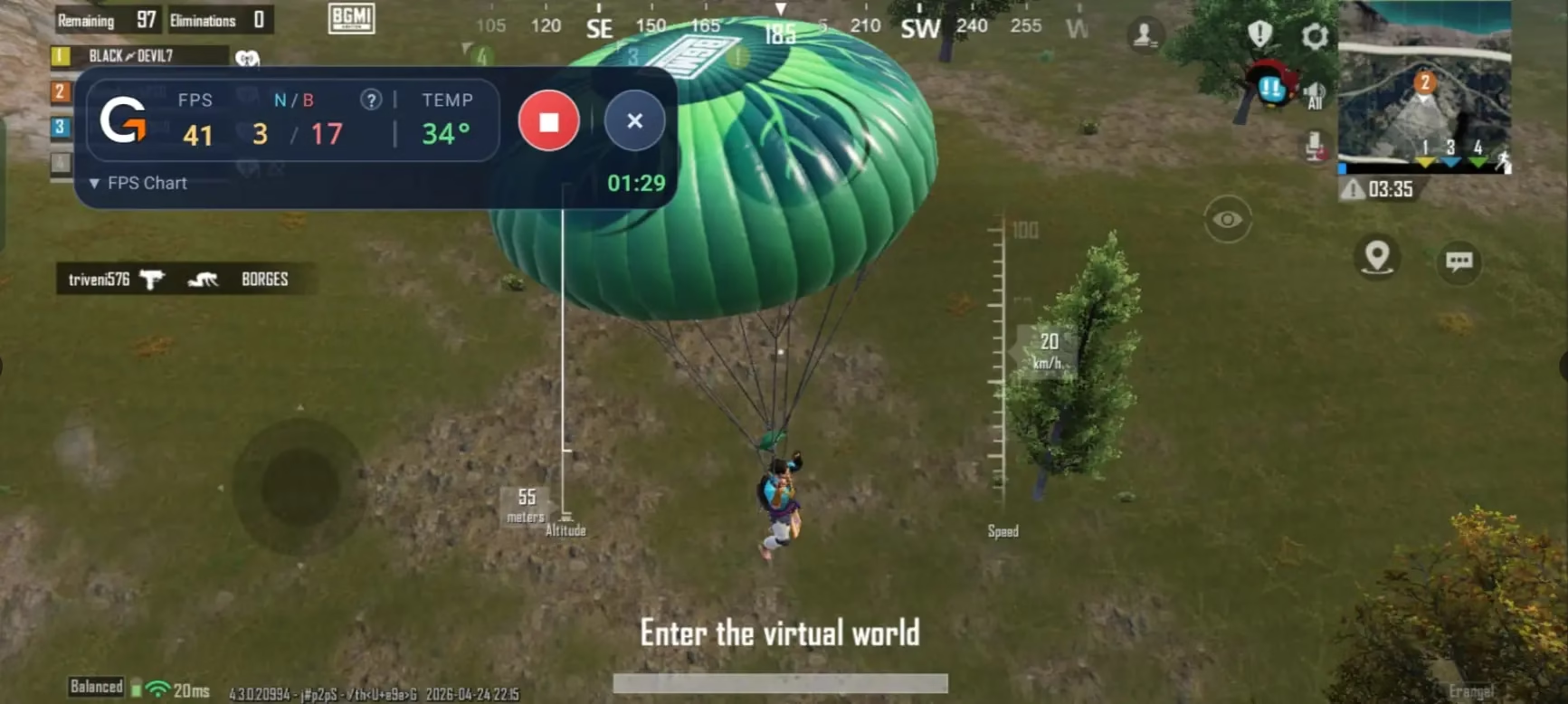
To go beyond feature lists, we ran GameBench FPS Monitor during live gaming sessions to see how it behaves in practice—and whether its readings differ meaningfully from in-game FPS counters.
| Game Tested | In-Game FPS (Reported) | GameBench Avg FPS | GameBench Min FPS | Major Janks | Temp Max (°C) |
|---|---|---|---|---|---|
| BGMI (HD Graphics) | [42] | [39] | [32] | [20] | [36.3] |
| COD: Mobile (Medium) | [41] | [53] | [38] | [0] | [35.2] |
| Asphalt Legends Unite | [32-34] | [49] | [28] | [17] | [34.0] |
Tested on Realme 11 Pro+ 5G running Android 15. Results will vary by device.

Android FPS Overlay App Comparison — GameBench vs the Rest
How does it stack up against other options for checking FPS on Android?
| Feature | GameBench FPS Monitor This App | Perfd+ / Mtools | In-Game FPS Counter | GameBench Pro (Enterprise) |
|---|---|---|---|---|
| Price | Free* | Free (some paid tiers) | Free | Paid / Commercial |
| Ads / IAP | None* | Some ads | N/A | None |
| Root Required | No | Some features need root | No | No |
| PC Required | No (post-setup) | No | No | Sometimes |
| FPS Data Source | System-level (ADB) | Estimated / Indirect | Game-reported only | System-level (SDK) |
| Stutter / Jank Tracking | ✅ Minor + Major | ❌ Not tracked | ❌ Not available | ✅ Detailed |
| Temperature Monitoring | ✅ Real-time | ✅ Yes | ❌ No | ✅ Advanced |
| Session Recording + Dashboard | ✅ Yes | Limited | ❌ No | ✅ Full suite |
| Data Export / Share | ✅ Yes | Limited | ❌ No | ✅ API-level |
| Works on All Games | ✅ All games | Most games | Game-specific | ✅ All games |
| Android 11+ Required | Yes | Varies | No | No |
| Developer Options Needed | Yes (one-time setup) | Sometimes | No | No |
*Pricing and feature sets are accurate as of April 2026.

Pros & Cons — The Honest Picture
✅ Pros
- Completely free — no ads, no IAP (at time of writing)
- System-level FPS accuracy via ADB (per GameBench)
- No root access required
- No PC needed after one-time wireless setup
- Detects both minor and major stutters (janks)
- Real-time battery temperature monitoring
- Full session recording with history dashboard
- Built-in export and social sharing tools
- Guided wizard — easy even for non-technical users
- Works across all games and apps, not just titles with built-in counters
- Backed by GameBench’s professional benchmarking pedigree
❌ Cons
- Requires Android 11 or higher — older devices excluded
- Initial setup requires enabling Developer Options (not beginner-friendly)
- Wireless debugging must stay enabled while monitoring — this can slightly increase battery drain
- The FPS overlay itself adds a small rendering overhead (minor, but measurable on low-end phones)
- No iOS support
- App is v1.0 — expect rough edges and missing features in early builds
Privacy & Security — Does Enabling ADB Put Your Data at Risk?
This is a legitimate concern and one worth addressing directly. Enabling Wireless Debugging gives an app access to Android’s ADB interface — the same channel developers use to debug apps. That raises a fair question: what can GameBench FPS Monitor actually see?
🔒 What the App Can & Cannot Access
The wireless debugging connection GameBench uses provides access to performance and frame-timing data only — it is a read-only channel for system metrics. The app does not request access to your messages, photos, contacts, microphone, or network traffic. You can verify the permissions it requests during setup (they are limited to what is needed for overlay and ADB connection).
Important: Wireless Debugging creates a local connection — it is not inherently exposed to the internet. However, you should still review GameBench’s Privacy Policy on the Play Store before use, and disable Wireless Debugging when not actively monitoring if you have concerns. As always, only download the app from the official Google Play Store link.

Who Should Use GameBench FPS Monitor?
🎮 Competitive Mobile Gamers (BGMI, COD Mobile, Free Fire)
If you’re pushing for top-tier performance in ranked matches, knowing your actual FPS — not your game’s optimistic estimate — lets you fine-tune graphics settings with precision. Stutter detection is particularly valuable: a game running at “60 FPS” with 8 major janks per minute plays worse than one running at a steady 45.
📱 Tech Bloggers & YouTube Reviewers
Smartphone reviewers can now generate credible, system-level performance data without investing in commercial testing rigs. The export feature provides shareable screenshots and session CSVs that can back up your claims—whether you’re writing a device review or comparing gaming phones.
🔍 Anyone Troubleshooting a Sluggish Device
If a game that should run smoothly feels choppy, GameBench FPS Monitor will show you exactly when it happens and correlate it with temperature spikes. That’s thermal throttling caught red-handed—and actionable data to share with support forums.
GameBench FPS Monitor — Professional Data, Zero Cost, Minor Setup Friction
GameBench FPS Monitor delivers something the Android ecosystem genuinely lacked: a free, no-root fps meter for Android that reads actual system frame data rather than guessing. The one-time Developer Options setup is the only real hurdle, and it’s manageable with the built-in wizard.
It’s a v1.0 app—expect the feature set to grow — but even at launch it outperforms every free alternative for stutter detection and session analysis. The GameBench name carries real credibility in professional mobile benchmarking circles, which gives this free release more trust than a typical indie FPS counter app.
Minor caveats: battery drain is slightly higher with wireless debugging active, and low-end devices may see a tiny overhead from the overlay itself. These are real tradeoffs worth knowing. But for what it delivers at the price of free, it’s an effortless recommendation.
▶ Download Free on Google Play


