


Passkeys: How the Passwordless Login Method Works — And Why You Should Switch Now
Passwords are a liability. Passkeys are faster, safer, and far more resistant to phishing — here’s everything you need to know.
QUICK READ — What You’ll Learn
- What passkeys are — and why they replace passwords entirely
- How asymmetric encryption makes passkeys highly resistant to phishing and data breaches
- Which major services already support passwordless login (Google, Amazon, PayPal & more)
- How to set up passkeys on Windows 11 using Windows Hello and your smartphone
- Cross-device sync — how Google, Apple, and now Microsoft keep your passkeys available everywhere
- What to do if you lose your phone — no lockout, no panic
- Whether you still need a password manager in the passkey era
Billions of passwords have been cracked, leaked, and sold on the dark web. It’s not just weak passwords that are to blame — phishing attacks, keyloggers, and data breaches make even strong credentials vulnerable. Passkeys, the passwordless login method backed by Google, Apple, and Microsoft, are designed to end this problem permanently.
In this guide, we explain what passkeys are, how they work under the hood, which services support them, and exactly how to set them up on your Windows 11 PC — step by step.

🔑 What Are Passkeys? The Passwordless Login Method Explained
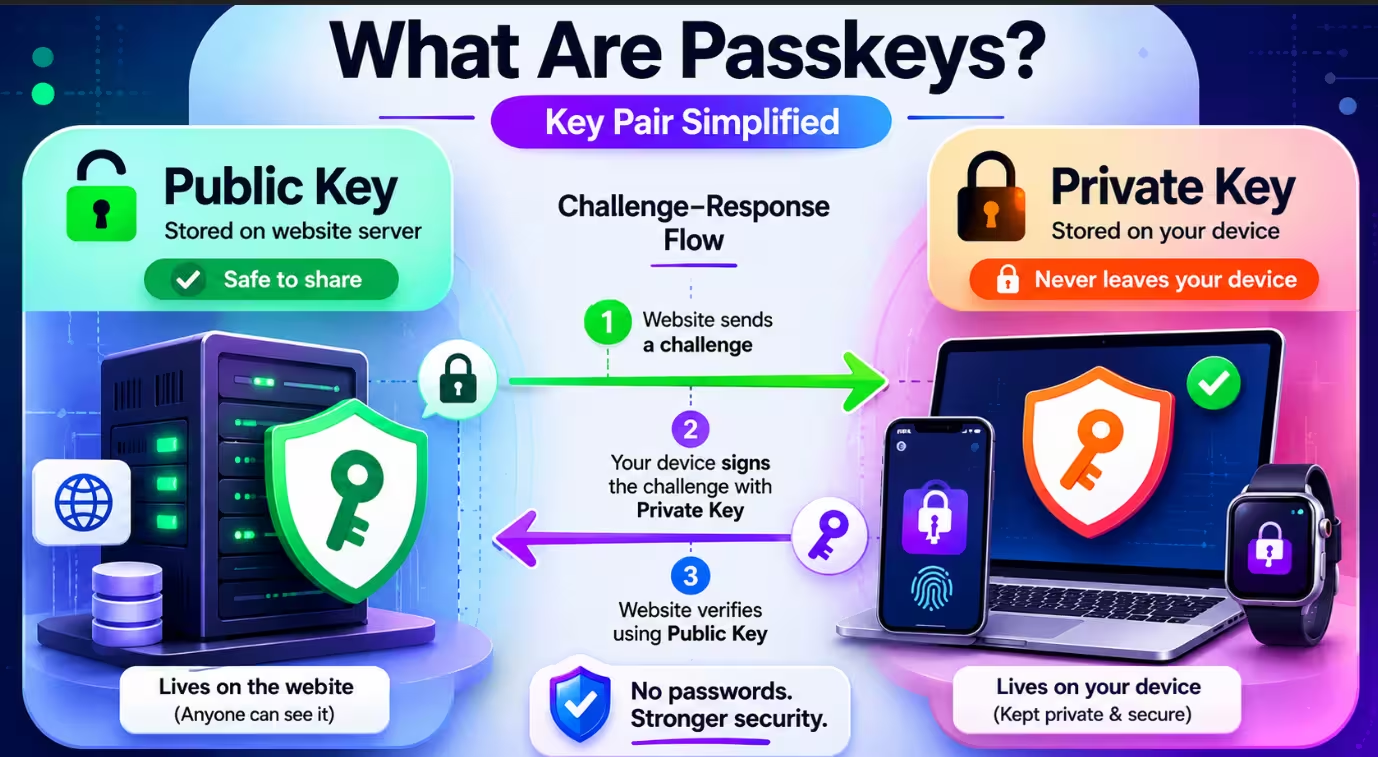
A passkey — the name blends password and key — is a digital credential based on asymmetric (public-key) cryptography. Instead of typing a password, your device automatically proves your identity to a website using a cryptographic handshake that never exposes your secret credentials.
Every passkey consists of two parts:
- 🔓 Public key — stored on the website’s server (harmless if leaked)
- 🔒 Private key — stored securely in your device’s hardware chip or a cloud credential store, never transmitted
When you log in, the website issues a cryptographic “challenge.” Your device solves it using the private key — but only after you authenticate with your biometrics (fingerprint, face scan) or a device PIN. The signed response is sent back. The private key itself never leaves your secure credential store.
The result? Even if a hacker intercepts the login traffic, there’s nothing useful to steal.
⚠ Why Passwords Are a Security Liability
The username + password system has fundamental flaws that no complexity requirement can fully solve:
- 🎣 Phishing — fake websites trick users into entering credentials on convincing lookalikes
- 🕵 Keylogging — malware silently records every keystroke
- 💥 Data breaches — server hacks expose millions of stored password hashes
- ♻ Password reuse — one leaked password unlocks dozens of accounts
- 🧠 Human memory — strong, unique passwords are hard to remember
Passkeys address the majority of these threats. You have nothing to remember, nothing to type, and no password that can be phished. A key advantage: passkeys are cryptographically tied to a specific domain, so even a perfect clone of Google’s login page can’t steal your passkey — the domain won’t match, and the login fails. However, no single technology eliminates all security risks; social engineering attacks targeting account recovery, for example, remain a concern regardless of authentication method.
💡 Pro Tip: Even if you’re not ready to go fully passwordless yet, enabling passkeys as an additional login option dramatically improves security. Use it alongside a strong password manager like Bitwarden and 2FA. [INTERNAL LINK: best free password managers for Windows]

⚙ How Passkeys Actually Work — The Tech Behind the Magic
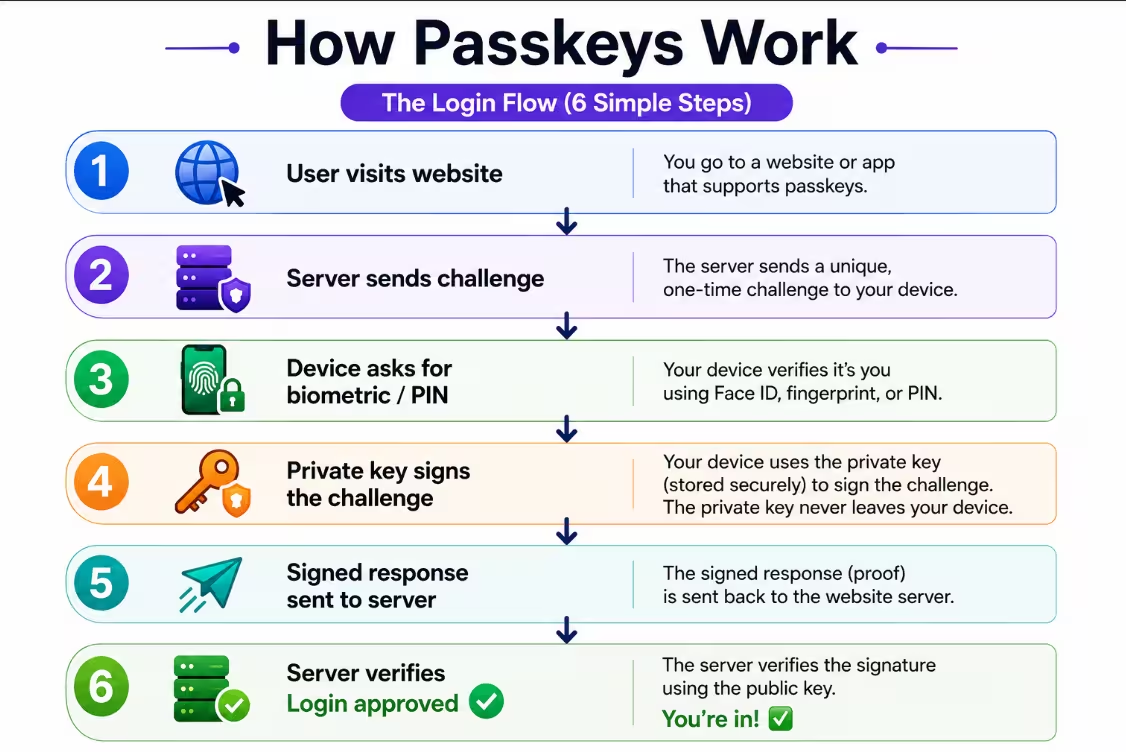
Passkeys use the FIDO2 / WebAuthn standard, developed by the FIDO Alliance with backing from Google, Apple, Microsoft, and others. Apple, Google, and Microsoft jointly announced passkey support in 2022, and the ecosystem has expanded rapidly since. Here’s the login flow in plain English:
- You visit a website and click “Sign in with passkey”
- The website sends a unique one-time cryptographic challenge to your browser
- Your device prompts you for biometric verification or PIN
- Your device’s secure credential store uses the private key to sign the challenge
- Only the signed response is sent back — the private key never moves
- The website verifies the signature using your public key → ✅ login approved
For device-bound passkeys, the private key resides in a Trusted Platform Module (TPM) chip on your PC, or in Apple’s Secure Enclave / Android’s Trusted Execution Environment on mobile — tamper-resistant hardware that prevents key extraction. For synced passkeys (the more common setup for everyday users), keys are stored in your Google, Apple, or Microsoft cloud credential store, encrypted end-to-end before leaving your device.
📱 Cross-Device Sync: Use Passkeys Everywhere
All three major platforms now offer encrypted cloud sync for passkeys:
- 🤖 Android → synced via Google Password Manager (end-to-end encrypted)
- 🍎 iPhone/iPad → synced via Apple iCloud Keychain (end-to-end encrypted)
- 🖥 Windows via Edge → Microsoft now syncs passkeys across devices via Edge and your Microsoft Account, rolled out in the Windows 11 24H2 update (late 2025). Third-party managers like 1Password and Bitwarden also plug directly into Windows natively as of November 2025.
This means passkeys are no longer “one device only.” Any passkey you create on your phone or PC is available across all your signed-in devices, with zero compromise on security.

🌎 Which Services Support Passkeys? (Major List)
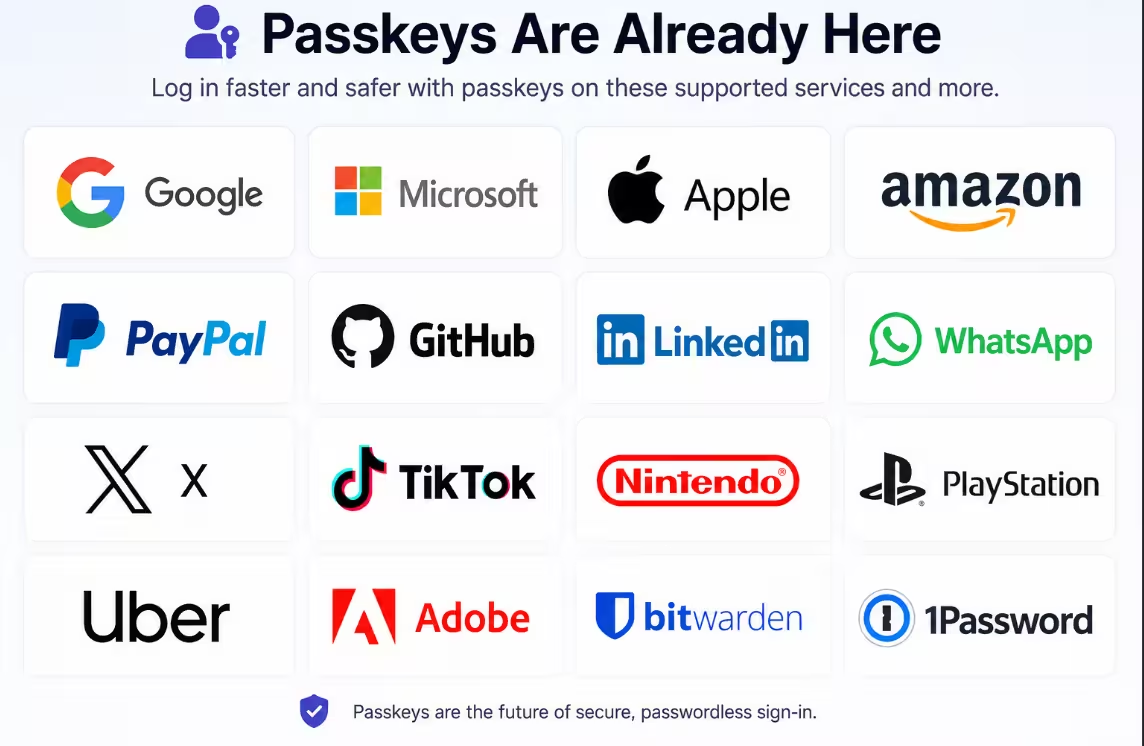
The passkeys ecosystem has grown significantly since 2022. Here are major platforms that already support passkeys passwordless login:
For the full list, check Passkeys.io and the Passkeys Directory. New services are added regularly.
🖥 How to Set Up Passkeys on Windows 11 — Step by Step
The cleanest way to use passkeys on a Windows PC is to link your smartphone as the authenticator. This stores your passkeys in Google or Apple cloud (instant backup!) and lets you approve logins with just a phone tap. Alternatively, you can now save passkeys directly to your Microsoft Account via Edge for native Windows sync.
✅ Prerequisites
- Windows 11 PC (TPM chip is standard on all modern PCs)
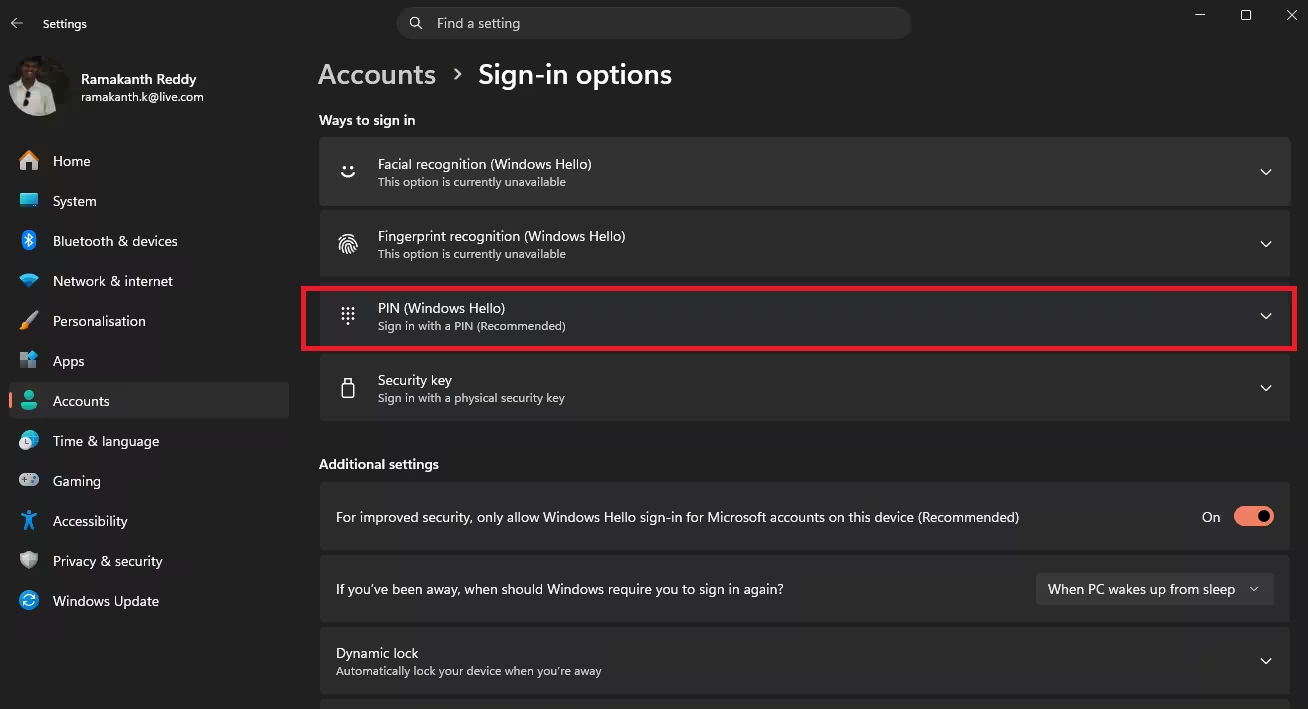
- Windows Hello configured — go to Settings → Accounts → Sign-in options and set up a PIN
- A smartphone (Android or iPhone) with a lock screen enabled
- Bluetooth on your PC for cross-device authentication (a USB Bluetooth dongle works if yours lacks it)
- Chrome, Edge, or another modern browser

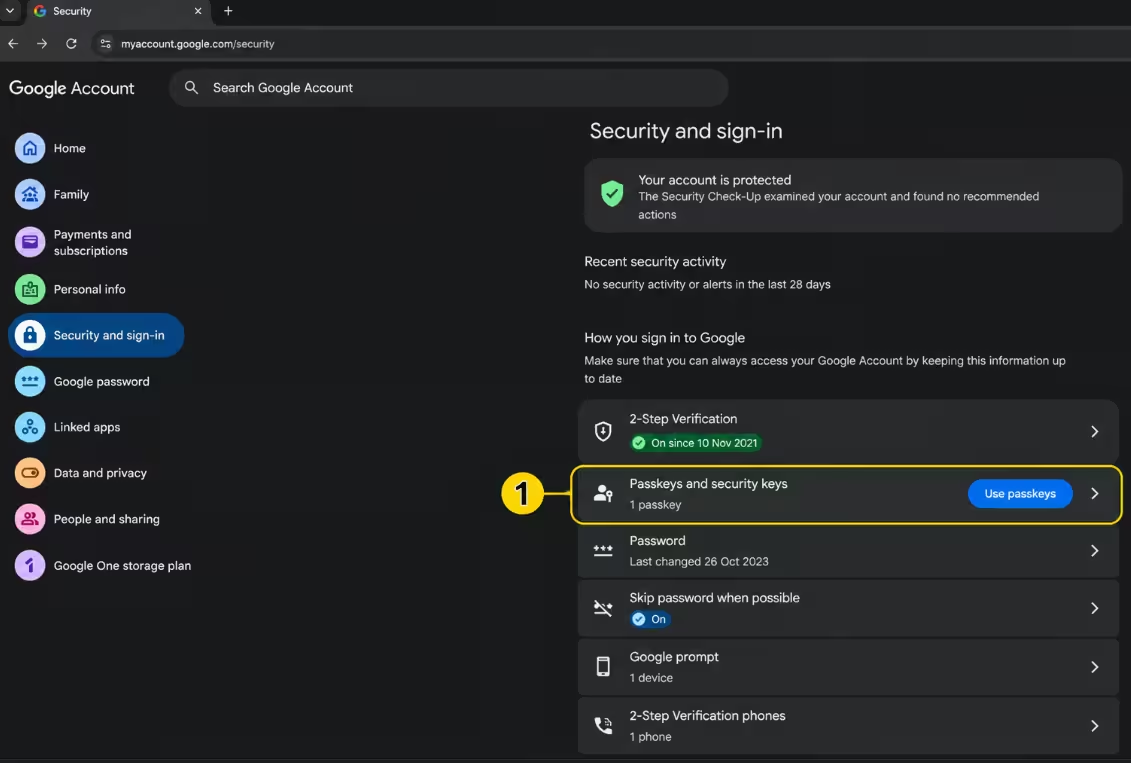
🔴 Setting Up a Google Passkey on Windows 11
- Sign in to your Google account in Chrome as usual
- Google may prompt “Simplify sign-in” — click Next, or set it up manually via myaccount.google.com → Security → Passkeys
- Windows Hello appears → authenticate with your PIN or biometric
- Windows reports “Passkey saved” — click Allow
- Log out of Google, then sign back in
- At the Windows Hello prompt, choose “Use another device — iPhone, iPad, or Android” to link your phone
- Scan the QR code with your smartphone → tap “Create passkey”
- Confirm to link your phone via Bluetooth for future logins (no QR needed next time)
From now on, signing into Google shows a phone notification. One tap + your face/fingerprint/PIN on the phone = instant login. No typing required.

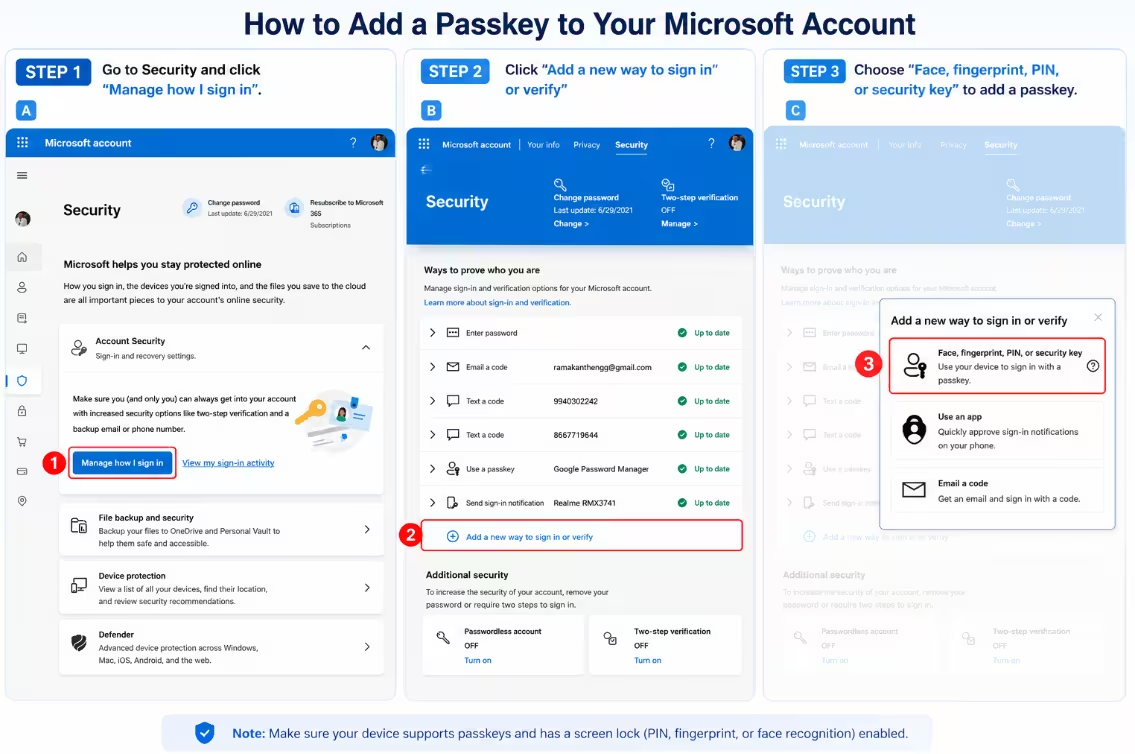
🪟 Setting Up a Microsoft Passkey on Windows 11
- Go to account.microsoft.com/security and sign in
- Under “Account Security”, click the blue “Manage how I sign in” button
- On the sign-in methods page, click “+ Add a new way to sign in or verify”
- Select “Face, fingerprint, PIN or security key” from the options that appear
- Authenticate with Windows Hello, or choose “Use another device” to use your phone instead
- Give the passkey a meaningful name → done! Your passkey now syncs across devices via Edge and your Microsoft Account.
📌 Note: The old “Advanced security options” link no longer appears on the Security page. The correct path is now: Security → Account Security → Manage how I sign in.

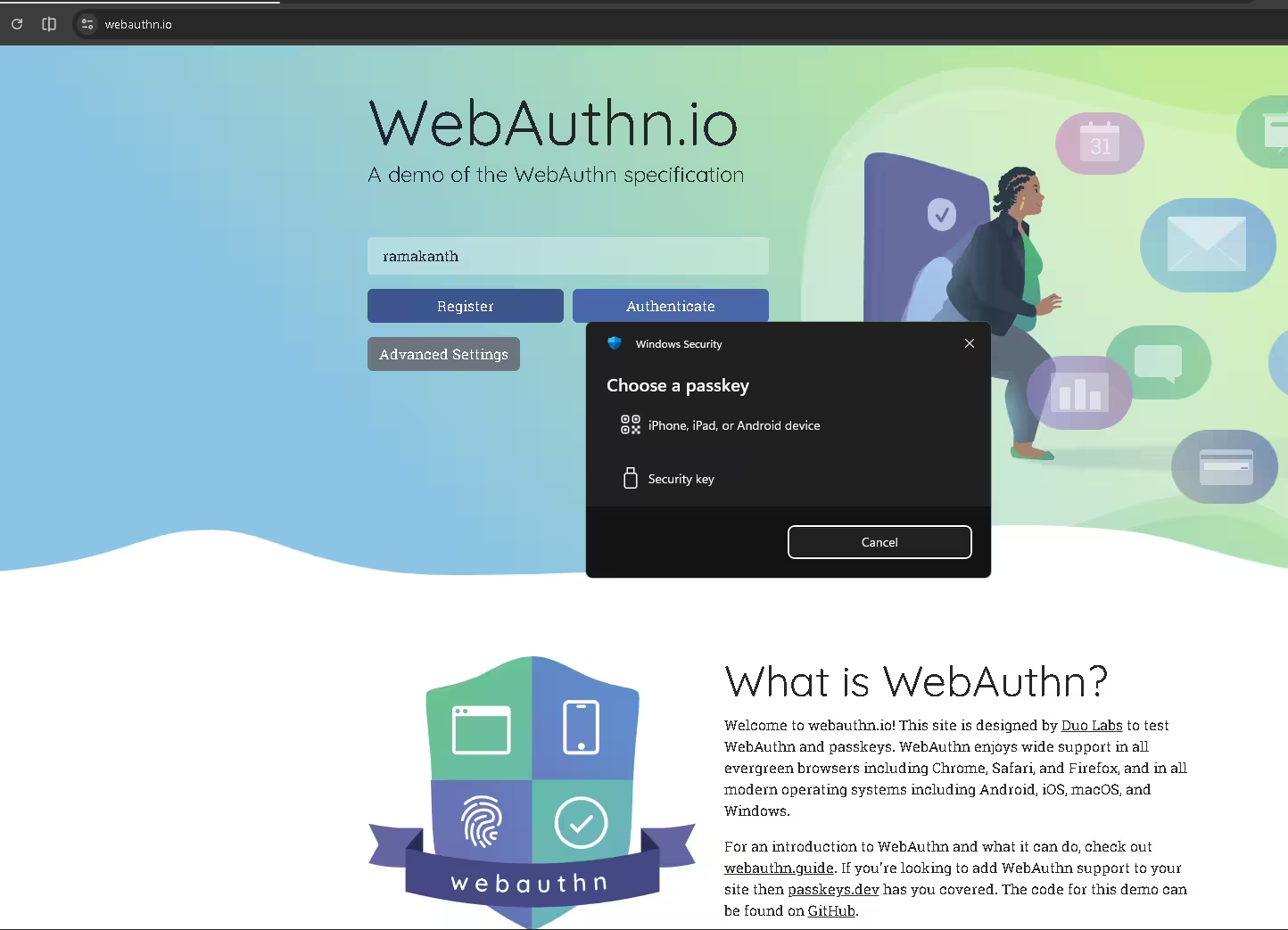
⚡ Quick Test: Create a Passkey in 60 Seconds
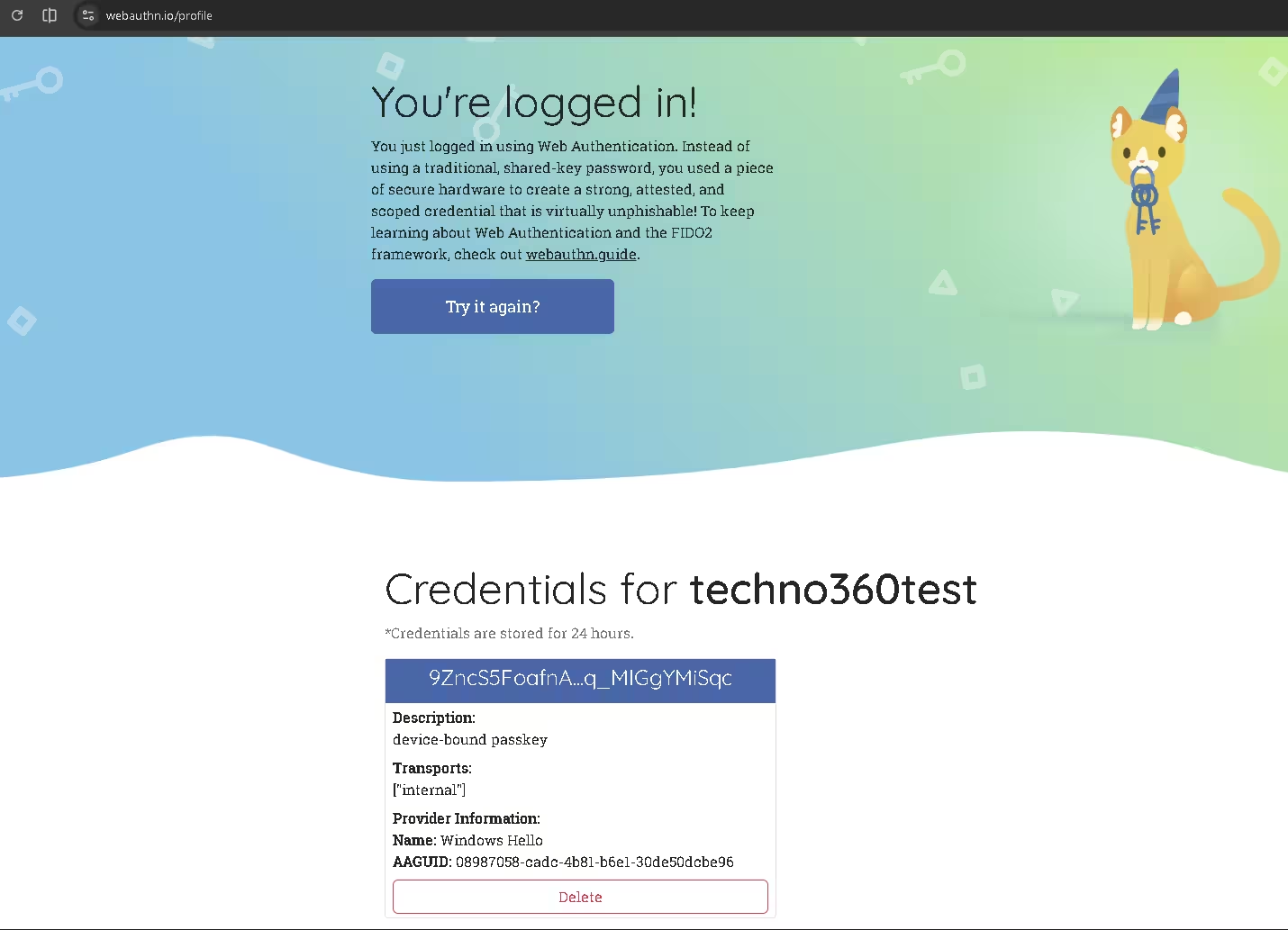
🧪 Try before you commit — test passkeys at webauthn.io:
- Set up Windows Hello with a PIN if you haven’t already
- Open webauthn.io in your browser
- Type any username → click Register
- Authenticate with Windows Hello → passkey saved ✅
- The page confirms success — click login → instant passwordless access!

🛡 What If You Lose Your Phone? Passkey Recovery Explained
This is the #1 concern about passkeys — and it’s valid. The good news: cloud-synced passkeys are automatically backed up. If you lose or break your phone:
- Sign in to your Google or Apple account on a new device via your recovery options
- All passkeys are restored from encrypted cloud backup
- Alternatively, use a FIDO2 hardware key (e.g., YubiKey) as a physical backup
- Or keep a passkey saved to your Microsoft Account via Edge as a secondary fallback
⚠ Important: Before going passwordless, configure your recovery options on your Google/Apple/Microsoft account — recovery email, phone number, and at least one backup code. Don’t wait until you’re locked out. [INTERNAL LINK: how to set up Google account recovery]
🤔 Do You Still Need a Password Manager with Passkeys?
Yes, for now. Many services still require a traditional password as a fallback, and passkeys are an optional extra on most platforms today. Until every website goes fully passwordless, you’ll still need to manage some passwords.
The recommended approach in 2026:
- ✅ Enable passkeys on every service that supports them
- ✅ Use a password manager like Bitwarden (free) for remaining passwords [INTERNAL LINK: best free password managers]
- ✅ Enable 2FA on all accounts where passkeys aren’t available yet
- ✅ Secure your Google/Apple/Microsoft account with the strongest recovery options possible
The momentum toward a passwordless internet is clear — passkeys adoption is accelerating rapidly across consumer and enterprise platforms alike. A belt-and-suspenders approach is still wise until full platform support arrives.

❓ Frequently Asked Questions About Passkeys
Verdict: Are Passkeys Worth Switching To?
⭐ HIGHLY RECOMMENDED
Absolutely yes. Passkeys are one of the most impactful security upgrades you can make to your online accounts today. They’re faster than typing passwords, highly resistant to phishing, safe from server-side credential theft, and require zero memorisation. With Google, Apple, and Microsoft all now offering full cross-device sync, the passwordless login method has matured from a promising idea into a practical, everyday reality.
- Highly resistant to phishing by design
- Nothing to remember or type
- Faster login experience
- Works across all devices via cloud sync
- Backed by Google, Apple & Microsoft
- Hardware-level private key security (device-bound)
- Automatic cloud backup
- Not all websites support passkeys yet
- Bluetooth needed for QR-based cross-device auth
- First-time setup has a learning curve
- Passwords still required as fallback on many sites
- Account-recovery phishing remains a risk


