
🛠️ Hands-on review · Version 2.0.2 tested · Updated 7 October 2026
A free Windows repair and diagnostic toolkit that shows you every command before it runs
Sioni Windows Toolkit Pro puts DISM, SFC, CHKDSK, Windows Update repair, network resets and dozens of built-in Windows tools behind one interface, with a risk rating, a plain-language explanation and the exact command for every entry. We first covered it in June at version 1.6.3. This review has been rewritten for the major 2.0 release.
🔄 Update, October 2026: The developer released Sioni Windows Toolkit Pro 2.0 on 3 October 2026, followed by the 2.0.2 build we tested. It adds a reworked Windows Update repair, a searchable six-language help system, a viewer for existing Windows Memory Diagnostic results, an improved diagnostic-package export, faster command-list loading and a range of stability and theme fixes. It is now available as both a portable build and an installer. The old 1.6.3 download link in this article has been replaced.
⚡ Quick Read
- What it is: A free, local toolkit for diagnosing, repairing and maintaining Windows.
- Version tested: 2.0.2 on Windows 11 Home 25H2 (build 26200.9550).
- Requirements: Windows 10 or 11, 64-bit only. 32-bit Windows is not supported.
- Catalog: 101 entries. Beginner mode showed 70 and Expert mode 93 on our test PC.
- Standouts: Guided Repair Assistant, System Status dashboard, risk rating on every command, diagnostic export, Memory Diagnostic result viewer.
- Formats: Portable or installer.
- Languages: English, German, French, Spanish, Italian, Portuguese.
- Security check: 1 of 71 VirusTotal engines flagged the 2.0.2 installer. Details in the safety section.
- Price: Free.
What Is Sioni Windows Toolkit Pro?
Windows already ships with most of the tools you need to fix it: DISM to repair the component store, SFC to restore system files, CHKDSK for disk errors, netsh and ipconfig for network problems, and Reliability Monitor and Event Viewer for working out what went wrong. The trouble is that they are scattered across the command line and the Control Panel, and most people don’t remember the right syntax, the right order, or which ones need administrator rights.
Sioni Windows Toolkit Pro collects them into a single catalog. Each entry tells you what it does, when to use it, when not to use it, its risk level, whether it needs admin rights and whether it is compatible with your version of Windows. It also shows the exact command it will run. You can run the command, open it in a terminal, or simply copy it.
The app works defensively. According to the developer, it diagnoses first and only performs a repair after you confirm it. Settings, logs, history and reports are stored locally on your PC under %LOCALAPPDATA%\Sioni\Windows Toolkit Pro.
The toolkit is developed by Chris, who goes by Sioni, and is published through the German Windows community Deskmodder. He is also behind the Sioni Secure Boot certificate checker. The tool started life in June 2026 as “Sioni Windows Problembehebung” (Windows troubleshooting) before being renamed, and it has been updated regularly since, through 1.7 in August, 1.8, and now the 2.0 series.
Video walkthrough
Our earlier video walkthrough was recorded with a 1.x build. The core layout is the same, but 2.0 adds the features covered below.

What’s New in Sioni Windows Toolkit Pro 2.0
The 2.0 release is a substantial step up from the 1.6.3 build we originally reviewed. Here are the developer’s changes, grouped by what they mean for you.
Better diagnostics
- Reworked Windows Update repair, with more reliable evaluation of whether a repair actually worked.
- A new viewer for existing Windows Memory Diagnostic results.
- Diagnostic export with file selection, a preview, and redaction of personal information.
Easier to use
- Expanded help with step-by-step explanations, a search function and six languages.
- Table sorting that remembers your chosen column and direction.
More reliable and faster
- Fixes for errors when opening, closing and updating windows.
- Faster command-list generation thanks to fewer duplicate calculations.
Interface polish
- White icons are easier to see in both dark themes.
- The Restart as admin button is now blue and the Repair assistant button green in every theme.
- A new installer option alongside the portable version.
How We Tested
We ran Sioni Windows Toolkit Pro 2.0.2 on a laptop with Windows 11 Home Single Language 25H2 (build 26200.9550), an AMD Ryzen 5 4600H and 24 GB of RAM. We worked through the Beginner and Expert catalogs, the System Status dashboard, the Repair Assistant, the Windows Update category, the diagnostic-package export and the Windows Memory Diagnostic result viewer, and we checked the installer on VirusTotal.
We did not run every repair command on our test machine, and we didn’t test the performance check, hardware stability check or live system monitor in depth. Where this review describes those features, it’s based on the developer’s documentation.
Beginner Mode vs Expert Mode
The main window has three panes: categories on the left, the command list in the middle, and a description panel on the right. A toggle switches between two modes.
Beginner mode shows a reduced core list of safe, understandable commands. On our test PC it displayed 70 of the 101 catalog entries. Almost everything in it is rated Low risk, such as showing Wi-Fi driver information, refreshing DNS registration, viewing the routing table or opening Task Manager.
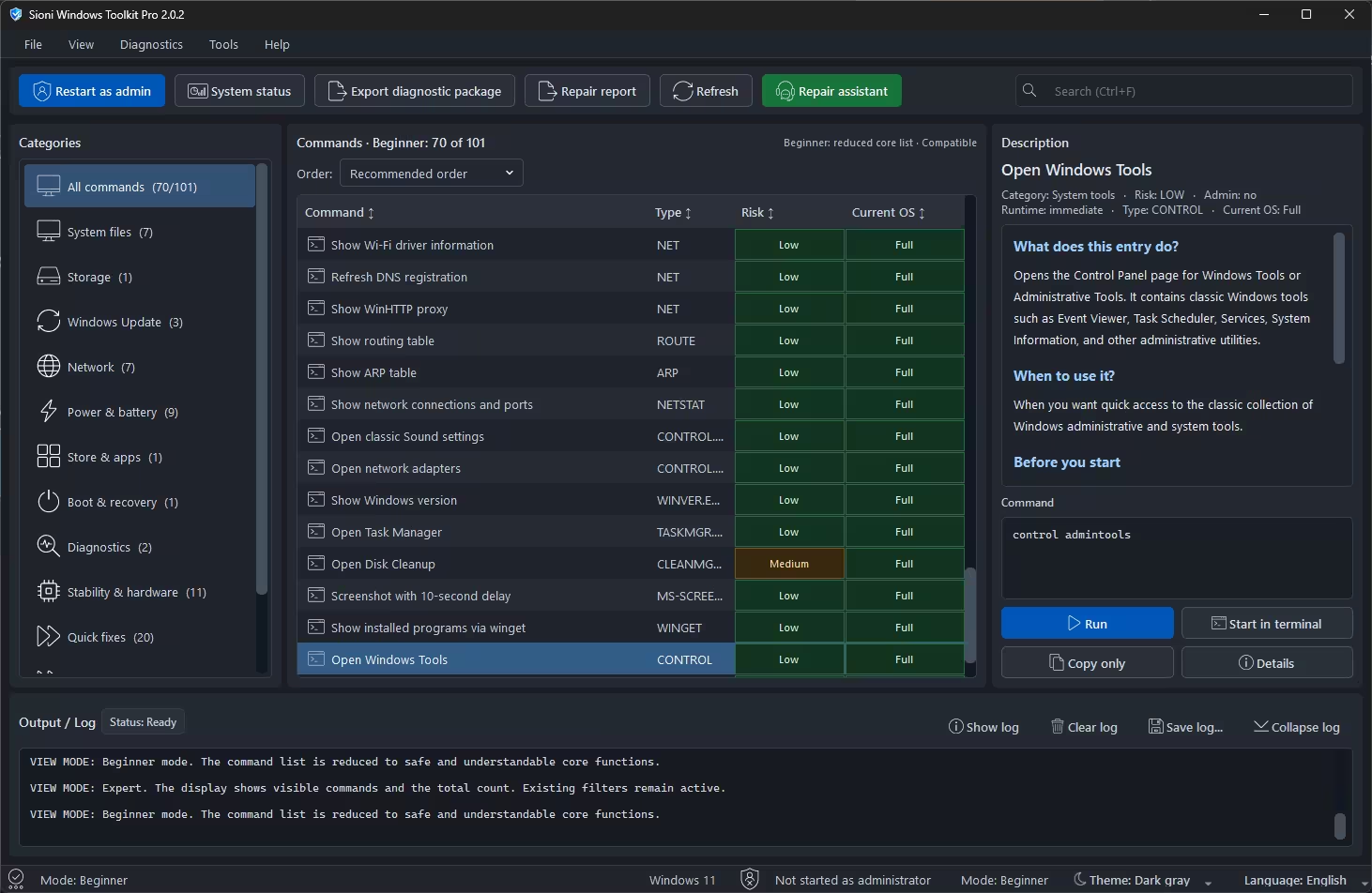
Expert mode unlocks the full catalog, including Medium and High risk entries such as Open Registry Editor, Restart Explorer, Force Windows shutdown now and DISM ResetBase. On our system it showed 93 of 101. The header reads “Expert: filtered list · Compatible”, which suggests the remaining entries are hidden by the compatibility filter on this Windows 11 build.
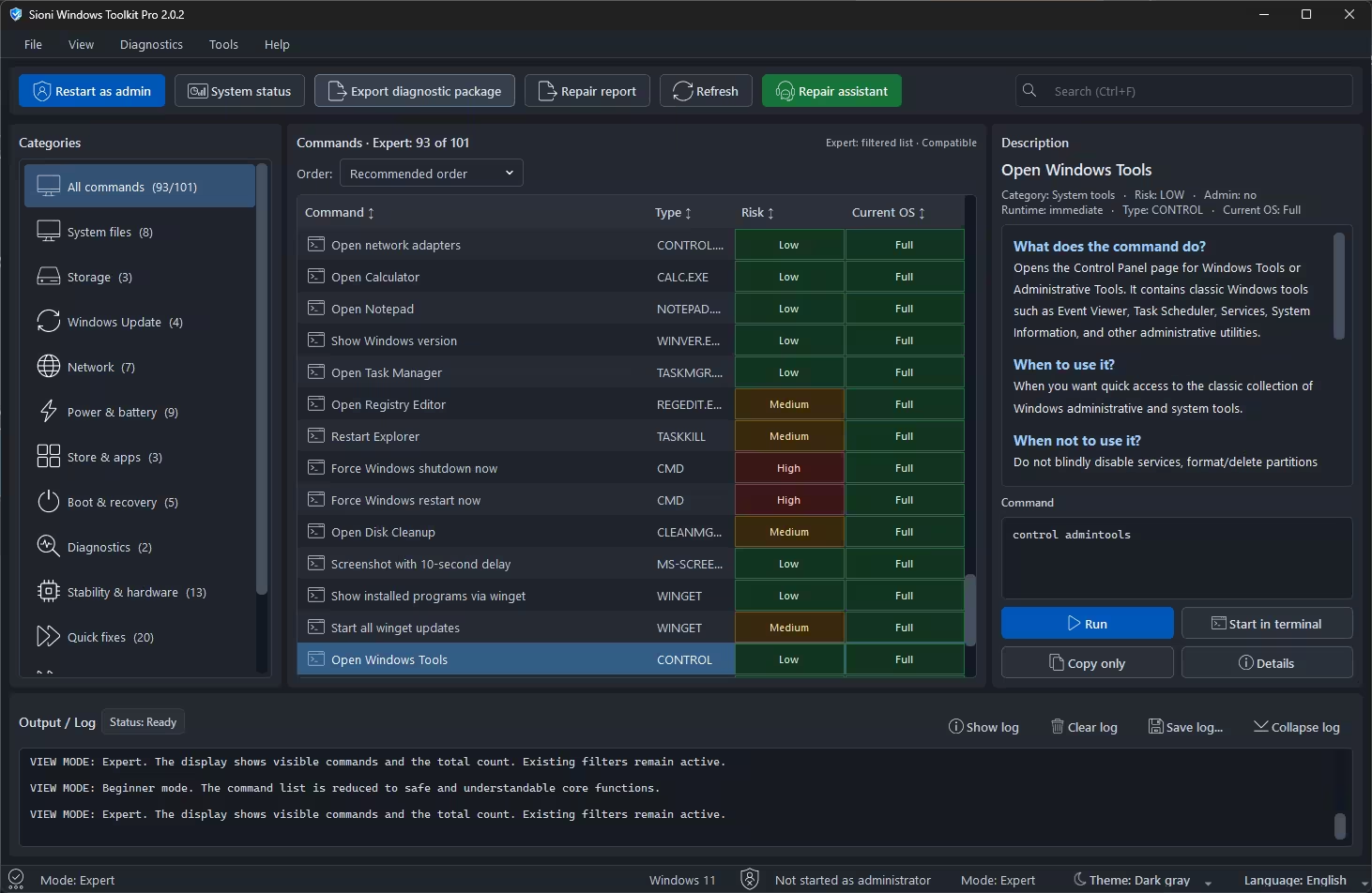
The category counts we saw on our test system:
| Category | Beginner | Expert |
|---|---|---|
| System files | 7 | 8 |
| Storage | 1 | 3 |
| Windows Update | 3 | 4 |
| Network | 7 | 7 |
| Power & battery | 9 | 9 |
| Store & apps | 1 | 3 |
| Boot & recovery | 1 | 5 |
| Diagnostics | 2 | 2 |
| Stability & hardware | 11 | 13 |
| Quick fixes | 20 | 20 |
| All commands | 70 / 101 | 93 / 101 |
Expert mode also has Quick access & maintenance and System tools categories that sit further down the list. A note on numbers: the developer describes the catalog as 79 diagnostic and repair options. The 101 figure in the interface also counts quick-access shortcuts such as Open Calculator, Open Notepad and Show Windows version, which open a tool rather than diagnose or repair anything.
The description panel is the real highlight
Click any entry and the right-hand panel explains it in plain language under three headings: What does the command do?, When to use it? and When not to use it? Above that you’ll see the category, risk level, whether admin rights are needed, the expected runtime, the command type and compatibility with your Windows version. Below it is the actual command, for example control admintools or perfmon /rel.
You then pick one of three actions: Run, Start in terminal (so you can watch the output yourself) or Copy only. That last option makes the toolkit useful even if you never let it run anything: it works as an annotated reference you can copy commands from.
The Guided Repair Assistant
If you know something is wrong but not what, the green Repair assistant button is the place to start. You pick a problem profile and the app proposes a safe sequence of steps. The profiles are:
- Initial diagnosis / quick test
- Windows is unstable
- Windows Update is not working
- Network / internet problem
- Store / apps broken
- Check disk
- Boot / recovery
The Initial diagnosis profile, for example, suggests five Low-risk, check-only steps in order: DISM quick check, SFC check only, CHKDSK online scan, output system information and open Reliability Monitor. Each step shows its status, risk, compatibility and the result of its last run. You can step through the sequence with Start next recommended step, or start any single step on its own. A counter keeps track of how many steps succeeded, produced warnings or failed.
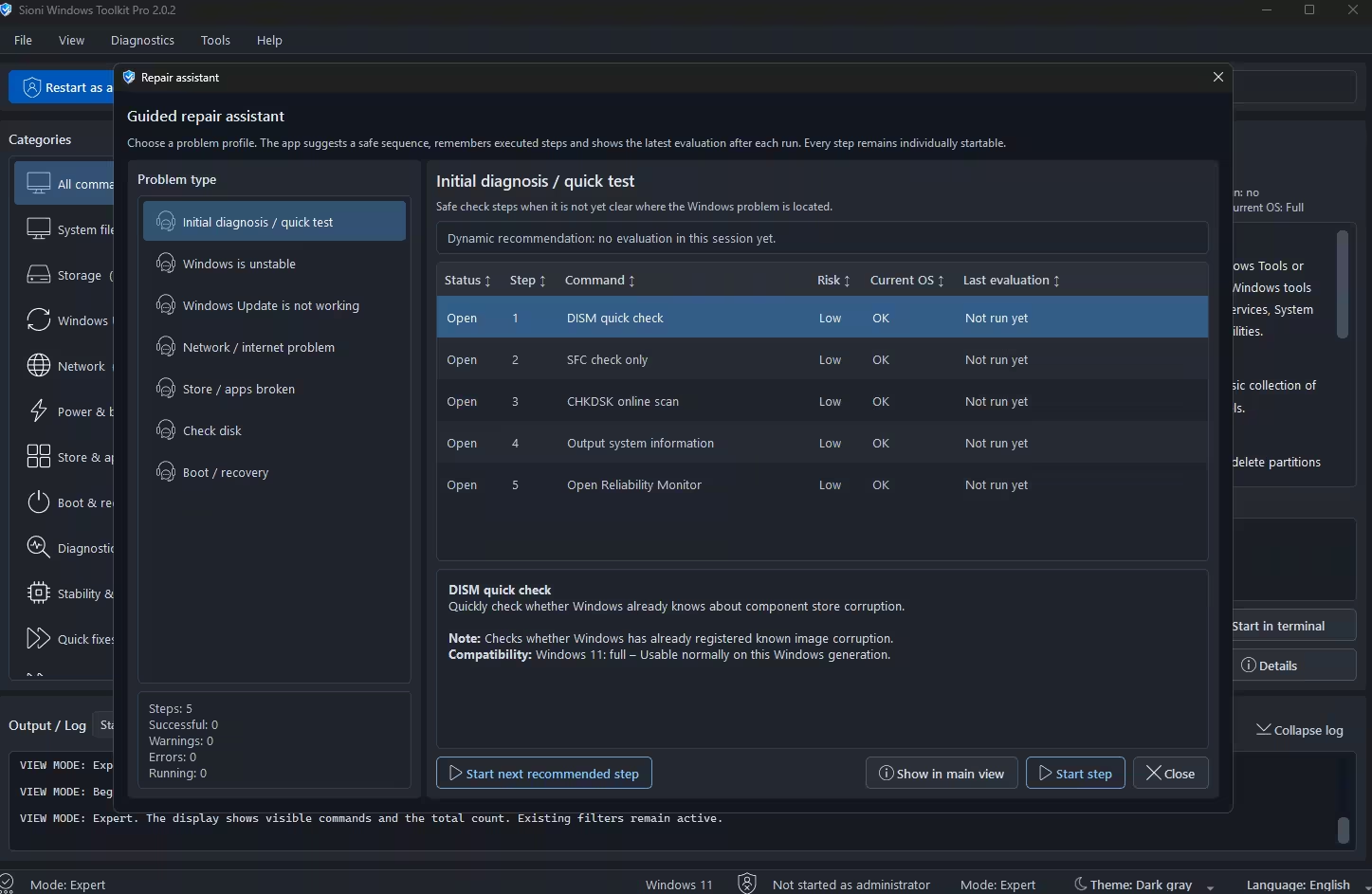
This is what separates Sioni from a plain list of commands. The order matters: running a DISM health check before SFC, for instance, is the sequence Microsoft itself recommends, and the assistant handles that for you.
System Status Dashboard
The System status button opens a one-page health check of your PC and of the prerequisites for repairs. It covers Windows version and edition, administrator status, last reboot, pending reboots, processor, memory, graphics, storage and drives, plus update, BitLocker, protection and network information.
On our test laptop it correctly identified Windows 11 Home Single Language 25H2, the Ryzen 5 4600H (6 cores, 12 threads), the installed RAM with two modules at 3200 MHz, and the integrated Radeon graphics with its driver version. The overall result was 15 OK, 1 warning, 0 errors and 6 notes. The single warning was simply that we hadn’t started the app as administrator, which many repair commands need.
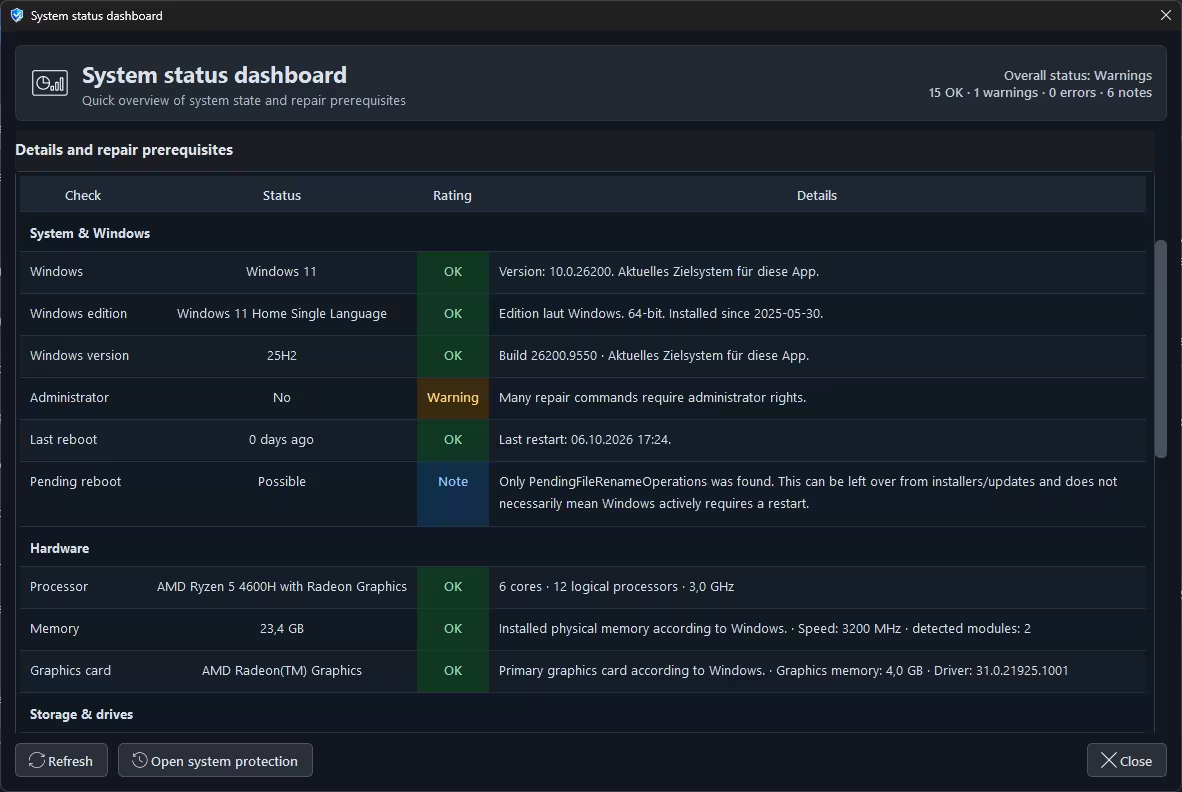
We liked how careful the wording is. The Pending reboot row was marked as a note, not a warning, with an explanation that a leftover PendingFileRenameOperations entry from an installer doesn’t necessarily mean Windows actually needs a restart. That kind of nuance is rare in system utilities, which tend to turn every finding into an alarm.
Windows Update Repair
Windows Update repair was one of the headline improvements in 2.0. In Expert mode, the Windows Update category contains four entries with clearly escalating risk:
- Search for Windows Update and open (Low): opens the Windows Update settings page and triggers a search.
- Reset update components (Medium)
- Update repair sequence (Medium)
- Clean up component store: ResetBase (High): frees space but makes installed updates permanent, so they can no longer be uninstalled.
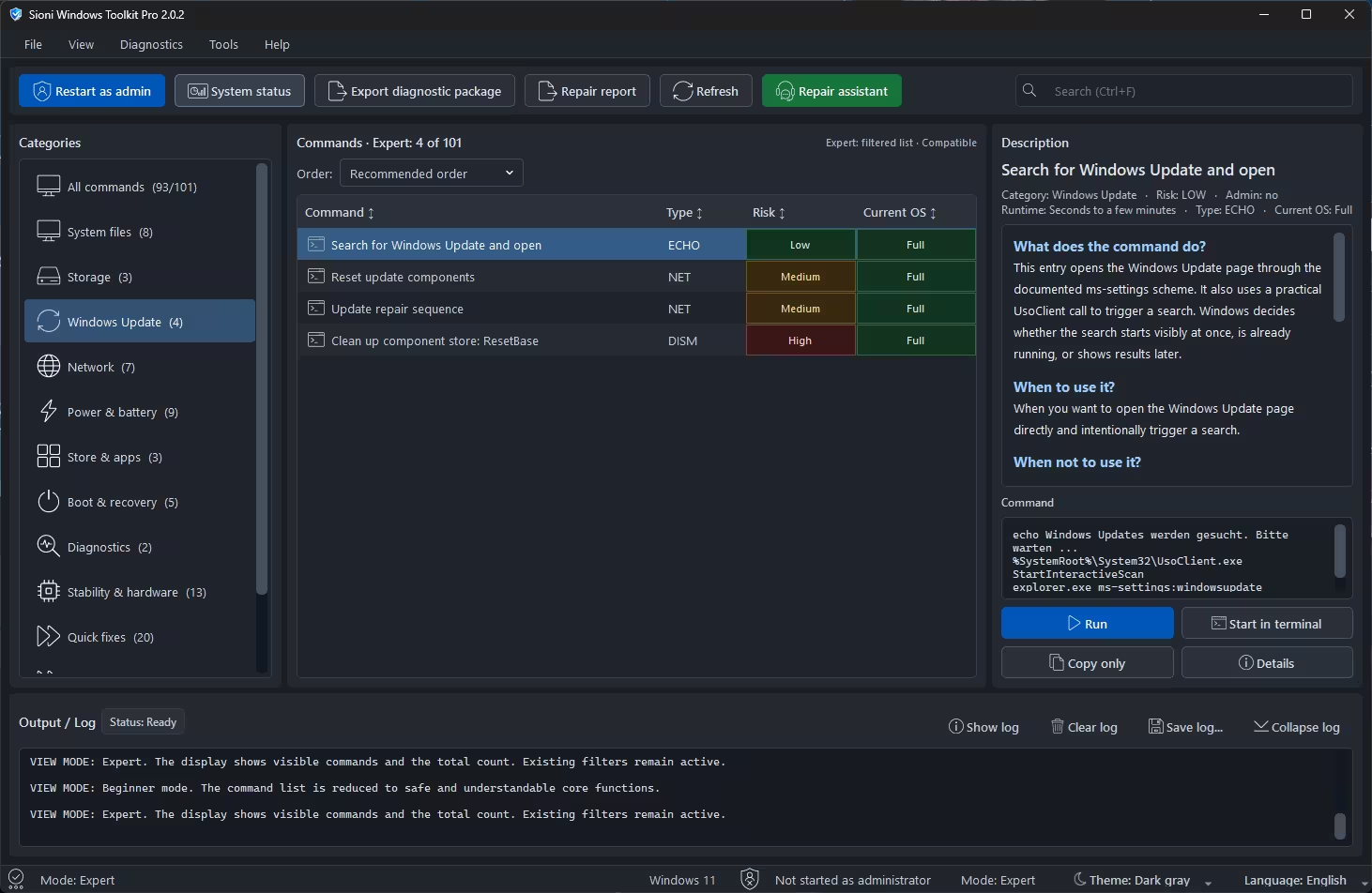
Beginner mode shows three of these and leaves out the High-risk ResetBase. If you’re not sure where to start, the Repair Assistant’s “Windows Update is not working” profile runs the relevant steps in a sensible order. According to the developer, 2.0 also evaluates repair results more reliably, so it should be clearer whether a reset actually worked.
Diagnostic Package Export
If you need help from a forum or a tech-savvy friend, Export diagnostic package bundles system information, logs and reports into a single ZIP file. In our test the export ran in the background, the app stayed usable while it worked, and it finished in a few seconds with an option to open the folder. Everything was created locally. Nothing is uploaded anywhere.
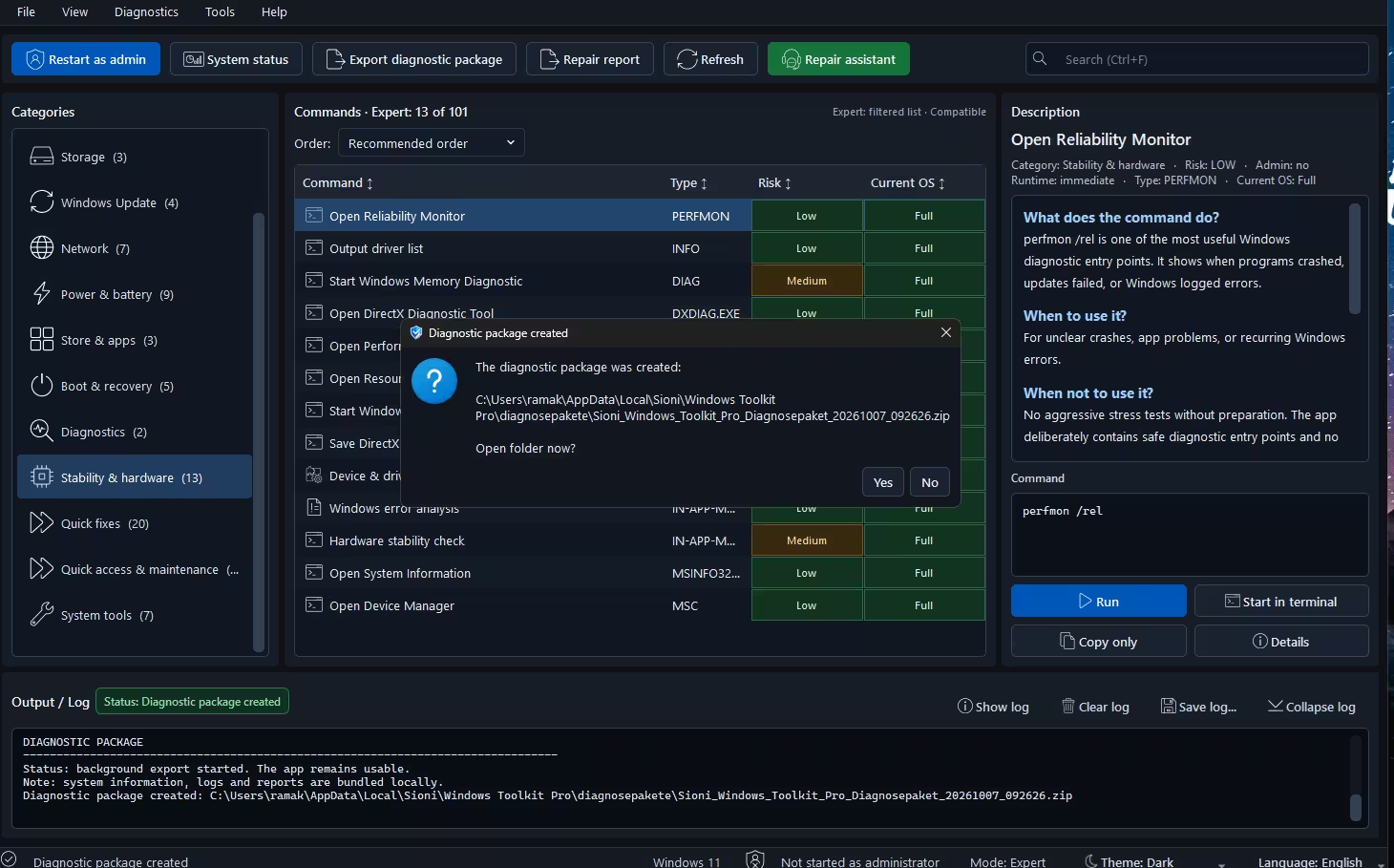
The developer says version 2.0 adds file selection, a preview and redaction of personal information before export, and that diagnostic packages do not collect personal documents. Even so, it’s good practice to open the ZIP and check what’s inside before you share it, since file paths can include your Windows username.
Windows Memory Diagnostic Results Viewer
Windows has a built-in RAM test (Windows Memory Diagnostic), but finding its result afterwards means digging through Event Viewer. Sioni 2.0 adds a viewer that reads the ten most recent results from the Windows System log and shows them in one window.
Importantly, the viewer does not start a RAM test or reboot your PC. It only reads results that already exist. We had run Windows Memory Diagnostic on our test laptop the day before, and Sioni found both related log entries (Event IDs 1101 and 1201), with Windows reporting that it had tested the memory and found no errors. The window also makes a point we appreciated: if there’s no record, that doesn’t mean your RAM passed a test.
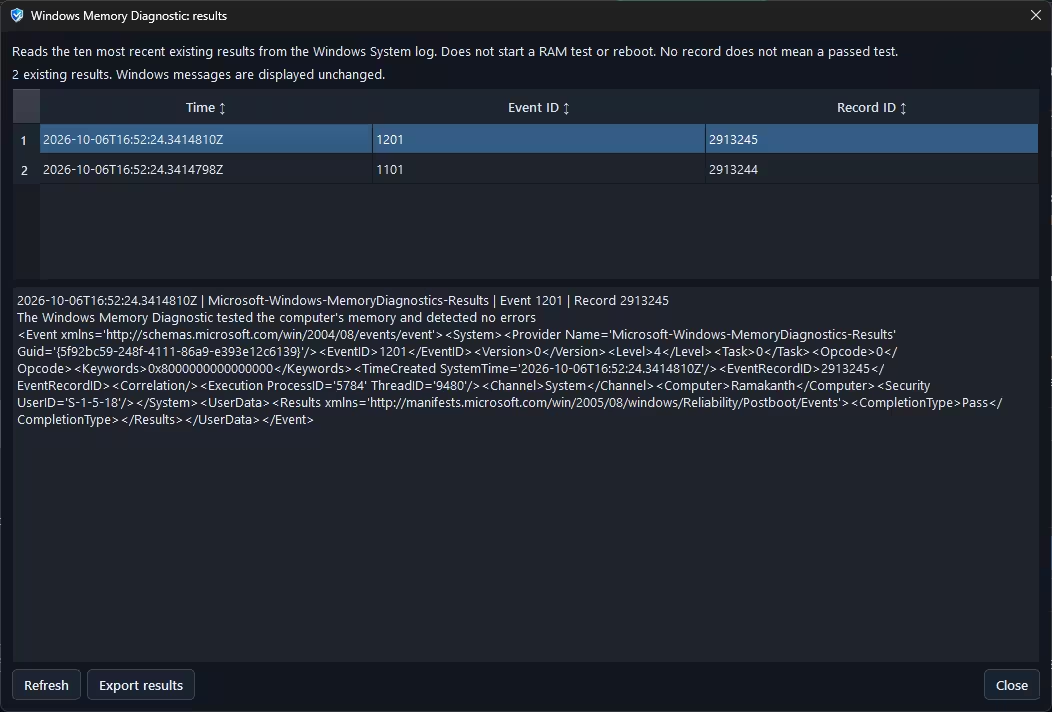
If you want to run a fresh memory test, Expert mode has a separate Start Windows Memory Diagnostic entry, rated Medium risk. Windows runs that test during a restart.
Other Features
The developer lists several further features that we didn’t test in depth for this review:
- Sioni performance check with a Windows-style performance index, plus a history so you can compare results over time.
- Hardware stability check with a deliberately cautious assessment and saved history.
- Live system monitor for CPU, RAM, GPU/VRAM and disk, with snapshot and CSV export.
- Diagnostic history with a detailed view, comparison and JSON/CSV export.
- Repair report and session logs.
- Quick access to Task Manager, winver, Disk Cleanup, Device Manager, System Information, Reliability Monitor and more.
- App self-test that checks the catalog, release files and localization.
Is Sioni Windows Toolkit Pro Safe?
This deserves a careful answer, because a tool that runs system commands is exactly the kind of software you should be cautious about.
Our VirusTotal check: We uploaded the 2.0.2 setup installer (37.29 MB) to VirusTotal. At the time of testing, 1 of 71 security engines flagged it: DeepInstinct marked it as malicious. Every other listed engine, including major vendors such as BitDefender, Avast, AVG, ClamAV and CrowdStrike Falcon, reported it as undetected. We scanned the installer only, not the portable build in the same download.
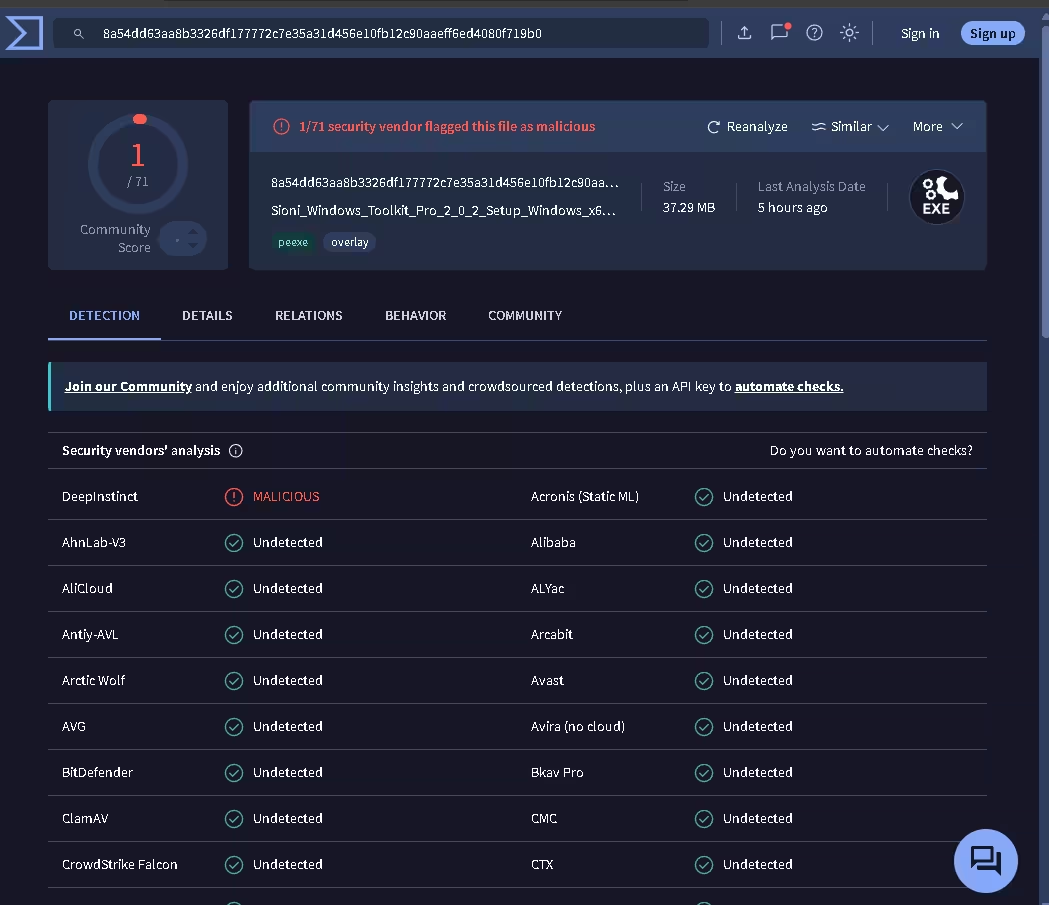
How should you read that? A single detection from a machine-learning engine, with everything else clean, is a pattern often seen with small independent utilities. The developer has said the app is written in Python, and Python programs packaged into standalone executables are a common source of heuristic detections. Earlier builds drew similar results: when the tool first appeared in June, a Deskmodder user reported 2 of 70 detections, including Microsoft Defender’s machine-learning “Wacatac” label.
That said, one detection is not proof of a false positive, and we can’t certify any build as safe. Our advice:
- Download only from the link the developer publishes in the Deskmodder forum thread.
- Run your own VirusTotal check on the exact file you downloaded. Results change over time.
- Don’t bypass a security warning unless you’re comfortable with that decision.
- Create a restore point before running Medium or High risk commands. The System Status window has an Open system protection button for this.
- If you only want the knowledge, use Copy only and run commands yourself in Terminal.
On the design side, the toolkit works in your favour: risky commands are labelled, hidden from Beginner mode, and explained with a “when not to use it” note, and the app works locally rather than sending data online.
Pros and Cons
👍 Pros
- Free, with a portable build and an installer
- Every command shows its risk, admin requirement, compatibility and exact syntax
- “When not to use it” notes are genuinely useful
- Repair Assistant runs repairs in a sensible, check-first order
- Beginner mode hides the dangerous stuff
- Careful, non-alarmist System Status reporting
- Everything stays local, including diagnostic packages
- Very active development
👎 Cons
- English translation is incomplete: German text still appears in places, such as “Aktuelles Zielsystem für diese App” in System Status and the Windows Update search message
- Numbers use German formatting (23,4 GB, 3,0 GHz) even in English mode
- One VirusTotal detection on the current installer
- No official website; downloads come through a forum thread and a file-transfer service
- Many repair commands need you to restart the app as administrator
- 64-bit Windows 10 and 11 only
Download Sioni Windows Toolkit Pro 2.0.2
The current download is an 86 MB archive containing version 2.0.2. It is hosted on SendGB, a file-transfer service, so the link may expire when a new version arrives. If it doesn’t work, the Deskmodder forum thread always has the developer’s latest link.
⬇️ Download Sioni Windows Toolkit Pro 2.0.2
Free · 86 MB · Windows 10/11 64-bit · Portable and installer
Latest version and release notes: Deskmodder forum thread (German)
How to get started
- Download and extract the archive, then choose the portable version or the installer.
- Scan the file with VirusTotal or your own antivirus first.
- Launch the app. It starts in standard mode; use Restart as admin when you need to run repair commands.
- Open System status to get an overview of your PC.
- If something is wrong, open the Repair assistant and pick the matching problem type.
Verdict
📊 Our verdict: 4.3 / 5
Version 2.0 turns Sioni Windows Toolkit Pro from a promising command launcher into a well-rounded diagnostic toolkit. Its best quality is transparency: every entry tells you what it does, how risky it is, when not to use it and exactly which command will run. The Repair Assistant, the careful System Status dashboard and the new Memory Diagnostic viewer are all genuinely useful, and Beginner mode makes it approachable for less technical users.
The rough edges are the leftover German text, the forum-and-file-share distribution, and a single VirusTotal detection that’s worth checking for yourself. If you regularly troubleshoot Windows for yourself or your family, it’s well worth a place in your toolkit.
📚 More free Windows tools we’ve reviewed
Frequently Asked Questions
Is Sioni Windows Toolkit Pro free?
Yes. Despite the “Pro” in its name, the toolkit is completely free, with no paid tier, ads or account required.
What is the latest version of Sioni Windows Toolkit Pro?
At the time of this update (7 October 2026), the latest version is 2.0.2. Version 2.0 was released on 3 October 2026. Check the Deskmodder forum thread for newer builds.
Does it work on Windows 10 and 32-bit Windows?
It supports 64-bit Windows 10 and Windows 11. 32-bit Windows is not supported. The app shows a compatibility rating for each command based on your detected Windows version.
Is it portable, or does it need installing?
Both. From version 2.0 the download includes a portable build that runs without installation and a standard Windows installer.
Is Sioni Windows Toolkit Pro safe?
In our VirusTotal test, 1 of 71 engines (DeepInstinct) flagged the 2.0.2 installer and the rest found nothing. That pattern is common with independent utilities but isn’t proof of safety. Download only from the developer’s published link, scan the file yourself, and create a restore point before running higher-risk commands.
Does it need administrator rights?
The app starts without admin rights, and many checks and quick-access tools work that way. Repair commands such as DISM, SFC repairs and Windows Update resets need admin rights, so use the Restart as admin button when you need them. Each command shows whether it requires admin.
What’s the difference between Beginner and Expert mode?
Beginner mode shows a reduced list of safe, easy-to-understand commands (70 entries on our test PC). Expert mode shows the full compatible catalog (93 on our PC), including Medium and High risk commands such as Registry Editor, forced shutdowns and DISM ResetBase.
Does the Memory Diagnostic viewer test my RAM?
No. It only reads the ten most recent existing Windows Memory Diagnostic results from the System log and never starts a test or reboot. To run a new test, use the separate Start Windows Memory Diagnostic command in Expert mode.
Does it send my data online?
According to the developer, settings, logs, history and reports are stored locally, and diagnostic packages are created on your PC without collecting personal documents. You decide whether to share a package with anyone.


