
🧪 HANDS-ON REVIEW · v1.29.0 · OCTOBER 2026
Your NVIDIA driver, and nothing else bundled with it
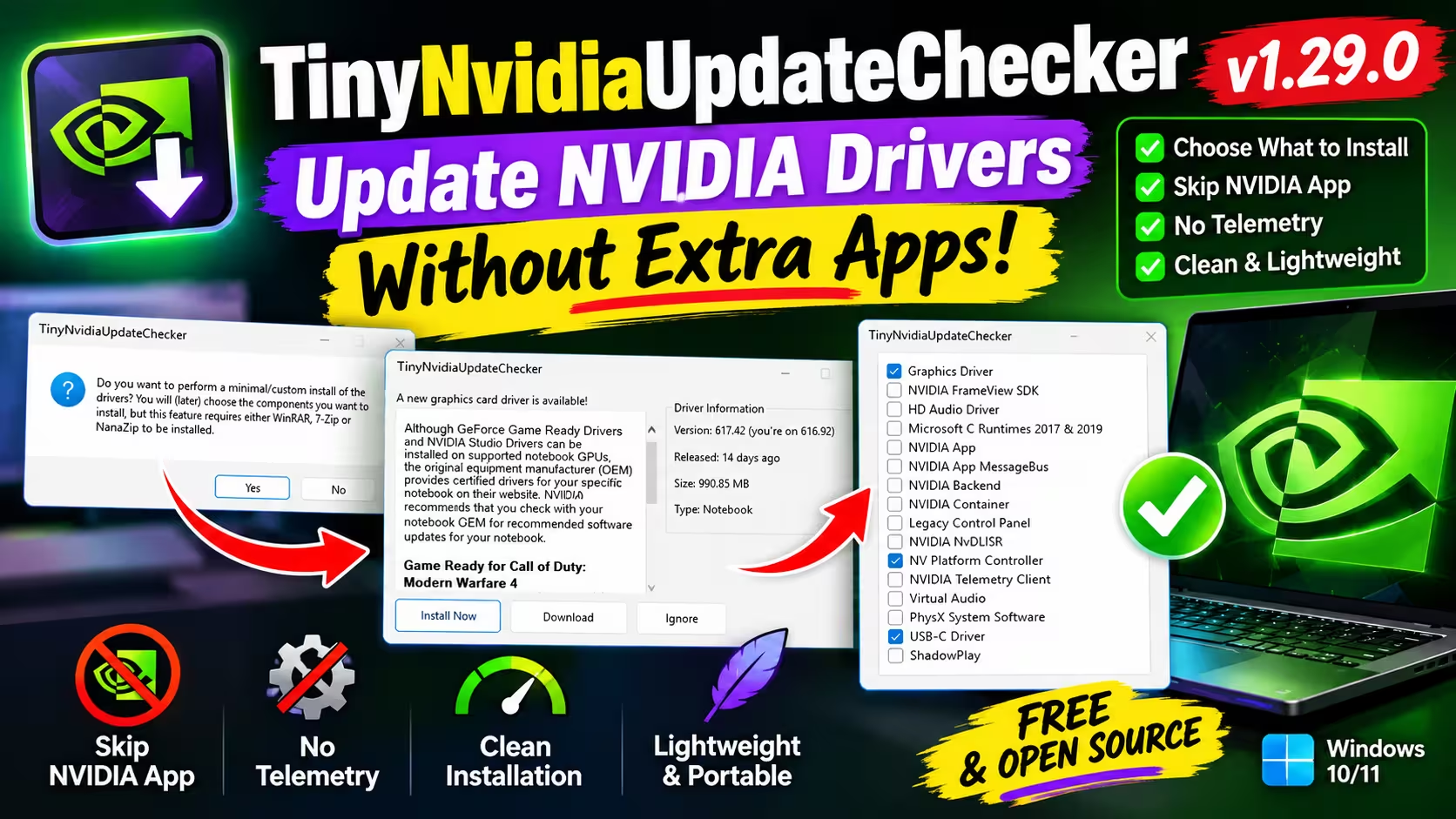
TinyNvidiaUpdateChecker is a free, portable utility that finds your next GeForce driver, downloads it, and lets you strip out the NVIDIA App, telemetry and other extras before the installer runs. I used it to update my laptop from 616.92 to 617.42. This is how it went.
✅ Free & GPL-3.0 📦 Portable 🪟 Windows 10/11 ⭐ 1.9k GitHub stars
⚡ Quick Read
- What it is: A small open-source driver checker for NVIDIA GeForce cards. You don’t need the NVIDIA App or an account to use it.
- Best feature: Custom install. You pick from a checklist of 16 driver parts and leave out the NVIDIA App, the Telemetry Client and the rest.
- Also handy: Rolling back to an older driver, switching between Game Ready and Studio drivers, and a background check at login.
- You’ll need: Windows 10 or later and the .NET 8 Desktop Runtime. The custom install also needs WinRAR, 7-Zip or NanaZip.
- Skip it if: You use NVIDIA App features such as the overlay, instant replay or game optimisation.
Why I stopped letting the NVIDIA App handle my drivers
Updating a graphics driver used to mean one download and a couple of clicks. Today NVIDIA gives you two official options: the NVIDIA App, which replaced GeForce Experience in late 2024, or a manual download from NVIDIA’s driver website. The App is a fine choice if you use its overlay, recording and per-game tweaks. But if all you want is an alert when a new driver is out, it’s a full companion app running in the background for that one job. Manual downloads avoid that, but then you have to remember to check for new drivers yourself.
The standard installer also puts a lot on your system. On my laptop the checklist had sixteen items, including a telemetry client, a message bus, a backend service and the NVIDIA App itself. Most gamers don’t need most of them.
TinyNvidiaUpdateChecker solves both problems. It’s been maintained on GitHub since 2016 by a developer who goes by Hawaii_Beach. The source is public under GPL-3.0, and version 1.29.0 came out on 20 September 2026. I ran it on my own laptop for this review. Every screenshot below comes from that test, and every feature claim is checked against the project’s README, wiki and release notes.
What TinyNvidiaUpdateChecker actually does
Think of it as a messenger between your PC and NVIDIA’s driver servers. It works out which GPU you have and whether it’s a desktop or notebook part. It compares your installed driver with the newest one available, tells you if there’s a newer one, and can then download it, unpack it and start NVIDIA’s own installer for you.
There’s nothing to install. You run one .exe and a console window opens with a running log of each step. You don’t have to type any commands, because every choice comes up as a normal Windows dialog. It looks plain, but that plainness is part of the appeal.
My test: updating a gaming laptop from 616.92 to 617.42
Here’s the full run in order, including the prompts that might make a first-time user hesitate.
Step 1: Two questions on first launch
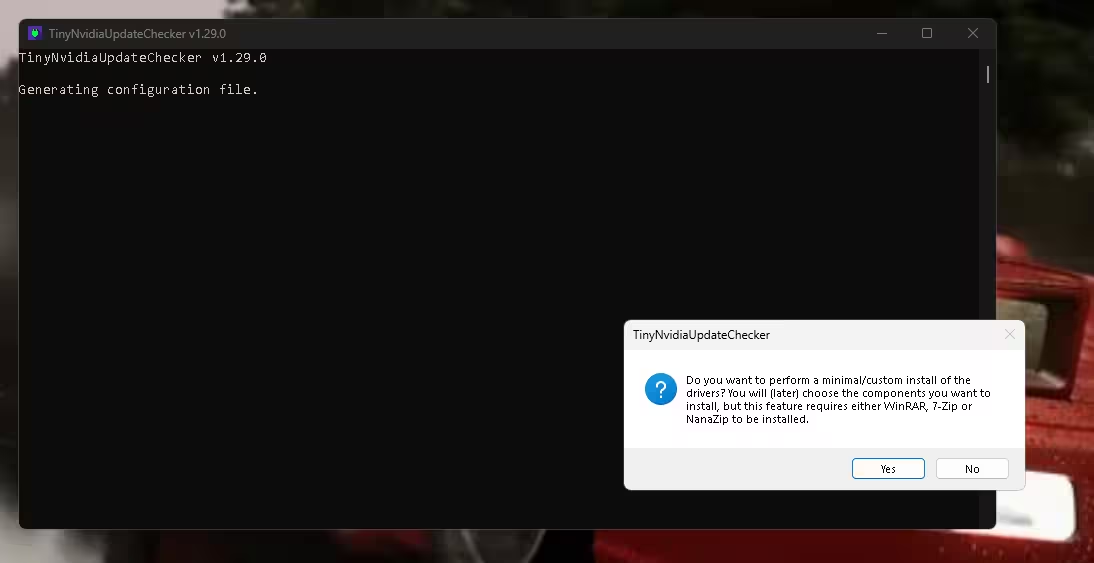
On first run the tool creates its settings file and asks two things. First, whether it should check for updates to itself. I said yes, since a tool like this should stay current. Second, whether you want a minimal/custom install. Say yes here, because this is the main reason to use the tool. The dialog warns that you need WinRAR, 7-Zip or NanaZip, because the tool unpacks NVIDIA’s driver package itself.
Step 2: It finds the new driver
The console checked my internet connection, looked for an update, read my GPU details, and reported a new driver within a few seconds. A panel then showed the details: version 617.42 (I was on 616.92), listed as released 14 days earlier (NVIDIA published 617.42 on 6 October 2026), a 990.85 MB download, type Notebook. It identified my laptop GPU correctly without my having to choose a model from a list.
The same panel shows NVIDIA’s release notes, has a button for the full PDF, and has a dropdown labelled Choose driver (optional). That dropdown is the rollback feature. If a new driver ever causes stutter or crashes in a game, you choose an older one from it rather than searching NVIDIA’s archive.
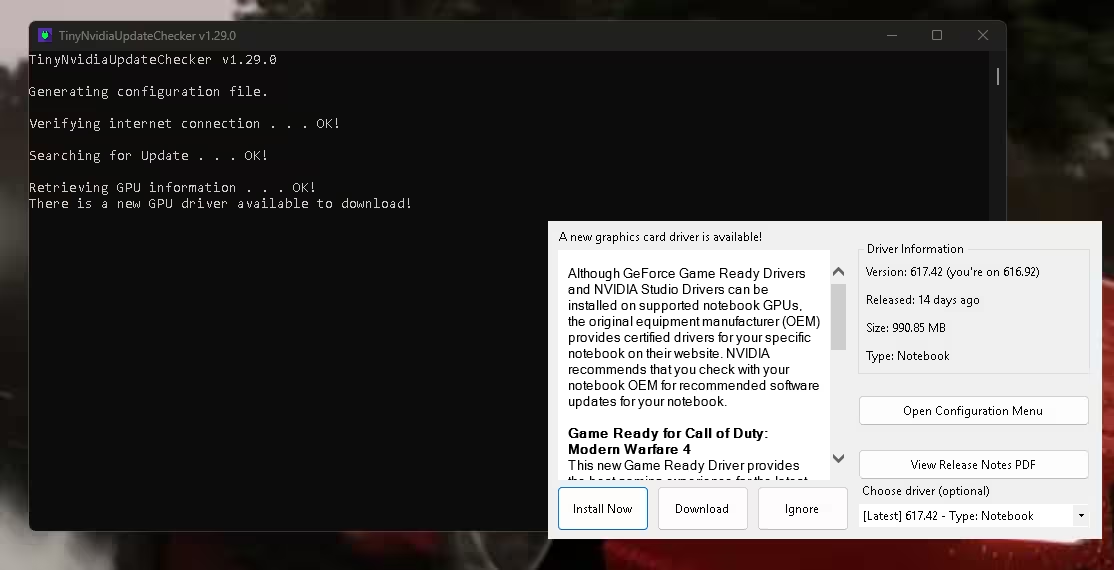
⚠️ Laptop owners: NVIDIA’s own release notes (shown in the panel) say notebook makers provide certified drivers and recommend checking your OEM’s site. In practice most modern GeForce laptops run NVIDIA’s standard drivers without trouble. If your laptop uses unusual hybrid graphics, note your current version before you update so you can roll back.
Step 3: Download and extract
I clicked Install Now. The download finished and my installed archiver unpacked the package. That roughly 1 GB download expands to about 3.6 GB, and on my machine extraction took around 12 seconds. The version I tested, 1.29.0, also added a five-minute extraction timeout, so a stuck unpack won’t hang the tool indefinitely.
Step 4: Choose what to install
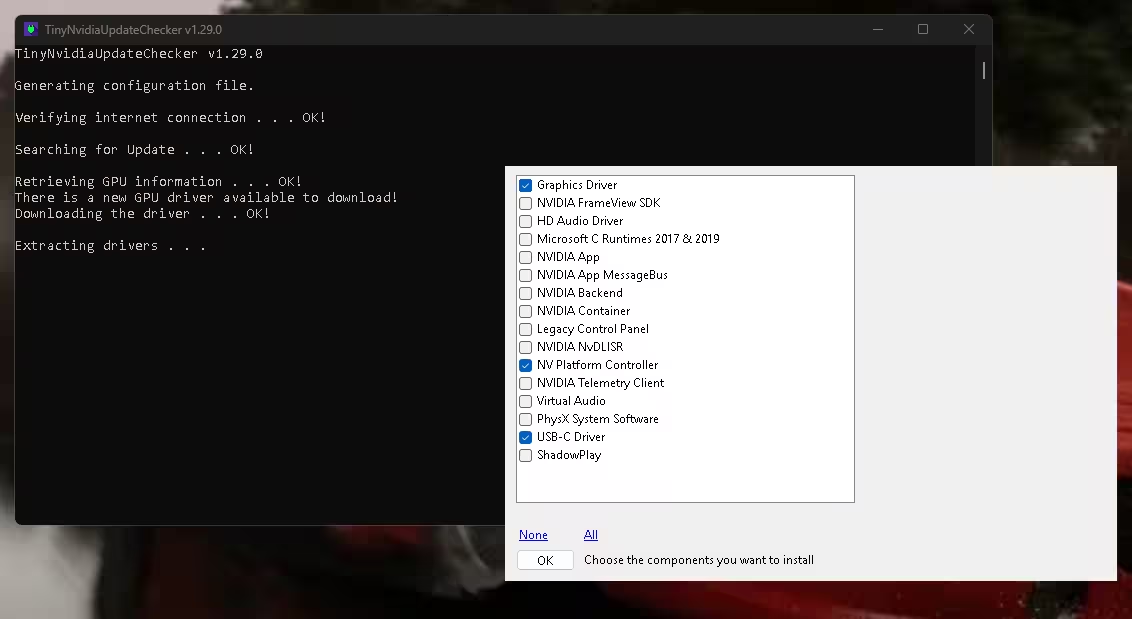
A checklist then lists every component in the driver package. I ticked three: Graphics Driver, NV Platform Controller and USB-C Driver. Everything else stayed unticked, including the NVIDIA App, its MessageBus, the Backend, the Container, the Telemetry Client, the FrameView SDK and ShadowPlay.
That was the right mix for my laptop and how I use it. It isn’t a recipe for every PC. What you need depends on your hardware, how your displays and audio are connected, and which NVIDIA features you rely on. The guide further down explains what each component is for.
Step 5: Run NVIDIA’s installer, then clean up
A small window then offers Run installer, Delete temporary files and Show folder. Run installer opens NVIDIA’s normal setup wizard (system check, licence, options, install), now with fewer components to install. When it finished, I went back to the tool and clicked Delete temporary files. Don’t skip that step: the download plus the extracted files come to several gigabytes on your system drive.
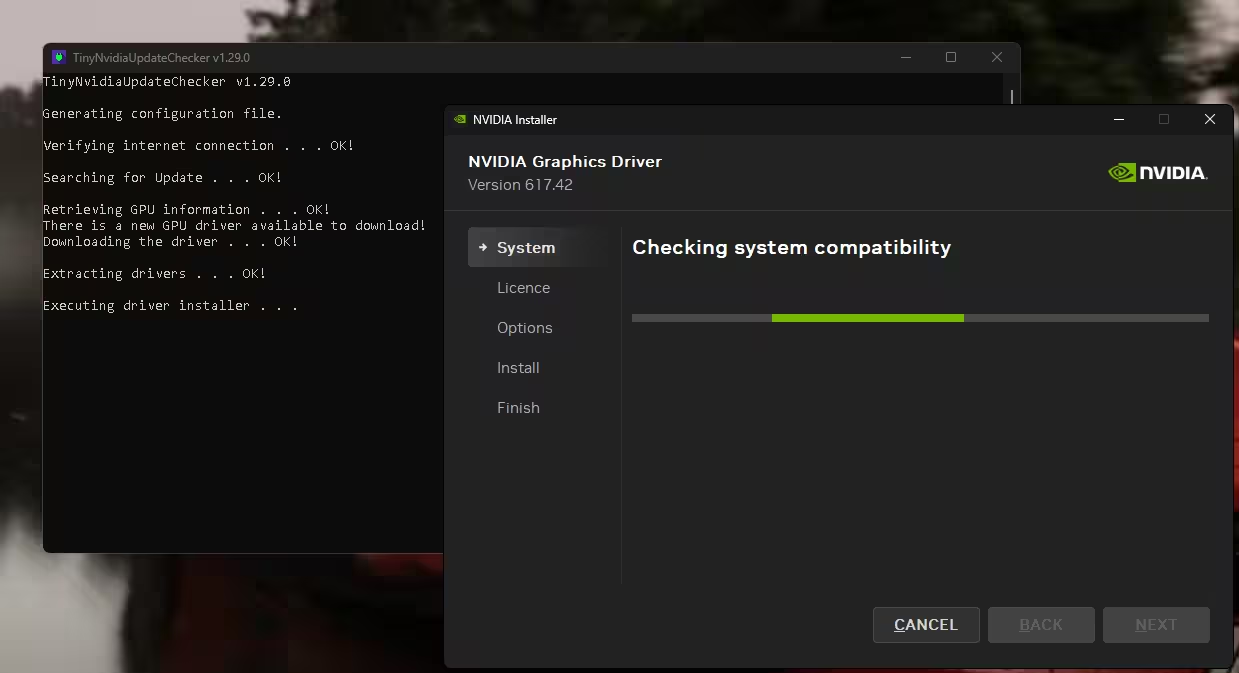
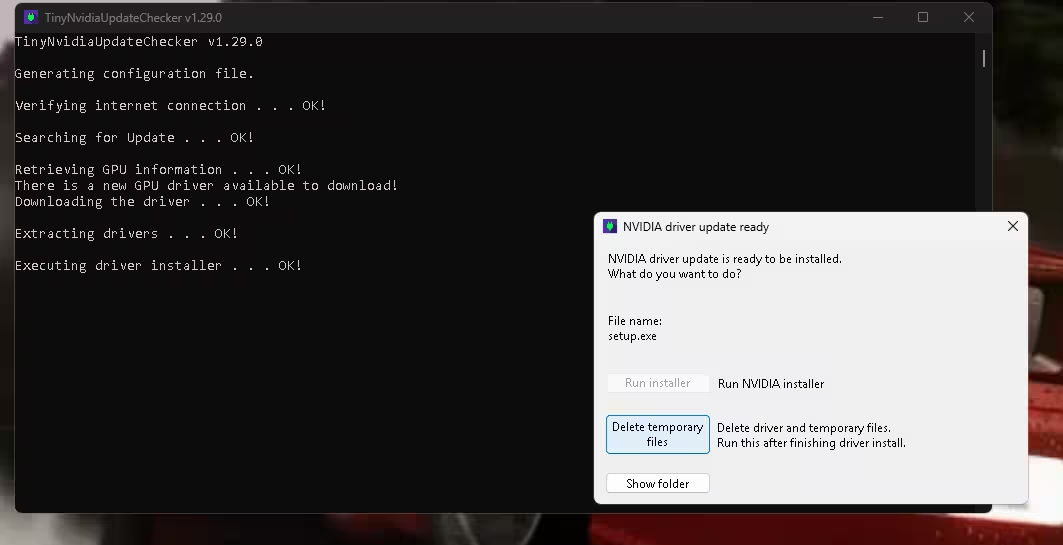
From first launch to the NVIDIA wizard opening took me about two minutes, and most of that was the download.
Which driver components should you keep?
This is where people get nervous, so here’s a practical guide. The safe rule: if you aren’t sure what a component does, leave it ticked. On a laptop, also check your manufacturer’s support page for anything it says the system needs.
| Component | Keep it? |
|---|---|
| Graphics Driver | Always. This is the driver itself. |
| HD Audio Driver | Keep it if you send sound through HDMI or DisplayPort to a TV or monitor speakers. |
| PhysX System Software | Keep it if you play older titles that use GPU PhysX. |
| Legacy Control Panel | Keep it if you change settings in the classic NVIDIA Control Panel (V-Sync, G-Sync, colour range). |
| NV Platform Controller | On laptops, sensible to keep. It deals with power management between the CPU and GPU. |
| ShadowPlay | Only if you record gameplay with NVIDIA’s tools. OBS users can skip it. |
| NVIDIA App, MessageBus, Backend, Telemetry Client, FrameView SDK | Skip these for a lean install. They’re the extras most people are trying to avoid. |
Control Panel and Container: If you use the NVIDIA Control Panel, keep Legacy Control Panel ticked, and think twice before dropping NVIDIA Container. Some Control Panel features rely on the Container’s background service, so removing it to save space can break things you use.
Plan for the worst: Before you update, write down your current driver version. If you leave out a component you later need, run the tool again and go through the install options. If a new driver causes trouble, try an older one from the dropdown first. If that doesn’t work, install your laptop maker’s recommended driver or use Windows recovery options such as System Restore.
How to download and install TinyNvidiaUpdateChecker
There are three ways. Use whichever you’re comfortable with.
Option 1: Download the EXE from GitHub
- Go to the official Releases page and download the latest
TinyNvidiaUpdateChecker.exe. - Put it in a folder of its own, for example
C:\Tools. - Double-click to run it. If the .NET 8 Desktop Runtime is missing, the tool asks you to install it. You can also get it from Microsoft’s .NET 8 download page.
Option 2: Windows Package Manager (winget)
winget source update
winget install Microsoft.DotNet.DesktopRuntime.8
winget install Hawaii_Beach.TinyNvidiaUpdateChecker
Option 3: Scoop
winget install Microsoft.DotNet.DesktopRuntime.8
scoop bucket add extras
scoop install tinynvidiaupdatechecker
If you choose the custom install, have 7-Zip, NanaZip or WinRAR installed first. Any one of them works.
Power-user extras: switches and settings
There’s more here than the basic dialogs suggest. The project wiki documents a set of command-line switches. The most useful ones are:
--quiet: runs in the background and only notifies you if an update exists.--confirm-dl: downloads and installs the driver with no prompts. The wiki recommends using it together with--quiet.--override-desktop/--override-notebook: forces the driver type if desktop/laptop detection gets it wrong.--config-here: stores the config next to the EXE, which is ideal for a USB stick.--erase-config: resets everything if you want to start again.
Settings live in %localappdata%\Hawaii_Beach\TinyNvidiaUpdateChecker. The app.config file there is where you switch between Game Ready (grd) and Studio (sd) drivers, save your preferred component list, or enable experimental GPU metadata, which can help with external GPUs and cards the tool fails to identify. Since v1.29.0, unattended runs are blocked until you’ve set this configuration up once. That’s a sensible safety measure.
TinyNvidiaUpdateChecker vs the NVIDIA App
| TinyNvidiaUpdateChecker | NVIDIA App | |
|---|---|---|
| Install needed | No, portable EXE | Yes |
| Pick driver components | Yes, 16-item checklist | No |
| Roll back to an older driver | Built-in dropdown | Limited |
| Overlay, recording, game tuning | No | Yes |
| Open source | Yes (GPL-3.0) | No |
| Interface | Console + dialogs | Full modern GUI |
If you want a tool that handles drivers for your whole PC, including chipset, Wi-Fi and audio, see our roundup of the best free driver updater software for Windows 11. TinyNvidiaUpdateChecker only deals with your NVIDIA GPU, and it does that one job well.
What I liked and what could be better
👍 What I liked
- The component checklist gives you control the official installer doesn’t
- It identified my notebook GPU automatically
- Rolling back a driver is a dropdown choice, not an archive search
- The cleanup button frees several GB afterwards
- Frequent updates: four releases in September 2026 alone
👎 What could be better
- The console window looks intimidating to non-technical users
- The custom install needs a separate archiver
- The .NET 8 runtime is an extra dependency
- The component list has no explanations, so beginners have to guess
📊 Techno360 Verdict: 4.5 / 5
TinyNvidiaUpdateChecker is the most direct way I’ve found to keep a GeForce card updated. The updater itself is portable and needs no account, and you can skip the optional NVIDIA components you don’t need. Being able to choose which parts of the driver go on your PC makes it worth keeping on your desktop, and the older-driver dropdown gives you a quick way back if a new release misbehaves.
Get it if you game or create on an NVIDIA GPU and want a clean system. Stick with the NVIDIA App if you use its overlay, instant replay or one-click game settings every day.
⬇️ Download TinyNvidiaUpdateChecker 📘 Read the Wiki
More free tools to tune your Windows PC
- Winhance review: does for Windows 11 what this tool does for your GPU driver, removing extras and switching off tracking.
- Winstats review: shows CPU, RAM and GPU stats on your taskbar, useful for checking a fresh driver under load.
- DriversCloud review: a free option for updating your other drivers, such as chipset, network and audio.
Frequently asked questions
Is TinyNvidiaUpdateChecker safe to use?
It’s open source under GPL-3.0, has been developed in public on GitHub since 2016, and has around 1.9k stars. Downloads come from NVIDIA’s own servers, and the final step is NVIDIA’s official installer. Only download the tool from its GitHub Releases page, winget or Scoop.
Does it remove NVIDIA telemetry?
With custom install turned on, you can leave the NVIDIA Telemetry Client and the NVIDIA App out of the installation, so they never get installed.
Do I still need the NVIDIA App or GeForce Experience?
Not for driver updates. You only need the NVIDIA App for its extra features, such as the in-game overlay, recording and automatic game settings.
Can I roll back to an older NVIDIA driver with it?
Yes. The Choose driver dropdown lists older versions compatible with your GPU, so you can install a previous release if the newest one causes problems.
Does it work on gaming laptops?
Yes. It detected my notebook GPU automatically and offered the notebook driver package. If it ever gets the type wrong, the --override-notebook switch forces it.
Does it support AMD or Intel graphics?
No. It only handles NVIDIA GPUs. For other hardware, use a general driver updater.
Tested by Ramakanth on a Windows 11 gaming laptop with TinyNvidiaUpdateChecker v1.29.0 (NVIDIA driver 616.92 → 617.42). Feature details checked against the project’s GitHub README, wiki and release notes on 20 October 2026. We have no affiliation with the developer.