
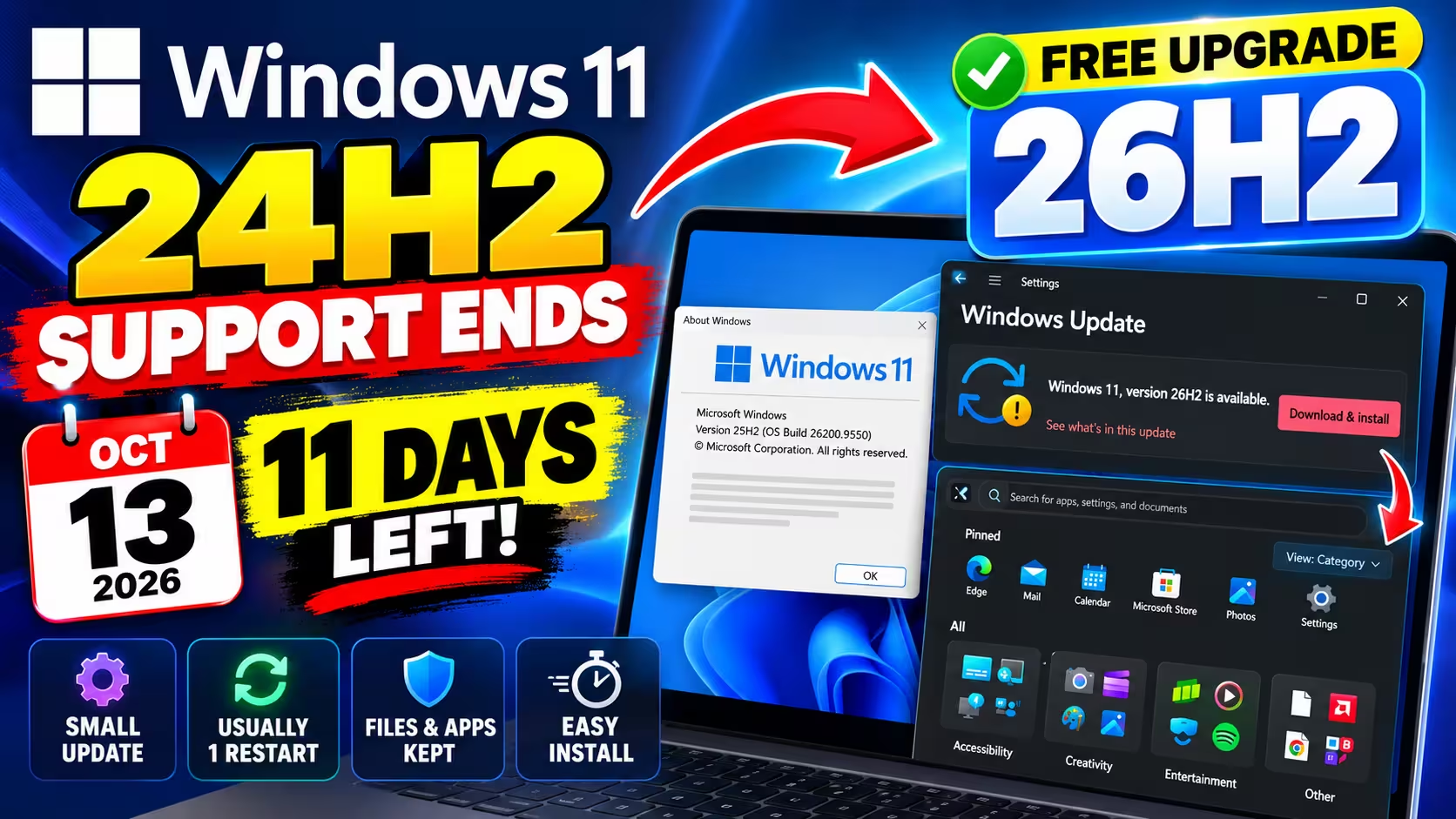
⏰ Deadline: Tuesday, 13 October 2026
Windows 11 24H2 support ends in 11 days — here’s how to get the free 26H2 update
Windows 11 24H2 Home and Pro get their final Patch Tuesday on 13 October 2026. The free 26H2 update is the quick way forward for eligible PCs: a small enablement package and, in most cases, a single restart. Here’s how to check your version, install it and see what’s new.
⚡ Quick Read
- What ends: monthly security and quality updates for Windows 11 24H2 Home, Pro, Pro Education and Pro for Workstations after 13 October 2026.
- Not affected yet: Enterprise and Education editions of 24H2 — they’re covered until 12 October 2027.
- The fix: Windows 11 26H2 (the “2026 Update”, build 26300) went live on 29 September. On 24H2 or 25H2 it arrives as a tiny enablement package, KB5121794.
- How: Settings → Windows Update → Check for updates → Download & install on the 26H2 offer.
- Payoff: a fresh support clock that runs to 10 October 2028 on Home and Pro.
Every October, Microsoft quietly retires one version of Windows 11 for home users. Most people never notice, because Windows Update nudges them along. This year the timing is tight: the replacement only became available on 29 September, and the cut-off for 24H2 lands two weeks later, on the October Patch Tuesday itself.
The good part? This is about the least painful version upgrade Windows has ever had. No 4 GB download, no hour-long “Working on updates” screen, no reinstalling apps. Below, I’ll walk through exactly who needs to act, how to check your version in ten seconds, the two ways to install 26H2, and the new features you’ll actually notice afterwards.
What actually stops on 13 October?
Microsoft calls it “end of servicing”. In plain terms: the monthly cumulative update that lands on the second Tuesday of each month arrives one last time on 13 October, and then the tap closes for 24H2 Home and Pro. No new security fixes, no bug fixes, no optional preview updates.
Your PC won’t lock up, nag you with a watermark, or stop booting on 14 October. It’ll keep working exactly as it does now. The risk builds slowly: every vulnerability Microsoft patches from November onwards stays open on your machine, and attackers read those patch notes too.
| Windows 11 version | Home / Pro updates end | Enterprise / Education updates end |
|---|---|---|
| 23H2 (build 22631) | Already ended (11 Nov 2025) | 10 Nov 2026 |
| 24H2 (build 26100) | 13 Oct 2026 ⚠️ | 12 Oct 2027 |
| 25H2 (build 26200) | 12 Oct 2027 | 10 Oct 2028 |
| 26H2 (build 26300) | 10 Oct 2028 | 9 Oct 2029 |
Dates come from Microsoft’s Windows 11 lifecycle tables (checked 2 October 2026).
One more group worth flagging: Windows 11 SE (a stripped-down edition found on some education laptops) tops out at 24H2. This only applies to devices actually running Windows 11 SE: they get their last updates this October with no newer version to move to.
Step 1: Check which version you’re on (10 seconds)
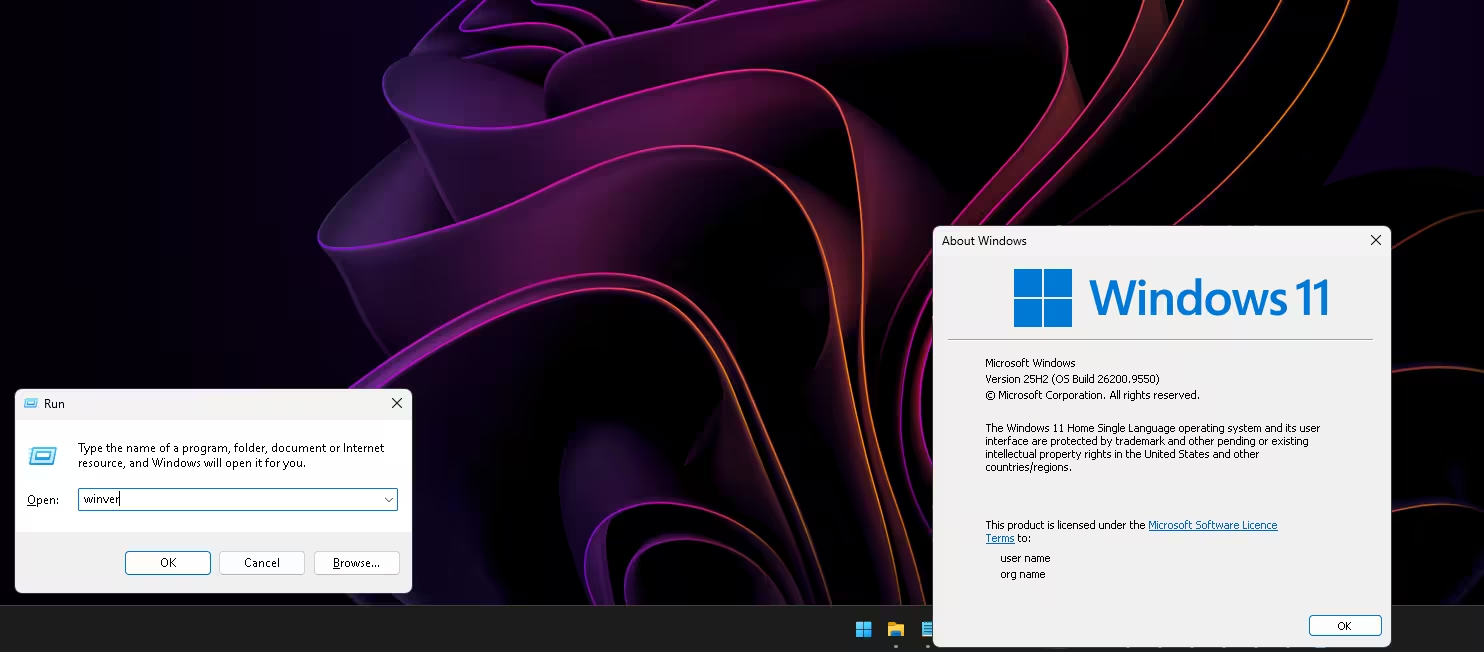
Press Win + R, type winver and hit Enter. A small window pops up showing your version and OS build.
- Version 24H2 / build 26100.xxxx — you need to act before 13 October.
- Version 25H2 / build 26200.xxxx — you’re safe until October 2027, but 26H2 is the same quick install.
- Version 26H2 / build 26300.xxxx — you’re done. Windows already moved you.
- Version 26H1 / build 28000.xxxx — see the note further down; this one can’t jump to 26H2.
Why this upgrade is so small
Think of 24H2, 25H2 and 26H2 as the same house with different rooms unlocked. All three sit on one shared codebase, and over the past year Microsoft has been sneaking the 26H2 bits onto your PC through regular monthly updates — switched off.
The “enablement package” (Microsoft’s term, KB5121794) is basically the key. It’s a tiny file (the x64 .msu on Microsoft’s Update Catalog is listed at roughly 174 KB) that flips those features on and bumps your build number from 26100 or 26200 to 26300. That’s why the install feels like a regular Patch Tuesday update rather than a full Windows upgrade, and why your apps, files and settings don’t move an inch.
📌 One prerequisite
Per Microsoft’s KB5121794 notes, your PC needs the 22 September 2026 preview update (KB5124010) or any newer cumulative update before the package will install. If your PC has installed KB5124010 or a later cumulative update, the prerequisite is satisfied. If not, install pending updates first, restart, then check again.
Step 2: Get 26H2 through Windows Update (easiest)
This is the route I’d recommend to almost everyone, because Windows only offers the update once it has checked your drivers and hardware against known issues.
- Save your open work. You’ll need one restart.
- Open Settings (Win + I) and click Windows Update in the left menu.
- Click Check for updates and let any regular cumulative updates install first.
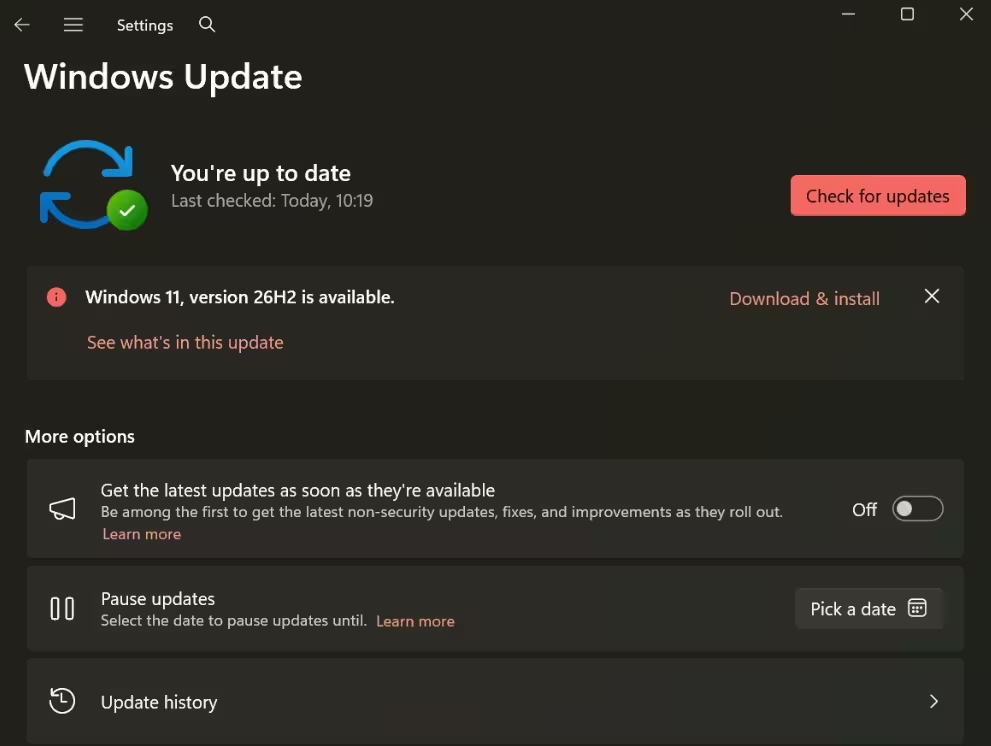
- When you see “Windows 11, version 26H2 is available”, click Download & install next to it.
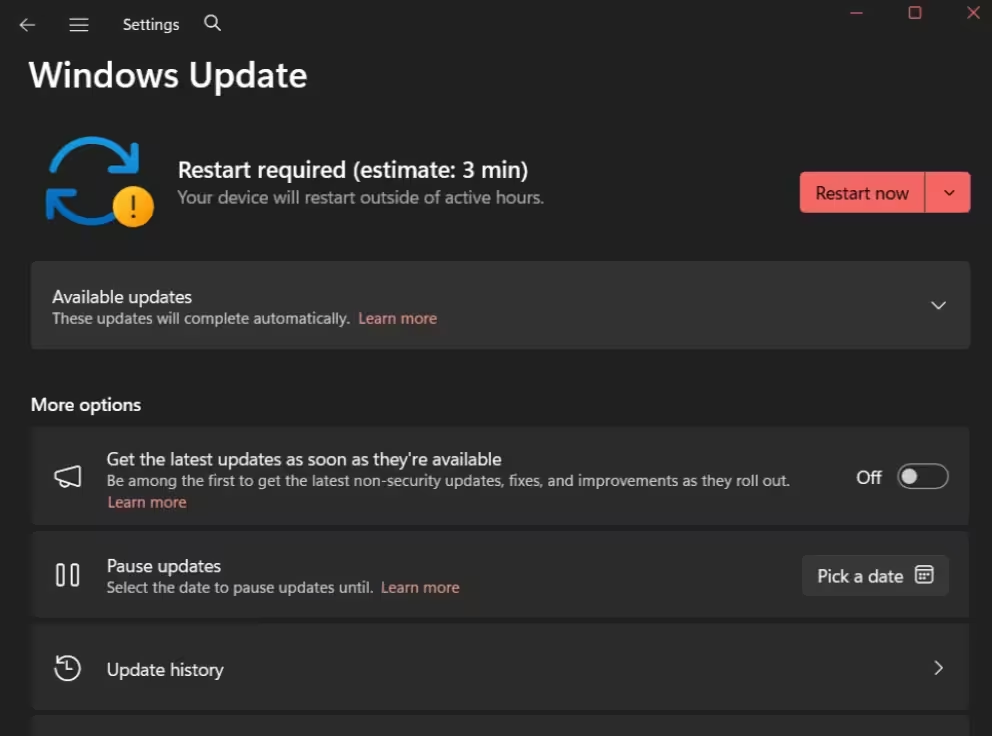
- Restart when prompted. Run
winveragain — you should see build 26300.
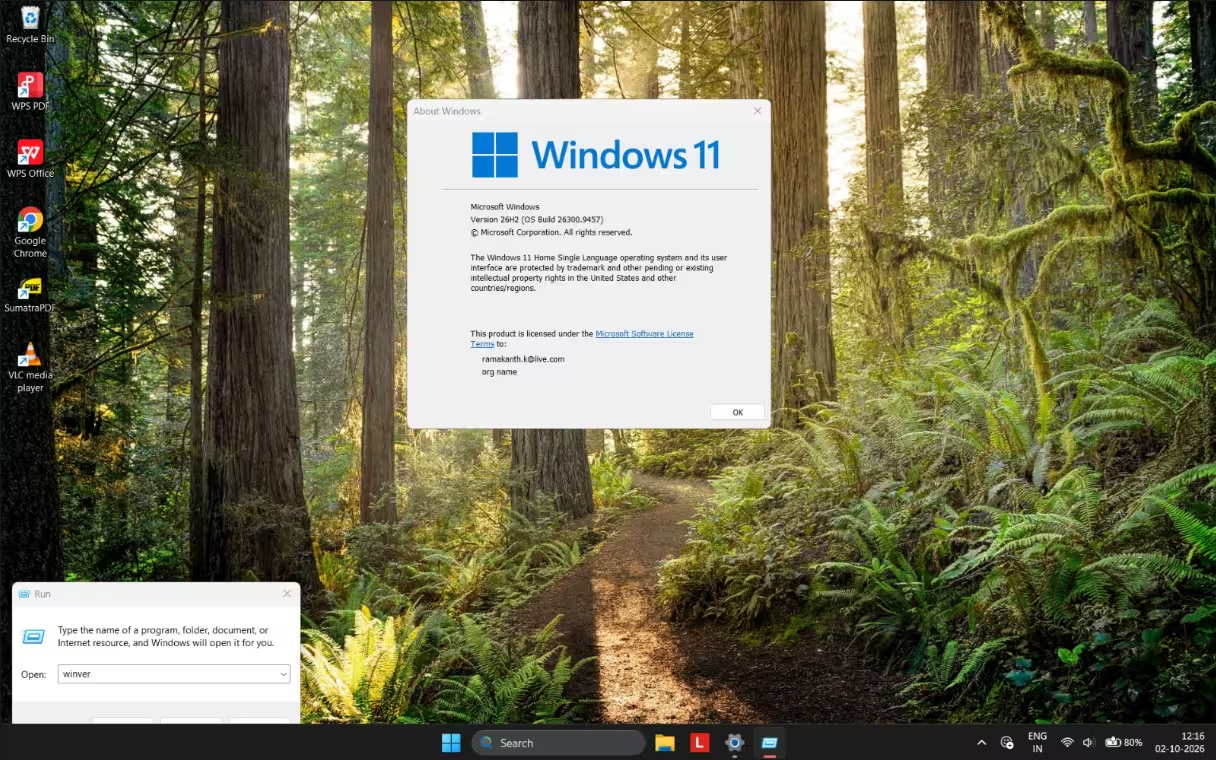
Don’t see the offer? The rollout is gradual, so not every PC sees it on day one. Microsoft can also hold the update back on hardware with a known compatibility problem (a “safeguard hold”). If that’s you, give it a few days and check again — and keep the regular cumulative updates flowing in the meantime.
🧪 What I saw on my home PCs (2 October 2026)
I checked Windows Update on two family laptops, both on Windows 11 25H2, three days after 26H2 launched:
- One-year-old laptop: the banner “Windows 11, version 26H2 is available.” was waiting, with a Download & install link beside it. The “Get the latest updates as soon as they’re available” toggle was switched off, so you don’t need that setting turned on to get the offer. I clicked it, Windows asked for one restart (its own estimate: 3 minutes), and afterwards
winvershowed version 26H2, build 26300. - Five-year-old laptop: on build 26200.9550, but Windows Update showed no 26H2 offer yet.
A third machine, my SER 5th-gen mini PC running Windows 11 Pro, was already on 26H2 (build 26300.9550) when I checked. It’s the PC in the Start menu screenshot further down. Note that the number after “26300.” differs between PCs. It depends on the latest cumulative update each one has.
Two laptops can’t tell us why one got the offer first. What they do show is that the 26H2 offer doesn’t reach every PC at the same time, even when both run the same version. Microsoft rolls the update out in stages and runs device-specific compatibility checks, and either can affect when the offer appears. If your PC is on 25H2 like these two, there’s no rush: it’s supported until 12 October 2027.
Step 3 (optional): Install KB5121794 manually
⚠️ Read this first: if Windows Update hasn’t offered 26H2, don’t assume a manual install is the answer. Microsoft may be holding the update back because of a known compatibility problem on your hardware. Check Microsoft’s Windows release health page for known issues first. If a safeguard hold applies to your PC, wait for Microsoft to clear it instead of working around it. And remember: if you’re already on 25H2, there’s no deadline pressure until October 2027.
Microsoft also publishes the enablement package as a standalone .msu file for both x64 (Intel/AMD) and ARM64 PCs on the Microsoft Update Catalog.
- Make sure the KB5124010 update (or newer) is installed — see the prerequisite box above.
- Go to the Microsoft Update Catalog and search for
KB5121794. - Download the build that matches your processor (x64 for nearly all Intel and AMD PCs, ARM64 for Snapdragon laptops).
- Double-click the
.msufile, confirm, and restart.
⚠️ Skip mirror sites. Grab the .msu only from Microsoft’s own catalog. A Windows update file from a random download site is one of the easiest ways to end up with something you didn’t ask for. Manual install also skips the safeguard check, so if your PC has a hold on it, there’s usually a reason.
What’s new in Windows 11 26H2
Let’s be straight about this: 26H2 doesn’t ship a stack of brand-new, exclusive features. Because 24H2, 25H2 and 26H2 share one codebase, some of what’s listed below may already be on a fully updated 24H2 or 25H2 PC. Other items switch on gradually or need specific hardware (an NPU, a fingerprint reader, a Copilot+ PC). Treat this as the list of features that come with the 26H2 release, not a promise that you’ll see every one the moment you restart. Here’s what stands out from Microsoft’s own changelog.
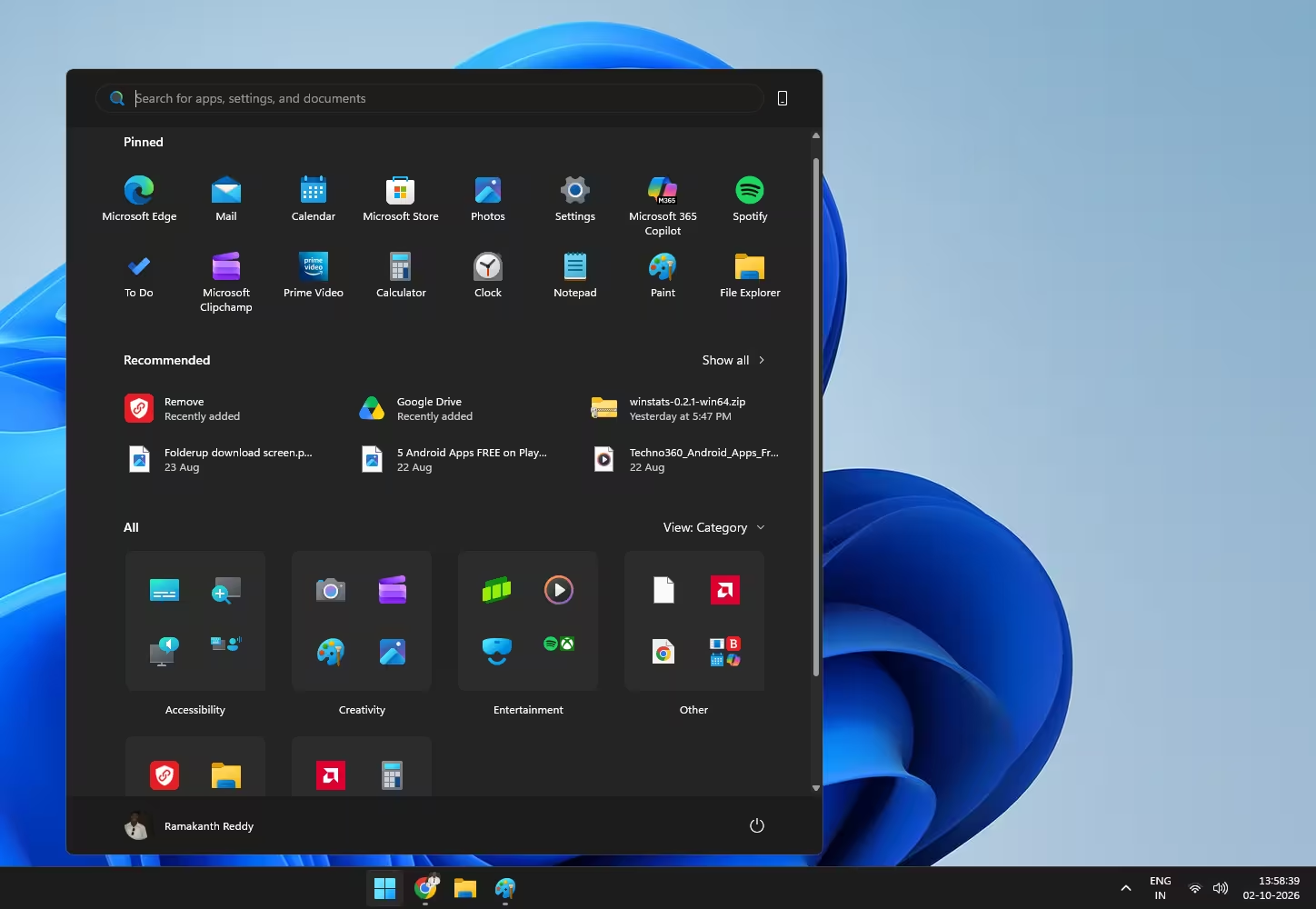
- The reworked Start menu has a scrollable All section with category and grid views, and you can hide the Pinned, Recent or All areas independently.
- The taskbar can sit at the top, bottom, left or right of the screen again — something Windows 10 fans have been asking for since 2021.
- A smaller taskbar option shrinks icon size and bar height, which helps on 13- and 14-inch laptops.
📁 A quicker, smarter File Explorer
- File Explorer Home opens faster and feels more responsive.
- More archive formats open natively, including
uu,cpio,xarand.nupkg. - View and Sort settings now stick in Downloads and Documents, even when an app opens those folders for you.
- You can rename files using voice typing.
🔍 Search that forgives typos
- App search copes with spelling mistakes and half-typed names.
- Results are labelled clearly as an app, setting, file, web result or Store suggestion, and you can preview them without opening anything.
🛡️ Security upgrades under the hood
- Smart App Control can now be turned on or off without a clean reinstall of Windows — a long-standing annoyance, gone.
- Passkeys work with third-party password managers that plug into Windows.
- Windows Hello Enhanced Sign-in Security now supports compatible external fingerprint readers, not just built-in ones.
- Default trust for old cross-signed drivers is removed. Windows audits driver compatibility first (at least 100 hours and three restarts) before enforcing the change.
- Sysmon is built in, and Administrator protection is available — both off by default and aimed mainly at IT admins.
🔧 Everyday fixes you’ll feel
- Fewer update restarts: Windows Update bundles eligible updates with the monthly security patch when it can.
- Point-in-time restore can roll a PC — apps, settings and files — back to a recent automatic restore point.
- Better Bluetooth (LE Audio, calls, reconnecting after hibernation) and steadier USB4 dock displays after sleep.
- Several apps can use the webcam at once with Multi-App Camera.
- Task Manager shows NPU usage on PCs that have one.
- Accessibility gets a lot of love: Magnifier colour tints and custom zoom levels, a Braille Viewer in Narrator, and Voice access in French, German, Spanish and Korean.
🗑️ What’s gone
WMIC, the old Windows Management Instrumentation command-line tool, is removed and no longer offered as an optional feature. If you have old batch scripts that call wmic, switch them to PowerShell’s Get-CimInstance before upgrading.
Special cases: 26H1 PCs, Enterprise and older hardware
Bought a new Arm laptop this year? Some ship with Windows 11 26H1 (build 28000), which runs on a different core. Those machines can’t move to 26H2 — and they don’t need to. Windows 11 26H1 Home and Pro are supported until 14 March 2028, and Enterprise and Education until 13 March 2029. That’s a shorter window than 26H2 gets, and Microsoft says it will offer them a path to a later release.
On Enterprise or Education? You have until 12 October 2027 on 24H2. Your IT team can push 26H2 through Windows Autopatch, Intune or the Microsoft 365 admin center when they’re ready. Note that 26H2 turns on Windows settings backup, taskbar app actions and some File Explorer changes by default on commercial devices.
Running 24H2 on a PC that doesn’t officially meet Windows 11 requirements? Windows Update may not offer you 26H2 automatically. The manual package route works on the same codebase, but you’re outside Microsoft’s support boundaries, so back up first.
A 5-minute pre-flight checklist
An enablement package is about as low-risk as Windows updates get, but a little prep never hurts:
- ✅ Back up anything irreplaceable to OneDrive or an external drive.
- ✅ Plug in the laptop charger.
- ✅ Update your graphics, chipset and Wi-Fi drivers — our guide to free driver updaters for Windows 11 covers safe options, including Windows Update’s own Optional updates page.
- ✅ If you use a script that calls
wmic, update it. - ✅ After the restart, run
winverto confirm build 26300.
Once you’re on 26H2, it’s a good moment to run through our Windows 11 security settings you should switch on — especially now that Smart App Control can be toggled without a reinstall. And if the PC still feels sluggish afterwards, our 9 proven ways to make Windows 11 faster all carry over to 26H2, since it runs on the same core.
If something goes wrong
- Package refuses to install: you’re almost always missing the KB5124010 (or newer) cumulative update. Install it, restart, try again.
- Build says 26300 but features look unchanged: some features still roll out gradually after the version bump. Keep installing monthly updates.
- Something broke: Settings → System → Recovery lets you go back to the previous version for a limited time after a feature update. Check Microsoft’s Windows release health page for known issues before you roll back.
📊 Techno360 Verdict
If winver says 24H2 and you’re on Home or Pro, install 26H2 this week. It’s free, it’s a tiny download, it keeps your apps and files, and it buys you two more years of security patches. There’s no good reason to ride out the deadline.
👍 Why it’s worth it
- Keeps security updates coming to 10 Oct 2028
- Small enablement package, usually one restart
- Movable taskbar and better Start menu
- Fewer update restarts going forward
👎 Keep in mind
- Few truly “new” features if you patch regularly
- WMIC is gone for good
- Gradual rollout — the offer may take a few days
- 26H1 Arm PCs can’t take this route
Frequently asked questions
When does Windows 11 24H2 support end?
For Home, Pro, Pro Education and Pro for Workstations, the last update arrives on 13 October 2026. Enterprise and Education editions keep getting updates until 12 October 2027.
Will my PC stop working after 13 October?
No. It will boot and run normally. It simply stops receiving security fixes, which leaves it more exposed to new threats as the months go by.
Is Windows 11 26H2 free?
Yes. It’s a free update for any genuine Windows 11 24H2 or 25H2 installation.
Will upgrading to 26H2 delete my files or apps?
No. The enablement package only switches on features already on your PC and changes the version number. Your files, apps and settings stay where they are. A backup is still a sensible habit.
Should I pick 25H2 or 26H2?
Go straight to 26H2. Both install the same way, but 26H2 is supported about a year longer on Home and Pro (10 October 2028, versus 12 October 2027 for 25H2).
Why don’t I see the 26H2 update in Windows Update?
The rollout is staged, your PC may be missing the KB5124010 prerequisite, or Microsoft may have placed a compatibility hold on your hardware. Install pending updates, restart and check again in a few days. Older PCs often get the offer later than newer ones.
Want more hands-on Windows guides, free tools and licence giveaways? Browse our full Windows hub — we keep it updated as every new build lands.
How we checked this: every date, build number and feature above was cross-checked against Microsoft’s Windows Experience Blog announcement (29 September 2026), the “What’s new in Windows 11, version 26H2” page on Microsoft Learn, Microsoft’s Windows 11 lifecycle tables and the KB5121794 support notes. Last verified: 2 October 2026.