
Worried about hackers, a stolen laptop, or a cloud data leak? These free encryption tools lock your files with military-grade AES-256 security — so even if your device is lost, stolen, or compromised, your data remains completely unreadable to anyone without the correct password.
- ✔ Protect files even if your laptop is stolen
- ✔ Secure USB drives from unauthorized access
- ✔ Encrypt cloud data before it ever reaches the server
- ✔ Prevent identity theft and sensitive data leaks
This guide covers the 8 best free encryption software options in 2026 — for individual files, entire hard drives, USB flash drives, and cloud storage. Whether you’re a home user, a freelancer, or a small business owner, there is a solution here that fits your exact workflow. All tools are free. None require a subscription.
⚡ Quick Answer: The best free encryption software in 2026 is VeraCrypt for full-disk and container encryption, Cryptomator for cloud storage, and 7-Zip for quick file protection. All three use AES-256 encryption and are completely free.
Before diving in: pair any encryption tool with a strong password manager — your encryption is only as secure as the passphrase protecting it.
🔒 Why Encryption Still Matters in 2026
Data breaches have become so routine that they barely make headlines anymore. According to IBM’s annual Cost of a Data Breach Report, the global average cost of a single breach reached $4.88 million in 2024 — a new record. For individuals, the risks are just as real even if the dollar amounts are smaller: identity theft, blackmail, loss of intellectual property, and financial fraud.
Encryption is the last line of defence. Once a file or drive is encrypted with a strong passphrase, it becomes mathematically unreadable to anyone without the key — including government agencies, hackers, and cloud storage providers. None of the software below phones home with your keys. Your data stays yours.
Also read our complete guide to Windows 11 security settings to harden your system well beyond just encryption.
“Encryption works. Properly implemented strong crypto systems are one of the few things that you can rely on.”
— Edward Snowden
1. VeraCrypt – Best Overall Free Encryption Software
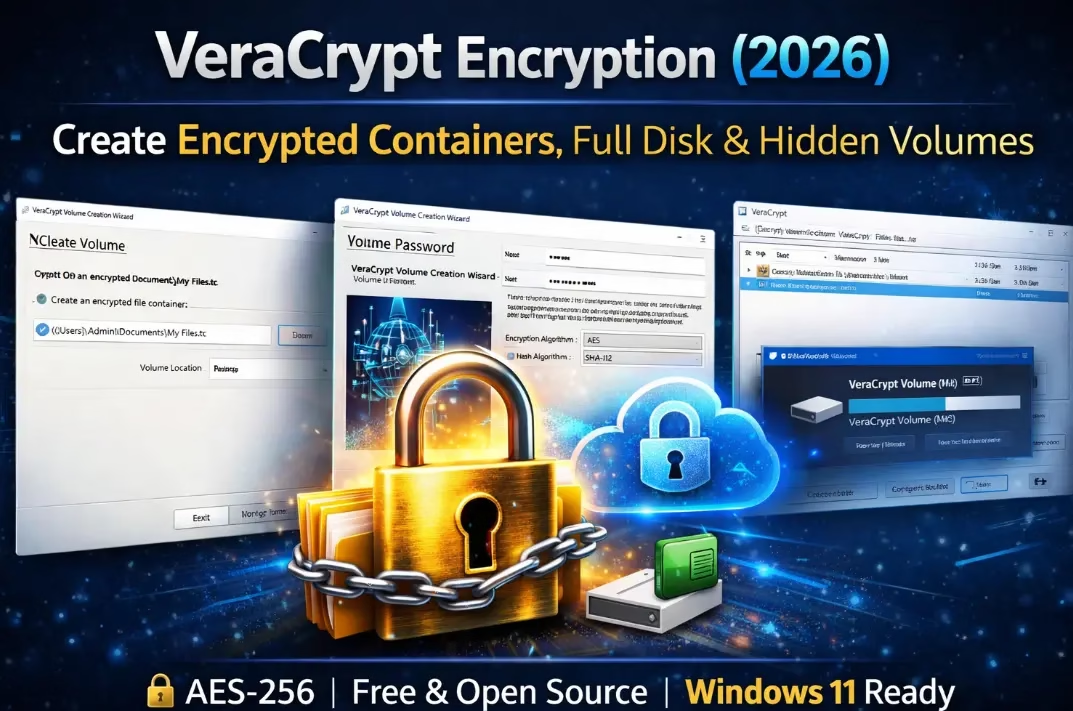
- Platform: Windows, macOS, Linux
- Encryption: AES-256, Twofish, Camellia, Kuznyechik (and cascade combinations)
- Best for: Power users, full-disk encryption, hidden volumes
- Price: Free & Open Source
If there is one tool every security-conscious person should have, it is VeraCrypt. The successor to the now-discontinued TrueCrypt (abandoned in 2014), VeraCrypt builds on that legacy with stronger key derivation algorithms, active development, and two independent public audits.
What VeraCrypt Can Do
- Encrypted containers: Create a file that mounts as a virtual drive. Drag files in, unmount — contents become completely inaccessible.
- Partition or full-disk encryption: Encrypt an entire internal or external drive.
- System partition encryption: Require a password before Windows even boots (pre-boot authentication).
- Hidden volumes (plausible deniability): A single container holds two separate volumes with two separate passwords. Under duress, reveal only the outer decoy password — the hidden inner volume remains completely undetectable.
Encryption and decryption happen transparently on the fly. Thanks to AES-NI hardware acceleration present on all modern CPUs, the performance overhead is negligible. Independent security audits were conducted by Quarkslab in 2016 and by the German Federal Office for Information Security (BSI) in 2020 — both results are publicly available.
✅ Pros
- Open-source and independently audited twice
- Supports full-disk, partition, and container encryption
- Hidden volumes for plausible deniability under coercion
- Cross-platform: Windows, macOS, Linux
- AES-NI hardware acceleration — negligible performance impact
❌ Cons
- Steeper learning curve — not beginner-friendly
- No native cloud sync optimisation (use Cryptomator for cloud)
- UI looks dated compared to modern tools
👉 Download: veracrypt.fr/en/Downloads.html
2. BitLocker – Best Built-In Windows Encryption
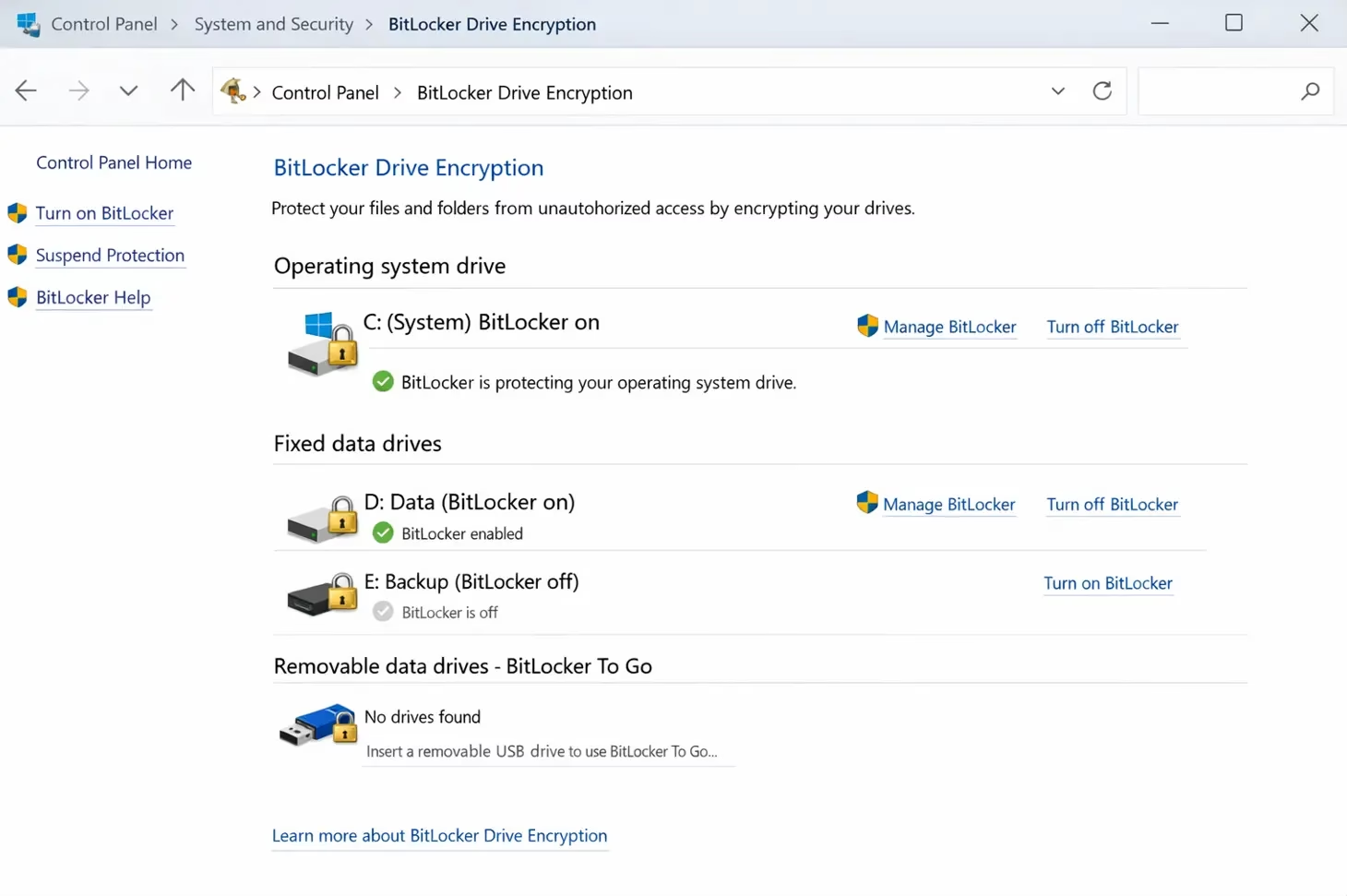
- Platform: Windows 10/11 Pro, Enterprise, Education
- Encryption: XTS-AES 128-bit / 256-bit
- Best for: Windows Pro users who want zero-setup full-disk encryption
- Price: Free (included in Windows Pro)
BitLocker has been part of Windows since Vista. Since Windows 11 24H2, Microsoft enables BitLocker by default on new clean installations — but only on supported devices with a compatible TPM chip. On older hardware or unsupported configurations, you will need to enable it manually via Control Panel → BitLocker Drive Encryption.
⚠️ Critical Warning — Back Up Your Recovery Key First
BitLocker automatically saves the recovery key to your Microsoft account by default. If you reinstall Windows on your primary drive without first backing up this key to an offline location, data on secondary drives may become permanently inaccessible. Before any OS reinstall, visit account.microsoft.com/devices/recoverykey and save your recovery key offline.
BitLocker To Go — For Removable Media
This variant encrypts USB drives, SD cards, and external HDDs/SSDs. Once locked, the device prompts for a password whenever connected to a different machine. For anyone regularly carrying sensitive data on external storage, this is a must-enable feature accessible directly from File Explorer.
2026 update: Microsoft is rolling out hardware-accelerated BitLocker encryption on new PCs, offloading cryptographic operations to dedicated silicon — a meaningful improvement for users on fast NVMe SSDs where software-only BitLocker has historically caused measurable throughput reduction.
✅ Pros
- Zero extra setup on Windows Pro — may already be protecting your device
- TPM chip integration for seamless, transparent authentication
- BitLocker To Go makes external drive encryption simple
- Hardware acceleration rolling out in 2026 for NVMe SSDs
❌ Cons
- Not open-source — cannot be independently audited
- Windows Pro / Enterprise only — not available on Windows Home
- Recovery key auto-saved to Microsoft account — a risk if not backed up
- Windows-only — no macOS or Linux support
3. Rohos Mini Drive – Best for Encrypted USB Partitions
- Platform: Windows
- Encryption: AES-256
- Best for: Creating hidden encrypted partitions on USB drives
- Price: Free (up to 8 GB encrypted); $35 one-time for unlimited size
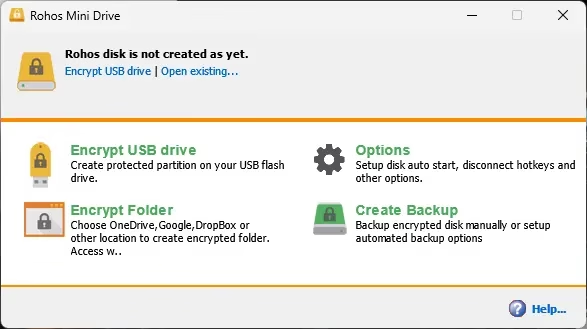
Rohos Mini Drive takes a clever approach: it carves out an AES-256 encrypted, hidden partition directly on your USB drive. This partition is invisible to the operating system until you mount it with the correct password.
The included portable executable stored on the USB drive itself means you can access your encrypted files from any Windows PC without installing software on the host machine — invaluable in offices, hotels, or shared computers where you lack admin rights.
The free tier limits the encrypted partition to 8 GB, which is ample for documents and credentials. The paid version ($35, one-time) removes this cap entirely.
4. Encrypto – Best for Quick Encrypted File Sharing
- Platform: Windows, macOS
- Encryption: AES-256
- Best for: Encrypting individual files or folders before sharing
- Price: Free
Encrypto by MacPaw is the simplest tool on this list. Drag a file or folder into the window, set a password and an optional hint, and Encrypto produces an AES-256 encrypted .crypto file. The recipient needs only Encrypto and the correct password to decrypt it — no accounts, no subscriptions, no complexity.
The hint feature is thoughtful: instead of sending the password through an insecure channel, you embed a clue that only the intended recipient would understand, adding a social-engineering layer on top of the cryptographic one.
Update status: The Windows version (v1.0.1) has not been updated since May 2018; the macOS version was last patched in August 2024. It still functions reliably, but we would not recommend it for long-term archival of critically sensitive data until a new release arrives.
5. LUKS – Best Native Encryption for Linux
- Platform: Linux (kernel-native)
- Encryption: AES-256 (default)
- Best for: Full-disk, partition, and system encryption on Linux
- Price: Free (built into the OS)
LUKS (Linux Unified Key Setup) is the standard disk encryption framework for Linux, integrated directly into the kernel via the dm-crypt module. During installation of Ubuntu, Debian, Fedora, and most major distributions, full-disk encryption powered by LUKS is offered as a checkbox — no third-party software needed.
The current LUKS2 standard introduces Argon2id for key derivation — a memory-hard algorithm specifically designed to resist GPU-accelerated brute-force attacks. It also supports up to 32 key slots per volume, allowing multiple distinct passphrases to unlock the same disk, useful for shared servers or maintaining a separate backup passphrase.
Key limitation: A LUKS-encrypted drive cannot be natively read on Windows or macOS without third-party software. If cross-platform access is needed, VeraCrypt or Cryptomator are better alternatives.
6. Cryptomator – Best for Encrypting Cloud Storage
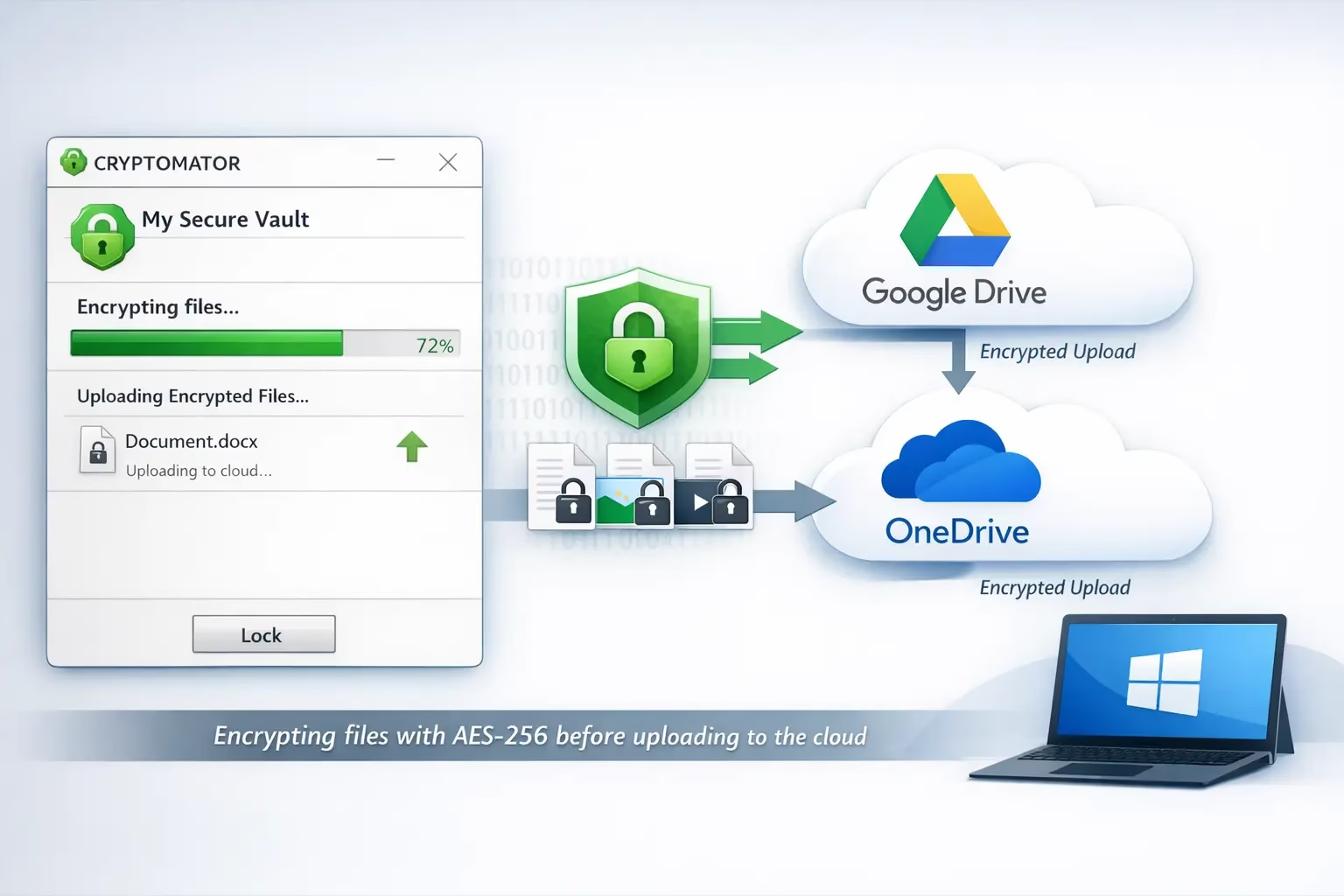
- Platform: Windows, macOS, Linux, Android, iOS
- Encryption: AES-256 (per-file, client-side)
- Best for: Encrypting Google Drive, Dropbox, OneDrive, or iCloud files before upload
- Price: Free on desktop; paid on mobile (voluntary-contribution download available)
Cloud storage is convenient but fundamentally untrustworthy from a privacy standpoint — every major provider holds the encryption keys to your data and can be compelled by governments to disclose them. Cryptomator solves this with client-side encryption that happens before your files ever touch the internet.
How Cryptomator Works
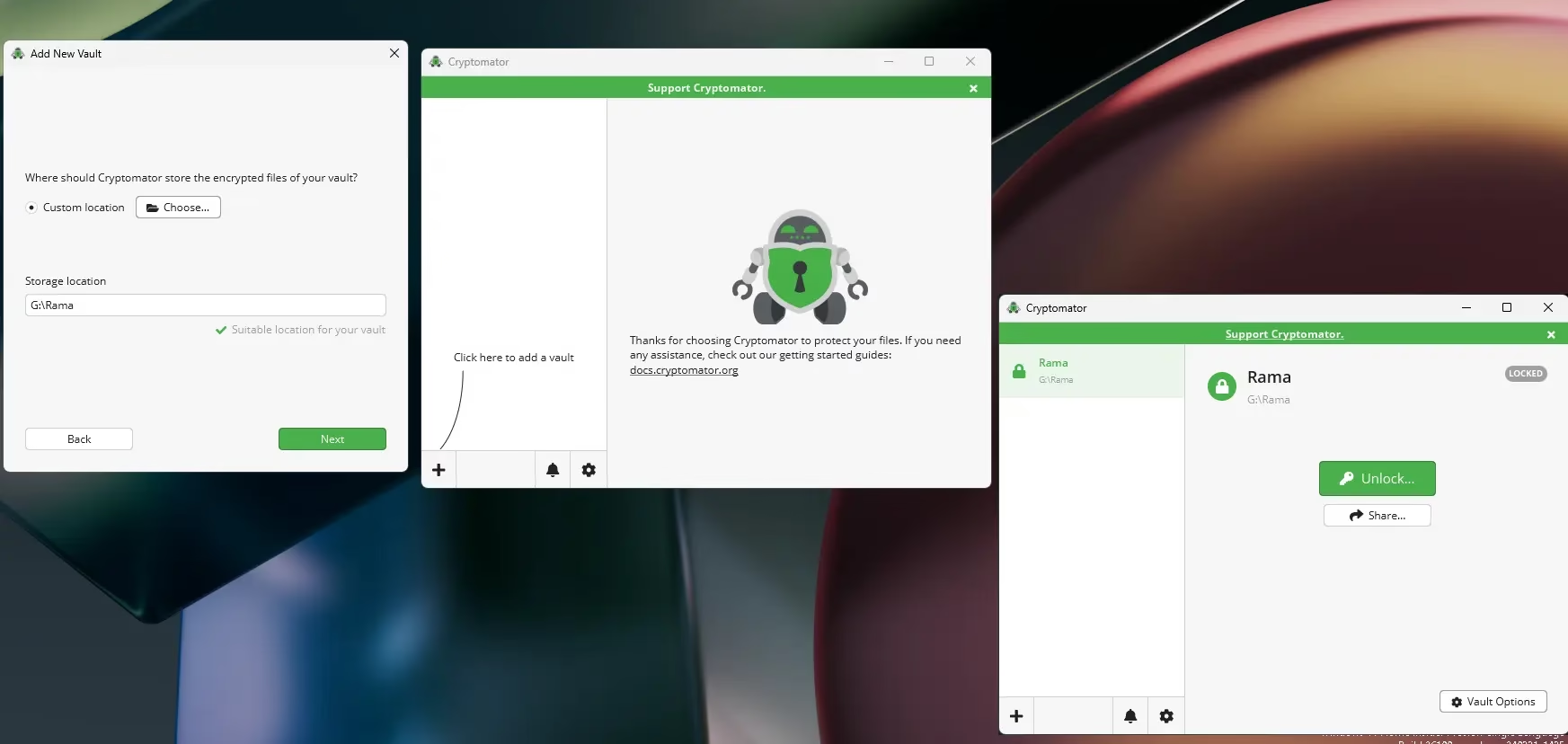
- Create a vault inside your Google Drive, Dropbox, or OneDrive sync folder.
- Assign a password to the vault.
- Cryptomator mounts a virtual drive on your system — drag files in as normal.
- Files are encrypted on the fly with AES-256 before the sync client uploads them.
What sets Cryptomator apart from VeraCrypt for cloud use is its per-file encryption model. VeraCrypt stores everything in one large encrypted container — modifying a single file requires re-uploading the entire container. Cryptomator encrypts each file individually, so only the changed file is re-synced. Far more efficient for large cloud vaults.
Crucially, Cryptomator also encrypts file and folder names, not just content. An attacker who gains access to your cloud account cannot even see the structure of your vault. The source code is fully open, and multiple independent security audits are publicly available on the Cryptomator security page.
✅ Pros
- Purpose-built for cloud storage — works with all major services
- Per-file encryption means only modified files need re-syncing
- Encrypts file and folder names as well as content
- Open-source with multiple published independent audits
- Available on all major platforms including Android and iOS
❌ Cons
- Mobile apps are paid (though voluntary-contribution download exists)
- File/folder level only — not suitable for full-disk encryption
- Vault password is managed separately from your cloud account
👉 Download: cryptomator.org/downloads
7. 7-Zip – Best for Encrypted Archives
- Platform: Windows, macOS, Linux
- Encryption: AES-256 (7z format)
- Best for: Encrypting archives for email, shared drives, or cold storage
- Price: Free & Open Source
7-Zip is almost certainly already installed on your Windows PC. Best known as a compression tool, it includes robust AES-256 encryption as part of its archive creation workflow — no extra setup required.
How to Encrypt Files with 7-Zip
- Right-click any file or folder → 7-Zip → Add to archive
- Set the archive format to 7z
- Enter a password and confirm the method is set to AES-256
- Tick “Encrypt file names” for full metadata protection
⚠️ Critical: Choosing the ZIP format instead of 7z causes 7-Zip to default to the legacy ZipCrypto algorithm—which is susceptible to known-plaintext attacks and can be cracked by modern tools. Always use the 7z format with AES-256 explicitly selected for any sensitive data.
If you regularly share sensitive archives, pair 7-Zip with one of the best free password managers to store and generate strong archive passwords securely.
8. No-Install Browser-Based Encryption Tools
Sometimes you need to encrypt a file from a machine where you cannot install software — a managed corporate laptop, a library computer, or a colleague’s PC. These browser-based tools run entirely client-side using the Web Crypto API. Your file never leaves your device.
Encryptor.app (File + text encryption)
Features:
-
- Encrypt files up to ~2GB
- AES-256-GCM encryption
- Chunk-based processing (efficient for large files)
- Zero-knowledge: data never leaves browser
👉 Best for: encrypting files before cloud upload (Google Drive, etc.)
⚠️ Trade-off: Performance depends on your RAM/CPU (large files = heavy).
OpenKit Encrypt Tool (Simple AES encryption)
Features:
-
- AES-256-GCM + PBKDF2
- Uses native Web Crypto API
- No login, no uploads
- Output is Base64 encrypted text
👉 Best for: encrypting passwords, API keys, small notes
🔗https://openkit.tools/encrypt
BrowserBasedTools (Advanced multi-tool suite)
Features:
-
- AES file/text encryption
- Hash generators
- Certificate tools (CSR, PEM, etc.)
- Entirely browser-executed
👉 Best for: dev/sysadmin workflows
🔗 https://browserbasedtools.com/tools/security
Best Practices
- Use strong passphrases (≥16 characters, mixed case + symbols).
- Always verify tool authenticity via its GitHub or official domain.
- Prefer AES‑256‑GCM for authenticated encryption (integrity + confidentiality).
- Test decryption before deleting originals to ensure recovery integrity.
📊 Full Comparison Table
| Tool | Platform | Algorithm | Full-Disk | Cloud | Open Source | Price |
|---|---|---|---|---|---|---|
| VeraCrypt | Win / Mac / Linux | AES-256 + more | ✅ | ❌ | ✅ | Free |
| BitLocker | Windows Pro | XTS-AES-256 | ✅ | ❌ | ❌ | Free (in OS) |
| Rohos Mini | Windows | AES-256 | USB only | ❌ | ❌ | Free / $35 |
| Encrypto | Win / Mac | AES-256 | ❌ | ❌ | ❌ | Free |
| LUKS | Linux only | AES-256 | ✅ | ❌ | ✅ | Free |
| Cryptomator | All + Mobile | AES-256 | ❌ | ✅ | ✅ | Free (desktop) |
| 7-Zip | Win / Mac / Linux | AES-256 | ❌ | ❌ | ✅ | Free |
| BrowserBasedTools | Browser (any OS) | AES-GCM (usually 256-bit) | ❌ | ❌ | ✅ | Free |
🎯 Best Tool Based on Your Use Case
- Full disk / entire system drive: VeraCrypt (all platforms) · BitLocker (Windows Pro only)
- Cloud storage — Google Drive / Dropbox / OneDrive: Cryptomator
- USB drive protection: BitLocker To Go · Rohos Mini Drive
- Quick file or folder sharing: Encrypto · 7-Zip
- No installation available: hat.sh (browser-based)
- Linux full-disk at install time: LUKS
- Send encrypted file without sharing a password: hat.sh (X25519 asymmetric mode)
⚠️ Common Encryption Mistakes to Avoid
Using strong encryption software is only half the battle. These are the mistakes that most commonly undermine otherwise solid security setups:
- Using weak or short passwords — AES-256 is effectively unbreakable, but a six-character password is not. Use a long, random passphrase (minimum 20 characters). A password manager can generate and store these safely.
- Forgetting to back up BitLocker recovery keys—The single most common encryption-related data loss event. Back up your recovery key to at least two offline locations before relying on BitLocker on any drive.
- Using ZIP instead of 7z format in 7-Zip — The ZIP format defaults to ZipCrypto, an outdated algorithm that modern tools can crack in seconds. Always use the 7z format with AES-256 explicitly selected.
- Storing the password in a plain text file on the same device — An encrypted drive protected by a password written in an unencrypted notepad on the same machine offers zero real-world security.
- Assuming cloud storage is private without client-side encryption — Google, Microsoft, Dropbox, and Apple can all be legally compelled to hand over your data. Use Cryptomator to encrypt before uploading.
- Never testing your recovery process — After setting up any encrypted volume, immediately verify you can fully decrypt it from scratch with just your password or recovery key. Do this before trusting the setup with real data.
❓ Frequently Asked Questions
What is the best free encryption software in 2026?
The best free encryption software in 2026 is VeraCrypt for full-disk and container encryption, Cryptomator for cloud storage encryption, and 7-Zip for quick archive-level file protection. All three use AES-256 encryption and are completely free to use.
Is BitLocker better than VeraCrypt?
It depends on your needs. BitLocker is more convenient for Windows Pro users — it is built into the OS and integrates with TPM chips for transparent authentication. VeraCrypt is open-source, independently audited, cross-platform (Windows, macOS, Linux), and offers the unique hidden volume feature. Security-focused users generally prefer VeraCrypt.
Can I encrypt files without installing any software?
Yes. Browser-based tools like hat.sh and File Lock process encryption entirely in your browser using the Web Crypto API. Your files never leave your device and no installation is required — ideal for shared or locked-down computers.
How do I encrypt files stored in the cloud?
Cryptomator is purpose-built for this. It encrypts files individually on your local device before your sync client uploads them. Cloud providers receive only encrypted data and cannot read your files even with full account access.
Is 7-Zip safe for encrypting files?
Yes, when you use the 7z format with AES-256 explicitly selected. Never use the ZIP format for sensitive data — it defaults to the outdated ZipCrypto algorithm which is significantly weaker and vulnerable to known-plaintext attacks.
Does encryption slow down my computer?
On any machine made in the last five years, the performance impact is negligible. Modern CPUs include AES-NI hardware acceleration that processes AES-256 at speeds exceeding your drive’s read/write throughput. The exception is software-only BitLocker on fast NVMe SSDs — Microsoft’s hardware-accelerated BitLocker, now rolling out in 2026, addresses this.
What are the most common encryption mistakes?
The most common mistakes are: using weak passwords, not backing up BitLocker recovery keys before a Windows reinstall, using ZIP instead of 7z format in 7-Zip, and storing encryption passwords in unprotected plain text files on the same device as the encrypted data. See the full Common Encryption Mistakes section above.
🔐 Final Verdict
Encryption is no longer a niche concern for journalists or IT professionals. With data breaches, device theft, and cloud vulnerabilities at record levels, protecting sensitive data is basic digital hygiene for everyone — and every tool on this list is completely free.
Our recommendation for most users: Install VeraCrypt for local files and drives. Add Cryptomator if you use cloud storage. Keep hat.sh bookmarked for when you need to encrypt something quickly on any machine. Complete the setup with a password manager and a review of your Windows 11 security settings.
💬 Which encryption tool do you rely on to protect your data? Drop a comment below—we read every one and reply to questions.
More security guides on Techno360:
- Best Free Password Managers in 2026 – Tested & Ranked
- Best Android Privacy Apps You Should Install Right Now
- Windows Security Settings You Should Change Today


Discover more from Techno360
Subscribe to get the latest posts sent to your email.