
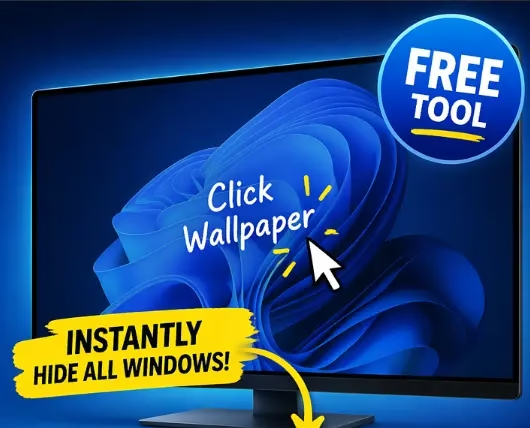
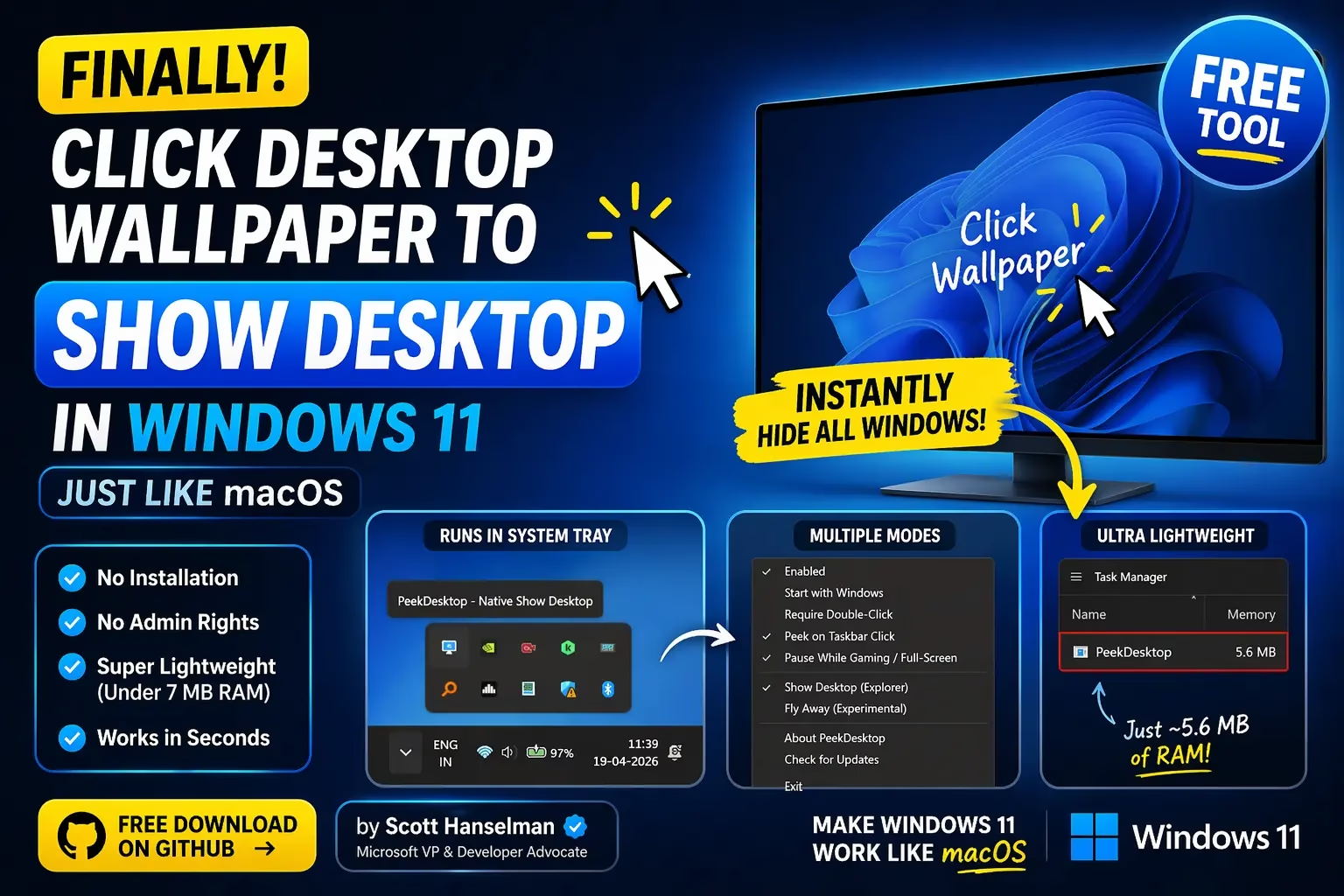
Want to click your desktop wallpaper in Windows 11 to instantly hide all open windows—just like macOS?
Windows doesn’t support this feature natively. There’s no built-in way to click the desktop and clear your screen in one step.
But a tiny free tool called PeekDesktop fixes that.
Once installed, you can click any empty area of your wallpaper to minimize everything instantly—and click again to restore all windows exactly where they were.
It takes under 60 seconds to set up, requires no installation, and uses almost zero system resources.
I tested it on Windows 11 (multi-monitor setup), and it works exactly like the macOS feature—without breaking anything.
📋 PeekDesktop at a Glance
- Developer: Scott Hanselman (VP, Microsoft)
- Version: v0.8.4 (Latest as of April 2026)
- Price: Free & Open Source (MIT License)
- Platform: Windows 11 (x64 & ARM64)
- Download Size: 887 KB (ZIP)
- RAM Usage: ~5.6 MB at idle | CPU: 0%
- Installation: None — extract and run
- Download: GitHub Releases (Free)
📖 In This Article
- What is PeekDesktop? The macOS feature Windows is missing
- How to click your desktop to show the desktop in Windows 11
- Three display modes explained
- All settings and options explained
- PeekDesktop vs built-in Windows show desktop options
- System resource usage: basically zero
- How PeekDesktop works under the hood
- How to download and set up PeekDesktop
- Who should use PeekDesktop?
- Why Windows still doesn’t have this built in
- Alternatives to PeekDesktop
- What’s coming next
- Frequently asked questions
What Is PeekDesktop? The macOS Feature That Windows Is Still Missing
macOS Sonoma introduced a deceptively simple but highly useful feature: click on empty desktop wallpaper and every window moves out of the way instantly. Click the wallpaper again, or switch to any app, and all your windows are restored exactly as they were—including maximized ones and windows across multiple monitors.
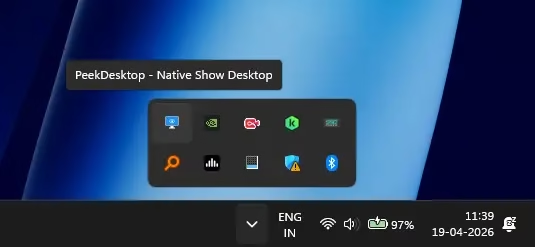
Windows 11 has never had such functionality. The closest built-in options are keyboard shortcuts or a small taskbar button — none of which feel as natural or discoverable. PeekDesktop fills this gap with a tiny, free, portable executable that lives in your system tray and adds the wallpaper-click interaction to Windows.
It was created by Scott Hanselman, Vice President at Microsoft—which makes it all the more remarkable that this had to come from a side project rather than a Windows feature update. The tool is open source and updated regularly on GitHub.

How to Click Your Desktop to Show the Desktop in Windows 11
The interaction in PeekDesktop is deliberately simple — there is almost nothing to learn:
- Click on an empty area of your wallpaper (not on any icon) — all open windows minimize instantly.
- Work freely on a clean desktop—drag files, right-click, open folders, and rearrange icons.
- Click the wallpaper again, any window, or the taskbar—every window returns to its exact original position and state.
The tool is smart about what counts as a “wallpaper click.” It uses Windows accessibility APIs to distinguish between bare wallpaper and desktop icons, so clicking or dragging icons never triggers the peek. This is what makes it usable on a busy desktop with many icons.
Two Display Modes: How Each One Clears Your Screen
Right-clicking the PeekDesktop icon in the system tray gives you three modes, switchable at any time:
1. Native Show Desktop (Explorer) — Recommended
Uses Windows Explorer’s own Show Desktop API. The most stable and compatible mode — works perfectly on multi-monitor setups and restores all window states correctly. This is the mode you should use by default.
2. Fly Away (Experimental)
Instead of minimizing, windows slide to the corners of your screen. Two windows move to two corners, three to three corners, and so on. This is the most visually striking mode and the closest to what Hanselman is trying to achieve with macOS-style animations — but it is still experimental, especially on multi-monitor and high-DPI configurations.
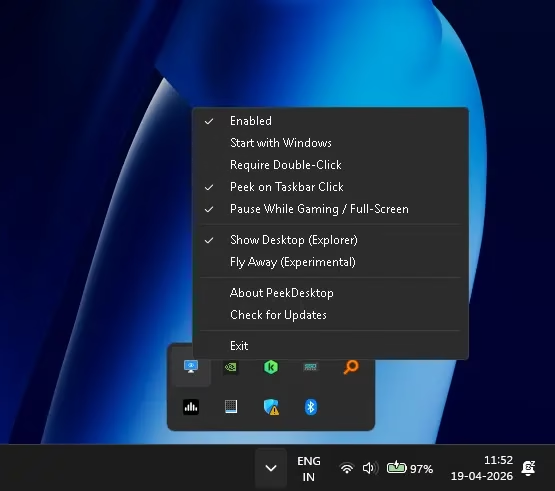
All PeekDesktop Settings and Options Explained
| Option | What It Does |
|---|---|
| Enabled | Toggles PeekDesktop on or off without closing it. |
| Start with Windows | Adds PeekDesktop to Windows startup. Enable this immediately — it does not add itself automatically. |
| Require Double-Click | Changes trigger from single to double-click on the wallpaper. Reduces any risk of accidental activation. |
| Peek on Taskbar Click | Also triggers the peek when you click an empty area of the taskbar. |
| Pause While Gaming / Full-Screen | Automatically disables the wallpaper click when a full-screen app is detected. Essential for gamers. |
| Show Desktop (Explorer) | Switches to Native Show Desktop mode — the stable, recommended default. |
| Fly Away (Experimental) | Switches to the experimental mode where windows move to screen corners instead of minimizing. |
| Check for Updates | Opens the latest GitHub Releases page directly. |
| Exit | Closes PeekDesktop completely. |
PeekDesktop vs Built-in Windows Show Desktop Options: Full Comparison
Windows 11 does have native ways to show the desktop — but none of them feel as natural as a wallpaper click. Here is how they compare:
| PeekDesktop | Win + D | Win + M | Taskbar Corner Button | |
|---|---|---|---|---|
| Trigger method | Mouse click on wallpaper | Keyboard shortcut | Keyboard shortcut | Mouse click (far corner) |
| Restores all windows | ✅ Yes — all windows, all states | ✅ Yes (toggle) | ❌ No — does not restore | ✅ Yes (hover or click) |
| Preserves window positions | ✅ Exact positions saved | ⚠️ Usually yes | ❌ No | ⚠️ Usually yes |
| Multi-monitor support | ✅ Full support | ✅ Yes | ✅ Yes | ⚠️ Primary monitor only |
| No accidental triggers | ✅ Icons excluded via API | N/A | N/A | ⚠️ Easy to miss-click |
| Feels natural / discoverable | ✅ Very natural | ❌ Keyboard-only | ❌ Keyboard-only | ⚠️ Hidden, hard to find |
| Requires install / admin rights | ✅ No — portable | ✅ Built-in | ✅ Built-in | ✅ Built-in |
Verdict: For mouse-driven workflows and macOS-style feel, PeekDesktop is far superior to any built-in option. The keyboard shortcuts remain useful for power users who already have them memorized, but they cannot replicate the intuitiveness of a wallpaper click.
System Resource Usage: Nearly Zero Impact
One of the best things about PeekDesktop is what it does not do to your system. I checked Task Manager with PeekDesktop running in the background:
- 🖥️ CPU: 0%
- 💾 Memory: 5.6 MB
- 💿 Disk: 0 MB/s
- 🌐 Network: 0 Mbps
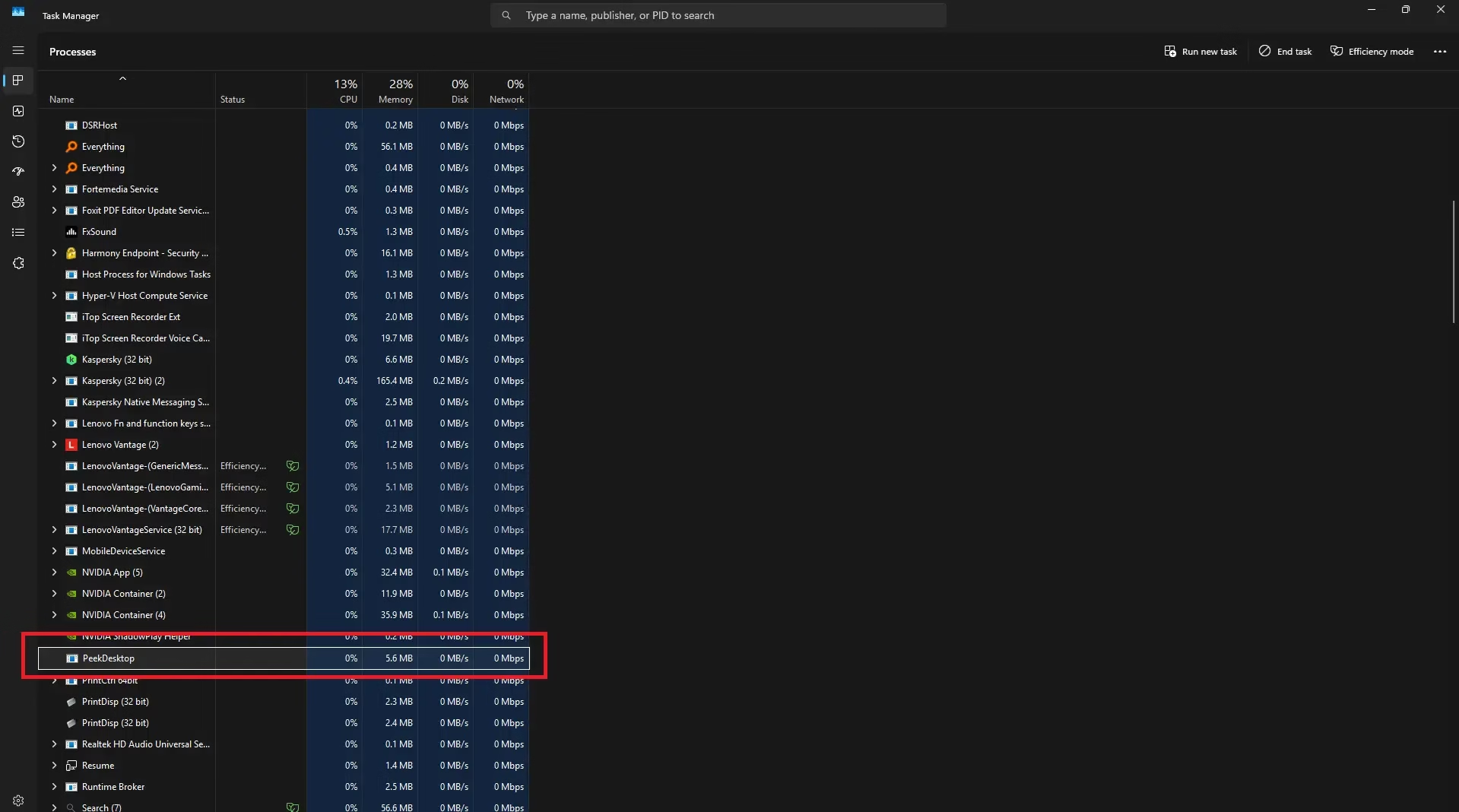
For context: the Windows Widgets panel typically uses 20–40 MB of RAM just sitting idle. PeekDesktop uses a fraction of that while doing something actually useful. If you are looking for lightweight Windows productivity tools, this is about as efficient as it gets.
How PeekDesktop Works Under the Hood (Technical Details)
For the technically inclined, PeekDesktop uses a smart combination of Windows APIs that are both lightweight and precise:
- SetWindowsHookEx(WH_MOUSE_LL) — A low-level global mouse hook that captures clicks globally without interfering with any running software.
- WindowFromPoint — Identifies exactly what UI element is under the cursor at the moment of a click.
- AccessibleObjectFromPoint — The critical accuracy layer. This accessibility API confirms whether the click hit bare wallpaper or a desktop icon, preventing false triggers entirely.
- EnumWindows + WINDOWPLACEMENT—Catalogues all open windows with their exact dimensions, positions, and states (normal, maximized, etc.) before minimizing them.
- SetWinEventHook(EVENT_SYSTEM_FOREGROUND) — Watches for window focus changes so PeekDesktop knows exactly when to restore windows.
- SetWindowPlacement — Restores every window to its precisely saved state, including maximized windows and multi-monitor positions.
None of these operations requires elevated privileges. The entire executable weighs 887 KB—about the same as a single screenshot—and runs in regular user mode.
How to Enable Click-to-Show Desktop in Windows 11 Using PeekDesktop
Setup takes under 60 seconds with no technical knowledge required:
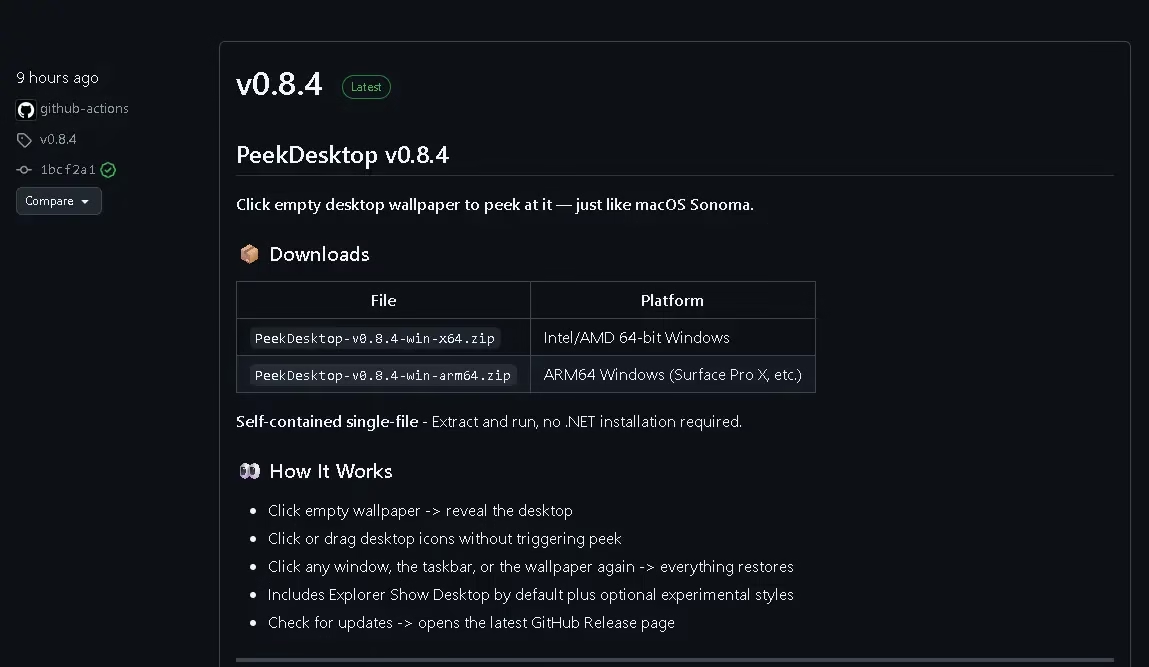
- Go to the PeekDesktop GitHub Releases page.
- Download the correct ZIP file:
PeekDesktop-v0.8.4-win-x64.zip→ Intel or AMD 64-bit Windows 11PeekDesktop-v0.8.4-win-arm64.zip→ Snapdragon-powered PCs (Surface Pro X, Copilot+ PCs)
- Extract the ZIP to any folder (e.g.,
C:\Tools\PeekDesktop\). - Double-click the executable. No installer, no .NET runtime needed.
- Right-click the system tray icon → enable “Start with Windows”. Do this immediately—it does not add itself to startup automatically.
- Click any empty area of your wallpaper and enjoy an instant desktop reveal on Windows 11.
Who Should Use PeekDesktop?
PeekDesktop is especially valuable for three types of Windows users:
macOS switchers and cross-platform users
If you regularly switch between a Mac and a Windows PC, the muscle memory for clicking the wallpaper to reveal the desktop is deeply ingrained. PeekDesktop gives Windows 11 the exact same interaction so you are not constantly fighting your habits. It pairs well with other Windows 11 productivity tips.
Multitaskers with many open windows
If you routinely have 8–15 windows open across multiple apps, reaching the taskbar corner button or remembering Win + D while mid-task is a genuine friction point. Being able to click the wallpaper—without thinking—to clear your workspace is a meaningful quality-of-life improvement.
Desktop-heavy workflows
Designers, video editors, and anyone who regularly moves files between the desktop and other applications will find the clean-desktop-on-click interaction far faster than minimizing windows one by one. The fact that icons are not accidentally triggered makes it safe even with a busy, icon-filled desktop.
Why Windows Still Doesn’t Have “Click Wallpaper to Show Desktop” Built In
This is the question that hangs over PeekDesktop’s entire existence. macOS has had wallpaper-click-to-reveal-desktop since Sonoma (2023). Why does Windows — with its massive engineering team — still not have this natively?
The honest answer is a combination of factors. The Windows taskbar’s Show Desktop button has been there since Windows 95 in various forms, and Microsoft has historically been reluctant to add interaction paradigms that could conflict with existing user habits. The wallpaper area in Windows is also more complex to manage — desktop icons, widgets, the Recycle Bin, and third-party desktop apps all compete for that same space, making a “click anywhere on the wallpaper” trigger harder to implement without breaking things.
PeekDesktop solves this through the accessibility API layer — by using AccessibleObjectFromPoint to distinguish wallpaper from icons at a system level. That approach works, but it requires a separate process monitoring mouse events globally, which Microsoft is unlikely to add to the core OS without careful testing at scale.
The fact that a Microsoft VP built this as a weekend project and open-sourced it is a clear signal: the feature is wanted, the need is real, and the implementation is possible. Whether it eventually becomes a Windows 11 checkbox in Settings remains to be seen.
Alternatives to PeekDesktop for Showing the Desktop in Windows 11
If PeekDesktop does not fit your workflow, here are the realistic alternatives for quickly revealing the desktop on Windows 11:
AutoHotkey script (Advanced users only)
You can write an AutoHotkey script that monitors for clicks on the desktop window and triggers ShowDesktop. This gives you similar functionality but requires AHK to be installed and a script to be written and maintained and is significantly more complex to get right—especially the icon-exclusion logic. Not recommended unless you are already comfortable with AHK scripting.
Win + D keyboard shortcut
The classic built-in toggle. It shows the desktop on the first press, restores windows on the second press. No extra software needed, but it is keyboard-driven and does not give you the instant, natural mouse-click feel that PeekDesktop provides.
The tiny sliver at the far-right edge of the Windows taskbar. It exists, but it is hard to target with a mouse, not widely known, and does not always restore windows correctly in all configurations.
Third-party window managers
Tools like WindowGrid or FancyZones offer advanced window management features, but none specifically replicate the wallpaper-click-to-reveal-desktop interaction. They solve a different problem.
Bottom line: For the specific interaction of clicking your wallpaper to minimize and restore all windows in Windows 11, PeekDesktop is the only dedicated, polished solution available right now.
What’s Coming Next: PeekDesktop Roadmap
The project is moving quickly. Planned features include:
- 🎞️ Smoother animations for window transitions
- ⌨️ Keyboard shortcut to trigger the desktop reveal
- 🖥️ Per-monitor management on multi-display setups
- 🚫 Exclude specific apps from being minimized
- 🧩 Windows 11 Widget area integration
- 📐 Improved Fly Away mode with full DPI and multi-monitor support
At v0.8.4, PeekDesktop already does its core job exceptionally well. With the roadmap above, it is only going to become more useful.
🏆 Techno360 Verdict
PeekDesktop is a must-install Windows 11 utility. It is free, open-source, 887 KB, requires no installation, and adds the single most natural show-desktop interaction Windows has never had. If you have ever found yourself wishing you could just click the wallpaper to clear your screen — download this now.
Tested on: Windows 11 Pro Insider Preview Build 26220.8165 (April 2026) — 4-monitor setup.
Frequently Asked Questions
How do I click my desktop wallpaper to show the desktop in Windows 11?
Windows 11 does not support this natively. Install PeekDesktop — a free 887 KB tool from GitHub. Once running, clicking any empty wallpaper area instantly minimizes all open windows. Click again to restore everything exactly where it was.
What is PeekDesktop and who made it?
PeekDesktop is a free, open-source Windows 11 utility that adds macOS-style “click wallpaper to reveal desktop” functionality. It was created by Scott Hanselman, vice president at Microsoft, and released on GitHub under the MIT license.
Is PeekDesktop safe to use?
Yes. It is fully open-source (MIT license), requires no administrator rights, installs nothing on your system, and is hosted on the official GitHub account of a Microsoft Vice President. The source code is publicly reviewable.
How is PeekDesktop different from Win+D in Windows 11?
Win+D requires a keyboard shortcut, which interrupts mouse-driven workflows. PeekDesktop works with a natural mouse click on the wallpaper, excludes icon clicks to avoid false triggers, and reliably restores all windows — including maximized ones — using saved WINDOWPLACEMENT data. Win+M does not restore windows at all.
How much RAM does PeekDesktop use?
Around 5.6 MB of RAM at idle, with 0% CPU usage. The download ZIP is 887 KB — smaller than most web page images. It is one of the most resource-efficient system tray utilities available for Windows 11.
Will PeekDesktop accidentally trigger when I click desktop icons?
No. PeekDesktop uses AccessibleObjectFromPoint, a Windows accessibility API, to detect whether your click landed on bare wallpaper or on a desktop icon. Clicking, dragging, or right-clicking any icon will never trigger the peek.
Does PeekDesktop work with multiple monitors?
Yes — the Native Show Desktop (Explorer) and Classic Minimize modes work correctly across multi-monitor setups and restore windows to their original monitors and positions. The experimental Fly Away mode is still being improved for multi-monitor and DPI scaling support.
Does PeekDesktop work on Windows 10?
PeekDesktop is developed and tested for Windows 11. Compatibility with Windows 10 has not been officially confirmed by the developer.


Discover more from Techno360
Subscribe to get the latest posts sent to your email.
You must be logged in to post a comment.