

Is your Windows PC running slower than it used to? Cluttered with temp files, bloated startup apps, and privacy settings you never agreed to? You’re not alone—and you don’t need to pay for a solution.
Kudu for Windows is a completely free, open-source system maintenance tool that handles cleaning, privacy hardening, disk analysis, and more—all from one clean interface.
In this hands-on review, we’ll break down everything Kudu offers, how it compares to paid alternatives, and whether it deserves a place on your PC in 2026.
Contents
- 1 What is Kudu for Windows?
- 2 Key Features of Kudu for Windows
- 3 System Hardening: Take Back Your Privacy
- 4 Built-in Malware Scanner: An Unexpected Bonus
- 5 User Experience: Simple enough for beginners
- 6 Pros and Cons of Kudu for Windows
- 7 Kudu vs Other PC Optimization Tools
- 8 Final Verdict: Should you download Kudu for Windows?
What is Kudu for Windows?
Kudu for Windows is a free and open-source utility that helps users maintain their system health. It combines multiple optimization tools into one dashboard, making it easier to manage tasks like cleaning junk files, optimizing startup programs, and monitoring system performance.
Unlike many bloated alternatives, Kudu focuses on simplicity while still offering a powerful set of features.
Think of it as a Swiss Army knife for your PC health. Instead of installing five different programs to clean temp files, manage startup entries, scan for malware, and check disk usage, Kudu handles all of these tasks from a single dashboard. And because it is completely free and open-source, there are no hidden charges, premium upsells, or shady data collection practices.
Kudu is actively maintained and can be found on both its official website (https://usekudu.com/) and GitHub.
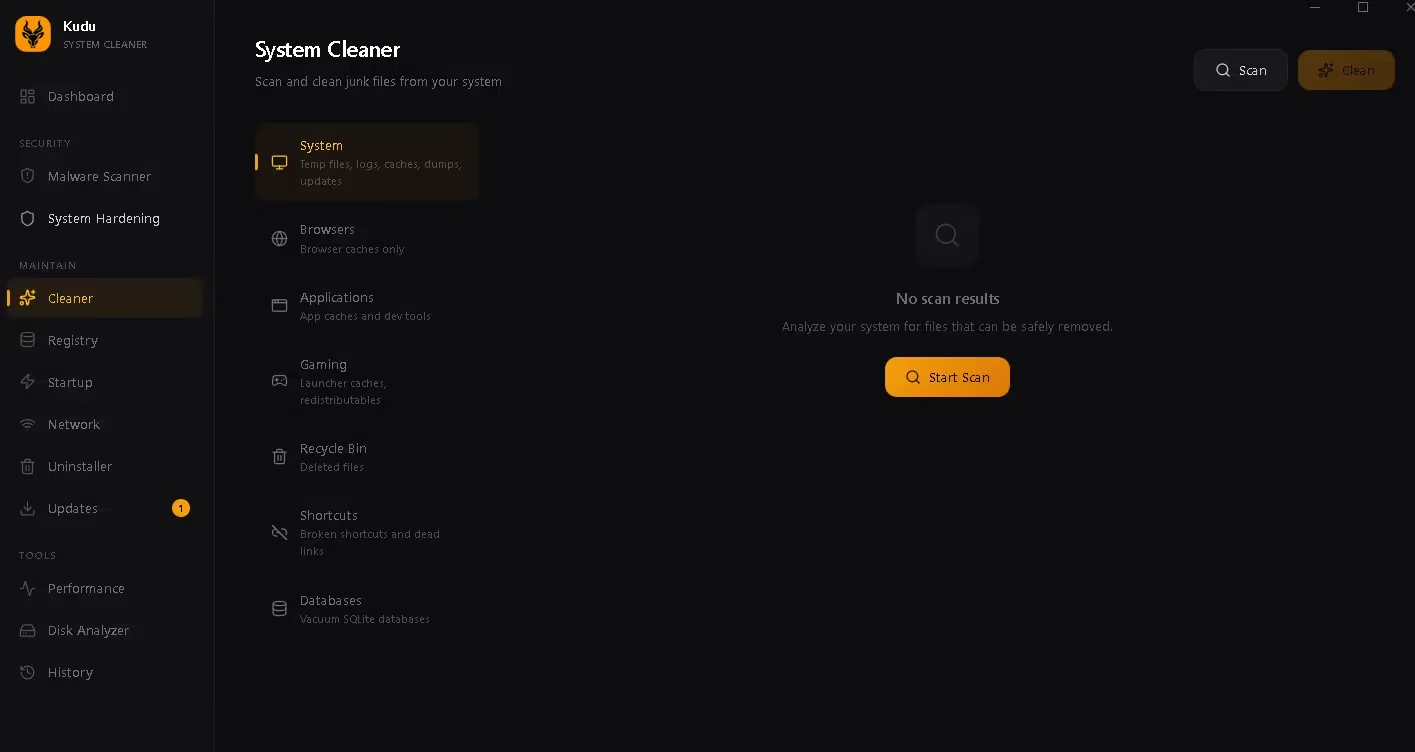
Key Features of Kudu for Windows
Here is a summary of the features that Kudu offers:
1. General System Cleaner
Kudu’s cleaner targets the junk that accumulates silently over time—temporary files, leftover application cache, and residual system data. Running this program regularly can free up meaningful disk space and help Windows operate more efficiently. During testing, the cleaner performed exactly as expected without any errors or unexpected behavior.
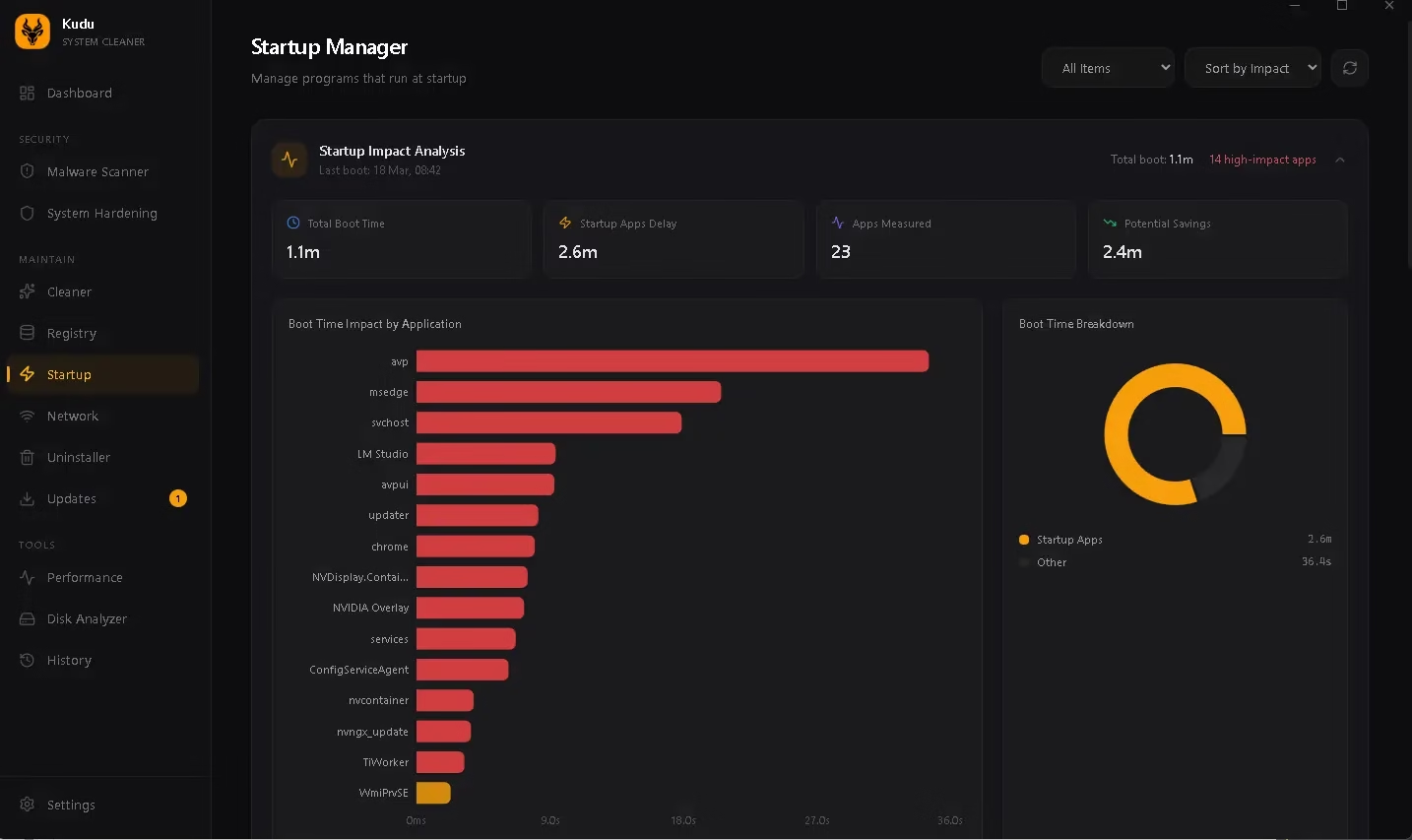
2. Registry and Startup Optimizer
Over time, the Windows registry accumulates orphaned entries and invalid keys that can slow down your system. Kudu scans and cleans these safely. The startup optimizer lets you control which programs launch when Windows boots—a quick win for improving boot times and overall responsiveness.
3. Network Cleanup Tool
Kudu includes a network cleanup utility that flushes DNS caches, resets network configurations, and clears browser-related network data. This is particularly useful if you are experiencing slow browsing or intermittent connectivity issues.
4. Program Uninstaller and Updater
Rather than digging through Windows Settings to uninstall software, Kudu provides its own program manager. You can uninstall applications cleanly and check for software updates — all from the same interface. That feature alone can save a surprising amount of time during routine maintenance sessions.
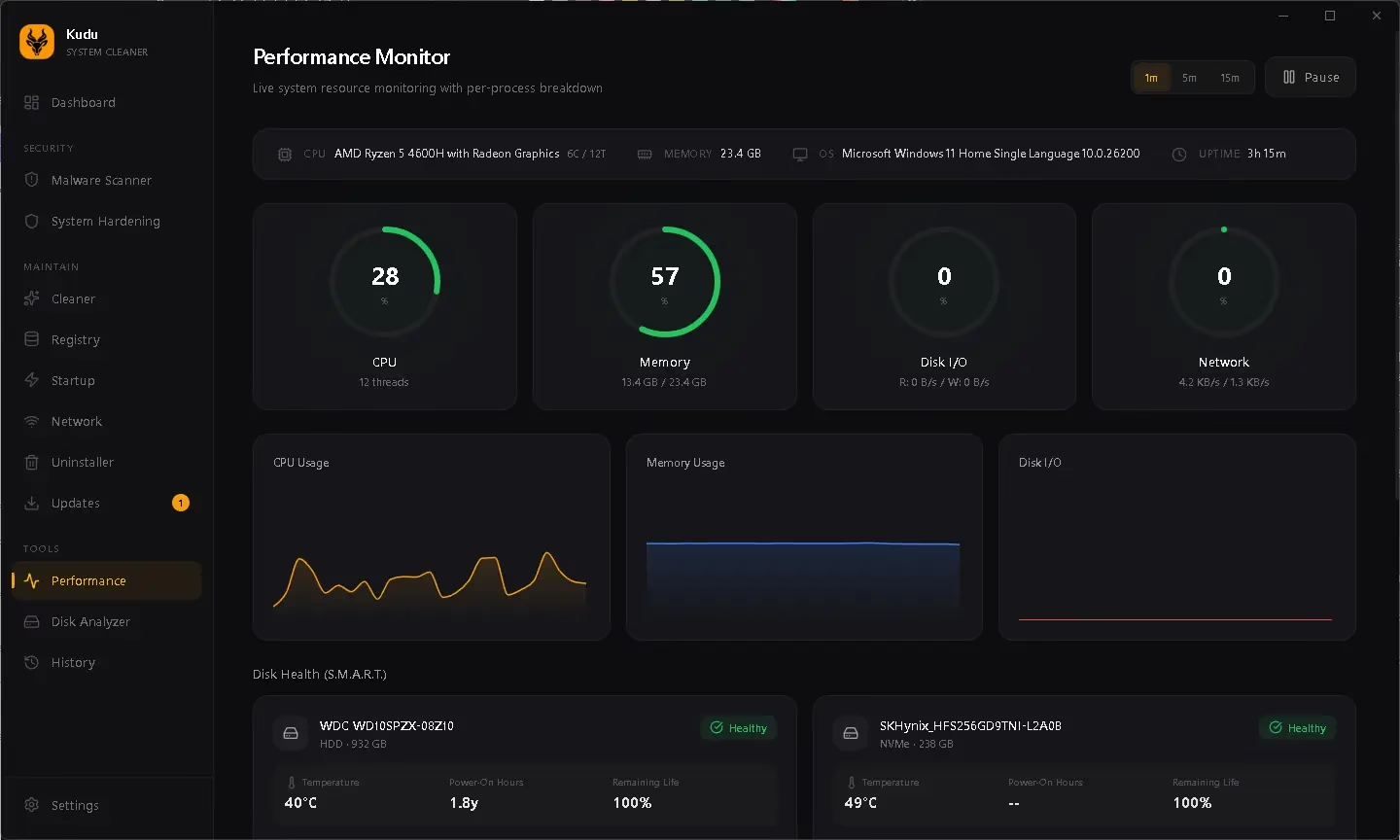
5. Performance Monitor and Disk Analyzer
One of the more impressive features in Kudu for Windows is its Performance and Disk Analyzer section. You get a clear visual overview of how your storage is being used—broken down by folder and file type—making it easy to identify space hogs. The interface presents this information in a digestible way without overwhelming you with technical jargon.
System Hardening: Take Back Your Privacy
One of the standout features in Kudu is its System Hardening module—and it is something that sets this tool apart from most basic PC cleaners. By default, Windows 10 and 11 automatically activate telemetry and data-collection settings. Most users have no idea these are running in the background.
Kudu’s System Hardening panel presents each privacy-related setting with a plain-language description, so you know exactly what you are toggling before you make any changes. This empowers even non-technical users to make informed decisions about their own data—without needing to hunt through obscure Windows menus.
If you value your privacy—and you should—this feature alone makes Kudu worth downloading. For more tips on keeping your system lean and secure, check out our system maintenance guides on Techno360.

Built-in Malware Scanner: An Unexpected Bonus
Not many free maintenance tools include a malware scanning component, which is why Kudu’s inclusion of one is such a pleasant surprise. The scanner uses heuristic analysis — meaning it looks for suspicious behavior patterns, not just known virus signatures — and integrates directly with Windows Defender to deliver a more comprehensive security check. It is not a replacement for a dedicated antivirus solution, but as a supplementary layer of protection, it is a genuinely useful addition.
User Experience: Simple enough for beginners
Kudu’s interface is clean, modern, and well-organized. The tools are logically grouped, and the navigation is so intuitive that you can find everything in a few minutes. There are no aggressive pop-ups pushing you to upgrade, no confusing technical dialogs, and no misleading progress bars designed to make simple tasks look more impressive than they are.
This is the kind of software experience that respects the user’s intelligence while still being accessible to those who are new to PC maintenance tools. Whether you are a student, a home user, or a professional who just wants a reliable cleanup tool without fuss, Kudu delivers.
Pros and Cons of Kudu for Windows
✅ Pros
- Completely free and open-source—no hidden fees or premium tiers
- Clean, beginner-friendly interface that avoids unnecessary complexity
- Comprehensive toolset covering cleaning, privacy, disk analysis, and security
- The system hardening module makes privacy customization genuinely accessible
- Integrated malware scanner with Windows Defender support
- No bundled adware, toolbars, or unwanted extras
❌ Cons
- Not as advanced as premium tools—power users looking for scheduled scans, automated maintenance routines, or deep driver management will find Kudu’s feature set relatively basic compared to tools like IObit Advanced SystemCare Pro.
- The malware scanner is supplementary, not standalone—it integrates with Windows Defender rather than replacing it. Don’t uninstall your antivirus.
- Limited automation—There’s no built-in scheduler to run cleanups automatically. You’ll need to open the app and trigger scans manually.
How to Download and Install Kudu for Windows?
- Visit the official website at usekudu.com
- Click the Download button for the latest version
- Run the installer—no bundled software or toolbars
- Launch Kudu and begin with the General System Cleaner for an immediate performance boost
Kudu vs Other PC Optimization Tools
Compared to premium tools like Advanced SystemCare, Kudu focuses more on simplicity and transparency.
| Feature | Kudu (Free) | CCleaner (Free) | Advanced SystemCare (Free) |
|---|---|---|---|
| Price | Free / Open-Source | Freemium | Freemium |
| System Cleaner | ✅ | ✅ | ✅ |
| Privacy/Hardening | ✅ | ❌ | Limited |
| Malware Scanner | ✅ (Basic) | ❌ | ✅ |
| Ads / Upsells | ❌ None | ✅ Frequent | ✅ Frequent |
| Open Source | ✅ | ❌ | ❌ |
If you want a feature-rich commercial solution, you can explore: https://techno360.in/advanced-systemcare-19-pro-free-license-giveaway/
However, if you prefer a free and open-source alternative without ads or unnecessary extras, Kudu is a sound choice.
FAQ:
Q: Is Kudu for Windows safe to use? Yes. Kudu is open-source, meaning anyone can inspect its code. It contains no adware, trackers, or bundled software.
Q: Does Kudu work on Windows 11? Yes. Kudu is compatible with Windows 10 and Windows 11.
Q: Is Kudu better than CCleaner? For privacy-conscious users, yes — Kudu’s System Hardening module and open-source transparency give it an edge over CCleaner’s freemium model.
Q: Where can I download Kudu for Windows? You can download Kudu for free from the official site at usekudu.com.
Q: Does Kudu replace antivirus software? No. The built-in malware scanner is a supplementary tool. Always use a dedicated antivirus solution alongside Kudu.
Final Verdict: Should you download Kudu for Windows?
After testing Kudu across two Windows 11 machines over several days, we found it to be one of the most trustworthy free maintenance tools available in 2026.
If you are looking for a free, trustworthy, and well-designed system maintenance tool for Windows, Kudu for Windows is absolutely worth a try. It covers all the essential bases—cleaning, optimization, disk analysis, privacy hardening, and even basic malware scanning—in a single, easy-to-use package.
It is particularly well-suited to users who want more control over their Windows privacy settings without needing to dive deep into Group Policy or registry edits. And because it is open-source, you can trust that it is doing exactly what it claims—nothing more, nothing less.
Give Kudu a spin—your PC will thank you. You can download it from the official website at usekudu.com.


Discover more from Techno360
Subscribe to get the latest posts sent to your email.
You must be logged in to post a comment.