
🛡️ FREE SECOND-OPINION SCANNER · TESTED ON WINDOWS 11
Antivirus says you’re clean, but the PC still feels off?
HouseCall is Trend Micro’s free, on-demand scanner. You run it once, it checks your PC with fresh cloud signatures, cleans what it finds, and then gets out of the way. It doesn’t replace your antivirus and doesn’t fight with it either.
💰 100% Free 🪟 Windows only ⚡ On-demand 🌐 Needs internet
⚡ Quick Read
- What it is: a free virus and malware scanner from Trend Micro that you run when you want a second check, not a full-time antivirus.
- Works with your current antivirus: Trend Micro says plainly you don’t need to uninstall anything first.
- Scan types: Quick, Full, and Custom (pick the folders or drive you want checked).
- My test: the default scan on my Windows 11 PC ran for about 27 minutes and found 0 threats.
- Watch out for: the results page pushes several paid Trend Micro products. You can ignore every one of them.
I’ve been fixing Windows PCs since my IT support days, and one habit never left me: when a machine acts strange, I never trust a single antivirus verdict. Pop-ups that shouldn’t be there, a browser homepage that keeps changing, a fan that spins up when nothing is open. Your main antivirus might say “all good,” but every engine has blind spots.
That’s exactly the gap Trend Micro HouseCall fills. It’s a free tool from a company that has been in the security business for decades, and it has been around in one form or another since the mid-2000s. I downloaded the current build, ran it on my own Windows 11 machine, and took screenshots at every step. Here’s what you actually get, what you don’t, and whether it deserves a spot in your toolkit.
| Detail | Information |
|---|---|
| Developer | Trend Micro |
| Software | HouseCall |
| Price | Free |
| Platform | Windows (tested on Windows 11) |
| Scan type | On-demand (Quick, Full, Custom) |
| Internet | Required |
| Real-time protection | No |
| Download | Official Trend Micro website |
What Is Trend Micro HouseCall?
HouseCall is an on-demand scanner. It doesn’t give you continuous real-time protection and isn’t meant to work as a full-time antivirus. You open it whenever you want a check, and it scans your PC on demand. You run it, it hunts for viruses, worms, Trojans, spyware and other nasties, it offers to clean up anything bad, and then you close it.
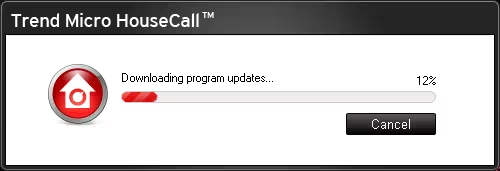
The “online” part of the name comes from how it works. You download a small launcher, and when you run it, it downloads program updates from Trend Micro before the scanner opens (you can see this in Step 2 below). Trend Micro says its Smart Protection Network keeps the service supplied with the latest protection against new threats. In practice, that’s a real advantage over a portable scanner you downloaded months ago and forgot about.
Key Features (and What Trend Micro Actually Promises)
I stuck to what’s on Trend Micro’s official product page and what I saw on my own screen. No inflated claims.
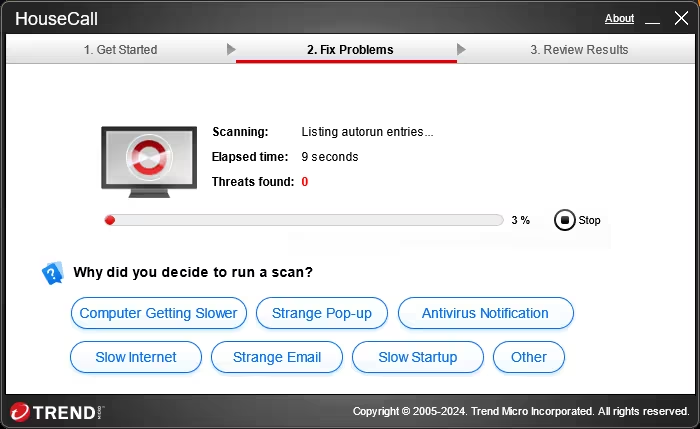
- Free malware scan: checks your files and also looks for malicious software hiding outside normal files, such as autorun entries. During my scan I literally saw it “Listing autorun entries” in the first few seconds.
- Threat removal: if something nasty turns up, HouseCall suggests what to do with it and cleans it for you.
- Threat report: a summary at the end shows what was found, plus a Logs section if you want to look back at earlier scans.
- Flexible scan options: Quick Scan covers critical system areas, Full Scan goes through everything, and Custom Scan lets you point it at a specific folder or drive (handy if you only want to check your Downloads folder).
- Plays nicely with other antivirus: Trend Micro’s own FAQ says you should not remove your existing antivirus before running it.
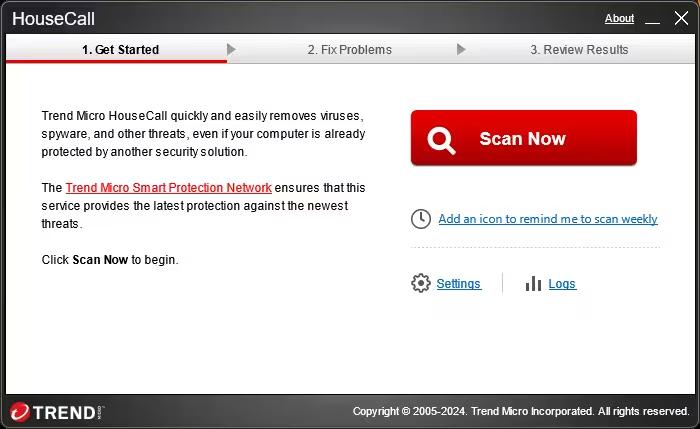
- Weekly reminder (optional): there’s a link on the start screen to add a desktop icon that reminds you to scan once a week.
⚠️ A quick correction you won’t see on most download sites: older write-ups mention an “Include my Home Network” option that scans other gadgets on your Wi-Fi. Trend Micro’s separate HouseCall for Home Networks tool reached end of support on 31 July 2024 and its service stopped on 30 November 2024, according to Trend Micro’s help centre. The regular HouseCall malware scanner is still alive and well, but don’t count on it to audit your router or smart TV.
System Requirements
| Item | Details |
|---|---|
| Operating system | Windows. Trend Micro’s published requirements list versions from Windows 7 to Windows 11 (32-bit and 64-bit where applicable). I tested on Windows 11. |
| Architecture | Trend Micro’s help centre lists separate 32-bit and 64-bit downloads (the launcher I used was 64-bit) |
| Internet | Required, since the engine and threat data are downloaded at launch |
| Display | 1024 × 768 or higher |
| Price | Free, no account or sign-up needed |
How to Scan Your PC with HouseCall (Step by Step)
Step 1: Download the launcher
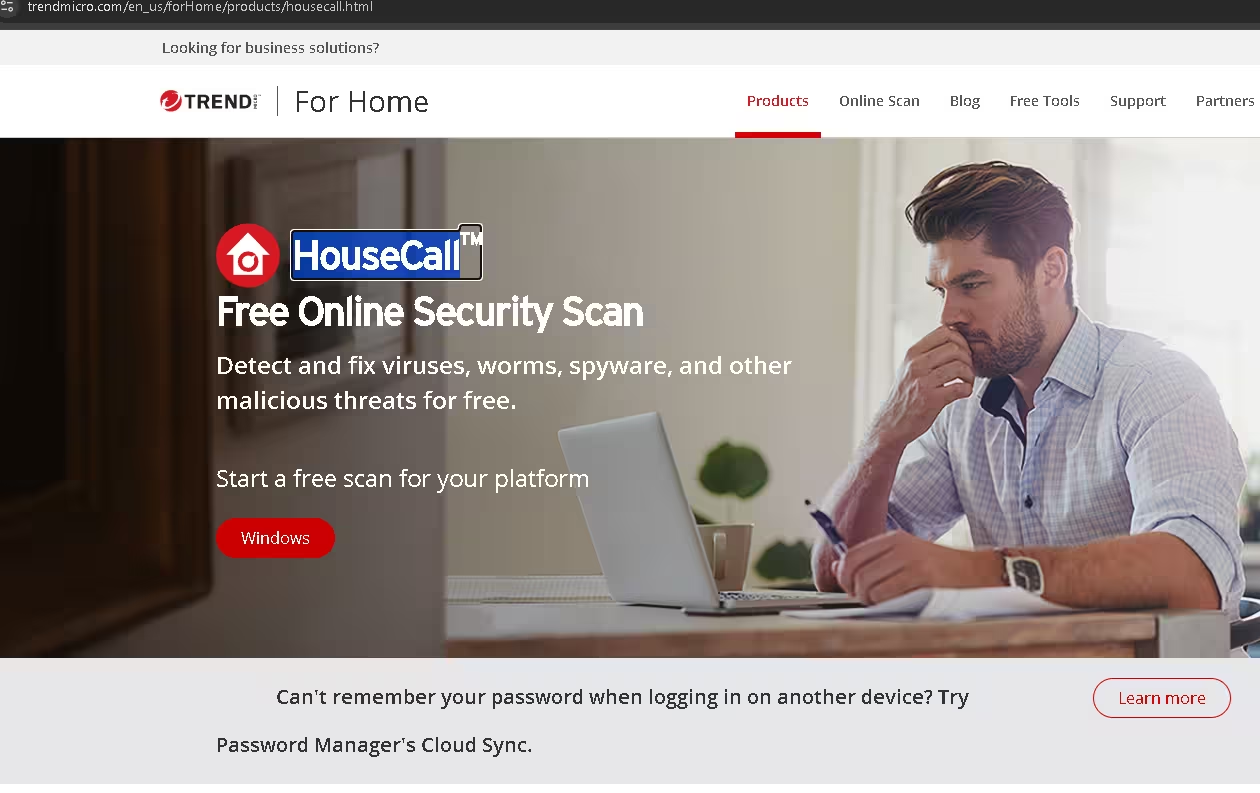
Head to the official HouseCall page and click the Windows button. Only download it from Trend Micro’s site. Fake “free scanner” downloads are an old trick for spreading the very malware you’re trying to get rid of.
Step 2: Run it and accept the terms
Double-click the file. The launcher first downloads program updates, which only took a short while on my connection.
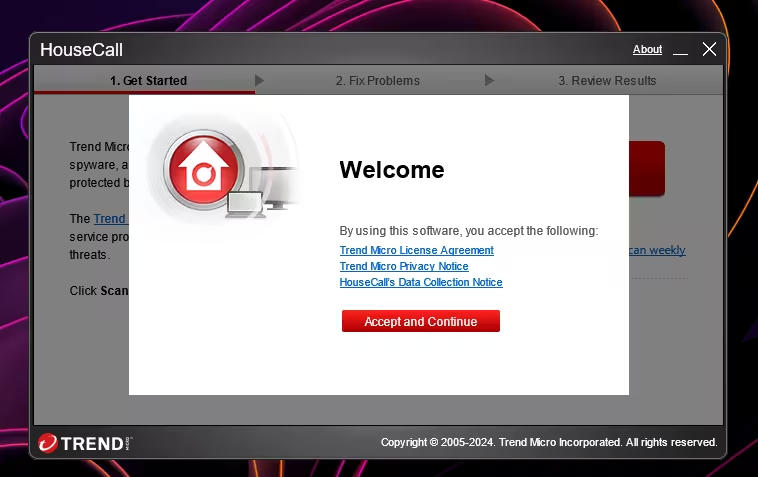
Next, a Welcome screen appears with links to the licence agreement, privacy notice and HouseCall’s data collection notice. Give the data collection notice a quick read if privacy matters to you, then click Accept and Continue.
Step 3: Hit Scan Now
The main window is about as simple as security software gets: one big red Scan Now button. If you’d like to switch between Quick, Full or Custom, click Settings first.
Step 4: Let it work
While it runs, HouseCall asks why you decided to scan (slow computer, strange pop-up, slow internet and so on). Answering is optional. You can keep using the PC, but heavy work will slow both you and the scan down.
Step 5: Review the results
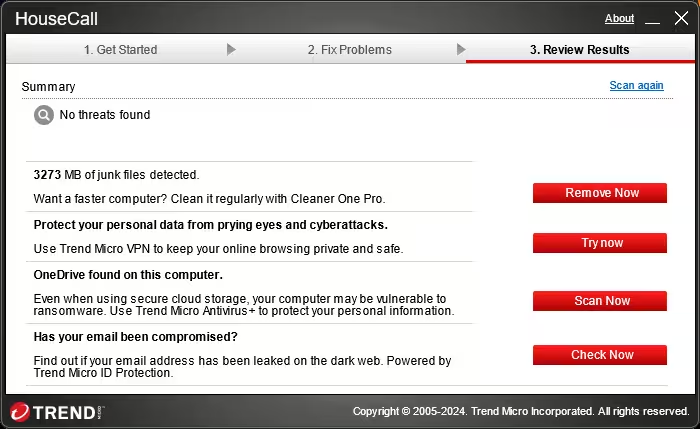
Once HouseCall finishes scanning, it switches to the Review Results tab. If threats were found, HouseCall lists them with suggested actions. If nothing turned up, you’ll see “No threats found” and you’re done.
My Hands-On Experience
I ran HouseCall on my everyday Windows 11 PC, which already has its own antivirus running. There were no conflicts, no warnings about another security product, and nothing crashed. That alone puts it ahead of some second-opinion tools I’ve tested over the years.
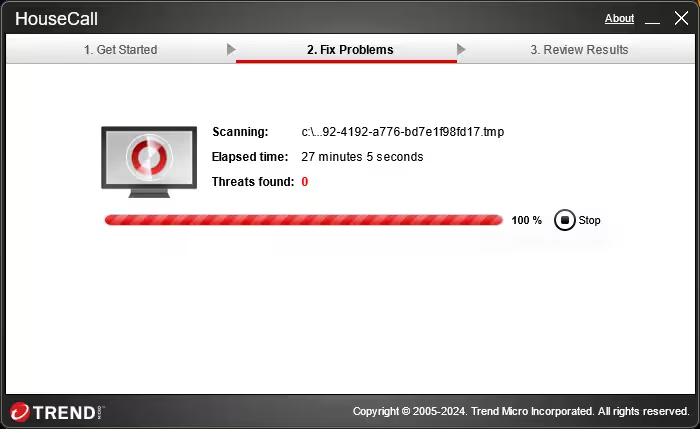
Scan time: my scan took 27 minutes and 5 seconds to reach 100%. Trend Micro itself says a Quick Scan can finish in minutes, while Full or Custom scans can take hours depending on drive size, PC speed and your connection. So if you’re testing a laptop full of games and photos, plan for a coffee break, or run a Full Scan overnight.
Result: zero threats. That’s what I expected on a machine I keep tidy, and it’s honestly the most common outcome. A clean result is reassuring, but it doesn’t guarantee the PC is completely free of malware. It only means HouseCall didn’t detect any threats during this scan. If the odd behaviour continues, try a second tool such as one from the comparison table below.
The part I didn’t love: the results page. Under “No threats found,” HouseCall listed four offers: a junk-file cleaner (it flagged about 3.2 GB of junk on my PC and pointed me to Cleaner One Pro), Trend Micro VPN, Antivirus+ (prompted because it spotted OneDrive), and an ID Protection dark-web check. To be clear, the 3,273 MB junk-file figure is a cleanup promotion, not a malware detection. It has nothing to do with the zero-threat result. None of these offers are required, and none of them affect the free scan. But a less experienced user could easily assume “Remove Now” is part of the cleanup. It isn’t. It’s a sales pitch. Windows’ own Disk Cleanup or Storage Sense will clear junk files for free.
Pros and Cons
| 👍 What I liked | 👎 What could be better |
|---|---|
| Free, no sign-up, no trial timer | Windows only on the current download page |
| Downloads program updates each time you launch it | Needs an internet connection to run |
| Runs alongside your existing antivirus | No real-time protection (by design) |
| Quick, Full and Custom scan choices | Results page is crowded with paid upsells |
| Dead-simple interface, great for non-techy family members | Home network scanning is no longer offered |
HouseCall vs Other Free Second-Opinion Scanners
I’ve reviewed several of these on Techno360, so here’s how HouseCall fits in.
| Tool | Install style | Works offline? | Best for |
|---|---|---|---|
| Trend Micro HouseCall | Small launcher, downloads updates at start | No | Easy, up-to-date second opinion |
| Microsoft Safety Scanner | Portable EXE | Yes, after download | Defender-engine check without installing |
| Dr.Web CureIt | Portable EXE | Yes, after download | Deep scan from a USB stick |
| Trellix Stinger | Portable EXE | Yes, after download | Fast targeted clean-up of known threats |
My take: if your PC is online and you just want the simplest possible “is anything wrong?” check, HouseCall is the friendliest of the bunch. If the malware is blocking your internet, go with one of the portable tools above, copied over on a USB drive from a clean computer.
Who Should Use HouseCall?
- Anyone whose PC suddenly feels slow, shows odd pop-ups, or behaves strangely even though their antivirus is quiet.
- People helping parents or relatives who aren’t comfortable with technical tools. One red button is hard to get wrong.
- Users who just installed something sketchy and want a quick sanity check.
- Anyone who likes a monthly “second look” routine on top of Microsoft Defender or another antivirus.
If you don’t have any antivirus running right now, fix that first. HouseCall checks your PC at one moment in time; it won’t stop the next threat from arriving. Our guide to the best free antivirus for Windows 11 covers solid options that cost nothing.
📊 Techno360 Verdict
4.2 / 5
Recommended as a free second-opinion scanner
How I scored it: an editorial rating based on ease of use, scan options, compatibility with my existing antivirus, and the results-page experience. It isn’t a lab detection-rate test.
Trend Micro HouseCall does one job and does it without fuss: it gives your PC a fresh, independent check without asking you to uninstall anything or create an account. It ran cleanly next to my existing antivirus on Windows 11 and the interface couldn’t be simpler. It loses points for the pushy upsells on the results page, the need for an internet connection, and the quiet retirement of home network scanning. Keep it bookmarked, run it when something feels off, and just skip the “Remove Now” and “Try now” buttons.
Frequently Asked Questions
Is Trend Micro HouseCall really free?
Yes. The scan and the threat removal are free, with no account and no time limit. The paid items you see on the results screen are separate Trend Micro products and are entirely optional.
Do I need to uninstall my antivirus before running HouseCall?
No. Trend Micro states that HouseCall works alongside other antivirus programs. I ran it next to my existing security software on Windows 11 without any conflict.
How long does a HouseCall scan take?
It depends on the scan type, drive size, PC speed and internet connection. A Quick Scan can finish in a few minutes, while a Full or Custom Scan can take several hours. My scan on Windows 11 took about 27 minutes.
Does HouseCall give real-time protection?
No. It’s an on-demand scanner, so it only checks your PC when you run it. You still need a regular antivirus, such as Microsoft Defender, for always-on protection.
Is HouseCall available for Mac?
At the time of writing, Trend Micro’s official HouseCall page only offers a Windows download. Mac users should look at Trend Micro’s separate Mac antivirus or another Mac-specific tool.
Can HouseCall still scan my home network devices?
Not anymore. The separate HouseCall for Home Networks tool reached end of support in July 2024 and stopped working in November 2024. The standard HouseCall scanner still checks your Windows PC for malware.
✍️ About the author: Ramakanth is an Anna University graduate and former IT support engineer who has been writing about Windows software and PC security at Techno360 since 2008. Every tool reviewed here is downloaded from its official source and tested on his own Windows 11 machine. Screenshots in this post are from that test.