
FREE & OPEN SOURCE · WINDOWS PS5 REMOTE PLAY
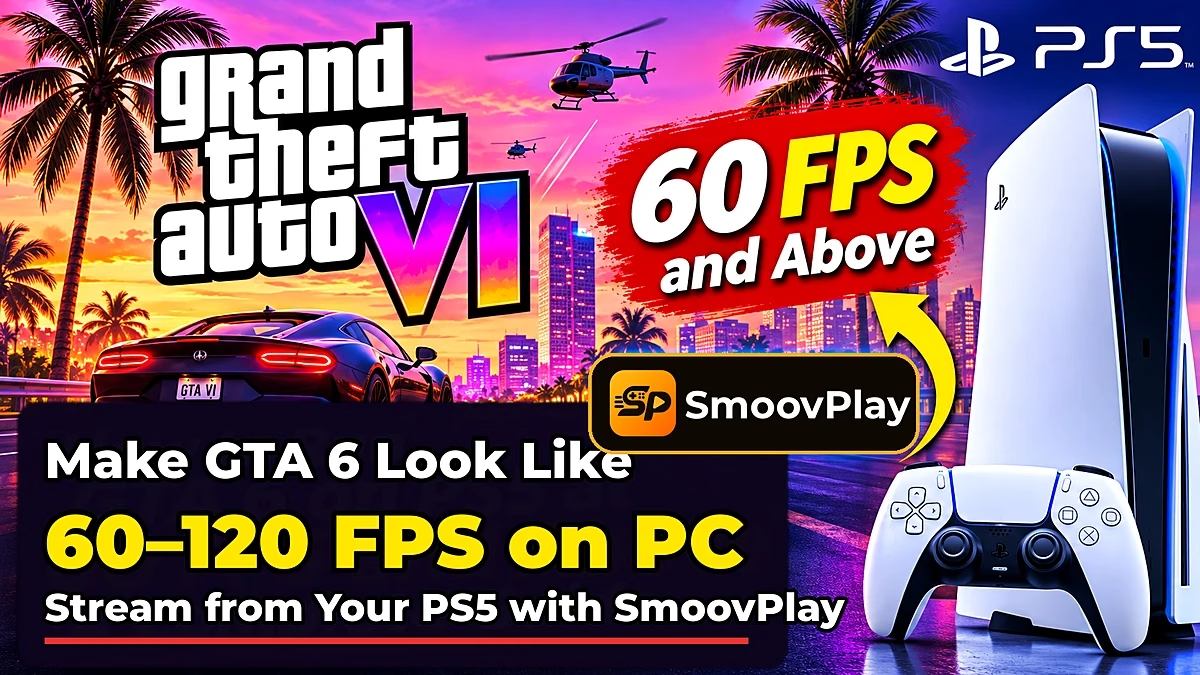
🎮 GTA 6 is locked at 30 FPS on PS5. SmoovPlay makes it look like 60, 90 or 120 on your PC.
A free tool streams your PS5 to a Windows PC and uses AI to draw extra frames. Here’s how it works, what you need, how to set it up, and the catch nobody should skip.
⚡ Quick Read
What: SmoovPlay, a free, open-source Windows app (version 0.3.11 at the time of writing).
Does: Takes the 30 FPS PS5 Remote Play stream and adds 1 to 3 AI-generated frames between each real one, for 60, 90 or up to 120 FPS on your monitor.
Needs: A PS5, a Windows 10/11 PC with an NVIDIA RTX 30, 40 or 50 series card, and a wired or 5 GHz network.
Catch: It looks smoother but doesn’t feel faster. The game still responds like 30 FPS, with about 20 to 36 ms of extra delay on top of Remote Play’s own lag.
Setup: about 15 to 25 minutes, once (10 to 20 for the Windows install, about 5 to register your PS5). Jump to the steps ↓
Why GTA 6 runs at 30 FPS on PS5
Grand Theft Auto VI launched on 19 November 2026 for PS5 and Xbox Series X|S. Rockstar confirmed before launch that the game targets 30 FPS on every console, PS5 Pro included. The Pro gets a sharper picture (PSSR upscaling and ray-traced shadows), not a higher frame rate.
There’s no performance mode, and Rockstar hasn’t said if one will ever come. A PC version hasn’t been announced either. So if you find 30 FPS choppy, especially on a high-refresh monitor, your options right now are limited.
That’s the gap SmoovPlay is trying to fill.
What is SmoovPlay?
SmoovPlay is a free, open-source Windows app (MIT licence) by an independent developer. It doesn’t touch your PS5 at all. Instead, it works on the video your console sends to your PC.
Your PS5 streams the game over your home network using Remote Play. SmoovPlay receives that stream through chiaki-ng, a free, unofficial Remote Play client. Your graphics card then draws new frames between the real ones and shows the result at your monitor’s refresh rate.
It isn’t a GTA 6 mod and it isn’t made only for GTA 6. It works on the video stream, so the developer says it should work with any 30 FPS PS5 game. GTA VI itself officially supports Remote Play on PS5, which is what makes this possible.
How SmoovPlay works
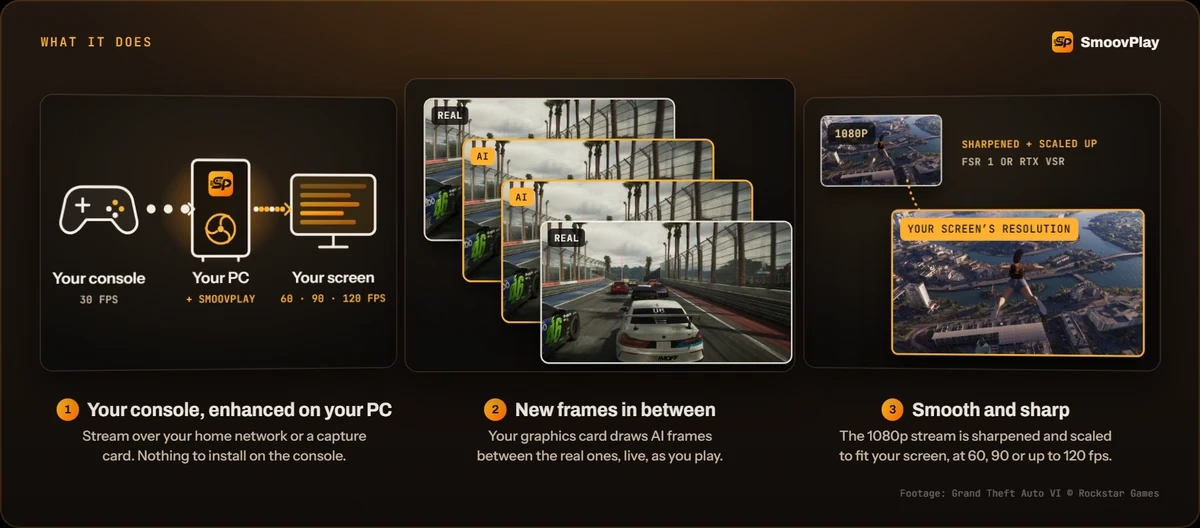
There are three parts to it:
- AI frame generation. SmoovPlay uses RIFE, an open-source AI model, to draw 1, 2 or 3 new frames between every pair of real frames. One extra frame gives 60 FPS, two give 90, three give 120. The developer says each frame takes about 9 ms on an RTX 4070 Ti SUPER.
- Upscaling. Remote Play only sends 1080p. SmoovPlay sharpens and scales it to your monitor with AMD FSR 1, or with NVIDIA RTX Video Super Resolution (experimental) on RTX 40 and 50 series cards.
- Your monitor decides the frame rate. A 60 Hz screen gets 60 FPS, 90 Hz gets 90, and 120 Hz or faster gets up to 120.
- 120 FPS is a ceiling, not a promise. Whether your PC holds a steady 120 depends on your graphics card, your monitor and your network. The developer has only published live results for 60 and 90 FPS so far.
It also has a few extras: an instant replay that saves the last 30 seconds to 5 minutes as an MP4, a before-and-after video saver, and 14 colour “Looks” like Golden hour and Noir.
⚠️ The catch: smoother, not faster
The extra frames are guessed by AI. Motion looks smoother, but the game still reacts to your controller at 30 FPS. In fact it reacts a little later than without SmoovPlay.
The developer measures about 36 ms of added delay at 90 FPS (from live PS5 play) and about 20 ms at 60 FPS (from a recorded clip). These figures are on top of Remote Play’s own delay, which depends on your network. No 120 FPS measurement has been published yet.
Good for driving, exploring and story missions. Not great for shootouts or anything that needs fast reactions.
What you need
| Item | Requirement |
|---|---|
| PC | Windows 10 or 11 (64-bit), 8 GB RAM, 12 GB free space during setup |
| Graphics card | NVIDIA GeForce RTX 30, 40 or 50 series. RTX 20 cards and laptops aren’t tested yet. AMD Radeon and Intel Arc work only as an experimental option, about 1.7 times slower. |
| Console | PS5 or PS5 Pro with Remote Play turned on and GTA 6 installed |
| Network | Ethernet for both the PS5 and the PC (best), or 5 GHz / 6 GHz Wi-Fi |
| Controller | Your DualSense, connected to the PC |
| Monitor | Any. 120 Hz or higher unlocks 120 FPS. G-Sync or FreeSync helps. |
| Price | Free, no account, no ads |
How to set up SmoovPlay for GTA 6 on PS5
Set aside about 15 to 25 minutes the first time: 10 to 20 minutes for the Windows install and about 5 minutes to register your PS5. After that, it’s just open and play.
Step 1: Turn on Remote Play on your PS5. Go to Settings → System → Remote Play and turn on Enable Remote Play. Do this on the PSN account that owns GTA 6. If you want the PC to wake the console, also turn on Stay Connected to the Internet and Enable Turning On PS5 from Network under Power Saving.
Step 2: Download SmoovPlay. Get SmoovPlay-Setup.exe only from the official GitHub releases page.
⬇️ Download SmoovPlayOfficial website
Step 3: Check the file before you run it. The installer isn’t code-signed yet, so check it first. Open PowerShell in your Downloads folder and run Get-FileHash .\SmoovPlay-Setup.exe. The SHA-256 it prints must match the one listed for that version on the releases page. If it doesn’t match, delete the file.
SHA-256 of SmoovPlay-Setup.exe version 0.3.11 (checked by Techno360 on 21 Nov 2026)
4f9579c985346b483669ad1cddd1cb45a3d918644d7b5f4644a474fd80d08877
SmoovPlay updates often. If you download a newer version, its hash will be different, so compare it with the releases page instead.
For extra peace of mind, scan the file with your antivirus or upload it to VirusTotal. A new, unsigned app can get a few generic warnings, so look at what the major engines say.
Step 4: Get past the Windows warning. Only after the hash matches, run the installer. Your browser and Windows SmartScreen will warn you because the app is new and unsigned. In Edge, choose Keep → Show more → Keep anyway. When Windows says “Windows protected your PC”, click More info → Run anyway. It installs for your user only and never asks for admin rights.
Step 5: Let setup finish. SmoovPlay checks your graphics card, display and network, then downloads about 5 GB (Python, PyTorch and NVIDIA TensorRT from their official sources) and tunes itself to your card. This takes 10 to 20 minutes.
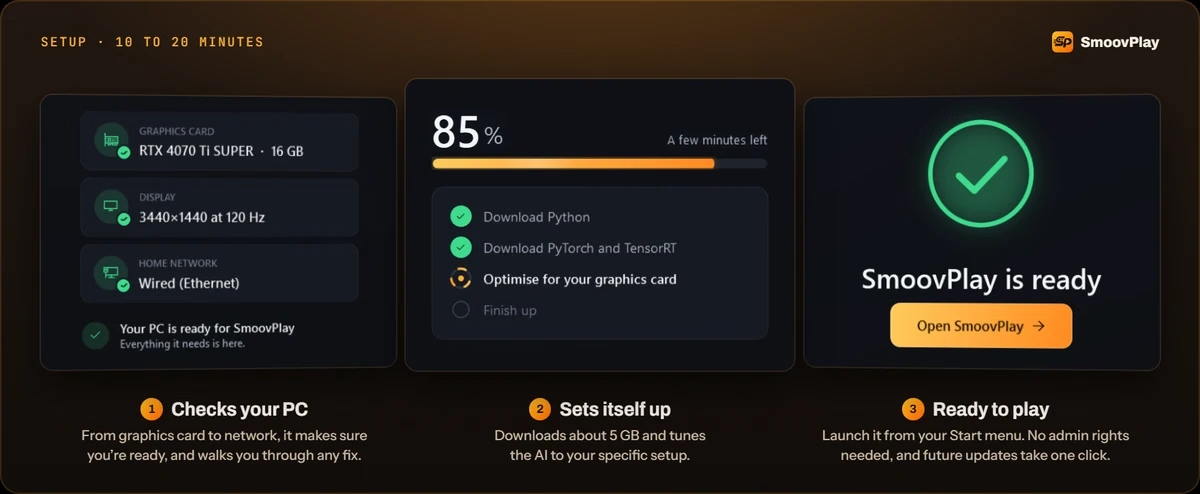
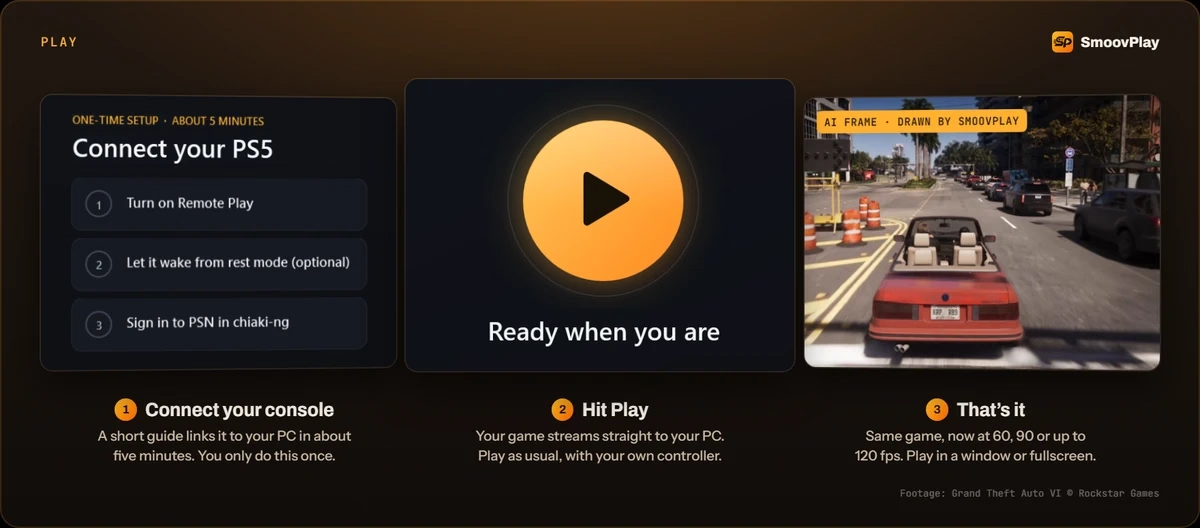
Step 6: Connect your PS5. In the app, follow Connect your PS5. You sign in to PSN inside chiaki-ng once to register the console. It takes about five minutes and you only do it once.
Step 7: Start GTA 6 and press Play. Connect your DualSense to the PC, press Play, and launch GTA 6. Press F for fullscreen, which gives the lowest delay.
Step 8: Set the game frame rate to 30. Because GTA 6 is locked at 30 FPS, go to Settings → Smoothness → Game frame rate and pick 30 fps instead of Auto. The developer recommends this for 30 FPS games that look uneven, and dark or still scenes can fool Auto.
🛠️ Troubleshooting
- Black screen or “content can’t be shown”: on the PS5, go to Settings → System → HDMI and turn off Enable HDCP. Turn it back on later for Netflix and other video apps.
- Hitches and stutter: usually the network. Plug both the PS5 and the PC into the router with Ethernet.
- Weird doubled frames: turn off NVIDIA Smooth Motion, AMD Fluid Motion Frames and Lossless Scaling for SmoovPlay and chiaki-ng. Only one frame generator should run at a time.
- Can’t hold 90 or 120 FPS: press Auto-detect on the Settings page, or drop to 60 FPS.
- Still broken: use Help → Copy diagnostics and post it in the project’s GitHub Issues.
Settings and shortcuts worth knowing
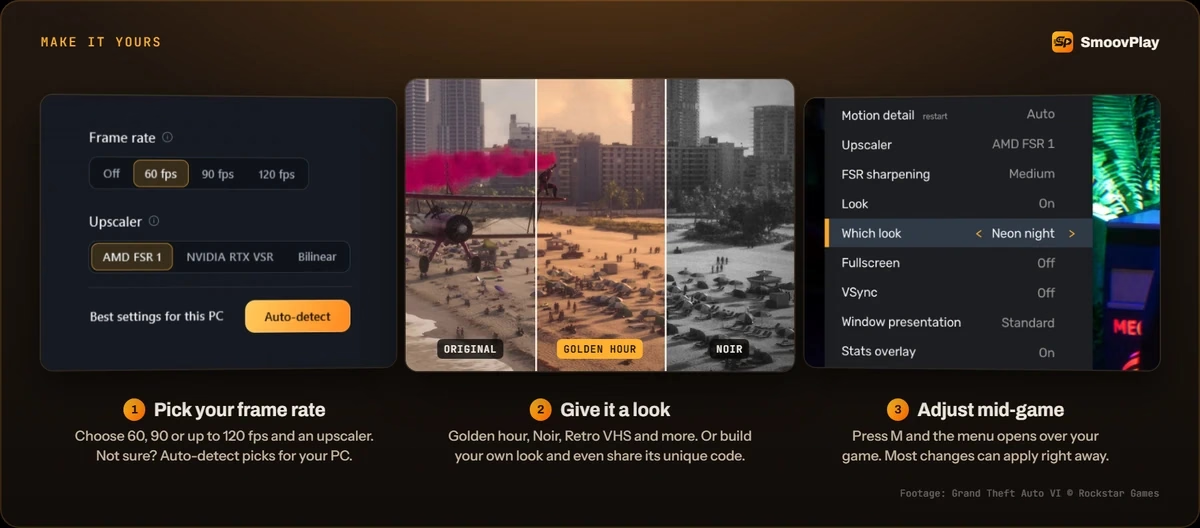
Most settings apply while you play. Press M in the video window to open the menu over the game.
| Key | What it does |
|---|---|
| M | Opens the settings menu |
| F | Fullscreen (lowest delay) |
| I | Turns frame generation off and on, so you can compare |
| L | Runs a delay test on your own setup |
| S | Stats overlay (off, minimal, detailed) |
| R / B | Save instant replay / save a before-and-after video |
| Esc or Q | Stop |
Tip: press L for the delay test before you decide if the lag is acceptable to you. It times button presses all the way to the screen on your own network, which is more useful than any number quoted online.
Has SmoovPlay been tested with GTA 6?
Not in the published results yet. The GTA 6 comparison clips on SmoovPlay’s site use Rockstar’s “An Extended Look” footage played as a simulated Remote Play stream. That shows what the AI frames look like, but it isn’t a test of the game running live on a PS5.
The developer says SmoovPlay has been tested with real PS5 games locked at 30 FPS, such as Gotham Knights. Since it only sees the video stream, GTA 6 should behave the same way. Until live GTA 6 measurements are out, treat the 60, 90 and 120 FPS figures as what the tool is designed to do, not as verified GTA 6 results.
Also note that the picture starts as a 1080p Remote Play stream. It will look slightly softer than the PS5 connected straight to a TV over HDMI, even after upscaling. And like every frame generator, it can make HUD text, very fast camera turns and thin crossing objects wobble a little.
Is SmoovPlay safe?
- Open source. All the code is public on GitHub under the MIT licence. The heavy lifting comes from established open-source projects: RIFE, AMD FSR 1 and chiaki-ng.
- Nothing on the console. No mods, jailbreaks or files on your PS5. It reads the same stream Sony’s own Remote Play app uses.
- No tracking. The developer says it has no account, ads or tracking, and only contacts GitHub for updates.
- Verify the download. The installer is unsigned, so download it only from the official releases page and check its SHA-256 hash before running it (see Step 3). App updates must carry SmoovPlay’s signature before they run.
- Unofficial Remote Play. chiaki-ng isn’t made by Sony, and you sign in to PSN through it to register your console. Sony hasn’t commented on SmoovPlay, and the developer says it’s independent and not endorsed by Sony, NVIDIA or AMD. Use it at your own discretion.
- Early software. It’s a brand-new project with many releases in its first week. Expect rough edges.
Who should try it, and who can skip it
👍 Try it if: you have a gaming PC with an RTX card and a high-refresh monitor near your PS5, you mostly drive, explore and play story missions, and 30 FPS motion bothers you.
👎 Skip it if: you play on a TV from the couch, you’re on Wi-Fi far from the router, you only have an AMD/Intel card or an older laptop, or you care more about responsive aiming than smooth-looking motion. Also skip it if you’re waiting for GTA 6 on PC anyway.
More gaming tools on Techno360
- Intel PresentMon: monitor and measure your gaming experience
- TinyNvidiaUpdateChecker: bloat-free NVIDIA driver updates
- OBS Studio: recording and streaming software
- GameBench FPS Monitor review: real FPS vs fake counters
- GTA Trilogy free on Android and iOS with Netflix
📊 Verdict
SmoovPlay is a clever, free workaround for GTA 6’s 30 FPS lock, as long as you understand what it is. It makes motion look like 60 to 120 FPS on your PC, but it doesn’t make the game respond faster. For cruising around Vice City on a gaming PC, it’s well worth a try. For combat-heavy play, the extra delay may not be worth it.
👍 Pros
- Free, open source, no account or ads
- Nothing to install on the PS5
- 60, 90 or 120 FPS output plus upscaling to your monitor
- Guided setup, built-in delay test, instant replay
- Works with any 30 FPS PS5 game, not just GTA 6
👎 Cons
- Adds 20 to 36 ms of delay on top of Remote Play lag
- Needs a PC with an NVIDIA RTX card for the tested path
- 1080p source, softer than direct HDMI
- Unsigned installer, early-release software
- No published live GTA 6 test yet
FAQ
Does SmoovPlay make GTA 6 run at 60 FPS on the PS5?
No. The PS5 still runs GTA 6 at 30 FPS. SmoovPlay adds AI-generated frames on your PC, so the picture on your monitor looks like 60, 90 or 120 FPS. The game still responds like 30 FPS.
Is SmoovPlay free?
Yes. It’s free and open source under the MIT licence. Setup downloads about 5 GB of free components from their official sources.
Can I use SmoovPlay on a TV without a PC?
No. The frame generation runs on your PC’s graphics card, so you need a Windows PC. You could connect that PC to a TV, but the PS5 itself can’t run SmoovPlay.
Does it work with AMD or Intel graphics cards?
Only as an experimental option. The developer says it’s about 1.7 times slower than on NVIDIA, so expect 60 FPS, or 90 on a fast card. It hadn’t been tested on a real AMD or Intel card at the time of writing.
How much input lag does SmoovPlay add?
About 20 ms at 60 FPS and about 36 ms at 90 FPS, according to the developer. That’s on top of Remote Play’s own delay. Press L in the video window to measure your own setup.
Can I get banned for using SmoovPlay?
SmoovPlay doesn’t modify the game or the console. It only processes the Remote Play video on your PC. It does rely on chiaki-ng, an unofficial Remote Play client, and Sony hasn’t commented on it, so there’s no official answer either way.
Does it work with Xbox?
Experimentally. SmoovPlay can capture the Xbox app’s window, and it supports capture cards for any console over HDMI. A real Xbox stream hasn’t been confirmed yet, so PS5 Remote Play is the recommended path.
Sources: SmoovPlay on GitHub, SmoovPlay website, Wccftech. SmoovPlay promo images © SmoovPlay; GTA VI footage © Rockstar Games. PlayStation and PS5 are trademarks of Sony Interactive Entertainment.
Discover more from Techno360
Subscribe to get the latest posts sent to your email.

You must be logged in to post a comment.