
🎁 Giveaway · Installed & tested on Windows 11 · 18 Oct 2026
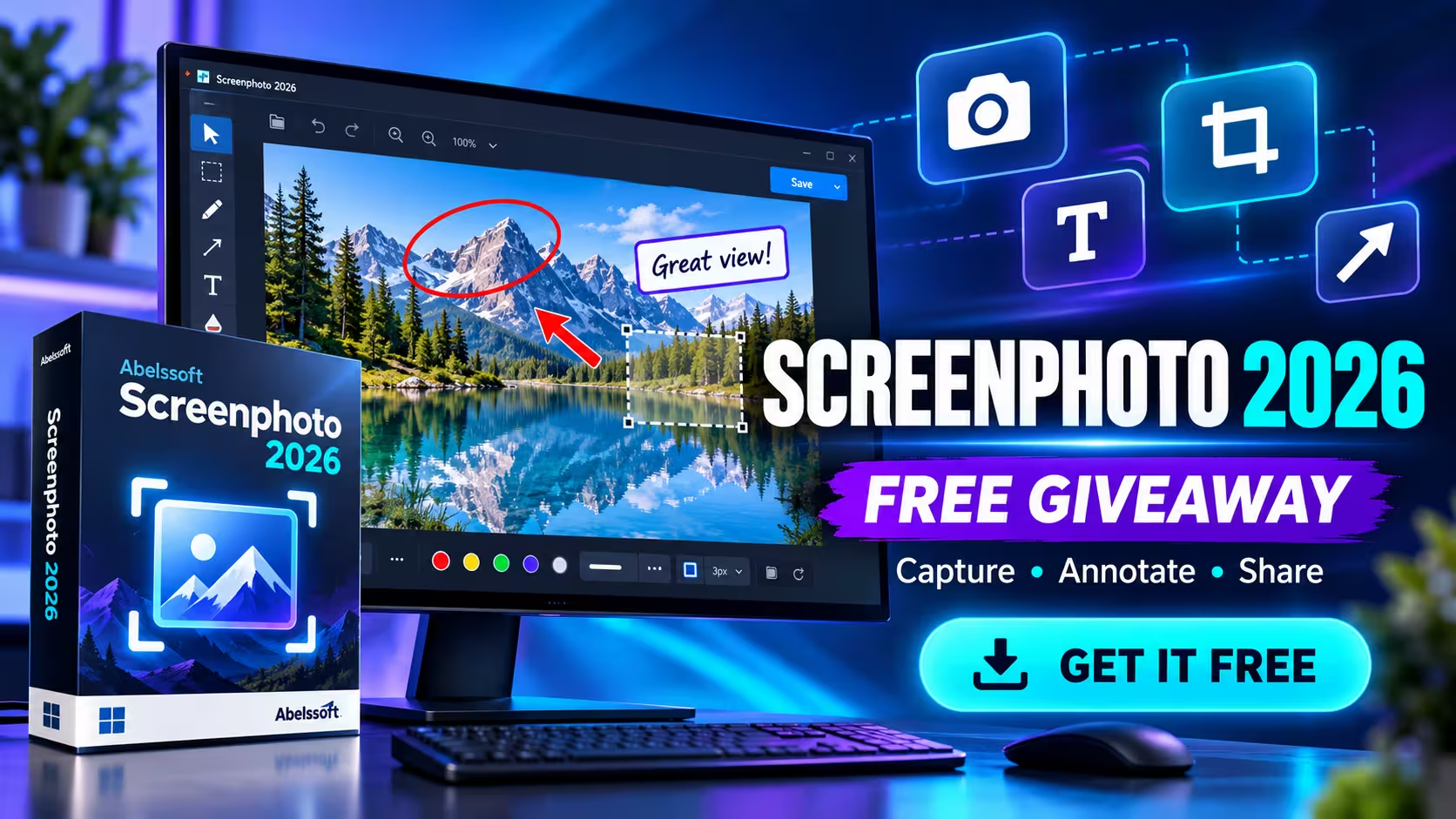
A one-click screenshot tool with six capture modes and a built-in editor, free for Techno360 readers
Abelssoft Screenphoto 2026 normally sells as a €19.95 Plus version. The regular free trial watermarks every screenshot. The giveaway installer below unlocks the full version with the complete capture-and-annotate toolkit.
⚡ Quick Read
- What: Windows screenshot tool that lives in the system tray, with a camera button on every window and Print-key support.
- Capture modes: current window, all displays, a specific display, a custom area and a freehand-drawn area.
- Save as: PNG, JPEG, BMP, GIF or PDF, or copy, print and share by link.
- Runs on: Windows 11, 10, 8.1, 8 and 7.
- Download: 14.4 MB giveaway installer hosted by Techno360.
What Is Abelssoft Screenphoto 2026?
Screenphoto (sold as Schirmfoto in Germany) is a lightweight screen capture tool from German developer Abelssoft. It sits quietly in your system tray and only shows its full interface once you take a screenshot, when it opens the capture straight into an editor for cropping and annotation.
We first covered the 2022 edition back in March 2022. The 2026 release keeps the same simple idea but adds a redesigned dark interface, more export formats and a cleaner editor. If you already use Windows’ Snipping Tool, the main reasons to try Screenphoto are its multi-monitor handling, the per-window camera button and the freehand capture mode.
Giveaway Details at a Glance
| Item | Details |
|---|---|
| Software | Abelssoft Screenphoto 2026 |
| Version | 2026 (Abelssoft’s product page lists build v2026.11.02) |
| Normal price | €19.95 (Plus version) |
| Operating systems (per Abelssoft) | Windows 11, 10, 8.1, 8, 7 |
| Installer | 14.4 MB, hosted by Techno360 |
| Trial limitations (per Abelssoft) | Watermark on every screenshot and contribution-request screens |
| Tested on | Windows 11 (build 26100), 18 October 2026 |
How to Get Abelssoft Screenphoto 2026 Free
🎁 Download Giveaway Installer (14.4 MB)Official Product Page
- Download Abelssoft_Screenphoto_2026-Giveaway_Setup.exe using the button above.
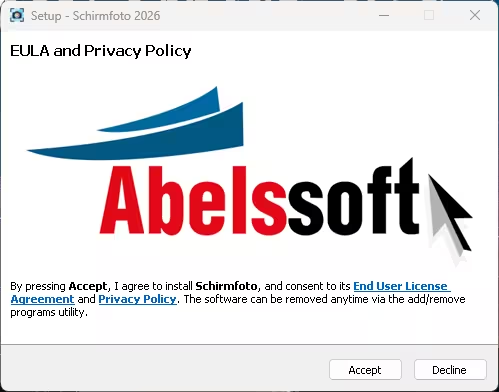
- Run the installer. The setup window is titled Setup – Schirmfoto 2026; that’s just the German product name, so don’t worry.
- Click Accept on the EULA and Privacy Policy screen to install.
- When the welcome window appears, read the three ways to start a capture, then click Start.
- Screenphoto now runs from the tray. Right-click its icon (you may need to open the hidden-icons arrow) to start capturing.
⚠️ Note for New Abelssoft Users
If no Abelssoft giveaway software is already installed on your PC, follow these steps to unlock the full version:
- When you open the app for the first time, an Activation window appears.
- Enter your first name, last name and email address, then click Get free unlock email now.
- Check your inbox for an email from Abelssoft (software@abelssoft.net).
- Click the link in that email to confirm your email address.
That’s it. You now have the full version.
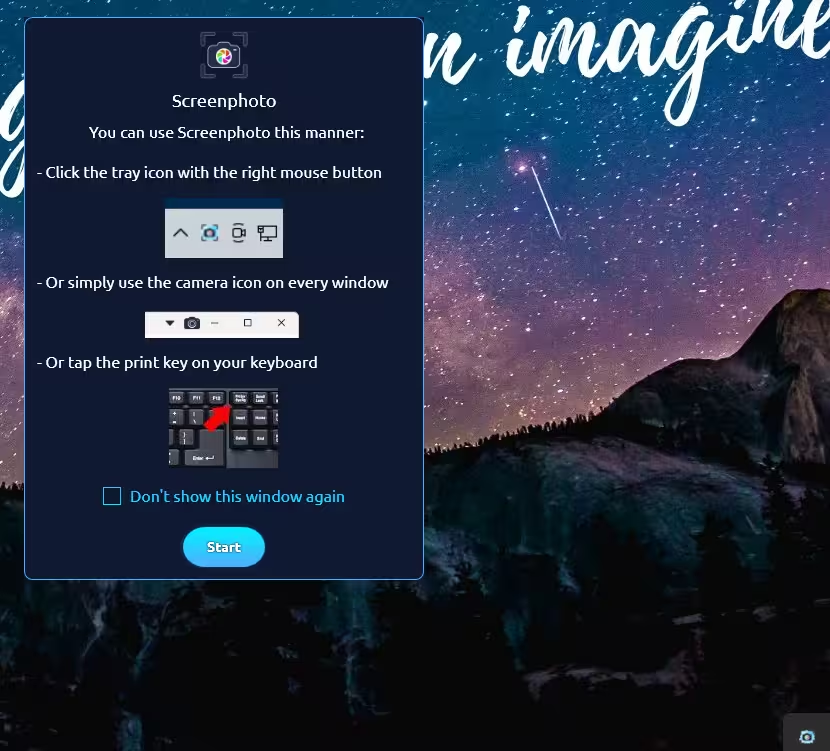
Three Ways to Start a Capture
- Tray icon: right-click it and pick a capture mode.
- Camera button: a small camera icon appears in the title bar of open windows, next to Minimize. You can change its default action and slide its position in Settings.
- Print key: tap Print Screen on your keyboard.
Tip for Windows 11 users: if Print Screen keeps opening the Snipping Tool instead, go to Settings → Accessibility → Keyboard and turn off Use the Print screen key to open screen capture.
Capture Modes
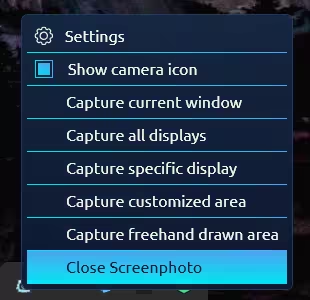
The tray menu offers five capture options, which cover most everyday needs:
- Capture current window grabs the active app only.
- Capture all displays takes every connected monitor in one image.
- Capture specific display lets you choose one monitor on a multi-screen setup.
- Capture customized area drags out a rectangle.
- Capture freehand drawn area traces any shape you like, something the built-in Windows tools only partly match.
The Built-in Editor
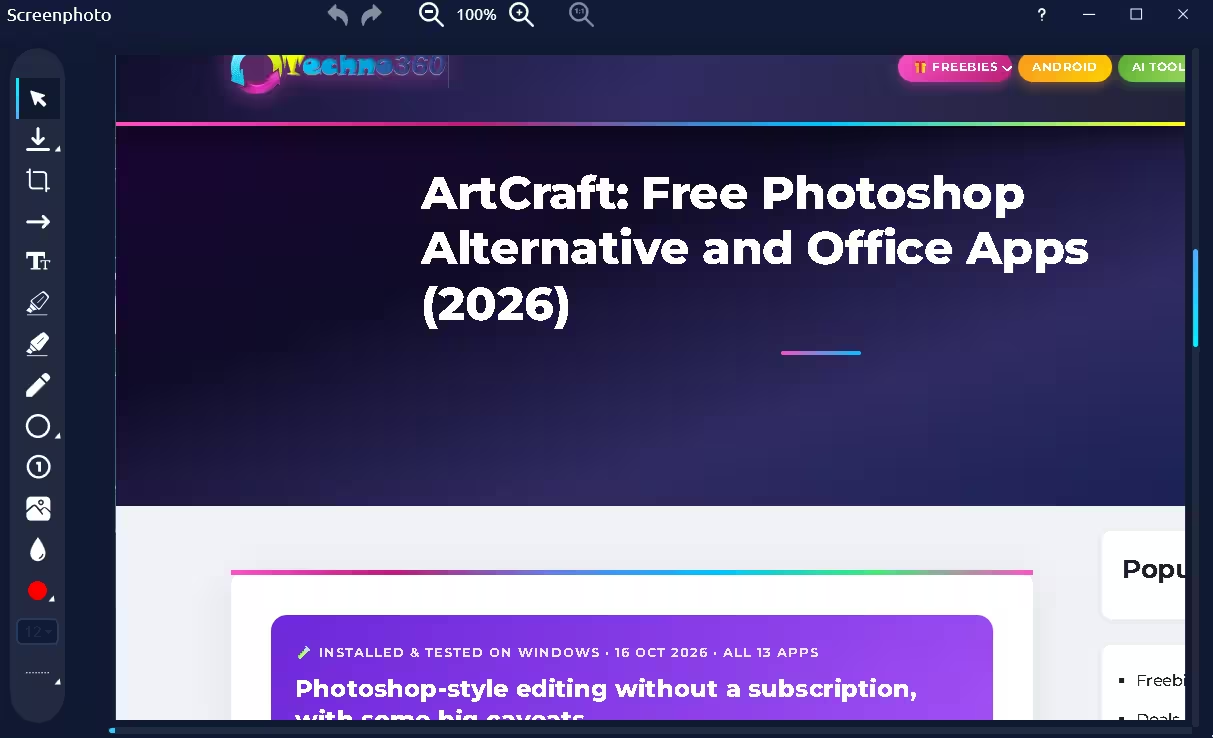
After a capture, Screenphoto opens it in its editor. A vertical toolbar on the left gives you the essentials for marking up a screenshot for a tutorial, bug report or support ticket:
- Select, save and crop
- Arrows and text boxes
- Highlighter, pencil and shapes
- Numbered step markers (handy for how-to guides)
- Image insertion, a colour picker, line width and line style
- Zoom, undo and redo
Abelssoft also lists a blackening function for hiding sensitive details, plus watermarks and comments. From the editor you can save your capture. According to Abelssoft, you can also copy it to the clipboard, print it, or share it: sharing uploads the screenshot and gives you a link to send by email or WhatsApp, with options to post to Facebook and X. Keep in mind that a shared screenshot is hosted online, so avoid sharing anything sensitive.
Settings Worth Changing
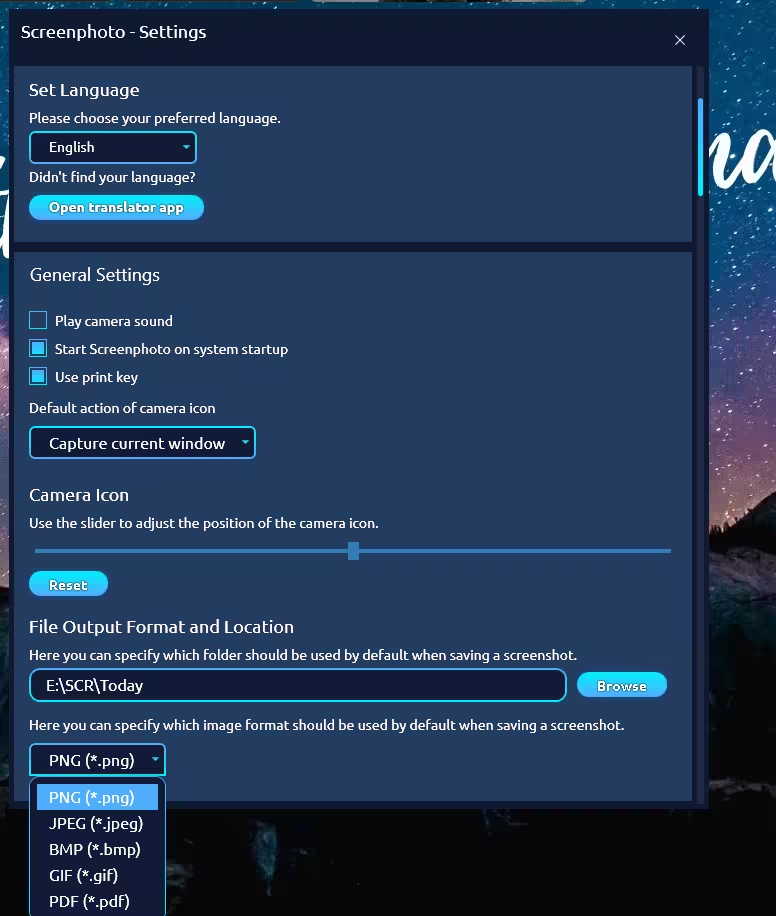
- Output folder and format: pick a default save folder and choose PNG, JPEG, BMP, GIF or PDF. PNG is the best choice for sharp text.
- Start on system startup: this was ticked on our install. Untick it if you’d rather launch Screenphoto only when needed.
- Use print key: leave this on if you want Print Screen to trigger Screenphoto.
- Camera icon: set its default action and move it with the slider so it isn’t easily confused with Minimize. You can also hide it from the tray menu.
- Camera sound and language: toggle the shutter sound and switch the interface language.
How It Compares to Our 2022 Coverage
We first reviewed Screenphoto in March 2022. Here’s how what we noted then compares with the 2026 build we installed. The 2022 column reflects only what our earlier article recorded, not a full feature list of that version.
| Area | Our 2022 article noted | Screenphoto 2026 |
|---|---|---|
| Design | Clean, easy-to-use interface | New design, which Abelssoft says makes it easier to use |
| Save formats | PDF mentioned | PNG, JPEG, BMP, GIF and PDF in Settings |
| Annotation | Pencil, marker, black painter, text box, watermark | Toolbar also shows arrows, shapes, numbered steps and image insertion |
| Sharing | Private cloud on Abelssoft servers | Share link for email/WhatsApp, plus Facebook and X (per Abelssoft) |
Pros and Cons
| 👍 Pros | 👎 Cons |
|---|---|
| Very easy to use, with three ways to capture | The title-bar camera button sits close to Minimize |
| Strong multi-monitor support | No scrolling capture in the tray menu we tested |
| Freehand capture mode | No screen video recording |
| Numbered steps and arrows are ideal for tutorials | Startup launch was enabled on our install |
| Five export formats including PDF | German name still shows in the installer |
📊 Our Verdict
Screenphoto 2026 isn’t trying to replace heavyweight tools like ShareX or Snagit. It’s a quick, friendly capture-and-annotate tool for people who want screenshots without learning a complex app. The multi-monitor modes, freehand capture and numbered step markers make it genuinely useful for tutorials and support work. As a free giveaway, it’s well worth grabbing, especially if you work across two or more monitors.
Frequently Asked Questions
Is Abelssoft Screenphoto 2026 really free?
Yes, through this giveaway. Abelssoft normally sells the Plus version for €19.95, and the regular free trial adds a watermark to every screenshot.
Do I need to register to activate the giveaway?
Only if you don’t already have Abelssoft giveaway software on your PC. In that case, fill in the Activation window with your name and email, then click the confirmation link in the email from software@abelssoft.net.
Why does the installer say Schirmfoto?
Schirmfoto is the German name for Screenphoto. It’s the same program, and the interface can be switched to English in Settings.
Does Screenphoto work with multiple monitors?
Yes. You can capture all displays at once or pick one specific display from the tray menu.
Which file formats can Screenphoto save?
PNG, JPEG, BMP, GIF and PDF. You can also copy a capture to the clipboard or print it.
Why doesn’t the Print key trigger Screenphoto on Windows 11?
Windows 11 can reserve Print Screen for the Snipping Tool. Turn off Use the Print screen key to open screen capture under Settings → Accessibility → Keyboard, and make sure Use print key is ticked in Screenphoto’s settings.
Which Windows versions are supported?
Windows 11, 10, 8.1, 8 and 7, according to Abelssoft.
Looking for more free Windows software? Browse our latest freebies, more Abelssoft giveaways, other screenshot tools and our Windows coverage.
Discover more from Techno360
Subscribe to get the latest posts sent to your email.

You must be logged in to post a comment.