

Mac / Free Software
25 Best Free Mac Apps in 2026: Tried, Tested & Worth Installing
No trial timers. No “upgrade to Pro” nags on every launch. We installed all 25 on a real Apple Silicon Mac running macOS Tahoe to confirm they actually work as advertised.
By Techno360 Editorial Team · Last verified: September 4, 2026 · Tested on: MacBook Air, Apple Silicon, macOS Tahoe 26.6.2

⚡ Quick Read
We installed and opened all 25 apps below on a MacBook Air (Apple Silicon, macOS Tahoe 26.6.2), checked what each one actually asks for on first launch, then removed them again. Jump to the contents, editor’s picks, the comparison table, the full list, or the FAQ.
Contents
Mac doesn’t need another “clean your Mac” subscription
Search the App Store for almost any utility category and you’ll find a wall of apps labeled “free” that are really 3-day trials with a subscription wall behind them. Every app on this list was filtered against one rule: free has to mean something you can actually use, not a demo. Where an app has a paid tier, we say exactly what it unlocks and whether the free tier is enough for most people.
What counts as “free” on this list
We include apps that are entirely free, and apps whose free tier is useful enough that most individual users will never need to pay. That means a few entries below are freemium — we say so explicitly, and note exactly what the paid tier adds.
| Type | Included? |
| Completely free, no catch | ✅ Yes |
| Free and open source | ✅ Yes |
| Free tier that’s genuinely useful, paid tier for extras | ✅ Yes |
| Time-limited trial (7/14/30 days) | ❌ No |
| Subscription required for basic use | ❌ No |
| “Free download” that’s unusable without paying | ❌ No |
🧪 How we tested
For consistency during testing, we installed the apps through Homebrew where a current official cask was available — Homebrew’s casks point to each project’s own release, not a third-party mirror — and cross-checked the developer’s official distribution page for each app. Everything ran on a MacBook Air (Apple Silicon / arm64) on macOS Tahoe 26.6.2. We launched each app to check first-run behavior, permission requests, and whether the free tier is actually usable. For apps with a visible window, we captured real screenshots (shown below). Several are menu-bar-only utilities with no dock window — for those we confirmed successful installation and launch instead. One finding worth flagging: OnyX (our system-maintenance pick) prompted for an admin password on first run, which is normal for that category of app but worth knowing before you install it. Every app was fully uninstalled afterward. Where we didn’t personally verify a compatibility detail (like an exact minimum macOS version), we say so rather than guessing.
Editor’s picks: the top 10
Ranked by usefulness to the average Mac user: how well the app solves a problem macOS doesn’t handle well on its own, free-tier value, ease of use, and what we saw during testing — not alphabetically or by category.
| Rank | App | Best for |
| 1 | Rectangle | Window management |
| 2 | Maccy | Clipboard history |
| 3 | AppCleaner | Removing apps completely |
| 4 | Stats | Menu bar system monitoring |
| 5 | AlDente | Battery charge limiting |
| 6 | IINA | Video playback |
| 7 | Keka | Archives and compression |
| 8 | Raycast | Launcher and quick actions |
| 9 | Bitwarden | Password management |
| 10 | Shottr | Screenshots and annotation |
Full 25-app breakdown, with pros/cons and specs for each, is below.
At-a-glance comparison
| App | Best for | Free type | Open source | Apple Silicon | Paid tier? | Permissions we saw |
| Rectangle | Window snapping | Fully free | Yes | Yes ✅ | No | Accessibility |
| AltTab | Window switching | Fully free | Yes | Yes ✅ | No | Accessibility (required), Screen Recording (optional) |
| Raycast | Launcher | Free core + paid teams | No | Yes ✅ | Yes (Pro/Teams) | Accessibility (for extensions) |
| Maccy | Clipboard history | Fully free | Yes | Yes ✅ | No | — |
| Stats | System monitoring | Fully free | Yes | Yes ✅ | No | — |
| AlDente | Battery charge limiting | Free (Lite) + paid Pro | No | Yes ✅ | Yes (Pro) | Admin password (helper install/removal) |
| AppCleaner | Uninstalling apps | Fully free | No | Yes ✅ | No | — |
| GrandPerspective | Disk space visualization | Fully free | Yes | Yes ✅ | No | Full Disk Access |
| Keka | Archives | Free (direct) / paid on Mac App Store | Yes | Yes ✅ | Optional MAS tip jar | — |
| The Unarchiver | Opening obscure archives | Fully free | Yes | Yes ✅ | No | — |
| IINA | Video playback | Fully free | Yes | Yes ✅ | No | — |
| HandBrake | Video transcoding | Fully free | Yes | Yes ✅ | No | — |
| VLC | Playing almost anything | Fully free | Yes | Yes ✅ | No | — |
| LibreOffice | Word/Excel/PowerPoint alternative | Fully free | Yes | Yes ✅ | No | — |
| Bitwarden | Password management | Free tier + paid Premium | Yes | Yes ✅ | Yes (Premium/Families) | — |
| KeepingYouAwake | Preventing sleep | Fully free | Yes | Yes ✅ | No | — |
| Hidden Bar | Decluttering menu bar | Fully free | Yes | Yes ✅ | No | — |
| Shottr | Screenshots + annotation | Fully free | No | Yes ✅ | No | Screen Recording (for capture) |
| Kap | Screen recording / GIFs | Fully free | Yes | Yes ✅ | No | Screen Recording |
| Skim | Reading/annotating PDFs | Fully free | Yes | Yes ✅ | No | — |
| Obsidian | Linked local notes | Free for personal use | No | Yes ✅ | Yes (commercial/Sync) | — |
| iTerm2 | Replacing Terminal.app | Fully free | Yes | Yes ✅ | No | — |
| Itsycal | Menu bar calendar glance | Fully free | Yes | Yes ✅ | No | Calendar access |
| MonitorControl | External display brightness/volume | Fully free | Yes | Yes ✅ | No | — |
| OnyX | System maintenance (advanced) | Fully free | No | Yes ✅ | No | Admin password (required) |
“Apple Silicon: Yes ✅” reflects our direct test — every app above installed and ran natively on the MacBook Air (arm64) we tested on.
The full list
Window management
1. Rectangle
Best for: window snapping · Price: free · Open source: yes · Tested version: 1.100
Open-source window snapping with keyboard shortcuts for halves, thirds, and quarters of the screen. It installed and launched cleanly in our test with no first-run prompts beyond the standard Accessibility permission request (needed so it can move and resize other apps’ windows — that’s expected, not a red flag). It’s the free alternative most people land on once dragging windows by hand gets old, and it covers ground Apple’s own window tiling doesn’t: custom shortcuts and precise fractional layouts.
Pros: free, open source, lightweight, highly configurable shortcuts. Cons: needs Accessibility permission to work; some layouts now overlap with macOS’s native window tiling.
2. AltTab
Best for: Windows-style app switching · Price: free · Open source: yes · Tested version: 11.5.0
Replaces macOS’s Cmd+Tab (which switches apps, not windows) with a Windows-style switcher that shows every open window. In our test, AltTab launched straight into a clear permissions screen asking for Accessibility and Screen Recording — see the screenshot below. Accessibility is the fundamental permission: it’s what lets AltTab actually focus and switch windows, and the app won’t work without it. Screen Recording is used only for live window thumbnails; you can decline it (there’s a checkbox for exactly this) and AltTab still switches windows fine, just showing icons instead of previews.

Pros: free, open source, genuinely useful window thumbnails. Cons: Screen Recording is optional if you don’t need window thumbnails — Accessibility is the only permission that’s actually required.
Launcher and productivity
3. Raycast
Best for: Spotlight replacement · Price: free core, paid Pro/Teams · Open source: no · Tested version: 2.2.0.0
A Spotlight replacement with extensions for calculations, clipboard history, window management, and quick actions across apps. It launched without friction in our test. Free version limitations: the core launcher, window management, and most extensions are free. Clipboard History is capped to a recent window on the free plan — Raycast Pro removes that limit and adds AI features and cloud sync, while Raycast for Teams adds shared commands and admin controls. For most individual users the free tier covers daily use; if you lean heavily on long-term clipboard history, that’s the one limitation worth knowing about upfront.
Pros: fast, huge extension library, free tier covers daily use. Cons: not open source; AI features sit behind Pro.
Clipboard
4. Maccy
Best for: clipboard history · Price: free · Open source: yes · Tested version: 2.7.1
A lightweight, open-source clipboard manager that keeps a searchable history of everything you copy, with a global shortcut to paste from history. It’s local and private — nothing leaves your Mac. macOS still has no built-in clipboard history, so this fills a genuine gap, and it installed and ran without any extra permission prompts in our test.
Pros: free, open source, private/local, no bloat. Cons: no iCloud sync between Macs.
System monitoring
5. Stats
Best for: menu bar system monitoring · Price: free · Open source: yes · Tested version: 3.0.14
Puts CPU, memory, disk, network, and (hardware permitting) temperature and battery readouts in the menu bar. It’s considerably more detailed than Activity Monitor for a glance-and-go check, and it’s one of the most-starred free system monitors for Mac on GitHub.
Pros: free, open source, modular widgets, low overhead. Cons: menu bar can get crowded if you enable every module.
Battery and power
6. AlDente
Best for: battery charge limiting · Price: free (Lite), paid Pro · Open source: no · Tested version: 1.38.1
Caps battery charging at a percentage you set (commonly 80%). Lithium batteries degrade faster the more time they spend sitting at a full charge, so limiting the ceiling is a standard technique for reducing long-term wear on a laptop that stays plugged in most of the day — we can confirm AlDente does the charge-limiting itself reliably; we can’t confirm from a single test session how much battery lifespan it actually saves over years of use. Free version limitations: the Lite build we tested covers charge limiting itself; AlDente Pro adds calibration scheduling, menu bar customization, and a few other extras for a one-time fee. During uninstall, AlDente’s helper process needed an admin password to fully remove — expected for an app that manages charging at the system level, but worth knowing going in.
Pros: charge-limiting works as advertised, free tier is sufficient for most people. Cons: not open source; installs a system helper that needs admin rights.
Storage cleanup
7. AppCleaner
Best for: fully uninstalling apps · Price: free · Open source: no · Tested version: 3.6.8
Drag an app to the window and it finds the associated preference files, caches, and support files that a plain drag-to-Trash leaves behind. It opened straight to a clean drop zone in our test, no setup required.

Pros: free, tiny, does one job well. Cons: closed source; manual drag-and-drop workflow (no automatic uninstall hooks).
8. GrandPerspective
Best for: visual disk-space maps · Price: free · Open source: yes · Tested version: 3.8.0
Shows a visual map of which folders are actually eating your storage — usually more useful than any “clean my Mac” scan. On first launch it asked for full disk access to scan effectively, which is a legitimate requirement for this category of app rather than overreach.
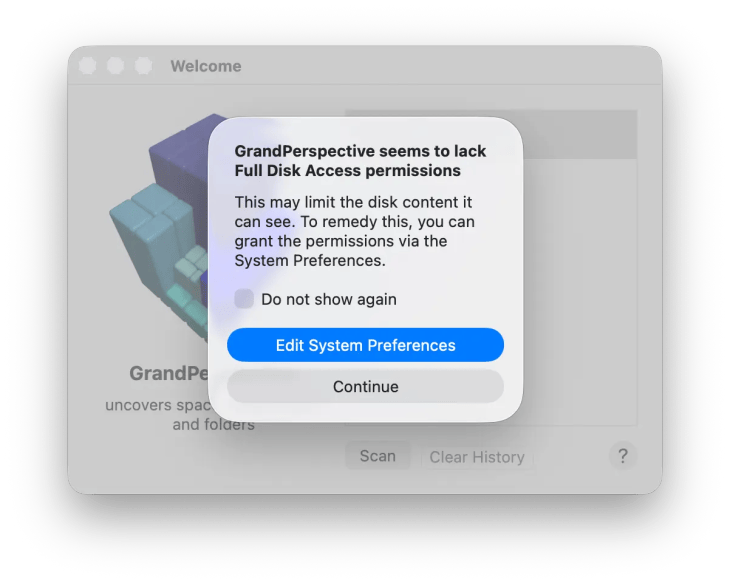
Pros: free, open source, genuinely useful visualization. Cons: needs full disk access; interface is dated.
Files and archives
9. Keka
Best for: creating and extracting archives · Price: free (direct download) · Open source: yes · Tested version: 1.6.7
Handles both extracting and creating archives across multiple formats, including password-protected ones. Note the free/paid split: downloaded directly from the developer’s site (as we did for testing) it’s completely free; the Mac App Store listing charges a small fee for the same app, which funds Apple’s distribution cut.
💡 Tip: Get Keka free from the developer’s own site (keka.io) — the Mac App Store listing is a paid version of the same app.
Pros: free direct download, open source, broad format support. Cons: confusingly priced on the Mac App Store.
10. The Unarchiver
Best for: opening obscure archive formats · Price: free · Open source: yes · Tested version: 4.3.9
Free on the Mac App Store, opens far more archive formats (RAR, 7z, older ZIP variants) than macOS handles natively. It’s a lighter-weight companion to Keka if you only need to extract, not compress.
Pros: free, open source, wide format support. Cons: extraction only, no archive creation.
Media
11. IINA
Best for: everyday video playback · Price: free · Open source: yes · Tested version: 1.4.4
A free, open-source video player built specifically for macOS, with native-feeling controls, subtitle support, and format compatibility well beyond QuickTime. It opened straight to a clean “Open… / Open URL…” screen in our test.

Pros: free, open source, modern macOS-native UI. Cons: smaller plugin ecosystem than VLC.
12. HandBrake
Best for: video transcoding · Price: free · Open source: yes · Tested version: 1.11.2
Free, open-source video transcoding — the standard free tool if you need to shrink a video file or convert formats. In our test it opened directly to a file picker for choosing a source video.
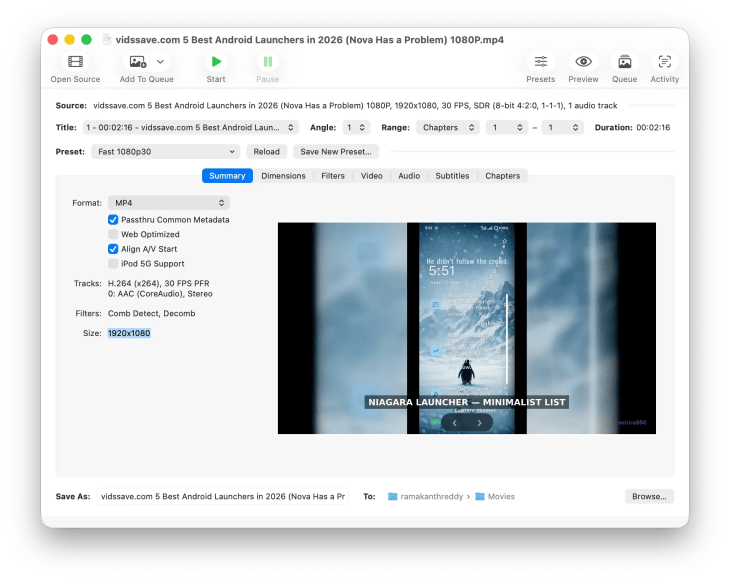
Pros: free, open source, well-established presets for common devices and formats. Cons: interface is utilitarian, not beginner-friendly.
13. VLC
Best for: “it just plays” media compatibility · Price: free · Open source: yes · Tested version: 3.0.23
The famously format-agnostic media player. Free, open source, and one of the safest bets when a file refuses to play in anything else. Installed cleanly in our test alongside IINA.
Pros: plays almost anything, free, open source. Cons: UI feels dated next to IINA.
Office
14. LibreOffice
Best for: a full Word/Excel/PowerPoint alternative · Price: free · Open source: yes · Tested version: 26.8.0
A free, full-featured alternative to Word, Excel, and PowerPoint that opens and saves Microsoft Office formats. It’s the largest download on this list (roughly 1GB), but it launched straight to a clean Start Center in our test.

Pros: free, open source, real Office-format compatibility. Cons: large install; UI isn’t as polished as Word/Excel.
Security
15. Bitwarden
Best for: password management · Price: free tier + paid Premium · Open source: yes · Tested version: 2026.8.0
A password manager with unlimited saved logins on the free tier and open-source code anyone can audit. It opened directly to a login screen in our test — you’ll need to create an account (free) to use it.

Free version limitations: unlimited passwords and devices are free; Premium ($10/year) adds encrypted file attachments, security reports, and emergency access. Pros: open source, audited, generous free tier. Cons: requires an account/cloud sync by default.
16. KeepingYouAwake
Best for: stopping your Mac from sleeping · Price: free · Open source: yes · Tested version: 1.6.8
A one-click menu bar toggle that prevents sleep — useful for long downloads, screen shares, or presentations. Installed and ran with zero configuration in our test.
Pros: free, open source, does exactly one thing. Cons: none worth noting.
17. Hidden Bar
Best for: decluttering a crowded menu bar · Price: free · Open source: yes · Tested version: 1.10
Once you’ve installed a handful of menu-bar apps from this list, your menu bar gets crowded fast — Hidden Bar lets you collapse the less-used icons behind a toggle. Free and open source, and it launched and worked correctly in our test on macOS Tahoe 26.6.2. Worth flagging honestly: the project’s development pace has slowed compared to a few years ago, so if it ever stops opening on a future macOS release, it’s worth searching for an actively maintained free alternative before assuming there isn’t one.
Pros: free, open source, solves a problem this very article creates, worked correctly in our test. Cons: slower release cadence than some alternatives — worth a quick check that it still opens on whatever macOS version you’re running.
18. Shottr
Best for: screenshots with annotation · Price: free · Open source: no · Tested version: 1.9.1
Adds annotation, quick markup, and a scrolling-capture option on top of macOS’s built-in screenshot tool. It launched to a friendly welcome screen with one-click “Run at Startup” and “Setup Hotkeys” buttons in our test.

Pros: free, fast, smooth first-run setup. Cons: closed source.
19. Kap
Best for: quick screen recordings and GIFs · Price: free · Open source: yes · Tested version: 3.6.0
A free, open-source screen recorder that exports to GIF, MP4, and WebM directly from the menu bar — handy for quick bug reports or tutorial clips without opening QuickTime’s more limited recorder.
Pros: free, open source, GIF export built in. Cons: Electron-based, so it’s heavier than a native app.
20. Skim
Best for: reading and annotating PDFs · Price: free · Open source: yes · Tested version: 1.7.15
A free, open-source PDF reader built for annotation-heavy reading — highlighting, notes, and markup — originally aimed at academics but useful for anyone who marks up PDFs regularly. It opened to its release notes on first launch in our test.
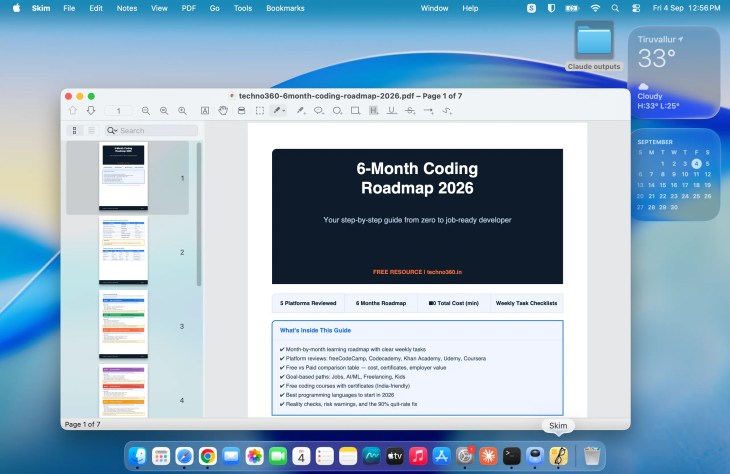
Pros: free, open source, strong annotation tools. Cons: interface looks a generation behind Preview.
Notes and writing
21. Obsidian
Best for: linked, local-first notes · Price: free for personal use · Open source: no · Tested version: 1.13.7
Stores notes as local Markdown files you fully own, with backlinks and a graph view for connecting ideas. Free for personal use; commercial use and the optional Sync/Publish services are paid. It opened to a clean “Quick start” screen in our test.
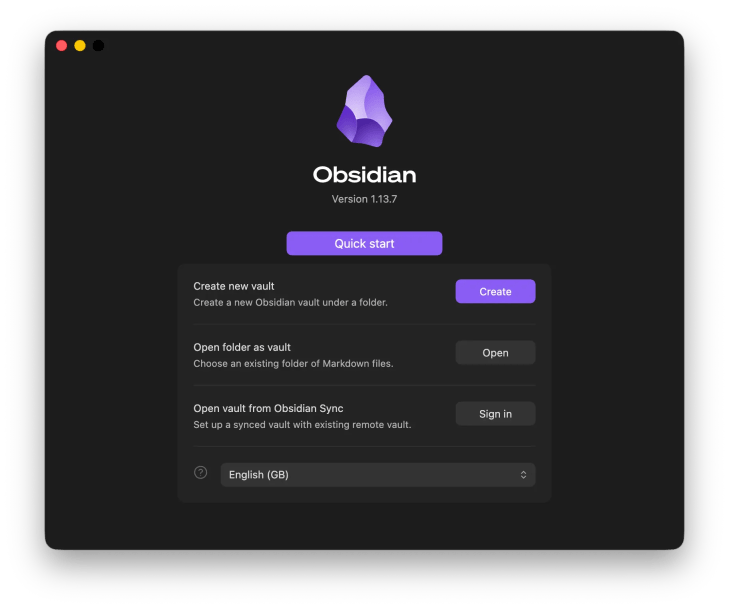
Pros: local-first, no lock-in (plain Markdown files), huge plugin ecosystem. Cons: not open source; commercial use requires a paid license.
Developer tools
22. iTerm2
Best for: replacing Terminal.app · Price: free · Open source: yes · Tested version: 3.6.11
The standard free replacement for macOS’s built-in Terminal — split panes, search, better profiles, and a scriptable API. If you spend any real time in a terminal, this is the first free upgrade worth making.
Pros: free, open source, far more capable than Terminal.app. Cons: the sheer number of settings can be overwhelming at first.
Calendar
23. Itsycal
Best for: a menu bar calendar glance · Price: free · Open source: yes · Tested version: 0.15.12
A tiny menu bar calendar that shows the date and your upcoming events without opening the full Calendar app. Free and open source, and it reads directly from macOS’s built-in Calendar accounts.
Pros: free, open source, genuinely minimal. Cons: view-only — no event creation from the popover in older versions.
Displays
24. MonitorControl
Best for: controlling external monitor brightness/volume from your Mac · Price: free · Open source: yes · Tested version: 4.3.3
Lets your Mac’s native brightness and volume keys control an external monitor over DDC/CI — something macOS doesn’t do for most third-party displays out of the box. Free and open source, and one of the most-recommended free Mac utilities for anyone using an external monitor.
Pros: free, open source, fixes a real macOS gap. Cons: DDC/CI support varies by monitor brand.
System maintenance
25. OnyX Advanced / power-user pick
Best for: cache clearing and system maintenance tasks · Price: free · Open source: no · Tested version: 5.0.3
A long-running free utility for clearing system caches and running maintenance scripts. Worth flagging clearly from our test: OnyX asks for your admin password on launch, since it needs elevated privileges to touch system-level files. That’s normal for what it does, but it’s a meaningfully different trust bar than every menu-bar utility on this list — only install it from the developer’s own site (titanium-software.fr), and think twice before entering credentials into any maintenance tool from an unfamiliar source.
Pros: free, long track record, covers macOS-version-specific maintenance tasks. Cons: not open source; requires admin password; most of what it does, modern macOS increasingly handles on its own.
✅ Which to install first
If you only install five apps from this list, make it Rectangle (window management), Maccy (clipboard), AppCleaner (uninstalling), Bitwarden (passwords), and IINA (video playback) — the five that most directly replace something macOS is still missing or does poorly out of the box. Power users: swap IINA for Stats if a menu bar system monitor matters more to you than a better video player.
Installing free Mac apps safely
There are three legitimate ways to get these apps, each with a different trust profile:
Mac App Store — apps go through Apple’s App Review process and are distributed through Apple’s security framework. Updates are the most convenient here, but the selection is smaller (several apps on this list, like Rectangle and Raycast, aren’t on the App Store at all).
Developer’s own website — often the only way to get an app, or the only free version (see Keka above). Reputable open-source and indie developers distribute this way routinely; macOS Gatekeeper will still verify the developer’s signature on first launch.
GitHub — common for open-source tools. Make sure you’re downloading from the actual project’s repository, not an unrelated fork — Maccy’s own site, for example, has previously warned about fake lookalike sites impersonating it.
These are established apps that should be downloaded from their official developer sites or the Mac App Store — never a third-party “download” aggregator, which sometimes bundles unrelated installers. Even reputable software can occasionally have a compromised release or an abandoned project, so always verify the source before installing, and be especially careful with any tool (like OnyX) that asks for your admin password.
FAQ
What are the best free Mac apps in 2026?
Based on our testing, Rectangle (window management), Maccy (clipboard), AppCleaner (uninstalling), Stats (system monitoring), and Bitwarden (passwords) are the strongest all-round picks — see the full ranked list above.
Which free Mac apps are essential?
A clipboard manager (Maccy) and a proper uninstaller (AppCleaner) fill gaps macOS genuinely has no built-in answer for. After that, it depends on your workflow — video editors want IINA/HandBrake, writers want Obsidian, developers want iTerm2.
What is the best free window manager for Mac?
Rectangle, for keyboard-driven snapping. AltTab pairs well with it for switching between windows rather than just apps.
What is the best free clipboard manager for Mac?
Maccy — it’s free, open source, and stores history locally rather than in the cloud.
What is the best free app for cleaning up storage on a Mac?
AppCleaner for removing apps completely, and GrandPerspective for visualizing what’s taking up space in the first place. Together they cover most “why is my disk full” situations without a paid subscription.
Are these free Mac apps free forever, or will they ask me to pay later?
Where a paid tier exists (AlDente Pro, Raycast Pro/Teams, Bitwarden Premium, Obsidian commercial licensing), we’ve noted exactly what it unlocks. None of the free tiers we tested are time-limited trials — they stay free indefinitely.
Do these apps work on Apple Silicon Macs?
Yes — we tested all 25 on an Apple Silicon (arm64) MacBook Air running macOS Tahoe 26.6.2, and every one installed and launched natively.
Can I install these without using the Mac App Store?
Yes, and for several (Rectangle, Raycast, Maccy, and others) the developer’s own site or GitHub is the only source — they’re not on the App Store at all. We installed all 25 via Homebrew, which pulls from official developer sources.
Are free Mac apps safe to install?
The ones on this list are established projects that we could install, launch, and use successfully from their official distribution sources — that’s a reasonable bar for safety, though no app is risk-free by default. Where a project’s development has clearly slowed (we flag Hidden Bar for this), we say so rather than calling everything equally active. Be extra cautious with anything (like OnyX) that requests an admin password, and always verify you’re on the developer’s real site before downloading.
Do I need to install all 25 apps?
No — most people will find 5-8 of these genuinely useful and can skip the rest. Use the category headings to jump to what solves a problem you actually have.
What free Mac apps should I install first?
Rectangle, Maccy, AppCleaner, Bitwarden, and IINA cover the biggest gaps in stock macOS for most people. Power users can swap in Stats for IINA. See “Which to install first” above for why.
Why does AltTab need Screen Recording permission?
It doesn’t strictly need it. Accessibility is the permission AltTab actually requires to switch and focus windows. Screen Recording is optional and only used for live thumbnail previews — decline it during setup and AltTab still works, just showing app icons instead of window previews. We confirmed this directly during testing.
Final verdict
We filtered hundreds of Mac utilities down to 25 that offer a genuinely useful free experience — not trial timers dressed up as free software — and installed every one of them ourselves to confirm it. A handful (Raycast, AlDente, Bitwarden, Obsidian) are freemium, with a paid tier for extras; we’ve flagged exactly what that tier unlocks in each case so nothing is a surprise. Start with the five in the box above, add the rest as specific problems come up, and skip anything you don’t have an actual use for.
Discover more from Techno360
Subscribe to get the latest posts sent to your email.
