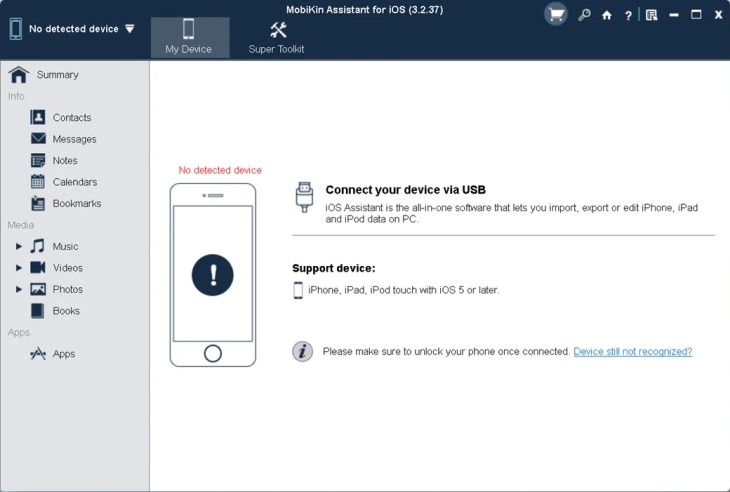
If you’re tired of iTunes slowing you down every time you want to move a photo or back up your iPhone, you’re not alone. MobiKin Assistant for iOS is a solid iTunes alternative that lets you transfer, manage, and back up data from your iPhone, iPad, or iPod touch — directly from your Windows PC, without the usual sync headaches.
Whether you’re switching to a new phone, cleaning up your media library, or just want a reliable backup tool, this software covers it all. And right now, you can grab a free license for MobiKin Assistant for iOS (Windows) through this giveaway — no credit card needed.
Contents
What Is MobiKin Assistant for iOS?
MobiKin Assistant for iOS is a Windows-based iOS file manager and data transfer tool developed by MobiKin. Unlike iTunes, it gives you full control over your files — you can move specific photos, export contacts in CSV format, or back up messages without wiping anything off your device.
It works with all major iPhone, iPad, and iPod models, and supports over 10 different file types. The interface is clean and easy to navigate, so you don’t need to be tech-savvy to use it.

Key Features of MobiKin Assistant for iOS
1. Transfer 10+ Types of Data with One Click
MobiKin Assistant handles a wide range of file types — photos, videos, music, contacts, messages, notes, bookmarks, playlists, voice memos, podcasts, ringtones, and eBooks. You can move them from your iPad or iPhone to your Windows PC in just a few clicks, with no quality loss.
2. Know Exactly What’s Eating Your Storage
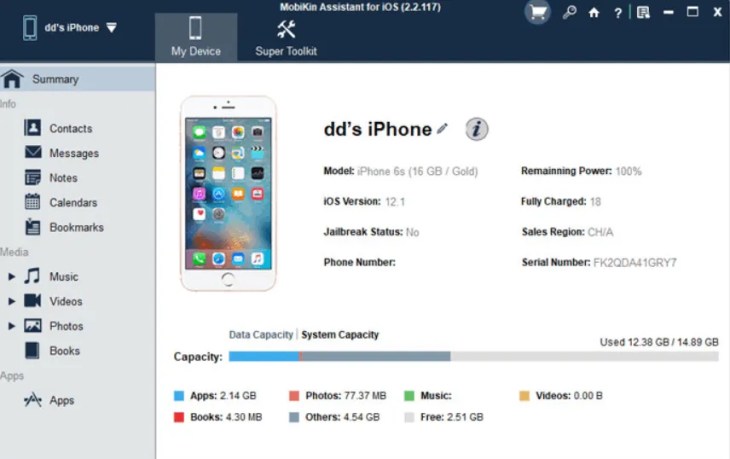
One feature that stands out is the visual storage breakdown. The app scans your device and shows you exactly how much space each category — photos, apps, music, etc. — is using. This makes it easy to spot what’s bloating your storage and decide what to delete or move out.

3. Selective Transfer or Full Batch Export
You’re not forced to move everything at once. MobiKin lets you pick specific files — say, a few vacation photos or a playlist — and transfer only those. Or, if you want to do a full backup of a category like contacts or messages, you can batch export the entire folder in one go. This level of control is something iTunes simply doesn’t offer.
4. Two-Way Data Transfer
It’s not just iPhone-to-PC. You can also push data from your PC back onto your device. So if you want to restore contacts, import music, or add notes to your iPhone from your computer, that’s fully supported.
5. Edit Contacts, Messages, and Notes Directly
Beyond file transfers, MobiKin lets you add, edit, or delete contacts, notes, and bookmarks right from the desktop app. No need to pick up your phone — handy when you want to clean up duplicates or fix contact details on a larger screen.
6. Uninstall Apps from Your PC
Got apps cluttering your iPhone that you want to remove? You can uninstall them directly from MobiKin Assistant without touching your phone. It’s a time-saver, especially when clearing out a bunch of unused apps at once.
7. Preview Before You Transfer
Before moving anything, you can browse your files in either thumbnail view (great for photos) or list view (better for documents and music). There’s also a search function so you can quickly find a specific track, photo, or contact without scrolling through hundreds of entries.
All Key Features at a Glance
- Back up over 10 types of data from your iPhone, iPad, or iPod to your Windows PC
- Single-click transfer of data from PC to iDevice — contacts, messages, books, notes, bookmarks, and more
- Exported files are fully accessible for viewing, playing, editing, and sharing
- Recover and save iTunes backup data to your computer
- Supports all iPhone, iPad, and iPod models (including newer generations)
- Organizes media files — videos, music, images, playlists — into neat folders
- Visual storage insights to help you manage device space
- Selective file transfer or full batch export of entire categories
- Export contacts in CSV, VCF, or XML format
- Export messages in HTML, Text, CSV, or DB format
- Uninstall apps from your iDevice directly from your PC
- No iTunes sync required — works independently
System Requirements
- OS: Windows 11 / 10 / 8.1 / 8 / 7 (32-bit and 64-bit)
- Processor: 1GHz Intel/AMD CPU or higher
- RAM: 256MB or more
- Supported Devices: iPhone, iPad, and iPod touch (all major models)
- Connection: USB cable (Lightning or USB-C depending on your device)
How to Claim Your Free MobiKin Assistant for iOS License
This giveaway gives you a full registered version of MobiKin Assistant for iOS at no cost. Follow these steps to activate it:
- Download the installer from the official MobiKin website: https://www.mobikin.com/downloads/
- Install the software and launch it on your Windows PC.
- On the main interface, click the “Key” icon. A pop-up will appear — click the “Register” button inside that window.
- Enter the activation details below and hit “Register”.
Email: mobikin@giveawayoftheday.com
License code: F8005F7A8675B670C200423220887A008D109B3949C5C702467A208B

Is MobiKin Assistant for iOS Worth It?
If you regularly move files between your iPhone and Windows PC, this tool is genuinely useful. It’s much faster and less frustrating than iTunes, and the selective transfer feature alone is worth the download. The storage breakdown view is also handy if you’re trying to free up space without deleting things randomly.
The free giveaway version is fully functional — not a trial or a stripped-down version. So if you’ve been looking for a reliable iPhone data management tool for Windows, this is a great opportunity to grab one without spending a rupee.
Frequently Asked Questions
Does MobiKin Assistant for iOS work without iTunes?
Yes. MobiKin Assistant for iOS works independently and does not require iTunes to be installed. However, you will need Apple’s USB drivers on your PC for the device to be recognized.
Is the free license permanent?
The giveaway license is a time-limited offer provided through Giveaway of the Day. It is a full, registered version — not a trial — but it may not include future updates.
Which iPhone models are supported?
MobiKin Assistant for iOS supports all major iPhone, iPad, and iPod touch models. It is compatible with devices running iOS 7 and above.
Can I transfer WhatsApp chats or app data?
MobiKin Assistant for iOS focuses on native iOS data types — contacts, messages, photos, music, etc. Third-party app data like WhatsApp chats requires a different approach and is not directly supported.
Discover more from Techno360
Subscribe to get the latest posts sent to your email.

You must be logged in to post a comment.