
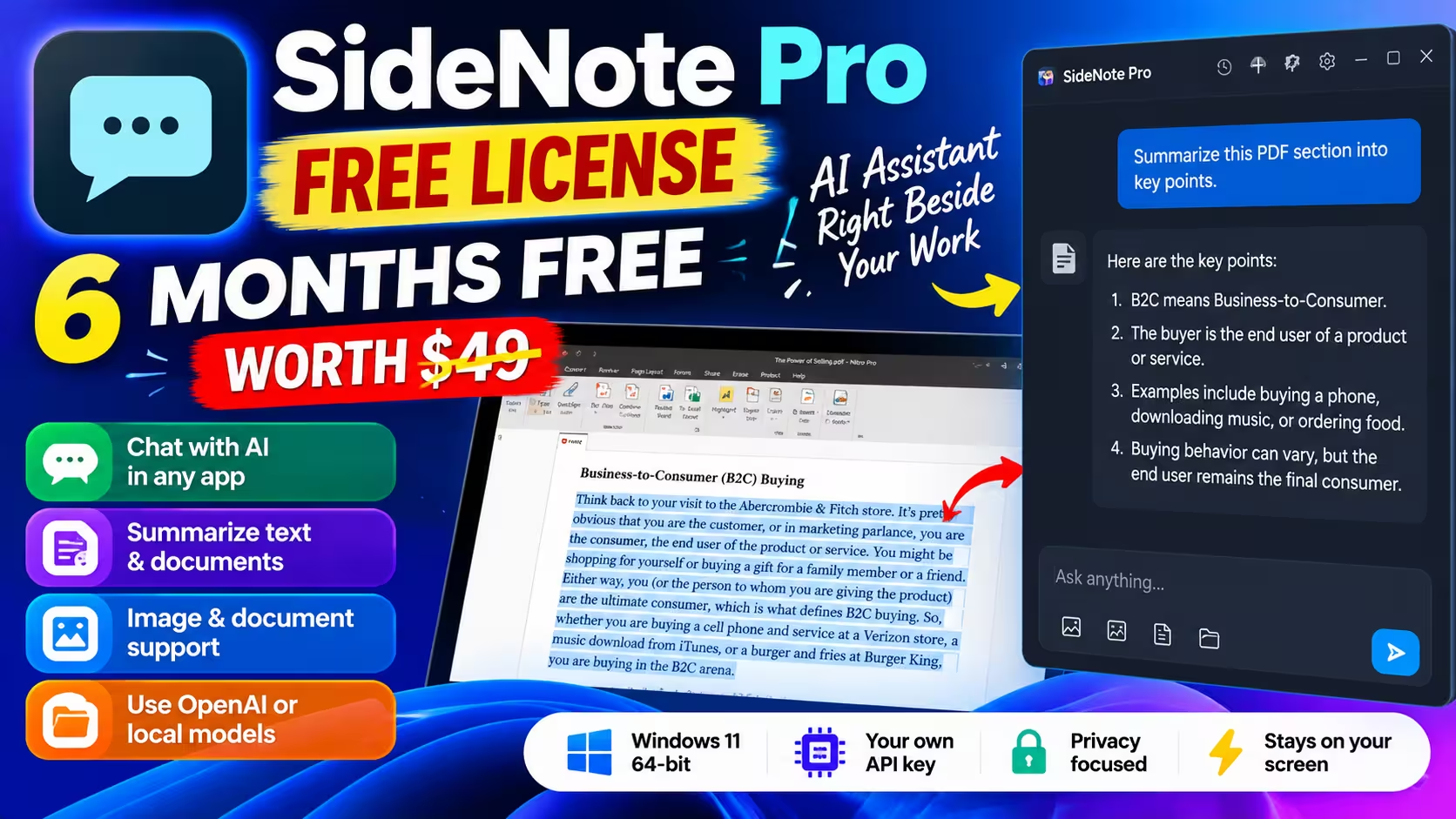
🎁 SIDENOTE PRO FREE LICENSE · WORTH $49
An AI sidebar that sits beside your work — free for six months
SideNote Pro docks on the edge of your Windows 11 screen and pops out with one shortcut. Plug in your own OpenAI key or a local model, and it reads, rewrites and explains whatever you’re looking at — without another browser tab.
Windows 11 · 64-bit
Version 1.15
⏳ Ends Oct 4, 2026
⚡ Quick Read
- What: SideNote Pro, a native AI side panel for Windows 11 by BediniLabs (normally $49).
- Giveaway: a time-limited 6-month licence (not the lifetime one), 1 PC, personal (non-commercial) use, updates for the six months.
- Catch: No AI is bundled. You bring an API key (OpenAI and others) or a local model via Ollama / LM Studio.
- Install from: the Microsoft Store, not the giveaway site’s .exe.
- Deadline: the offer ends on October 4, 2026, around 1:45 PM IST (8:15 AM UK / 1:15 AM US Pacific). Grab and activate your key before then — once the timer runs out, the free key is gone.
Why I bothered with yet another AI app
Most of my working day is spent between a PDF, a browser and a WordPress editor. Every time I want an AI to explain a paragraph, I copy it, switch to a ChatGPT tab, paste, wait, copy the answer, and switch back. Do that thirty times a day and it adds up.
SideNote Pro tries to kill that loop. It lives as a thin “leash” on the right edge of your monitor. Press Ctrl+Shift+Space, it slides out over whatever you’re doing; press Esc and it tucks itself away again, keeping your conversation intact. I installed it on my Windows 11 PC, activated the giveaway key, and used it for a few days alongside Nitro Pro and Chrome before writing this.
What SideNote Pro actually does
Think of it as a chat window that’s always one keystroke away, with a few tricks a browser tab can’t do:
- Act on highlighted text in any app. Select a passage in Word, a PDF reader or your browser, hit the action shortcut, and ask for a summary, rewrite, explanation or translation. The answer shows up in the panel.
- Inline commands. In most Windows text boxes you can type
/fix,/short,/formalor/enbefore your text, press Tab, and the result replaces what you typed. This is off by default — switch it on in Settings. - Screenshots and files. Capture part of the screen, or attach images, PDF, DOCX, TXT and Markdown files. Documents are converted to text on your PC first.
- Ask a whole folder. Point it at a folder of notes or specs. It indexes locally, then sends only the relevant snippets to the AI and lists the source files it used.
- Takeaways (new in 1.15). Pin decisions, key points and next steps from a chat as cards, with your own notes attached.
- Cost tracking. Every reply shows input/output tokens and an estimated cost, and you can set a daily spending cap.
My hands-on notes
A few things stood out once I’d used it for real work rather than a quick demo:
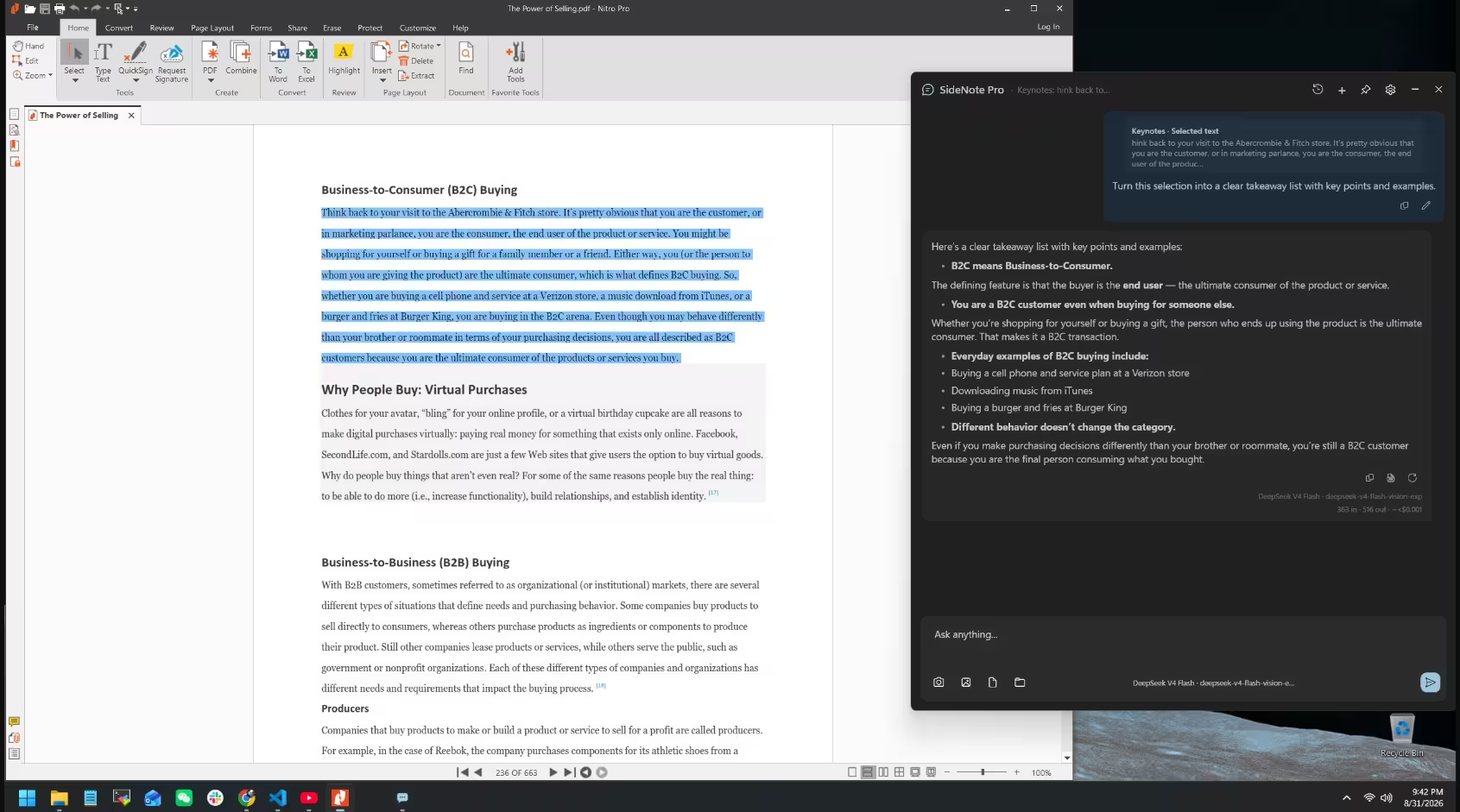
- It’s cheap to run if you pick the right model. I highlighted a paragraph from a marketing textbook in Nitro Pro and asked for a takeaway list using DeepSeek V4 Flash. The reply footer showed 363 tokens in, 516 out, and an estimated cost of under $0.001. For everyday summaries, a small fast model is plenty.
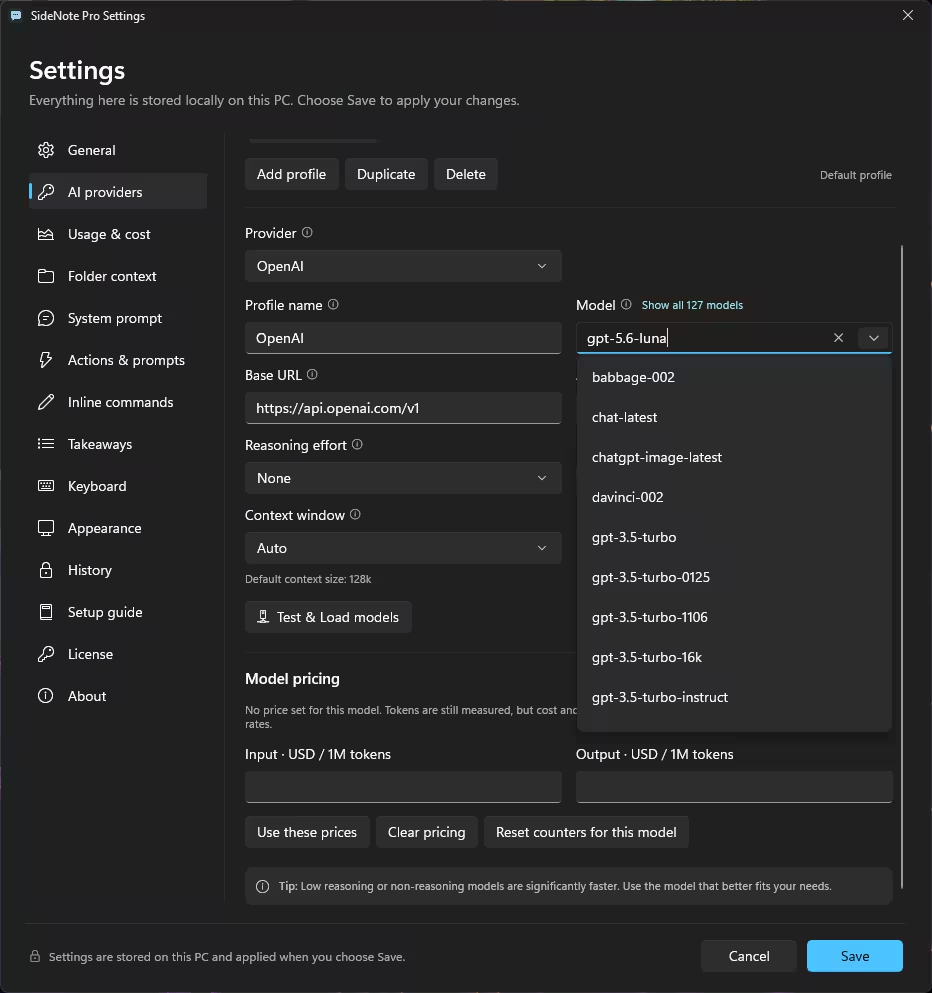
- The provider list is wide open. When I clicked “Test & Load models” with my OpenAI key, the dropdown showed 127 model entries in my test. That number depends on your account and on what OpenAI offers at the time. The quick setup picks GPT-5.6 Luna with reasoning switched off, which is a sensible fast default.
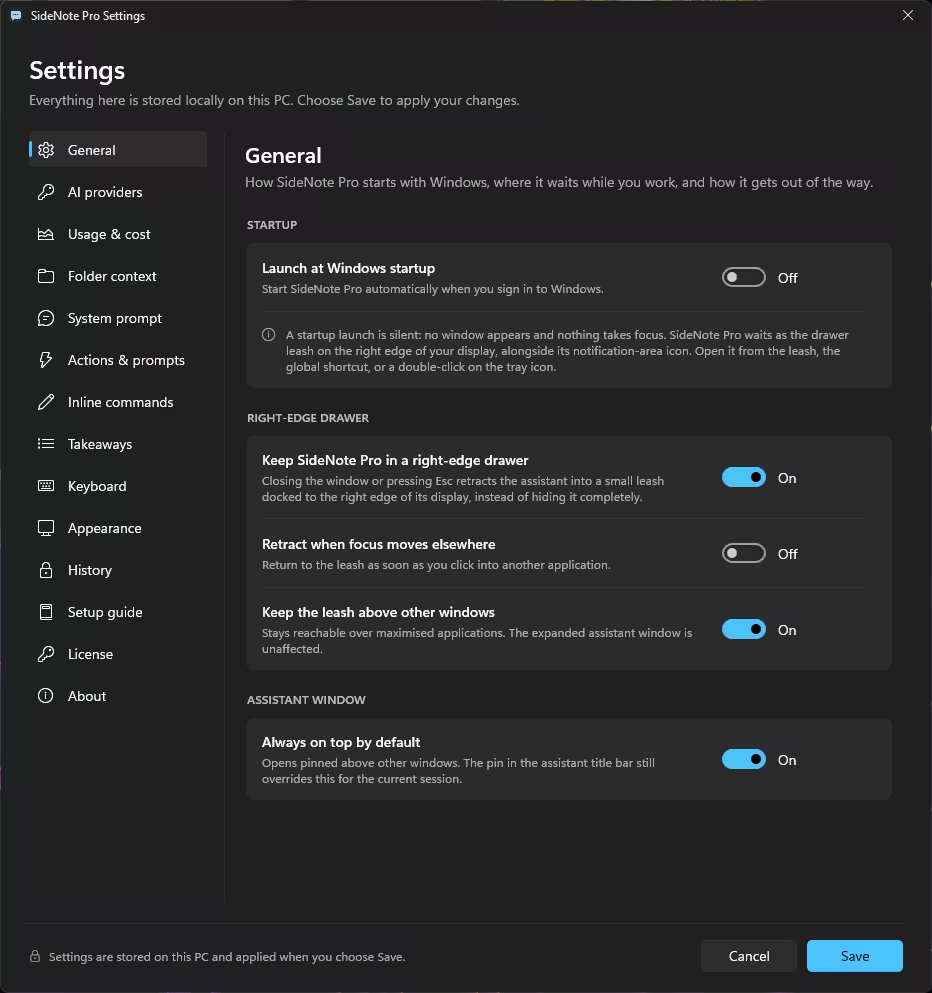
- It stays out of the way. Out of the box the leash stays above other windows and the panel opens pinned on top. If that’s too clingy, flip “Retract when focus moves elsewhere” on in General settings.
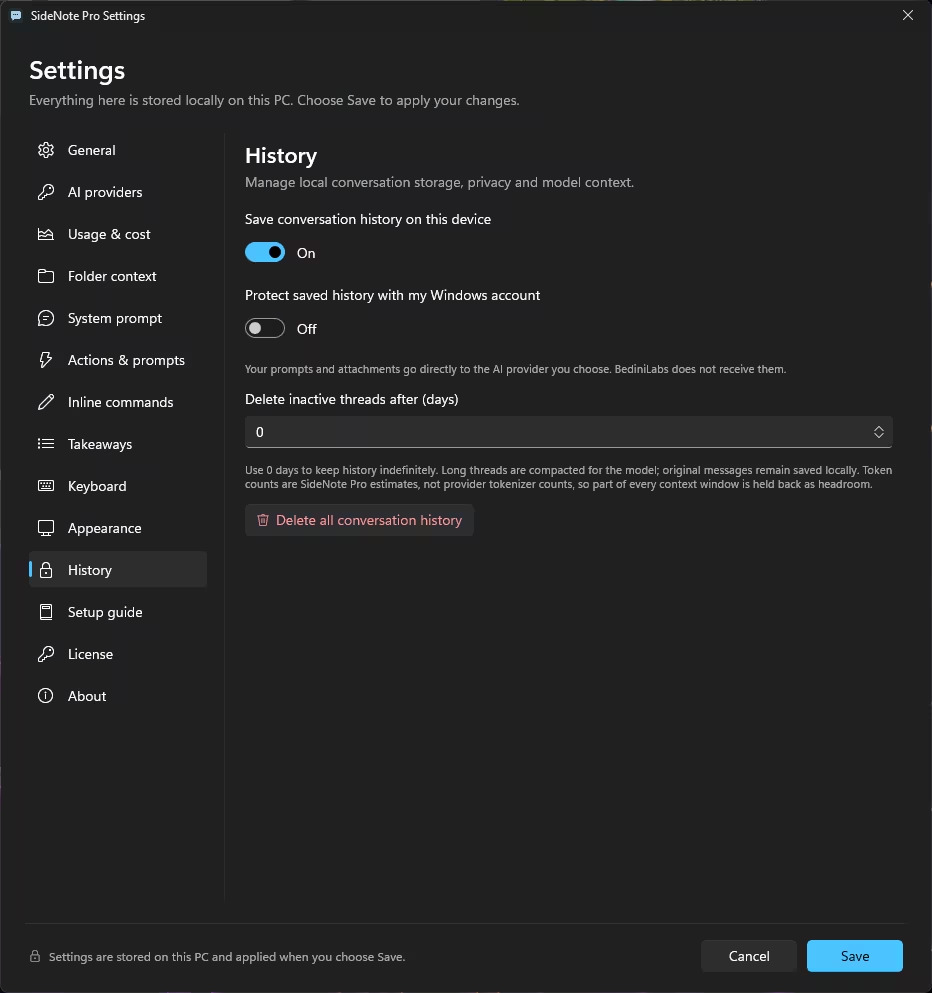
- One privacy setting I’d change straight away. Chat history is saved locally and kept forever by default, and “Protect saved history with my Windows account” is off. If you share your PC, turn that on, and set an auto-delete period under History.
SideNote Pro vs ChatGPT: what’s the real difference?
The answers won’t be smarter. If you connect SideNote Pro to an OpenAI model, you’re using the same kind of model that powers ChatGPT. What changes is where you use it:
- ChatGPT is its own app or website. You take your text to it, and you pay a monthly subscription.
- SideNote Pro comes to the app you’re already using. It acts on selected text, screenshots and local files, and you pay your provider per use (or nothing, with a local model).
- ChatGPT works as soon as you sign in. With SideNote Pro, you have to set up a provider first.
So the gain is a smoother workflow, not more AI power. If you rarely leave the ChatGPT tab, you won’t miss much. If you copy and paste between apps all day, the difference shows up quickly.
What you need before installing
- A Windows 11 64-bit PC.
- An internet connection (activation needs one, and so does any online AI provider).
- An OpenAI API key or one from a compatible provider — or Ollama / LM Studio already running a local model.
- API credit with that provider if it’s a paid one. Installing the app doesn’t give you free AI.
- The giveaway licence key (Step 1 below).
Giveaway terms at a glance
| Software | SideNote Pro v1.15 by BediniLabs |
| Normal price | $49 one-time (lifetime, 1 user, 2 devices) |
| Giveaway licence | 6 months, 1 PC, non-commercial use |
| Updates & support | Free updates and tech support during the six months |
| System | Windows 11, 64-bit (Home, Pro, Enterprise, Education) |
| AI usage | Not included — your own API key or local model |
| Offer ends | October 4, 2026, around 1:45 PM IST / 8:15 AM UK / 1:15 AM US Pacific (key must be activated before then) |
How to get the SideNote Pro free license
Step 1: Get your licence key
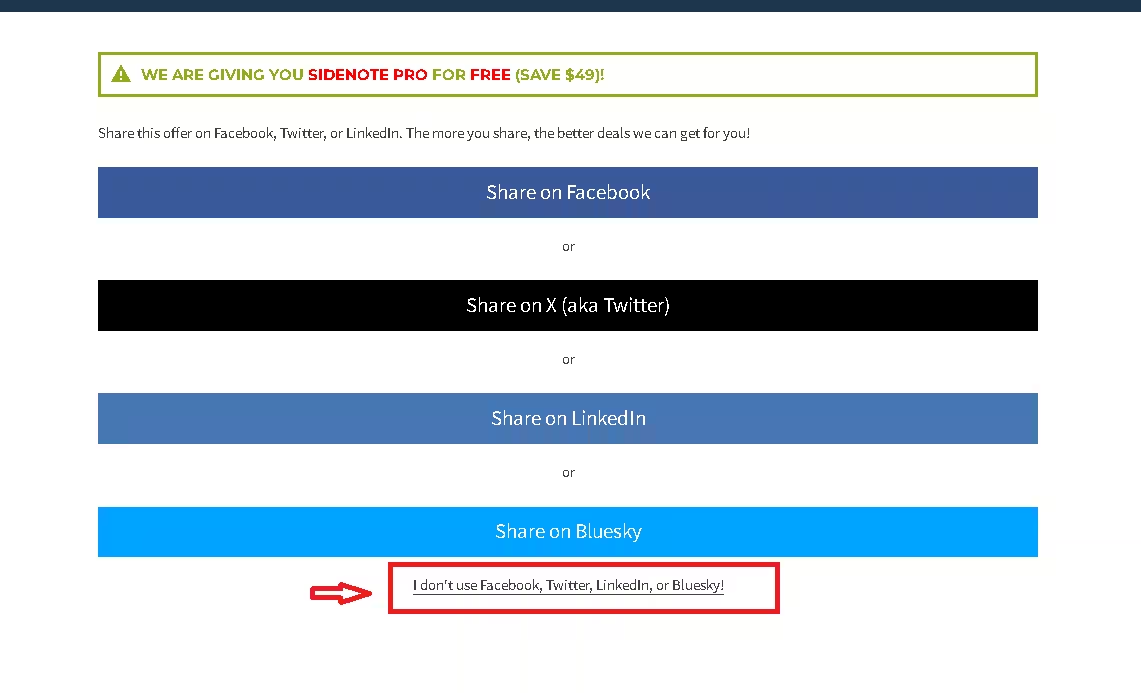
Open the SideNote Pro giveaway page on SharewareOnSale. You’ll be asked to share the deal on social media — skip that by clicking the small “I don’t use Facebook, Twitter, LinkedIn, or Bluesky!” link under the share buttons.
Fill in the short form (email twice, country, which devices you use), pass the Cloudflare check and press Give It To Me Now. The key appears on the next page and is also emailed to you. It looks like SNP1-XXXXX-XXXXX-XXXXX-XXXXX.
💡 Tip: Signing up means agreeing to their deal newsletter. If you’d rather keep your main inbox clean, a disposable address from Temp Mail works — just copy the key from the success page before you close the tab.
Step 2: Install from the Microsoft Store
Ignore the “SharewareOnSale_Giveaway” .exe on the success page. Grab SideNote Pro from the Microsoft Store instead. It’s the same app straight from the developer, and the Store keeps it updated for you. The download is roughly 90 MB.
Step 3: Activate the licence
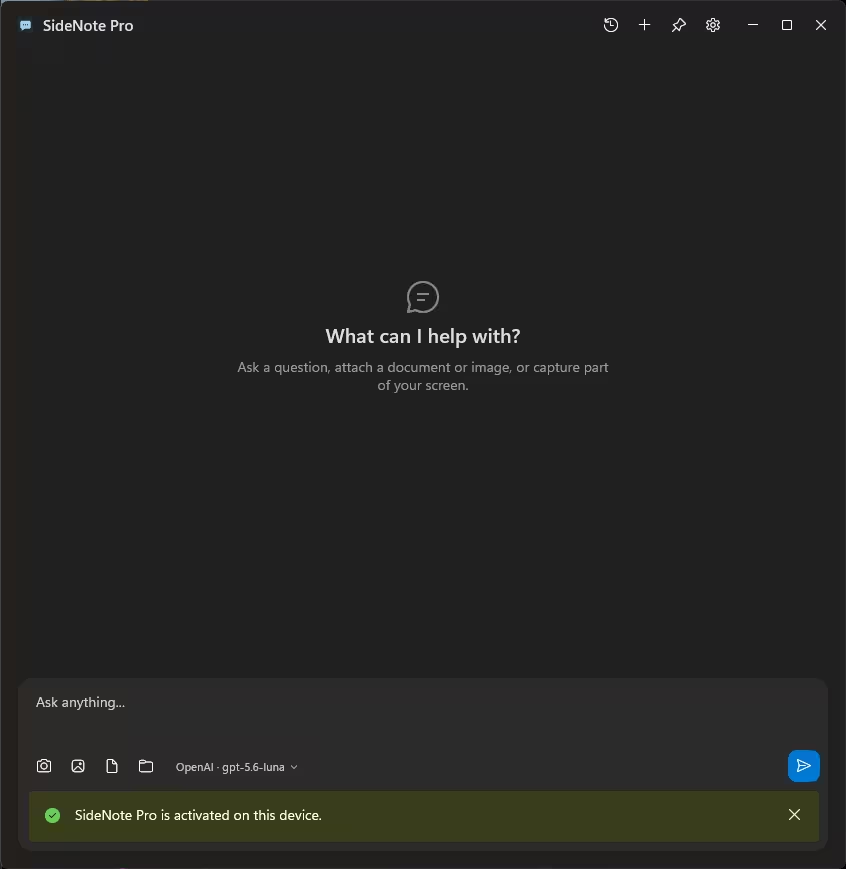
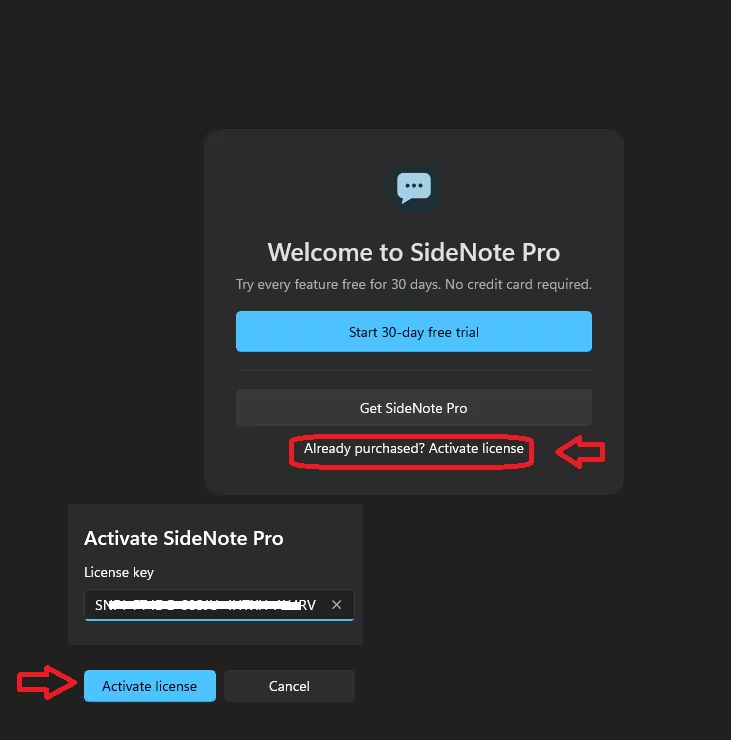
On first launch you’ll see a welcome screen offering a 30-day trial. Don’t click that. Choose “Already purchased? Activate license”, paste your key and press Activate license. A green “SideNote Pro is activated on this device” bar confirms it worked. Do this before the offer ends — the giveaway terms say the key must be redeemed while the deal is still live.
Step 4: Connect an AI provider
Next comes the setup screen. If you use OpenAI, click Create API key, generate a new secret key in your OpenAI dashboard (I named mine “SideNote” and set a 30-day expiry), copy it while it’s still visible, then paste it into SideNote Pro and hit Connect & continue. Your account needs some API credit for this to work.
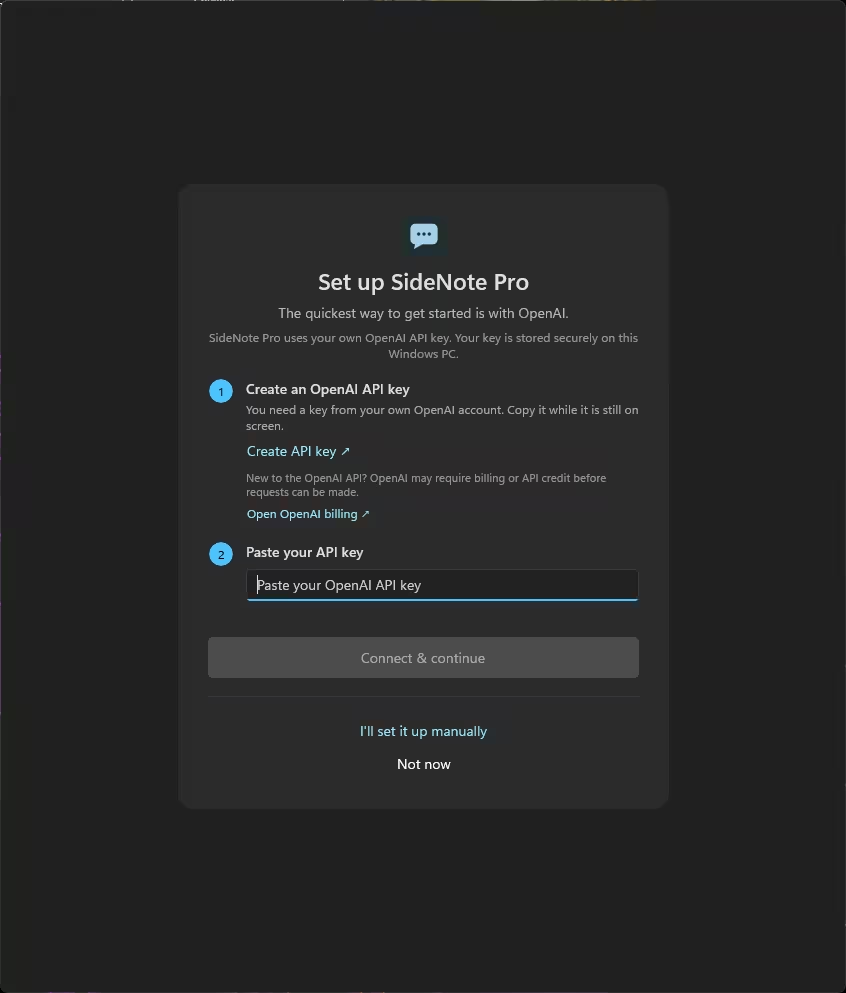
Prefer DeepSeek, Gemini, a local model in Ollama or LM Studio, or another compatible service? Pick “I’ll set it up manually” and add a provider profile under Settings → AI providers. With a local model set up properly in Ollama or LM Studio, your prompts are handled on your own PC rather than sent to an outside AI company. There’s no per-request API charge either, though your own hardware does the work.
⚠️ Important: A ChatGPT Plus or Pro subscription doesn’t include API credit. OpenAI bills API usage separately, based on the model and the number of tokens you use. Set a monthly spending limit in your OpenAI billing settings before you try out several models.
Who should grab it (and who shouldn’t)
👍 Worth it if you already pay for an API key, run local models, or read and write a lot on Windows and want AI help without leaving the app you’re in. Students wading through long PDFs and writers who keep tidying emails will get the most out of it.
👎 Skip it if you’re on Windows 10, need it for business work (this licence is personal-use only), or have no interest in setting up an API key or a local model. Without one of those, the app has nothing to talk to. If you want a completely free offline route, our Jan AI review covers running models on your own PC — and SideNote Pro can sit on top of a local setup like that.
Looking for more tools that save clicks on Windows? See our list of the best Windows productivity apps, and if your desktop itself is the mess, the iTop Easy Desktop Pro free licence is another giveaway worth a look.
📊 Techno360 Verdict: 4.3 / 5
SideNote Pro does one thing well: it puts AI next to your work instead of in another tab. The selected-text actions and the per-reply cost readout are the bits I kept using. On privacy, the developer says there’s no SideNote Pro account and no telemetry, and that API keys are stored with Windows DPAPI. The local-first design is a plus, but anything you send to an online AI provider still falls under that provider’s data policies. The trade-off is that you have to bring your own AI.
Know what you’re getting: this giveaway gives you six months of SideNote Pro features and updates on one PC. It is not the lifetime licence, which is a separate $49 purchase. AI usage is billed by your chosen provider, unless you use a local model.
- Good: one-key summon, works with almost any provider or local model, real cost tracking, local-first storage.
- Not so good: Windows 11 only, no AI included, saved-history protection off by default, personal-use licence.
Bottom line: If you already have an API key or Ollama installed, claim the SideNote Pro free license before the offer closes. It costs nothing to try, and six months is long enough to know whether the $49 lifetime licence is worth paying for later.
How we rate: the score covers features, ease of setup, day-to-day usefulness and value during the giveaway period. It does not include AI provider charges.
Frequently asked questions
Is the SideNote Pro free license really free?
Yes. The licence costs nothing through SharewareOnSale. What isn’t free is the AI itself if you use a paid provider like OpenAI — you pay them directly for what you use. A local model through Ollama or LM Studio costs nothing per request.
Does SideNote Pro work without an API key?
Only if you run a compatible local AI server such as Ollama or LM Studio. Without a key or a local server, the app opens but can’t generate answers.
Can I use it on Windows 10?
No. The developer lists Windows 11 64-bit as the requirement, and the Microsoft Store listing follows that.
Does BediniLabs see my chats?
According to the developer, no. Conversations, settings and folder indexes are stored on your PC, and requests go straight to the provider you configured. The licensing service only handles activation. Your AI provider does see what you send, under its own policies.
What happens after six months?
The giveaway licence, its updates and tech support cover six months. After that, the regular $49 lifetime licence is the way to keep using SideNote Pro.
Why install from the Microsoft Store instead of the giveaway download?
The Store version comes straight from the developer and updates automatically, so you get each new release during your six months without hunting for installers. The giveaway key activates it just the same.
More free licences land every week — browse the Techno360 Free Stuff hub for the latest giveaways before they expire.
Discover more from Techno360
Subscribe to get the latest posts sent to your email.
