
Most Windows users waste 1–3 hours every day doing things a computer should handle instantly:
- Searching for files
- Switching between apps
- Repeating the same tasks
- Getting distracted every 10 minutes
I tested 25+ productivity apps in 2026. Only 10 actually made a measurable difference.
This is not a generic list. This is a real productivity system.
We’ve verified every app in this list against the latest 2026 releases, update logs, and expert reviews—so you won’t find outdated recommendations here. Here are the 10 windows productivity apps in 2026 you should install right now.
⚡ Quick Jump:
1. Microsoft PowerToys — The Ultimate Windows Power-Up (Free)
If you could install only one app from this entire list, make it Microsoft PowerToys. This free, open-source suite from Microsoft packs 30+ utilities designed to unlock capabilities Windows simply doesn’t offer by default—and in 2026, it’s better than ever.
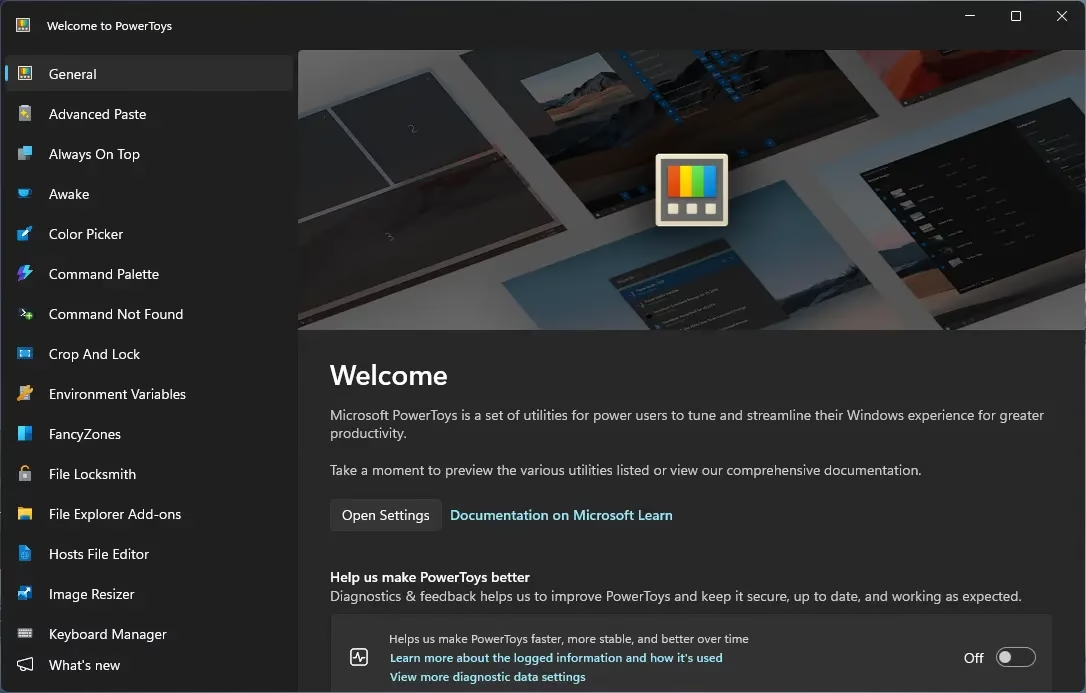
The biggest 2026 update is PowerToys v0.98, which introduced a brand-new taskbar-like Dock tool, a fully redesigned Keyboard Manager UI, and major improvements to Command Palette—the blazing-fast launcher that many users say has completely replaced their Start Menu. PowerToys v0.98 also added a video editor for ZoomIt to trim screen recordings and a new CursorWrap feature for multi-monitor setups that teleports your mouse to the opposite edge of a screen.
Best PowerToys Features to Enable First:
- Command Palette—Search apps, files, settings, do math, and control PowerToys itself from one keyboard shortcut
- FancyZones—Snap windows into custom grid layouts for multi-tasking
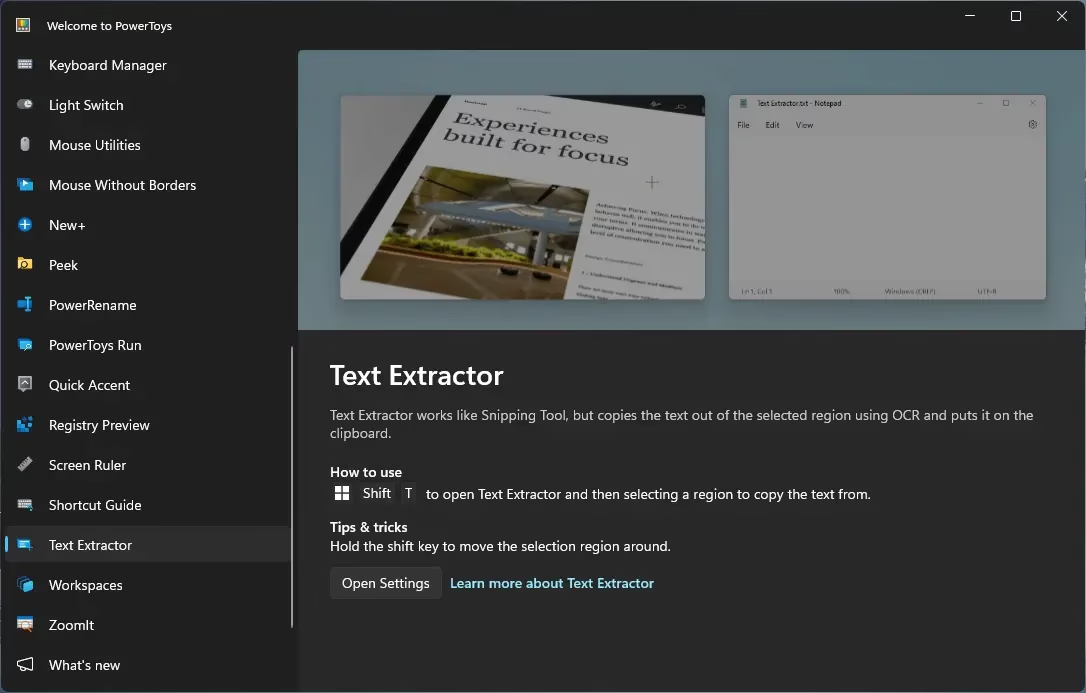
- Text Extractor — OCR-powered tool to copy text from anywhere on screen (Win + Shift + T)
- Advanced Paste — AI-powered clipboard with format conversion
- Always on Top — Pin any window above all others
- Image Resizer — Resize images directly from the right-click menu
- PowerRename — Bulk rename files with regex support
📥 Download: Free from the Microsoft Store or GitHub | Current version: v0.98 | Windows 10 (2004+) & Windows 11
2. Notion — The AI-Powered All-in-One Workspace (Free / Paid)
Notion has evolved far beyond a notes app. In 2026, it’s best described as an intelligent workspace—combining notes, databases, wikis, project tracking, and now autonomous AI Agents in a single interface.
The headline feature of 2026 is Notion’s Custom Agents, which act like AI teammates handling repetitive work: surfacing the right documents at the right time, answering repeat team questions, and generating competitive intelligence reports automatically. Notion also rolled out 28% faster page rendering and the ability for teammates to create pages in a database without viewing others’ content — a handy privacy control for teams.
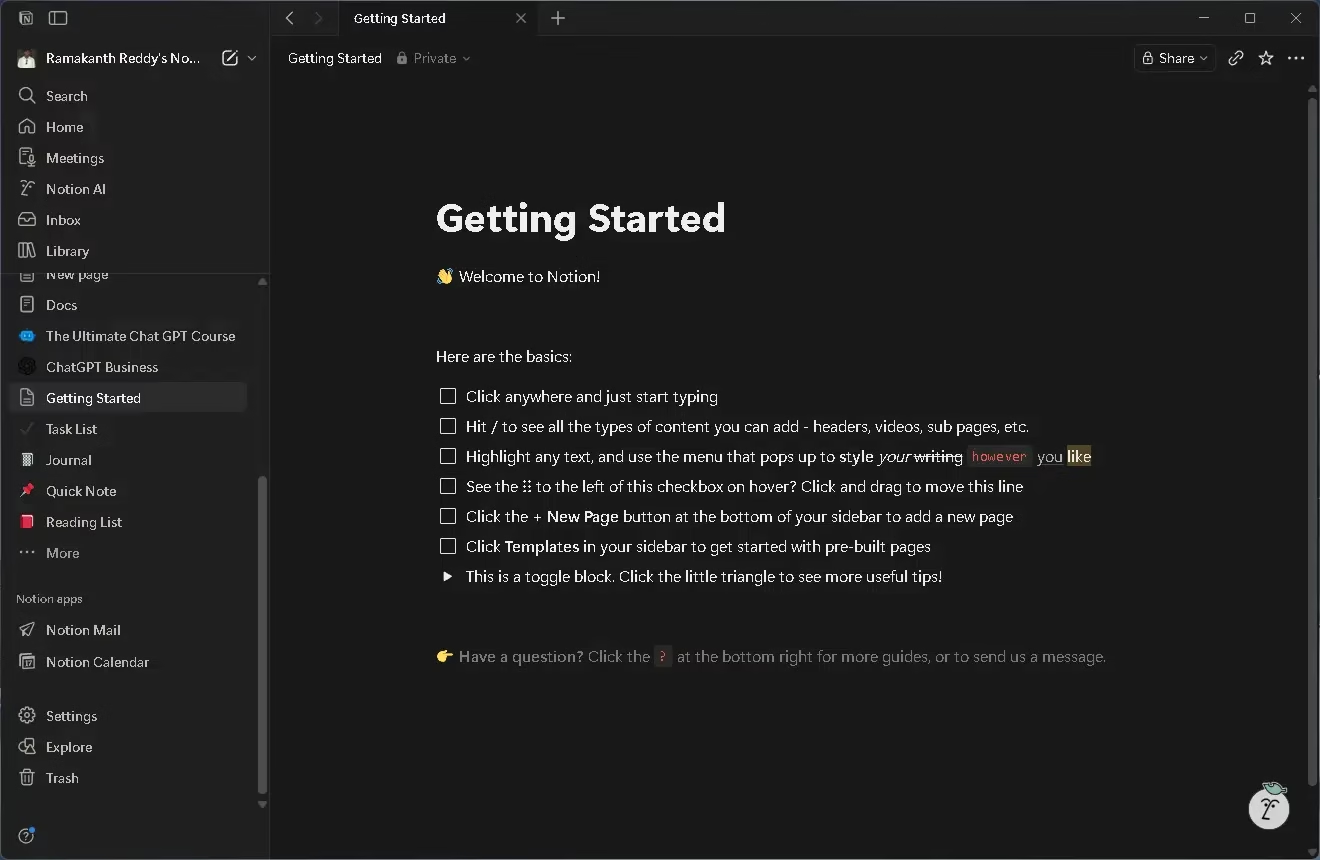
For Windows users, Notion runs as a native desktop app with offline mode, making it practical even without a constant internet connection. It’s equally at home for solo writers building a second brain as it is for 50-person teams managing complex projects.
💡 Pro tip for Indian users: Notion’s free plan is genuinely usable for individuals. The ₹830/month Pro plan (billed annually) unlocks unlimited AI and advanced collaboration features.
📥 Download: notion.so/desktop | Free plan available; Pro at $10/month
3. Obsidian — The Private, Local-First Knowledge Base (Free for Personal Use)
While Notion shines for teams, Obsidian is the undisputed champion for solo knowledge workers who value privacy, speed, and ownership of their data. Every note is stored as a plain Markdown file on your device — there’s no cloud dependency, no server to trust, and no subscription required for personal use.
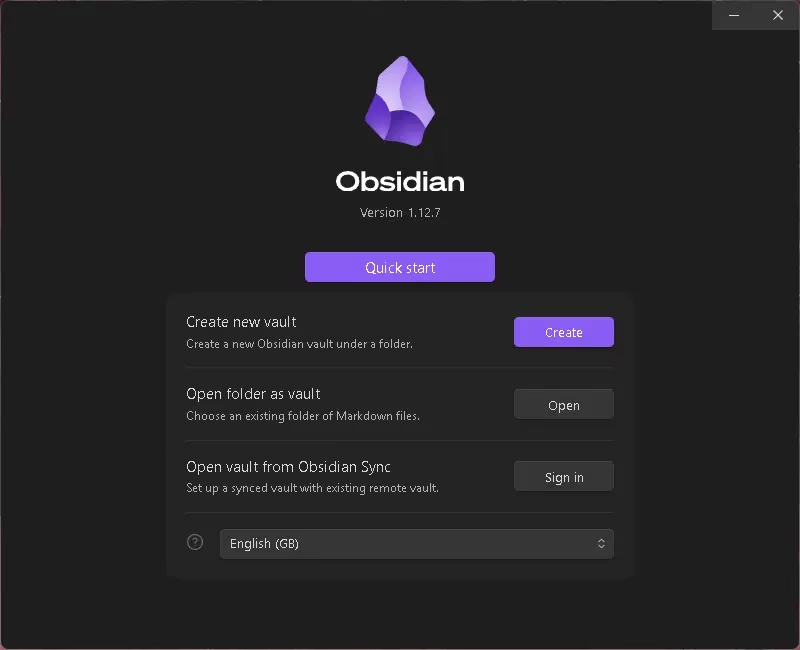
In 2026, Obsidian’s plugin ecosystem has grown to 2,690+ community plugins, covering everything from Kanban boards and calendar views to AI-powered search. The AI Assistant plugin (updated January 2026) now supports multiple LLM backends, including GPT-4, Claude, and local models via Ollama, giving you AI writing assistance without sending data to a third party.
Performance is another Obsidian strength: it loads a 10,000-note vault in under 2 seconds on a modern SSD, making it noticeably snappier than cloud-based competitors. If you’ve ever lost notes due to an app going offline, Obsidian’s local-first approach is the cure.
📥 Download: obsidian.md | Free for personal use; Sync add-on ~₹420/month
4. Flow Launcher — Windows’ Answer to macOS Spotlight (Free)
Mac users have always had Spotlight. Windows users now have something arguably better: Flow Launcher. With a single keyboard shortcut (Alt + Space), a sleek search bar appears at the centre of your screen — ready to launch apps, search files, run web searches, perform calculations, and execute plugins.
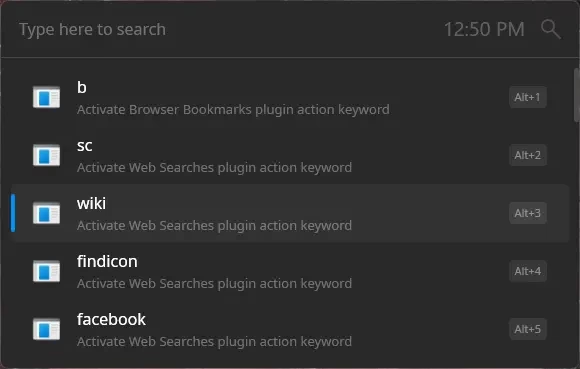
Version v2.1.1 released in March 2026 brings improved stability and a growing plugin library that lets you search your Obsidian vault, add tasks to Todoist, look up GitHub notifications, find GIFs, and much more — all without touching the mouse. For keyboard-centric workers, Flow Launcher is genuinely life-changing.
- 🔍 Search and launch any installed app instantly
- 📁 Find files across your entire PC in milliseconds
- 🧮 Run quick calculations (type
= 2500 * 18%and get the answer inline) - 🌐 Search Google, Wikipedia, YouTube without opening a browser first
- 🔌 50+ community plugins for extended functionality
📥 Download: flowlauncher.com | Free & open source | v2.1.1 (March 2026)
5. Todoist — The Best Task Manager for Windows (Free / Paid)
A great productivity stack needs a great task manager, and Todoist remains the gold standard in 2026. Its killer feature is natural language input—type “Submit GST report every quarter on the 20th” and Todoist creates a recurring task with the right date, no form-filling needed.
The Windows app integrates natively with Google Calendar, Outlook, and Slack, so your tasks stay in sync with your schedule. Priority levels, project boards, and a clean “Today” view help you focus on what actually matters each day — not a 500-item backlog.
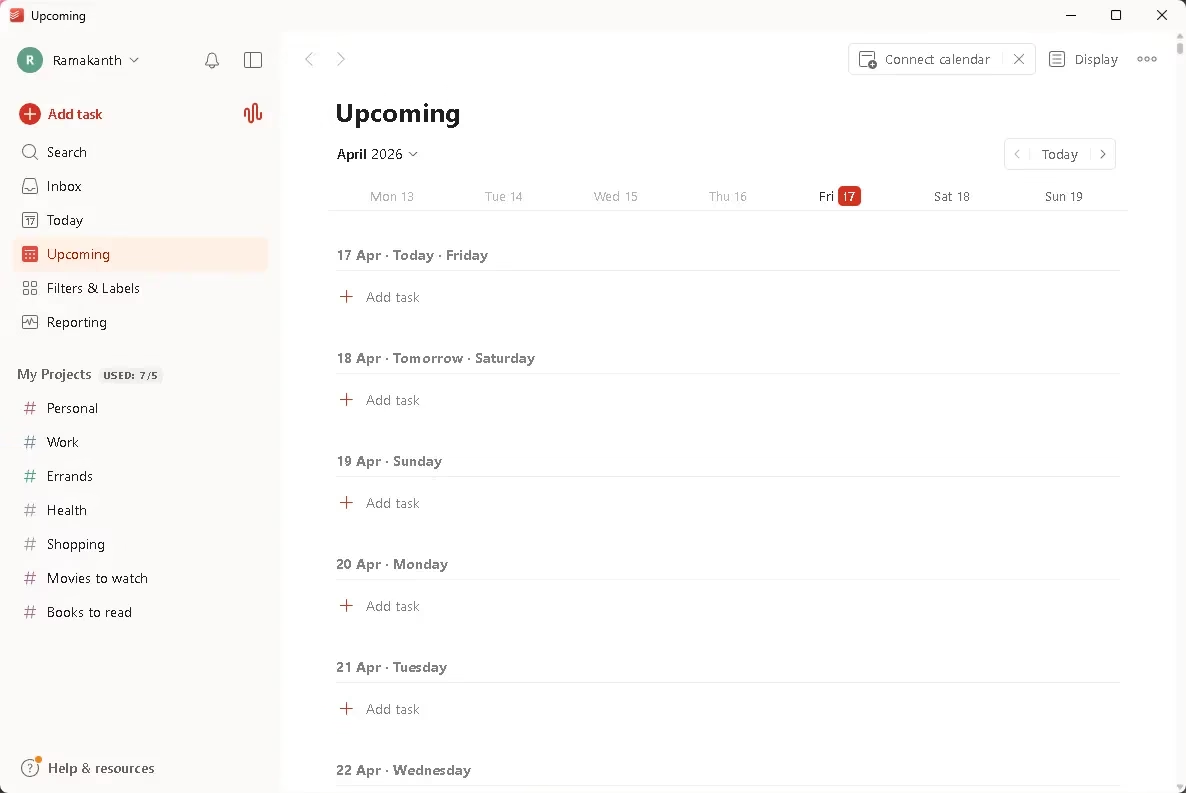
Todoist also introduced AI-assisted task breakdown in its 2025–2026 update cycle: paste a vague goal like “launch new website” and the AI suggests subtasks automatically.
- ✅ Natural language task entry
- 🔁 Recurring tasks with flexible schedules
- 📅 Two-way Google Calendar sync
- 🏷️ Labels, filters, and priority levels
- 📱 Works across Windows, Android, iOS, and web
📥 Download: todoist.com | Free plan available; Pro at ~₹325/month (billed annually)
6. Everything Search — Find Any File Instantly (Free)
Windows Search has improved over the years, but it’s still no match for Everything by voidtools. This lightweight utility indexes your entire drive and lets you find any file or folder in milliseconds — not seconds. Type part of a filename and results appear before you finish typing.
Everything works by reading the NTFS Master File Table (MFT) directly, which is why it’s so extraordinarily fast. The index builds in seconds and uses almost no RAM. You can search by name, extension, path, size, or date — and even use regular expressions for advanced queries.
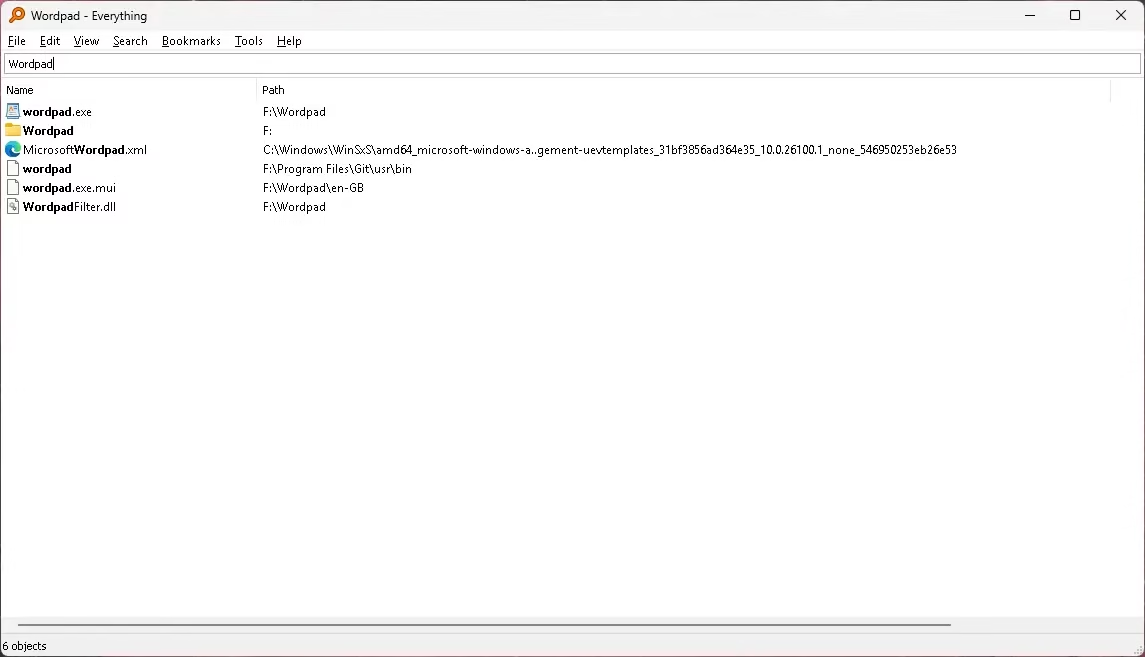
If you’ve ever wasted five minutes hunting for a downloaded PDF or a project file buried three folders deep, Everything Search will feel like a superpower.
- ⚡ Sub-millisecond search across millions of files
- 🗂️ Filter by file type, size, or modified date
- 🔤 Regex and wildcard search support
- 📡 Works over the network to search shared drives
- 💾 Tiny resource footprint — under 10 MB RAM
📥 Download: voidtools.com | Completely free | Windows 7 to Windows 11
7. AutoHotkey — Automate Anything on Windows (Free)
If you find yourself doing the same repetitive actions on your PC every day—typing the same text, opening the same folder sequence, and filling out the same form fields— AutoHotkey (AHK) can automate all of it with a few lines of script.
AutoHotkey is a free, open-source scripting language built specifically for Windows automation. You can create custom keyboard shortcuts, auto-type snippets of text, automate mouse clicks, remap keys, and build complete GUI applications — all without any programming experience beyond the basics.
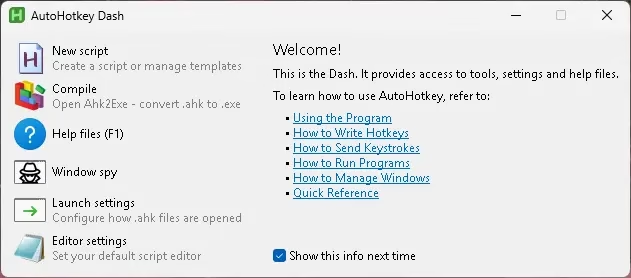
A simple example: a two-line AHK script that types your full email address every time you press Ctrl + Alt + E. Multiply that by every repetitive task in your workflow, and you can reclaim hours every week.
The active community has shared thousands of ready-to-use scripts for tasks like window management, text expansion, clipboard management, and web automation — so you don’t even need to write scripts from scratch.
📥 Download: autohotkey.com | Free & open source | AHK v2 (latest stable)
8. Toggl Track — Know Exactly Where Your Time Goes (Free / Paid)
You can’t improve what you don’t measure. Toggl Track is the most polished time-tracking app on Windows, used by freelancers, consultants, and remote workers to understand exactly how their hours are spent.
The Windows desktop app runs quietly in the system tray. One click starts a timer; another stops it. You assign time entries to projects and clients, then generate visual reports that show you the breakdown by day, week, project, or client. It’s the fastest way to fill a timesheet, invoice a client accurately, or identify which tasks are eating your productive hours.
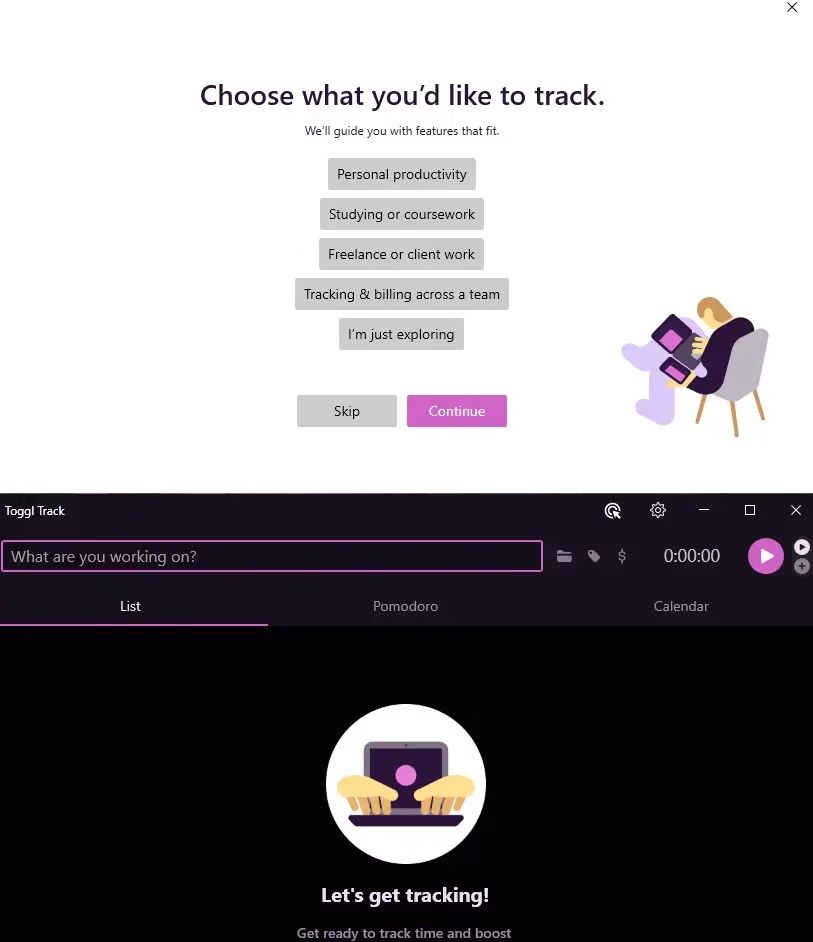
Toggl Track integrates with over 100 tools, including Jira, Asana, Trello, Google Calendar, and even browser extensions that detect which sites you’re visiting and suggest automatic time entries.
- ⏱️ One-click time tracking from the system tray
- 📊 Visual weekly and monthly productivity reports
- 🔗 Integrations with Jira, Asana, Trello, Google Calendar
- 💼 Client and project billing reports
- 📱 Syncs across Windows, Mac, iOS, and Android
📥 Download: toggl.com/track | Free plan (up to 5 users); Starter at $10/user/month
9. Microsoft Copilot — Your AI Productivity Co-Pilot (Free with Windows 11)
Microsoft Copilot is now deeply embedded into Windows 11, and in 2026, Microsoft officially ranks it as the #1 productivity app for Windows. While that ranking is debatable for power users, Copilot has become genuinely useful for everyday tasks — especially if you’re in the Microsoft 365 ecosystem.
Summon Copilot with a voice command (“Hey Copilot”) or a keyboard shortcut, and you can ask it to draft emails, summarize documents, explain concepts, write code, or plan a trip—all without opening a browser. For Microsoft 365 subscribers, Copilot integrates directly into Word, Excel, Outlook, and Teams, turning it into a contextual AI assistant that understands your actual work.
Windows 11’s Focus Sessions (via the Clock app) pairs well with Copilot: set a structured work session, pick a task from Microsoft To Do, connect Spotify for focus music, and let Copilot handle any research questions that come up mid-session without breaking your flow.
📥 Access: Built into Windows 11 (Settings → Copilot) | Enhanced features require Microsoft 365 subscription (₹5,999/year for Personal)
10. Freedom — Block Distractions and Defend Your Focus (Paid)
All the productivity tools in the world won’t help if you keep switching to YouTube or social media every 10 minutes. Freedom solves this with an iron fist: it blocks distracting websites and apps on a schedule you set, and its Locked Mode makes it impossible to disable the block mid-session—even if you restart your PC.
Freedom works across Windows, Mac, iOS, and Android simultaneously, so blocking Twitter on your PC doesn’t leave it accessible on your phone. You create block sessions, add the apps and sites you want to block, and optionally set recurring schedules (e.g., block social media every weekday from 9 AM to 6 PM). Users report that deep work sessions can extend from 30-minute bursts to 2+ hour focused blocks once distracting apps are physically inaccessible.
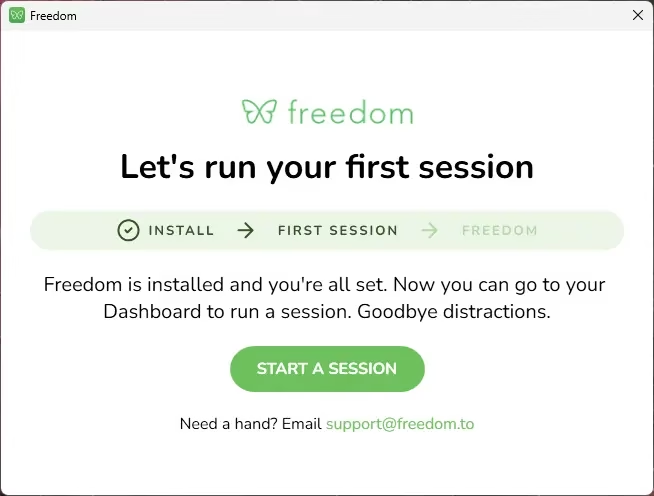
It’s not free, but for anyone who struggles with digital distraction, Freedom often pays for itself in reclaimed productive hours within days of installation.
📥 Download: freedom.to | $6.99/month or $39.99/year (≈₹585 or ₹3,350); Lifetime plan available
Quick Comparison: All 10 Apps at a Glance
| # | App | Best For | Price | Latest (2026) |
|---|---|---|---|---|
| 1 | Microsoft PowerToys | Power-user utilities | Free | v0.98 — Dock, Command Palette |
| 2 | Notion | Teams & all-in-one workspace | Free / $10/mo Pro | AI Agents, 28% faster pages |
| 3 | Obsidian | Private knowledge base | Free personal | 2,690+ plugins, AI Assistant |
| 4 | Flow Launcher | Fast app/file launcher | Free | v2.1.1 (March 2026) |
| 5 | Todoist | Task & project management | Free / Pro ₹325/mo | AI task breakdown |
| 6 | Everything Search | Instant file search | Free | Stable, actively maintained |
| 7 | AutoHotkey | Windows automation scripts | Free | AHK v2 (latest stable) |
| 8 | Toggl Track | Time tracking & billing | Free (5 users) | 100+ integrations |
| 9 | Microsoft Copilot | AI assistant for Windows | Free (M365 for full features) | Windows 11 native, voice mode |
| 10 | Freedom | Distraction blocking | $39.99/year | Locked Mode, cross-platform |
🚀 The Recommended Starter Pack (All Free)
Not sure where to begin? Install these four apps first — they’re all free, lightweight, and will improve your Windows experience within minutes of installation:
- Microsoft PowerToys — FancyZones + Command Palette alone are worth it
- Everything Search — Replace Windows Search immediately
- Flow Launcher — Press Alt+Space and never touch the Start Menu again
- Obsidian — Start capturing notes in a private, local vault
🚀 Bottom Line
Most people don’t have a productivity problem.They have a system problem.
Fix the system → everything improves.
Frequently Asked Questions
What is the best free productivity app for Windows in 2026?
Microsoft PowerToys is the best free productivity app for Windows in 2026. The latest v0.98 release includes 30+ utilities — Command Palette, FancyZones, Text Extractor, Advanced Paste, and more — completely free and open source from Microsoft.
Is Notion or Obsidian better for Windows users in 2026?
It depends on your use case. Notion (with its 2026 AI Agents and real-time collaboration) is better for teams and project management. Obsidian wins for solo users who want local-first privacy, speed, and a 2,690+ plugin ecosystem. Many power users actually run both simultaneously.
What is Flow Launcher and how does it compare to PowerToys?
Flow Launcher (v2.1.1, March 2026) is a focused, keyboard-driven app launcher—press Alt+Space and search everything. PowerToys is a broader utility suite. Both are free and complement each other well; in fact, many users run them alongside each other.
Are these Windows productivity apps compatible with Windows 10?
Yes — most apps in this list, including PowerToys, Obsidian, Flow Launcher, Todoist, AutoHotkey, and Toggl Track, fully support Windows 10. Some Windows 11-specific features (like native Copilot integration) won’t be available on Windows 10.
What is the best task management app for Windows in 2026?
Todoist remains the top task management app for Windows in 2026 thanks to natural language input, AI task breakdown, Google Calendar sync, and a beautiful interface. Microsoft To Do is a solid free alternative for Microsoft 365 users.
Final Thoughts
The Windows app ecosystem in 2026 is richer than it’s ever been — with AI-native tools, open-source powerhouses, and lightweight utilities that collectively eliminate friction from your daily workflow. You don’t need to install all ten at once. Start with the free ones (PowerToys, Everything, Flow Launcher, Obsidian), get comfortable with each, then layer in tools like Todoist or Toggl Track as your needs grow.
Have a favourite Windows productivity app that didn’t make our list? Drop it in the comments below—we’d love to hear what’s working for you.
Last verified: April 2026. App versions, pricing, and features were accurate at the time of publication.
Discover more from Techno360
Subscribe to get the latest posts sent to your email.

You must be logged in to post a comment.