

AppCheck Anti-Ransomware Review (2026): Is the Free Version Enough?
CheckMAL’s AppCheck watches how programs behave instead of matching them against a virus list — and it hands you MBR protection, file rollback and self-defence without charging a rupee. Here’s what the free build covers, what’s locked behind Pro, and who actually needs to pay.
⚡ Quick Read — 30 Seconds
- Signature-free CARB engine; no daily definition downloads needed
- CheckMAL claims coverage of 3,000+ ransomware families and variants
- Ransom Shelter backs files up, then rolls them back after an attack
- MBR protection and self-defence included in the free build
- Runs beside Defender or any antivirus as a second layer
- Free licence is strictly for individual home use
- Pro adds Ghost + Smart Detection, NAS, SMB and USB coverage
- Pro pricing starts at $24.99 for one PC for one year
Why Your Antivirus Alone Isn’t Enough Any More
Every AppCheck Anti-Ransomware review starts from the same uncomfortable fact: ransomware doesn’t need to be clever to ruin your week. It just needs to run for ninety seconds. In that time it can walk through your Pictures folder, your project files and your accounts spreadsheet, encrypt the lot, and drop a text file asking for money.
Your antivirus is genuinely good at catching the strains it already knows. The trouble is the ones it doesn’t. Attackers recompile their payloads constantly, and every fresh build buys them a window before detection catches up. During that window, a signature database is basically a phone book of last month’s criminals.
That’s the gap a behaviour-based tool is built for. Rather than asking “have I seen this file before?”, it asks “why is this program suddenly rewriting four hundred documents?” AppCheck sits in that second category, and it’s designed to run alongside whatever security software you already have rather than replacing it.

So What Exactly Is AppCheck?
AppCheck is a Windows anti-ransomware utility from CheckMAL Inc., a security company based in Yongin, South Korea. The company holds a Korean patent on the detection method (No. 10-1828600) and markets the product on a single promise: 100% signatureless protection. CheckMAL says the software is in use by roughly 1.5 million people across 106 countries.
There are two builds. AppCheck is free, and the licence is explicit that it’s for individual users only — if you’re running a shop, an office or a client’s machine, you need a licence. AppCheck Pro is the paid tier, sold for home or business use, and it unlocks the network, server and automation features. Both builds support Windows 7 SP1, 8, 8.1, 10 and 11 in 32-bit and 64-bit flavours.
One thing to set expectations on: this is not an antivirus. It won’t scan your Downloads folder for trojans or block a phishing page. It does one job, and it stays out of the way the rest of the time.
How the CARB Engine Actually Works
CARB stands for Context-Awareness based Ransomware Behavior detection engine, which is a mouthful for a fairly elegant idea.
Think of a traditional antivirus as a doorman with a photo album of known troublemakers. He’s excellent at spotting anyone in the album, and completely blind to anyone who isn’t. CARB is the manager watching the room instead. He doesn’t care what you look like — he cares that you’ve started emptying the till.
In practice, the engine watches for the pattern of a ransomware run: a process opening files in bulk, rewriting their contents, renaming extensions, going after the same document types over and over. When that pattern fires, AppCheck halts the process, quarantines it, and — this is the important part — rolls back the damage it managed to do. CheckMAL states the engine detects more than 3,000 new and variant ransomware attacks.
You can see the protected file types yourself in the Ransom Guard tab. The default list runs to well over a hundred extensions: Office formats, PDFs, images, archives, CAD files, database files, certificates, Korean HWP documents. Pro users can add their own.
A Walk Through the AppCheck Anti-Ransomware Interface
The main window is refreshingly boring. A green shield, the words “Your computer is safe from ransomware,” and a right-hand column of toggles. Real-time Protection sits at the top. Below it, four switches: Ransomware Attack Protection, Network Drive Protection, SMB Server Protection and MBR Protection.
On the free build, Ransomware Attack Protection and MBR Protection are live. Network Drive and SMB Server sit greyed out — those are Pro territory. The footer shows your version number and the date of the last detection-data update, with an Update link beside it.

The settings area is where the free/paid line gets drawn most clearly. Open Ransom Guard and you’ll find a box labelled “For AppCheck Pro” containing the protected-area options (network drive, removable drive, SMB server), the advanced detection features (Ghost Detection and Smart Detection), System Threat Protection, and the automatic removal switch. It’s an honest bit of interface design — you can see exactly what you’re not getting instead of hunting for it.

Exploit Guard is the next tab, and it’s a pleasant surprise on a free product. It shields applications against vulnerability attacks, with three groups ticked out of the box: web browsers (Internet Explorer, Microsoft Edge, Firefox, Opera), plug-ins (Java, Flash) and media players (WMP, WMC, GOM Player, Pot Player). The fourth group — Office, covering MS Office, Hancom Office and Adobe Acrobat — is the one CheckMAL reserves for Pro.
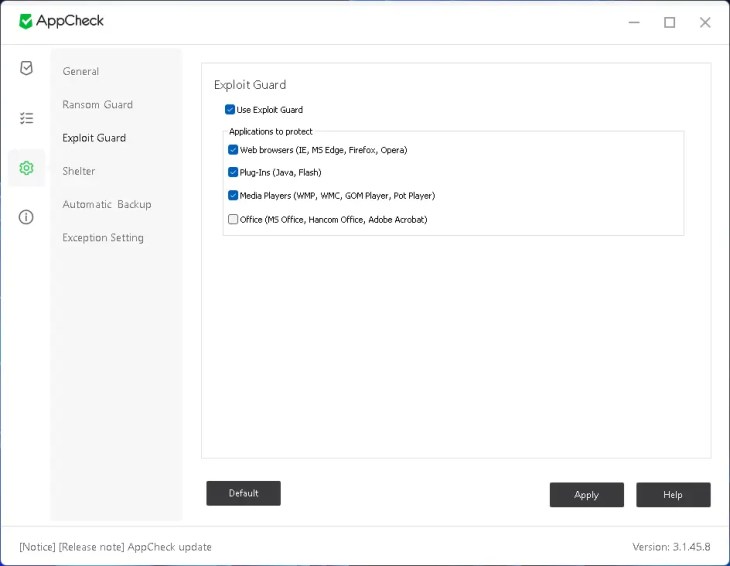
Finally, General holds the housekeeping: tray icon, alert dialogs, anonymous sample submission on detection, a password lock so nobody else can change your settings, MBR protection, self-protection and auto-update. Sensible defaults throughout, and the password lock is worth switching on if the PC is shared.

The Features That Matter
Ransom Guard — the main shield
The always-on component. It monitors running processes, blocks anything showing ransomware behaviour, isolates it from the rest of the system and drops it into quarantine. You get a notification in the corner of the screen with the detection time, the ransomware type, the file type and the target path. From quarantine you can delete the object permanently or restore it to a folder of your choice if you want to hand it to a malware lab.
Ransom Shelter — the reason to install it
Shelter takes a temporary copy of a protected file the moment something starts modifying it. If the modification turns out to be an attack, AppCheck restores the original from that copy. It’s not a backup product and it isn’t a substitute for one — it’s a safety net measured in seconds rather than days. This is included free, which is unusual.
MBR protection
Some ransomware families skip your documents entirely and overwrite the Master Boot Record, so the machine simply won’t start. AppCheck guards that region against tampering, and CheckMAL’s own comparison table confirms this is available in the free build, not just Pro. Older reviews floating around the web say otherwise; they’re out of date.
Self-protection
Malware that’s any good tries to kill the security software first. Self-protection stops other processes from terminating AppCheck, deleting its files or editing its registry keys. Also free.
Vulnerability Guard (Exploit Guard)
Blocks exploit code aimed at the applications listed earlier, which closes off a common delivery route rather than waiting to catch the payload. Free, minus Office coverage.
Ghost Detection and Smart Detection — Pro
Ghost Detection plants virtual decoy files for ransomware to trip over, so an attack announces itself before it reaches anything you care about. Smart Detection is aimed at strains that deliberately behave slowly or oddly to slip past behaviour monitoring.
System Threat Protection — Pro
Guards Windows System Restore and system settings from being disabled, and pre-blocks the safe-mode boot trick some families use to run without your security stack loaded. Easy to overlook, genuinely useful.
Network drive, SMB server and removable disk — Pro
The one that matters for small offices. If ransomware running on a remote PC starts chewing through a shared folder on your server, AppCheck Pro blocks that machine’s IP. It also covers NAS-mapped drives and USB disks, neither of which the free build touches.
Automatic backup to external disks and NAS — Pro
Scheduled, file-history-style backups to another local disk, an external drive or a network location. This is the closest AppCheck gets to being a real backup tool.
AppCheck Free vs AppCheck Pro: The Honest Comparison
| Feature | AppCheck (Free) | AppCheck Pro |
|---|---|---|
| Licence | Individual home use only | Personal or corporate |
| Ransomware proactive defence (CARB engine) | ✓ | ✓ |
| Ransom Shelter backup & rollback | ✓ | ✓ |
| MBR protection | ✓ | ✓ |
| Self-protection | ✓ | ✓ |
| Vulnerability Guard | Excludes Office | Includes Office |
| Ghost Detection | ✗ | ✓ |
| Smart Detection | ✗ | ✓ |
| System Threat Protection | ✗ | ✓ |
| Network drive protection | ✗ | ✓ |
| SMB server protection (remote IP blocking) | ✗ | ✓ |
| Removable disk protection | ✗ | ✓ |
| Automatic removal on detection | ✗ | ✓ |
| Scheduled backup to external disk / NAS | ✗ | ✓ |
| Custom file extensions | ✗ | ✓ |
| Premium support (phone & remote) | ✗ | ✓ |
| Stable update channel (24-hour delay) | ✗ | ✓ |
That last row is worth explaining, because it reads like a downside. Pro licences receive version updates up to 24 hours later than free users, deliberately. Free installs act as the first wave; if a build misbehaves, CheckMAL catches it before it reaches paying customers. On a security tool that sits this deep in the system, waiting a day is a feature.
What AppCheck Pro Costs
| Licence | List price | Current price |
|---|---|---|
| 1 PC / 1 year | $39.99 | $24.99 |
| 3 PCs / 1 year | $119.97 | $34.99 |
| 5 PCs / 1 year | $199.95 | $49.99 |
| 1 PC / 2 years | $79.98 | $39.99 |
| 3 PCs / 2 years | $239.94 | $59.99 |
| 5 PCs / 2 years | $399.90 | $89.99 |
The multi-PC tiers are where the value sits. Five machines for two years works out to about $9 per PC per year, which is hard to argue with if you’re covering a family or a small office. Verify current pricing on CheckMAL’s purchase page before buying — these are promotional rates and they move.
System Requirements
- Minimum: Windows 7 SP1 (with KB4490628 and KB4474419), 8 or 8.1, 32-bit or 64-bit; Intel 4th-gen Core i3 or AMD FX; 2GB RAM; 10GB free disk space.
- Recommended: Windows 10 or newer; Intel 6th-gen Core i5 or AMD Ryzen 1000 series or better; 4GB RAM or more; 30GB free disk space.
The disk space figures look steep for a security utility, but they’re there because Shelter and the backup features need somewhere to keep copies. On a normal modern PC you won’t notice it running; it lives in the tray and stays quiet.
Setting It Up in Five Steps
- Download the free build from CheckMAL’s official site — look for the AppCheck Free (Personal) link, not the Pro trial. Skip third-party mirrors.
- Run the installer and accept the defaults. No reboot needed.
- Launch it and confirm the main window shows Real-time Protection and MBR Protection switched on.
- Open Settings → Shelter and point the backup location at a drive with room to spare. Check the Automatic Backup tab too if you’re on Pro.
- Open Settings → General and enable the password lock if the PC is shared. If a legitimate program gets flagged later, whitelist it under Exception Setting rather than switching protection off.
After that it’s genuinely hands-off. The tray icon is the only reminder it’s there.
Who Should Stay Free, and Who Should Pay
Stay on free if: you’re a home user with one or two PCs, your files live on internal drives, and you already run a decent antivirus. The free build covers the core — behaviour blocking, rollback, MBR, self-defence — and that’s most of the protection value.
Upgrade to Pro if: you have a NAS or mapped network drives, you share folders over SMB, you work off USB disks, you want decoy-file detection, or you’re using the machine for anything commercial. That last one isn’t optional — the free licence doesn’t permit business use.
Frequently Asked Questions
Is AppCheck Anti-Ransomware really free?
Yes, but with a condition. The free AppCheck build is licensed for individual users only. It includes the CARB detection engine, Ransom Shelter backup and rollback, MBR protection, self-protection and Vulnerability Guard for browsers, plug-ins and media players. Using it on a business or work machine requires an AppCheck Pro licence.
Does AppCheck conflict with my antivirus?
No. CheckMAL builds it to run alongside standard antivirus products without crashing or degrading performance, and recommends keeping your existing protection switched on. AppCheck is a specialist second layer aimed at ransomware behaviour, not a replacement for a full security suite.
What does the CARB engine actually do?
CARB is CheckMAL’s Context-Awareness based Ransomware Behavior detection engine. Instead of comparing files against a signature database, it watches how running processes behave and steps in when it sees the pattern of a ransomware attack. CheckMAL states it detects more than 3,000 new and variant ransomware attacks, including strains with no existing signature.
Can AppCheck recover files that were already encrypted?
Ransom Shelter takes a temporary copy of a protected file before it is modified, and AppCheck restores from that copy when it blocks an attack. It cannot recover files that were encrypted before you installed it, and it is not a substitute for a proper backup routine.
Is MBR protection included in the free version?
Yes. CheckMAL’s official feature comparison lists MBR protection in both the free and Pro builds, and the toggle is active in the free installation. Several older reviews describe it as Pro-only, which reflects an earlier version of the product rather than the current release.
Does AppCheck protect USB drives and network folders?
Not in the free build. Removable disk protection, network drive protection and SMB server protection are all AppCheck Pro features. The free version covers local drives. Pro can also block the IP address of a remote PC that attacks a shared folder on your server.
Why do Pro users get updates later than free users?
It is deliberate. AppCheck Pro uses a stable update channel where new versions are delayed by up to 24 hours. Free installations receive the build first, so any problem is identified before it reaches paying customers. CheckMAL positions the delay as a stability guarantee rather than a limitation.
What are the minimum requirements to run AppCheck?
Windows 7 SP1 with updates KB4490628 and KB4474419, or Windows 8, 8.1, 10 or 11 in 32-bit or 64-bit form. Minimum hardware is an Intel 4th-generation Core i3 or AMD FX processor, 2GB of RAM and 10GB of free disk space. CheckMAL recommends Windows 10 or newer with 4GB of RAM and 30GB free.
The Verdict
Techno360 Verdict — Highly Recommended
The most generous free anti-ransomware licence on Windows right now
AppCheck Anti-Ransomware does one thing and refuses to pad the résumé. The free build hands you behaviour-based blocking, file rollback, boot-record protection and self-defence without a nag screen or a bundled toolbar — a combination most vendors put behind a paywall. It won’t replace your antivirus and it isn’t a backup solution, but as the layer that catches what your antivirus misses, it’s an easy install. The Pro tier earns its price only if you have a NAS, shared folders, or a business licence obligation.
👍 What we liked
- Signature-free detection, so no waiting on definition updates
- Ransom Shelter rollback included at no cost
- MBR protection and self-defence in the free build
- Built to coexist with Defender and other antivirus tools
- Interface labels Pro features honestly instead of hiding them
- Clean installer — no adware, no bundled extras
- Still supports Windows 7 SP1 for older machines
👎 What could be better
- Free licence is home use only — no business machines
- USB and network drive coverage locked to Pro
- No automatic removal of detected threats without a licence
- Office exploit protection needs Pro
- Windows only; no macOS or Linux build
- Interface is functional but visually dated
- No independent AV-TEST or AV-Comparatives certification to point to
Free build is for individual home use. Download only from checkmal.com.
Final Thoughts
Ransomware stopped being an enterprise problem a long time ago. Home users get hit through cracked software, dodgy attachments and unpatched browsers, and the recovery story is always the same — either you had a backup or you didn’t.
AppCheck won’t make you immune, and anyone claiming a tool can is selling something. What it does is buy you a second chance: it notices the encryption starting, stops the process, and puts your files back. For a free download that installs in under a minute and never asks you for anything again, that’s a fair trade.
Pair it with a real backup — an external drive, cloud sync, anything you can restore from — and you’ve covered the two failure modes that actually matter.


Discover more from Techno360
Subscribe to get the latest posts sent to your email.