

Is your Windows desktop a chaotic jumble of icons? Here’s a completely free, no-subscription tool that solves it.
If you’ve ever used Stardock Fences, you know how transformative desktop organization can be. The ability to group your shortcuts into neat, labelled containers makes a genuinely cluttered desktop feel manageable. The problem? Stardock Fences is now a premium service that costs $10 for one machine per year, $20 for five, or $40 per year for the full Object Desktop suite.
That’s where Desktop Fences+ steps in—and it’s turning heads.
This open-source Windows utility is designed to enhance the appearance and functionality of your desktop. As an improved fork of the BirdyFences project, it serves as a free alternative to commercial software such as Stardock Fences. It’s portable, requires no installation, and is actively maintained on GitHub.
Let’s dig into everything it offers.
What Is Desktop Fences+?
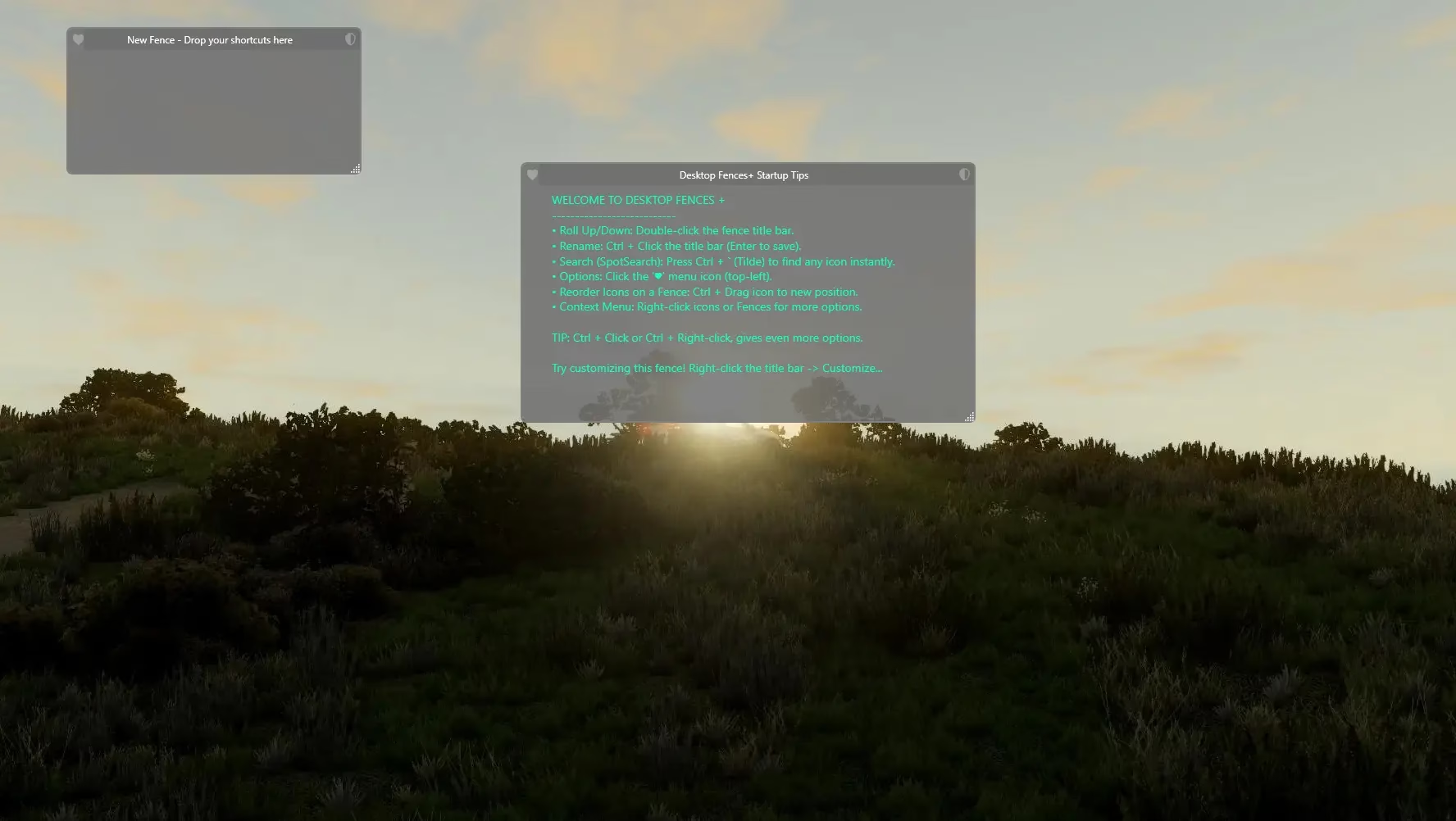
Desktop Fences+ (also written as Desktop Fences Plus) is a lightweight Windows application that lets you create virtual “fences”—visible containers on your desktop where you can group related icons, shortcuts, files, and folders.
Think of it as giving every category of your work its own labelled box, right on your desktop—a box for your work files, one for games, one for ongoing projects, and so on. No more hunting through a sea of icons every time you need something.
Desktop Fences+ was added to AlternativeTo in October 2025, gaining quick traction as users frustrated with Stardock’s monetization went seeking alternatives.
Why People Are Switching Away from Stardock Fences
The sentiment in the community has shifted noticeably. Many long-time Fences users have been vocal about resenting what they see as subscription-licensing overreach, with perpetual licenses priced at an “absurd $30.” A growing number of power users are actively seeking free, open-source alternatives that don’t lock them into a recurring payment.
Desktop Fences+ fills that gap convincingly.
Key Features:
1. Two Types of Fences
Desktop Fences+ gives you two distinct fence modes:
■ Data Fences — Standard containers for shortcuts targeting files, folders, and web links.
■ Portal Fences — Special fences that mirror the actual contents of a folder in real time, so whatever changes inside that folder are instantly reflected on your fence.
Portal fences are particularly useful for project folders where files are constantly being added or deleted—your fence stays up-to-date automatically.
2. Drag-and-Drop Simplicity
Adding items is completely intuitive. Simply drag any existing shortcut, folder, document, or .lnk/.url file into any fence and it creates a shortcut automatically. Reordering icons within a fence is just as easy—hold Ctrl and drag the icon to its new position.
3. Powerful Customization
This is where Desktop Fences+ genuinely impresses. Every fence can be individually customized:
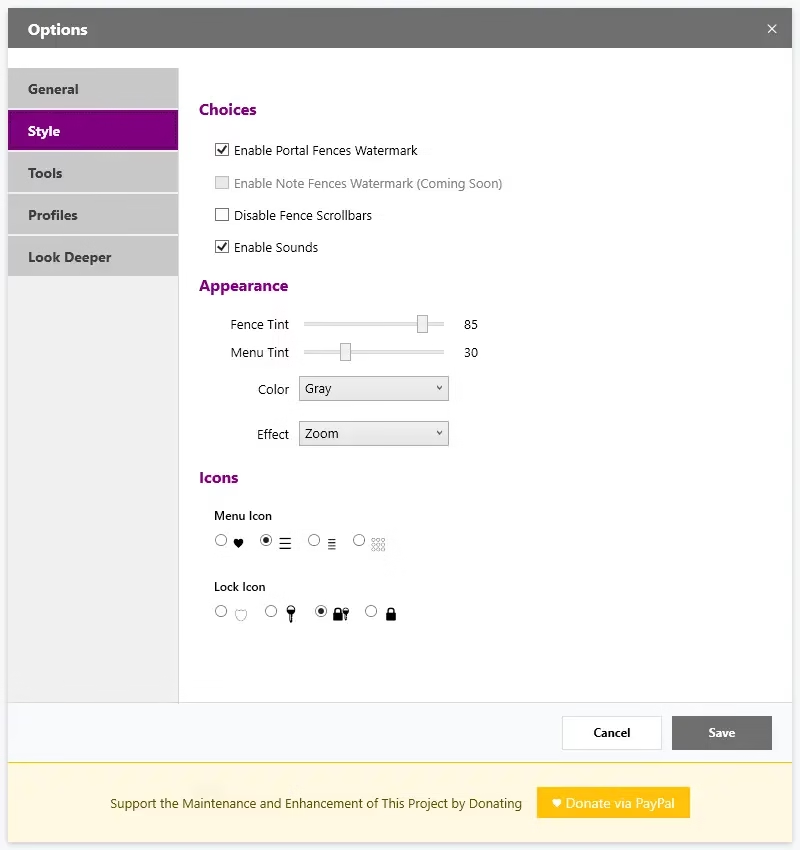
■ 13 preset colors—Red, Green, Teal, Blue, Bismark, White, Beige, Gray, Black, Purple, Fuchsia, Yellow, Orange
■ Border color and thickness (1–5 pixels)
■ Title text—color, size (Small/Medium/Large), and bold toggle
■ Icon sizes—Tiny (24px) all the way to Huge (64px)
■ Icon spacing and grayscale mode
■ Fence Tint and Menu Tint — global transparency controls
4. Spectacular Launch Effects
One of the more playful features is the launch effects system—animations that trigger when you click an icon inside a fence.
Choose from 15 effects, including:
Zoom, Bounce, FadeOut, SlideUp, Rotate, Agitate, GrowAndFly, Pulse, Elastic, Flip3D, Spiral, Shockwave, Matrix, Supernova, and Teleport
These aren’t just gimmicks — they give your desktop genuine personality while offering useful visual feedback on which item you’re launching.
5. Automatic Broken Shortcut Detection
One often-overlooked headache with desktop icons is stale shortcuts—links that break when you uninstall apps or move files. Desktop Fences+ continuously monitors every shortcut inside your fences and flags dead links with a visual indicator. You can right-click and remove them individually or use “Clear Dead Shortcuts” to wipe all invalid icons from a fence in one action.
6. Smart Productivity Tools
Several thoughtful features make daily usage smoother:
■ Search: Press Ctrl + " or double-click any empty area to open a universal search across all fences. Instantly finds matching shortcuts across every container.
■ Rollup/Rolldown: Ctrl + Double-click the fence title to collapse it into just its title bar—great for temporarily decluttering.
■ Fence Lock: Click the 🛡️ shield icon to freeze a fence’s position and size so it doesn’t accidentally move.
■ Hide Fence / Peek Behind: Temporarily hide a fence for 10 seconds to see what’s behind it—a countdown timer shows in its place.
■ Hide/Unhide All Fences: Double-click the system tray icon to toggle all fences on or off instantly.
7. Import/Export Fences
Moving to a new machine? Use the ❤️ heart menu to export any fence as a .fence file, then import it on another system. This is a huge convenience feature that Stardock only offers in its paid tiers.
8. Backup and Restore
Under the Tools tab in Settings, you can create timestamped backups of all your fences and shortcuts. Restore from any previous backup at any time — no data loss if something goes wrong.
Performance and System Requirements
Desktop Fences+ runs efficiently in the background without consuming heavy system resources. Even when managing multiple fences or large folders, the system remains responsive.
Requirements are minimal:
■ Windows 10 or Windows 11
■ .NET Framework support
■ No installation needed—fully portable; just extract and run
Simply extract the executable and run it. The necessary configuration files (fences.json, options.json) will be created on first run. The only caveat: it must be placed in a user-writable directory—avoid system-protected paths like Program Files.
Desktop Fences+ vs Stardock Fences—Quick Comparison
| Feature | Desktop Fences+ | Stardock Fences |
|---|---|---|
| Price | Free | $10/year (subscription) |
| Open Source | ✅ Yes (MIT License) | ❌ No |
| Portable | ✅ Yes | ❌ Requires install |
| Portal/Folder Mirrors | ✅ Yes | ✅ Yes |
| Launch Effects | ✅ 15 effects | Limited |
| Broken Link Detection | ✅ Automatic | ✅ Yes |
| Import/Export Fences | ✅ Yes | Paid tier |
| Search Across Fences | ✅ Yes | ✅ Yes |
| Windows 10/11 Support | ✅ Yes | ✅ Yes |
| Community-Driven Updates | ✅ Active GitHub | ❌ Proprietary |
The verdict? For the vast majority of users who need clean desktop organization without the frills of automation rules or multi-monitor snapping, Desktop Fences+ delivers everything you need—at zero cost.
How to Download and Get Started
- Visit the GitHub Releases page
- Download the latest
.zipfile - Extract it to a user-writable location (e.g., your Documents or Desktop folder)
- Run
DesktopFences.exe— no installation wizard required - Your first fence appears automatically in the top-left corner
You can watch the official demo on YouTube (“Desktop Fences+ Demo”) to see the full feature set in action before downloading.
Final Verdict
Desktop Fences+ punches well above its weight for a free, open-source tool. Its open-source nature encourages continuous development and security updates, keeping it a strong choice for anyone seeking a reliable, free alternative to paid desktop organization tools.
The launch effects, portal fences, broken shortcut detection, and universal search make it a legitimately polished product—not just a barebones clone. Whether you’re a professional managing project files, a student juggling study materials, or a gamer with too many launchers on your desktop, Desktop Fences+ is worth installing today.
Best of all? No subscription. No trial period. No strings attached.
If you’re looking for more Windows desktop customization tools, check out ScreenStyler, Seelen UI, or iTop Easy Desktop Pro for even more options.
Frequently Asked Questions (FAQs)
Is Desktop Fences+ really free?
Yes, Desktop Fences+ is completely free and open-source under the MIT License. There are no subscriptions, trial periods, or hidden costs.
Does Desktop Fences+ work on Windows 11?
Absolutely! Desktop Fences+ is fully compatible with both Windows 10 and Windows 11.
How is Desktop Fences+ different from Stardock Fences?
Desktop Fences+ is a free, open-source alternative that offers many of the same core features as Stardock Fences, including virtual fences, portal fences, and search functionality. Unlike Stardock, it’s portable, doesn’t require installation, and includes unique features like 15 launch effects and automatic broken shortcut detection—all at zero cost.
Will Desktop Fences+ slow down my computer?
No. Desktop Fences+ is lightweight and runs efficiently in the background with minimal resource consumption. Even with multiple fences and large folders, system performance remains responsive.
Can I import my Stardock Fences settings into Desktop Fences+?
Desktop Fences+ uses its own configuration format (.fence files) and doesn’t directly import Stardock Fences settings. However, you can manually recreate your fence layout, which is typically quick thanks to the drag-and-drop interface.
Where can I download Desktop Fences+?
You can download the latest version from the official GitHub Releases page. Simply download the .zip file, extract it, and run DesktopFences.exe.
Is Desktop Fences+ safe to use?
Yes. Desktop Fences+ is open-source software hosted on GitHub, which means anyone can review the code for security and transparency. It’s actively maintained and has gained positive community feedback.
Have you tried Desktop Fences+ on your Windows machine? Share your experience in the comments below!


Discover more from Techno360
Subscribe to get the latest posts sent to your email.
You must be logged in to post a comment.