
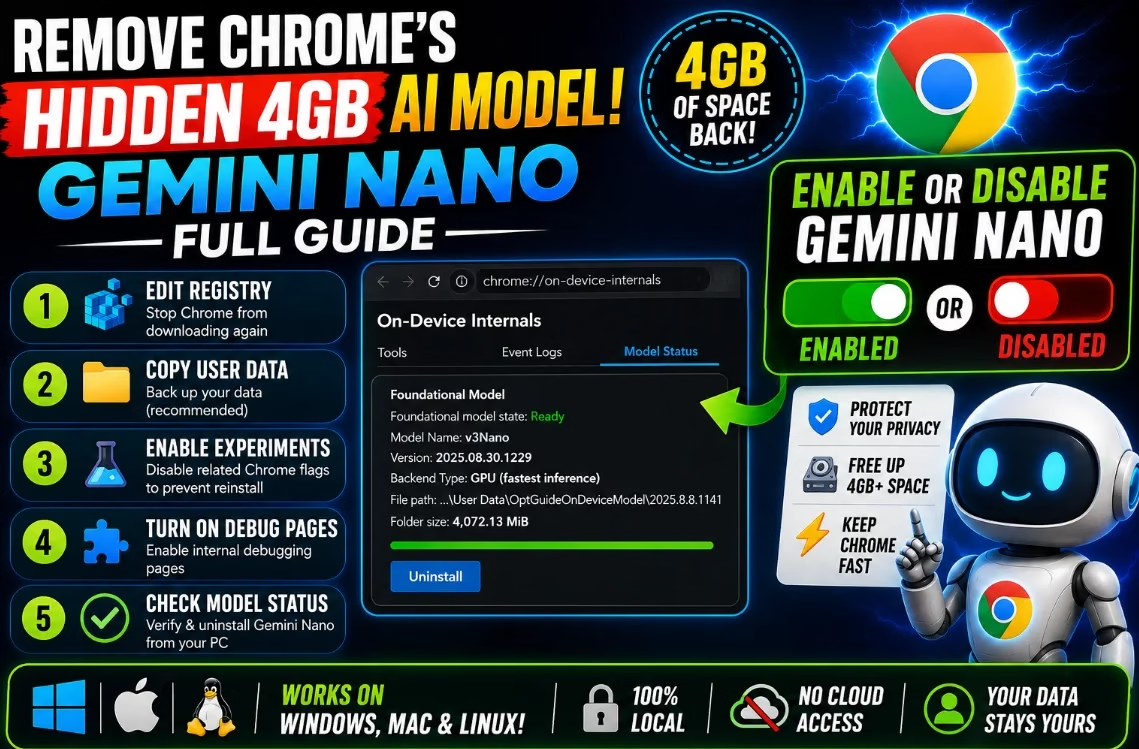
Chrome Silently Downloads a 4GB AI Model: How to Remove Gemini Nano from Chrome
Reclaim 4 GB of disk space and stop Google’s hidden on-device AI from running on your PC — in 5 minutes.
⚡ Quick Read — TL;DR
- What’s happening: Since Chrome 147, Google quietly downloads a ~4 GB
weights.binfile containing the Gemini Nano AI model. - Where it lives: Inside the
OptGuideOnDeviceModelfolder in your Chrome user data. - How to check: Visit
chrome://on-device-internals→ Model Status tab. - How to remove: Disable two Chrome flags, close Chrome, then delete the folder manually.
- Permanent block (Windows): Add a registry DWORD named
GenAILocalFoundationalModelSettings= 1. - Who’s affected: Recent Windows, macOS, and Linux PCs with 16 GB RAM, 22 GB free disk, and a 4 GB+ VRAM GPU. EU users currently exempt.
- Time required: About 5 minutes.
If your Google Chrome browser has been quietly eating up disk space lately, you’re not imagining things. Since version 147, Chrome has been silently downloading a nearly 4 GB AI model called Gemini Nano to your machine — without asking, without notification, and without an obvious off switch. In this guide, we’ll show you exactly how to remove Gemini Nano from Chrome, stop it from redownloading, and reclaim that lost storage on Windows, macOS, and Linux.
The behaviour was first flagged by security researcher Alexander Hanff and quickly raised concerns about transparency and consent — particularly under European data-protection rules. Whether or not you’re worried about the privacy angle, there’s no good reason to keep a multi-gigabyte AI blob on your SSD if you’re not actively using it. Let’s dig in.
📦 What Exactly Does Chrome Download?
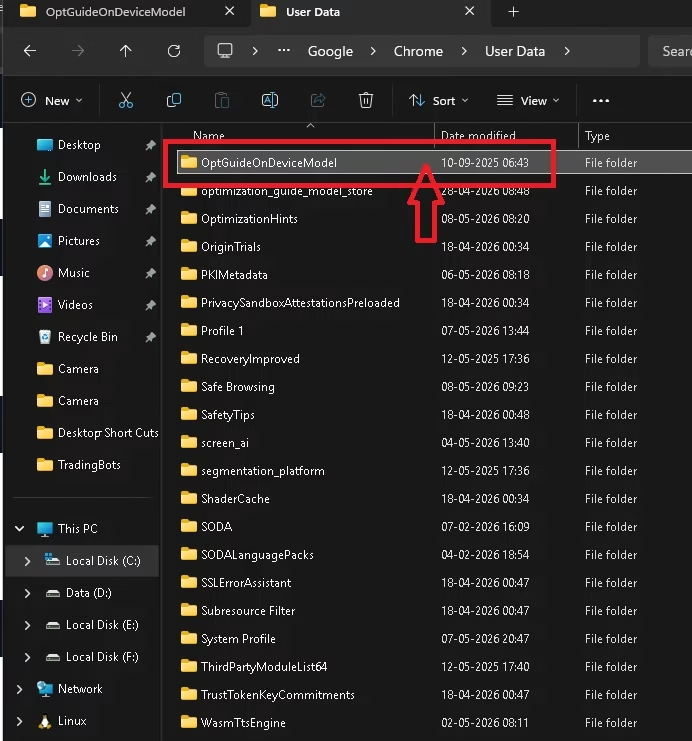
The mystery file is named weights.bin and it’s tucked inside a folder called OptGuideOnDeviceModel — a deliberately vague name that gives no hint of what it actually is. It’s hard to guess from the folder name alone that this is a full on-device large language model developed by Google.
Depending on your operating system, you’ll find this folder at one of these locations:
%LOCALAPPDATA%GoogleChromeUser DataOptGuideOnDeviceModel🍎 macOS:
~/Library/Application Support/Google/Chrome/OptGuideOnDeviceModel/🐧 Linux:
~/.config/google-chrome/OptGuideOnDeviceModel/
What Chrome uses Gemini Nano for
Google bundles the Gemini Nano model so Chrome can run a handful of features locally instead of calling its servers. These include:
- ✍️ Writing assistance inside text fields (rewrite, summarize, proofread)
- 💡 Some auto-suggestions and form helpers
- 🛡️ Detection of scam pages and potentially dangerous sites
- 🧪 Experimental built-in AI APIs for web developers
One important clarification: the “AI Mode” button you see in Chrome’s address bar does not use this local model. Those queries go straight to Google’s cloud. So Gemini Nano on your disk is mostly powering minor, often-experimental features that most users never knowingly touch.
The download starts in the background, takes roughly 15 minutes, and shows zero notification. And if you simply delete the folder? Chrome quietly redownloads the entire 4 GB the next time you launch it. That’s the trap we’ll close in the steps below.
🎯 Does This Affect You?
Not every Chrome user gets the Gemini Nano download. Before pulling the model, Chrome silently checks whether your hardware can actually run it. Per Google’s official documentation, your machine needs to meet all of these:
📋 Hardware Requirements for Gemini Nano in Chrome
- Windows 10 / 11, macOS Ventura or later, or ChromeOS
- At least 22 GB of free disk space
- Minimum 16 GB of RAM
- A quad-core processor or better
- A GPU with at least 4 GB of VRAM
In practice, this means moderately recent gaming and creator PCs, plus most premium laptops from the last few years. Older or thinner-and-lighter machines simply won’t trigger the download.
Are you in Europe? You’re currently off the hook. Gemini in Chrome hasn’t fully launched in the EU, almost certainly because of GDPR and ePrivacy Directive constraints. Users in the US, UK, India, and most other regions are the primary targets right now. [INTERNAL LINK: Best privacy apps for Windows]
🔍 How to Check if Gemini Nano Is Installed in Chrome
You don’t need to dig through hidden system folders. Chrome has a built-in internal page that tells you the model’s status, version, and exact file path on disk.
Step 1 — Enable internal debugging pages
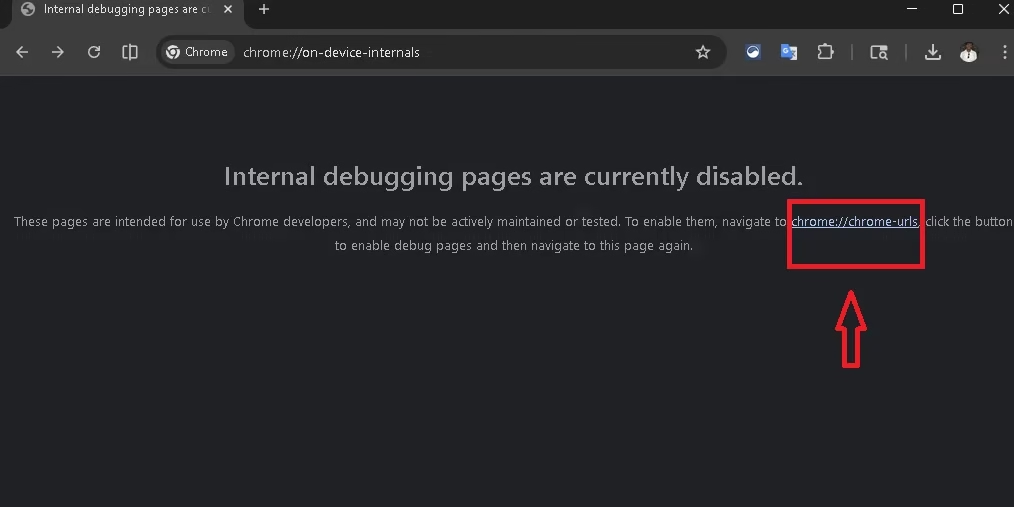
If you’ve never used Chrome’s internals before, you’ll first need to flip a switch:
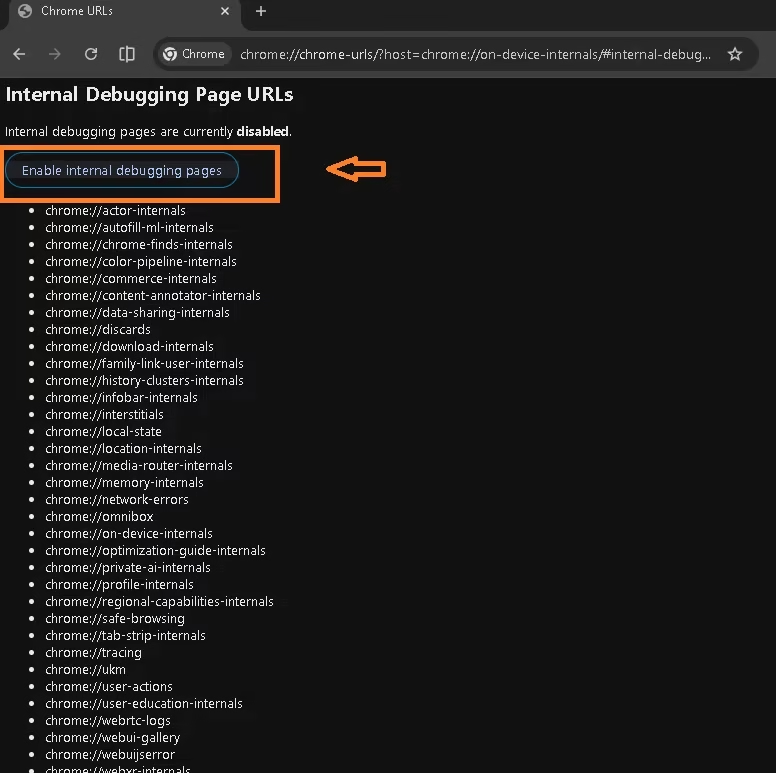
- Open Chrome and paste
chrome://chrome-urlsinto the address bar. - Scroll down and click the “Enable internal debugging pages” button.
Step 2 — Open the On-Device Internals page
- Type
chrome://on-device-internals/in the address bar and press Enter. - Click the Model Status tab.
If Gemini Nano is installed, you’ll see something like this:
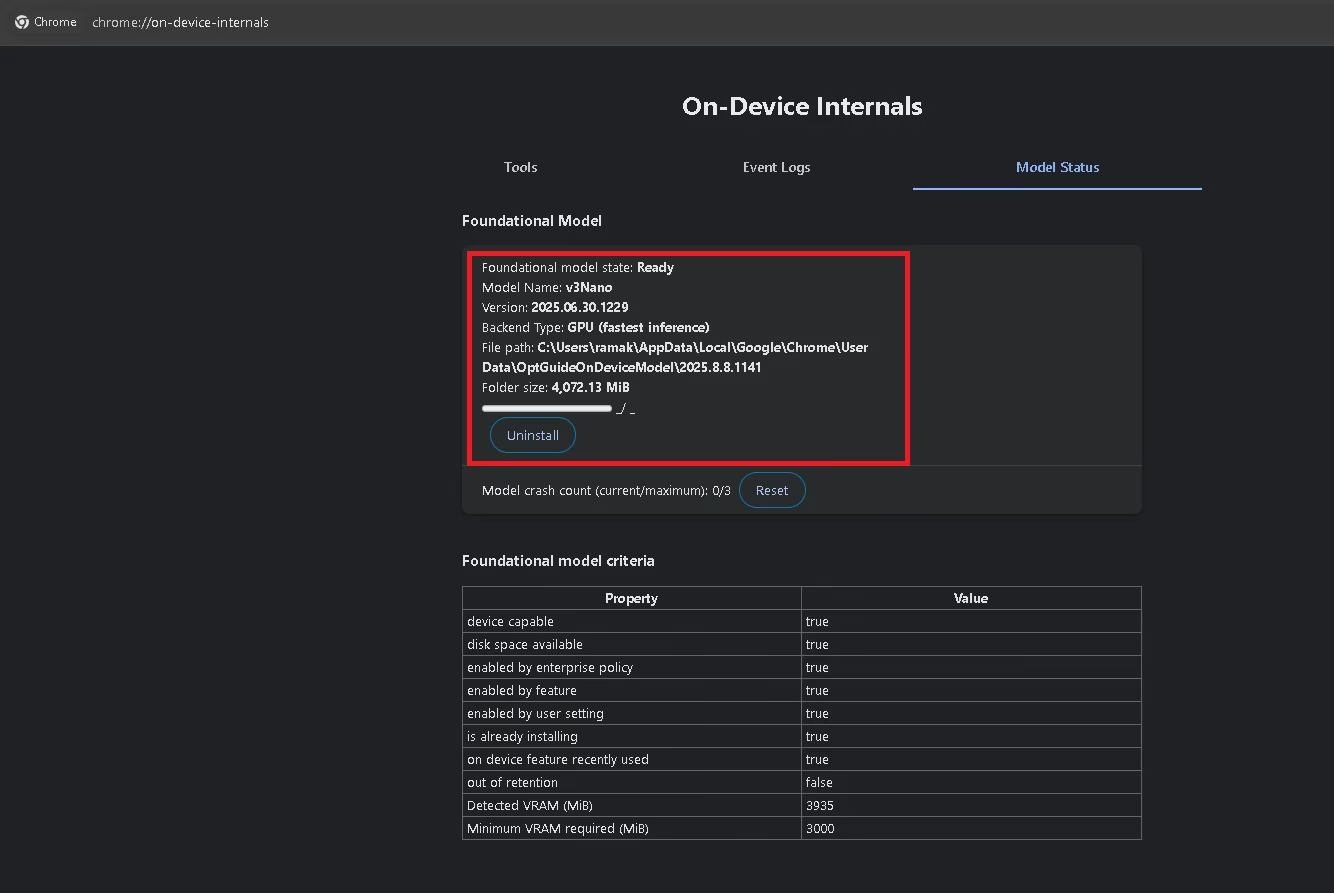
The key fields to look at:
- Foundational model state: “Ready” means the model is fully downloaded and active.
- Model Name & Version: Typically
v3Nanowith a date-based version. - Folder size: Confirms how much disk it’s actually using (often around 4,000 MiB).
- File path: The exact location of the folder you’ll later delete.
If instead you see “Not Eligible”, “Not Ready For Unknown Reason”, or “No On-device Feature Used”, your PC isn’t affected and you can stop here. 🎉
🛠️ How to Disable and Remove Gemini Nano from Chrome
🪟 On Windows
- Open Chrome, paste
chrome://flagsin the address bar, and press Enter.
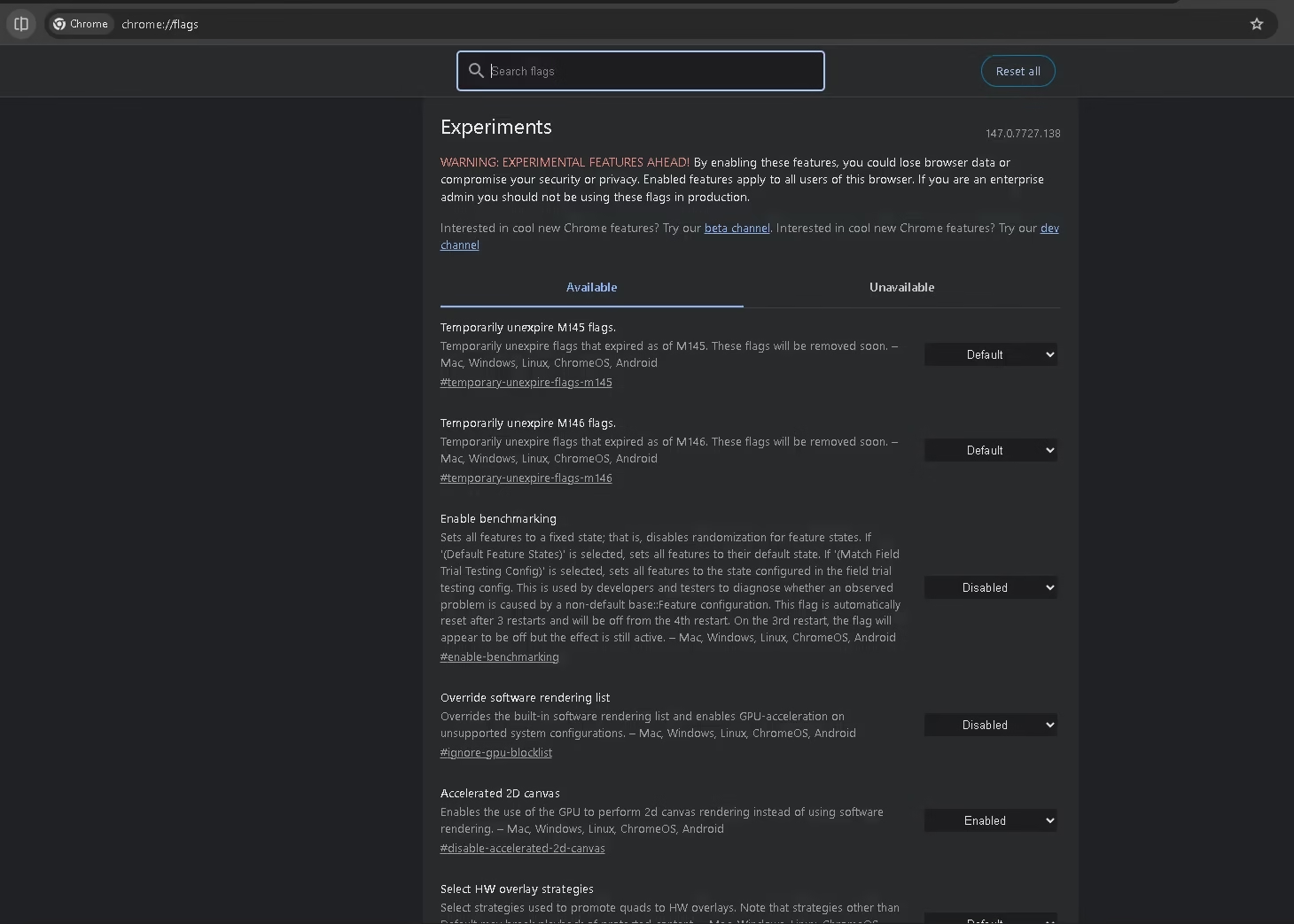
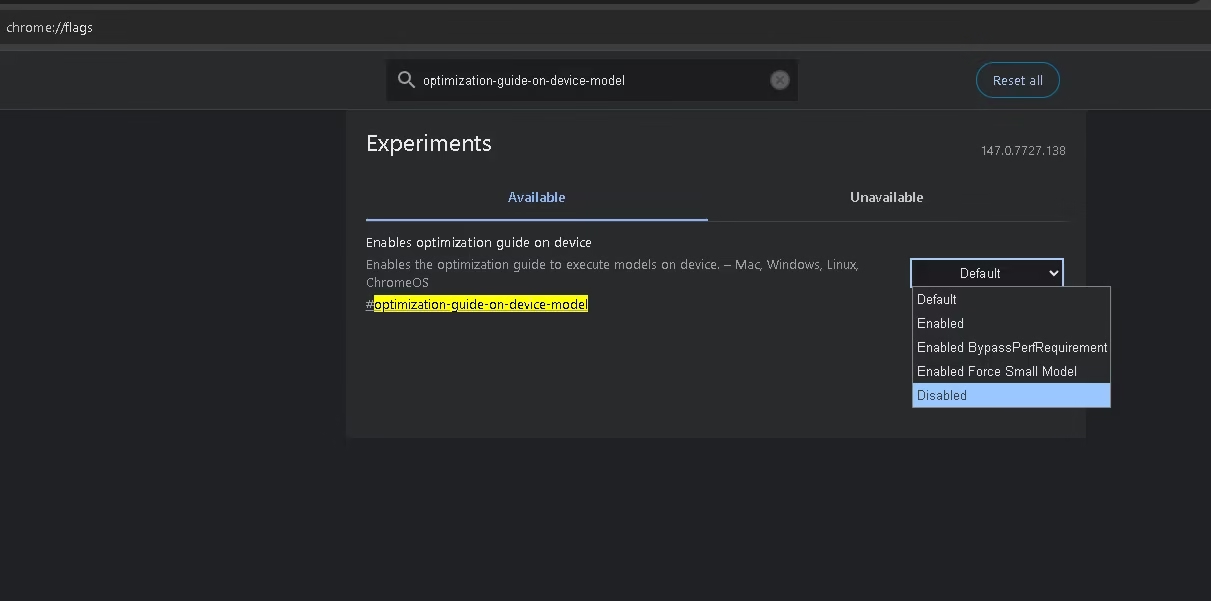
- In the search box at the top, type:
optimization-guide-on-device-model - Change the dropdown from Default to Disabled.
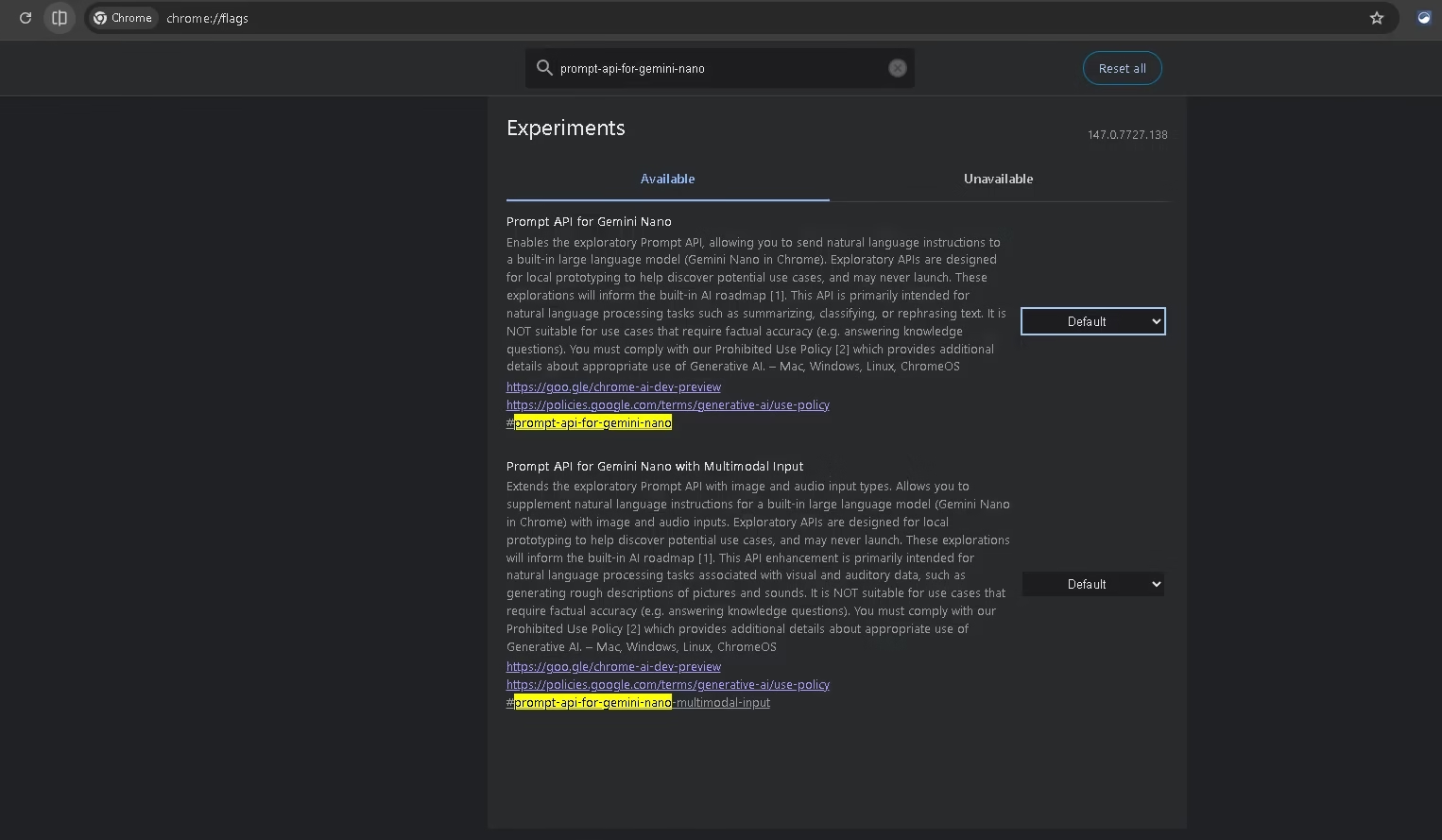
- Now search for the second flag:
prompt-api-for-gemini-nano - Set both Prompt API for Gemini Nano and Prompt API for Gemini Nano with Multimodal Input to Disabled.
- Click the Restart button at the bottom of the page.
- After restart, completely close Chrome (check the system tray to make sure it’s not still running in the background).
- Open File Explorer and paste this into the address bar:
%LOCALAPPDATA%GoogleChromeUser Data - Find the OptGuideOnDeviceModel folder and delete it. That’s your 4 GB back. ✅
🍎 On macOS
- Open Chrome and go to
chrome://flags. - Search for
optimization-guide-on-device-modeland set it to Disabled. - Search for
prompt-api-for-gemini-nanoand disable it (plus the multimodal version). - Click Restart, then quit Chrome completely (Cmd + Q).
- In Finder, choose Go > Go to Folder… and paste:
~/Library/Application Support/Google/Chrome/ - Move the OptGuideOnDeviceModel folder to Trash, then empty Trash.
🐧 On Linux
- Launch Chrome and visit
chrome://flags. - Disable
optimization-guide-on-device-model. - Disable
prompt-api-for-gemini-nano(and the multimodal variant). - Click Restart, then close Chrome completely.
- Open your file manager (or terminal) and navigate to:
~/.config/google-chrome/ - Delete the OptGuideOnDeviceModel directory. From a terminal:
rm -rf ~/.config/google-chrome/OptGuideOnDeviceModel
🔒 Permanently Block Gemini Nano on Windows (Registry Method)
The flags you disabled in chrome://flags can occasionally reset after a major Chrome update. If you want to be absolutely certain Gemini Nano never reinstalls itself, the cleanest fix is a single Windows Registry policy. This forces Chrome to disable on-device generative AI at the policy level — even Chrome’s own update code respects it.
Step-by-step
- Press Windows + R, type
regedit, and press Enter. Approve the UAC prompt. - In the left pane, navigate to:
HKEY_LOCAL_MACHINESOFTWAREPoliciesGoogleChrome - If the Google or Chrome keys don’t exist, create them: right-click Policies → New > Key → name it
Google. Then right-click that and createChromeinside it. - Right-click the Chrome key in the left pane → New > DWORD (32-bit) Value.
- Name the new value exactly:
GenAILocalFoundationalModelSettings - Double-click it and set Value data to
1. Click OK. - Restart your PC.
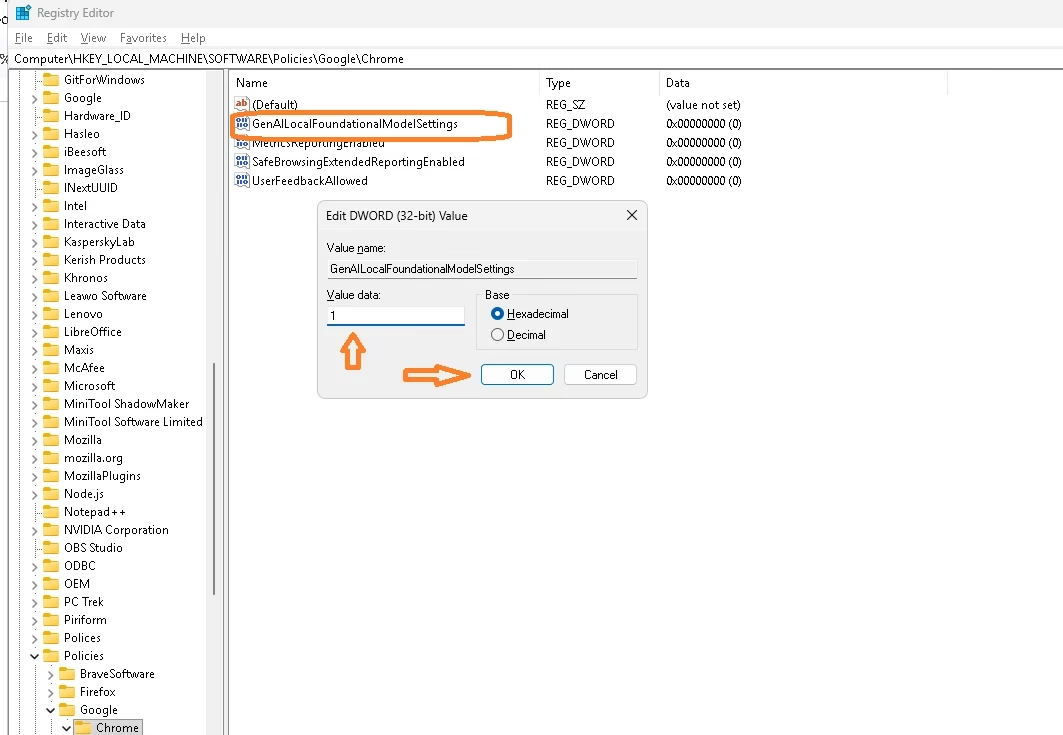
From this point on, Chrome will never download Gemini Nano on this PC, and it will silently delete the model on next launch if it was already there. To reverse the change later, just delete the DWORD or set it to 0.
❓ Frequently Asked Questions
Will Chrome still work normally after I remove Gemini Nano?
Yes. All standard browsing, sync, extensions, and security features keep working. You’ll only lose a few experimental on-device AI features that most users never knowingly use. Cloud-based AI Mode in the address bar is unaffected.
Why is Google doing this without asking?
Officially, the goal is to make on-device AI features instantly available so users don’t experience a wait. In practice, the silent 4 GB download with no notification has rightly drawn scrutiny — especially in regions with strict consent rules.
Does this affect Microsoft Edge or Brave too?
The exact OptGuideOnDeviceModel behaviour is Chrome-specific. Edge and Brave are Chromium-based but have different policies. Edge has its own on-device “Phi” model in some regions; Brave generally avoids bundling AI by default. [INTERNAL LINK: Best Chromium browsers for privacy]
I deleted the folder but it came back. What did I miss?
You almost certainly skipped the flag-disable step. Re-disable both optimization-guide-on-device-model and prompt-api-for-gemini-nano in chrome://flags, then delete the folder again. For belt-and-braces protection, use the Registry method above.
Is the GenAILocalFoundationalModelSettings policy documented?
Yes — it’s part of Chrome’s enterprise policy list under generative-AI controls. Setting the value to 1 disables local foundational models. Any IT admin can deploy this through Group Policy or Intune across many machines.
Worth Removing? Absolutely.
If you’re not actively using Chrome’s experimental AI features, there’s no reason to let a 4 GB AI model sit on your SSD without your consent. The removal takes 5 minutes, the registry tweak takes 2 more, and you get back disk space, peace of mind, and a slightly more transparent browser.
✅ Pros of Removing
- Frees ~4 GB of disk space
- Stops silent background downloads
- Better privacy posture
- Lower idle resource use
⚠️ Trade-offs
- No on-device writing helpers
- Some scam-detection tweaks lost
- Built-in Prompt API unavailable
- Devs lose local LLM testing
Got a few minutes? Do it now and get those gigabytes back.


Discover more from Techno360
Subscribe to get the latest posts sent to your email.