

How to Clear Chrome Cache & Free Up 10+ GB of Disk Space
Chrome quietly hoards gigabytes of cached images, scripts, and site data on your hard drive. The good news? You can wipe it all clean in under 30 seconds — and your laptop will thank you for it.
💻 Windows · Mac · Android · iPhone
⏱️ 30-Second Fix
~ 60-second TL;DR
- Fastest method: Press
Ctrl + Shift + Delete(Windows) orCmd + Shift + Delete(Mac), pick All time, tick Cached images and files, hit Delete data. - How much space? Chrome’s cache typically eats 2 GB to 10+ GB on heavy users — sometimes even more.
- Will I lose my passwords? No. Cache clearing only removes temp files. Passwords, bookmarks, and history stay safe (unless you tick those boxes).
- How often? Once every 1–3 months for normal users; weekly for web developers.
If your SSD is screaming “low storage” and you can’t figure out where the GBs went — open Task Manager, look at Chrome, and prepare to be horrified. Modern Chrome (2026 build) silently caches everything from YouTube thumbnails to entire JavaScript bundles, and on a typical work laptop, that pile can balloon past 10 GB before you even notice.
I’ve tested every method below on the latest Chrome release on Windows 11, macOS, Android 15, and iOS 18. Here’s the cleanest, fastest way to clear Chrome cache to free up disk space — without nuking your saved logins or bookmarks.

Why Chrome Cache Hogs So Much Disk Space
Every time you visit a website, Chrome saves bits of that page — images, fonts, scripts, video thumbnails — locally on your drive. Next time you visit, the page loads faster because Chrome reuses those local files instead of re-downloading them. Smart, right?
The problem: Chrome never automatically cleans up aggressively. According to recent SlashGear testing, a normal user’s Chrome cache can quietly accumulate close to 10 GB on a single profile — and if you have multiple Chrome profiles, multiply that. On a 256 GB SSD, that’s nearly 4% of your entire drive wasted on temporary files.
Ctrl + Shift + Delete — Chrome shows the cache size right next to the “Cached images and files” checkbox. No need to actually delete; you can just peek.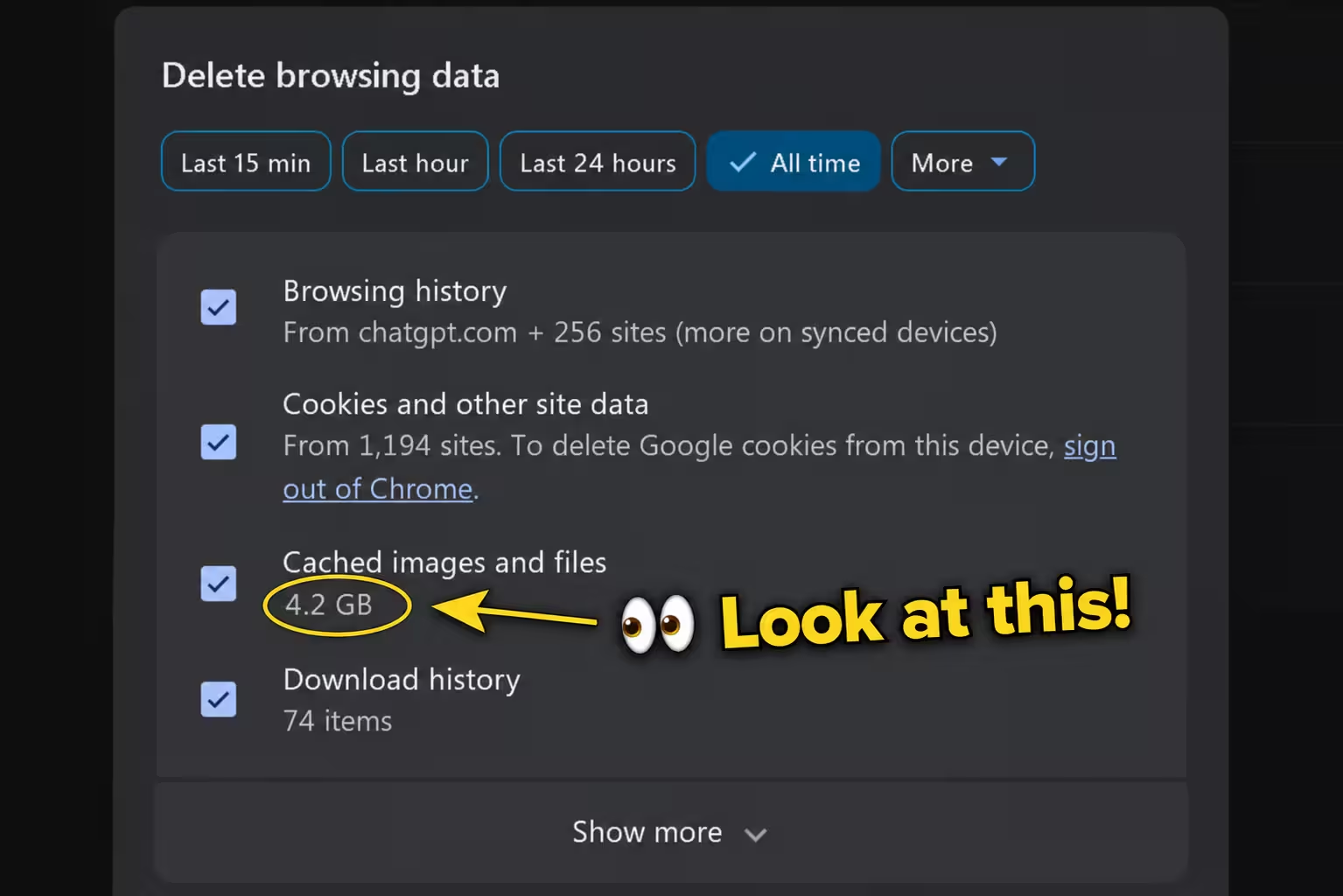
Method 1: The 30-Second Keyboard Shortcut (Recommended)
This is hands-down the fastest way to clear Chrome cache and reclaim disk space. Works on every Chrome version released in the last 5 years — including the 2026 build.
- Open Chrome and press
Ctrl + Shift + Deleteon Windows orCmd + Shift + Deleteon Mac. - The Delete browsing data dialog opens (Chrome renamed this from “Clear browsing data” in recent versions — same thing).
- Click the Time range dropdown and pick All time. This is what reclaims the most disk space.
- Tick Cached images and files. Optionally also tick Cookies and other site data if you want a deep clean (note: this signs you out of websites).
- Untick Browsing history, Passwords, and Autofill data — unless you genuinely want those gone.
- Click the big blue Delete data button.
Done. Depending on how much was cached, this takes anywhere from 2 seconds to about a minute. You should immediately see free space jump on your drive (refresh File Explorer if not).

Method 2: Through Chrome’s Settings Menu
If keyboard shortcuts aren’t your thing, here’s the click-by-click route:
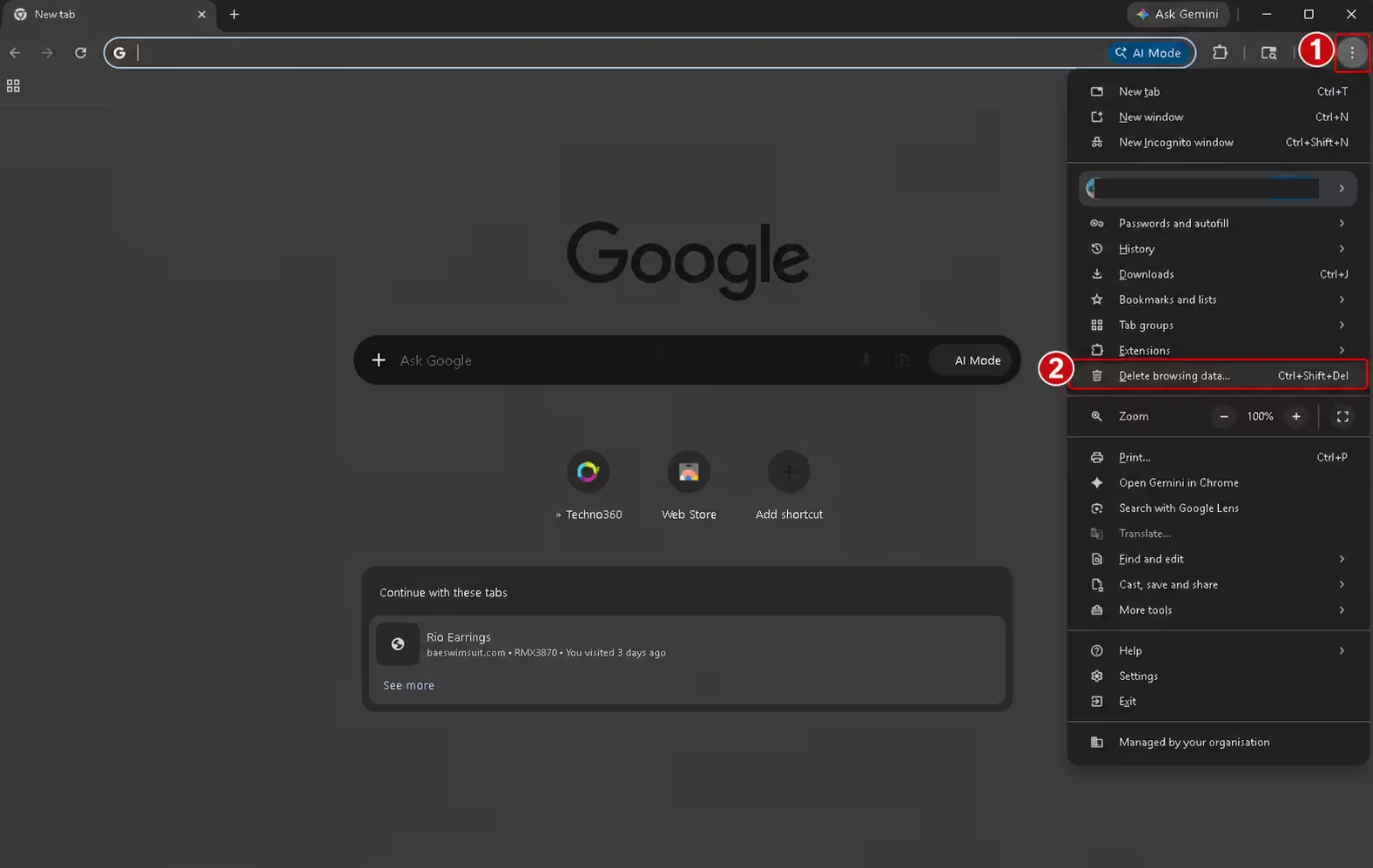
- Click the three-dot menu (⋮) in Chrome’s top-right corner.
- Click Delete browsing data — it now sits near the top of the menu in the 2026 Chrome build, so you don’t even need to dig into Settings anymore.
- From here, follow steps 3–6 from Method 1.
Bonus: if you want granular control, click the Advanced tab inside the dialog. You’ll get separate toggles for hosted app data, site settings, and download history.
Method 3: Clear Cache for One Specific Website Only
Don’t want to wipe everything? You can nuke the cache for just one annoying site (super useful when a single page keeps loading a broken or outdated version).
- Open Chrome and go to
chrome://settings/content/allin the address bar. - Search for the site name in the search box at the top.
- Click the trash icon next to that site, or click the site to see its stored data and clear it selectively.
This is way better than clearing everything every time YouTube or Gmail acts up.
Method 4: DevTools Hard Cache Clear (For Power Users)
Web developers and anyone testing site changes — this one’s for you. It forces Chrome to dump cache for a single tab and reload from scratch.
- Open the page you want to clear cache for.
- Press
F12orCtrl + Shift + Ito open DevTools. - Right-click the reload button (top-left, next to the URL bar) — yes, right-click, not left.
- Pick Empty Cache and Hard Reload.
This bypasses every cached file for the current tab and downloads fresh copies of everything.
Ctrl + Shift + R (Windows) or Cmd + Shift + R (Mac) on any page. It forces Chrome to reload that single page without using cached files. Doesn’t free disk space, but kills cache-related glitches instantly.Method 5: Clear Chrome Cache on Android
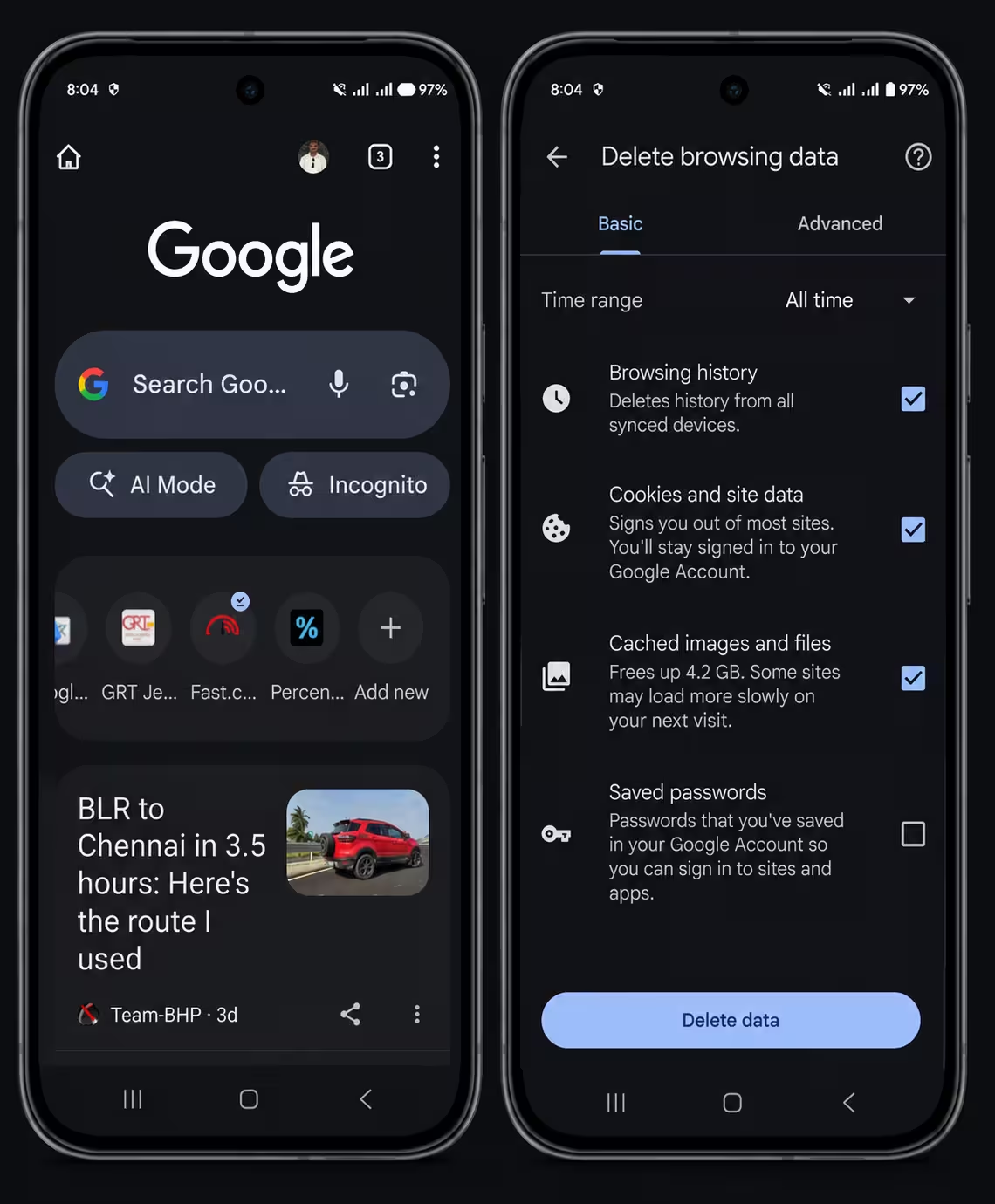
- Open the Chrome app on your Android phone.
- Tap the three-dot menu (top-right).
- Tap Delete browsing data.
- Set Time range to All time.
- Check Cached images and files, then tap Delete data.
On Android, Chrome’s cache can hit 1–2 GB easily. If you’re on a 64 GB or 128 GB phone, this clears noticeable space — and stops Chrome from getting laggy.
Method 6: Clear Chrome Cache on iPhone & iPad
- Open Chrome on your iPhone.
- Tap the three-dot menu at the bottom-right (yes, bottom — Apple’s UI guidelines).
- Tap Settings > Privacy and security > Delete browsing data.
- Choose All time, select Cached Images and Files, and tap Delete Browsing Data.
Bonus: Limit Chrome’s Cache Size Permanently
Tired of doing this every month? Cap Chrome’s cache size so it never balloons in the first place. This requires a small tweak to Chrome’s launch shortcut.
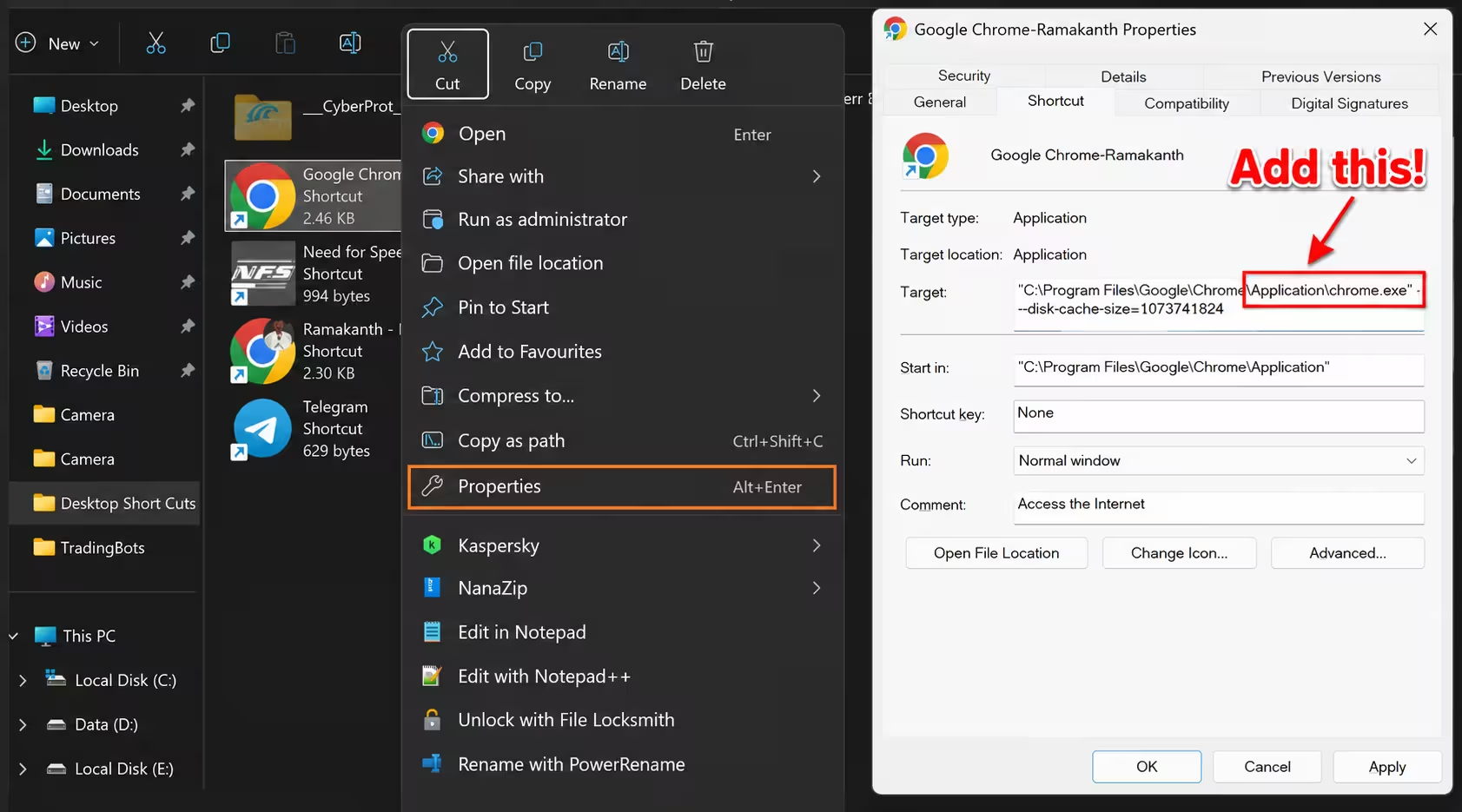
- Right-click your Chrome desktop shortcut > Properties.
- In the Target field, after the existing path (in quotes), add a space and then:
--disk-cache-size=1073741824 - That number is in bytes — 1073741824 = 1 GB. Use 524288000 for 500 MB, or 2147483648 for 2 GB.
- Click Apply > OK, then launch Chrome from that shortcut.
From now on, Chrome will never let its cache grow past the limit you set. Set-and-forget.
After Clearing: What to Expect
- Some sites load slower the first time — totally normal. Chrome has to re-download images and scripts. Speed returns within a couple of visits.
- You stay logged into accounts as long as you didn’t tick “Cookies and other site data.”
- Your bookmarks and saved passwords are untouched.
- Disk space frees up immediately — but Windows sometimes takes a few seconds to update the displayed free space.
Clearing Chrome’s cache is the easiest disk-space win you’ll get all month.
If you do nothing else after reading this, just hit Ctrl + Shift + Delete, pick All time, tick Cached images and files, and click Delete data. That’s the entire game. You’ll likely reclaim several gigabytes in under 30 seconds — without losing a single password or bookmark.
Make it a monthly ritual. Your SSD, your battery, and your future self will all thank you.
Frequently Asked Questions
Will clearing Chrome cache delete my saved passwords?
No. Cache clearing only removes temporary website files like images, scripts, and stylesheets. Your saved passwords, autofill data, and bookmarks stay completely intact — unless you specifically tick those checkboxes in the Delete browsing data dialog.
How much disk space will I actually free up?
It varies wildly. Light browsers might reclaim 200–500 MB. Heavy users — especially anyone who streams YouTube, uses Gmail/Drive heavily, or browses image-heavy sites — routinely reclaim 2 GB to 10 GB. Recent testing shows some users hit nearly 10 GB on a single Chrome profile.
How often should I clear Chrome cache?
For most people, every 1 to 3 months is plenty. Web developers should clear it weekly (or use the DevTools method). If you start seeing weird website glitches, slow Chrome performance, or low-disk warnings, that’s your cue to do it sooner.
Will I get logged out of Gmail, Facebook, and other sites?
Only if you also tick “Cookies and other site data.” If you only clear “Cached images and files,” you’ll stay signed in everywhere.
Why does Chrome’s cache get so big?
Chrome doesn’t aggressively self-clean. It keeps cached files for fast page reloads, and the bigger your browsing variety, the faster the cache grows. There’s no built-in default cap, which is why it can hit 10 GB+ over months of normal use.
Is it safe to clear Chrome cache?
Completely safe. Cache files are temporary by design — Chrome will rebuild what it needs as you browse. The only “downside” is that the first visit to each site after clearing may load a tiny bit slower while files re-download.
Where is Chrome cache located on Windows?
By default: C:\Users\YourName\AppData\Local\Google\Chrome\User Data\Default\Cache. You can manually delete files here, but using Chrome’s built-in tool is far safer and cleaner.
Does clearing cache speed up Chrome?
Yes — usually. A bloated cache forces Chrome to spend more time managing files, especially on older HDDs or low-RAM systems. Many users notice snappier startup and smoother tab switching right after clearing. On modern SSDs the difference is smaller, but freeing disk space is still worth it.
Discover more from Techno360
Subscribe to get the latest posts sent to your email.

You must be logged in to post a comment.