
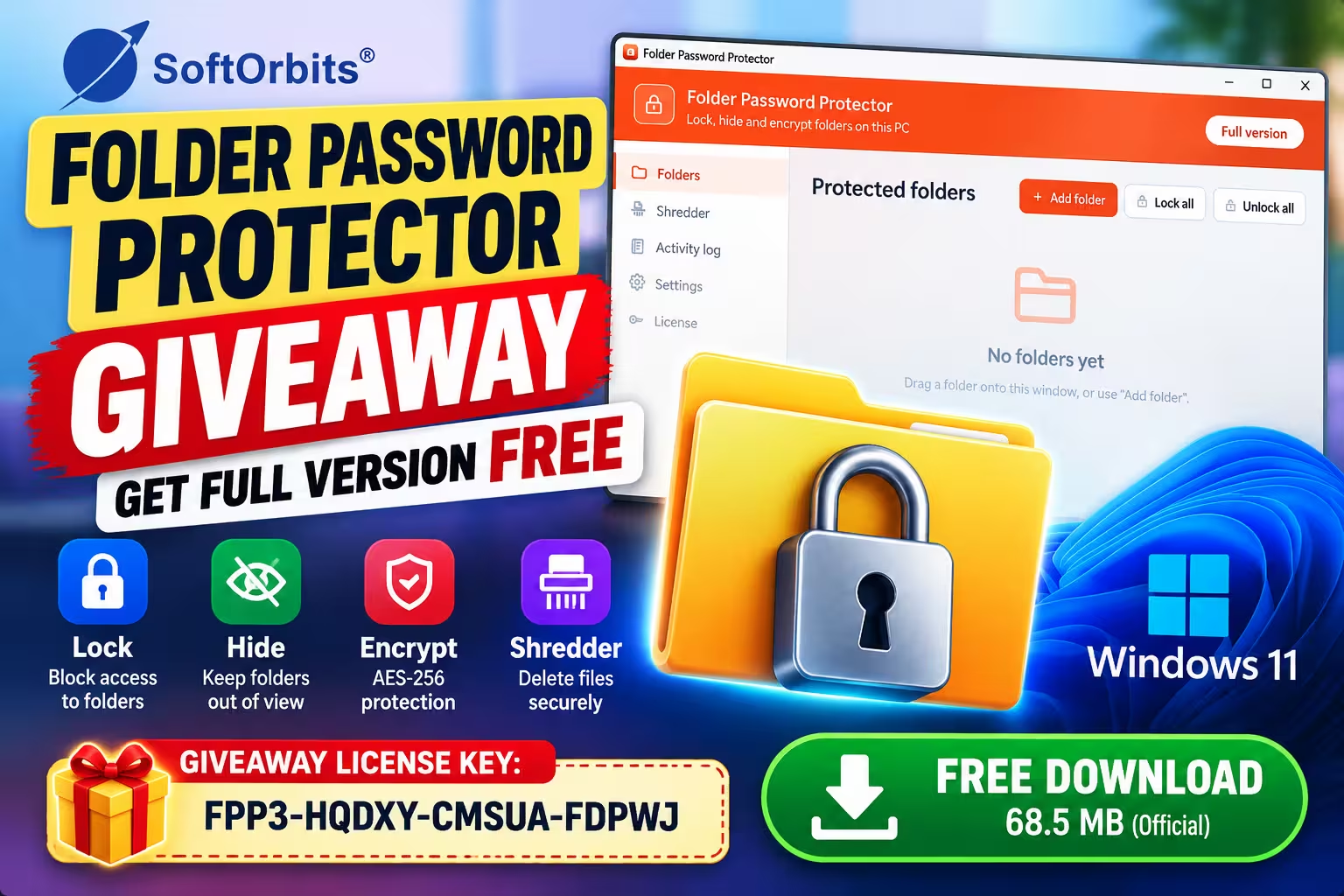
🎁 Giveaway · Tested on Windows 11 Home 25H2 · 20 Oct 2026
Lock, hide or encrypt Windows folders, with the full version activated on our own laptop
The free edition caps how many folders and files you can protect. We entered the key below on our test laptop and the License page switched to Full version on the first try. How long the key stays valid hasn’t been announced.
Giveaway license key
FPP3-HQDXY-CMSUA-FDPWJ
⚡ Quick Read
- What it is: a small Windows app that locks, hides or AES-256 encrypts individual folders behind one master password.
- What the key gives you: unlimited protected folders and no cap on files per folder.
- How to apply it: install, open License in the sidebar, type your email plus the key, press Activate.
- Do not skip: the recovery key shown during setup. Lose it and your password, and encrypted files are gone for good.
- Works on: Windows 10 and 11, 64-bit, Home editions included (version 3.2).
Windows still has no simple “set a password on this folder” option. The built-in encryption checkbox ties a folder to your Windows account rather than to a password, so anyone signed in as you walks straight in, and on Home editions that checkbox usually isn’t there at all. BitLocker goes the other way and encrypts a whole drive. If all you want is to keep a tax folder or a stack of scanned IDs away from whoever borrows your laptop, neither fits well.
That gap is exactly where SoftOrbits Folder Password Protector sits. I installed it, set it up from scratch, activated the giveaway key and went through every screen, so what follows is based on the app in front of me rather than a feature list. Where a claim comes from SoftOrbits rather than my own testing, I say so.
🧪 How we tested
- Laptop: Lenovo Legion 5, AMD Ryzen 5 4600H, 24 GB RAM
- OS: Windows 11 Home Single Language, version 25H2 (build 26200.9711), 64-bit
- App: Folder Password Protector 3.2 from the official SoftOrbits installer
- Result: fresh install, master password and recovery key set up, giveaway key accepted first time on 20 October 2026
Giveaway at a glance
| Software | Folder Password Protector 3.2 |
|---|---|
| Developer | SoftOrbits |
| Platform | Windows 10 / 11, 64-bit (Home supported) |
| Installer size | 68.5 MB, no kernel driver |
| License key | FPP3-HQDXY-CMSUA-FDPWJ |
| What it unlocks | Unlimited folders, unlimited files per folder |
| Our result | Activated first try, License page shows Full version |
| Not confirmed | How long the key stays valid, upgrade rights, commercial use |
⚠️ Giveaway keys are shared by many readers and can be withdrawn without notice. If it stops working, nothing you already protected gets stuck: SoftOrbits states that opening and decrypting folders never needs a license.
How to install and activate the full version
1. Grab the installer from SoftOrbits
Use the official download link, which comes straight off the SoftOrbits server. Run it and accept the defaults. During setup you can choose to add a lock command to the File Explorer right-click menu, which I’d leave on since it saves opening the app every time.
2. Pick your master password
The first launch asks for one password, typed twice. It opens the app and it’s also the password every protected folder uses. There is no “forgot password” link and the app says plainly that there never will be, so choose something you won’t forget, ideally stored in a password manager.
3. Save the recovery key (seriously)
Next comes a long recovery key, displayed exactly once. You get Copy, Save to a file and Print buttons, and you have to tick a box confirming you’ve stored it before the app lets you continue. This key is your only way back into encrypted folders if the password slips your mind. It isn’t linked to your email or your hardware, and SoftOrbits never sees it, so they can’t send you a copy later.
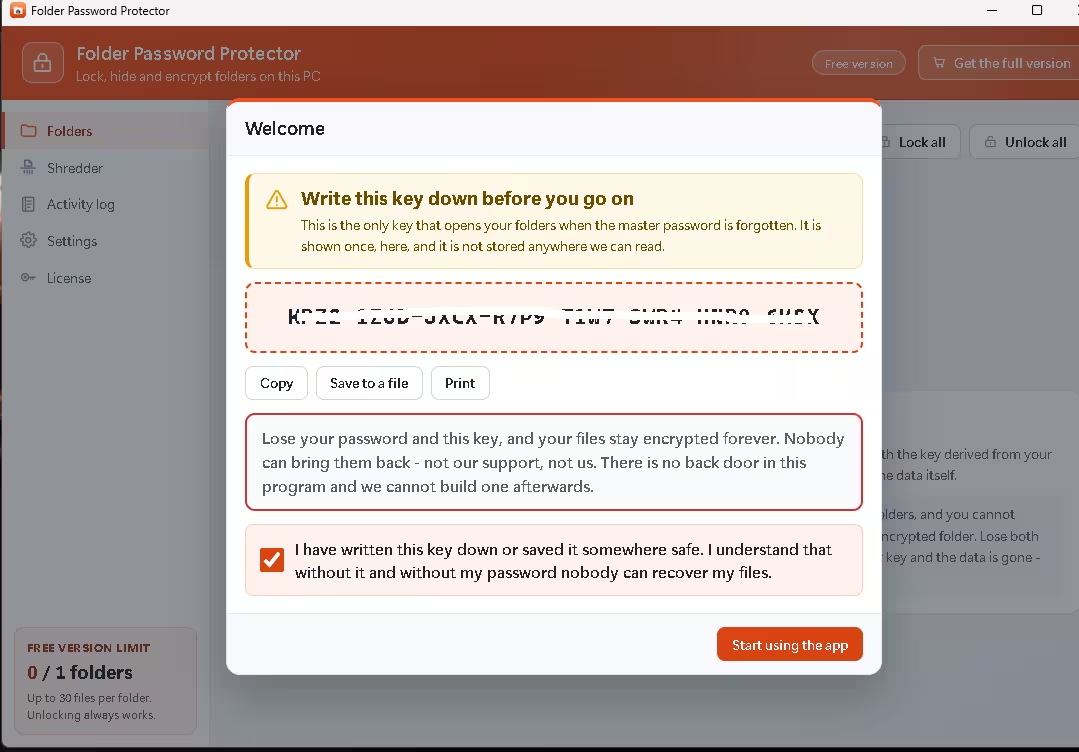
My tip: print it and keep the paper with your other important documents, or save the file to a USB stick that lives somewhere else. Never keep the only copy inside a folder you’re about to encrypt. That sounds obvious until you’ve done it.
4. Open License and enter the key
Click License in the left sidebar and scroll to the key section. Type your email address in the first box, paste FPP3-HQDXY-CMSUA-FDPWJ into the second, then press Activate. The app only goes online for this step.
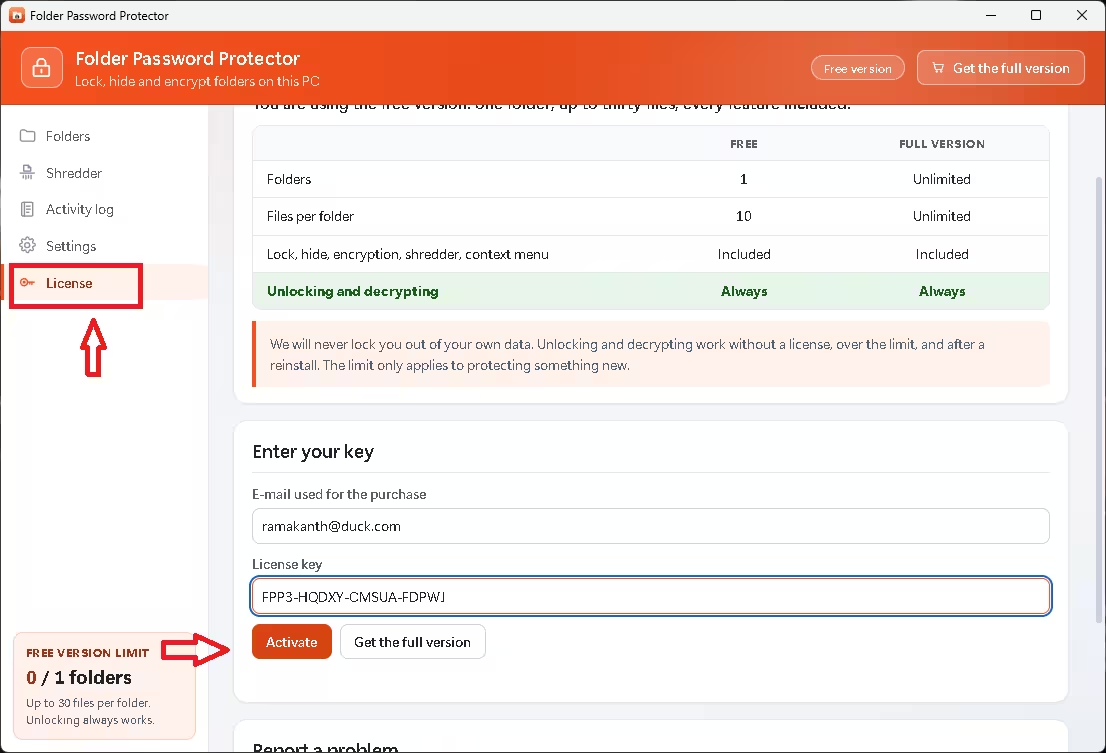
5. Check that it took
On my PC the badge in the top-right corner switched from “Free version” to “Full version” straight away, and the License page now shows the account it’s registered to. The sidebar counter that used to read “0 / 1 folders” disappears too. If you replace your computer later, there’s a Deactivate on this PC button that frees the key so you can use it on the new machine, and your protected folders stay exactly as they are.
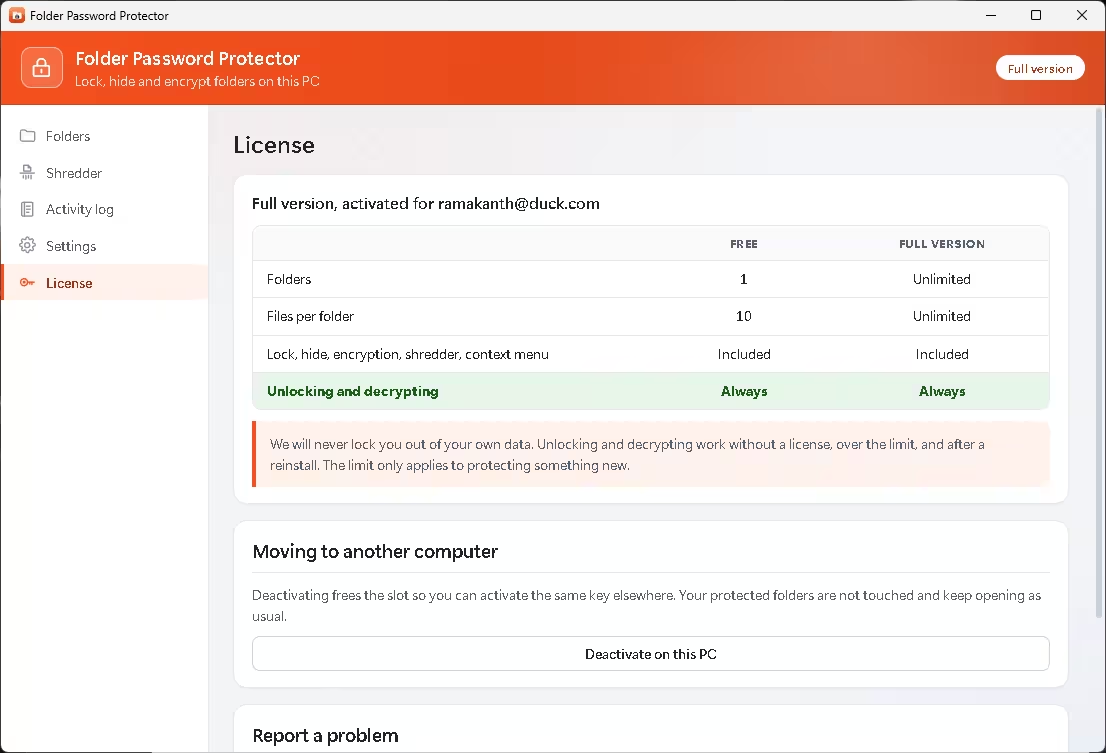
Activation refused? Re-paste the key so no space sneaks in at either end, make sure you’re online, and try again. If it still fails, the shared key has most likely run out of activations. Sadly that’s out of our hands.
Lock vs encrypt: pick the right one
This is the part most folder-locker articles gloss over, and it’s the part that matters. The main window puts both options side by side and, to its credit, tells you what each one won’t do.
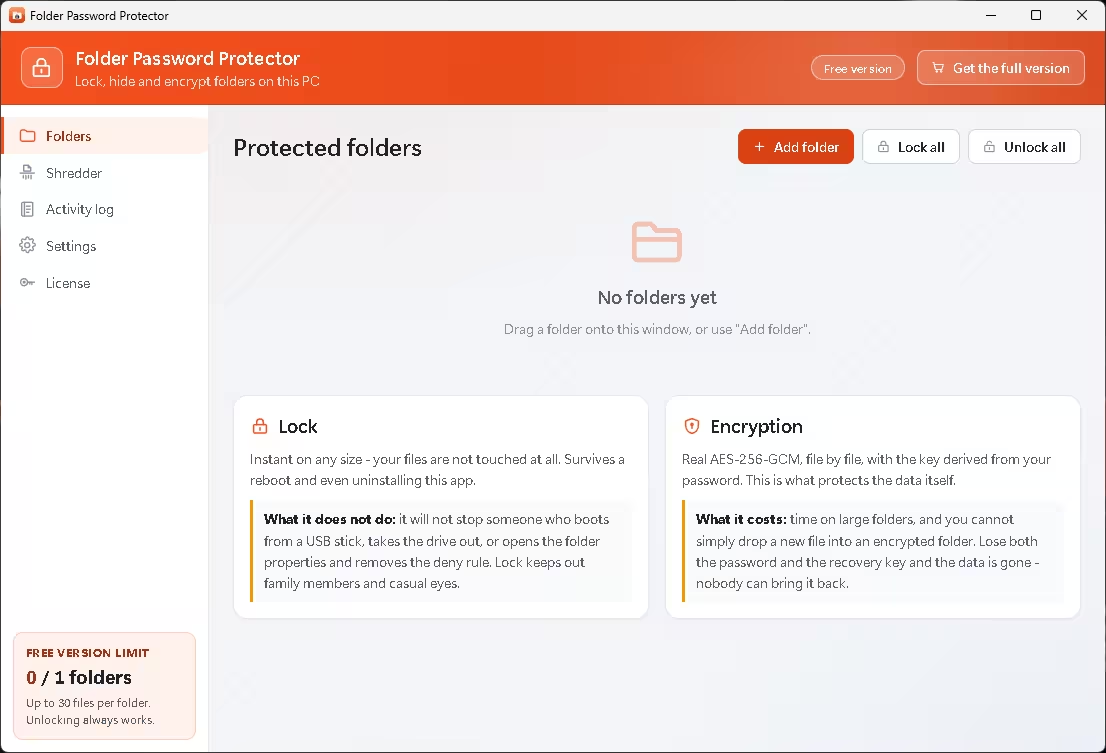
| 🔒 Lock | 🛡️ Encrypt | |
|---|---|---|
| How it works | Adds a Windows “deny” permission to the folder. Files aren’t touched. | Rewrites each file with AES-256-GCM, keyed from your password via Argon2id. |
| Speed | Instant, whatever the folder size | Grows with the amount of data; shows an ETA and can be stopped |
| Stops | Family members, coworkers, casual snooping | Anyone who pulls the drive or boots from another disk |
| Doesn’t stop | A USB boot, a removed drive, or an admin deleting the deny rule | You, if you lose both password and recovery key |
| Catch | Not real security on its own | You can’t just drop new files into an encrypted folder |
My rule of thumb: use Lock for everyday privacy on a shared home or office PC, and Encrypt for anything that would hurt if the laptop were stolen or sent off for repair. Hiding a folder is a separate switch, and on its own it’s thin cover, because anyone who turns on hidden items in File Explorer will see it. It’s best used alongside a lock.
What I liked, and the extras worth knowing
- Drag and drop. Drop a folder on the window or use Add folder, then Lock. There’s also Lock all / Unlock all for several at once.
- Auto relock. The app can lock everything again when you close it or after a period of inactivity.
- Uninstall-safe. Locked folders keep their names and location. If you remove the app, reinstall it and unlock, or an administrator can clear the rule from the folder’s Security tab.
- Careful encryption. According to SoftOrbits, each file is written to a temporary copy and only swapped in once it’s complete, and decrypted files are checked against a SHA-256 hash. Each encrypted file grows by just 64 bytes.
- Honest shredder. The Shredder tab overwrites and deletes files with a pass count you choose, and it warns you right on screen that on an SSD, wear levelling and TRIM can leave old copies behind. Refreshingly candid. For SSD users, encrypting from day one beats shredding later.
- Stays offline. SoftOrbits says there’s no cloud sync, analytics or ad SDK; the app only connects to activate a license or send a support report you request.
- Activity log without names. It records what happened but not the names of the documents involved.
One inconsistency I spotted: the sidebar and the developer’s site both say the free edition allows one folder with up to 30 files, but the comparison table on the License page lists 10 files per folder. On our activated install the License page shows “Unlimited” for both, so it didn’t matter during testing. Which free figure is correct is still unclear, which is worth knowing if you ever drop back to the free edition.
Who should grab this
It makes the most sense if you share a PC with family and don’t want separate Windows accounts just to keep a few folders private, if you carry a laptop between home, college or the office, or if your computer is about to go to a repair shop. People on Windows Home get the most out of it, since that edition lacks the built-in encryption option entirely.
If you’d rather compare approaches, I’ve also reviewed TKO Folder Hider, a free tool that packs files into encrypted lockers, covered the IObit Protected Folder Pro license giveaway, and the Wise Folder Hider Pro free offer. For more privacy and protection tools, browse our Windows security software hub.
📊 Techno360 Verdict: 4.5 / 5
Folder Password Protector does one job and explains its own limits better than most rivals. The split between instant locking and real AES-256 encryption is clear, the recovery key flow is hard to skip, and the giveaway key switched our Windows 11 Home laptop to full-version status without any fuss.
👍 Good
- Instant locks on any folder size, survives reboots
- AES-256-GCM encryption with a recovery key (per SoftOrbits)
- Works on Windows Home, fully offline after activation
👎 Not so good
- Lock mode alone won’t stop someone with physical access
- No way back from a lost password plus lost recovery key
- Giveaway terms (duration, updates) aren’t published
FAQs
Does it run on Windows 11 Home?
Yes. SoftOrbits supports 64-bit Windows 10 and 11, including Home editions. I installed and activated it on Windows 11 Home Single Language 25H2 without any problems.
Is the giveaway license lifetime?
No duration has been published for this key, so I won’t promise one. It activated as a full version on my PC; treat that as the current state rather than a guarantee.
What happens if I forget my master password?
For locked folders you can get back in with the recovery key, and an administrator can also remove the deny rule from the folder’s Security tab. For encrypted folders, the recovery key is the only way in. Without it, the data can’t be recovered by anyone.
Will I lose access if the key stops working?
No. SoftOrbits says unlocking and decrypting always work, with or without a license, over the free limit, or after a reinstall. Only protecting new folders is limited.
Can I move the license to a new PC?
Yes. Use Deactivate on this PC on the License page first, then activate the same key on the other machine.
Does locking a big folder take longer?
No. Locking writes a rule on the folder itself, so a single document and a terabyte of video close equally fast. Encryption is different, as it has to rewrite every file.
Is hiding a folder enough?
Not really. Anyone who shows hidden items or types the folder path can reach it. Combine hiding with a lock, or use encryption for anything sensitive.
Did the key work for you? Tell us in the comments, along with your Windows version, so other readers know whether it’s still live.
Discover more from Techno360
Subscribe to get the latest posts sent to your email.

You must be logged in to post a comment.