
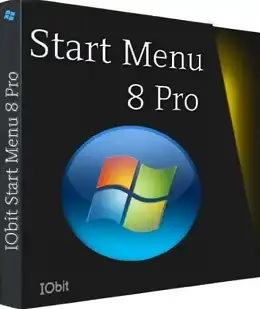
If you’ve been using Windows 10 or Windows 8 and hate the default Start menu, you’re not alone. Millions of people miss the clean, no-nonsense Windows 7-style Start menu — and that’s exactly what IObit Start Menu 8 Pro brings back.
This small utility from IObit restores the classic Start button and menu, gives you a pile of customization options, and lets you toggle between the old and new styles with a single click. No complicated setup, no registry tweaks — just install and you’re done.
And right now, you can get the full Pro version free using the giveaway license code below, valid until November 23, 2026.
What Is IObit Start Menu 8 Pro?
IObit Start Menu 8 Pro is a lightweight Windows customization tool made by IObit — a well-known software company. Its main job is to bring back the familiar Windows 7-style Start button and Start menu on Windows 8, 8.1, 10, and even Windows 11.
If you find Windows 10’s tiled Start menu cluttered, or if you just prefer the simpler list-style menu from Windows 7, this tool is a straightforward fix. You install it, choose a Start button style, and you’re back to the classic experience — except now you also get extra customization that the original Windows 7 menu never had.
The software is genuinely simple. After a fast installation (no reboots required), the Start button shows up on your taskbar immediately. One click opens the classic menu, and if you ever want to switch back to the Windows default, you can do that too — just press the Windows key.
Key Features of Start Menu 8 Pro
Here’s what you get with the Pro version:
- Classic Windows 7-style Start menu — brings back the familiar all-programs list, Control Panel, Computer, and Documents shortcuts
- Custom Start button icons — choose from built-in icons (Win10 style, Big Hero, House, Classic) or set any image as your Start button
- One-click style switching — toggle between classic menu and modern Windows 10/11 Start menu with a single click
- Taskbar customization — change taskbar color, transparency (alpha), and system clock display
- Hide Cortana/Search box — reclaim taskbar space by hiding the Search box and virtual desktops button
- Merge taskbar buttons — combine multiple windows of the same app into one button to save space
- Custom groups — organize your apps into groups and drag-and-drop programs onto the Start menu
- Pin/unpin items — pin frequently used apps, folders, and files for quick access
- Built-in search — fast local search for apps, files, documents, photos, and music
- Quick shutdown menu — shutdown, restart, log off, and switch user options right from the Start menu
- Live Tiles support — keeps Windows 10/11 Live Tiles working alongside the classic menu
- Skip Metro start page — boot directly to the Windows desktop, bypassing the Metro/Start screen on Windows 8
- 43 languages supported — including English, French, German, Spanish, Chinese, and more
- Ad-free Pro experience — no upgrade nags or ads in the Pro version
Start Menu 8 Pro vs Free — What’s the Difference?
The free version of Start Menu 8 has the core menu-replacement feature, but it shows ads and occasional upgrade prompts. The Pro version removes all ads, gives you access to more Start button icon styles, advanced taskbar customization options, and priority support. Normally priced at around $22.95, you can grab it free today using the giveaway key below.
Start Menu 8 Pro vs Open-Shell vs StartAllBack
| Feature | Start Menu 8 Pro | Open-Shell | StartAllBack |
|---|---|---|---|
| Price | Free (Giveaway) | Free | Paid ($4.99) |
| Windows 11 Support | ✅ | ✅ | ✅ |
| Taskbar Color Customization | ✅ | Limited | ✅ |
| Custom Start Button Icon | ✅ | ✅ | ✅ |
| Live Tiles Support | ✅ | ❌ | ❌ |
| Skip Metro/Modern UI | ✅ | ✅ | ❌ |
| Hide Cortana/Search Box | ✅ | ❌ | ✅ |
Start Menu 8 Pro — Interface and Settings

Start Menu 8 Pro’s settings panel — choose from multiple Start button icon styles and configure taskbar behavior.
The settings panel is clean and easy to navigate. There are four main sections: Start Button Icon, Style, General, and Menu. You don’t need to dig through any complex options to get things working — the defaults are sensible, and tweaking them is quick.
From the Style tab, you can switch between different menu layouts — a Windows 7 look, a Windows 8 modern style, or a custom arrangement. The General tab lets you control startup behavior, Metro screen skip, and taskbar appearance.
How to Download and Install Start Menu 8 Pro
- Download the installer directly from IObit: Start Menu 8 Pro Setup (.exe) — 11.7 MB
- Run the installer and follow the on-screen instructions. The installation is fast and requires no reboot.
- Once installed, Start Menu 8 launches automatically and adds a Start button to your taskbar right away.
- When the app opens, click “Already have a License Code” in the activation window.
- Enter the free license code below and click “Register.”
🎁 Start Menu 8 Pro Free License Code
🔑 Free License Key — Valid Until November 23, 2026
License Code:
386C7-B283C-BE2E5-D48B5
Steps to activate:
- Install Start Menu 8 Pro using the download link above
- Launch the application — you’ll see an activation prompt
- Click “Already have a License Code”
- Paste the license code above and click “Register”
Note: This is a giveaway license valid until November 23, 2026. Grab it before it expires!

Enter the free license code in the activation window to unlock Start Menu 8 Pro — click “Register” to complete.
System Requirements
- OS: Windows 11, 10, 8.1/8, 7, Vista, and XP (32-bit and 64-bit)
- File Size: 11.7 MB
- Developer: IObit (iobit.com)
- Version: 6.0.0.2 (Updated: November 2025)
Frequently Asked Questions
Does Start Menu 8 Pro work on Windows 11?
Yes. The latest version (v6.0.0.2) supports Windows 11 along with Windows 10, 8.1, 8, 7, Vista, and XP — both 32-bit and 64-bit.
Can I switch back to the default Windows Start menu?
Yes. You can toggle between the IObit Start menu and the default Windows Start menu at any time — just press the Windows key or click the Start button in the app settings to switch modes.
Is it safe to use?
Yes. IObit is a well-established software company that has been making Windows utilities since 2004. Start Menu 8 is scanned clean on VirusTotal and is available on CNET, Softonic, and other major download sites.
What happens after the license expires on November 23, 2026?
After the giveaway subscription ends, the software reverts to the free version — your customizations stay, but you may see upgrade prompts. You can renew at the regular price or continue using the free tier.
Does it slow down my PC?
No. Start Menu 8 is a lightweight tool (under 12 MB) that uses minimal CPU and RAM. Version 6.0 specifically improved its algorithms to reduce resource usage.
Can I use my own image as the Start button?
Yes, the Pro version lets you set any picture as your Start button icon, in addition to the built-in options.
Final Thoughts
If you’re on Windows 10 or Windows 8 and the default Start menu frustrates you, IObit Start Menu 8 Pro is one of the easiest fixes out there. The installation takes under a minute, the interface is clean, and the customization options are genuinely useful — not just gimmicks.
The comparison table above shows it holds up well against free alternatives like Open-Shell, especially for users who want Live Tiles support and Cortana/Search box hiding in one package.
With the current free giveaway license (valid till November 2026), there’s no reason not to try it. Download, install, enter the key — done.


Discover more from Techno360
Subscribe to get the latest posts sent to your email.
You must be logged in to post a comment.