
Free & Open Source · Windows 11
One Window for Registry Tweaks, Power Plans, Startup Cleanup and Repair Scripts
TweakHub 1.6.1 gathers the settings that Windows tuning guides send you hunting for, shows what each one changes, and backs up the original values before it touches anything.
⚡ Quick Read
- What it is: a free, MIT-licensed control panel for Windows 11 tweaks, scripts and diagnostics.
- Version tested: 1.6.1 (released 28 October 2026).
- Requires: Windows 11 build 22000 or newer. Admin rights are requested only when a change needs them.
- Watch out: the installer is unsigned, so SmartScreen will warn you. Check its SHA-256 hash first. Some tweaks raise power use and heat.
- Best for: users who already know what a registry tweak does and want one tool instead of five.
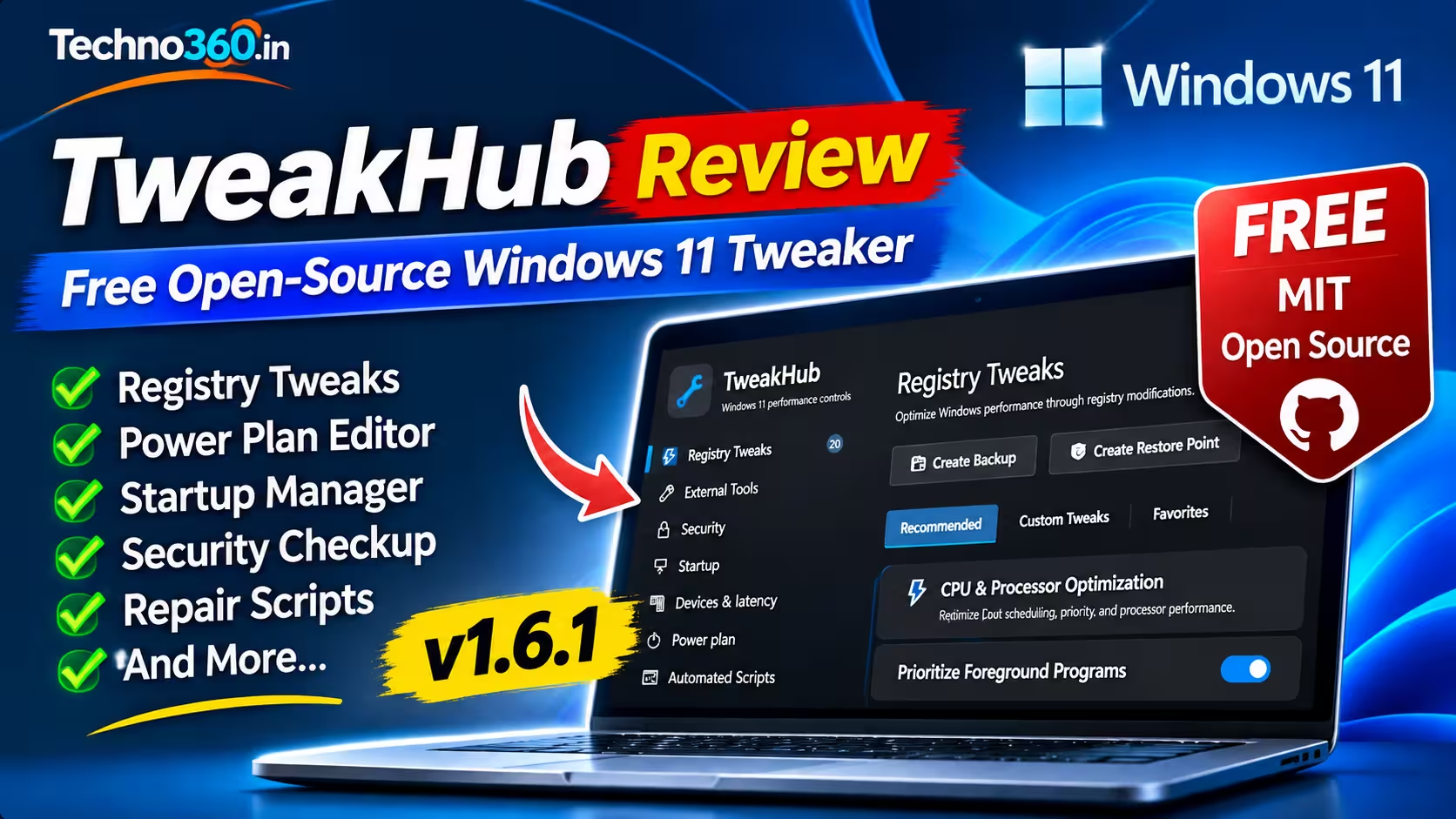
Most Windows tuning guides send you to five places: Registry Editor for one setting, powercfg for another, Device Manager, Task Scheduler and finally a couple of GitHub scripts. TweakHub puts all of that in one app. It’s a free Windows 11 tweaker from developer PrimeBuild. It covers registry tweaks, a full power plan editor, startup and device managers, a security checkup and a library of maintenance scripts.
The project’s README says plainly that it is not a one-click optimizer and that its tweaks shouldn’t be applied blindly. That honesty sets the tone for the whole app. For this TweakHub review, I installed version 1.6.1 and went through each section. Below is what it shows and what it changes. It doesn’t include speed benchmarks, because I didn’t run any.
What Is TweakHub?
TweakHub is a desktop app written in C# on .NET 10 (WPF). The source code is public under the MIT licence. According to the README, it runs as the current user and only asks for administrator rights when an operation needs them. It also stores your custom tools, scripts and playbooks next to the app in the portable build.
The GitHub releases page shows a fast pace: v1.5.0 on 14 October and v1.6.0 and v1.6.1 both on 28 October. Version 1.6.0 added the startup manager, driver and unused-device tools. Version 1.6.1 added a notify-only Windows Update security mode plus hardening and fixes. At the time of writing, the README lists English, Russian, Simplified Chinese, Spanish, Italian and Japanese as interface languages. Everything else in this review describes version 1.6.1, the version I tested. Later releases may look different.
📋 TweakHub at a Glance
👨💻 Developer
PrimeBuild
🏷️ Version tested
1.6.1 (28 Oct 2026)
📜 Licence
MIT, open source
💰 Price
Free, no account
🪟 Requires
Windows 11 build 22000+
📦 Download
49 MB installer · 70.6 MB portable
Download and Install TweakHub on Windows 11
The README lists three ways to get it:
Portable (recommended by the developer): download TweakHub-v1.6.1-win-x64-portable.zip (70.6 MB), extract all of it and run TweakHub.exe. Keep TweakHub.exe, portable.flag and the Data folder together.
Installer: run TweakHub-Setup-1.6.1.exe (49 MB). Installed builds keep user data in %AppData%\TweakHub.
WinGet: winget install --id PrimeBuild.TweakHub --exact
I used the installer. Because the release isn’t code-signed, Microsoft Defender SmartScreen blocked it as an unrecognised app from an “Unknown publisher”. The README warns about this. The warning only means Windows can’t confirm who signed the file. It doesn’t prove the file is safe or that it’s malicious.
🔒 Check the file before you bypass the warning
The v1.6.1 release includes a .sha256 file for both the installer and the portable ZIP. Download the matching one, open PowerShell in your Downloads folder and run:
Get-FileHash .\TweakHub-Setup-1.6.1.exe -Algorithm SHA256
If the hash matches the one in the .sha256 file, click More info and then Run anyway. If it doesn’t match, delete the file.
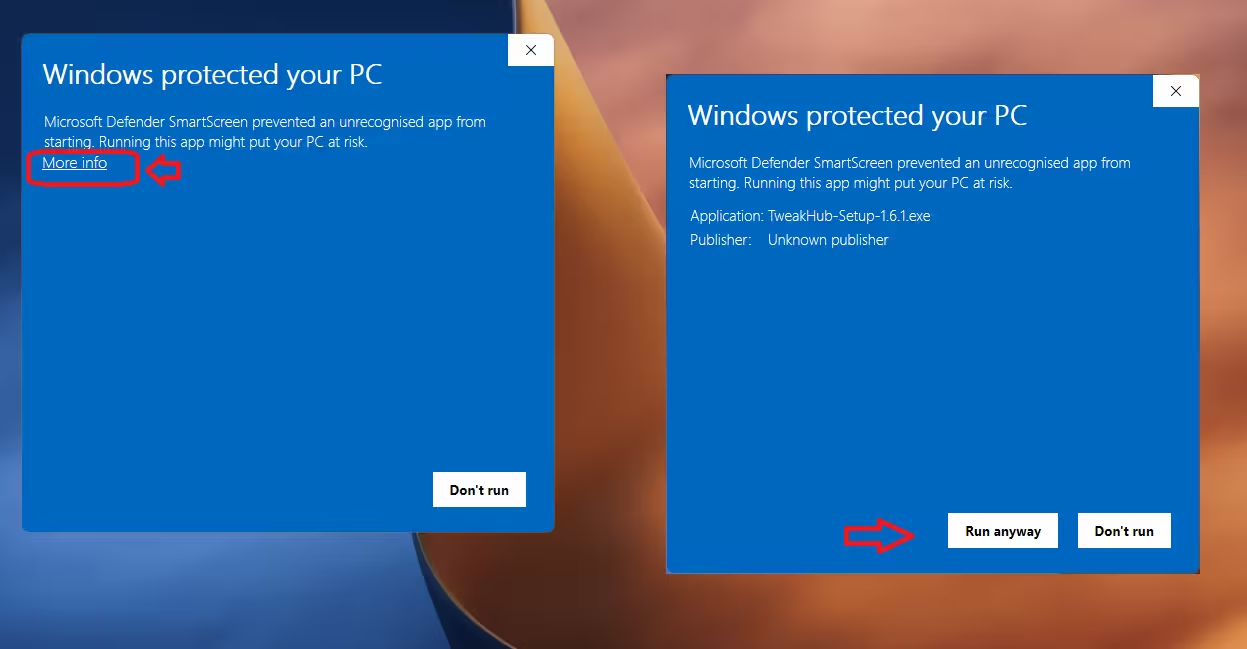
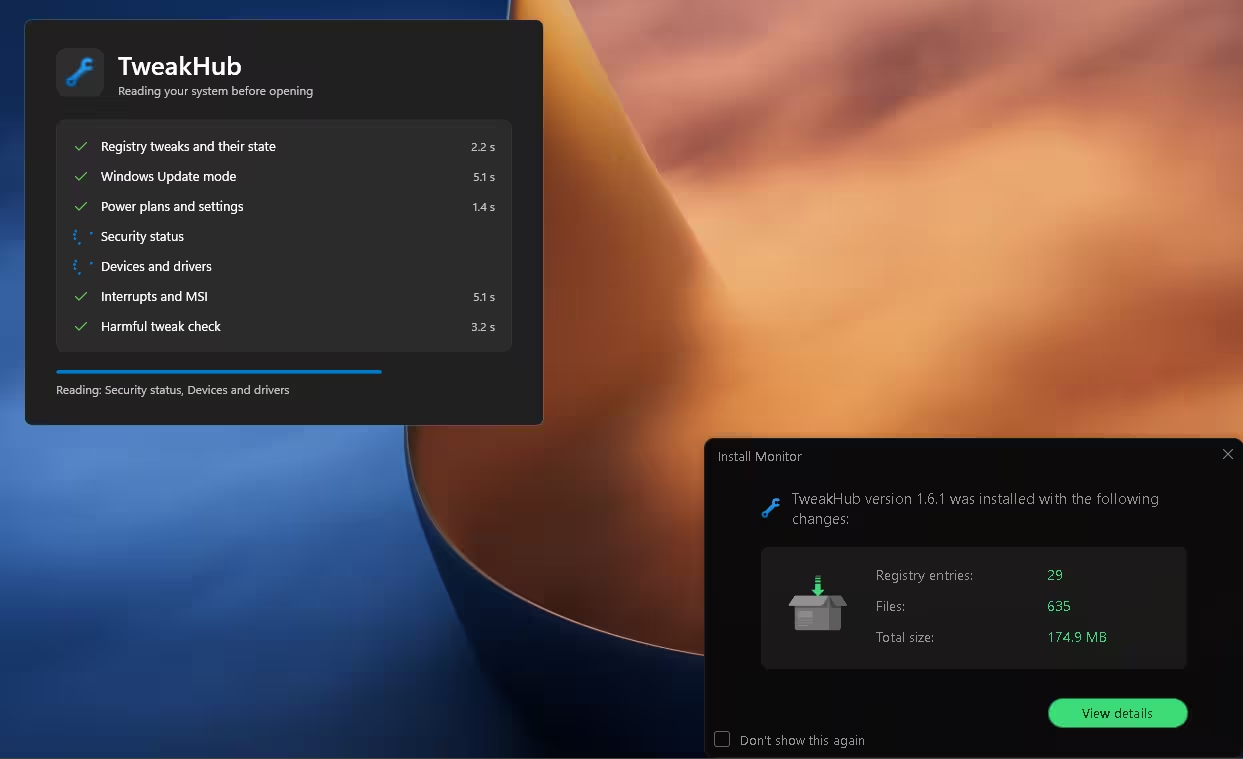
The 49 MB installer unpacks to much more. The install monitor in my separate uninstaller tool (not part of TweakHub) recorded 29 registry entries and 635 files, a total of 174.9 MB on disk. When TweakHub starts, it scans your system first. It reads its registry tweaks, Windows Update mode, power plans, security status, devices and drivers, interrupt and MSI settings. It also runs a “harmful tweak check”. After that, a disclaimer asks you to create a restore point before you change anything.
TweakHub Features: A Section-by-Section Look
Registry Tweaks with Backups and a Preview
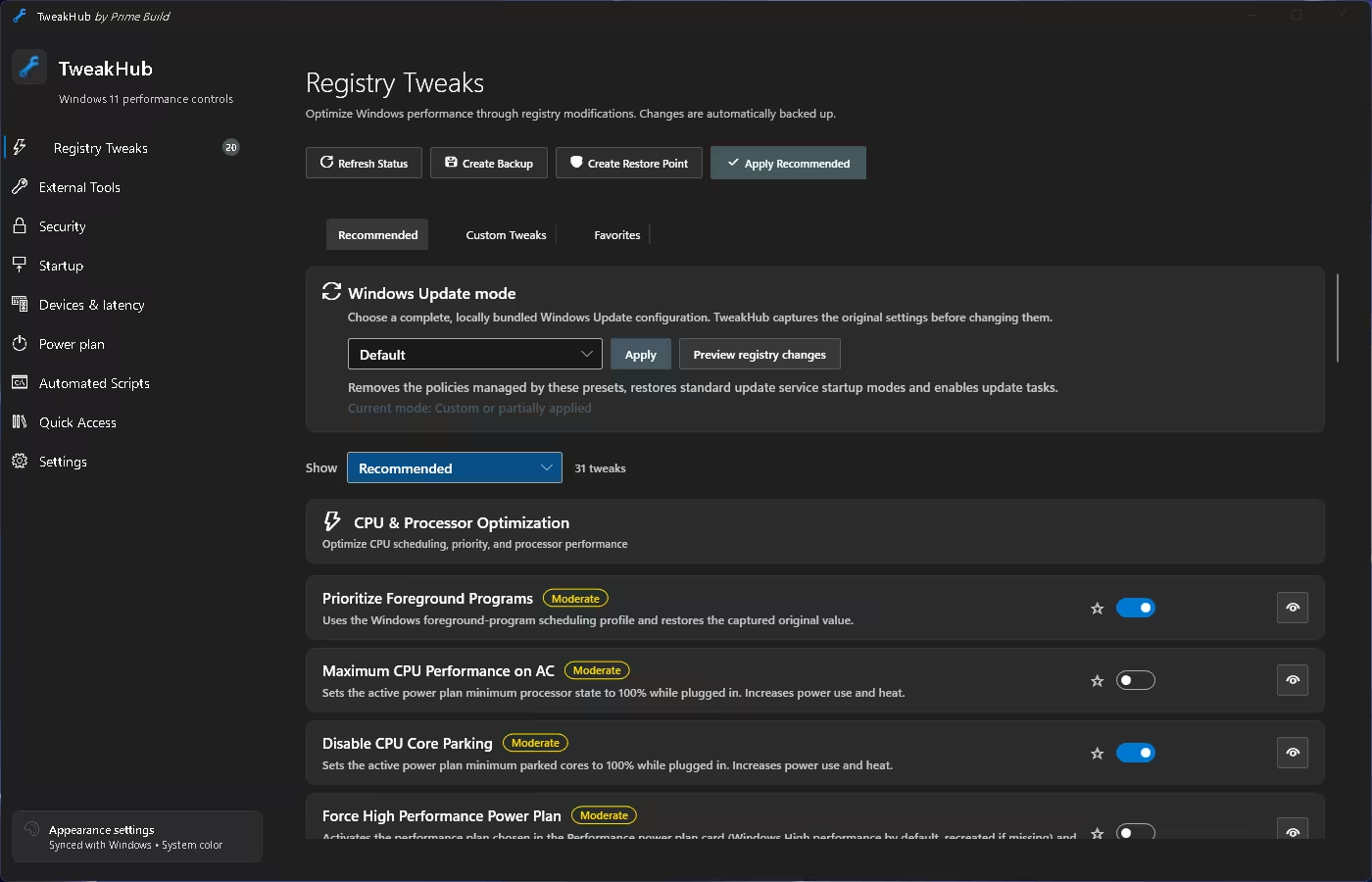
This is the main screen. The top bar has Refresh Status, Create Backup, Create Restore Point and Apply Recommended. With the Recommended filter on, my copy listed 31 tweaks. Each one has a risk badge (the CPU tweaks I saw were all marked “Moderate”), a plain-English description and an eye icon to inspect it before you switch it on.
The descriptions are refreshingly honest. “Maximum CPU Performance on AC” and “Disable CPU Core Parking” both warn that they increase power use and heat. The Power Throttling toggle says it is not applied automatically and offers “no guaranteed gaming benefit”. The Custom Tweaks tab is for your own registry changes. TweakHub can’t judge whether those are safe, so back up first.
The same screen has a Windows Update mode selector with presets. It records your original update settings before it changes them, and a Preview registry changes button shows exactly what each preset writes.
Power Plan Editor (Hidden Settings Included)
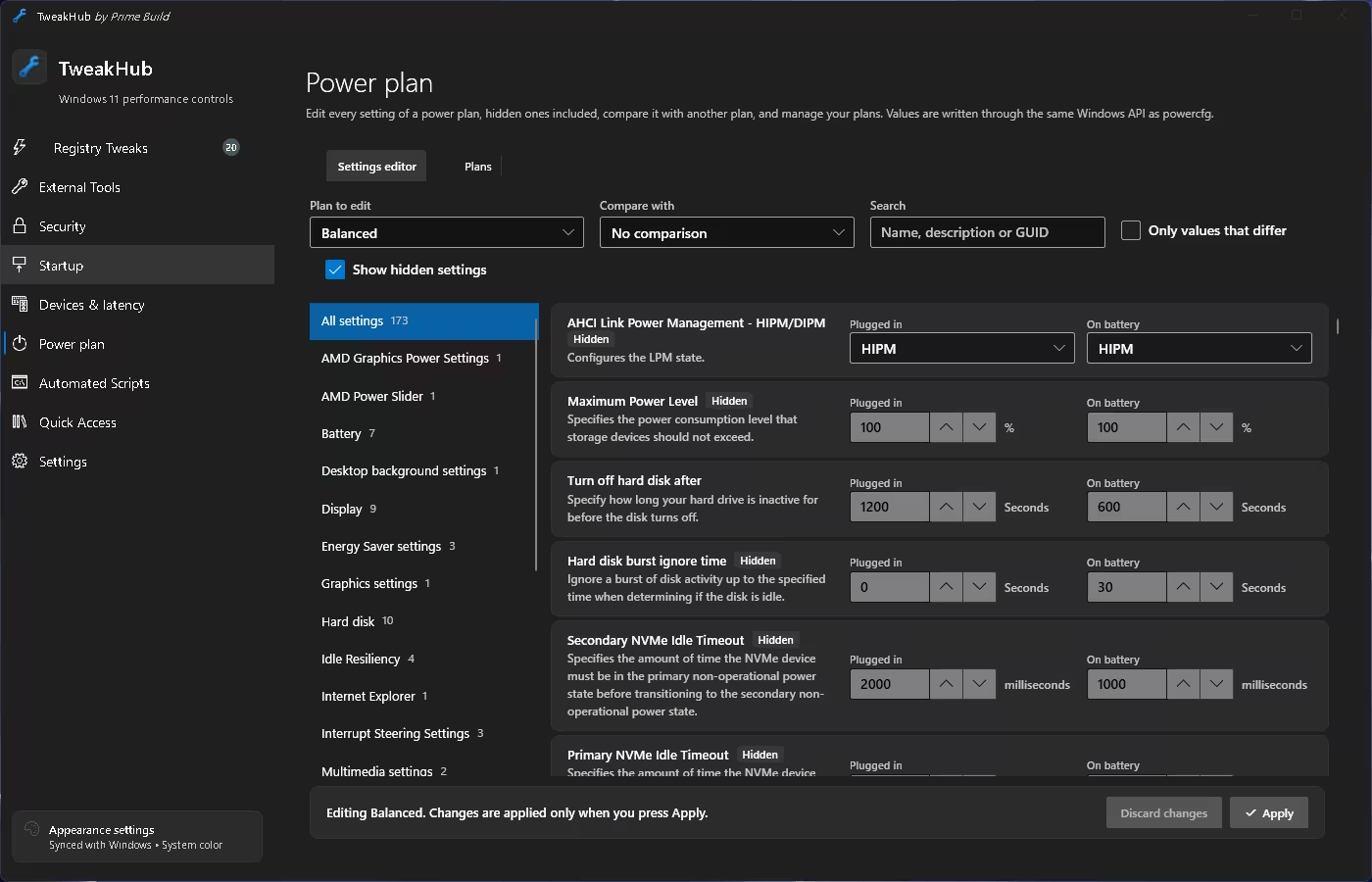
With “Show hidden settings” ticked, the Balanced plan on my PC showed 173 settings. They include ones Windows hides, such as AHCI link power management and the NVMe idle timeouts. You can set separate plugged-in and battery values, compare two plans, or filter to values that differ. Nothing changes until you press Apply. TweakHub says it writes values through the same Windows API that powercfg uses.
Startup Manager
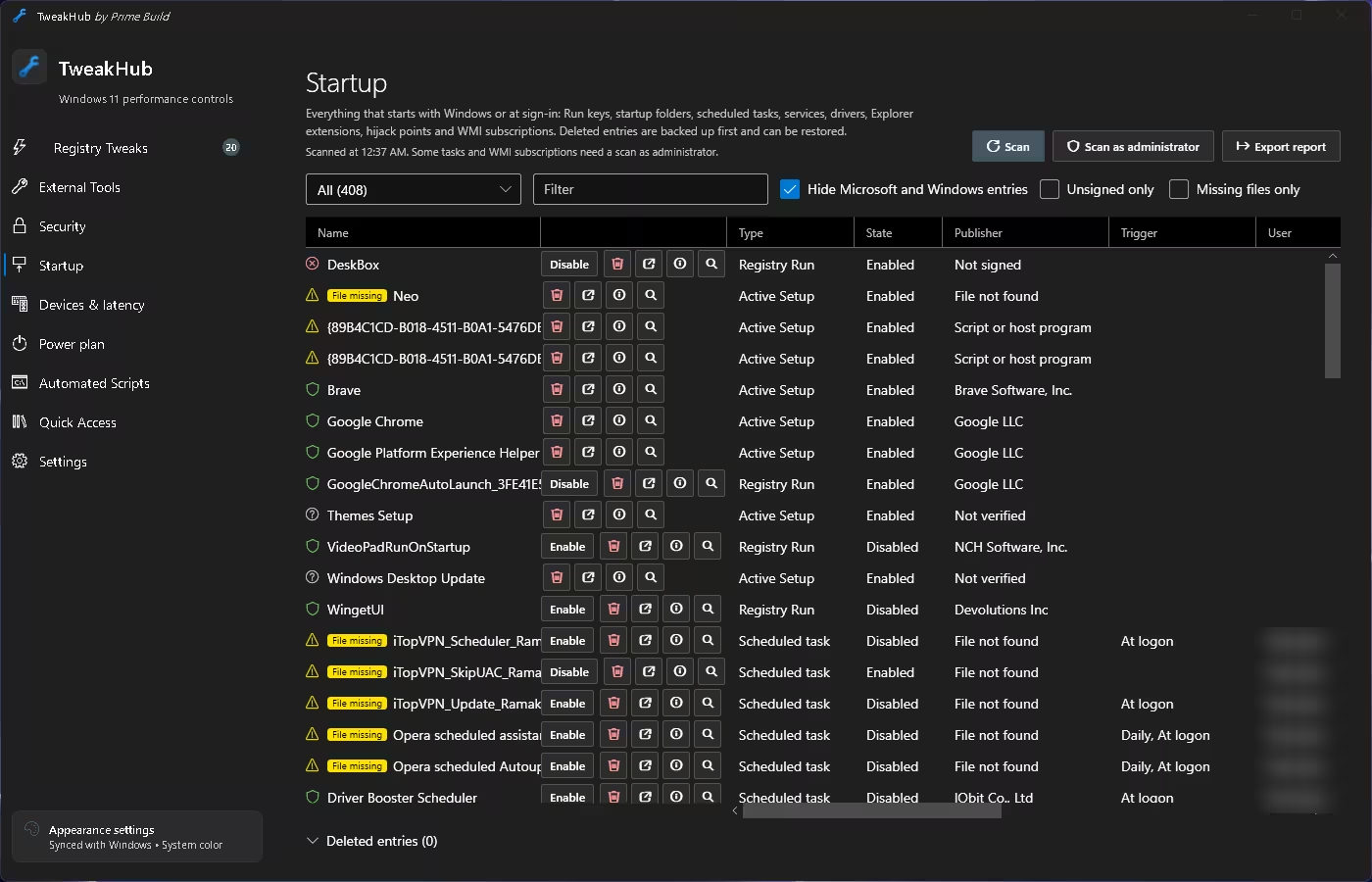
The Startup section goes much further than Task Manager. It lists Run keys, startup folders, scheduled tasks, services, drivers, Explorer extensions, hijack points and WMI subscriptions. My scan found 408 entries. You can hide Microsoft entries, filter to unsigned items, or show only entries whose files are missing. Leftovers from apps I had uninstalled showed up flagged “File missing”. Before an entry is deleted, it is backed up so you can restore it. Some tasks need Scan as administrator before they appear.
Devices & Latency
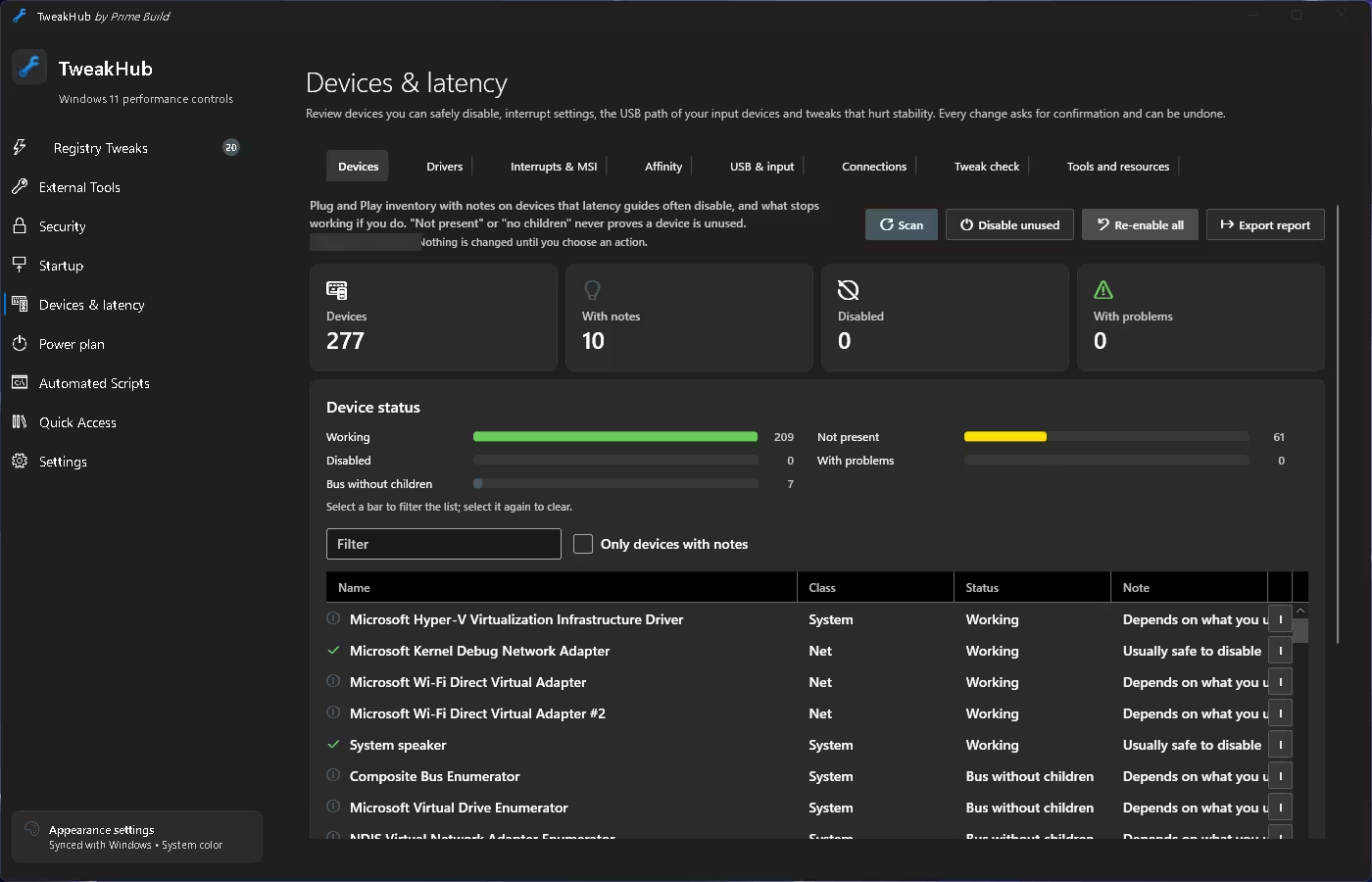
Latency guides often tell you to disable devices you don’t use. This section lists your Plug and Play devices. My scan found 277: 209 working, 61 marked as not present and seven listed as buses without children. It adds notes such as “Usually safe to disable” or “Depends on what you use”. Other tabs cover drivers, interrupts and MSI, CPU affinity, the USB path of your input devices, and a tweak check for settings that hurt stability. The screen states that nothing changes until you choose an action, and a Re-enable all button is there if something stops working.
Security Checkup
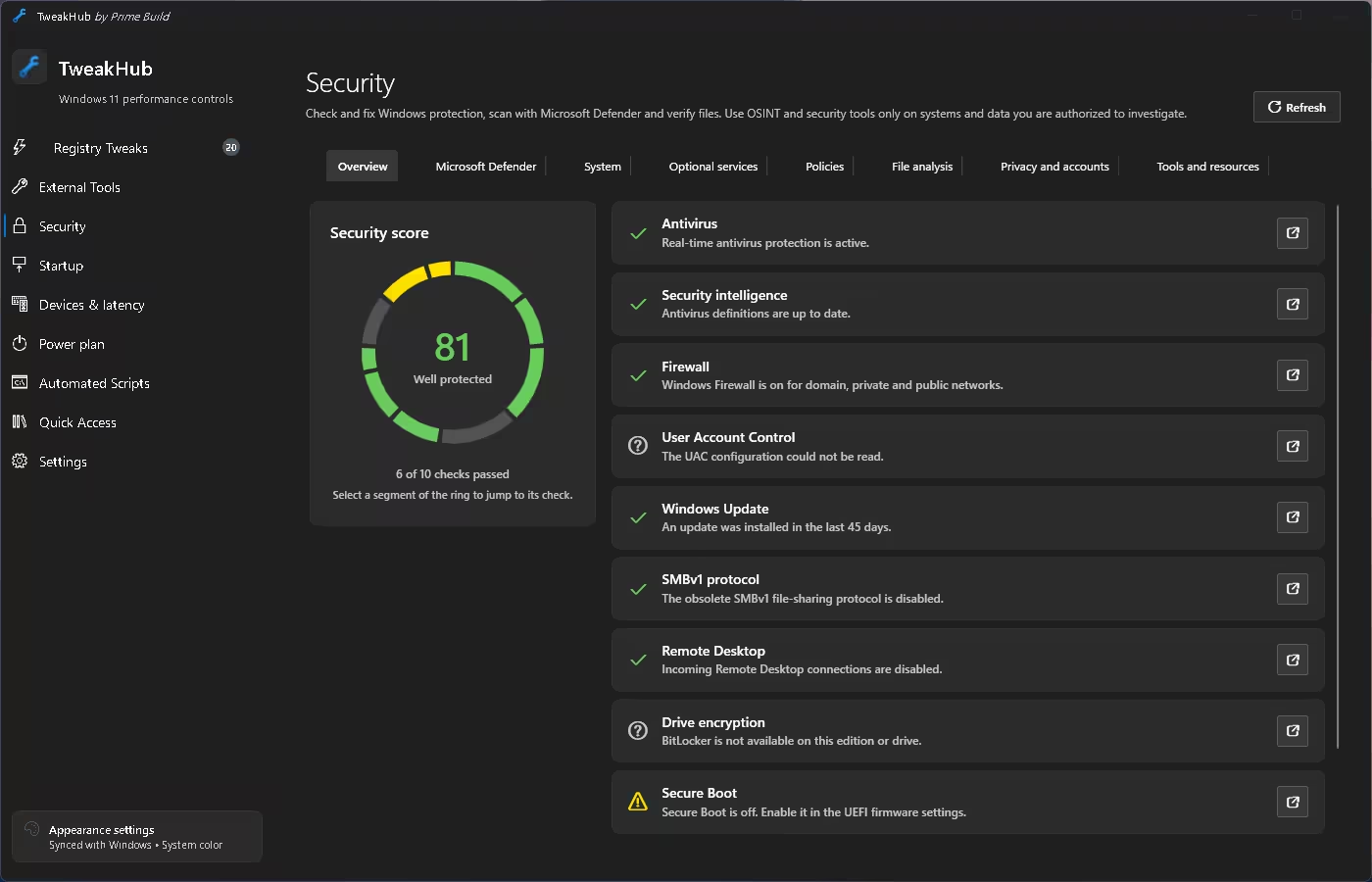
The Security overview runs 10 checks. My PC got a score of 81, labelled “Well protected”, even though only 6 of the 10 checks passed. The screen doesn’t explain how the score is calculated, so read it as a rough indicator, not a definitive security rating. Antivirus, definitions, firewall, Windows Update, SMBv1 and Remote Desktop all passed. Secure Boot was flagged as off. TweakHub couldn’t read the UAC setting and reported BitLocker as unavailable on my edition. Other tabs cover Microsoft Defender, policies, file analysis and privacy. For more on these settings, see our guide to Windows 11 security settings you should enable.
Automated Scripts and Playbooks
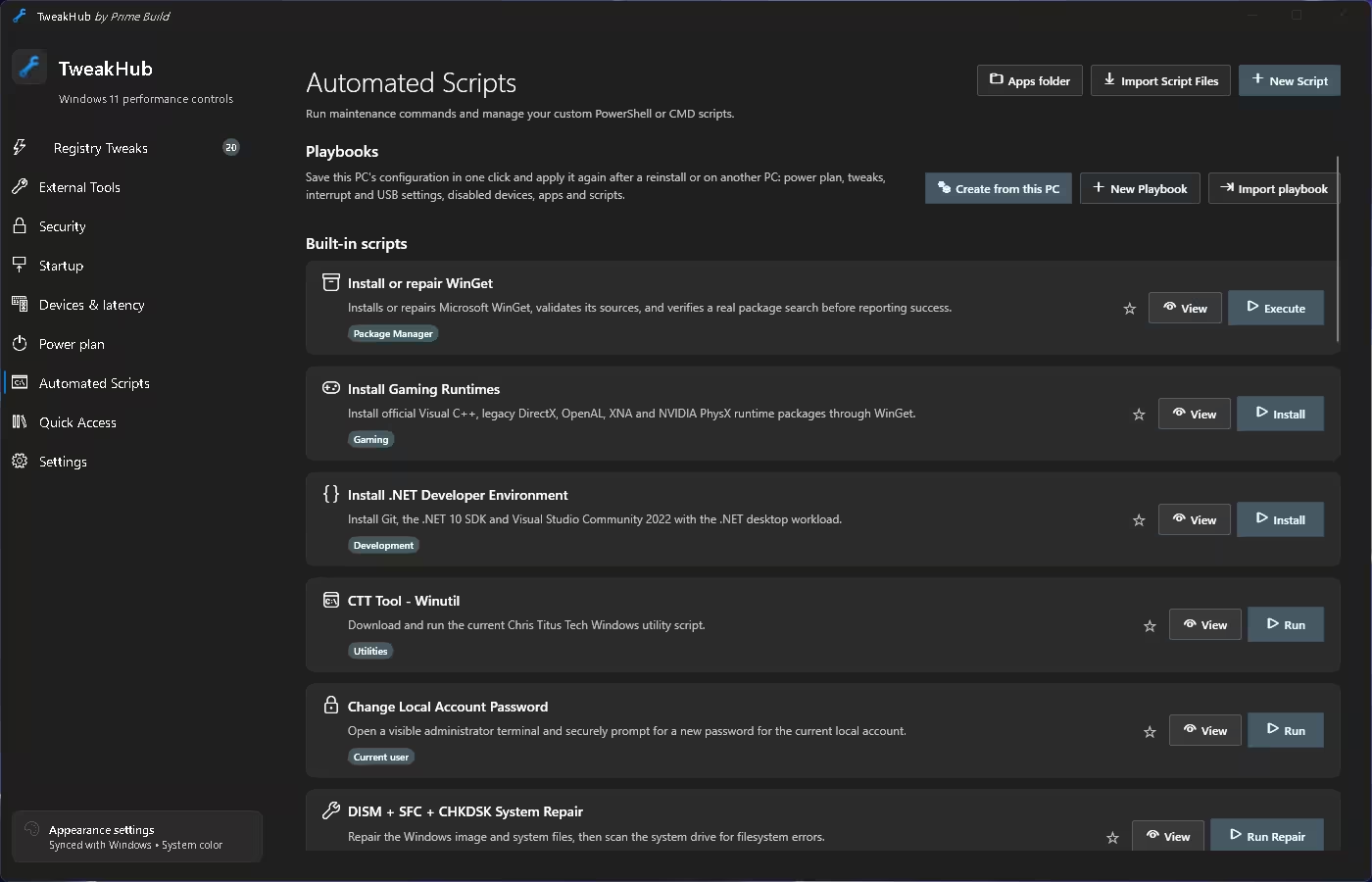
Built-in scripts include repairing WinGet, installing gaming runtimes (Visual C++, DirectX, OpenAL, XNA, PhysX), setting up a .NET developer environment, changing a local account password, and running DISM, SFC and CHKDSK repairs. Every script has a View button so you can read the code before you run it. One script, “CTT Tool – Winutil”, downloads and runs the current Chris Titus Tech utility from the internet. Read it before you click Run.
Playbooks are the standout feature here. “Create from this PC” saves your power plan, tweaks, interrupt and USB settings, disabled devices, apps and scripts. You can then apply all of it after a clean install or on another PC.
External Tools
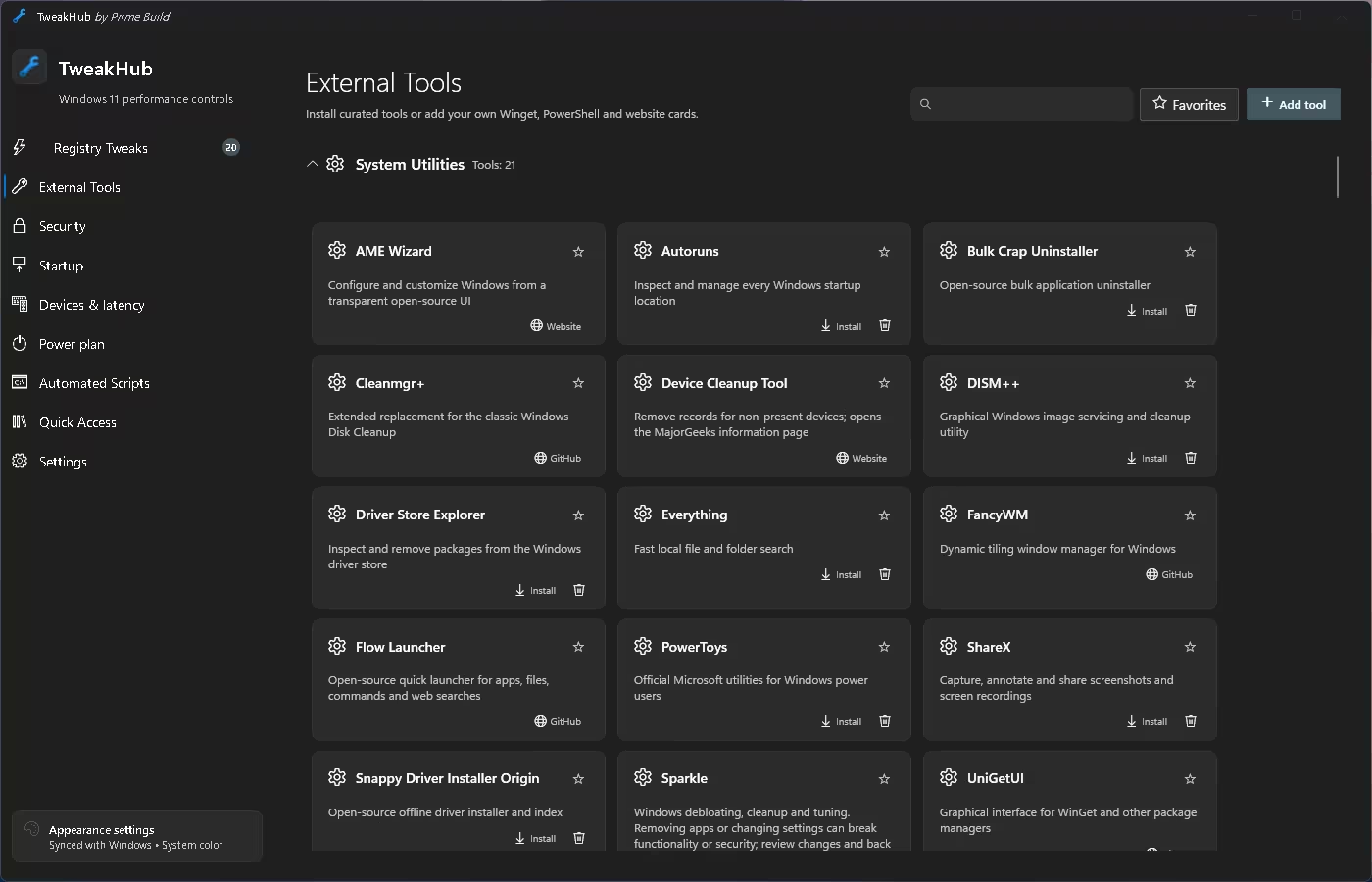
This is a curated launcher. The System Utilities group alone has 21 tools, including Autoruns, Bulk Crap Uninstaller, DISM++, Everything, PowerToys, ShareX and UniGetUI. Some install through WinGet with one click, and others open the project’s website or GitHub page. You can also add your own WinGet, PowerShell or website cards.
Is TweakHub Safe to Use?
It’s built to be careful. Tweaks back up the original values, registry and update presets can be previewed, scripts can be read before they run, and startup deletions are backed up. The source code is public. The README says in-app updates are checked with SHA-256 before they install.
The risk is in what you choose to apply. The developer’s own disclaimer warns that some settings can reduce stability, performance or security, cause data loss or affect hardware. Here’s a sensible routine:
✅ Safe Tweaking Routine
- Click Create Restore Point and Create Backup first.
- Apply a few tweaks at a time, not everything under Apply Recommended at once.
- Restart and use the PC normally for a day before you add more.
- On laptops, skip the “Maximum CPU” and core-parking tweaks unless you’re plugged in and okay with extra heat.
If you’d rather start with built-in Windows settings, our Windows 11 performance tips cover the basics without any third-party tool.
TweakHub vs Winhance and PC Tweaker
Winhance is the better pick if your main goal is removing bloatware. TweakHub is more of a technician’s workbench. Its power plan editor, device and interrupt tools, startup scanner and playbooks have no direct match in a typical debloater. If you want a small set of reversible tweaks with less to learn, PC Tweaker is simpler.
| 👍 Pros | 👎 Cons |
| Free, MIT-licensed, source on GitHub Backups, previews and visible script code Full hidden power-plan editor Deep startup and device inventory Playbooks copy one PC’s setup to another | Unsigned, so SmartScreen warns you Windows 11 only 174.9 MB on disk after install Too many options for beginners Fast release pace, so expect changes |
Who Should Use TweakHub?
🛠️ Windows enthusiasts
Manage registry tweaks, power plans and startup entries from one window instead of four built-in tools.
🧰 PC technicians
Playbooks and the portable build save setup time when you configure several machines.
🎮 Latency tuners and advanced users
The device inventory, interrupt and MSI tabs and the hidden power settings give you control the Settings app doesn’t.
🚫 Beginners
Not a good fit. If registry changes, device management and PowerShell scripts are new to you, start with the built-in Windows settings.
Frequently Asked Questions
Is TweakHub free?
Yes. TweakHub is open source under the MIT licence. It has no paid tier and doesn’t need an account.
Does TweakHub work on Windows 10?
No. The developer lists Windows 11 build 22000 or newer as the requirement.
Why does Windows block the TweakHub installer?
Releases aren’t code-signed, so SmartScreen labels them as coming from an “Unknown publisher”. Download only from the official GitHub releases page and check the file’s SHA-256 hash against the .sha256 file published with the release. Run it only if the hashes match.
Can I undo TweakHub changes?
Yes. Turning a tweak off restores the value it captured before the change. Deleted startup entries can be restored, and disabled devices can be re-enabled. A restore point made beforehand is your fallback if something else goes wrong.
Should I click Apply Recommended?
Only after reading the list. The recommended set includes tweaks the app itself marks as raising power use and heat. Applying them in small batches makes it easy to find the cause if a problem appears.
📊 Verdict
TweakHub is one of the more careful Windows 11 tweakers around. It explains each change, keeps the original values, and asks you to slow down instead of promising instant speed. The power plan editor, the startup scanner and playbooks make it worth installing, even if you never touch a registry toggle.
It isn’t for first-time tinkerers, and the unsigned installer will put some people off. If you rebuild PCs often or tune your own machine, it’s a free download worth keeping.
Discover more from Techno360
Subscribe to get the latest posts sent to your email.

You must be logged in to post a comment.