

Can Your PC Run Local AI Models? — Updated for 2026
Yes—but it depends on your GPU, VRAM, RAM, and CPU. Tools like CanIRun.ai instantly analyse your hardware and show which AI models (like Llama, Mistral, Qwen, or DeepSeek) will run smoothly, struggle, or fail entirely on your machine. No installation required—just open the site and get instant results.
Running artificial intelligence models locally on your machine has shifted from a niche hobby into a mainstream ambition—and for good reason. Local AI gives you full privacy, zero subscription fees, and instant offline access. But here’s the catch: not every PC is equipped to run every model.
Downloading a 70-billion-parameter model only to discover your hardware cannot handle it is a frustrating waste of time and storage. That’s precisely the problem CanIRun.ai was built to solve.
This review covers everything you need to know about CanIRun.ai—how it works, what it offers, and whether it belongs in your AI toolkit in 2026.
| Feature | CanIRun.ai |
|---|---|
| Free to Use | ✅ Yes |
| GPU Detection | ✅ Automatic via WebGPU |
| VRAM & RAM Detection | ✅ Automatic |
| Model Library | ~60 Open-Source Models |
| Install Required | ❌ None |
| Tier List Export | ✅ Image / Clipboard |
| Hardware Comparison | ✅ Side-by-side GPU compare |
| AI Glossary (Docs) | ✅ Beginner-friendly |
| Works With | Ollama, LM Studio, Jan.ai |
| RTX 50 Series Support | ✅ Detected & Benchmarked |
What Is CanIRun.ai? How to Check If Your PC Can Run Local AI Models
CanIRun.ai is a free, browser-based compatibility checker for local AI models. Inspired by the famous “Can I Run It?” tool used by PC gamers to check game requirements, this platform takes the same concept and applies it to the fast-growing world of on-device large language models (LLMs).
If you’ve ever asked “Can your PC run LLMs like Llama or Mistral?” before committing to a multi-gigabyte download, CanIRun.ai is the direct answer. The tool is completely free to use, requires no account creation, and installs absolutely nothing on your system.
Everything runs directly inside your web browser, making it one of the most frictionless ways to benchmark your machine’s AI readiness in 2026.
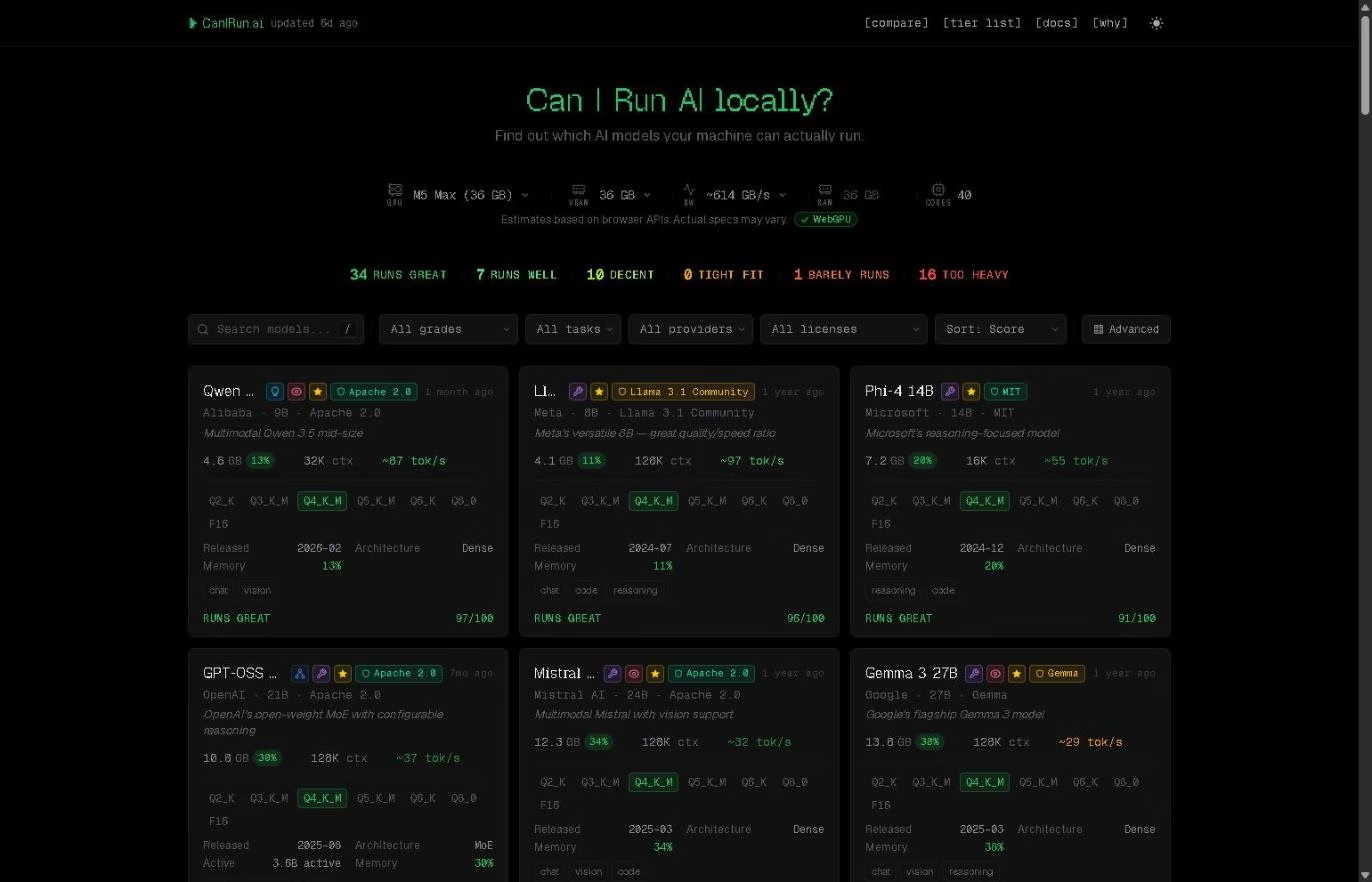
How to Check If Your PC Can Run Local AI Models Using CanIRun.ai
When you land on the CanIRun.ai homepage, the tool immediately and silently reads your machine’s hardware configuration through your browser’s built-in APIs. Specifically, it detects your GPU model, available VRAM, total system RAM, and the number of CPU cores—all without asking you to fill out a single form.
Within seconds, the platform processes that hardware snapshot against its full catalogue of AI models and assigns each one a compatibility score out of 100. Alongside that score, every model receives one of five intuitive performance labels:
- Runs Great—your hardware handles it comfortably with fast inference
- Runs Well—solid performance with minor limitations
- Decent—usable, but expect some slowdowns
- Tight Fit—possible, but pushing your hardware’s limits
- Too Heavy—incompatible with your current setup
Each model card also shows an estimated inference speed in tokens per second and a memory usage percentage, giving you a realistic picture of the real-world performance you can expect. Detection is entirely client-side, meaning no hardware data ever leaves your browser.
It’s worth noting that the estimates rely on WebGPU APIs, so results can be approximate—particularly on machines with integrated GPUs where VRAM is shared with system RAM.
The site is transparent about this limitation and displays a clear disclaimer beneath the hardware summary bar. If you’re running an RTX 50 series GPU (RTX 5080/5090) or an AMD RX 7900 XTX, results are especially accurate due to strong WebGPU support.
A Generous and Well-Organised Model Catalogue
The model library on CanIRun.ai covers approximately 60 open-source AI models, spanning a wide range of use cases including conversational chat, code generation, reasoning, and multimodal vision tasks. You’ll find all the major open-source families represented: Llama, Qwen, Mistral, Gemma, DeepSeek, Phi, Kimi, and more.
Navigating the catalogue is straightforward thanks to a robust set of filtering and sorting options. You can filter models by compatibility grade, task type (chat, code, reasoning, vision), provider, licence type, and context window size. A sort function lets you rank results by score, parameter count, inference speed, or release date—handy for zeroing in on the latest models or the fastest performers for your hardware.
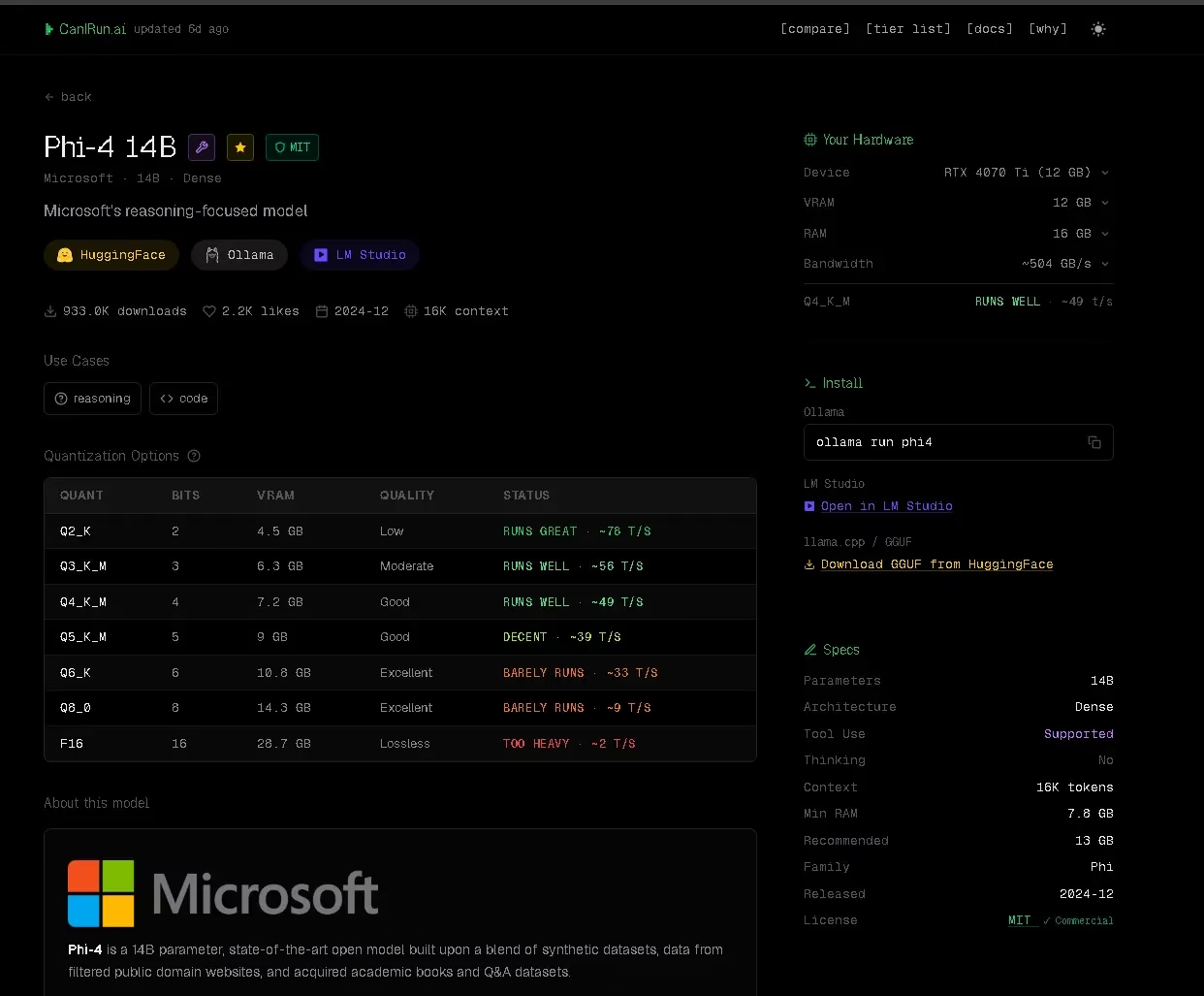
Each individual model card is impressively detailed. It displays the model’s file size in gigabytes across up to seven quantisation levels (from the heavily compressed Q2_K all the way to the full-precision F16), alongside context window size, underlying architecture (Dense or MoE), minimum recommended RAM, and a compatibility score specific to your detected hardware.
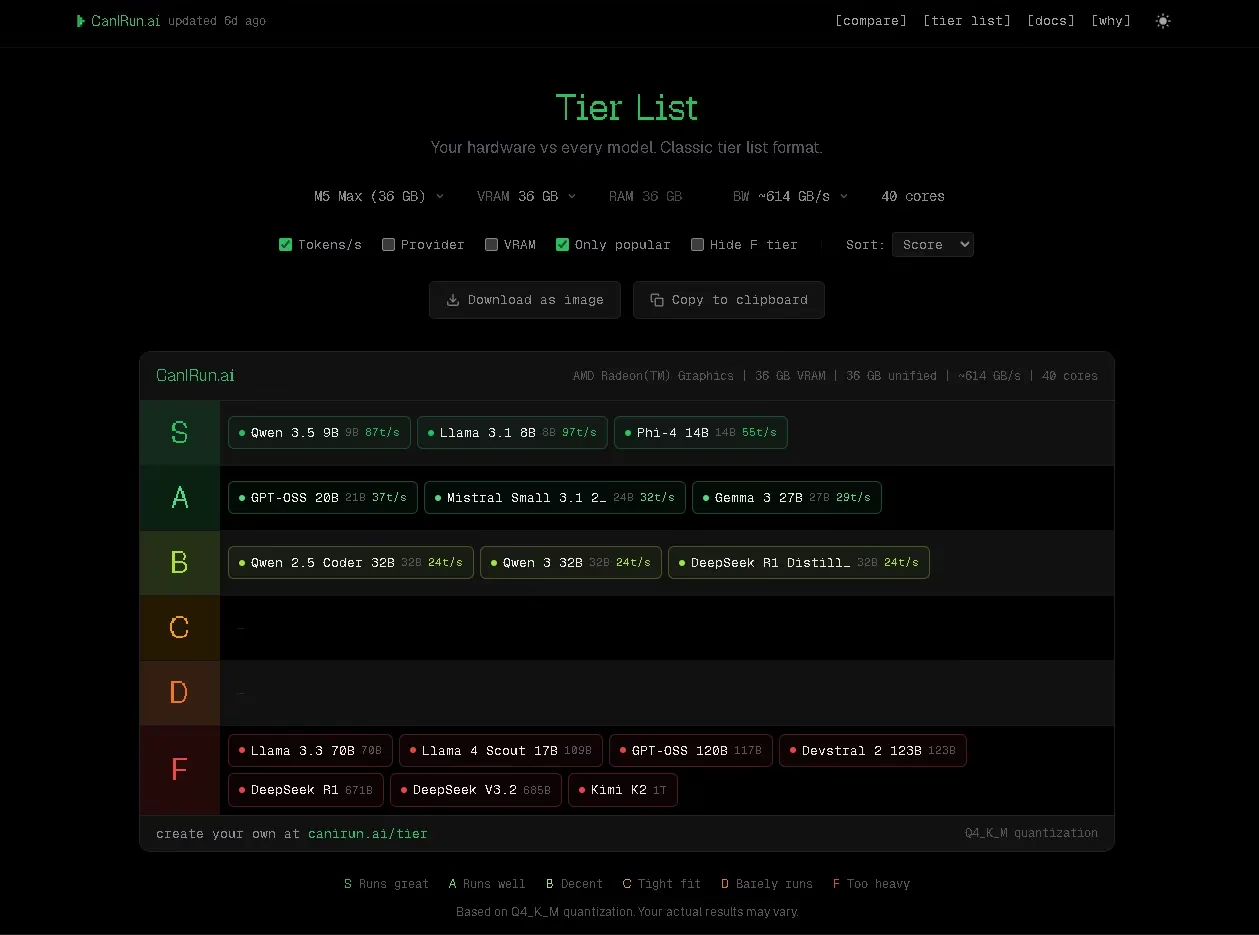
The Tier List: See How Your PC Stacks Up Against Every AI Model
Beyond the main catalogue view, CanIRun.ai includes a dedicated Tier List page—one of its most visually compelling features. This page presents every model in the database ranked from S-tier (runs superbly) down to F-tier (incompatible) based entirely on your own detected hardware. Think of it as a personalised report card for .
The tier list is also exportable. You can download it as an image or copy it directly to your clipboard — a nice touch if you want to share your hardware’s AI capabilities on social media or in a tech forum.
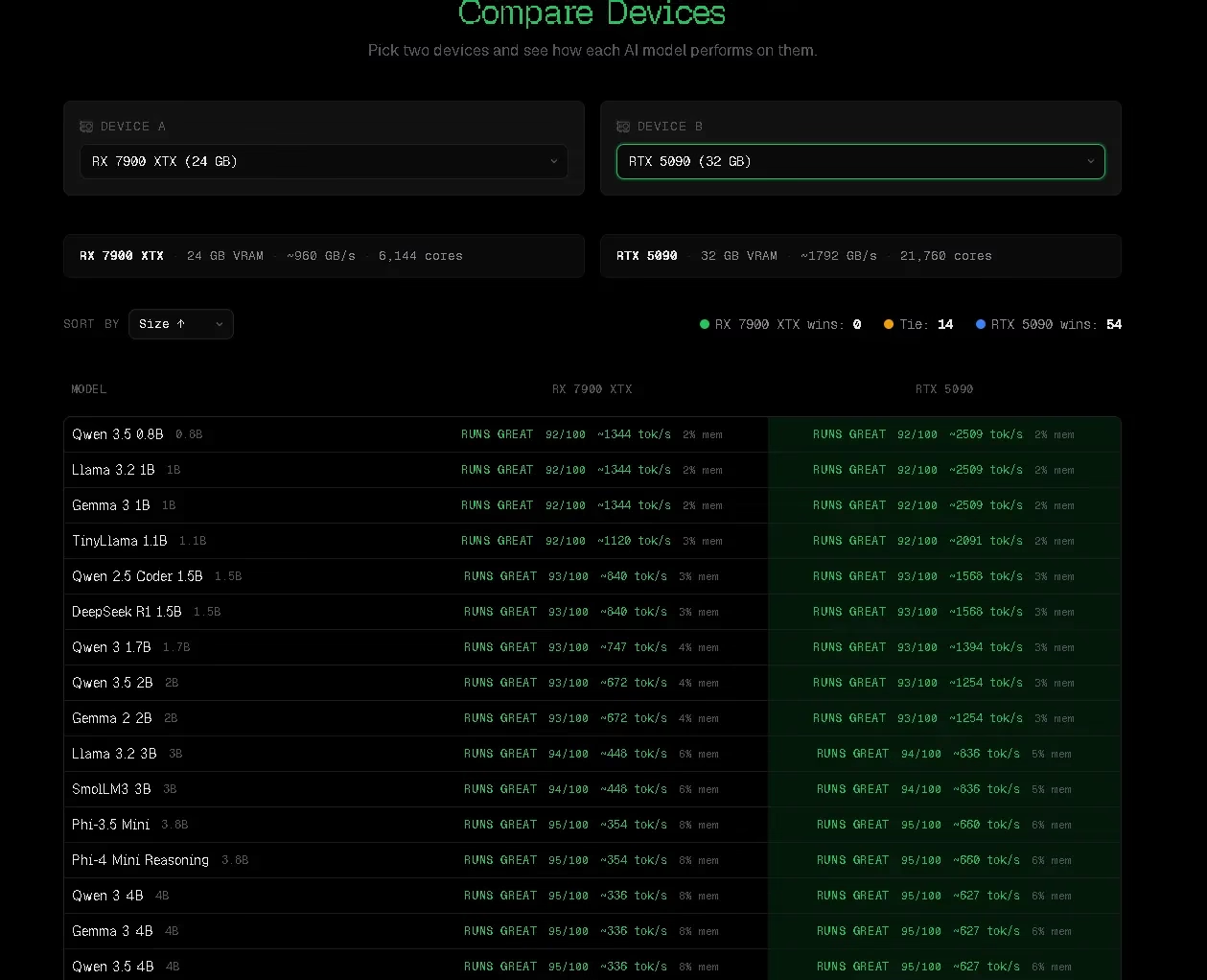
The Compare Feature: CanIRun.ai vs Manual Hardware Benchmarking
One of CanIRun.ai’s standout advantages over manual hardware checking is its Compare page. Instead of looking up GPU specs yourself and doing mental math about VRAM requirements, CanIRun.ai lets you pit two different devices or GPU configurations against each other to see how they stack up across the entire model catalogue.
This is particularly useful if you’re deciding between upgrading your GPU or buying a new machine entirely — you can directly visualise how a step-up in hardware translates into expanded AI model compatibility. For example, comparing the NVIDIA RTX 5090 against the AMD RX 7900 XTX instantly shows you which models cross from “Too Heavy” to “Runs Great” with that hardware jump.
| Method | CanIRun.ai | Manual Hardware Check |
|---|---|---|
| Speed | ⚡ Instant (seconds) | 🐢 15–30 mins research |
| Accuracy | ✅ WebGPU-based estimate | ⚠️ Depends on your skill |
| Model Coverage | ✅ ~60 models at once | ❌ One model at a time |
| Hardware Compare | ✅ Side-by-side GPU view | ❌ Manual spreadsheet |
| Install Needed | ❌ None | ❌ None |
| Quantisation Info | ✅ 7 levels shown | ⚠️ Must look up manually |
The Docs Section: A Handy AI Glossary for Beginners
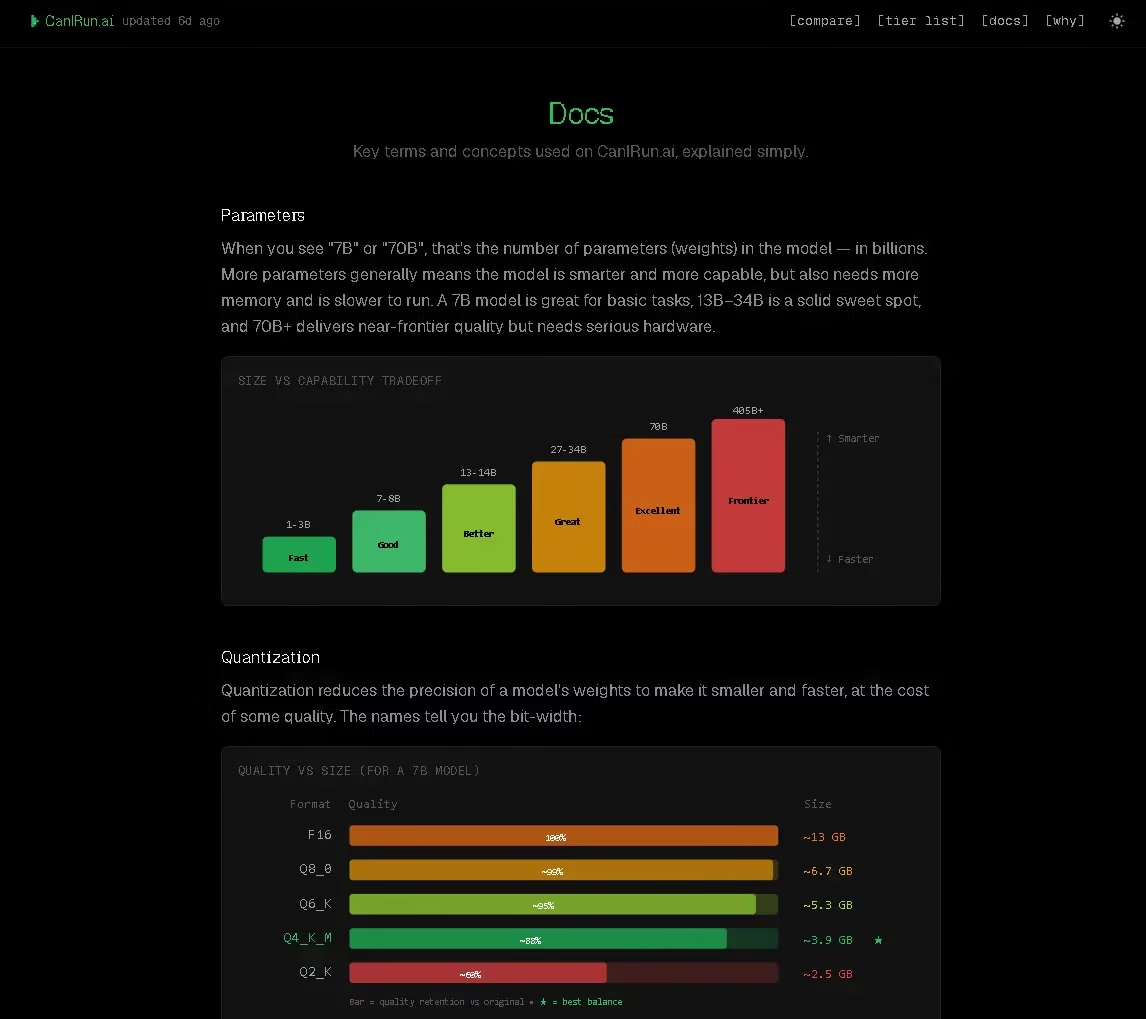
The Docs section serves as a well-written technical glossary covering the key concepts you’ll encounter when running local AI models: quantisation, VRAM, Mixture of Experts (MoE), tokens per second, memory bandwidth, context length, and more. Each entry is explained in accessible, jargon-free language, making this a genuinely useful resource for anyone newer to the local AI space.
This is a thoughtful addition that sets CanIRun.ai apart from a simple utility tool. By educating users on what these technical parameters mean, the platform helps you make more informed decisions about which model and quantisation level actually suits your needs — especially when pairing it with tools like Ollama or LM Studio.
Who Should Use CanIRun.ai?
CanIRun.ai is valuable for a surprisingly broad audience. If you’re a first-time explorer of local AI looking to get started with Ollama or LM Studio, it removes the guesswork of figuring out which model to start with. If you’re an experienced AI tinkerer, the granular quantisation data and speed estimates help you fine-tune your model selection for optimal performance. And if you’re a developer or IT professional evaluating hardware for AI deployments, the Compare feature turns it into a quick benchmarking reference.
In short: anyone who has ever wondered “can your PC run LLMs like Llama or Mistral?” before committing to a multi-gigabyte download has a compelling reason to bookmark CanIRun.ai.
Strengths and Limitations
CanIRun.ai’s biggest strengths are its simplicity, speed, and zero-friction approach. There’s no sign-up, no downloads, and no configuration required. The hardware detection is instantaneous, the UI is clean and intuitive, and the sheer depth of information packed into each model card is impressive.
On the limitations side, accuracy can vary on systems with integrated graphics, since the WebGPU API may not have full visibility into shared memory configurations. The catalogue, while comprehensive at around 60 models, naturally won’t include every model released — though the team updates it regularly for 2026 releases. Additionally, real-world performance will always depend on your operating system, driver versions, thermal throttling, and background processes — variables that no browser-based tool can fully account for.
Final Verdict—Is CanIRun.ai Worth Using in 2026?
CanIRun.ai is a polished, thoughtfully designed tool that addresses a very real pain point in the local AI ecosystem. It saves you time, prevents compatibility headaches, and genuinely helps you make smarter decisions about which AI models to run on your hardware. Whether you’re just getting started with local AI or you’re an experienced user looking for a quick compatibility sanity check, CanIRun.ai deserves a permanent spot in your tech toolkit.
You can try it for yourself at canirun.ai—no sign-up or installation required.
Frequently Asked Questions
Can I run Llama models on 8GB RAM?
Yes, in many cases. Smaller Llama variants like Llama 3.1 8B can run on systems with 8GB of RAM using aggressive quantisation (Q2_K or Q3_K). However, performance will be limited — expect slow inference speeds. For a smooth experience, 16GB RAM with a dedicated GPU is recommended. CanIRun.ai will show you the exact compatibility score for your specific hardware.
Is a GPU required for local AI models?
No, but it is strongly recommended. Many smaller models (under 7B parameters) can run on CPU-only setups, but inference will be significantly slower — often 1–3 tokens per second compared to 30–100+ tokens/sec with a capable GPU. If you’re using tools like Ollama or LM Studio, a GPU with at least 6GB VRAM will dramatically improve your experience.
What is the minimum VRAM needed to run LLMs?
The minimum practical VRAM depends on the model size and quantisation level. As a general guide: 4GB VRAM can handle 3B–7B models at Q4 quantisation; 8GB VRAM opens up 7B–13B models comfortably; 16GB+ VRAM enables 30B+ models. CanIRun.ai shows you the exact VRAM requirement for each quantisation level across all ~60 models in its catalogue.
Is CanIRun.ai accurate?
CanIRun.ai uses WebGPU browser APIs to detect your hardware, which provides good accuracy for discrete GPUs. Results can be slightly approximate for laptops with integrated graphics or unified memory architectures (like Apple Silicon), where VRAM and RAM are shared. The site clearly labels estimates and acknowledges this limitation beneath the hardware detection bar.
Does CanIRun.ai work with Ollama and LM Studio?
Yes—CanIRun.ai is designed to complement tools like Ollama, LM Studio, and Jan.ai. It doesn’t integrate directly with them, but it tells you which models are compatible with your hardware before you download them. This helps you avoid the frustration of downloading large model files that your system can’t actually run.
how to check if your PC can run local AI models
What’s the difference between Q4_K_M and F16 quantisation?
Quantisation reduces model file size and VRAM requirements at the cost of some accuracy. Q4_K_M (4-bit quantisation) typically uses roughly 60% less VRAM than F16 (full 16-bit precision) with only a small quality trade-off—making it the most popular choice for local AI. CanIRun.ai’s Docs section explains all seven quantization levels in plain English.


Discover more from Techno360
Subscribe to get the latest posts sent to your email.
You must be logged in to post a comment.