
🧪 Hands-on guide · Tested on our own Mi TV · 22 Oct 2026
Your Mi TV, minus PatchWall ads, with a clean Apple TV-style home screen
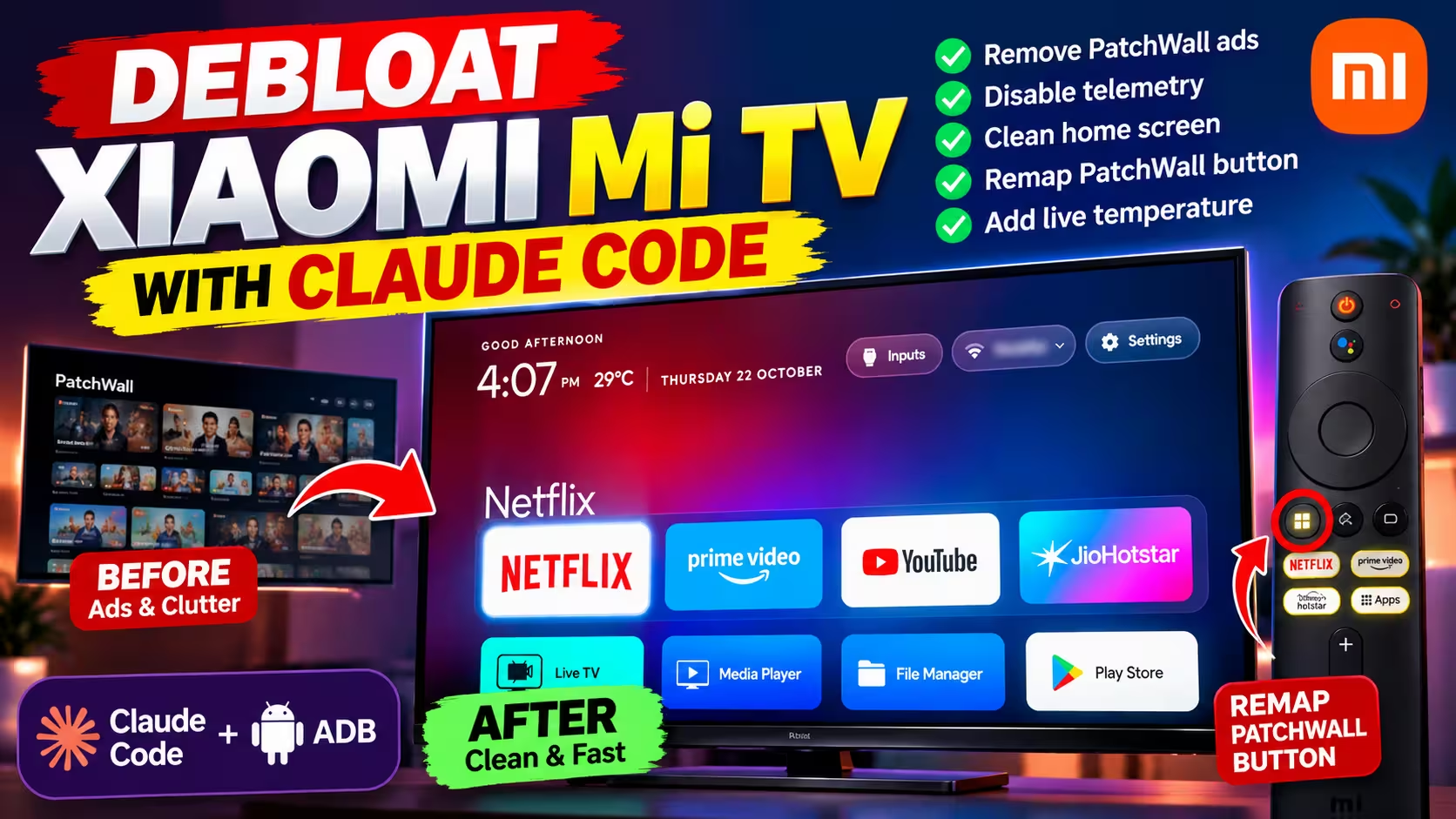
We connected Claude Code to a Xiaomi Mi TV over Wi-Fi, stripped out telemetry and promo apps, installed the open-source CleanYourTV launcher, remapped the dead PatchWall button and even added a live temperature to the clock. No root, no cable, and most changes can be reversed.
⚡ Quick Read
- What you need: a Windows PC on the same Wi-Fi, a paid Claude plan (Pro or higher), Google’s free ADB platform-tools.
- What it does: removes or disables Xiaomi telemetry, ad feeds and preloads, then swaps the home screen for a lightweight launcher.
- Time: it took us an afternoon. On our PC the launcher build alone took Claude Code about 20 minutes.
- Risk: most changes can be reversed, but recovery depends on what you change. Disabling is easier to undo than uninstalling, so back up first.
- Must do at the end: switch USB debugging off. Network ADB is a security-sensitive debugging interface and shouldn’t stay open.
Xiaomi’s PatchWall looks friendly in the showroom. Six months later it is a wall of sponsored rows, Mi TV+ channels you never asked for, and background services that make a 2 GB TV feel sluggish. You can’t uninstall most of it from Settings. This guide shows how to debloat a Mi TV with Claude Code and ADB instead.
In October 2026 a new fix went viral: point an AI coding assistant at your Android TV over ADB and let it do the cleanup. The open-source CleanYourTV project grew out of exactly that. Its author says a before-and-after post of his parents’ TV reached 7.4 million views, and its README now lists 196 TV models, each with a debloat list submitted by a contributor who ran it on that model.
We tried it on our own Xiaomi Mi TV (model code MiTV-MOOQ3, Android TV 11, Full HD). Everything below is what actually happened on that one TV, including the parts that didn’t go smoothly. Other models and firmware can behave differently.
How this works (and what it can’t do)
Every Android TV has the same Android Debug Bridge (ADB) that Android phones use. Once you switch on developer options, a PC on your network can list installed packages, disable them, install apps and change settings. Claude Code is Anthropic’s command-line assistant: it runs those ADB commands for you, reads the output, and explains what each package does before touching it.
- No root and nothing flashed. Packages are removed or disabled for your user profile only; the system partition is untouched.
- Mostly reversible. A disabled package comes back with one command. Uninstalled packages are harder: system apps can be reinstalled for your user, but sideloaded apps have to come back from the Play Store.
- Not magic for weak hardware. A cleaner TV feels snappier, but it won’t turn a 2 GB set into a flagship.
- Android TV and Google TV only. CleanYourTV says Samsung (Tizen) and LG (webOS) TVs use different systems, and Fire TV only gets the debloat half.
⚠️ Read before you start
- Claude Code is not free. Anthropic’s docs say it needs a Pro, Max, Team, Enterprise or Console account; the free claude.ai plan doesn’t include it. CleanYourTV says Codex and Gemini CLI also work.
- Network ADB is plaintext on port 5555. Turn USB debugging off when you’re done (Step 8).
- Disabling the update service stops firmware updates. We kept ours on for security fixes.
- Prefer disable over uninstall. We uninstalled our first batch and it broke the screensaver setting. CleanYourTV’s own prompt uses disable only.
What you need
| Item | Details |
|---|---|
| Android TV / Google TV | We used a Xiaomi Mi TV, MiTV-MOOQ3, Android TV 11. Any Mi TV with PatchWall should be similar. |
| Windows PC on the same Wi-Fi | Windows 10 1809 or newer for Claude Code. macOS and Linux also work. |
| Android SDK Platform-Tools | Google’s free ADB package (about 7 MB zip). |
| Claude Code + paid Claude plan | Pro or higher, or API credits through the Claude Console. |
| CleanYourTV (optional) | MIT-licensed launcher and scripts from GitHub, for the Apple TV-style home. |
| Build tools for the launcher | JDK 17 and Android SDK 34. Claude Code installed them for us; on our PC that was roughly 1 GB of downloads. |
Step 1: Turn on developer options and USB debugging on your Mi TV
- Open Settings → Device Preferences → About.
- Scroll to Build and press OK on it seven times until it says you’re a developer.
- Go back to Device Preferences → Developer options and switch on USB debugging.
- Note the TV’s IP address from Settings → Network & Internet → your Wi-Fi network.
💡 No Wi-Fi debugging toggle? That’s normal
Our Mi TV only offered USB debugging, and turning it on also opened network ADB on port 5555, so we didn’t need a cable. It’s FOSS reports the same for Xiaomi sets, but behaviour varies by Android version and firmware, so check your own TV with the connect command in Step 2 rather than assuming the port is open. Don’t try a USB-A to USB-A cable; the TV’s USB ports are host ports.
Step 2: Download ADB and connect to the TV
Download SDK Platform-Tools for Windows from Google, unzip it, and open the platform-tools folder. You only need adb.exe, AdbWinApi.dll and AdbWinUsbApi.dll; the other files are for phone flashing.
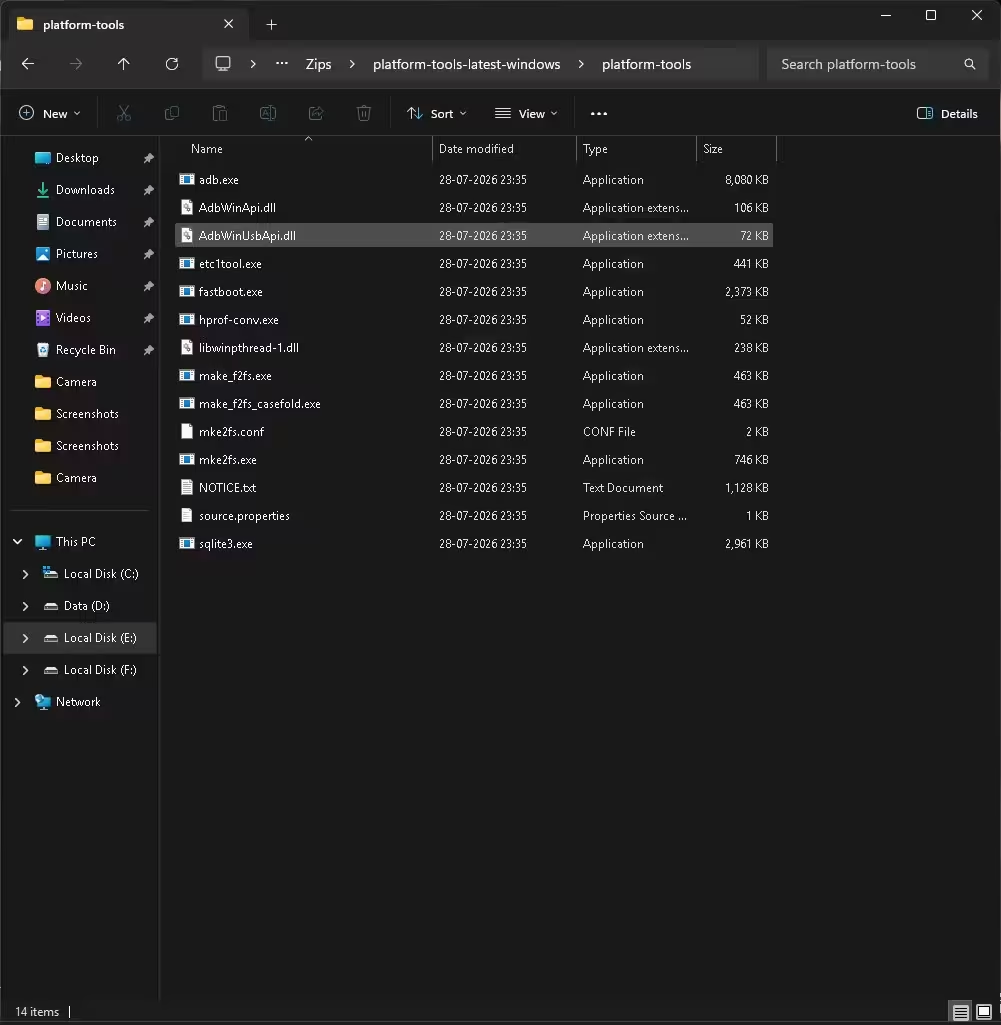
Right-click inside the folder, choose Open in Terminal, and connect using your TV’s IP:
.\adb connect 192.168.1.50:5555
.\adb devices
Watch the TV and accept Allow USB debugging?, ticking Always allow from this computer. When adb devices lists your IP followed by device, you’re in.
📊 What we saw
The first adb connect printed failed to authenticate, and the second said already connected. That’s harmless: the first attempt reports before the TV finishes approving. adb devices showing device (not unauthorized) is the only check that matters.

Step 3: Install Claude Code on Windows
Anthropic publishes one install command for PowerShell and a different one for Command Prompt. Use the one that matches your window:
PowerShell:
irm https://claude.ai/install.ps1 | iex

Command Prompt (CMD):
curl -fsSL https://claude.ai/install.cmd -o install.cmd && install.cmd && del install.cmd
Our window was labelled PowerShell but was actually CMD, so irm failed with “not recognized” and the curl command worked. You don’t need an Administrator window.
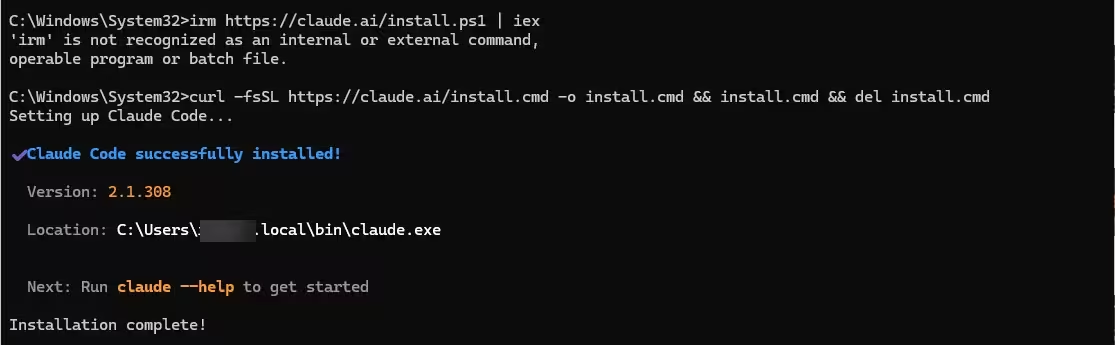
Open a new terminal in the platform-tools folder and type claude. It opens your browser to sign in the first time.
⚠️ Check the billing line on the welcome screen
Our first launch said API Usage Billing, meaning pay-per-token through an API account. Typing /login and signing in with our Claude account switched it to Claude Pro. If it still shows API billing, an ANTHROPIC_API_KEY environment variable may be set on your PC.
Claude Code also starts in auto mode, where it runs commands it judges low-risk without asking. Press Shift+Tab to switch modes if you want to approve every command.
Step 4: Back up, then let Claude Code sort the bloat
Paste this into Claude Code as one message, with your model and IP. Multi-line pastes can send only the first line, so we kept it on a single paragraph. It uses pm disable-user --user 0, the safer approach we recommend:
This is a Xiaomi Mi TV (Android TV 11, model MiTV-MOOQ3) connected via adb at 192.168.1.50:5555. Use .\adb from this folder. First save the full package list and the disabled package list as backups. Then group all packages into: (A) safe to remove - ads, telemetry, analytics, bloat; (B) optional - Xiaomi/preinstalled apps, with a one-line description of each; (C) do not touch - system, launcher, HDMI/input, remote, Bluetooth, Wi-Fi, Play Services, setup. Do NOT change anything until I approve. When I approve, use "pm disable-user --user 0" and write a restore script.On our TV, Claude Code found 136 packages, discovered PatchWall was already disabled, and returned three tables. Here’s what we approved, with Claude Code’s description of each. Note that we used uninstall for this first batch, not disable; see the box after the table for why that matters:
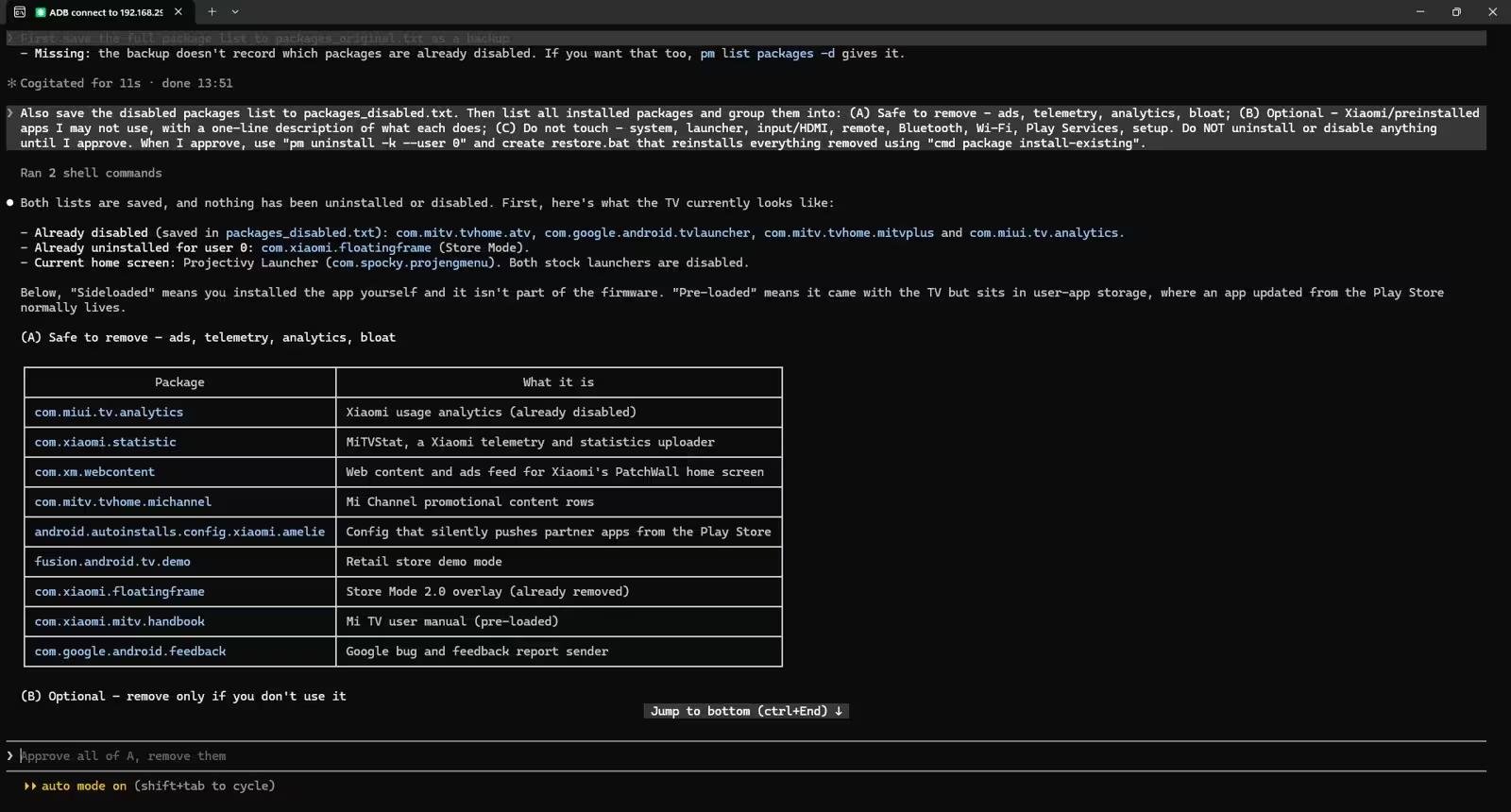
| Package | What Claude Code identified it as | What we did |
|---|---|---|
com.xiaomi.statistic | MiTVStat telemetry and statistics uploader | Removed |
com.miui.tv.analytics | Xiaomi usage analytics | Removed |
com.xm.webcontent | Web content and ads feed for PatchWall | Removed |
com.mitv.tvhome.michannel | Mi Channel promotional rows | Removed |
android.autoinstalls.config.xiaomi.amelie | Config that pushes partner apps from the Play Store | Removed |
fusion.android.tv.demo | Retail store demo mode | Removed |
com.xiaomi.mitv.handbook | Mi TV user manual | Removed |
com.google.android.feedback | Google feedback report sender | Removed |
com.xiaomi.amazon.alexa | Alexa voice integration | Removed |
com.google.android.tvrecommendations | Recommendation rows for the Google launcher | Removed |
| Mi Music, Mi Gallery, Mi screensaver, Play Games, Calendar sync, print spooler, CI+ card app, duplicate SonyLIV | Apps we never used | Removed |
com.xiaomi.mitv.tvmanager | TV Manager cleaner and memory booster | Disabled |
What we deliberately kept
- Firmware update service: security fixes matter more than one less background app.
- Google Assistant (katniss): the remote’s mic button needs it.
- Chromecast built-in: casting from phones.
- Mi video player and Media Explorer: USB playback.
- Factory menu and vendor components: they don’t run in the background, so removing them gains nothing.
After a reboot, HDMI switching, the remote, YouTube and Wi-Fi all worked normally on our TV.
⚠️ Our mistake: uninstall vs disable
These are different operations, not interchangeable. Disabling (pm disable-user --user 0) leaves the package installed but inactive for your user. Uninstalling for user 0 (pm uninstall -k --user 0) removes it from your user’s installed apps. We uninstalled our first batch, and removing the Mi screensaver left the TV’s screensaver setting pointing at a missing app. Uninstalled system apps can be brought back for your user with cmd package install-existing, but sideloaded apps can’t; you reinstall them from the Play Store. Disabling first is the safer experiment, and it’s what CleanYourTV’s prompt uses.
Step 5: Install the Apple TV-style launcher (CleanYourTV)
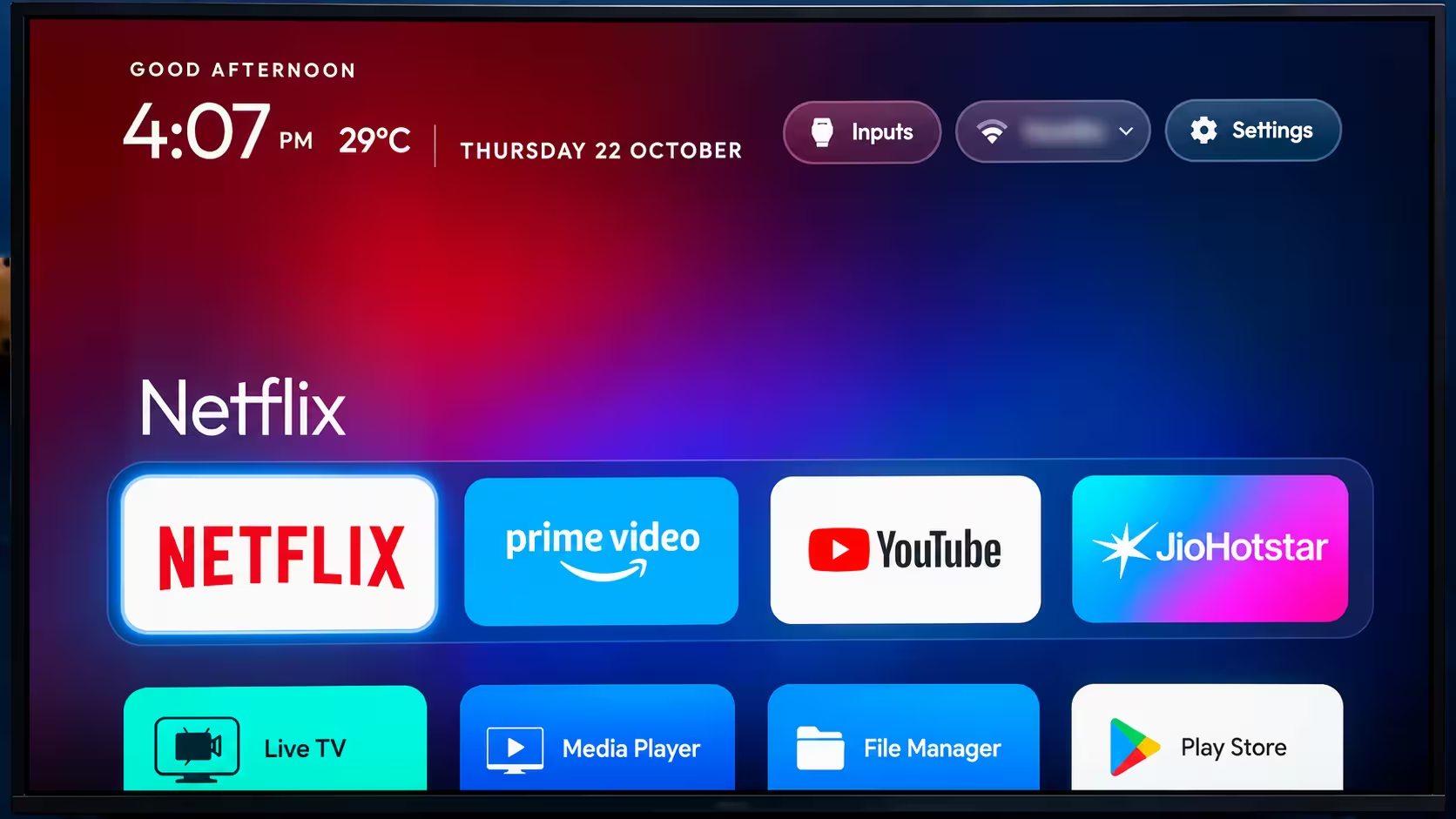
CleanYourTV’s launcher is a pitch-black home with a dock of four favourite apps, a top shelf that names the focused app with a colour glow, a grid of the rest, and frosted buttons for Inputs, Wi-Fi and Settings. The project says it’s about 445 KB of plain Java with no network permission and no background services, built for 1 GB TVs. There’s no prebuilt APK; you build it, and Claude Code handles that.
- On the CleanYourTV GitHub page choose Code → Download ZIP and extract it, for example to
E:\cleanyourtv. - Copy
adb.exeand its two DLLs into that folder. - Run
claudein the folder and send the prompt below.
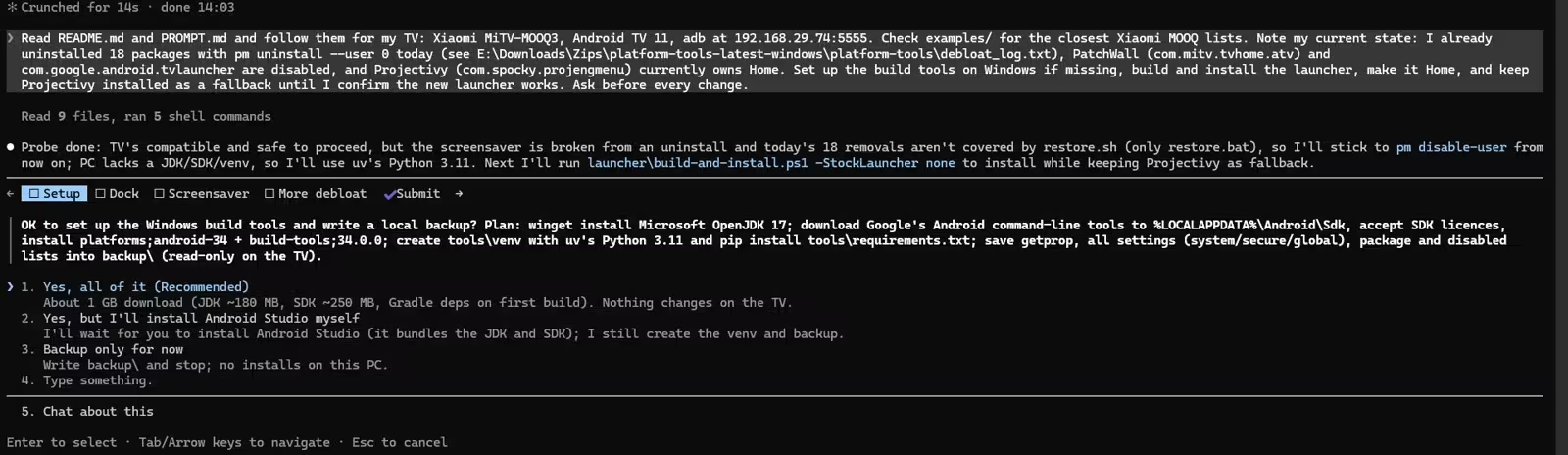
Read README.md and PROMPT.md and follow them for my TV: Xiaomi MiTV-MOOQ3, Android TV 11, adb at 192.168.1.50:5555. Check examples/ for the closest Xiaomi MOOQ lists. PatchWall is already disabled. Set up the build tools on Windows if missing, build and install the launcher, make it Home, and keep my current launcher as a fallback until I confirm the new one works. Ask before every change.Claude Code asked to install Microsoft OpenJDK 17 through winget and Google’s Android command-line tools, then took a read-only backup of the TV’s settings. On our PC that was roughly 1 GB of downloads, and the full build and install took about 20 minutes; yours may differ. It also asked us to pick the four dock apps.
💡 Kaspersky user? Expect a pip error
On our PC, Kaspersky’s HTTPS scanning broke Python’s package installer. Claude Code got past it with pip’s --use-feature=truststore option, which still checks certificates, using the Windows certificate store. That worked for our setup and pip version; if you hit a different error, let Claude Code diagnose it rather than copying this fix.
If you already use a third-party launcher such as Projectivy, tell Claude Code so it installs with -StockLauncher none and leaves the old launcher as a fallback. The dumbtv project notes Projectivy is closed source and requests the advertising ID, so you may want to remove it once you’re happy.
With PatchWall gone, Netflix, Prime Video, Hotstar and Apps still worked. The PatchWall button (the square-tiles key left of Back) just showed a blank screen, because it tried to open a disabled app. Our remote has no Input button, so we turned that key into one:
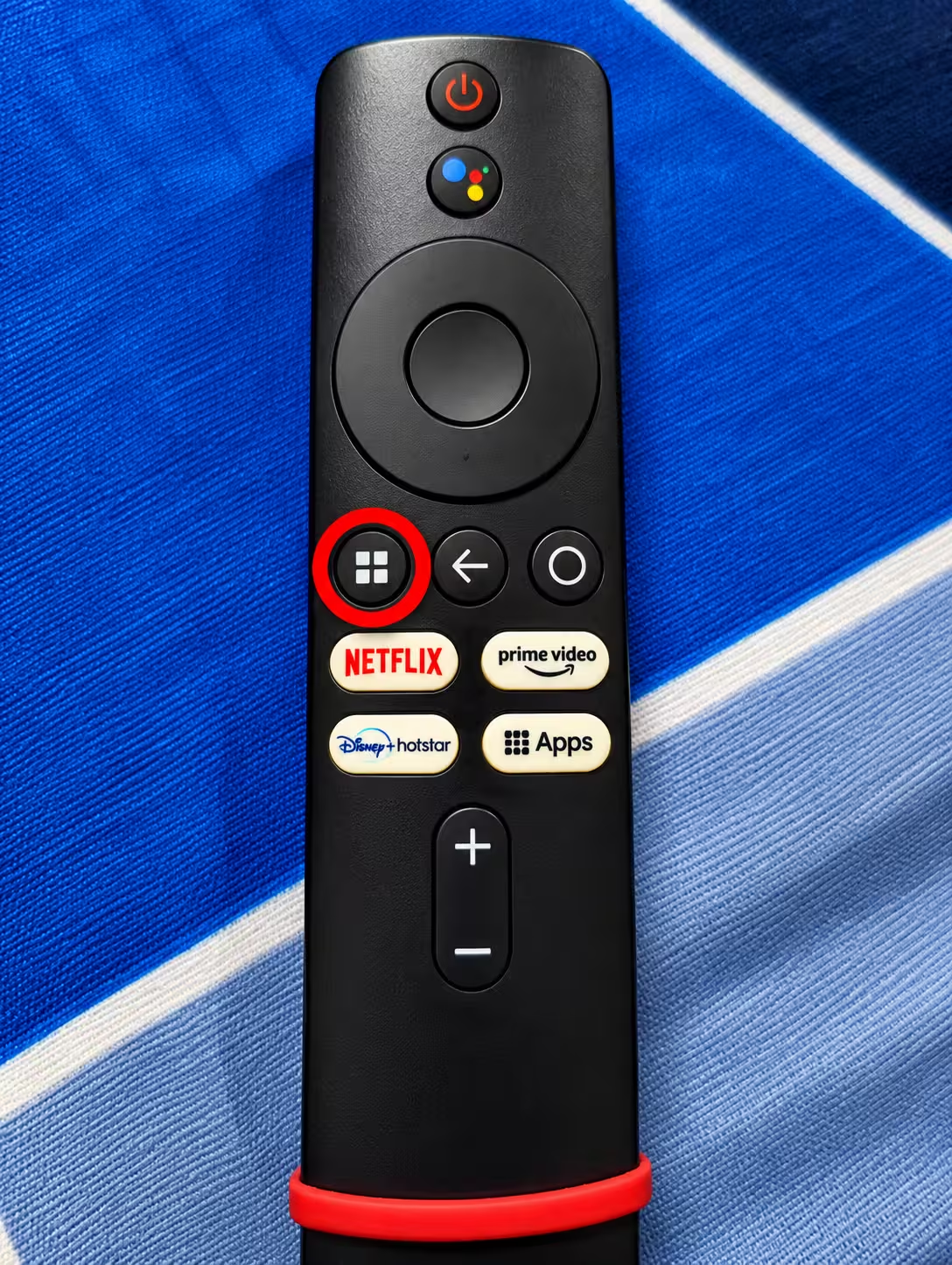
The remote's PatchWall button shows a blank screen because PatchWall is disabled. My remote has no Input button. Capture this button's keycode while I press it, then use the launcher's key service to make it open the Inputs menu. Tell me when to press it, and ask before reinstalling.Claude Code captured keycode 192 and mapped it to the Inputs menu through the launcher’s accessibility key service. Accept the accessibility prompt on the TV if one appears, and reinstall with the -InputKeyService flag in future, or the button goes blank again.
Step 7 (optional): Add the temperature to the clock
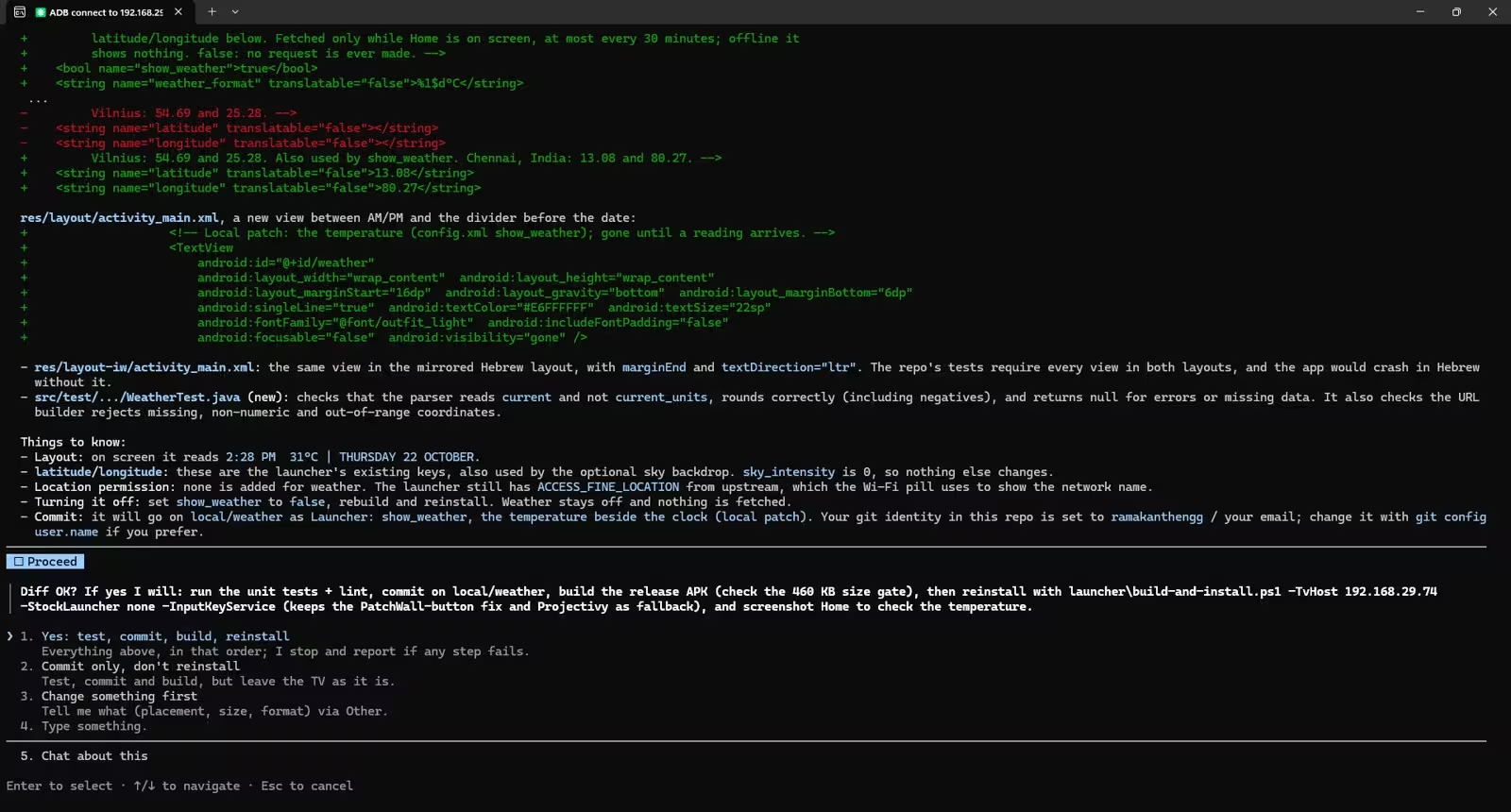
The stock CleanYourTV launcher has no network permission, so it can’t show weather, and its module cards only accept fixed text. Because you build the launcher yourself, though, Claude Code can patch it. We asked for a temperature from Open-Meteo (free, no API key) with fixed Chennai coordinates:
Add a temperature display next to the clock. Use Open-Meteo (no API key) with fixed coordinates for Chennai, India, in Celsius. Add only the INTERNET permission, no location permission. Fetch at most every 30 minutes and only while Home is on screen; show nothing if offline. Make it a config.xml option so I can turn it off. Commit it on a separate git branch. Show me the diff before building.It showed the diff, added unit tests, rebuilt, and the home screen now reads like 2:50 PM 29°C | THURSDAY 22 OCTOBER. The trade-off: the launcher gains internet access. After installing, Claude Code checked the TV and reported INTERNET as the only permission added; we didn’t separately monitor the launcher’s network traffic. Keeping the change on its own git branch means you can re-apply it after updating CleanYourTV.
Step 8: Close network ADB (don’t skip this)
CleanYourTV’s prompt ends by closing ADB, and so should you. Ask Claude Code to close it, then on the TV:
- Developer options → Revoke USB debugging authorisations.
- Switch USB debugging off (and Network/ADB debugging, if your TV has it).
- Restart the TV and wait for the new home screen.
- Let Claude Code confirm port 5555 is closed. Ours reported the TV refused the connection.
The launcher, the remapped button and the weather keep working with debugging off. To change anything later, switch USB debugging back on and reconnect.
How to undo everything
- Restore script: Claude Code writes one during the debloat. Ours is meant to reinstall removed packages with
cmd package install-existing, re-enable TV Manager, restore the screensaver setting and hand Home back. We haven’t run a full restore on our TV yet, so test yours before you rely on it. - From the TV: Settings → Apps can re-enable disabled packages without a PC.
- After a firmware update: some apps can return. CleanYourTV includes a
check.pytool that compares the TV against your list and re-applies it. - Last resort: a factory reset will generally return the TV to its factory software configuration. Don’t rely on it as your only recovery plan; keep your backup files and test the restore script.
Keep your platform-tools and CleanYourTV folders. They hold the backups, the restore script and your launcher patch.
Our results after one afternoon
| Before | After |
|---|---|
| PatchWall home with sponsored rows and Mi TV+ | Black CleanYourTV home, four-app dock, no promo rows |
| Xiaomi telemetry, analytics and partner auto-install config active | 18 packages uninstalled for our user, TV Manager and Ambient Mode disabled |
| PatchWall button opened PatchWall | PatchWall button opens HDMI inputs |
| Clock and date only | Clock, live temperature and date |
| Debugging off | Debugging off again, port 5555 confirmed closed |
We didn’t run benchmarks, so we won’t claim a speed figure. Navigation does feel quicker without PatchWall’s content rows loading. Want the same approach on your PC? Our Win11PrivacyFix guide covers Windows 11 telemetry, and TinyNvidiaUpdateChecker keeps NVIDIA bloat off.
For your phone, our list of ad-free, open-source Android apps and the best alternative Android app stores follow the same idea.
CleanYourTV on GitHubDownload Platform-ToolsClaude Code setup docs
FAQ
Can I do this without a paid Claude plan?
Not with Claude Code: Anthropic’s docs say the free plan doesn’t include it. CleanYourTV says Codex or Gemini CLI also work, and every step can be run by hand with its Python and PowerShell scripts.
Will this void my warranty or brick my Mi TV?
Nothing is rooted or flashed; packages are only removed or disabled for your user. The real risk is disabling something the TV depends on, which is why you back up, go in small batches and keep a restore script. A factory reset will generally return the TV to its factory software, but treat it as a last resort, not your plan.
My Mi TV has no wireless debugging option. Will it still work?
On our Mi TV, turning on USB debugging alone opened network ADB on port 5555. That may not hold for every model or firmware. If the connection is refused, toggle USB debugging off and on and restart the TV; some Google TV sets need the separate Wireless debugging pairing flow instead.
Will Netflix, Prime Video and Hotstar keep working?
On our TV, yes: Netflix, Prime Video, YouTube and JioHotstar kept working, and so did the remote’s app buttons. We can only vouch for the apps and the TV we tested; leave any streaming app you use off the removal list.
What happens after a Xiaomi firmware update?
An update can bring removed apps back and return Home to PatchWall. Re-enable USB debugging and run CleanYourTV’s check tool, or ask Claude Code to re-apply your list.
Does this block YouTube ads?
No. CleanYourTV suggests ad-blocking Private DNS for in-app ads on Android 9 and newer, but notes it doesn’t stop YouTube ads, which come from the same servers as the videos.
📊 Our verdict
Worth an afternoon, if you have a paid Claude plan. Claude Code turned a job that usually means hunting forum package lists into a guided conversation: it explained each package, asked before every change, fixed its own build problems and kept a restore script. CleanYourTV’s launcher looks far cleaner than PatchWall and stays out of the way.
- 👍 No root, mostly reversible, and every package explained before removal
- 👍 Apple TV-style launcher that’s light enough for budget TVs
- 👍 Fixes remote buttons and lets you add custom touches like weather
- 👎 Needs a paid Claude plan and about 1 GB of build tools
- 👎 Firmware updates can undo the debloat; you must remember to close ADB
Discover more from Techno360
Subscribe to get the latest posts sent to your email.

You must be logged in to post a comment.