
🎁 Free lifetime licence · Windows 10/11
Record once. The AI adds the zooms for you.
Donemax Recorder 2.0 turns raw screen captures into polished tutorials with automatic click-zoom, smooth cursor motion and webcam layouts. The Pro version normally costs $99.99. Right now you can unlock it for $0 with one shared licence key.
⚡ Quick Read
What: Donemax Recorder 2.0, an AI auto-zoom screen recorder for Windows.
Giveaway: Pro (lifetime) licence for version 2.0, worth $99.99.
How: Install the official trial, click Upgrade, paste the key, click Activation.
Catch: No free updates, no free support, personal non-commercial use only.
Deadline: No end date announced. The key is shared, so it can stop working at any time. Jump to the key ↓
What is Donemax Recorder?
Donemax Recorder is a screen recorder from Donemax, the company behind Donemax Disk Clone and Donemax Data Recovery. Its pitch is simple: you record your screen as usual, and the software edits the video for you.
While you record, it notes every click and key action. When you press Stop, it has already added zoom-ins on the spots you clicked, smoothed out the mouse pointer and laid out your webcam. Donemax calls it “record once, it edits itself”. There is no keyframing and no manual zooming.
It records the screen, webcam, microphone and system audio, each on its own track. After recording you can change backgrounds, padding, rounded corners, cursor style and aspect ratio before you export. That makes it a good fit for software tutorials, product demos, online lessons and YouTube or Shorts content.
Donemax sells it as a monthly plan ($19.99, 1 PC), a yearly plan ($59.99, 3 PCs) or a lifetime licence ($99.99, 3 PCs). The free version records and edits, but the in-app upgrade screen says it allows only one export. The giveaway key removes that limit.
Key features of Donemax Recorder 2.0
🔍 Automatic zoom on every click
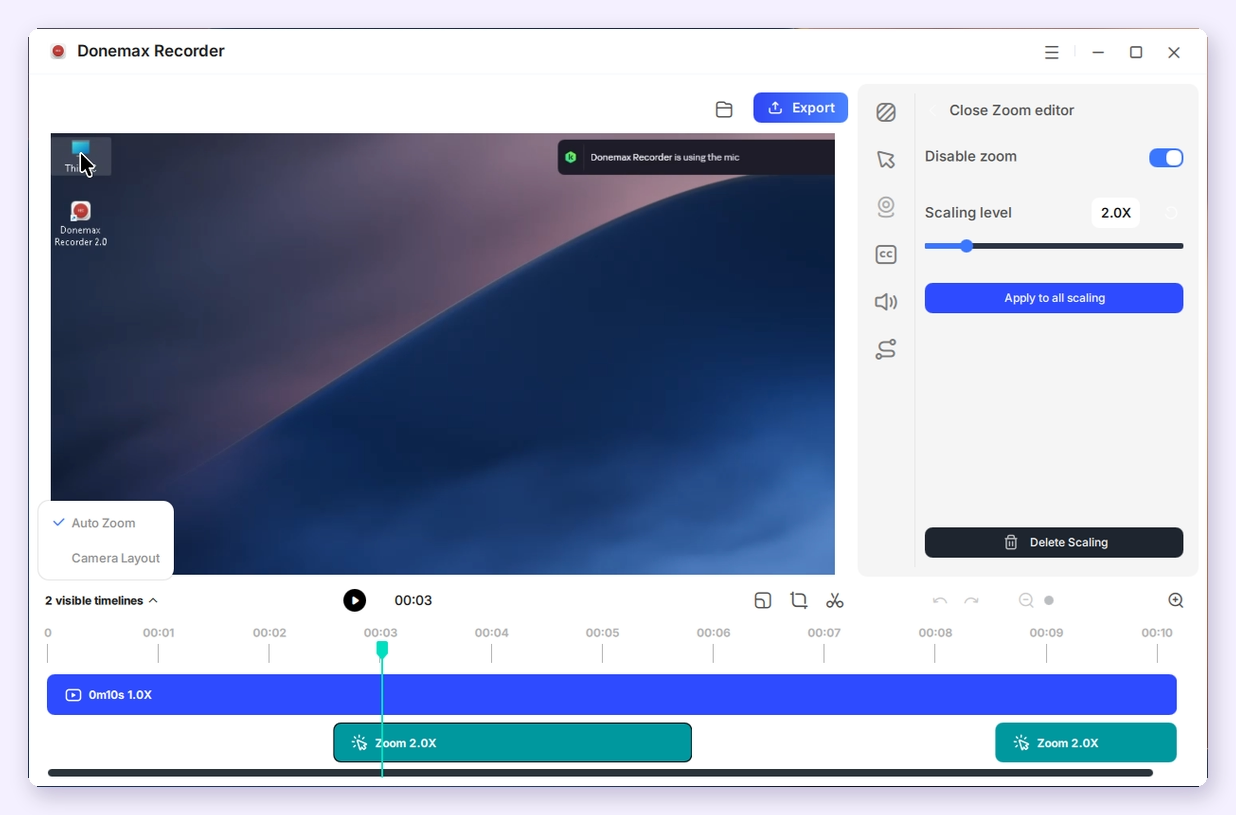
This is the headline feature. The recorder detects where you click and adds a zoom segment to the timeline, so viewers see the button or menu you are talking about. Each zoom block can be edited afterwards: change the scaling level, apply one level to every zoom, delete a zoom, or turn zoom off. You can also switch the auto-zoom option off in Settings if you want a plain recording.
🖱️ Smooth cursor and screen animation
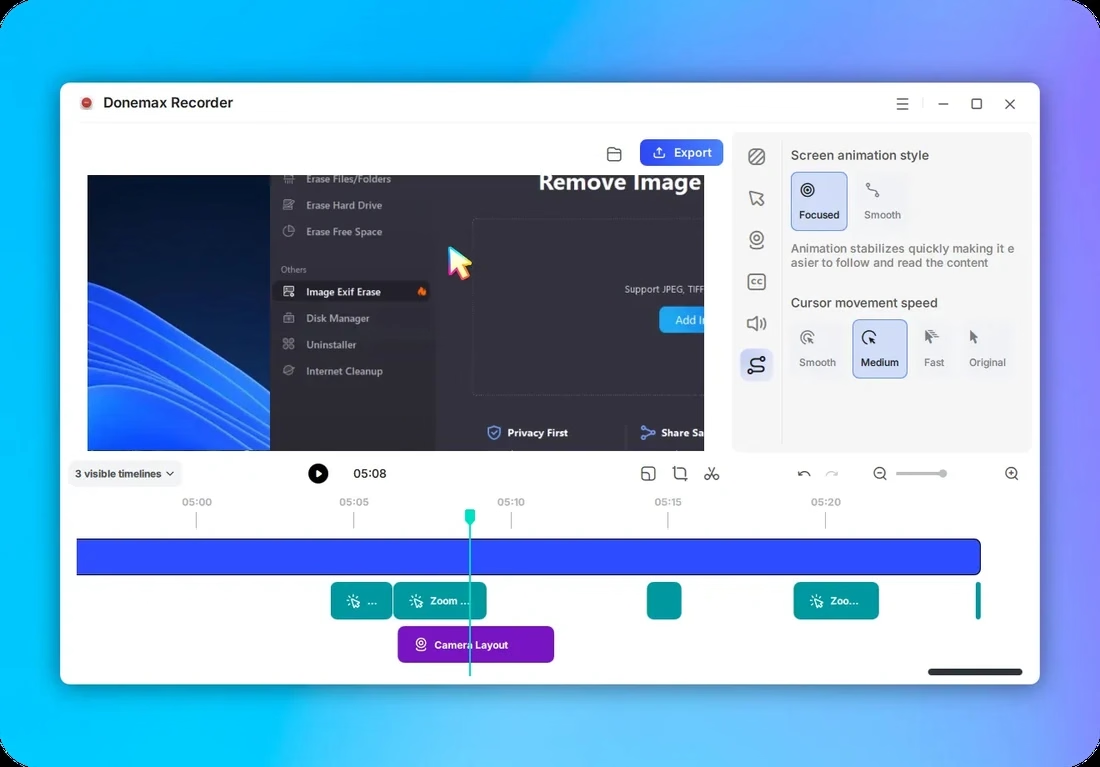
Donemax says the pointer glides smoothly in the final video, and you can change its style and speed after recording. Its product images show two screen animation styles (Focused and Smooth) and four cursor speeds (Smooth, Medium, Fast and Original).
🎨 Backgrounds, padding and rounded corners
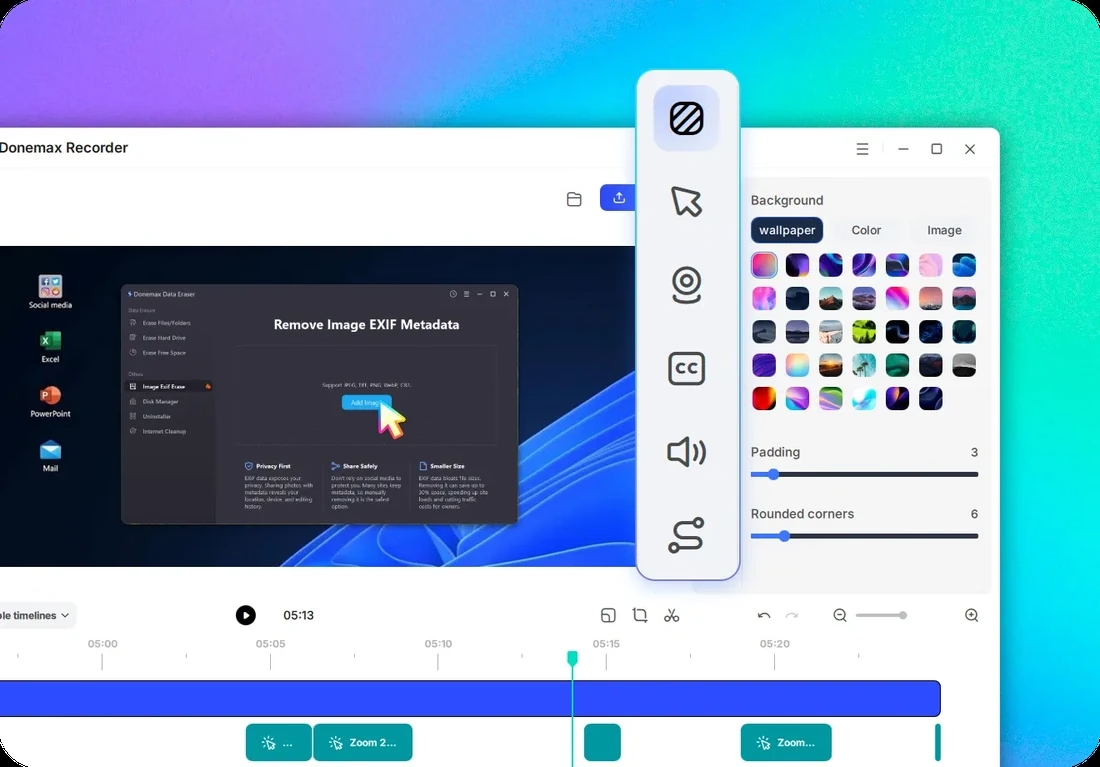
You can place the recording on a wallpaper, a solid colour or your own image, then adjust the padding and corner rounding. This is the “polished SaaS demo” look that tools like this are known for. Export ratios include 16:9, 9:16, 1:1, 4:3 and 3:4, plus custom sizes, so one recording can serve YouTube, Shorts and Instagram.
🎙️ Screen, webcam, mic and system audio in one take
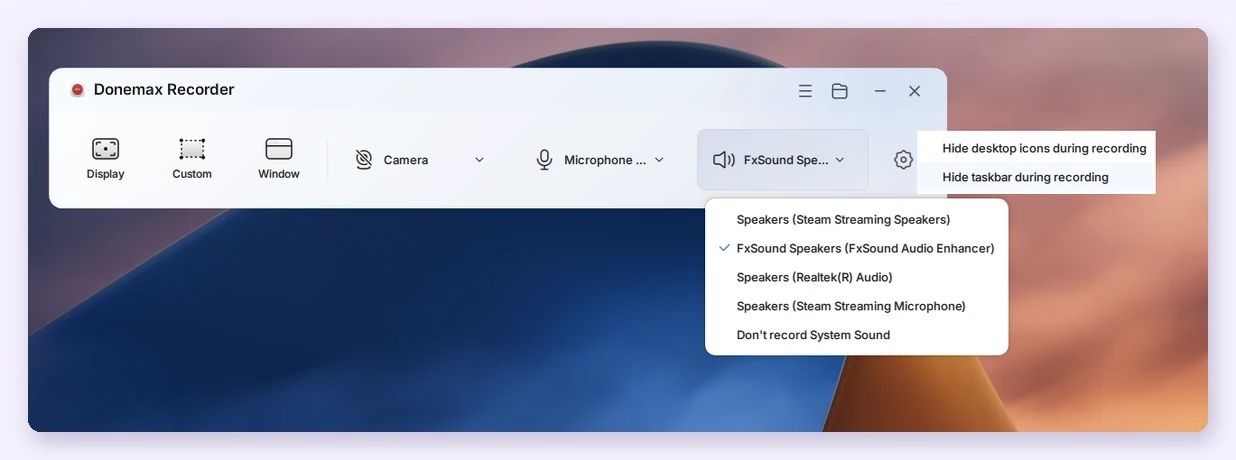
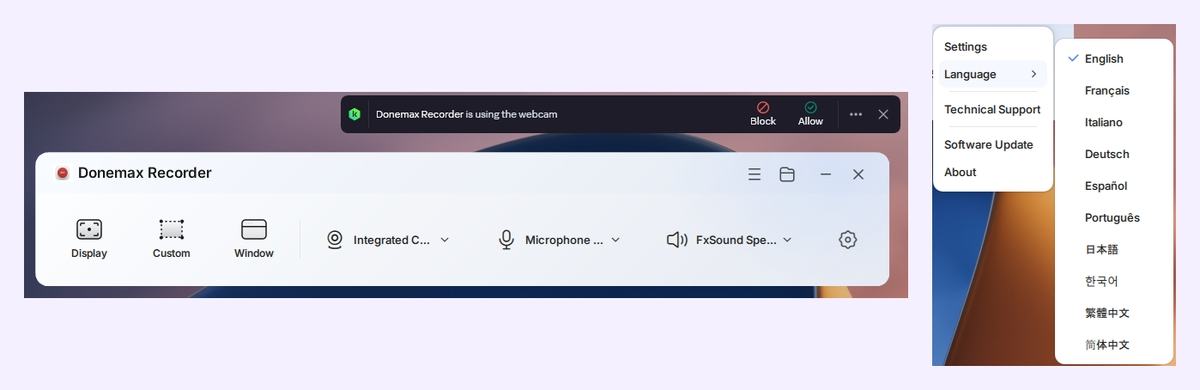
The main toolbar is small and easy to read. Choose Display (full screen), Custom (a region you draw) or Window, then pick your camera, microphone and system audio device. You can also choose “Don’t record System Sound” when you only want your voice.
✂️ Built-in editor
After each recording, the clip opens in a timeline editor. Side tabs cover background, cursor, camera, captions (CC), audio and motion. The toolbar under the preview has crop, cut, aspect ratio, undo and redo. A menu in the corner switches between the Auto Zoom and Camera Layout tracks.
Donemax Recorder giveaway terms
| Product | Donemax Recorder 2.0 for Windows |
|---|---|
| Licence | Lifetime (Pro), full version 2.0 |
| Normal price | $99.99 (lifetime plan on the Donemax site) |
| Updates | No free updates |
| Support | No free tech support |
| Use | Personal, non-commercial home use only |
| System | Windows 10 or 11. The giveaway host lists an Intel Core i5 or better and 8 GB RAM. |
| Deadline | Not announced (checked 22 November 2026) |
⚠️ Important: don’t update the app
The licence covers version 2.0 only. The app has a “Software Update” item in its menu. If a newer version is offered, skip it, because an update may not accept the giveaway key. Also note that the key is shared by everyone, so activate today rather than bookmarking this page for later.
How to get Donemax Recorder Pro for free
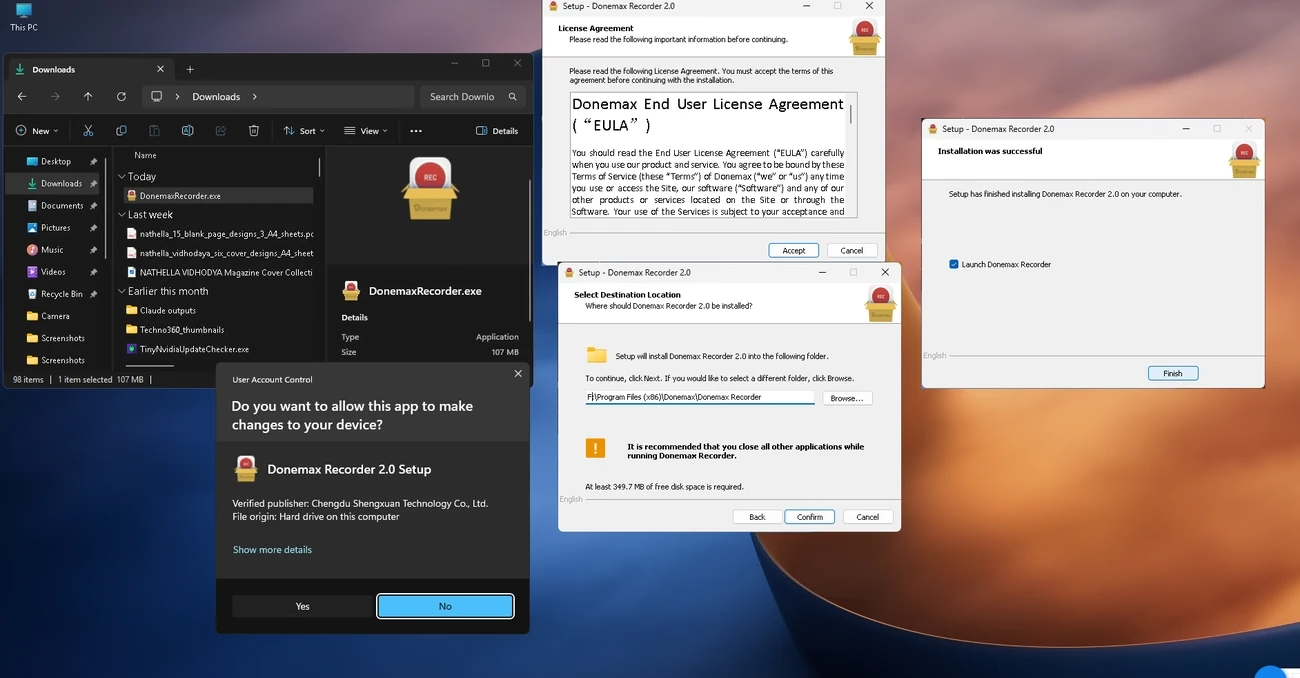
Step 1. Download the official installer (about 107 MB) from the Donemax server.
⬇️ Download Donemax Recorder 2.0 Official product page
Step 2. Run DonemaxRecorder.exe and click Yes on the Windows prompt. Accept the licence agreement, choose an install folder (it needs at least 349.7 MB of free space) and click Confirm. Leave “Launch Donemax Recorder” ticked and click Finish.
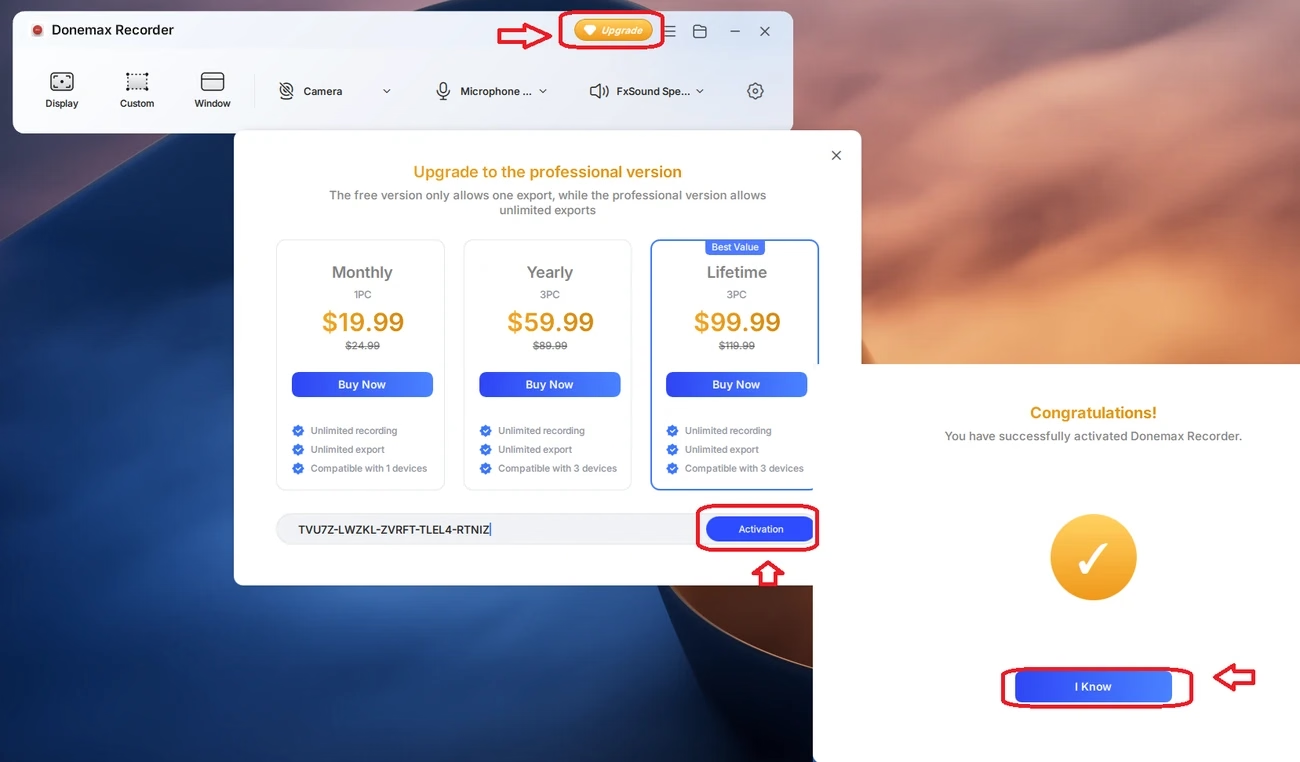
Step 3. In the recorder window, click the orange Upgrade button at the top.
Step 4. Copy the key below and paste it into the box at the bottom of the upgrade window. Pasting avoids typing mistakes.
Donemax Recorder 2.0 licence key
TVU7Z-LWZKL-ZVRFT-TLEL4-RTNIZ
Click once to select the whole key, then copy it.
Step 5. Click Activation. You should see “Congratulations! You have successfully activated Donemax Recorder.” Click I Know. The orange Upgrade button disappears once Pro is active.
🛠️ Key not working?
- Check you are online. Activation and the first AI model download need an internet connection.
- Paste the key again and make sure there is no space before or after it.
- Use the installer linked above. A newer build from elsewhere may not accept this key.
- If you see an “invalid” or “used up” message, the shared key has probably reached its limit or the promotion has ended.
Hands-on: our first recording with Donemax Recorder
We installed Donemax Recorder 2.0 on a Windows 11 PC, activated it with the key above and made a short test recording. Here is what we found.
Recording a custom region
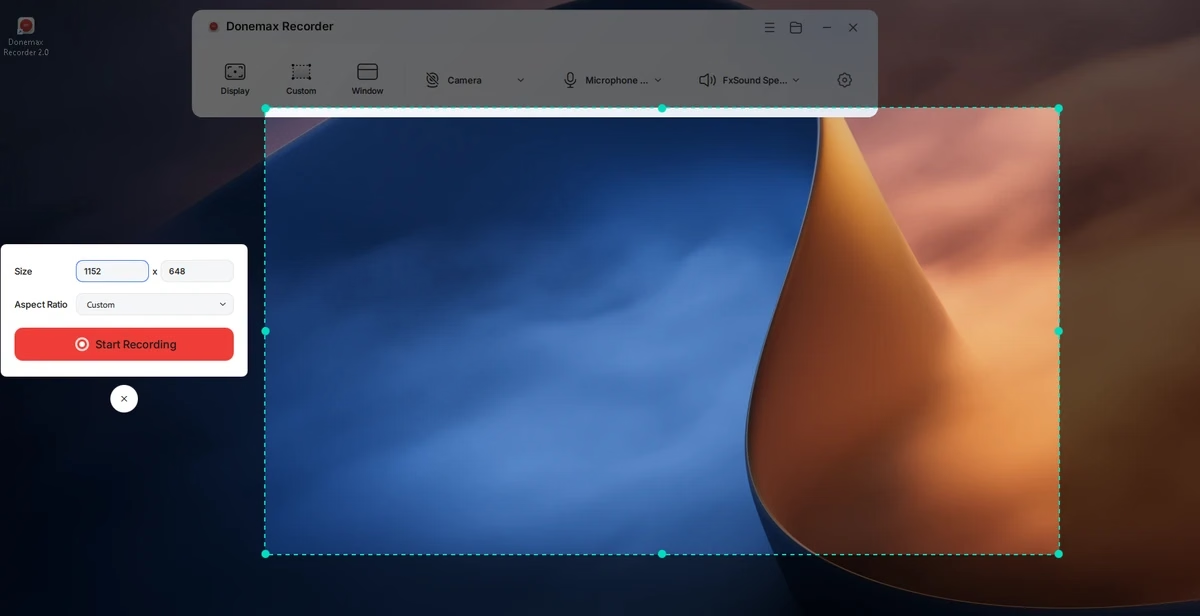
Clicking Custom dims the screen and shows a dashed box you can drag and resize. A small panel shows the exact size (ours was 1152 × 648), an aspect ratio drop-down and a big red Start Recording button. The default countdown is 2 seconds.
Auto-zoom result
Our 10-second test clip opened in the editor with two “Zoom 2.0X” blocks already on the timeline, matching the clicks we made. Selecting a block opens the zoom editor, with a scaling slider, “Apply to all scaling” and “Delete Scaling”. For a quick tutorial, that saves the most tedious part of editing.
Webcam and language options
Picking a camera from the drop-down switched the toolbar to our integrated webcam straight away. Our security suite showed its usual “using the webcam” notice, which is normal for any recorder. The app interface is available in 10 languages: English, French, Italian, German, Spanish, Portuguese, Japanese, Korean, and Traditional and Simplified Chinese.
Settings worth changing
Settings has three tabs. General Settings sets where recordings, exports and AI models are saved, which is handy if your C: drive is short on space. Recording Settings has the auto-zoom switch, options to hide desktop icons and the taskbar while recording, recording quality (High by default) and the countdown. Export Settings holds the output options.
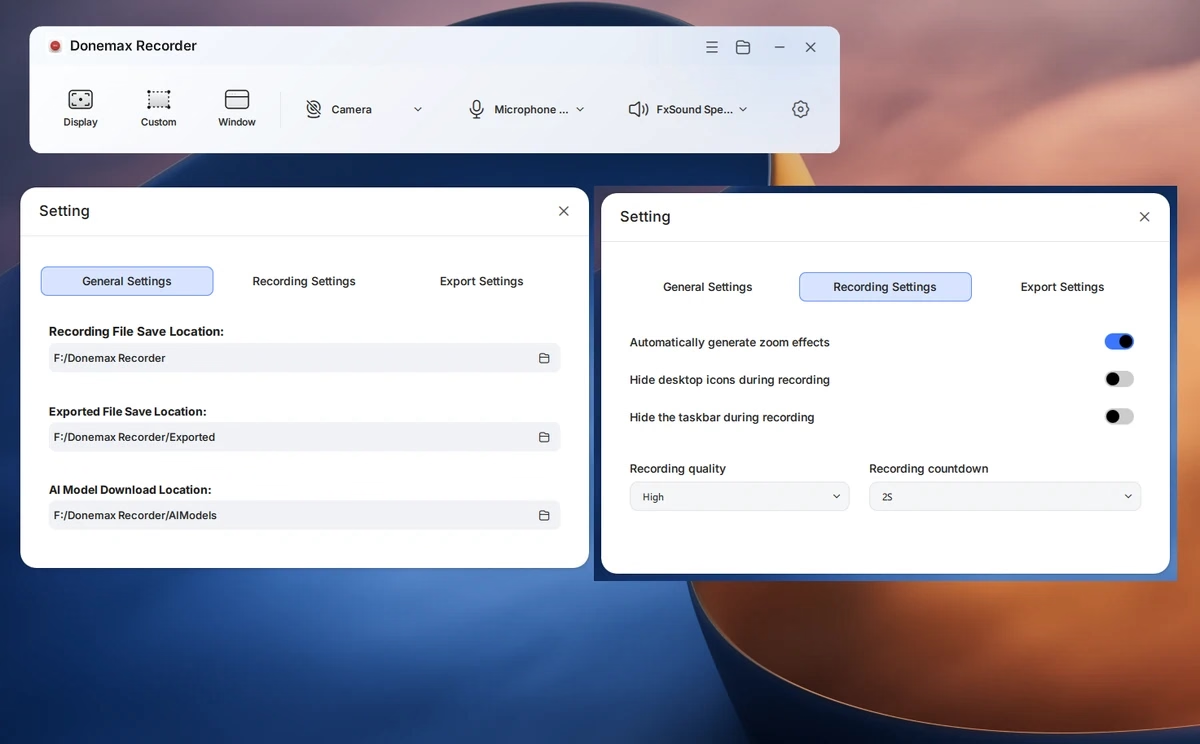
Tip: turn on “Hide desktop icons during recording” and “Hide the taskbar during recording” for cleaner full-screen tutorials. Both are also in the quick menu under the gear icon on the toolbar.
Is Donemax Recorder safe?
Here is what we checked before installing:
- The installer comes straight from donemax.com, the developer’s own domain.
- The file is digitally signed. Windows showed the verified publisher as Chengdu Shengxuan Technology Co., Ltd.
- Installer details on 22 November 2026: DonemaxRecorder.exe, 113,160,120 bytes, SHA-256
50009f938a9b608dd9295871736a5a97fe7362ef280c4355fe3f7bd31ac4db3d. If your download has a different hash, Donemax may have updated the file. - The setup screens we saw had no bundled offers or extra toolbars.
The installation added 2,092 files, 47 registry entries and 330.4 MB on disk, according to our install monitoring tool. That is fairly large for a screen recorder, mostly because of the AI components.
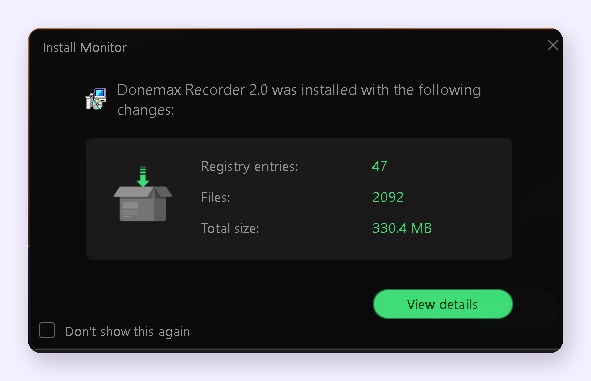
As with any recorder, the app asks for camera and microphone access, and your security software may notify you. That is expected. We did not run a separate VirusTotal scan, so check the file yourself if you want extra peace of mind.
Who should grab it, and who can skip it
Grab it if you make software tutorials, how-to videos, product demos, course lessons or YouTube Shorts and want click-zoom without learning a full video editor. It is also handy for bug reports and quick walkthroughs for colleagues or family.
Skip it if you mainly record long gameplay sessions, need the newest version with ongoing updates, or plan to use it for paid client work (the giveaway licence is non-commercial). If you just want a simple, lightweight recorder, our Screencapt Pro giveaway is a better fit.
More free screen recorders on Techno360
- Screencapt Pro free licence: watermark-free screen recorder for Windows
- iTop Screen Recorder 7 Pro free licence key
- SurFlex Screen Recorder free licence
- Aiseesoft Screen Recorder free licence for Windows
- Best free video editing software for Windows (2026)
- All current free software giveaways
✅ Our Verdict
Donemax Recorder 2.0 does what it promises: you record, click through your demo, and the zooms are already there when you stop. The interface is clean, activation took seconds, and the editor covers what most tutorial makers need. The trade-offs are a big install, no free updates and a shared key that may not last. For a $99.99 auto-zoom recorder, it is well worth grabbing today.
Pros
- Automatic click-zoom with an editable timeline
- Screen, webcam, mic and system audio in one take
- Backgrounds, rounded corners and multi-ratio export for Shorts and Reels
- Clean, signed installer from the developer’s own site
Cons
- No free updates or support with the giveaway licence
- Non-commercial use only
- Large footprint (about 330 MB installed)
- Shared key with no stated end date, so it could stop working without notice
Frequently asked questions
Is Donemax Recorder free?
The free version lets you record and use the editing tools, but the in-app upgrade screen says it allows only one export. With the giveaway key above, you get the Pro version with unlimited exports at no cost.
How long does the Donemax Recorder giveaway licence last?
It is a lifetime licence for version 2.0. It does not include free updates or free tech support, and it is for personal, non-commercial use.
Where do I enter the Donemax Recorder licence key?
Click the orange Upgrade button at the top of the recorder window, paste the key into the box at the bottom of the upgrade screen and click Activation.
Does Donemax Recorder work on Mac?
Donemax makes a separate Mac version for macOS 13 Ventura or later. This giveaway and our test cover the Windows version only, so we can’t confirm the key works on a Mac.
Does Donemax Recorder need an internet connection?
Only at the start. The giveaway host says activation and the first AI model download need internet access. After that, recording and editing happen on your PC.
What are the system requirements?
Donemax lists Windows 11 and 10. The giveaway host adds an Intel Core i5 or better and at least 8 GB RAM (16 GB for the best performance). Setup needs at least 349.7 MB of free space, plus room for your recordings.
Can I update Donemax Recorder after activating?
We recommend you don’t. The giveaway covers version 2.0 with no free updates, and a newer version may not accept the key.
Discover more from Techno360
Subscribe to get the latest posts sent to your email.

You must be logged in to post a comment.