
Worried about your privacy? To ensure your data is thoroughly erased, use Macrorit Data Wiper Pro before selling, donating, or disposing of your devices. Simply deleting files or formatting a drive is not enough — deleted data can still be recovered using freely available recovery tools. Macrorit Data Wiper Pro permanently overwrites your data so it can never be retrieved.
This robust data erasure software can wipe your hard drive, SSD, or USB drive clean, rendering your data completely irretrievable. It’s user-friendly and provides a range of military-grade wiping algorithms to suit your security requirements.
What Is Macrorit Data Wiper Pro?
Macrorit Data Wiper Pro is a professional-grade data wiping software for Windows developed by Macrorit, a trusted name in disk partition management tools. Unlike the Windows built-in format option, this tool uses advanced overwriting algorithms recognized by government and military standards to make data recovery impossible.
Whether you are an individual preparing to sell an old laptop, a business decommissioning office computers, or an IT professional managing large fleets of devices, Macrorit Data Wiper Pro provides a reliable and auditable data sanitization solution.
Macrorit Data Wiper Pro — Key Features

- Wipes All Storage Devices: Permanently erases hard drives (HDD), SSDs, USB flash drives, SD cards, memory cards, and more.
- Free Space Wiper: Securely overwrites the free (unallocated) space on your drive where deleted files may still linger, leaving no chance of data recovery.
- System Partition Wipe: Capable of wiping the active system partition and OS drive even while Windows is running — a rare feature among data erasure tools.
- Multiple Wiping Algorithms: Choose from six industry-standard overwriting methods, balancing speed and security based on your needs.
- Bootable Data Wiper: Create a bootable USB or CD/DVD to wipe drives on computers that cannot boot into Windows.
- Recycle Bin Wiper: Permanently erase files in the Recycle Bin beyond any possibility of recovery.
- User-Friendly Interface: Simple three-step process — select target, choose algorithm, click Wipe. No technical expertise required.
- Lightweight & Fast: Minimal system resource usage with high-speed wiping performance.
- Wide OS Compatibility: Supports Windows 11, 10, 8, 7, Vista, XP, and Windows Server editions.
Wiping Algorithms Supported

One of the standout features of Macrorit Data Wiper Pro is its support for six military-grade data wiping algorithms. Here’s a quick breakdown:
- Fill Sectors with Zero (Quick Wipe): Overwrites all sectors with zeros. Fast but basic — suitable for non-sensitive data.
- Fill Sectors with One: Overwrites all sectors with binary ones. Similar speed to zero-fill.
- Fill Sectors with Zero and One: Alternates between zeros and ones for an added layer of overwriting.
- DoD 5220.22-M (3-Pass): US Department of Defense standard. Performs 3 passes — zeros, ones, then random data. Widely used in enterprise data destruction.
- DoD 5220.28-STD (7-Pass): Higher security DoD standard using 7 passes (alternating 01010101 and 10101010 patterns, repeated 3 times, followed by a random character pass). Considered one of the most secure wiping methods available.
- Peter Gutmann’s Algorithm (35-Pass): The most thorough and secure method, using 35 overwriting passes. Extremely slow but virtually guarantees that data cannot be recovered by any known technique.
For most users, the DoD 5220.22-M 3-pass method offers the ideal balance of speed and security. For highly sensitive government or enterprise data, the 7-pass DoD 5220.28-STD or Gutmann 35-pass method is recommended.
Who Should Use Macrorit Data Wiper Pro?
This tool is ideal for:
- Home Users selling or recycling old PCs, laptops, external drives, or USB sticks.
- IT Professionals decommissioning corporate computers and ensuring compliance with data protection regulations.
- Small Businesses that handle sensitive client data and must dispose of old hardware securely.
- Students & Freelancers who want to wipe a device before handing it back or selling it.
- Privacy-Conscious Users who want to prevent their personal files, photos, or financial records from falling into the wrong hands.
Macrorit Data Wiper Pro vs. Free Edition — What’s the Difference?
| Feature | Free Edition | Pro Edition |
|---|---|---|
| Wipe Entire Disk | ✓ | ✓ |
| Wipe Partition | ✓ | ✓ |
| Wipe Free Space | Limited | ✓ Unlimited |
| Wipe System Partition | ✗ | ✓ |
| Bootable Media Creation | ✗ | ✓ |
| Recycle Bin Wipe | Limited | ✓ Unlimited |
| All 6 Wiping Algorithms | ✗ | ✓ |
| Commercial Use | ✗ | ✓ |
| Free Lifetime Upgrades | ✗ | ✓ |
How to Get Macrorit Data Wiper Pro for Free
You can claim a free Macrorit Data Wiper Pro license by following these simple steps:
- Download the software from the developer page (ZIP file).
- Unzip the downloaded file — you’ll find an installer and a portable setup file inside.
- Run the installer to install Macrorit Data Wiper Pro on your PC.
- Launch the application after installation is complete.
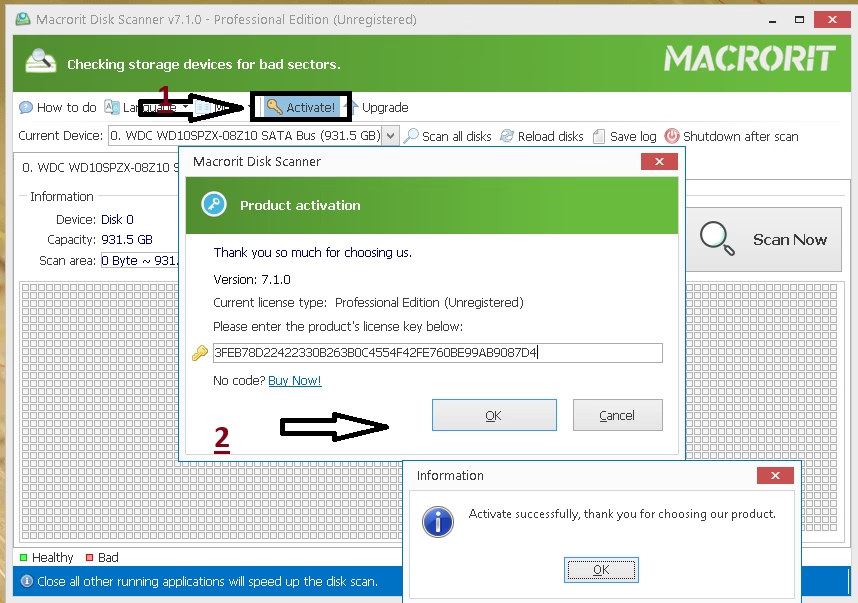
- Click “Activate” on the main interface.
- Enter the license key below and click “OK” to unlock the full Pro version:
C87DCB8592B485D977CA61EB30D649C18997B88D8AB58BA2
Note: This is a time-limited giveaway. Claim your free license as soon as possible before it expires.
How to Use Macrorit Data Wiper Pro — Step-by-Step Guide
- Launch the app and you’ll see all connected storage devices listed in the main window.
- Select the target — choose the entire disk, a specific partition, free space, or the Recycle Bin.
- Choose a wiping algorithm — select from the six available methods based on your security needs.
- Click “Wipe Now” — the software will begin the overwriting process. Do not interrupt it.
- Once complete, a confirmation screen will display. Your data is now permanently erased.
Tip: If you want to wipe the system drive (C:), use the bootable media feature to create a bootable USB, boot from it, and then wipe the OS partition safely outside of Windows.
Frequently Asked Questions (FAQ)
Is Macrorit Data Wiper Pro safe to use?
Yes. Macrorit Data Wiper Pro is a trusted and malware-free tool. It only performs the wiping operations you explicitly instruct it to. However, always double-check your selected drive before clicking Wipe, as the process is irreversible.
Can Macrorit Data Wiper Pro wipe an SSD?
Yes, it supports SSD wiping. However, due to how SSDs handle data internally (TRIM and wear-leveling), a single-pass zero-fill is generally sufficient and recommended for SSDs to avoid unnecessary write cycles.
Will wiping a drive with Macrorit make data unrecoverable?
Yes. Using algorithms like DoD 5220.22-M or higher ensures that even professional data recovery tools and forensic labs cannot retrieve the overwritten data.
Does it work on Windows 11?
Yes, Macrorit Data Wiper Pro is fully compatible with Windows 11, Windows 10, Windows 8, Windows 7, and earlier versions including Windows Server editions.
Can I wipe a USB drive or SD card with this tool?
Absolutely. The software supports all storage devices recognized by Windows, including USB drives, SD cards, and external hard drives.
Conclusion
Macrorit Data Wiper Pro is a powerful, reliable, and easy-to-use data wiping tool for Windows that ensures your sensitive data is permanently erased beyond recovery. With support for military-grade wiping algorithms like DoD 5220.22-M and Peter Gutmann’s 35-pass method, it’s a top choice for both home users and IT professionals.
Whether you’re selling an old laptop, retiring a work computer, or simply want to clear sensitive files from a USB drive, Macrorit Data Wiper Pro gives you complete peace of mind. Don’t miss this opportunity to grab the Pro license for free — follow the steps above and secure your data today.
Discover more from Techno360
Subscribe to get the latest posts sent to your email.

You must be logged in to post a comment.