
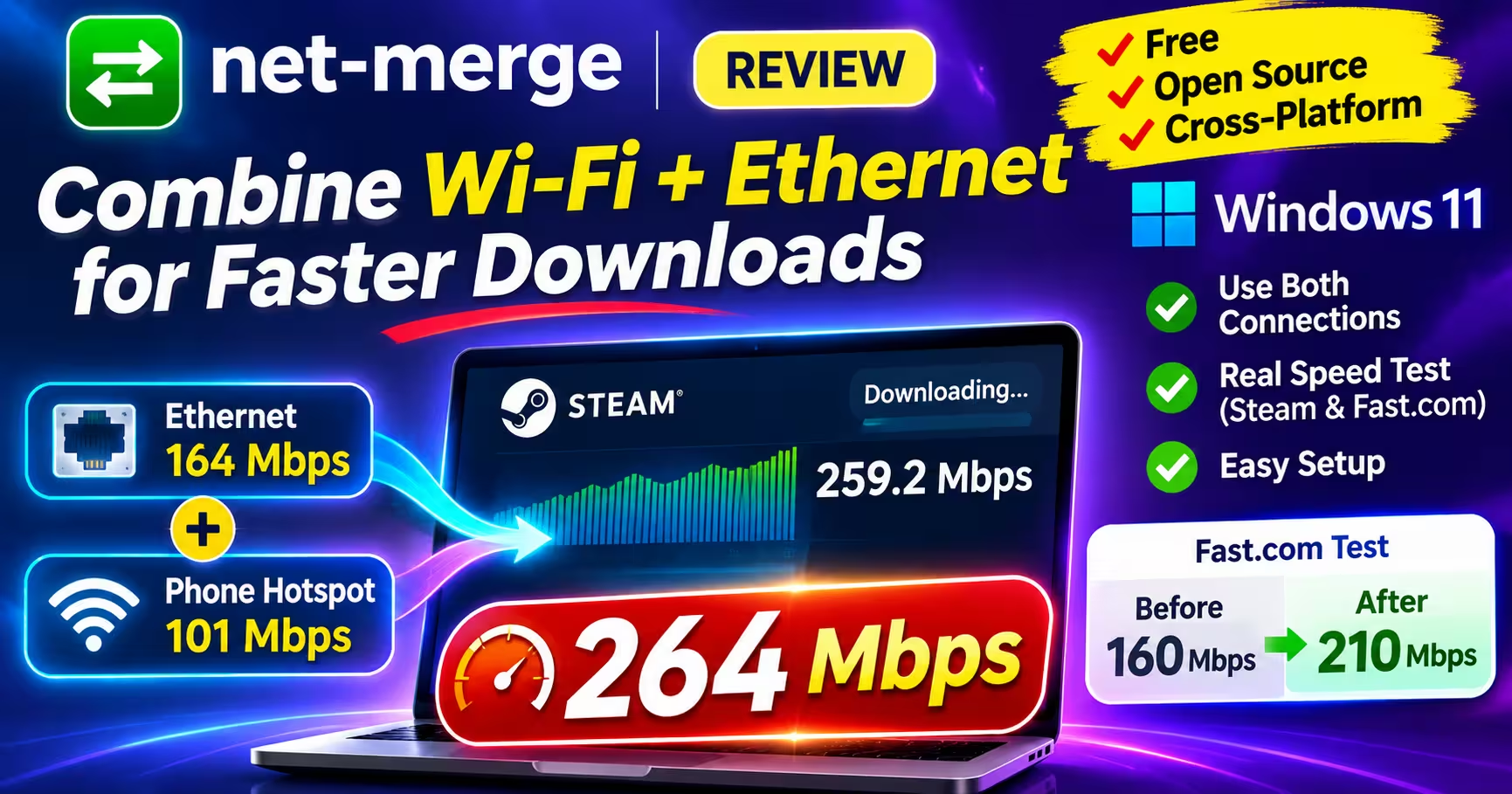
⚡ Free & Open Source · Tested on Windows 11
I merged Ethernet + my phone hotspot and Steam hit 264 Mbps
net-merge is a free tool that spreads your apps’ connections across every internet link your PC has. No account, no VPN server, no subscription. I installed version 0.3.6 on a Windows 11 laptop with a wired connection and a realme phone hotspot, and a Steam download went from one link’s worth of speed to 264 Mbps, with both links visibly carrying traffic.
📊 Quick Read
- What it is: a free, MIT-licensed connection merger for Windows, macOS, Linux and Android (beta), written in Go by Rohit Mahto.
- How it speeds things up: each new connection an app opens goes to one of your links. Apps that open many connections (Steam, torrents, download managers) get faster. A single connection does not.
- My result: Steam download at 259–264 Mbps — Ethernet carried 164 Mbps and the phone hotspot 101 Mbps at the same moment. Fast.com went from 160 to 210 Mbps.
- Catches: needs admin rights, the installer isn’t code-signed yet (SmartScreen warning), it can’t run alongside a PC VPN, and a phone hotspot will eat mobile data.
- Verdict: the easiest free way to put a second connection to work for big downloads on Windows.
What Is net-merge?
Windows can stay connected to Ethernet and Wi-Fi at the same time, but it doesn’t combine their bandwidth. Internet traffic normally goes out through the connection with the lowest route metric — usually Ethernet — while the other one mostly sits idle as a backup. So the phone hotspot right next to you adds nothing to your download. net-merge changes that. It runs in the system tray and hands out your apps’ network connections across every working link — Ethernet, Wi-Fi, USB tethering or a phone hotspot — so all of them carry traffic together.
It’s an open-source project on GitHub, released under the MIT License (the installer’s licence screen credits Rohit Mahto), and it has picked up a couple of thousand stars in a short time. The developer describes it as having no account, no server and no VPN. Everything happens on your own machine.
| Detail | Info |
|---|---|
| Version tested | 0.3.6 (released 28 October 2026) |
| Platforms | Windows, macOS, Linux; Android 8.0+ in beta |
| Price | Free, MIT License |
| Installer size | 9.01 MB (net-merge-setup-0.3.6.exe); portable zip also available |
| Needs | Administrator rights on Windows; at least two working internet connections |
| Protocols | TCP and UDP, IPv4 and IPv6 |
How net-merge Combines Wi-Fi and Ethernet
Here’s the simple version. When you turn merging on, net-merge creates a virtual network adapter (on Windows it uses Wintun, the same driver WireGuard uses) and adds routes so your apps’ traffic goes through it first. Each time an app opens a new connection, net-merge picks a real adapter — Ethernet, Wi-Fi or your phone — and opens the connection to the actual server from that adapter.
It doesn’t pick at random. Faster links are given more connections, and every adapter is checked for working internet every second, so a Wi-Fi network stuck on a captive login page or a tether with no data gets nothing until it recovers. According to the developer’s documentation, if net-merge crashes, its adapter and routes are removed with it, so your normal internet keeps working. I didn’t test crash or adapter-failure scenarios myself.
The important part to understand is this: one connection always stays on one link. net-merge doesn’t split a single stream across two connections. Speed comes from apps that open lots of connections at once.
| 👍 Gets faster | 👎 Doesn’t get faster on its own |
|---|---|
| Steam, Epic and other game downloads | A single-stream download (one connection) |
| Torrents | A video stream that uses one connection |
| Download managers (IDM, aria2) | A single-connection speed test |
| Windows Update, cloud uploads (Google Drive) | Online game latency (ping) |
| Several downloads or tabs at once | Two links on the same router and broadband line |
That last row matters: if your Wi-Fi and Ethernet both come from the same router, they share one internet line and there’s nothing to gain. You need two genuinely separate sources, like broadband plus a phone’s mobile data.
✅ Get it if you…
- have broadband plus a phone with mobile data (or a second line)
- download big Steam or Epic games, torrents or large files
- want a free tool with no account or subscription
❌ Skip it if you…
- get Wi-Fi and Ethernet from the same router
- need a VPN running on your PC
- are hoping for lower ping in online games
My Test Setup
- PC: Windows 11 laptop
- Link 1: wired Ethernet broadband
- Link 2: Wi-Fi hotspot from a realme 3 Pro phone (Wi-Fi 4 / 802.11n, WPA2), using its mobile data
- net-merge: 0.3.6, installed with the setup EXE, default settings
- Tests: a 25.3 GB Steam download (The Sims 4) and Fast.com
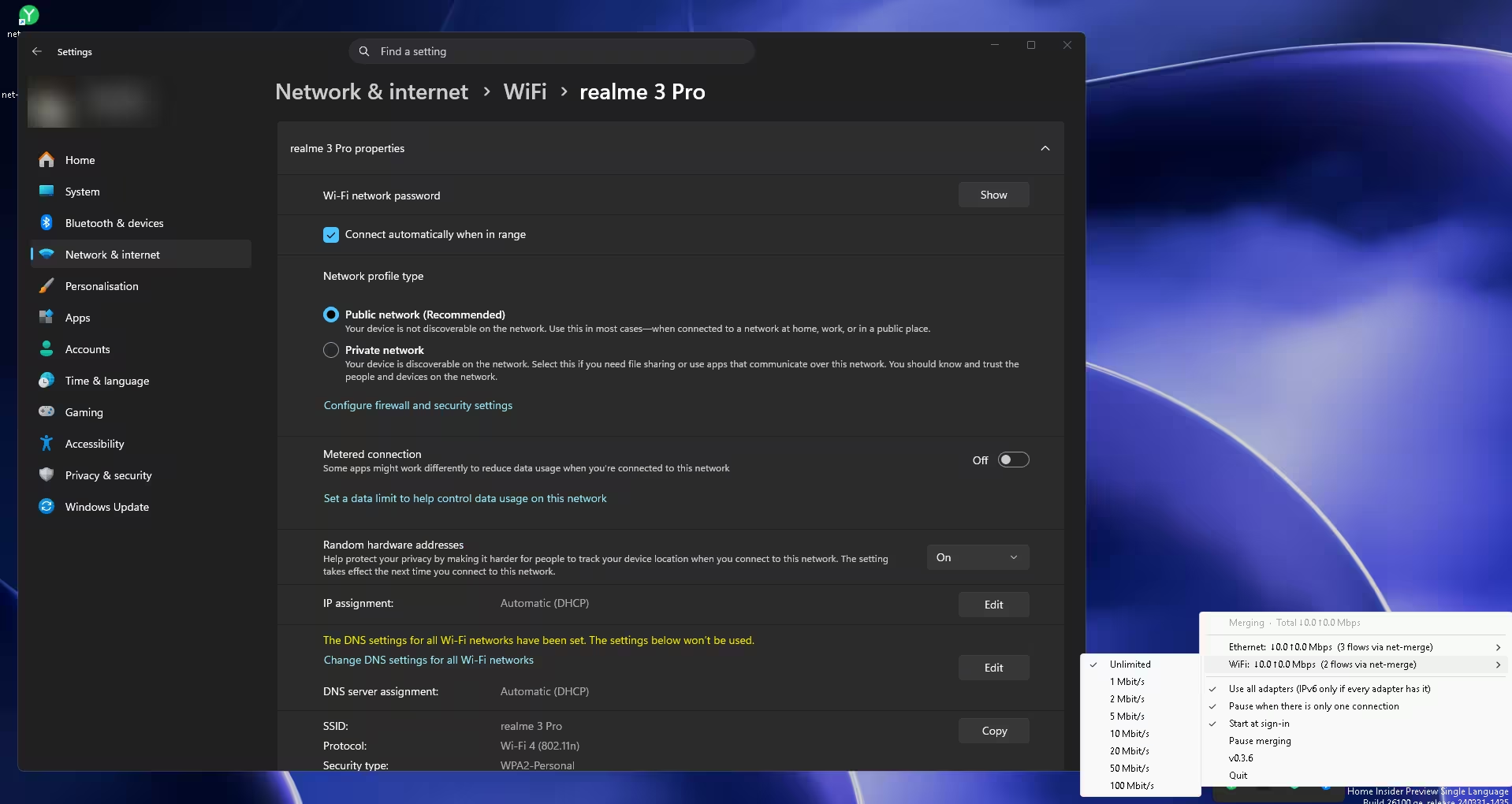
Once installed, net-merge showed both adapters in its tray menu straight away, each with its own live speed and number of active connections (“flows”).
Real-World Results: Steam and Fast.com
Steam download: both links fully used
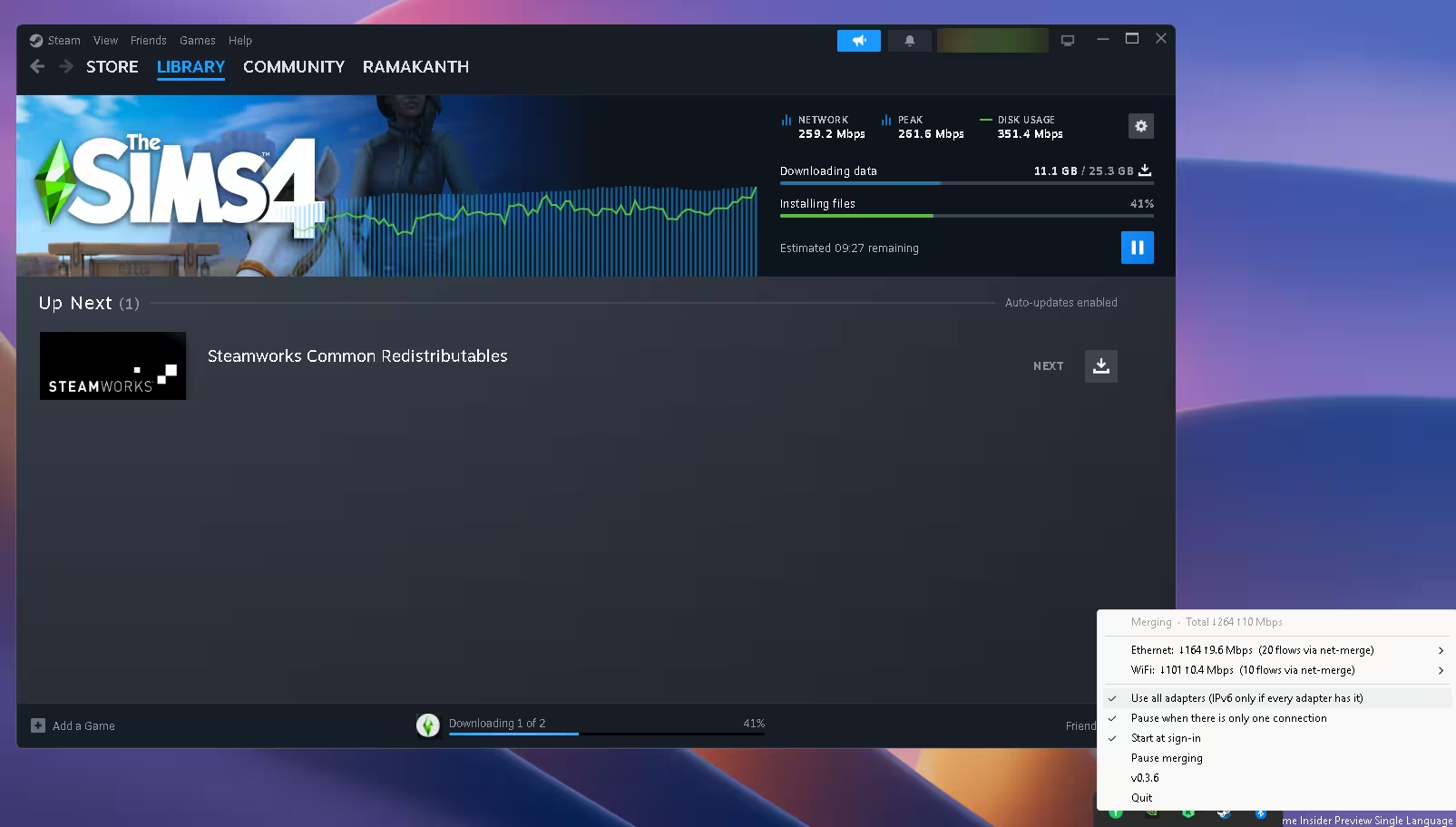
Steam is the ideal test because it downloads with many connections at once. Mid-download, Steam’s own graph showed 259.2 Mbps, with a peak of 261.6 Mbps. Opening the net-merge tray menu at the same moment showed exactly where that speed came from:
| Link | Download | Upload | Connections (flows) |
|---|---|---|---|
| Ethernet | 164 Mbps | 9.6 Mbps | 20 |
| Wi-Fi (phone hotspot) | 101 Mbps | 0.4 Mbps | 10 |
| Total (tray reading) | 264 Mbps | 10 Mbps | 30 |
The per-link figures are rounded, so they add up to 265 rather than the 264 Mbps total net-merge displayed. Steam’s graph and the tray menu also sample speed separately, which is why Steam showed 259.2 Mbps at the same moment.
This is the clearest proof that merging works: the Ethernet line alone was running at its usual ~160 Mbps, and the phone hotspot added another ~100 Mbps on top. net-merge also gave the faster Ethernet link twice as many connections as the hotspot, which is its speed-weighting doing its job.
Fast.com: a smaller gain, and why
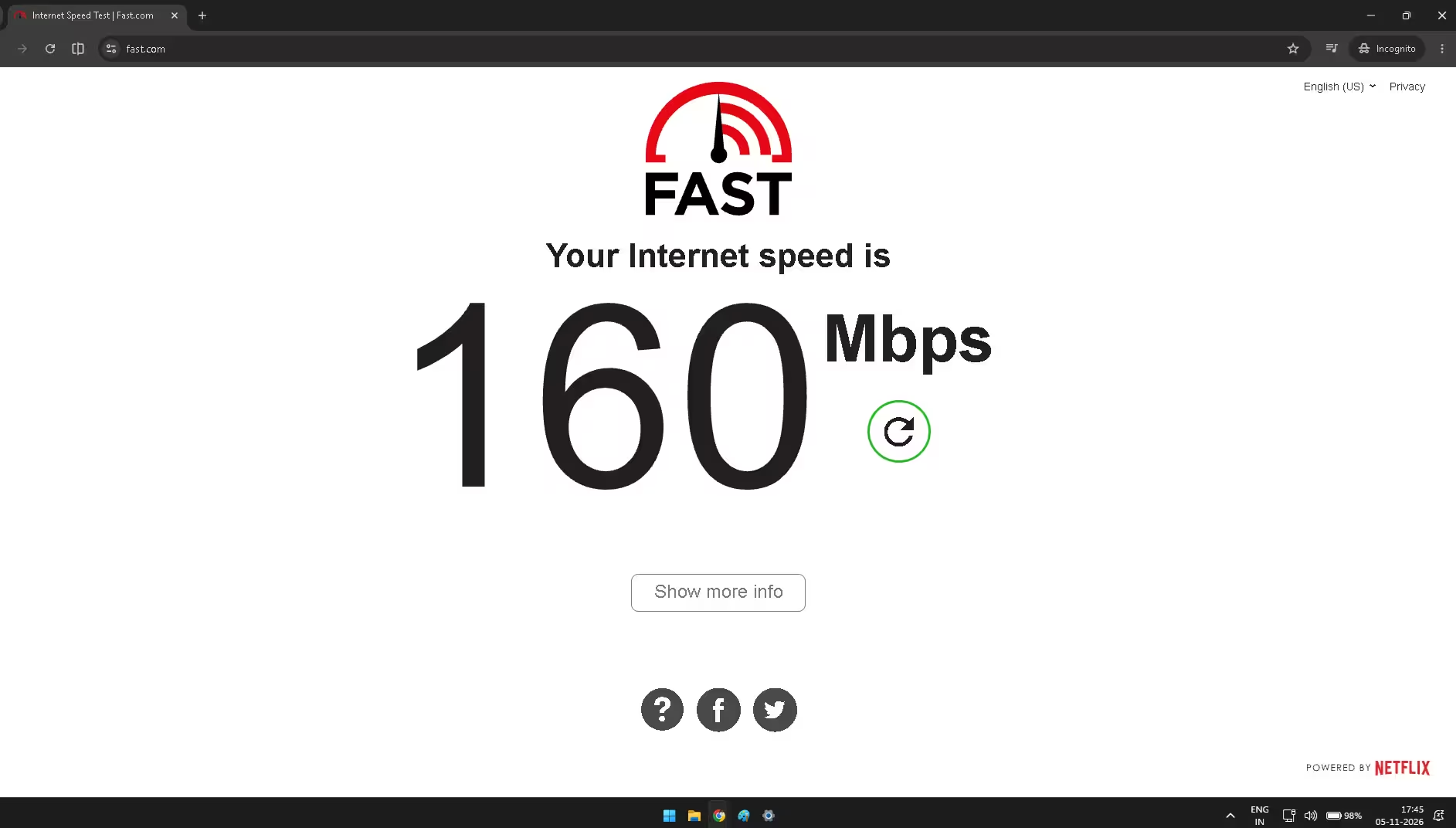
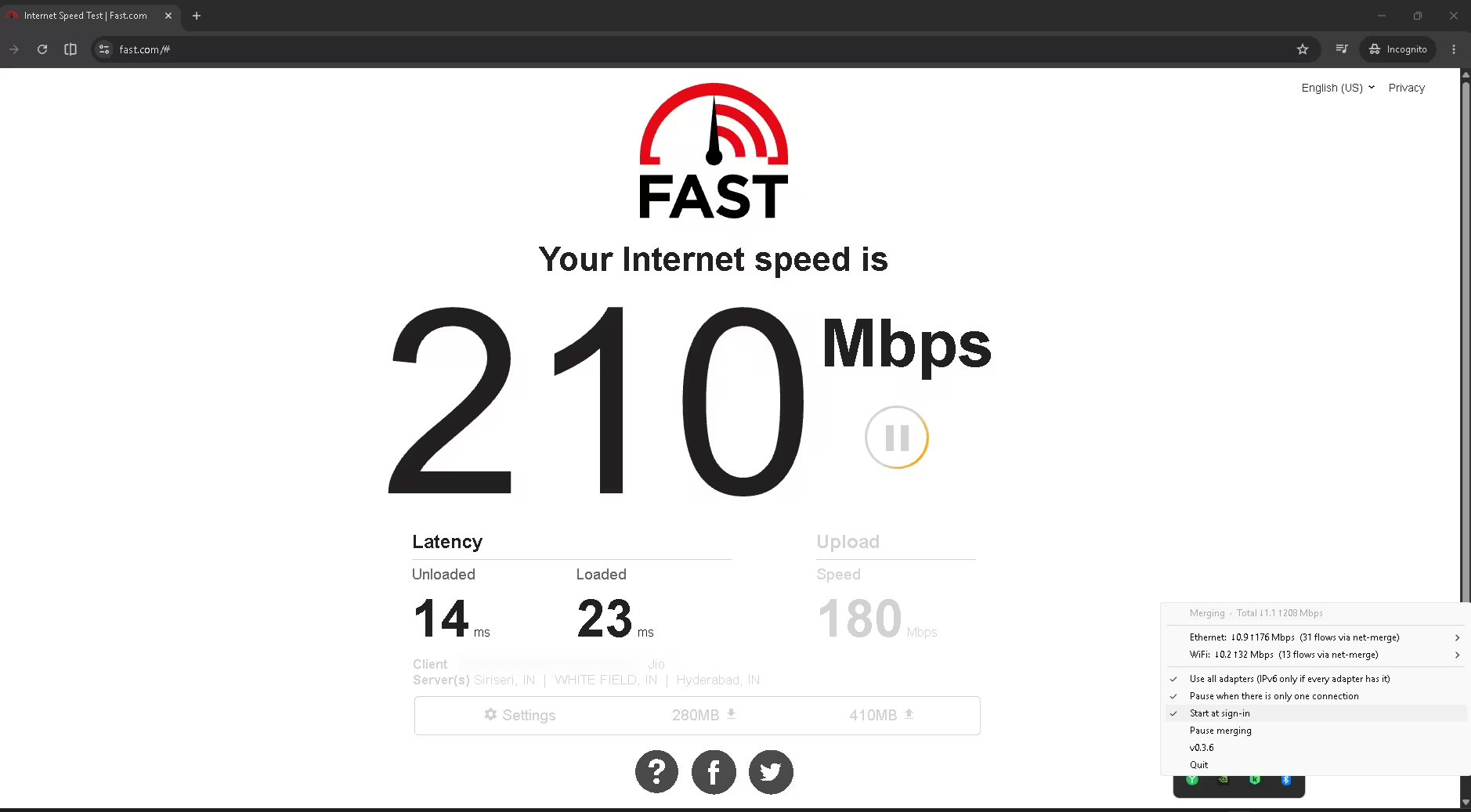
| Test | Before net-merge (Ethernet only) | With net-merge |
|---|---|---|
| Fast.com download | 160 Mbps | 210 Mbps |
| Fast.com upload | — | 180 Mbps |
| Latency (unloaded / loaded) | — | 14 ms / 23 ms |
Fast.com rose by about 31%, from 160 to 210 Mbps — a smaller jump than Steam’s. That fits how net-merge works: it can only spread the connections an app actually opens, and Steam opens a lot of them (30 during my test). A browser speed test usually opens fewer, so it benefits less. During the upload part of the test, the tray showed Ethernet sending 176 Mbps and the hotspot 32 Mbps, so both links were in use there too.
⚠️ Your numbers will differ. The total can only ever be roughly the sum of your links. If your second connection is a slow 4G hotspot, expect a smaller boost.
How to Install net-merge on Windows 11
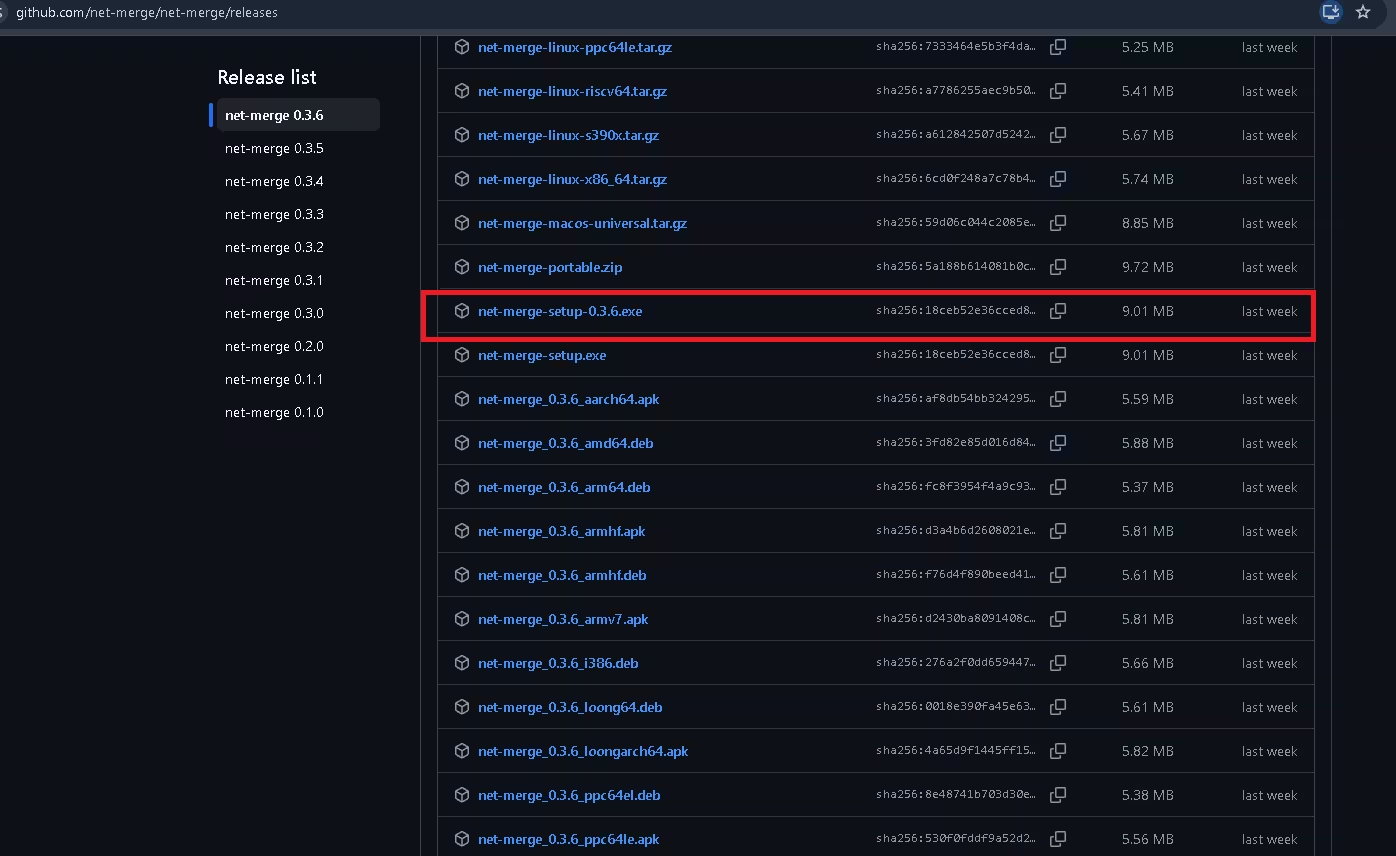
Step 1: Download the installer from the official page only. Go to the net-merge releases page on GitHub and download net-merge-setup-0.3.6.exe. (net-merge-setup.exe is the same file — both show the same SHA-256 hash on the release page.) Don’t download it from mirror or “free download” sites.
Step 2: Verify the file before running it. On the release page, click the copy icon next to the installer’s sha256: value. Then open PowerShell in your Downloads folder and run:
Get-FileHash .\net-merge-setup-0.3.6.exe -Algorithm SHA256
The hash PowerShell prints must match the one on GitHub exactly. For version 0.3.6 it starts with 18ceb52e36cced8. If it doesn’t match, delete the file and don’t run it.
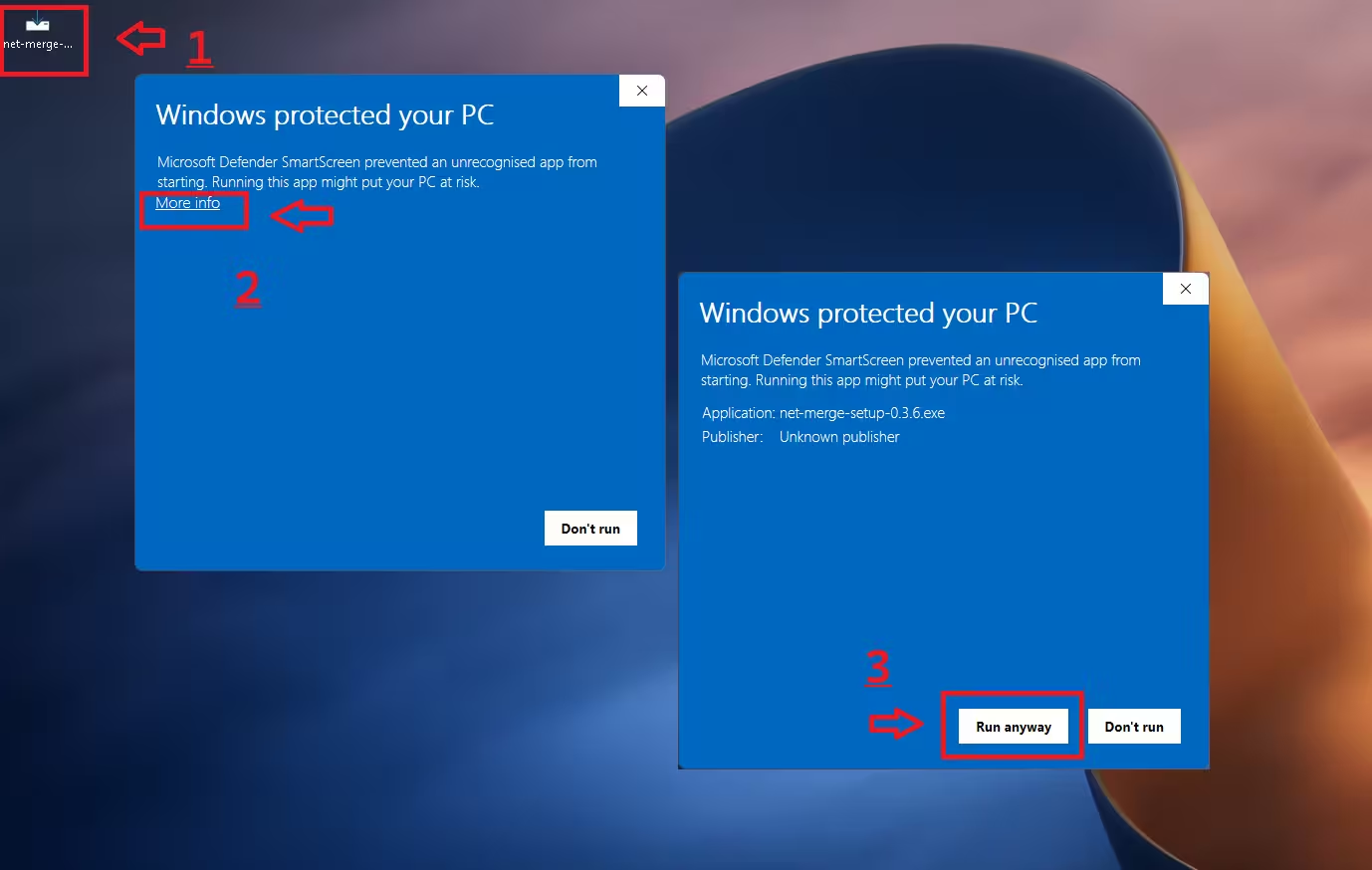
Step 3: Deal with the SmartScreen warning. Because the installer isn’t code-signed yet, Windows shows “Windows protected your PC” with Unknown publisher. The developer documents this warning on the project page. Once the hash matches, click More info, then Run anyway.
⚠️ Don’t bypass SmartScreen without checking. An Unknown publisher warning doesn’t mean an app is malicious. But open-source code and an MIT licence don’t guarantee that a particular EXE is safe either. Only click Run anyway on a file that came from the official release page and whose hash matches — this installer asks for administrator rights.
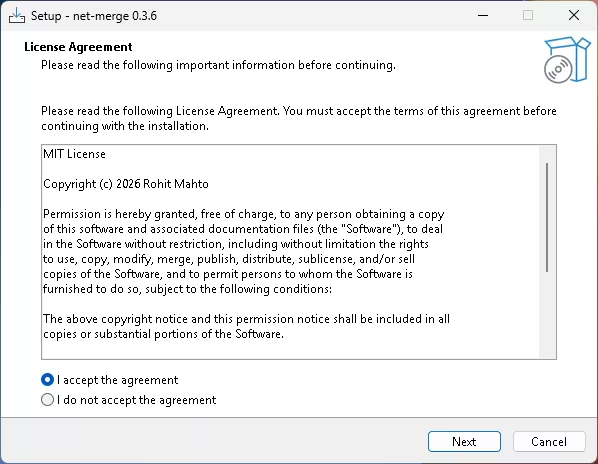
Step 4: Accept the MIT licence and click Next.
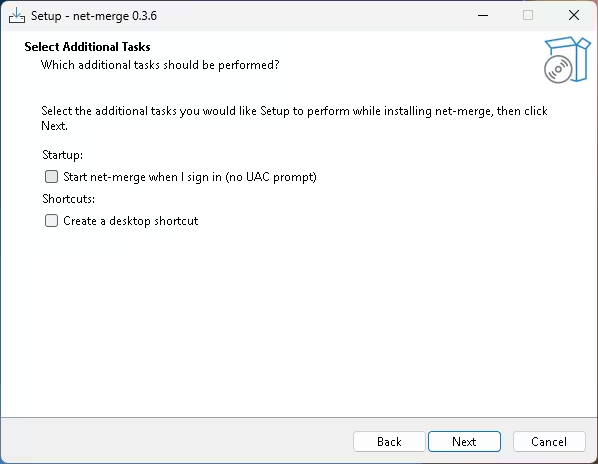
Step 5: Choose extra tasks. Both boxes start unticked. Tick Start net-merge when I sign in (no UAC prompt) if you want it running automatically, and Create a desktop shortcut if you like. You can change auto-start later from the tray menu.
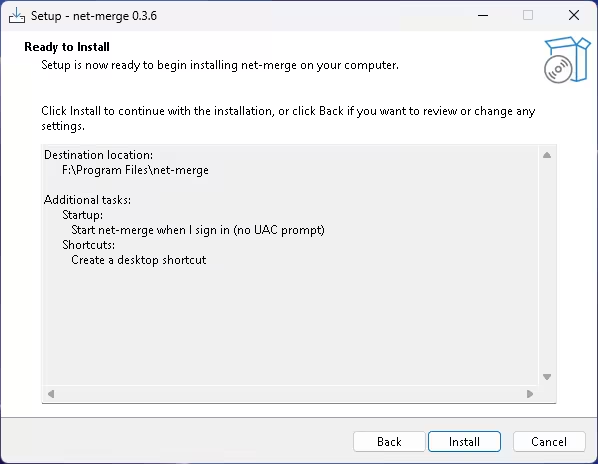
Step 6: Install. Confirm the destination folder and click Install. (I installed to my F: drive; yours will normally be C:\Program Files\net-merge.) Approve the admin (UAC) prompt — net-merge needs admin rights to create its virtual adapter.
Step 7: Connect your second link. Plug in Ethernet, turn on your phone’s hotspot and connect to it, or turn on USB tethering. net-merge picks up a new adapter within a few seconds. The tray icon turns green when it’s merging.
Prefer the command line? The developer offers a PowerShell install script. The safer way is to download it, read it, and only then run it:
Invoke-WebRequest -Uri “https://raw.githubusercontent.com/net-merge/net-merge/main/install.ps1” -OutFile “.\install-net-merge.ps1”
notepad .\install-net-merge.ps1
The project’s one-line version downloads and runs the script immediately, without showing you what’s inside. Only use it if you trust the source:
irm https://raw.githubusercontent.com/net-merge/net-merge/main/install.ps1 | iex
There’s also a portable zip if you don’t want to install anything.
The Tray Menu: Speed Caps, Auto-Pause and IPv6
Everything lives in one tray menu (check behind the ^ arrow next to the clock if you can’t see the icon). The top line shows the total speed; below it each adapter shows live download/upload speeds and how many connections it’s carrying.
- Per-link speed caps: new in 0.3.6. Hover over an adapter and pick Unlimited, or 1, 2, 5, 10, 20, 50 or 100 Mbit/s. This is genuinely useful for a phone hotspot — cap it at 10–20 Mbit/s so it helps without burning through your daily data in minutes. Caps survive restarts.
- Use all adapters (IPv6 only if every adapter has it): on by default; leave it on. If one link lacks IPv6, net-merge sends IPv6 traffic over IPv4 instead of merging it.
- Pause when there is only one connection: stops merging automatically when only one link has internet, and resumes when a second one comes back.
- Start at sign-in, Pause merging and Quit do what they say. The menu also shows the version and checks GitHub for updates every six hours.
Power users can do the same from a terminal: net-merge status, net-merge list (shows which adapters are used and why others are skipped) and net-merge limit "Ethernet 2" 25.
Tips to Get More Speed from net-merge
- Turn on parallel downloading in your browser. Chrome, Edge and Brave can split one download into several connections. Open
chrome://flags/#enable-parallel-downloading(or theedge:///brave://equivalent), set it to Enabled and relaunch. Firefox has no such option, so use a download manager. - Use a download manager for big files. IDM, or the free command-line
aria2c -x 8 -s 8 <link>, opens several connections per file. This only helps if the server supports resuming/partial downloads, which most large download sites do. - Stop Windows switching off Wi-Fi. Some PCs disable Wi-Fi when Ethernet is plugged in. In
gpedit.msc, go to Computer Configuration > Administrative Templates > Network > Windows Connection Manager and set “Minimize the number of simultaneous connections to the Internet or a Windows domain” to Disabled. (Group Policy Editor isn’t included in Windows 11 Home.) - Torrent clients: leave the network interface set to “Any interface”.
- Phone not showing up over USB? Install your phone maker’s USB driver.
Limitations You Should Know
- No PC VPN. A VPN app routes everything through its own tunnel, leaving nothing to merge. Running a VPN on only one link is worse — traffic on the other link skips it entirely. The developer’s suggestion is to run the VPN on your router instead. (If you’re choosing a VPN anyway, see our Avast Free VPN review.)
- Some sites may log you out. Different connections can leave from different IP addresses, and some banking or login systems tie a session to one IP.
- Mobile data use. A hotspot or tether means part of your traffic is using your phone plan. Use a speed cap, or quit net-merge when you don’t need it.
- IPv6-only sites become unreachable if your links differ in IPv6 support and the default box is ticked.
- Speed caps only apply to traffic net-merge relays; apps bound to a specific adapter ignore them.
- Single downloads and ping don’t improve. It’s a throughput tool, not a latency fix.
net-merge vs Speedify
Speedify is the best-known paid alternative. The two work in fundamentally different ways:
| net-merge | Speedify | |
|---|---|---|
| How it merges | Spreads connections across links, locally | Bonds traffic through Speedify’s own VPN servers |
| Price | Free, unlimited | Free plan capped at 2 GB/month; paid plans for unlimited |
| Account / server | None | Traffic goes via Speedify’s servers |
| Source code | Open source (MIT) | Proprietary |
| Best for | Big multi-connection downloads at home | Failover and bonding on the move, if you’ll pay |
Because Speedify bonds traffic on its servers, it isn’t limited to multi-connection apps the same way — but you pay for that with a subscription and by routing everything through a third party. For home users who mainly want faster Steam and torrent downloads, net-merge does the job for free.
The developer also sells RoutEngine, an upgraded version that lets you choose an adapter per app (for example, Steam over both links and your browser over Ethernet with Wi-Fi as backup) and set per-app speed or data caps. It’s free for personal use with a Pro tier for work. I haven’t tested it.
Is net-merge Safe?
The “Unknown publisher” warning will make some readers nervous, so here’s what I checked:
- Open source: the full Go source is public on GitHub under the MIT License.
- Driver: the Windows build uses Wintun, the WireGuard project’s network driver. According to the developer documentation, the build script checks Wintun’s hash and its WireGuard LLC signature when fetching it. I’m reporting the documented process; I didn’t audit the build myself.
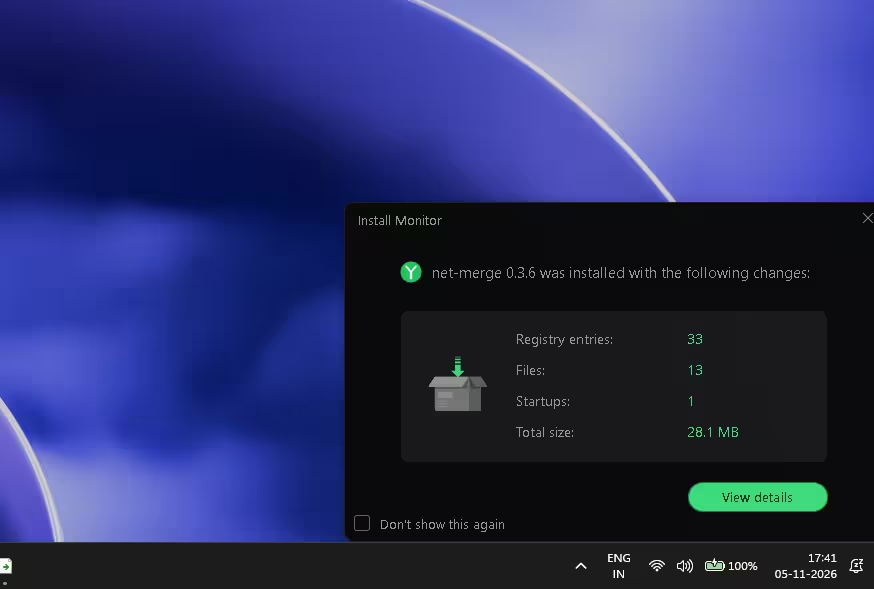
- Install footprint: an install monitor recorded 33 registry entries, 13 files and 1 startup item, 28.1 MB in total. That’s consistent with a lightweight tray utility and with what the installer says it does.
- Why the warning: the binaries simply aren’t code-signed yet; the developer says so on the project page.
- Verify your download: the release page lists a SHA-256 hash for every file. In PowerShell, run
Get-FileHash .\net-merge-setup-0.3.6.exeand compare.
To be clear, this isn’t a security audit. An install footprint and public source code can’t prove an app contains no malicious behaviour. They’re reasonable signs, not guarantees. net-merge also needs admin rights and sees all your traffic as it relays it — that’s true of any tool like this, which is why getting it from the official GitHub repo matters. To remove it, use Settings > Apps > Installed apps > net-merge > Uninstall.
Pros and Cons
| 👍 Pros | 👎 Cons |
|---|---|
| Free, open source, no account or data cap | Unsigned installer triggers SmartScreen |
| Works for every app, no per-app setup | Single downloads and ping don’t improve |
| Clear tray menu with live per-link speeds | Can’t be used with a VPN on the PC |
| Per-link speed caps protect mobile data | Some sites may ask you to log in again |
| Designed so your internet keeps working if it crashes | Needs admin rights |
✅ Techno360 Verdict
★★★★★ 4.5 / 5
net-merge does exactly what it promises. In my test, a Steam download used the full speed of my wired line and my phone hotspot at once, for 264 Mbps total — something Windows can’t do on its own. Setup took two minutes and the tray menu shows precisely what each link is doing.
Keep your expectations right: it speeds up apps that open many connections, not single downloads or game ping, and it won’t sit alongside a VPN. If you have a second internet source and download big games or files, it’s well worth installing. Rating: 4.5/5.
Download net-merge (GitHub)Official Website
Frequently Asked Questions
Can I combine Wi-Fi and Ethernet on Windows 11 for free?
Yes. net-merge is free and open source. Install it, connect two separate internet sources (for example broadband over Ethernet and a phone hotspot over Wi-Fi), and it spreads your apps’ connections across both.
Does net-merge double my internet speed?
For apps that use many connections, the total can approach the sum of your links. In my test, 164 Mbps Ethernet plus a 101 Mbps hotspot gave 264 Mbps in Steam. A single-connection download or stream stays on one link and generally won’t get faster.
Will it work if Wi-Fi and Ethernet come from the same router?
No real gain. Both would share the same broadband line. You need two independent connections, such as home broadband plus mobile data.
Is net-merge a VPN?
No. It creates a local virtual adapter on your PC to route connections, but there is no external server and your traffic isn’t sent to the developer. It also can’t run alongside a VPN app on the same PC.
Why does Windows say “Windows protected your PC”?
The installer isn’t code-signed yet. Click More info, then Run anyway. Download only from the official GitHub releases page and check the SHA-256 hash if you want extra assurance.
Will it use up my phone’s mobile data?
Yes, whatever traffic goes over the hotspot or tether uses your mobile plan. Use the per-link speed cap in the tray menu to limit it, or quit net-merge when you don’t need the boost.
Does net-merge reduce ping in online games?
No. It improves total download/upload throughput, not latency. A game’s connection stays on one link.
More Free Windows Tools We’ve Tested
Discover more from Techno360
Subscribe to get the latest posts sent to your email.

You must be logged in to post a comment.