
⚡ One free, open-source app to debloat, tweak and clean up Windows
optimizerDuck bundles 42 optimizations, 44 customization toggles, a bloatware remover, startup and scheduled-task managers and a disk cleaner into one portable EXE, with rollback options for supported Windows tweaks. We ran v2.29.0 on a Windows 11 laptop to see how it holds up.
Free & Open SourceWindows 10 / 11x64 + ARM64Portable · No Install
📊 Quick Read
- What it is: A free Windows optimizer and debloater by developer fatDuck, released under GPL v3.
- Latest version: v2.29.0 (7 October 2026), now with native ARM64 builds.
- Best for: Tuning a fresh Windows install, trimming background apps, and clearing junk without touching the Registry yourself.
- Safety net: Optimization tweaks are off until you enable them, each carries a risk label, and applied tweaks can be rolled back. App removals, task deletions and disk cleanup are permanent.
- Watch out for: A SmartScreen warning on first run (the EXE is unsigned) and a bloatware list that also includes Store apps you installed yourself.
What Is optimizerDuck?
optimizerDuck is a free, open-source Windows optimization tool built around three goals: performance, privacy and simplicity. Instead of hunting through the Registry, Group Policy or PowerShell, you get a single window with toggles for system tweaks, Windows customizations and maintenance tools.
The project lives on GitHub under the developer itsfatduck, where it has collected roughly 11.7k stars and 516 forks at the time of writing. GitHub shows more than 118,000 downloads of the current v2.29.0 release alone. It is written in C# as a WPF app on .NET 10, with a clean Fluent-style interface and Dark, Light and High Contrast themes.
The developer’s pitch is straightforward: a fresh Windows install ships with background services, telemetry, pre-installed apps and scheduled tasks you may never use, while several useful performance settings are left off by default. optimizerDuck puts all of those decisions in one place and provides rollback options for supported optimization tweaks.
What’s New in optimizerDuck v2.29.0
Version 2.29.0 arrived on 7 October 2026 with three headline changes (see the official release notes):
- Native ARM64 builds. Every release now ships two files:
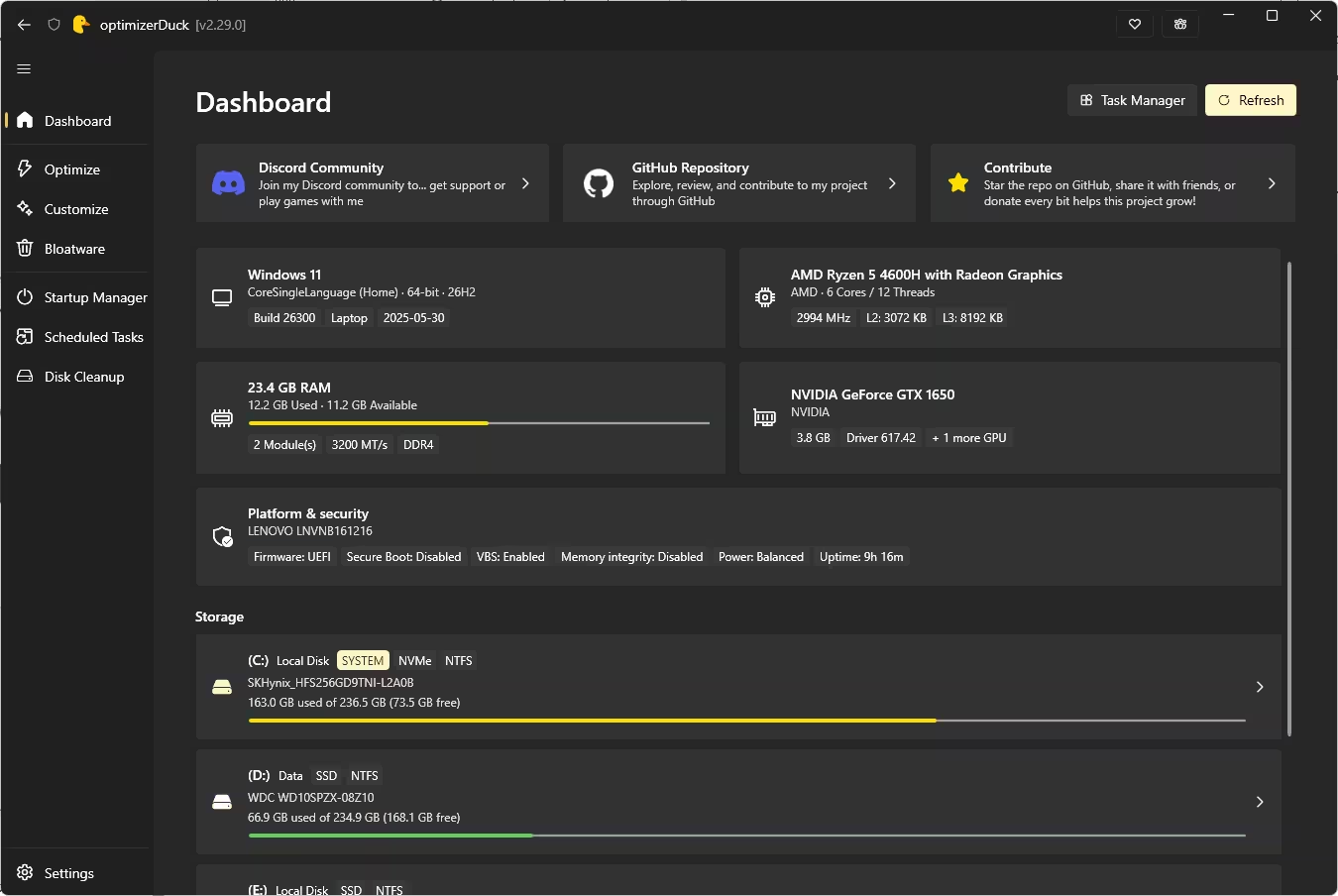
optimizerDuck-Windows-x64for most PCs andoptimizerDuck-Windows-arm64for Snapdragon and other ARM machines. - Full edition names on the dashboard. The System card now shows the exact Windows edition ID next to the family name. On our test laptop it correctly read CoreSingleLanguage (Home).
- Persian translation. The app is now available in Persian, bringing the language list to 18.
How We Tested optimizerDuck
We ran optimizerDuck v2.29.0 (x64) in November 2026 on this Lenovo laptop, as reported by the app’s own dashboard:
| Component | Test system |
|---|---|
| Operating system | Windows 11 Home Single Language (CoreSingleLanguage), 64-bit, 26H2, build 26300 |
| CPU | AMD Ryzen 5 4600H with Radeon Graphics (6 cores / 12 threads) |
| GPU | NVIDIA GeForce GTX 1650 (driver 617.42) plus integrated Radeon graphics |
| Memory | 23.4 GB usable, DDR4-3200 (2 modules) |
| Storage | 256 GB SK Hynix NVMe system drive, plus additional SSD storage |
Our testing focused on the app’s features, Windows settings, hardware detection and maintenance tools. We did not run controlled before-and-after CPU, GPU or gaming benchmarks, so we can’t put a number on any performance gain.
Key Features of optimizerDuck
1. Optimize: 42 Tweaks Across 7 Categories
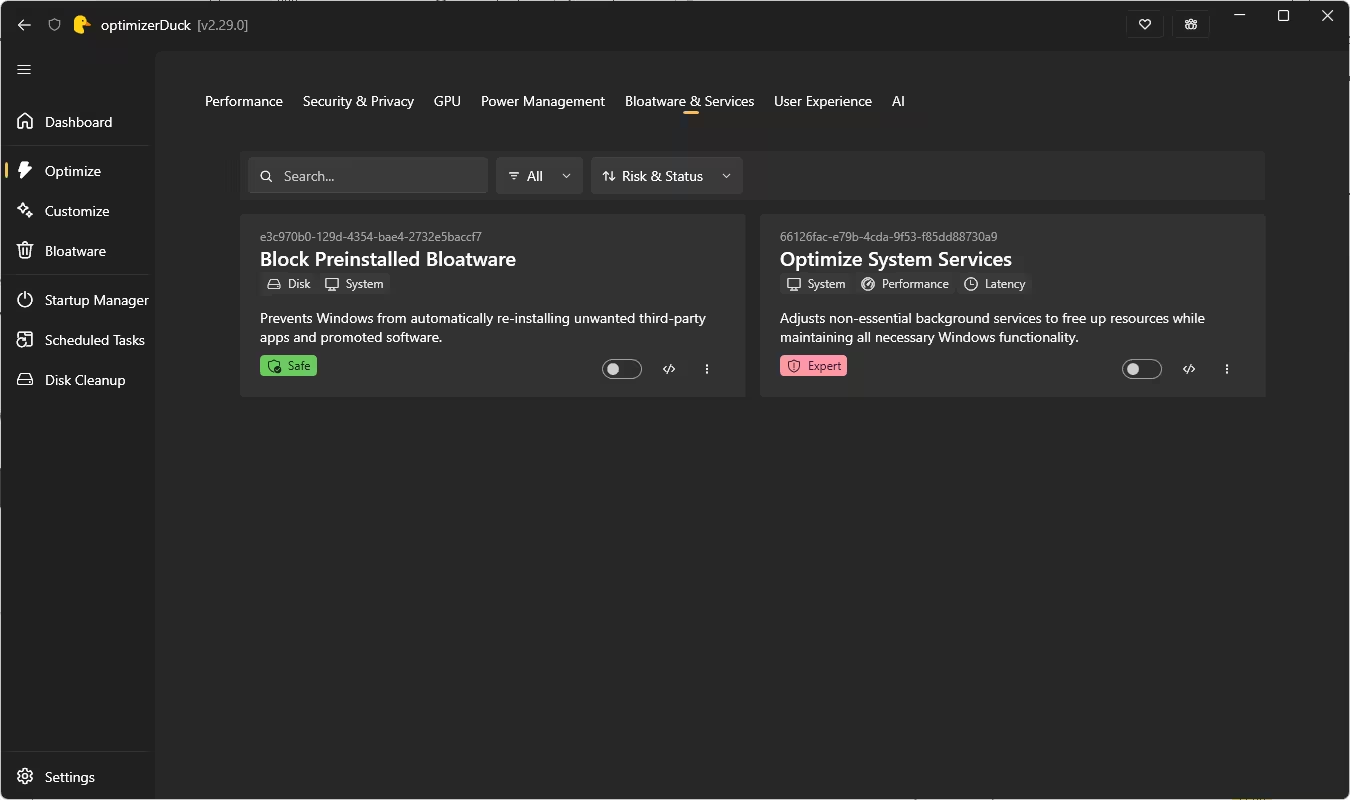
The Optimize section is the heart of the app. According to the developer, it holds 42 tweaks split into seven tabs: Performance, Security & Privacy, GPU, Power Management, Bloatware & Services, User Experience and AI. Each tweak appears as a card with a short description, tags such as System, Performance or Latency, a risk badge, an on/off toggle and a </> code button for viewing the underlying change.
Some of the tweaks we saw during testing:
- Performance: Prioritize Active Applications, Optimize Multimedia Scheduler (MMCSS), Optimize Keyboard Repeat, Disable Background Apps, Consolidate Service Hosts and Lift WebDAV 50 MB limit.
- Security & Privacy: Disable Ads and Suggestions, Disable News & Interests (and the Widgets board on Windows 11), Disable Activity History, Disable Location and Sensors, and Disable Cloud Content Delivery.
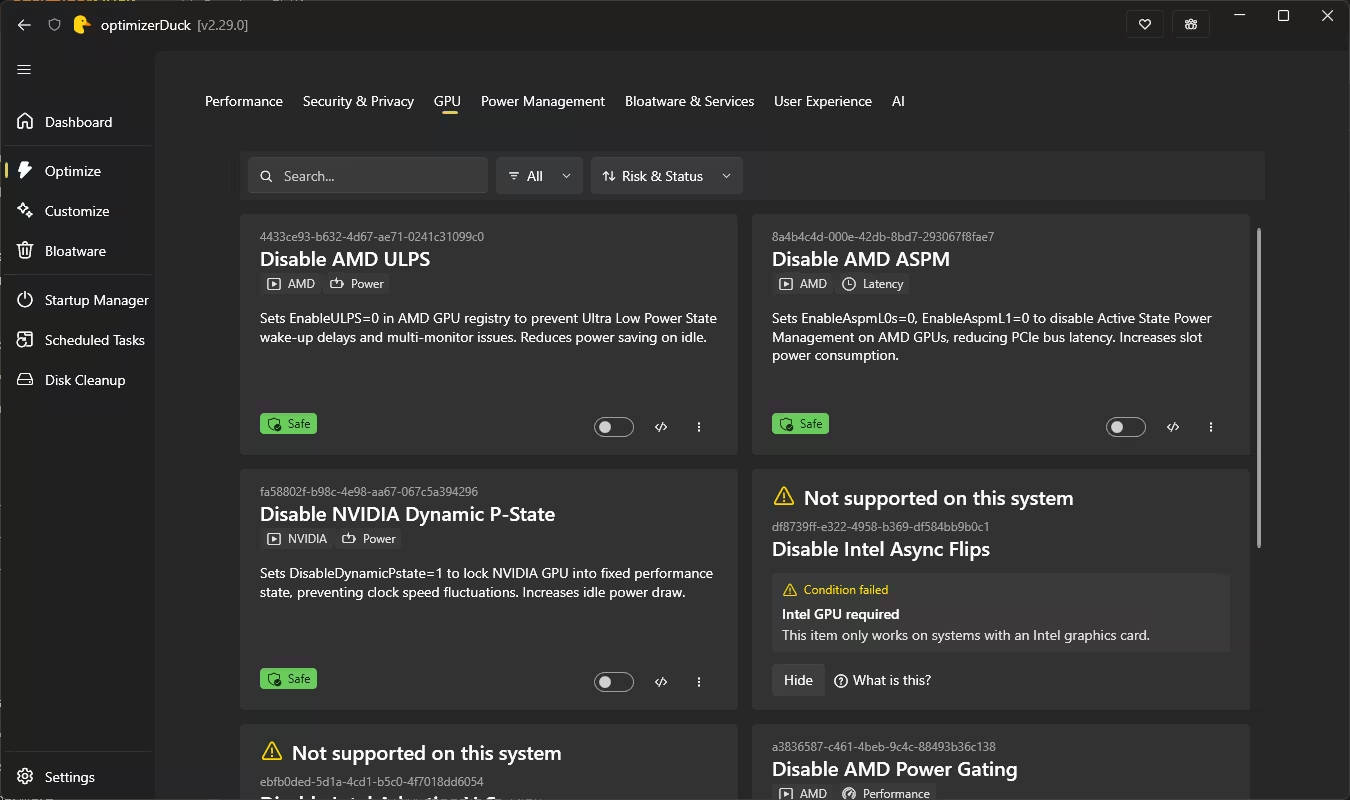
- GPU: Vendor-specific registry tweaks such as Disable AMD ULPS, Disable AMD ASPM, Disable AMD Power Gating and Disable NVIDIA Dynamic P-State.
- Power Management: Disable USB Power Saving, Apply Optimized Power Plan, Disable System Power Throttling, and Disable Hibernation & Fast Startup.
- Bloatware & Services: Block Preinstalled Bloatware and Optimize System Services.
- User Experience: Speed Up Explorer & Menus, Disable Visual Effects, Disable Start Menu Web Search, Hide Recommended Section in Start, Disable Microsoft 365 Ads in Settings and Maximize update pause limit.
- AI: Disable Click To Do and Disable Windows Recall.
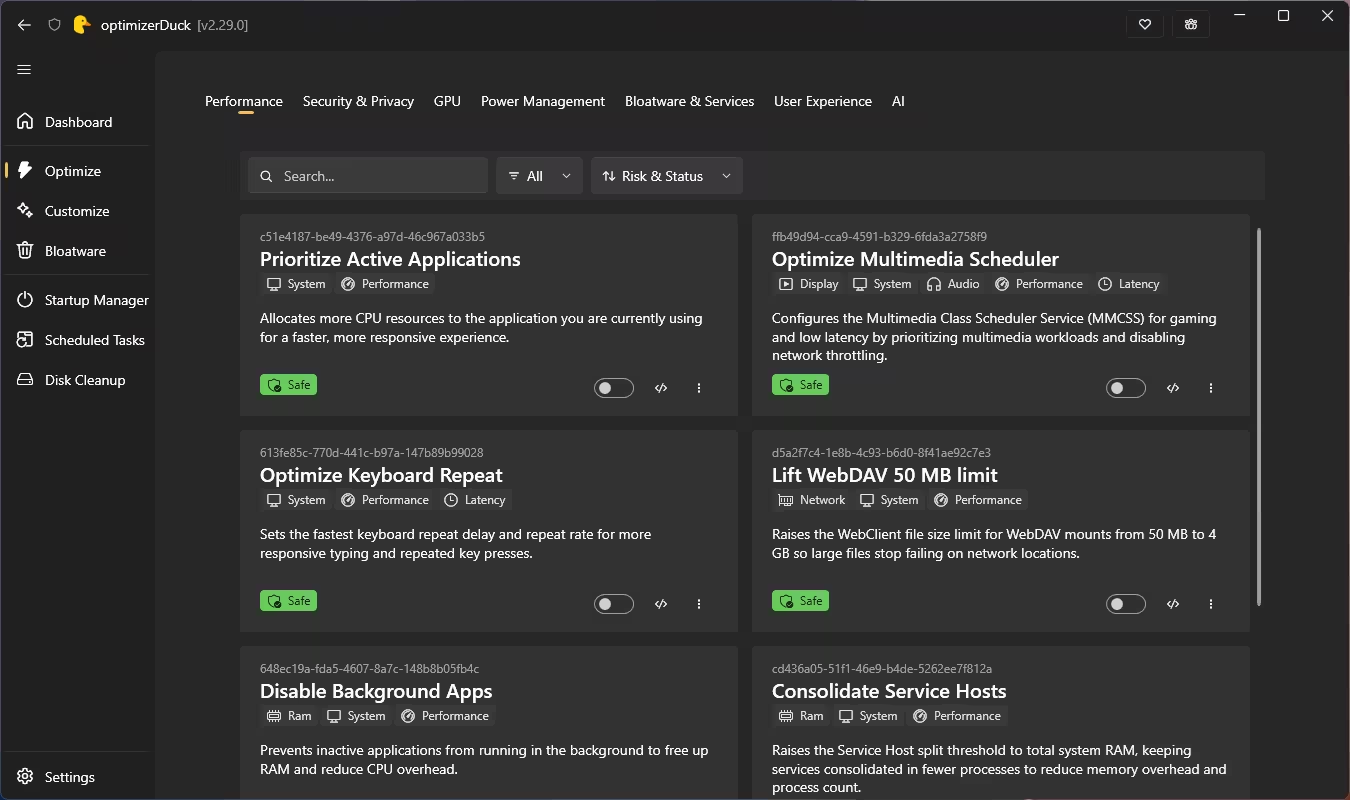
Two details stood out in our testing. First, the app is hardware- and version-aware. On our AMD + NVIDIA laptop, Intel-only GPU tweaks were greyed out with a “Not supported on this system – Intel GPU required” notice. The Windows 10-only “Hide Meet Now Button” was flagged the same way, and Disable Windows Recall was marked unsupported because our PC lacks the Windows AI components Recall needs. Each of these cards has a Hide button to clear it from view.
Second, the risk badges are genuinely useful. Most tweaks are labelled Safe, Disable Hibernation & Fast Startup is marked Caution, and Optimize System Services carries a red Expert badge. The Optimized Power Plan card even warns that Task Manager may wrongly show 100% CPU usage on some systems; the developer confirms this is a display bug and actual CPU load is unaffected.
2. Customize: 44 Windows Settings in One Place
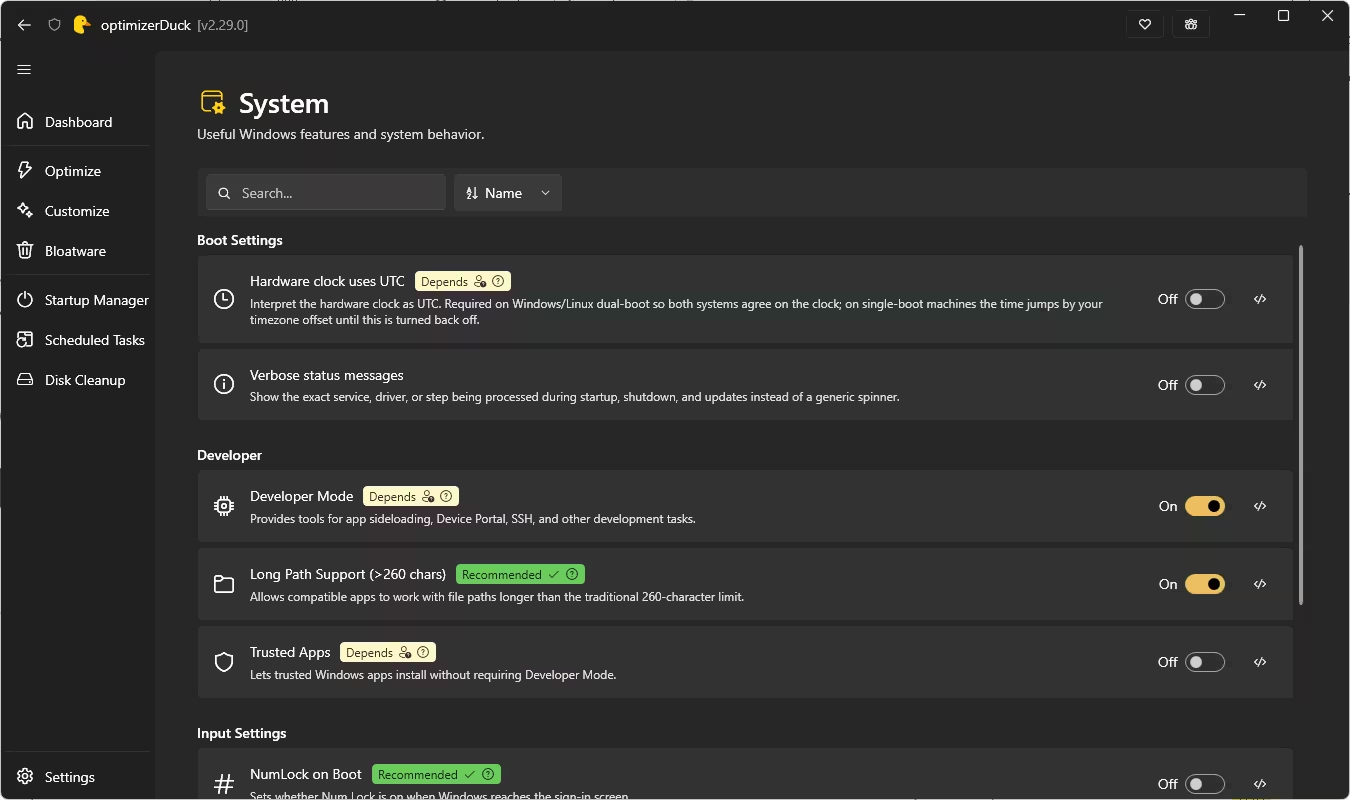
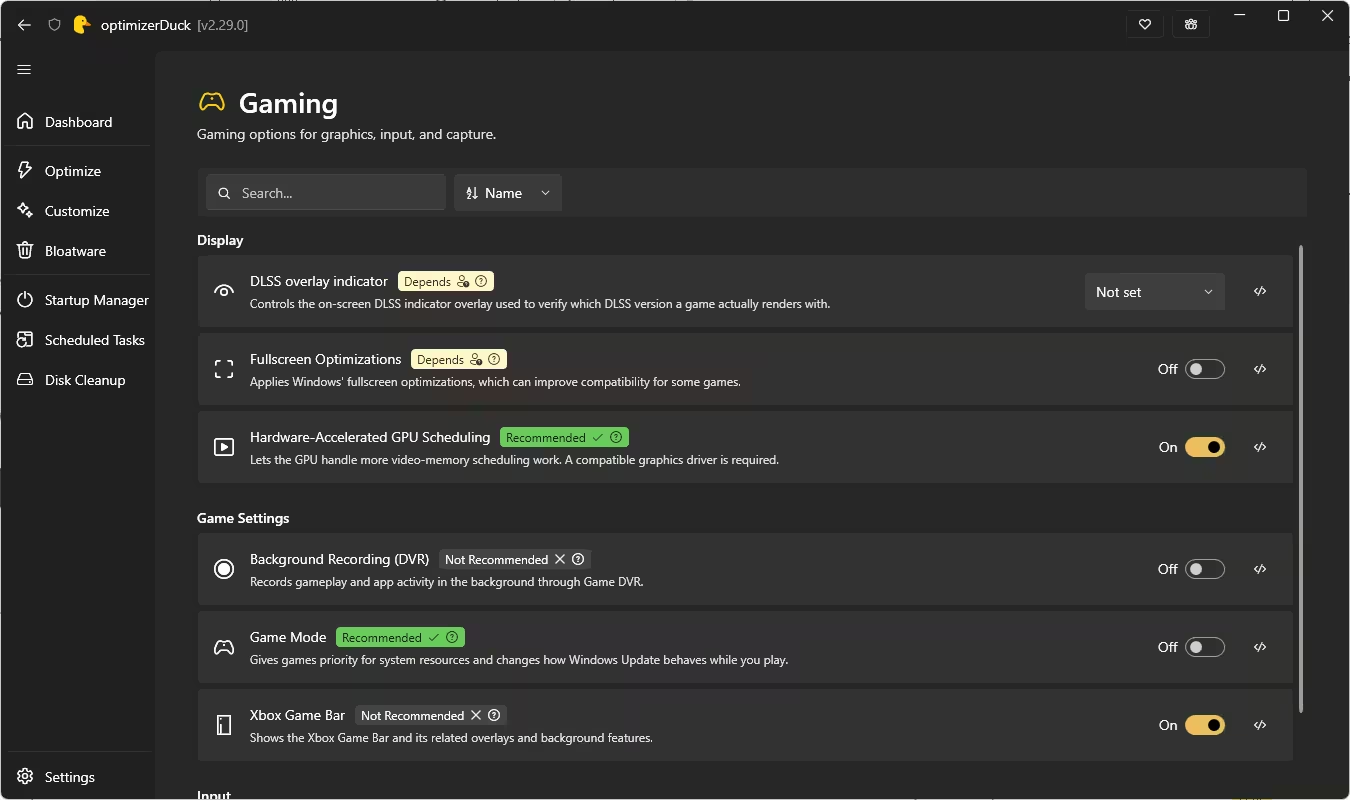
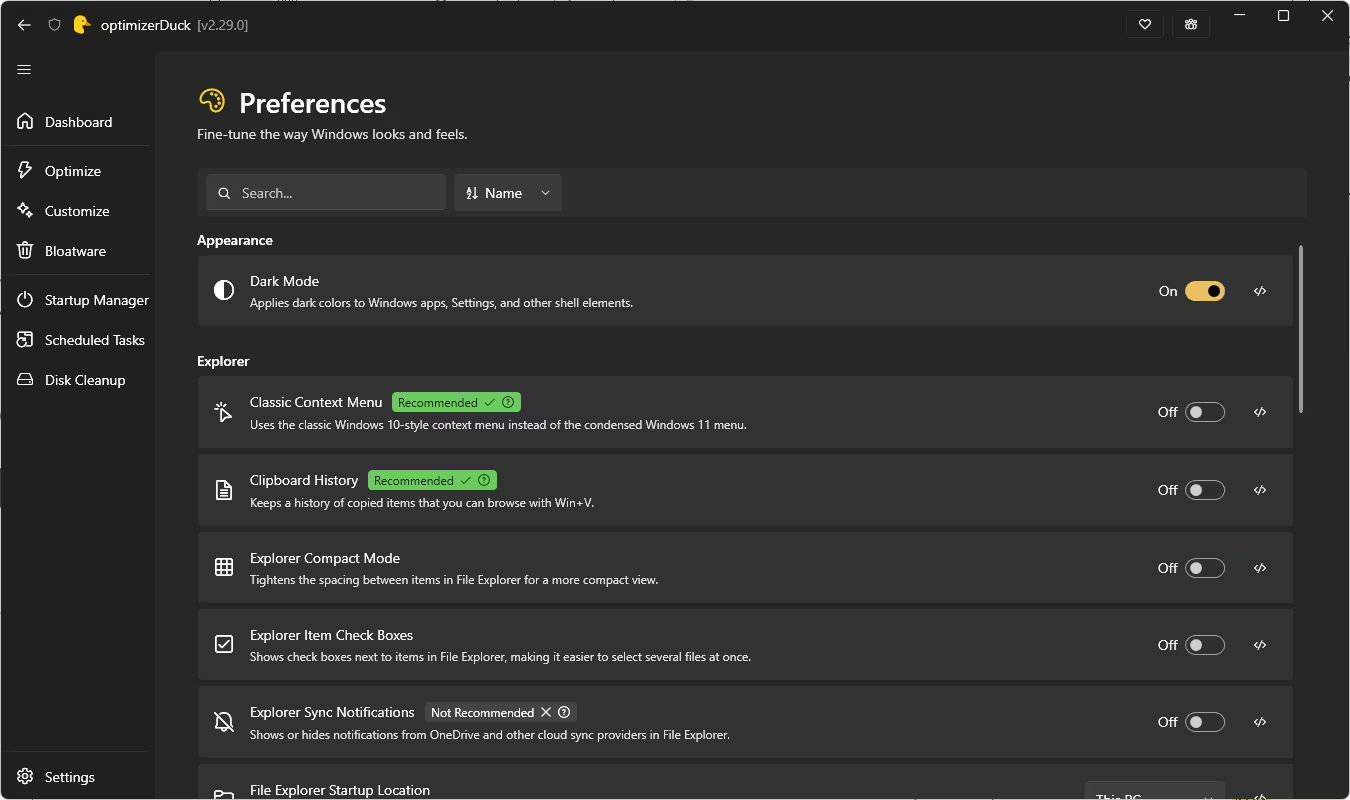
The Customize section groups 44 settings into four areas: System, Desktop, Preferences and Gaming. Unlike the Optimize cards, these toggles reflect your current Windows settings, so some may already be on. On our laptop, Dark Mode, Hardware-Accelerated GPU Scheduling, Xbox Game Bar and Developer Mode were already enabled before we changed anything. Each setting also carries a recommendation badge: Recommended, Depends or Not Recommended.
- Desktop: Show or hide Control Panel, Network, Recycle Bin, This PC and User Files icons, hide all desktop icons, and remove the shortcut arrow.
- Preferences: Dark Mode, Classic Context Menu, Clipboard History, Explorer Compact Mode, item check boxes, sync notifications and the File Explorer startup location.
- Gaming: DLSS overlay indicator, Fullscreen Optimizations, Hardware-Accelerated GPU Scheduling, Background Recording (DVR), Game Mode and Xbox Game Bar.
- System: Hardware clock uses UTC (for Windows/Linux dual-boot), verbose status messages, Developer Mode, Long Path Support, Trusted Apps and NumLock on Boot.
This is handy because many of these options are buried in different places in Windows Settings, or need a Registry edit. The “Hardware clock uses UTC” toggle is a good example: it comes with a clear warning that the clock will jump by your timezone offset on single-boot machines.
3. Bloatware Remover
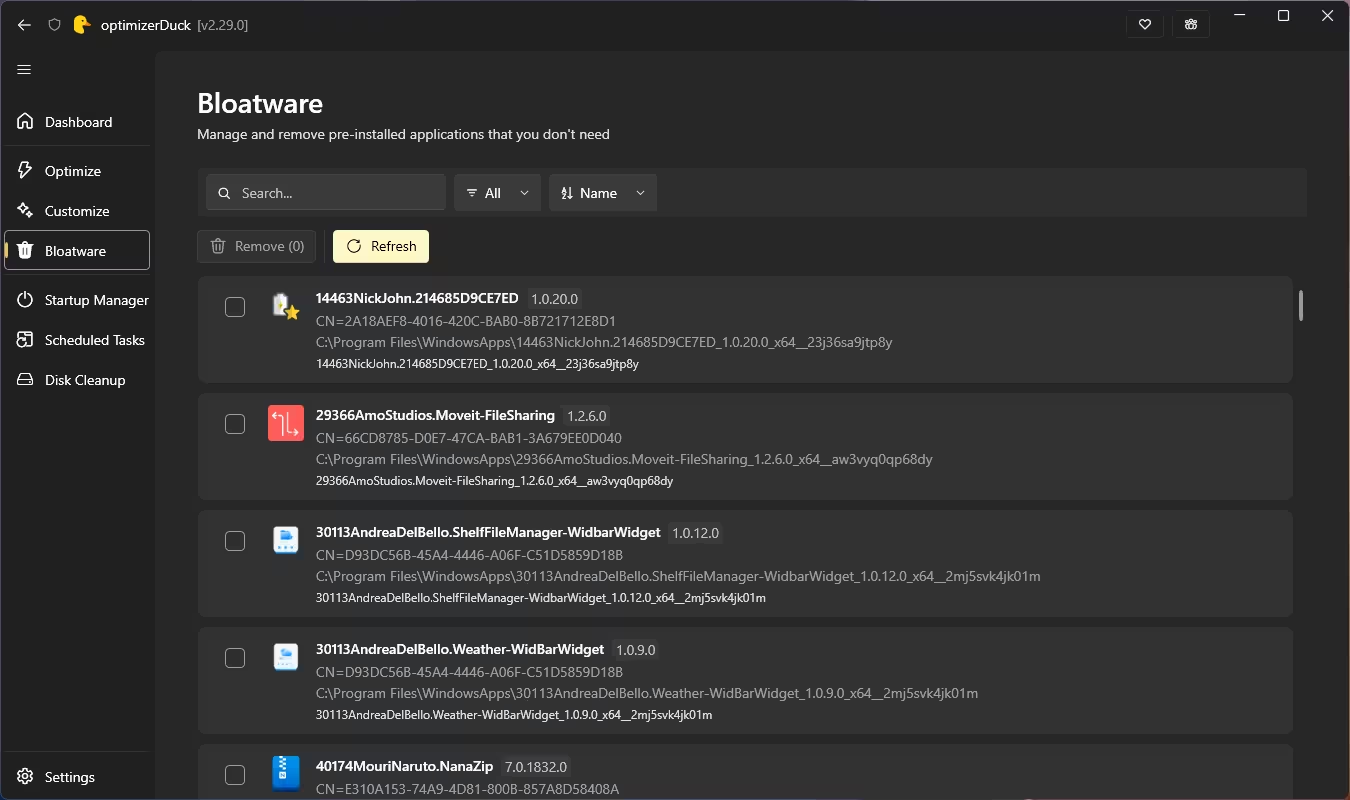
The Bloatware page lists every removable AppX package on your PC, with its publisher certificate, install path and version. You can search, filter and sort the list, tick the apps you want gone, and remove them in one go.
In Settings, Remove Provisioned packages was switched on by default in our copy. That means removing an app also removes its provisioned package, so Windows won’t reinstall it for new user accounts.
⚠️ Read before you tick: The list isn’t limited to Microsoft or OEM bloat. On our test PC it also showed Store apps we had installed ourselves, such as NanaZip and a couple of widget apps. Check each name before removing anything. Treat removals as permanent: optimizerDuck’s tweak rollback doesn’t put apps back, so you’d have to reinstall them from the Microsoft Store.
4. Startup Manager
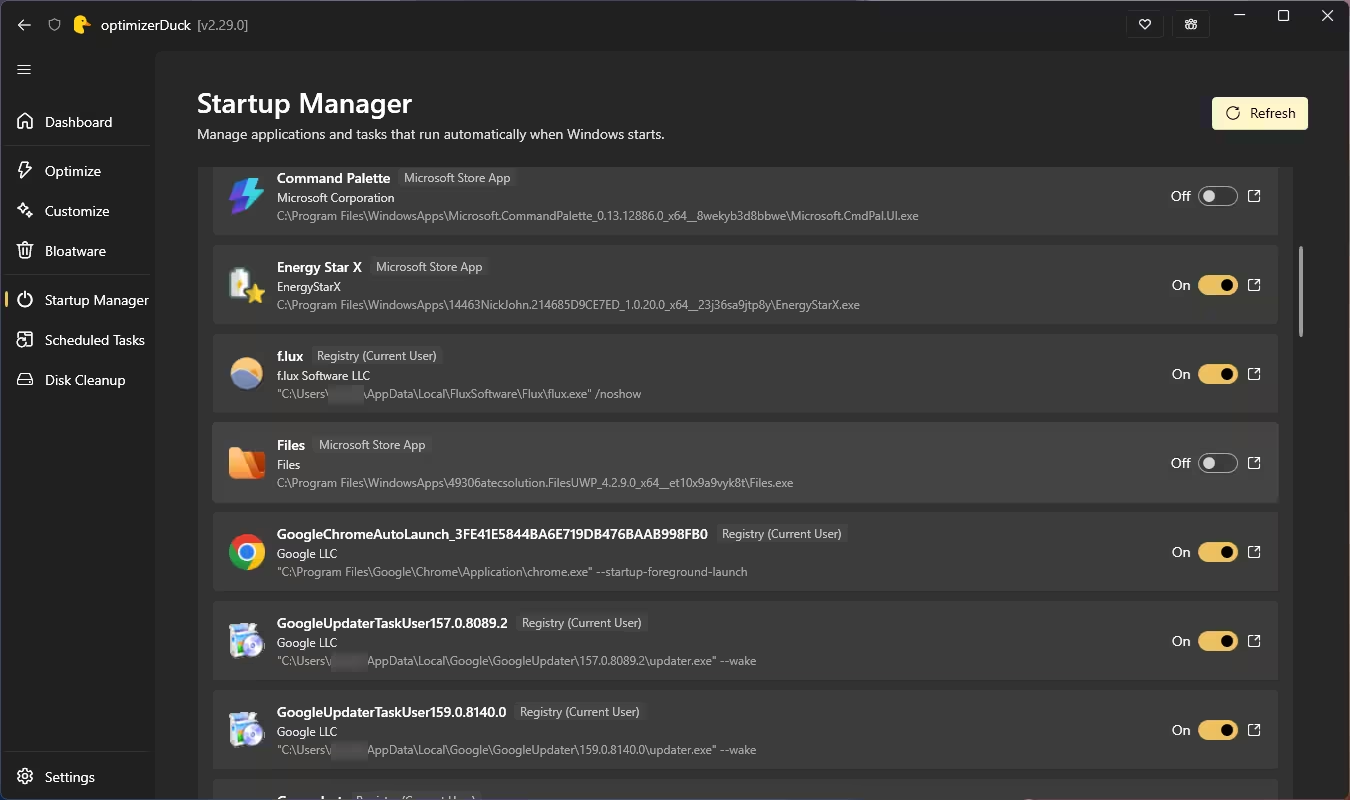
Startup Manager shows every app that launches with Windows, whether it’s a Microsoft Store app or a Registry entry, along with the publisher and full path. Each item has an on/off toggle and a button to open its file location. On our laptop it surfaced two separate Google Updater entries, which is exactly the kind of clutter this view is good at exposing.
5. Scheduled Tasks Manager
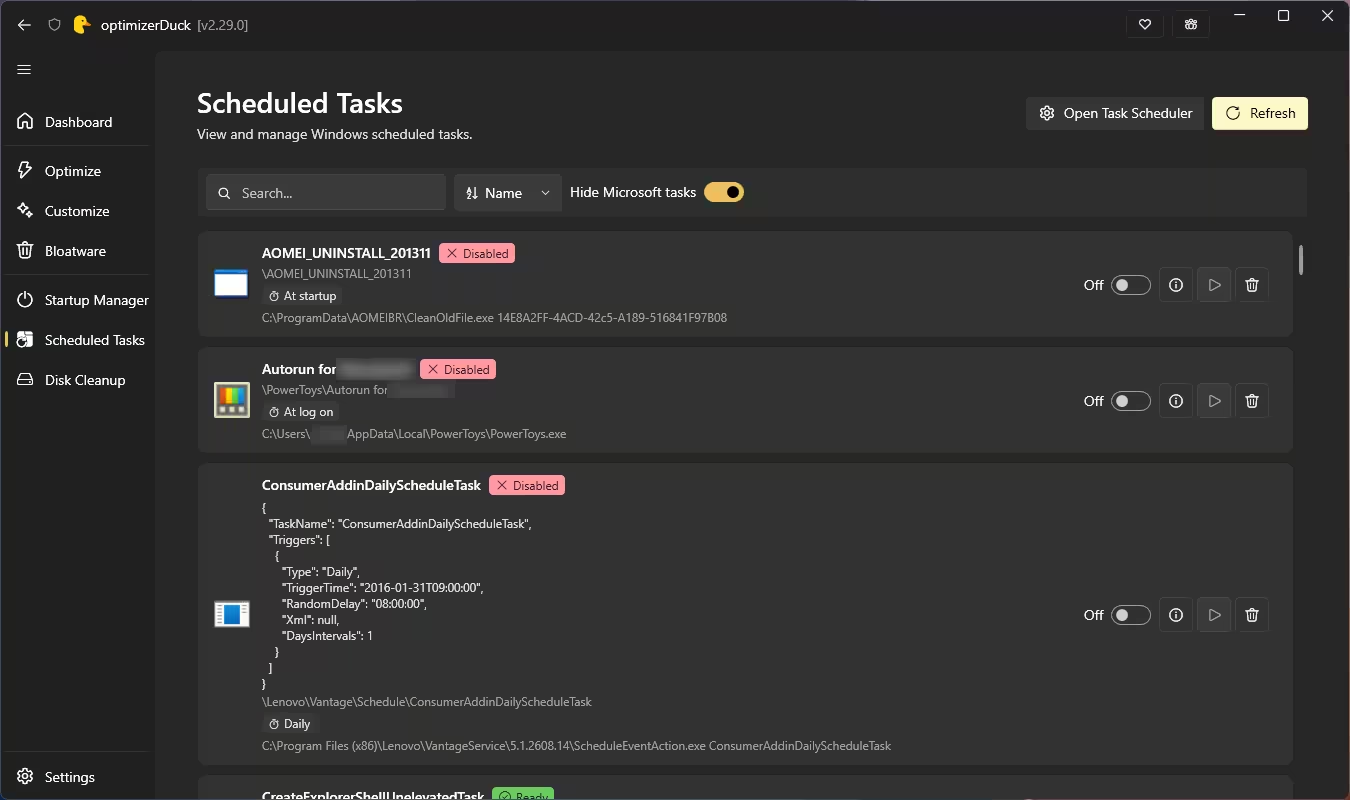
The Scheduled Tasks page lets you browse, run, enable, disable or delete Windows scheduled tasks. A Hide Microsoft tasks toggle filters out system tasks, so you can focus on what third-party software has quietly added, such as OEM utilities and updaters. Each task shows its trigger (at startup, at log on, daily) and the program it runs. Disabling a task is easy to undo, but deleting one is not, so disable first if you’re unsure.
6. Disk Cleanup
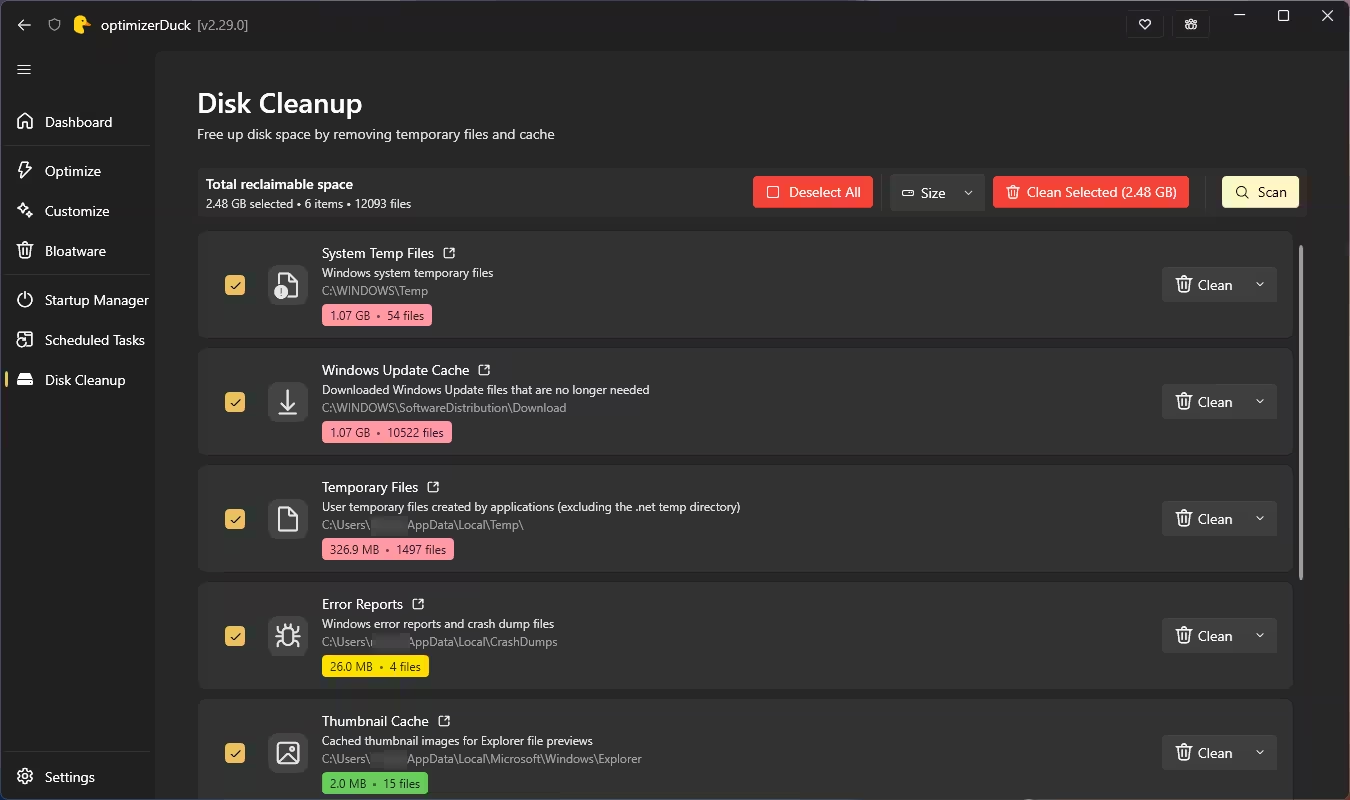
Disk Cleanup scans for temporary files, system cache, Windows Update leftovers, prefetch data, thumbnails, crash dumps, the Recycle Bin and old Windows installations. On our test laptop, a single scan found 2.48 GB of reclaimable space across six categories, mostly System Temp Files (1.07 GB) and Windows Update Cache (1.07 GB). Each category shows its folder path, size and file count, and can be cleaned individually or all at once.
7. System Dashboard
The Dashboard gives a one-glance summary of your hardware and Windows setup: OS edition and build, CPU, RAM modules and speed, GPUs and driver version, firmware type, Secure Boot, VBS, Memory Integrity, power plan, uptime and every storage drive. It correctly identified everything on our Lenovo laptop, including the AMD Ryzen 5 4600H, GeForce GTX 1650 and both SSDs.
Is optimizerDuck Safe?
Any tool that edits the Registry and Windows services deserves some caution. Here is what optimizerDuck does to reduce the risk:
- No optimizations are applied automatically. Optimize tweaks stay off until you enable them. (The Customize section simply shows your current Windows settings.)
- Revert files for optimization tweaks. The developer says each tweak writes a revert file to
%LocalAppData%\optimizerDuck\Revert\, so you can undo one tweak or everything. This doesn’t cover removed apps, deleted scheduled tasks or cleaned files. - Restore point prompt. The app suggests creating a Windows restore point before your first optimization.
- Open source and built in public. The code is GPL v3, and releases are built by GitHub Actions from the public source.
- No telemetry. The developer states the app collects no usage data and works offline.
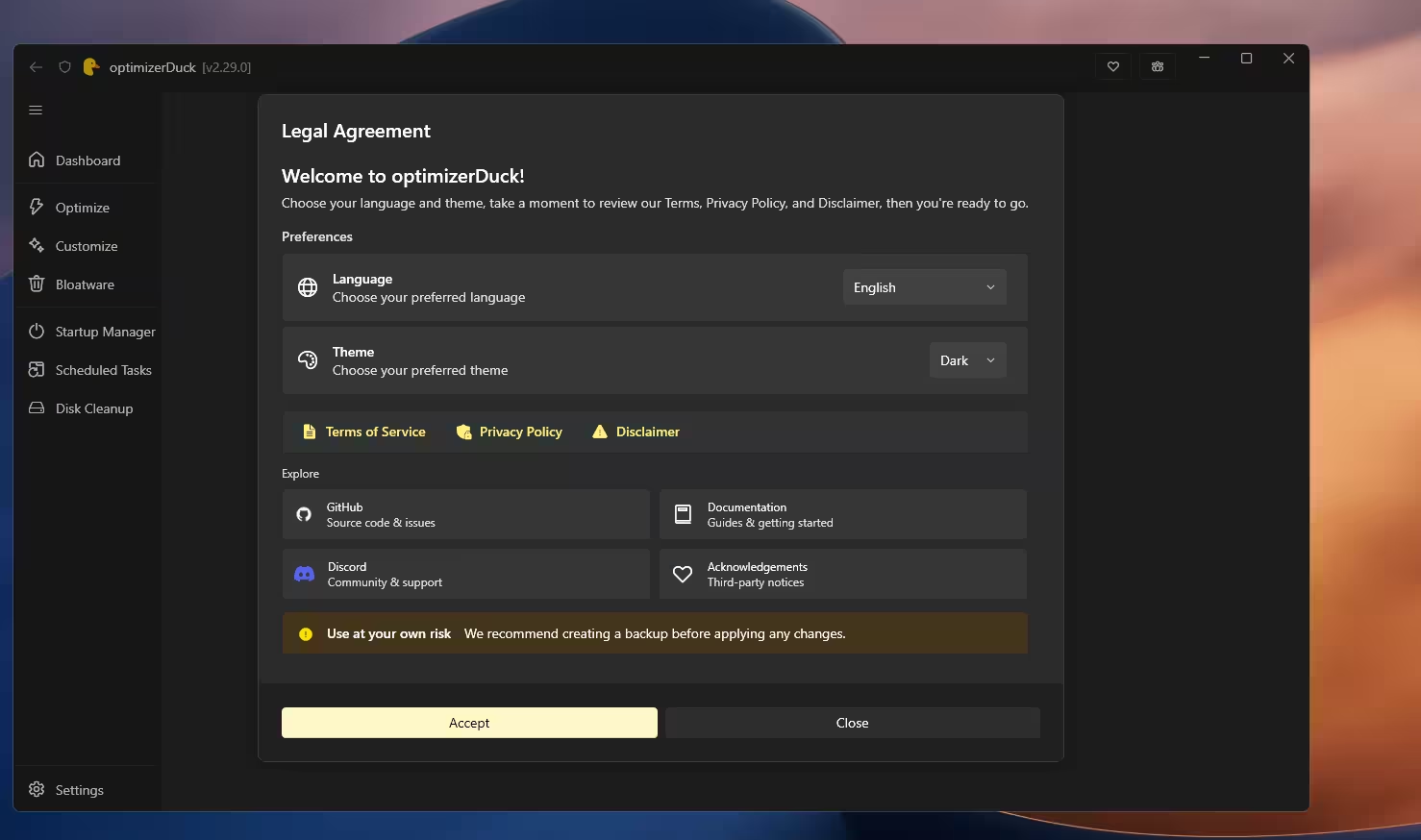
On first launch you’ll also see a Legal Agreement screen where you pick your language and theme and accept the Terms, Privacy Policy and Disclaimer. It includes a clear “Use at your own risk” note recommending a backup first, which is good advice for any tweaking tool.
⚠️ About the SmartScreen warning: optimizerDuck isn’t code-signed, so Windows SmartScreen and some antivirus tools may warn you when you run it. The developer explains that signing certificates are expensive for open-source projects. Being open source makes the code transparent, but neither that nor the explanation guarantees any particular download is clean. Get the EXE only from the official GitHub releases or download page, scan it with your antivirus or VirusTotal, and only then click More info → Run anyway. Cautious users can also build it from source.
System Requirements
| Item | Details |
|---|---|
| Operating system | Windows 10 and Windows 11 |
| Architecture | x64 (most PCs) and ARM64 (Snapdragon and other ARM PCs) |
| Permissions | Administrator rights required |
| Installation | None – runs as a single portable EXE |
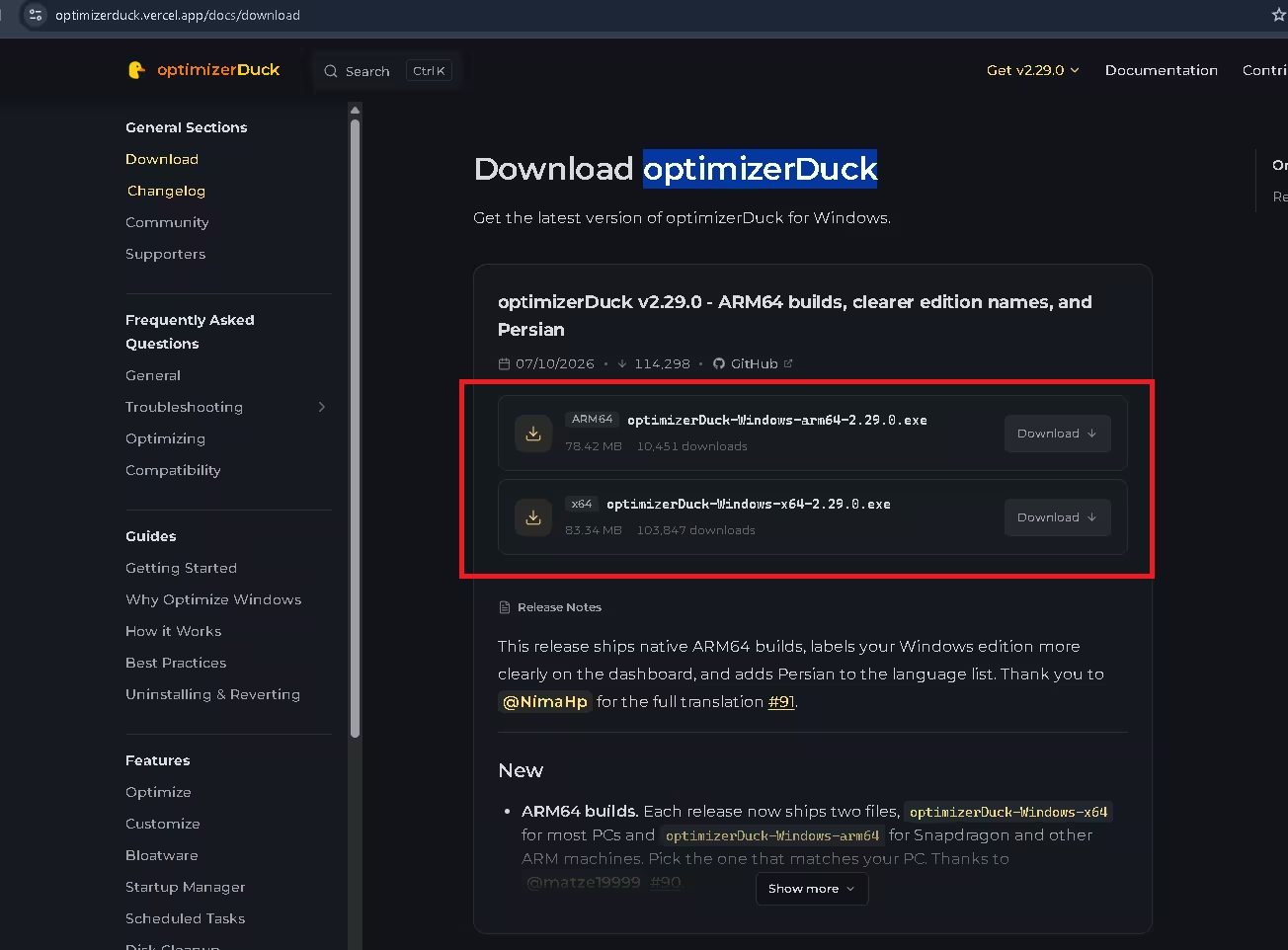
| Download size (v2.29.0) | 83.34 MB (x64) · 78.42 MB (ARM64) |
| Languages | 18, including English, Spanish, French, German, Japanese, Arabic and Persian |
| License | GPL v3 (free and open source) |
How to Download and Use optimizerDuck
- Create a restore point. Search for “Create a restore point” in the Start menu and make one before you change anything.
- Download the right file. Open the official download page and choose
optimizerDuck-Windows-x64-2.29.0.exefor most Intel/AMD PCs, oroptimizerDuck-Windows-arm64-2.29.0.exefor Snapdragon and other ARM laptops. - Run it as administrator. No installation is needed. Scan the file first; if SmartScreen then appears, click More info → Run anyway.
- Accept the agreement. Pick your language and theme on the first-launch screen and click Accept.
- Apply tweaks one tab at a time. Start with tweaks marked Safe or Recommended, read each description, and leave Expert items alone unless you know what they do.
- Clean up. Use Startup Manager, Scheduled Tasks, Bloatware and Disk Cleanup to trim what you don’t need.
- Restart your PC. Some optimizations only take full effect after a reboot.
Tip from the developer: The best time to run optimizerDuck is right after a fresh Windows install, once you’ve installed all drivers, Windows Updates (including optional ones), Microsoft Store app updates and your usual software. Big Windows feature updates can reset some settings, so re-apply your tweaks afterwards.
Useful Settings Worth Knowing
The Settings page includes a few options that are easy to miss:
- Clear all revert data – wipes rollback files. Only use this once you’re sure you won’t need to undo anything.
- Clear downloads – deletes files the app downloaded while applying optimizations.
- Open root directory – opens the folder where the app keeps its data.
- Shell service timeout – set to 120,000 ms by default, with a warning not to change it unless you know exactly what you’re doing.
- Show completion notification – pops up a notification when tweaks are applied or reverted.
optimizerDuck vs Winhance
Winhance is the other popular free, open-source Windows enhancement tool. Here’s how the two compare based on each project’s published features (optimizerDuck README, Winhance documentation and Winhance on GitHub):
| Feature | optimizerDuck | Winhance |
|---|---|---|
| Price / license | Free, open source | Free, open source |
| Optimizations & privacy tweaks | Yes, with risk labels | Yes |
| Bloatware removal | Yes | Yes |
| Startup, scheduled tasks & disk cleanup tools | Built in | Not its focus |
| Software installer (WinGet) | No | Yes |
| Save / import config files | Not advertised | Yes |
| Install style | Portable EXE only | Installable or portable |
In short, Winhance is better if you set up many PCs and want reusable configs or app installs. optimizerDuck is the better pick if you want a tidy, all-in-one maintenance app with clear risk guidance for a single PC.
Pros and Cons
👍 Pros
- Completely free and open source, with no telemetry
- Portable – no installation
- Clear risk and recommendation badges on every item
- Detects your hardware and hides tweaks that don’t apply
- Rollback option for optimization tweaks
- Startup, scheduled tasks and disk cleanup tools built in
- Native ARM64 build and 18 languages
👎 Cons
- Unsigned EXE triggers SmartScreen warnings
- Bloatware list mixes in apps you installed yourself
- Large Windows updates can undo some tweaks
- Fairly large download (about 83 MB) for a portable tool
- Needs administrator rights
Frequently Asked Questions
Is optimizerDuck free?
Yes. optimizerDuck is completely free and open source under the GPL v3 license. There are no paid tiers, ads or locked features. You can support the developer through a donation if you wish.
Is optimizerDuck a virus?
We found no evidence in our review that optimizerDuck is malicious, but we cannot certify the downloaded executable as virus-free. Its source code is publicly available on GitHub, and the developer says releases are built automatically. Windows SmartScreen or antivirus software may flag it because the EXE isn’t code-signed. Download the executable only from official sources, check its hash if one is published, and scan it before running.
Does optimizerDuck work on Windows 10?
Yes. It supports both Windows 10 and Windows 11 on x64 and ARM64 PCs. Tweaks that only apply to one version are labelled, and the app tells you when an item isn’t supported on your system.
Will optimizerDuck increase my FPS?
Don’t expect miracles. The developer is upfront that it won’t double your FPS. The goal is to cut background activity and latency so your hardware performs more consistently. Results depend on your PC; we didn’t run gaming benchmarks for this review.
How do I undo changes made by optimizerDuck?
Turn the tweak’s toggle off to revert it. The app stores revert data for each optimization tweak. Removed apps, deleted scheduled tasks and cleaned files can’t be restored this way, so create a Windows System Restore point before your first change.
Does optimizerDuck need to be installed?
No. It’s a portable app that runs as a single EXE file. You just need to run it with administrator rights.
Review details: Tested version optimizerDuck 2.29.0 (x64) · Tested November 2026 · Windows 11 Home laptop (Ryzen 5 4600H, GTX 1650) · Hands-on feature and functionality evaluation · Performance benchmarks not conducted.
✅ Techno360 Verdict
optimizerDuck is one of the most polished free Windows optimizers we’ve tried. It covers tweaks, customization, debloating, startup control, scheduled tasks and disk cleanup in one clean, portable app, and it labels the risk of each tweak before you apply it. The hardware-aware cards that hide irrelevant tweaks are a thoughtful touch many rivals lack.
Stick to the Safe and Recommended items, create a restore point first, and read the bloatware list carefully. Do that, and optimizerDuck is an easy recommendation for anyone setting up or cleaning up a Windows 10 or 11 PC.
Discover more from Techno360
Subscribe to get the latest posts sent to your email.
