
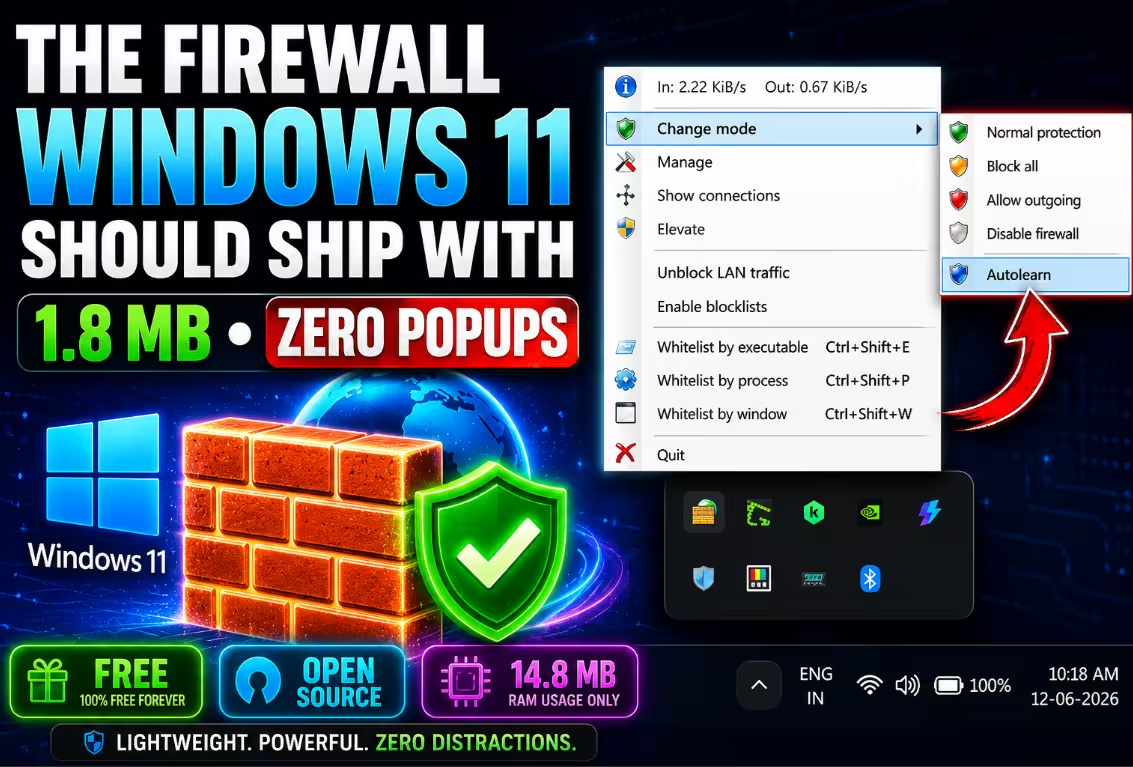
🛡️ Hands-On Review · Updated June 2026
TinyWall Review: The 1.8 MB Firewall That Killed Every Popup on My Windows 11 PC
I installed TinyWall 3.5.1 the week it launched, ran it alongside my daily workload, and watched Task Manager like a hawk. Here’s what a firewall weighing less than a single photo actually does — and the one catch nobody tells you about.
⚡ Quick Read — TinyWall in 30 Seconds
- What it is: A free, open-source controller that supercharges the firewall already built into Windows — it adds a brain, not another engine.
- The hook: Zero popups. Ever. Everything is blocked by default; you whitelist what you trust in two clicks.
- Footprint: Under 2 MB to download, and just 14.8 MB of RAM in our Task Manager test — lighter than a single browser tab.
- Best feature: Autolearn mode builds your whitelist automatically while you work.
- Bonus armor: Optional malware/ad blocklists plus Hosts file protection.
- The catch: Secure-by-default means your apps lose internet until you approve them — a 10-minute setup ritual.
- Verdict: 4.5/5 — the best free firewall for Windows 11 users who hate noise.
Most “security software” wants your attention. It pops up, it nags, it begs you to upgrade to Pro. TinyWall does the exact opposite — it wants you to forget it exists. That single design decision, made by Hungarian developer Károly Pados back in 2011, is why TinyWall has quietly survived fifteen years while flashier firewalls came and went. And with version 3.5.1 released on June 7, 2026, it’s still actively maintained, still completely free, and still refuses to show you a single popup.
We put it through a full week of real-world testing on a Windows 11 machine. Here’s everything you need to know before you install it — including the one behavior that confuses almost every first-time user.
What Exactly Is TinyWall? (And What It Isn’t)
Here’s the clever part most reviews gloss over: TinyWall isn’t really a firewall at all. It’s a control layer for the Windows Defender Firewall that already ships with your PC.
Windows’ built-in firewall engine is genuinely excellent — fast, kernel-level, battle-tested by Microsoft for two decades. Its problem has never been the engine; it’s the cockpit. Try manually blocking a single program through Windows’ own interface and you’ll be six menus deep, staring at inbound rules, outbound rules, and protocol dropdowns that assume you have a networking degree.
TinyWall replaces that cockpit with a tiny tray icon and a right-click menu. Because it reuses the Windows engine for the heavy lifting:
- No kernel drivers are installed — so it can’t blue-screen your system or conflict with antivirus software the way traditional third-party firewalls sometimes do.
- Performance impact is essentially zero — the filtering was already happening; TinyWall just changed the rules.
- It tamper-proofs the firewall — malware that tries to silently punch holes in Windows Firewall rules gets stopped, because TinyWall locks the configuration down and can even password-protect it.
- No telemetry, no data collection, no ads — it’s GPL open source, with the full code on GitHub.
TinyWall 3.5.1 at a Glance
| Specification | Details |
|---|---|
| Latest version | 3.5.1 (released June 7, 2026) |
| Price | 100% free (donationware, GPLv3 open source) |
| Download size | Under 2 MB |
| RAM usage (our test) | 14.8 MB |
| OS support | Windows 11 & 10 — x86, x64 and ARM |
| Kernel drivers | None — uses built-in Windows Firewall engine |
| Popups / alerts | Zero, by design |
| Developer | Károly Pados (since 2011) |
A Philosophy Built to Cure “Security Fatigue”
Almost every firewall you’ve ever used follows the same script: a program tries to reach the internet, a window leaps onto your screen, and you’re asked to play judge — Allow or Block? It feels protective for the first day. By day three, you’re approving connection requests on autopilot just to make the interruptions stop.
Security researchers have a name for this: security fatigue — the point where users are so worn down by alerts that they wave everything through without reading. The firewall is still technically working; the human operating it has checked out. Which means the protection is gone.
TinyWall’s answer is radical: remove the question entirely. Nothing pops up, ever. Instead, every app starts with zero network access, and the only signal you get is the absence of internet in an app that needs it. When that happens, you decide — calmly, deliberately — whether it deserves a spot on the whitelist. The judgment moment moves from “annoyed reflex” to “conscious choice,” and that flip is the whole product.
Installation: 60 Seconds, One Warning
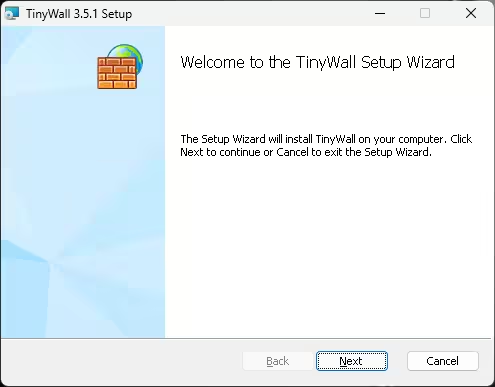
Grab the installer from the official TinyWall download page — it’s an MSI file under 2 MB, which is almost comically small in 2026. It runs on Windows 10 and Windows 11 across x86, x64, and even ARM machines, so Snapdragon laptop owners aren’t left out. The wizard asks nothing beyond the install location: no bundled junk, no account creation, no email harvesting.
Once installed, TinyWall doesn’t open a window or splash screen. It simply appears as a small brick-wall icon in your system tray — and that icon is the entire app. Right-click it and you’ll find everything: protection modes, whitelist shortcuts, live traffic stats, and the settings window.
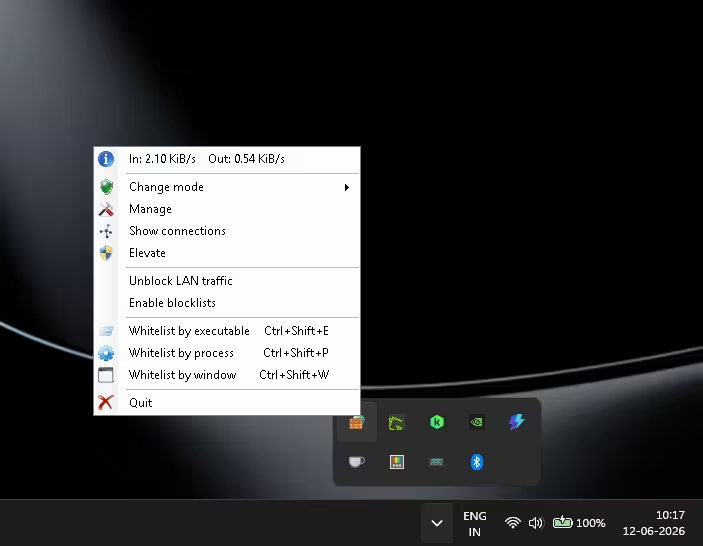
Need the full settings? Click Manage in that menu. The window that opens is organized into four straightforward tabs — General (software options and blocklists), Application Exceptions (your whitelist), Special Exceptions (predefined system rules), and Maintenance (backups and updates).
The “Everything Is Blocked” Moment (Don’t Panic)
Here’s where most new users have a small heart attack, so let’s get ahead of it. The moment TinyWall goes live in its default Normal Protection mode, nearly all outgoing connections are blocked except a core set of Windows services and whatever TinyWall recognized during setup.
Your browser might work (TinyWall auto-detects popular ones like Chrome, Firefox, and Edge), but Steam, Spotify, your email client, your cloud backup tool — silence. This is not a bug. This is the entire philosophy: deny by default, allow by exception.
Nothing gets out unless you explicitly put it on the guest list. And adding apps to that guest list is genuinely effortless. You get three keyboard-shortcut-powered whitelist methods straight from the tray menu:
filezilla.exe isn’t enough, because SFTP transfers run through a separate fzsftp.exe that also needs an exception. So if an app stays partially broken after you’ve allowed it, hunt for its helper executables before blaming TinyWall.Each whitelisted app takes about three seconds. But if even that sounds tedious, TinyWall has a smarter trick up its sleeve.
Autolearn Mode: The Feature That Sells the Whole App
This is, in our testing, the killer feature — and the right way to set up TinyWall on day one. Autolearn mode temporarily allows all traffic while silently watching which applications use the network. Every connection it observes becomes an automatic exception. When you switch back to Normal protection, the rules stick. It’s like letting a new security guard shadow you for a day so they learn who belongs in the building. Enabling it takes two clicks:
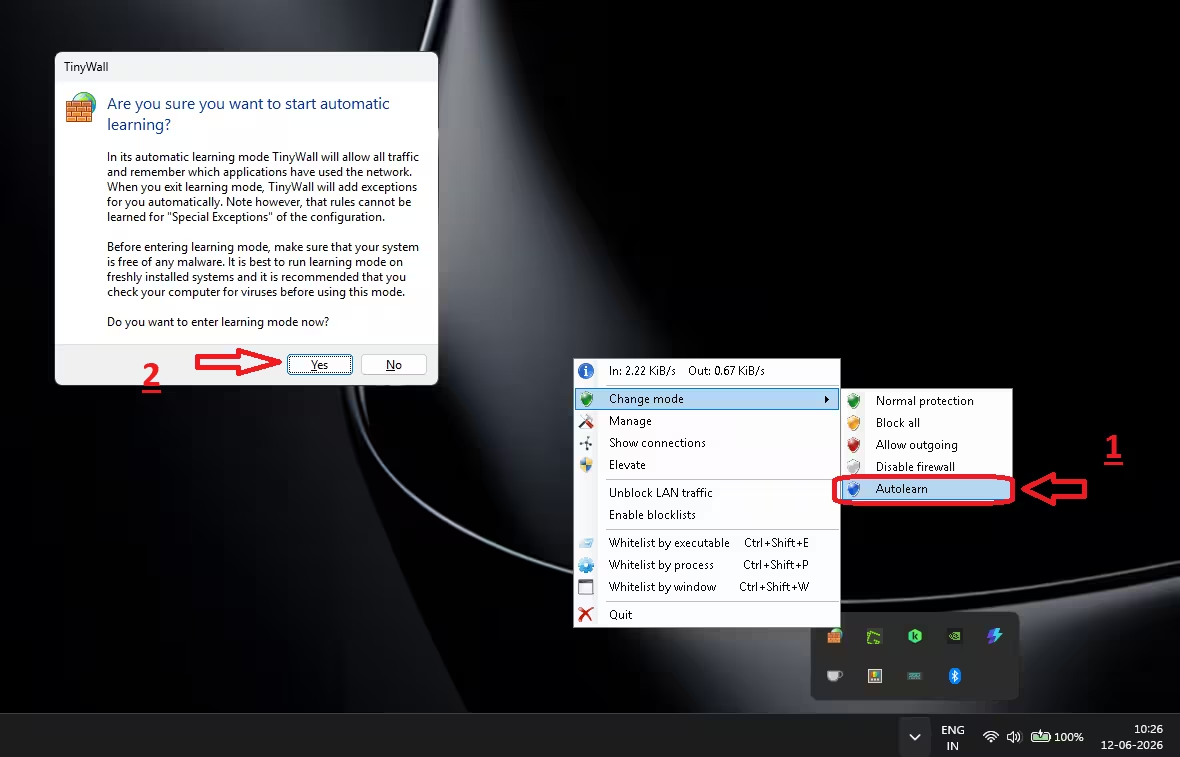
Now just use your PC normally for a little while and deliberately launch your daily essentials: web browser, email client, Steam, FTP client, cloud sync tools — whatever you actually use.
When you’re done, switch back to Normal protection, and every app you touched now holds a permanent firewall exception. This is by far the fastest way to configure TinyWall, turning a potential hour of manual whitelisting into a coffee break.
Five Firewall Modes for Five Situations
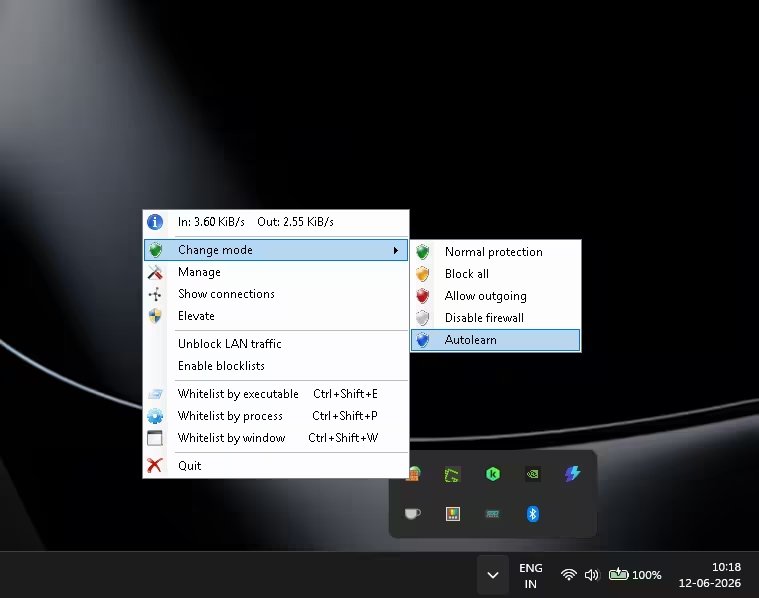
The Change mode submenu gives you five protection levels, and switching between them is instant:
- 🟢 Normal protection — the default. Whitelisted apps connect freely; everything else is blocked. Live here.
- 🟡 Block all — a network kill switch. Nothing gets in or out, whitelist or not. Brilliant when you suspect an infection or want to work offline with zero distractions.
- 🔴 Allow outgoing — every outbound connection flows freely while inbound stays filtered. A looser mode for troubleshooting.
- ⚪ Disable firewall — turns TinyWall’s filtering off entirely, dropping you back to the plain native Windows firewall. For diagnostics only; don’t camp here.
- 🔵 Autolearn — the whitelist-building mode covered above.
The tray menu also offers a quick toggle to Unblock LAN traffic — essential if you use network printers, a NAS drive, or local file sharing.
Managing Exceptions Like a Power User
For finer control, right-click the tray icon → Manage → Application Exceptions tab. This is your firewall’s guest list, laid out in a clean sortable table — and version 3.5.1 even added a “Last Modified” column so you can see when each rule changed.
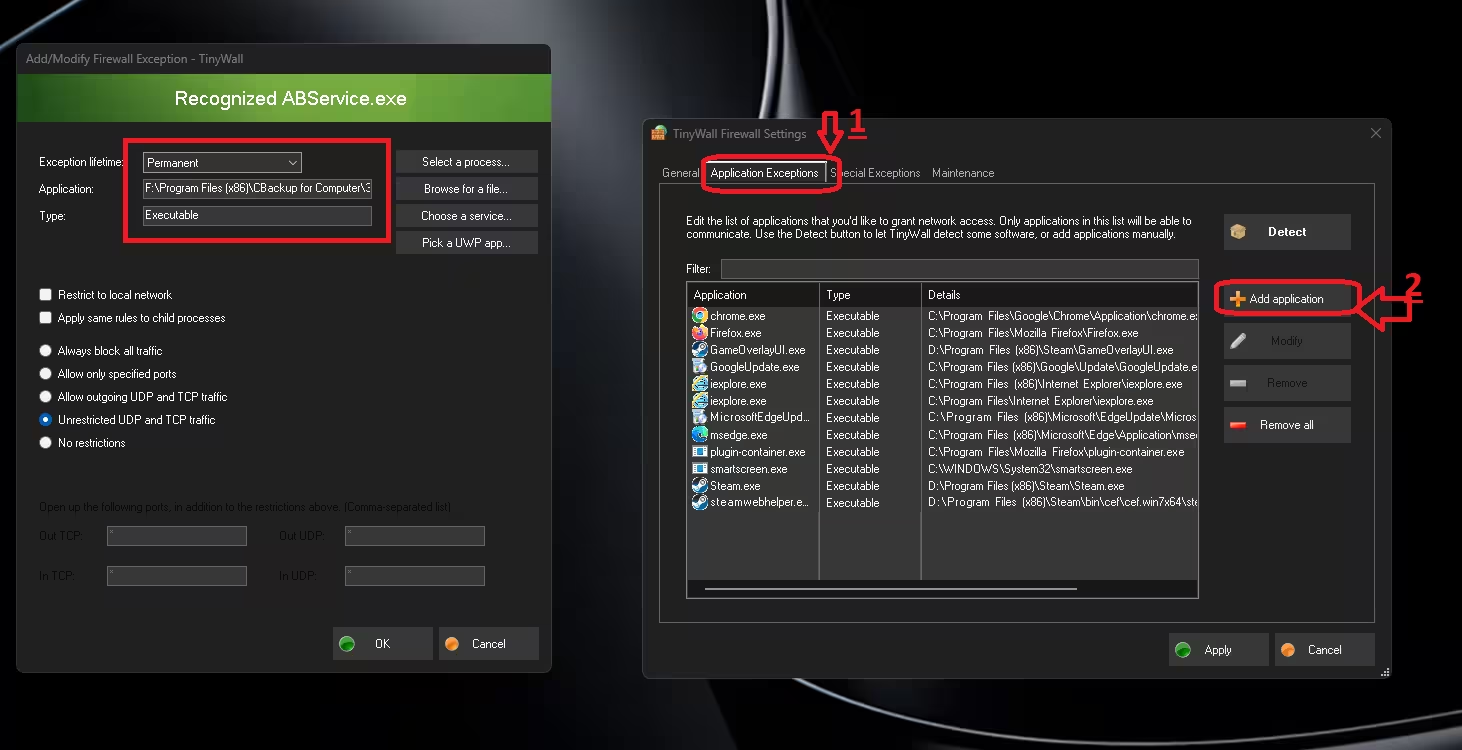
Click Add application → Browse for a file and you can go as deep as you like: set an exception’s lifetime (permanent, or auto-expiring after hours or days — perfect for a one-off download tool), restrict an app to your local network only, allow only specific TCP/UDP ports, or apply the same rules to child processes. The Detect button scans your system for known software and offers to whitelist it in bulk. Crucially, none of this complexity is forced on you. The defaults are sane; the depth is there when you want it.
The Hidden Extras: Blocklists, Hosts Protection & X-Ray Vision
Three lesser-known features push TinyWall beyond simple whitelist management — and two of them are off by default, so most users never discover them.
1. Two built-in blocklists
Head to the General tab of the settings and you can enable a pair of optional blocklists. The first slams shut a set of ports notorious for malware communication. The second works at the domain level, blocking known malware hosts and advertising domains — effectively giving you a light system-wide ad-blocker as a free bonus. You can also flip blocklists on straight from the tray menu via Enable blocklists.
2. Hosts file protection
The Windows Hosts file is a favorite target for malware, which quietly edits it to redirect your traffic — sending “yourbank.com” to a phishing server, for instance. TinyWall can lock the Hosts file against any modification, closing off one of the oldest tricks in the malware playbook.
3. Connection monitoring
Choose Show connections from the tray menu and TinyWall reveals every active connection on your machine — which process opened it, on which ports, and to which remote addresses. It’s a built-in X-ray for answering the eternal question: “what on earth is my PC talking to right now?” Spot an app being unusually chatty, and you can block it on the spot.
Performance: The 14.8 MB Receipt
Security software has a reputation for eating RAM like popcorn. So we let TinyWall run for days, then opened Task Manager for the receipt:
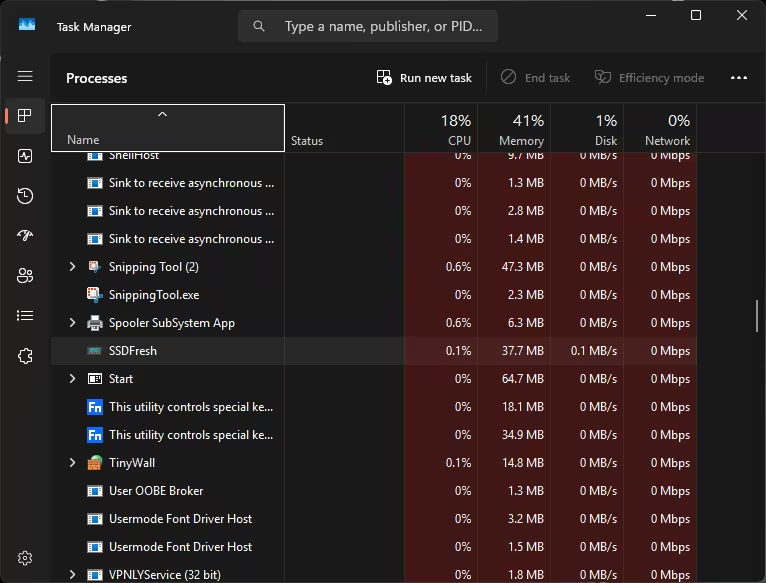
14.8 MB of memory. 0.1% CPU. For context, a single Chrome tab routinely uses ten times that. Commercial firewall suites commonly sit between 100–300 MB. And because the actual packet filtering happens inside the Windows kernel engine that runs regardless, TinyWall’s added performance cost is effectively a rounding error. On our test machine — a mid-range gaming laptop — there was no measurable impact on boot time, game latency, or download speeds. It is, true to its name, tiny.
What’s New in TinyWall 3.5.1?
The June 2026 update is a polish release focused on speed and housekeeping: faster Connections, Processes and Settings windows, smarter handling of UWP (Microsoft Store) apps, the new Last Modified column for exceptions, and fewer unnecessary config writes. Nothing flashy — which is very on-brand for a tool whose entire identity is staying out of your way.
Pros and Cons
✅ What We Loved
- Absolutely zero popups — the cure for security fatigue
- Featherweight: <2 MB installer, ~15 MB RAM
- Autolearn mode makes setup nearly automatic
- No kernel drivers = no stability or AV conflicts
- Bonus blocklists (malware ports + ad/malware domains)
- Hosts file protection and live connection viewer
- Tamper protection + optional password lock
- Genuinely free, open source, zero telemetry
- Runs on x86, x64 and ARM Windows machines
❌ What Could Be Better
- Day-one “everything is blocked” surprise confuses new users
- No popup alerts also means no real-time notification when something is blocked — you investigate yourself
- Multi-executable apps (like FileZilla) need extra whitelist entries
- The settings UI looks dated next to Windows 11’s design language
- No per-app bandwidth graphs or usage history
Who Should (and Shouldn’t) Use TinyWall
Install TinyWall if you: find the native Windows Firewall interface a maze; want real outbound traffic control without babysitting popups; run an older, low-spec, or ARM-based PC where every megabyte matters; share a computer with family members who click Allow on anything; or simply believe security software should be silent, free, and honest about what it collects (nothing). Skip it if you: want detailed real-time alerts the moment something is blocked, need slick per-app traffic dashboards, or aren’t willing to spend ten minutes whitelisting your apps on day one. In those cases, a tool like Windows Firewall Control offers a more notification-driven approach — though with more noise.
🏁 Techno360 Verdict
4.5 / 5 TinyWall is what happens when a developer optimizes for the user’s attention instead of fighting for it. It takes the excellent firewall engine Windows already has, locks it down to deny-by-default, and hands you a whitelist workflow so frictionless you’ll forget it’s there — which is precisely the point. The visuals won’t win design awards and the day-one blocking ritual costs it half a star, but as a free, sub-2 MB, zero-popup security upgrade with bonus ad-blocking and Hosts file armor, TinyWall remains the quiet champion of free firewalls in 2026. ⬇️ Download TinyWall 3.5.1 (Free, Official Site)
Frequently Asked Questions
Is TinyWall completely free?
Yes. TinyWall is 100% free, open-source software released under the GPLv3 license. There are no paid tiers, ads, trials, or feature locks. The developer accepts optional donations, and the full source code is publicly available on GitHub.
Does TinyWall replace Windows Firewall?
No — and that’s its biggest strength. TinyWall is a controller that hardens and manages the Windows Defender Firewall engine already built into Windows. It installs no kernel drivers, so it can’t destabilize your system, and it adds tamper protection so malware can’t silently modify your firewall rules.
Why did all my apps lose internet after installing TinyWall?
That’s TinyWall’s secure-by-default design working as intended: nearly all outgoing connections are blocked until you whitelist the apps you trust. The fastest fix is Autolearn mode — right-click the tray icon, choose Change mode → Autolearn, use your PC normally for a while, then switch back to Normal protection. Everything you used gets whitelisted automatically.
An app is still blocked even after I whitelisted it. Why?
It probably depends on more than one executable. FileZilla, for example, needs both filezilla.exe and fzsftp.exe allowed before SFTP transfers work. Open the app’s installation folder, look for helper executables, and add them via Whitelist by executable (Ctrl+Shift+E) or the Application Exceptions tab.
Is TinyWall safe to use in 2026?
Yes. TinyWall has been actively developed since 2011, with version 3.5.1 released in June 2026. It’s open source (anyone can audit the code), collects zero telemetry, and is distributed via the developer’s official site and major trusted download portals.
How much RAM does TinyWall use?
In our Windows 11 testing, TinyWall used just 14.8 MB of RAM with about 0.1% CPU while actively filtering — less than a single browser tab. Because the actual packet filtering is done by the built-in Windows Firewall engine, TinyWall’s performance overhead is negligible.
Can TinyWall block ads?
Partially, yes. TinyWall ships with two optional blocklists you can enable in the General settings tab: one blocks ports commonly abused by malware, and the other blocks known malware and advertising domains system-wide. It’s not a full ad-blocker replacement, but it’s a useful extra layer at zero cost.
Does TinyWall work on ARM Windows laptops?
Yes. TinyWall supports Windows 10 and Windows 11 on x86, x64, and ARM architectures, so it runs on Snapdragon-powered Copilot+ laptops as well as traditional Intel and AMD machines.
TinyWall vs Windows Firewall Control — which is better?
They take opposite approaches. TinyWall blocks everything silently and has you whitelist apps with zero notifications. Windows Firewall Control notifies you each time a new program tries to connect so you can decide on the spot. Choose TinyWall if popups annoy you; choose WFC if you want real-time visibility into every connection attempt.
Tested on Windows 11 with TinyWall 3.5.1. Have you tried TinyWall, or are you team popup-firewall? Tell us in the comments below — and if this review helped, share it with that one friend whose PC has 14 toolbars.


Discover more from Techno360
Subscribe to get the latest posts sent to your email.
You must be logged in to post a comment.