
⚡ TL;DR — Before You Read
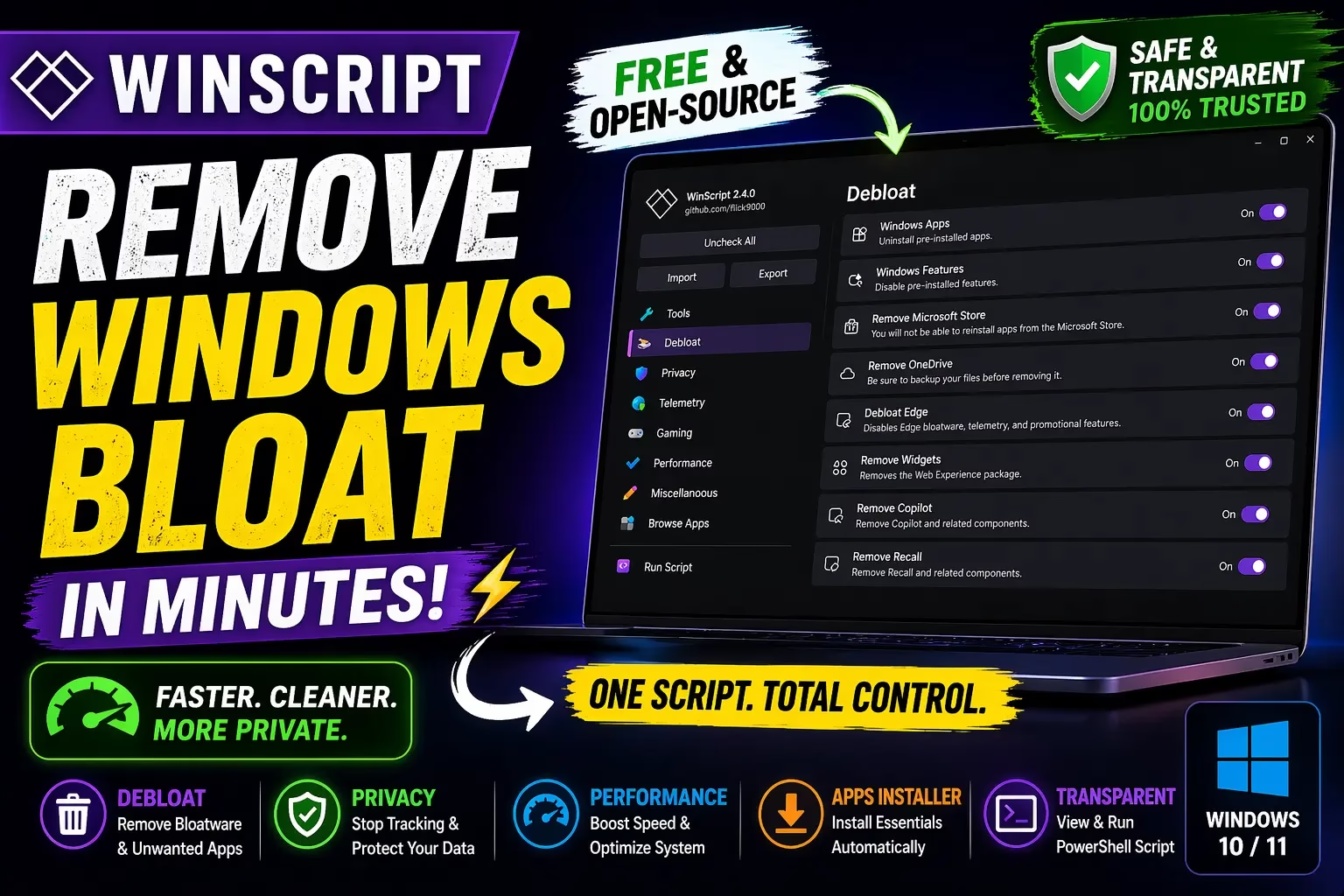
In about 5 minutes, WinScript can remove pre-installed bloatware, disable Windows tracking, and automatically install the apps you actually want — all from a single PowerShell script you review before running. But some tweaks can break features if used without care. Read on to know exactly which ones to enable and which to skip.
Let’s be honest — Windows 11 out of the box isn’t quite the lean, mean OS many of us wish it was. Between the pre-installed apps you never asked for, the telemetry quietly phoning home, Copilot sitting in the taskbar, and Recall lurking in the background, there’s a lot to clean up before a fresh Windows installation feels truly yours.
I’ve tried a few tools over the years for this job. Some are too aggressive; others are confusing. But when I came across WinScript, something felt immediately different — and after spending time with version 2.4.0, I can say it’s now my go-to recommendation for anyone who wants smarter control over their Windows environment.
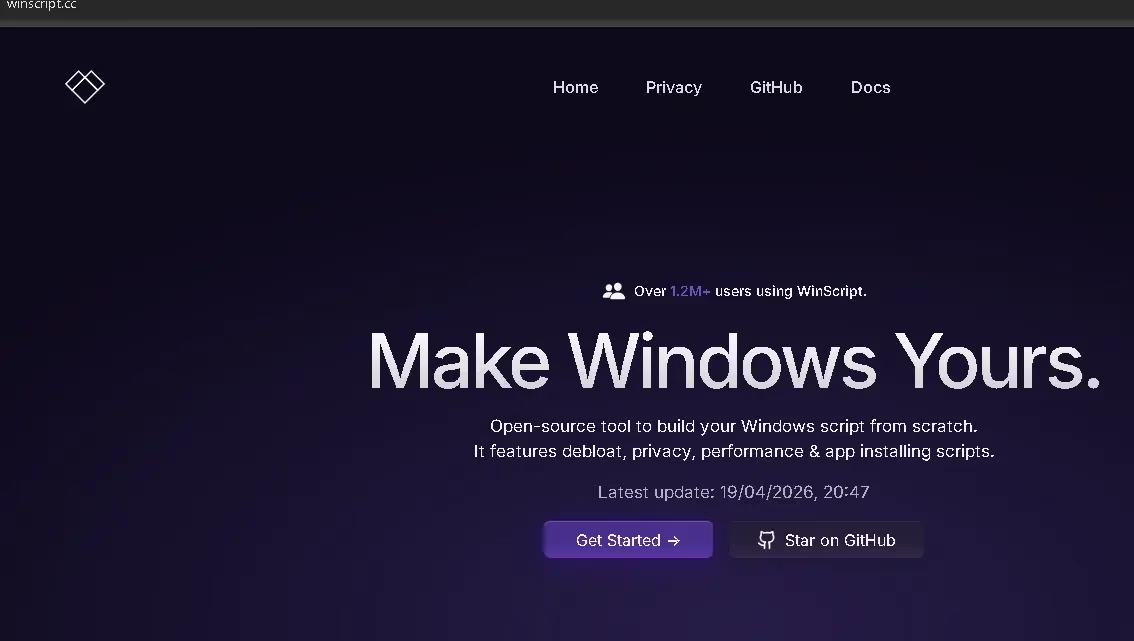
💡 According to the official WinScript website, over 1.2 million users are already running WinScript — and it was updated as recently as April 19, 2026, which tells you this project is very much alive.
What Exactly Is WinScript?
WinScript is a free, open-source Windows customization tool built by developer flick9000 on GitHub. The idea is elegant: instead of manually digging through registry entries and Group Policy settings (or blindly running someone else’s mystery batch file), WinScript lets you pick exactly what you want changed, then generates a clean PowerShell script that applies only those changes.
Think of it as a settings configurator crossed with a script generator. You stay in control at every step. Nothing is hidden, and since the script is auto-generated and fully visible before execution, you know precisely what’s being run on your machine. That transparency alone puts it a cut above most Windows tweaker tools I’ve seen.
The interface mimics the Windows 11 Settings app — clean sidebar navigation on the left, options displayed on the right. If you’ve used the Settings app, you’ll feel right at home. All toggles are clearly labeled with plain-English descriptions, so even less technical users won’t be left guessing what “Disable WPBT” actually does.
Desktop App or Online Version — Your Choice
WinScript gives you two ways to use it. There’s a desktop app (available as both an installer and a portable .exe from GitHub), and an online version accessible at online.winscript.cc — handy if you want to prepare a script before reinstalling Windows, or if you’re setting up someone else’s machine remotely.
The desktop app (v2.4.0 at time of writing) weighs in at just 3 MB for the installer or 10 MB for the portable version — impressively lightweight for everything it does. One important note: run it as Administrator. Since many of the tweaks involve system-level settings, elevated privileges are necessary for the script to execute correctly.
Download WinScript
Free & Open-Source — Windows 10 / 11
🛡️ Safe, transparent & fully open-source. Windows Defender may show a security warning due to system-level script generation — review the source code on GitHub before running if you have concerns.
A Deep Dive Into Every Section
Let’s walk through each category WinScript covers, because there’s more here than the homepage lets on.
🔧 Tools — The Housekeeping Essentials
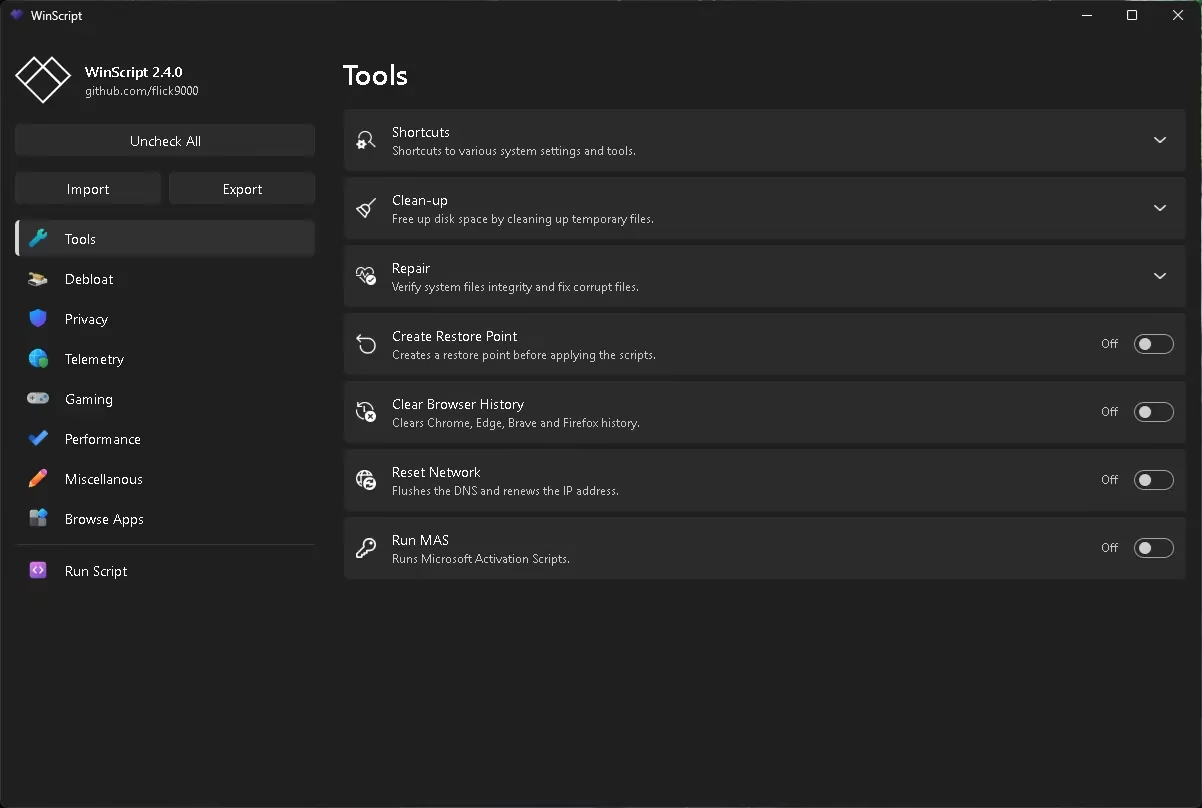
This is where you’d typically start. The Tools section covers system maintenance tasks: running a clean-up to wipe temporary files and free up disk space, a repair option that verifies system file integrity and fixes corruption using Windows’ built-in tools, and the option to create a restore point before any changes are applied — a smart safety net I always recommend enabling.
You can also clear browser history across Chrome, Edge, Brave, and Firefox simultaneously, reset your network (flush DNS + renew IP), and even trigger system activation scripts — use that last one only if you know what it does and have a legitimate use case.
🗑️ Debloat — Take Back Your Windows
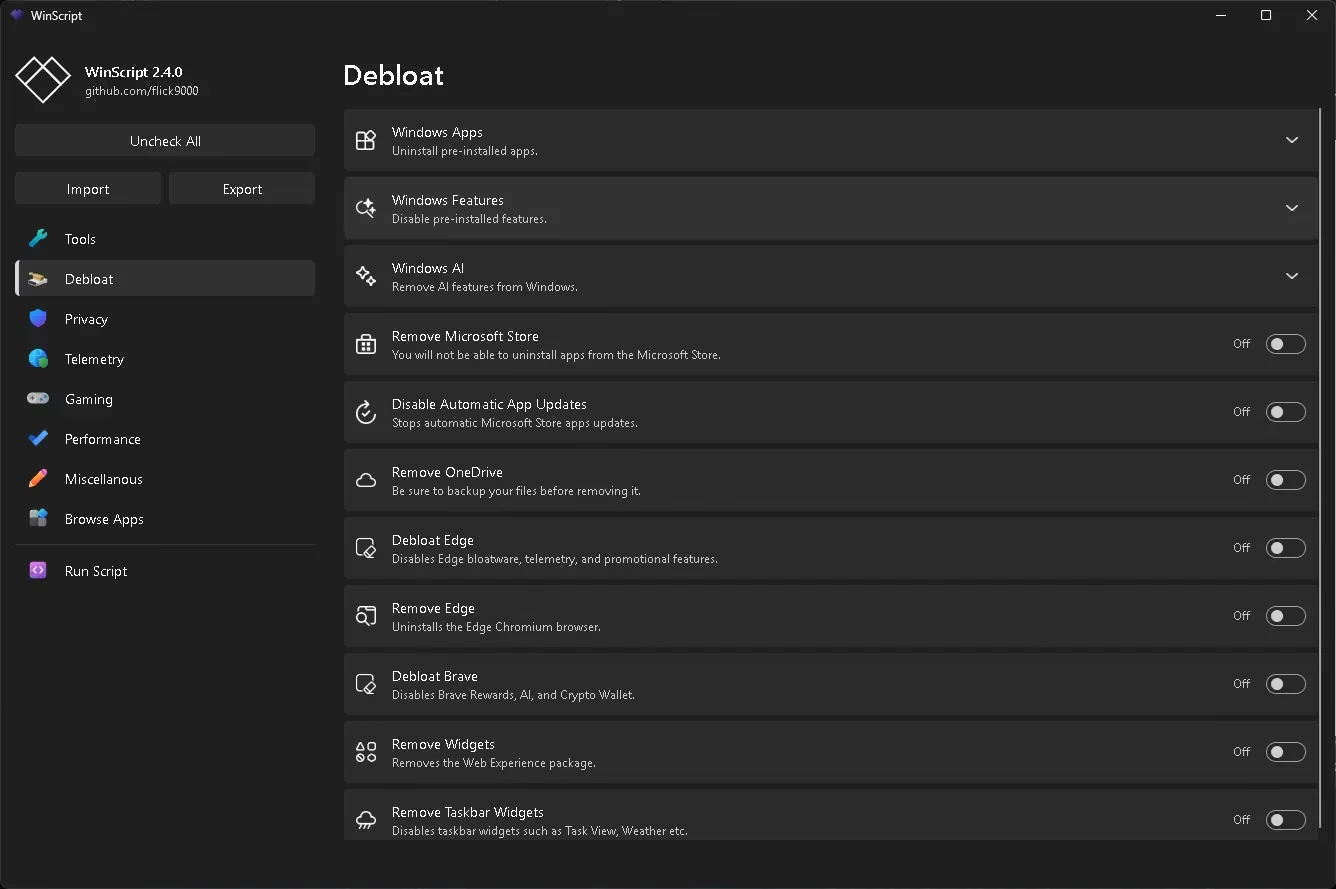
This is where WinScript really shines. The Debloat section lets you surgically remove the Windows features and apps you never wanted. Pre-installed apps? Gone. The disputed Recall function? Removed. Copilot, Widgets, OneDrive, Edge, and even the Microsoft Store can all be uninstalled or disabled through simple toggles.
There’s also a Debloat Edge option (for those who want to keep the browser but kill its telemetry and promotional features) and even Debloat Brave, which disables Brave Rewards, AI, and Crypto Wallet — a surprisingly thoughtful touch for Brave users who find those features annoying.
🔒 Privacy — Limit What Windows Knows About You
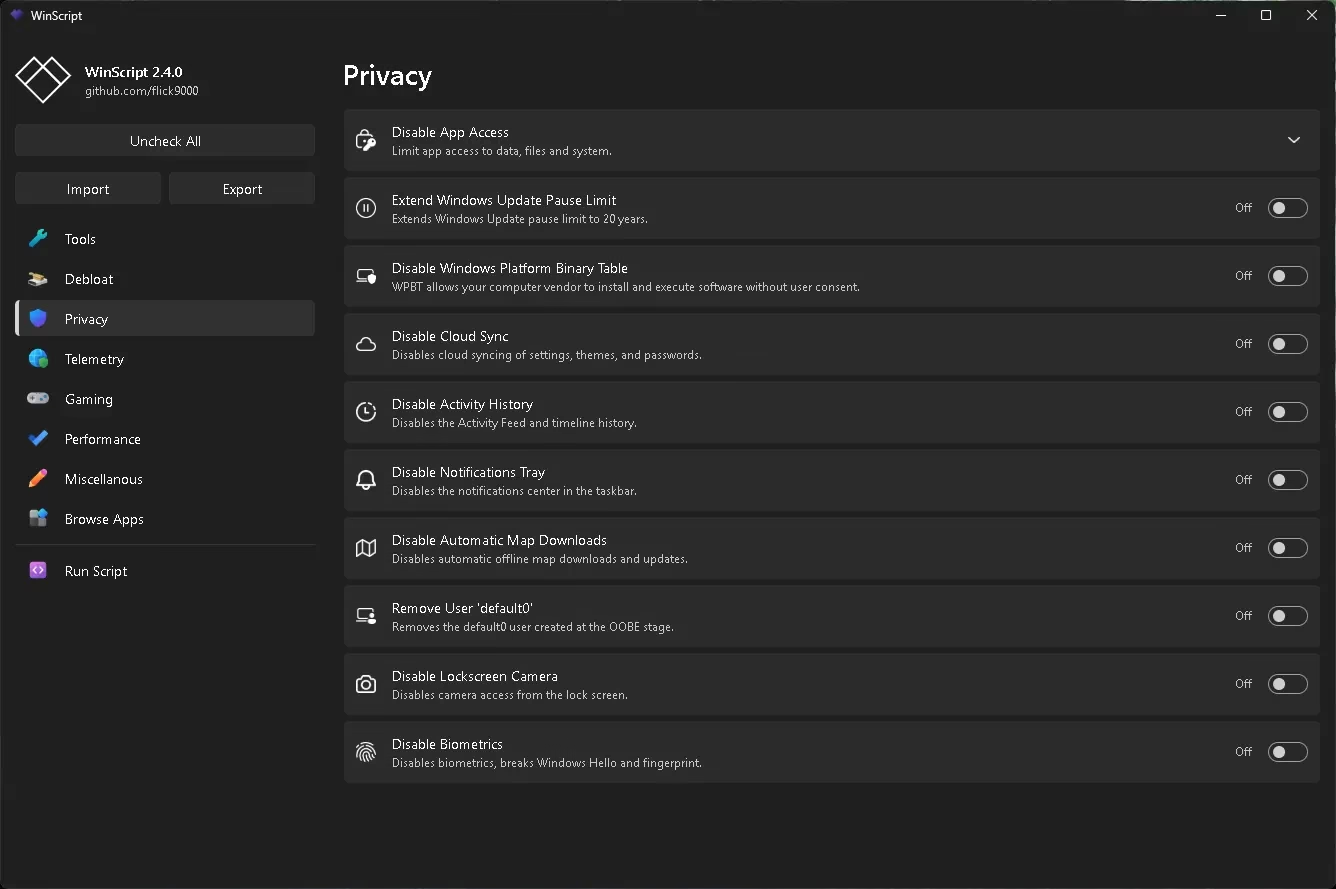
The Privacy tab is comprehensive without being overwhelming. Options include disabling app access to your data, files, and system; disabling Cloud Sync (settings, themes, passwords); killing the Activity History and timeline feed; and removing the default0 user that Windows quietly creates during setup (OOBE stage).
There’s also the option to extend Windows Update pause limit to 20 years — which sounds absurd but is surprisingly useful if you prefer to stay in control of update timing. And yes, you can disable Biometrics, the lock screen camera, and even automatic offline map downloads.
📡 Telemetry — Stop the Data Collection
This section tackles both Microsoft’s own telemetry and telemetry from third-party apps. You can choose exactly which diagnostic data gets sent to Microsoft, block the Adobe network, disable Nvidia telemetry, kill VS Code’s data collection, and even stop Google and Adobe background update services from phoning home.
There’s also a Manage Windows Update section here, giving you fine control over when and how updates are applied — delay, disable, or reset as needed.
🎮 Gaming — Small Tweaks, Real Gains
For the gamers, WinScript includes a focused set of performance tweaks: disabling Fullscreen Optimizations (which can sometimes hurt performance in older games), turning off Mouse Acceleration for more consistent aim, and disabling Game Bar and Captures — handy if you never use them and want to reclaim the resources.
Interestingly, Disable Game Mode is also an option here. While counterintuitive, Game Mode can occasionally cause stuttering on certain hardware, so having the option to turn it off is appreciated.
⚡ Performance — DNS, Power Plans, and Services
The Performance section lets you switch your DNS provider (Google, Cloudflare, Quad9, OpenDNS, or AdGuard) with a single radio button. You can also choose your Windows Power Plan — Balanced, High Performance, or Ultimate Performance — and set Windows services to Manual mode so they only start when actually needed, which can noticeably speed up boot times.
🎟️ Miscellaneous — The Quality-of-Life Stuff
This is honestly one of my favorite sections. Restore the classic right-click context menu on Windows 11 (the old one is just faster), show file extensions in Explorer, disable Sticky Keys (goodbye accidental activation!), move taskbar icons to the left, and enable Dark Mode system-wide. There’s even an option to disable Multiplane Overlay (MPO), which is a known fix for screen flickering issues on certain GPUs.
📦 Browse Apps — Your Post-Install App Installer
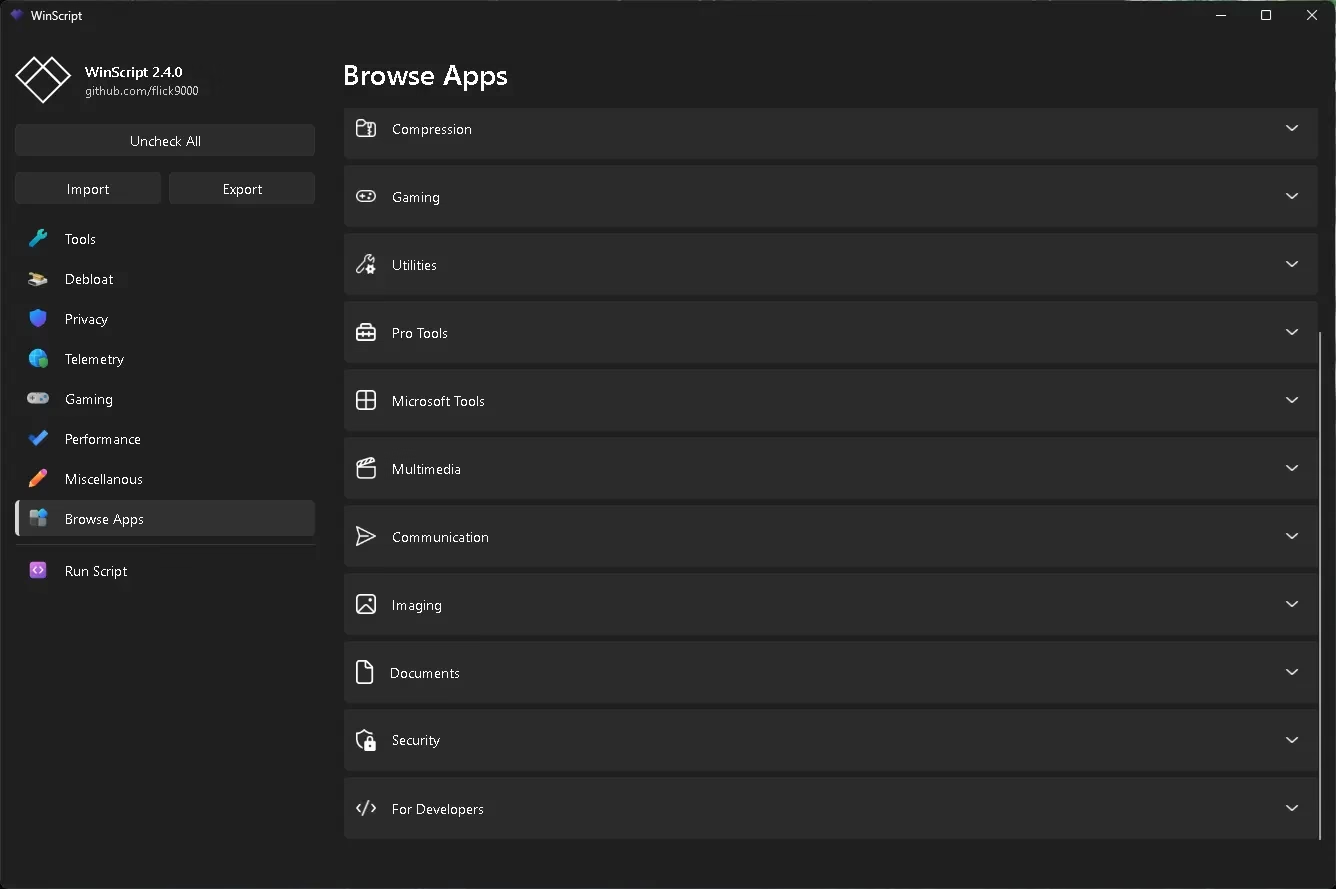
This is WinScript’s bonus feature that bumps it into a different tier. Instead of hunting for installers after a fresh Windows install, the Browse Apps section lets you select from a curated library of popular apps across categories: Compression, Gaming, Utilities, Pro Tools, Microsoft Tools, Multimedia, Communication, Imaging, Documents, Security, and For Developers.
The v2.4.0 changelog added DropBox, Google Drive, MEGASync, TreeSize, WinDirStat, OpenShot, ClamAV, Kaspersky, and ESET to the library. These installations are bundled into the same script, so everything happens in one automated run.
How to Get Started — Step by Step
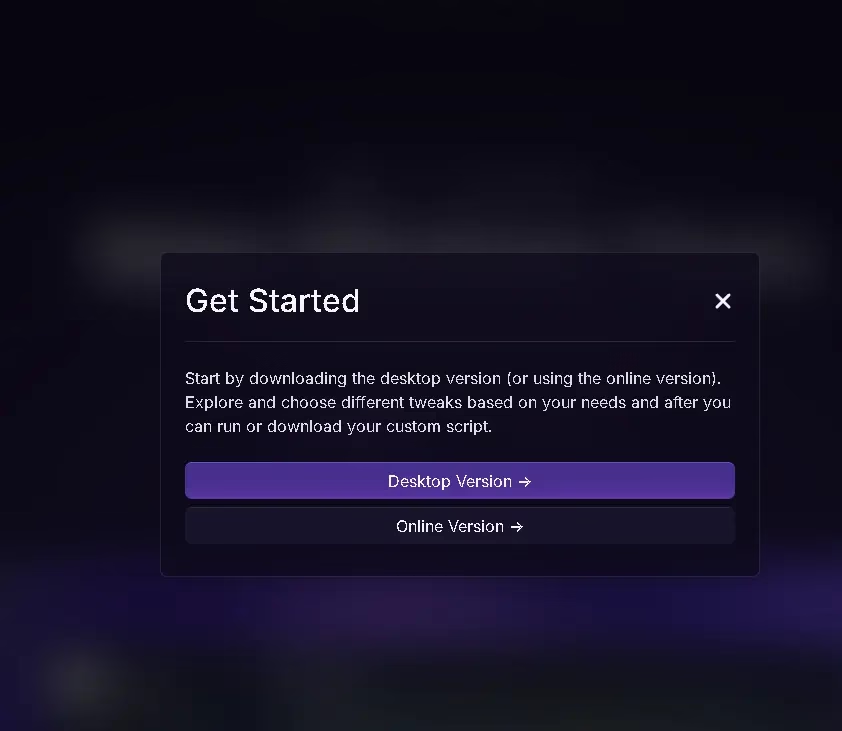
- 1Visit winscript.cc and click “Get Started”You’ll be prompted to choose between the Desktop Version or the Online Version. For the best experience, go with the desktop app.
- 2Download from GitHubGrab either the installer (winscript-installer.exe, 3.07 MB) or the portable version (winscript-portable.exe, 10.3 MB). No installation required for the portable build.
- 3Run as AdministratorRight-click the .exe and choose “Run as Administrator.” This is required for system-level tweaks to work.
- 4Select your tweaksGo through each section — Tools, Debloat, Privacy, Telemetry, Gaming, Performance, Miscellaneous, and Browse Apps — toggling on what you want. Use Import/Export to save your configuration for future use.
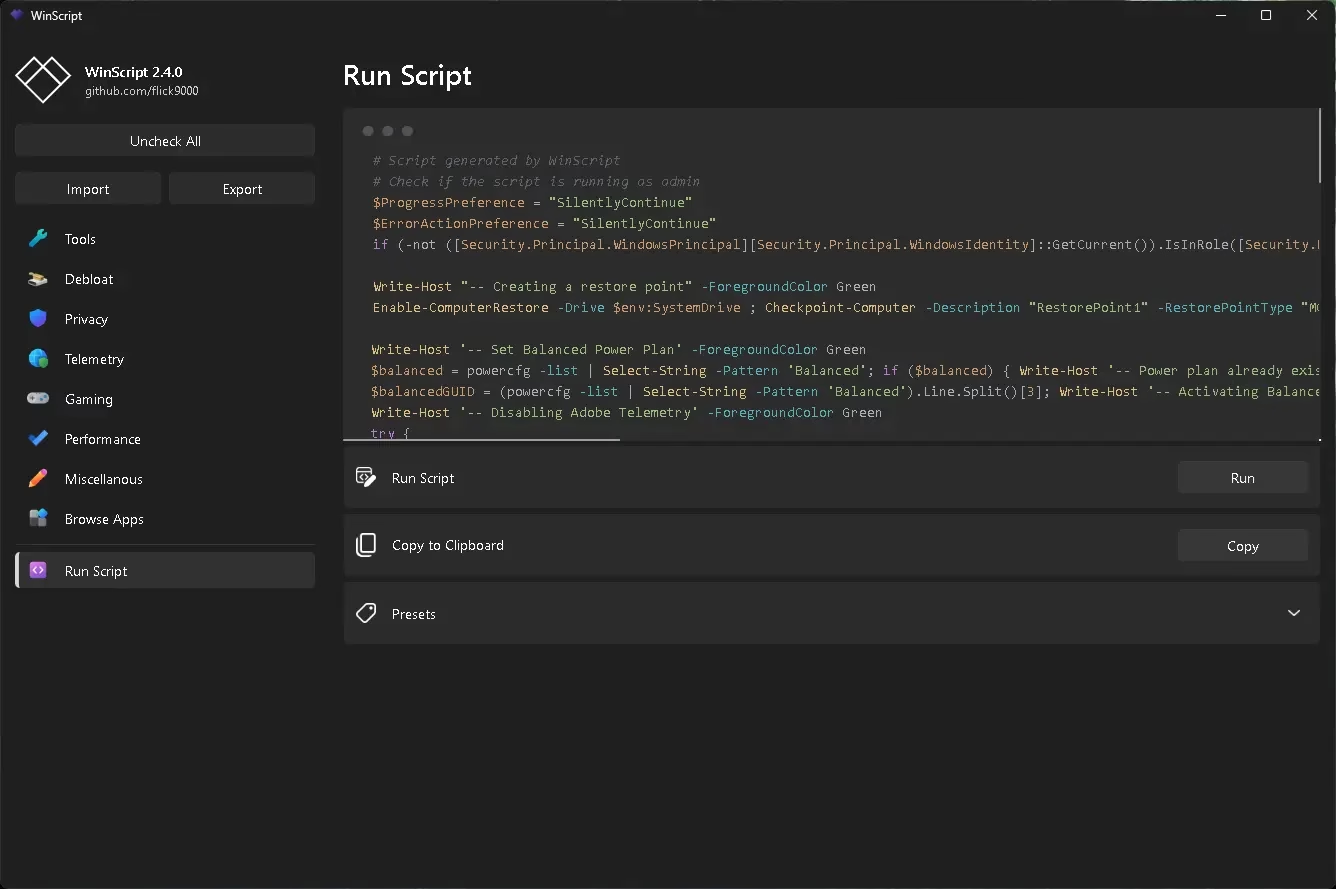
- 5Review & Run the ScriptClick “Run Script” in the left sidebar. The generated PowerShell script is shown in full before execution. Click Run to apply all changes, or Copy to Clipboard to review it externally first.
WinScript vs. The Alternatives
The table makes the gap clear: WinScript is the only tool here that combines script transparency (you see and approve what runs), a browser-based online builder, and a built-in app installer — making it uniquely suited as both a privacy tool and a full PC setup utility in one. No other free alternative checks all five columns.
Is WinScript Safe?
This is the question everyone asks, and rightly so. The short answer: yes, it’s safe — but with context.
Security tools — including Windows Defender — often flag applications that generate or execute PowerShell scripts modifying system settings. Since WinScript does exactly that, you may see a security warning when launching the desktop app. This is a heuristic trigger, not evidence of malware. Because the project is fully open-source on GitHub, you can read every line of code before trusting it — and reviewing the generated script before clicking Run is always the right move regardless of which tool you use.
The responsible way to use any tool like this is to create a restore point first (WinScript has this option built in), read through the generated script before clicking Run, and avoid enabling tweaks you don’t understand. For the vast majority of users, sticking to the obvious options — debloating bloatware, disabling telemetry, setting power plans — carries minimal risk.
Who Should NOT Use WinScript
Recommending a tool honestly means being upfront about who it isn’t right for. WinScript is powerful precisely because it modifies system behaviour at a deep level — and that’s exactly why it’s not for everyone.
Skip WinScript if you are:
✕
✕
✕
✕
Best Safe Settings — Recommended Starting Point
If you’re new to Windows optimizers, here’s a curated starting configuration that delivers real benefits with virtually no risk of breaking anything important. Think of this as your Day 1 setup.
🔧 Tools
- ✓ Create Restore Point (always first)
- ✓ Run Disk Clean-up
- ✓ Repair (SFC + DISM)
🗑️ Debloat
- ✓ Remove Widgets
- ✓ Remove Taskbar Widgets
- ✓ Debloat Edge (not Remove)
- ✓ Disable Auto App Updates
🔒 Privacy
- ✓ Disable App Access
- ✓ Disable Activity History
- ✓ Disable Lockscreen Camera
- ✓ Disable Auto Map Downloads
📡 Telemetry
- ✓ Disable Telemetry (basic)
- ✓ Disable Nvidia Telemetry
- ✓ Disable VS Code Telemetry
🎟️ Miscellaneous
- ✓ Set Classic Right Click Menu
- ✓ Show File Extensions
- ✓ Disable Sticky Keys
- ✓ Enable Dark Mode
⚠️ Use With Care
- ⚡ Remove OneDrive (backup first)
- ⚡ Remove Microsoft Store
- ⚡ Disable Biometrics
- ⚡ Set Services to Manual
What Difference Does It Actually Make?
This is the fair question to ask about any Windows optimizer. The answer depends heavily on your starting point — a brand-new OEM machine loaded with manufacturer bloatware will show more improvement than a clean Windows install from Microsoft’s ISO.
That said, here’s what you can realistically expect from a focused WinScript run on a typical Windows 11 PC:
✓
✓
✓
→
Quick Verdict
Techno360 Editorial Review · WinScript v2.4.0
/ 10
⭐ HIGHLY RECOMMENDED
WinScript is exactly the kind of tool that makes you wonder why Microsoft doesn’t ship something like this by default. It’s transparent, lightweight, actively maintained, and genuinely useful — whether you’re doing a fresh Windows install or cleaning up a machine that’s been accumulating bloat for years. The script-generation approach is the right call: no black boxes, no surprises. The Browse Apps section pushes it firmly into “must-have” territory for anyone setting up a new Windows PC.
👍 Pros
- ✓100% free & open-source
- ✓Fully transparent PowerShell script
- ✓Covers debloat, privacy, telemetry & apps
- ✓Online version — no install needed
- ✓Import/Export configurations
- ✓Actively maintained (1.2M+ users)
- ✓Beginner-friendly UI
👎 Cons
- ✗Requires admin rights to run
- ✗Windows Defender false positive
- ✗No undo/rollback within app
- ✗Some aggressive options need care
Disclosure: This article is an independent editorial review. Techno360 is not affiliated with WinScript or its developer. Links to GitHub are direct and unaffiliated.
Discover more from Techno360
Subscribe to get the latest posts sent to your email.

You must be logged in to post a comment.